
keymeter


A live dashboard for one LLM gateway API key: how much of its budget is spent, how fast it is going, and when it will run out. It works with a LiteLLM proxy, OpenRouter or DeepSeek, in the browser or in the terminal.
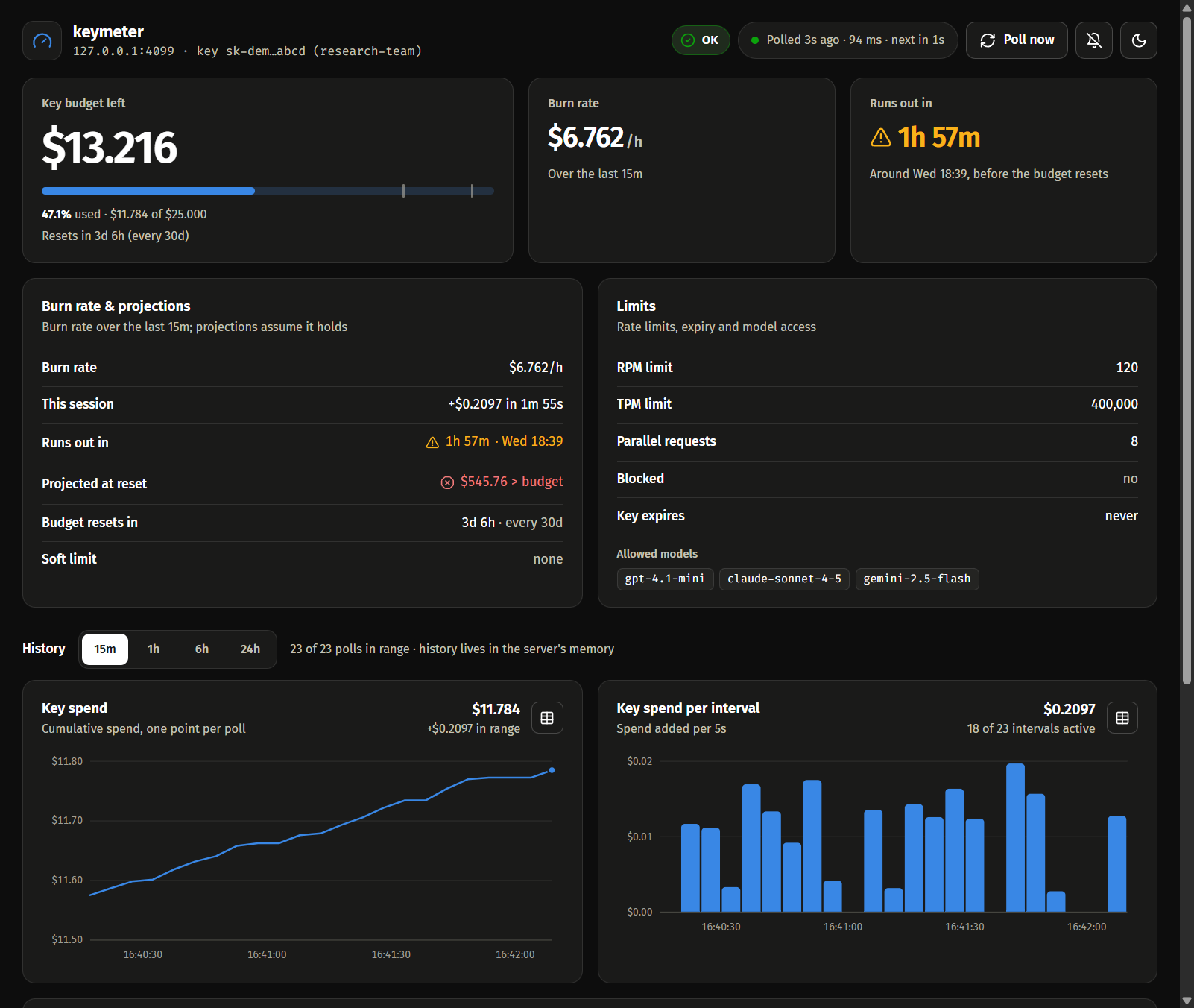
LiteLLM's admin UI needs an admin key. keymeter only needs the key you were handed, which is often all you have: a team key at work, a key for a hackathon or a course. It polls the gateway's read-only key endpoint (no tokens spent) and shows:
- spend vs. budget, what is left, and when the budget resets (on DeepSeek, the account's balance)
- the burn rate over the last 15 minutes, when the budget runs out at that rate, and the projected spend at reset
- charts of spend over time and spend per interval, with a table view
- the key's expiry, and on LiteLLM spend per model, per-model budgets, rate limits, allowed models and blocked state
- an event log, and optional sound and desktop alerts when the status changes or a budget passes 80% or 95%
The key stays in the keymeter process. The browser only ever sees a masked version of it.
Install
pipx install keymeter # or: uv tool install keymeter
keymeter needs Python 3.10 or newer.
Quick start
keymeter web
Open http://localhost:8765, pick the gateway (LiteLLM proxy, OpenRouter or DeepSeek), paste the key and, for LiteLLM, the proxy's URL. keymeter checks the key with one read-only request and starts watching it. The Keys button at the top adds more keys, switches between them and forgets them.
In the terminal, the same goes like this:
keymeter add      # asks for the gateway, the key (typing is hidden) and the URL, checks the key, saves it
keymeter tui      # asks which saved key to watch; Ctrl+C goes back to that question
Saved keys work from any directory, so from then on keymeter web, keymeter tui or keymeter json
is all it takes.
Commands
| Command | |
|---|---|
keymeter web [NAME] |
browser dashboard on http://localhost:8765; its Keys button adds, picks and forgets keys |
keymeter tui [NAME] |
live dashboard in the terminal; without NAME it first asks which saved key to watch (or adds one), and Ctrl+C goes back to that question. On LiteLLM it also shows the team's budget and keys when the key may read them |
keymeter tui NAME --once |
print one snapshot and exit; exits with code 1 when the status is not OK, like json |
keymeter json [NAME] |
print one snapshot as JSON, for scripts and cron jobs; exits with code 1 when the status is not OK (the key or its team over budget or blocked, the key expired, the balance used up, or the gateway unreachable or answering with an error) |
keymeter add |
save a key: asks for the gateway, the key, the URL (LiteLLM) and a name, and checks the key first |
keymeter keys |
list the saved keys, masked; * marks the one web, tui and json watch |
keymeter use NAME |
watch the saved key NAME from now on |
keymeter remove NAME |
forget the saved key NAME (the key itself keeps working) |
NAME picks a saved key for that run only; KEYMETER_KEY and ./.env aren't looked at then. Without
it, keymeter watches KEYMETER_KEY when it is set (see
Configuration), else the saved key watched
last. Run in a terminal with no key at all, json and tui --once ask for one first.
Options (keymeter COMMAND -h lists them per command):
| Option | Default | |
|---|---|---|
--gateway |
auto |
litellm, openrouter, deepseek, or auto to pick from the URL's host, or from the key when no URL is set |
--url |
depends on the gateway | gateway base URL; http://localhost:4000 for LiteLLM, https://openrouter.ai/api for OpenRouter, https://api.deepseek.com for DeepSeek. A trailing /v1 is fine, and so is a bare https://openrouter.ai. |
--env FILE |
.env |
where to read settings from; ./.env is read only when KEYMETER_KEY is not already set in the environment and the file sets it, and only for its KEYMETER_ settings |
-i, --interval |
15 |
seconds between polls (web, tui) |
--window |
15 |
burn-rate window in minutes (web, tui) |
--warn / --crit |
0.8 / 0.95 |
alert thresholds, as a fraction of a budget (web, tui) |
--log FILE.csv |
also append every poll to a CSV file (web, tui); it covers the first key watched, so switching keys doesn't mix their spend |
|
--host / --port |
127.0.0.1 / 8765 |
where the dashboard listens (web) |
--no-team |
skip LiteLLM's /team/info (tui, json) |
|
--no-bell |
don't beep on alerts (tui) |
|
--name |
the gateway's name | name for the new key (add) |
--gateway and --url set up the key from KEYMETER_KEY, and answer the questions of add (or of a
first run in a terminal). A saved key keeps the settings it was saved with: keymeter refuses the two
options when it would watch one (save the key again with keymeter add to change them).
The gateway is picked like this when it is auto: OpenRouter when the URL's host is openrouter.ai
or a subdomain of it, or, if no URL is set, when the key starts with sk-or-; DeepSeek when the URL's
host is deepseek.com or a subdomain of it; LiteLLM otherwise.
Configuration
Saved keys
keymeter add and the web dashboard's Keys dialog save keys in keys.json in your user's config
folder: %APPDATA%\keymeter on Windows, $XDG_CONFIG_HOME/keymeter or ~/.config/keymeter
elsewhere. The file holds the keys as they are, readable by your user only (as .env files do).
keymeter keys shows where it is. Delete it to forget every key.
keymeter processes share the file safely: each change is made under a lock (keys.lock, next to it),
and a running keymeter web follows keymeter add, use and remove from a terminal within a few
seconds. Keys a newer keymeter saved, or entries edited by hand that this version can't use, are left
out of the list and kept in the file. If the file is damaged, keymeter says so, and KEYMETER_KEY
still works. KEYMETER_KEY can't name a saved key: it is what the key from the environment goes by.
The web page sends a key to the keymeter process when you add it and never gets it back: the page,
the JSON summary and keymeter keys only show keys masked. The dashboard lets you add, pick or forget
keys only while it listens on this machine alone (the default --host 127.0.0.1), and takes those
requests only as JSON from its own pages, so another website can't change them.
Environment variables and .env
Instead of a saved key, keymeter can take one from the environment, or from a .env file in the
current directory (or the file given with --env). An empty variable counts as unset.
| Variable | |
|---|---|
KEYMETER_KEY |
the API key to watch |
KEYMETER_URL |
gateway base URL |
KEYMETER_GATEWAY |
auto, litellm, openrouter or deepseek |
A key set this way is watched before the saved ones and shows in the web dashboard's Keys dialog as
KEYMETER_KEY, but is never saved. On Windows PowerShell, set the variables with
$env:KEYMETER_KEY = "sk-...". Copy .env.example
to .env to start.
keymeter reads ./.env only when KEYMETER_KEY is not set in the environment and the file sets it,
and takes only the three KEYMETER_ settings from it (a file you name with --env is always read,
and whole). That way a .env in whatever directory you happen to be in, such as a cloned repository
or another program's, can't send your key, or a saved one, to another server or through a proxy.
There is no --key option, because a key typed on the command line ends up in your shell history.
The other NAME=value lines of a file given with --env go into keymeter's environment too (a
variable already set there wins unless it is empty). Python's HTTP client takes its proxy from the environment, so HTTPS_PROXY,
HTTP_PROXY or NO_PROXY in the file apply to the requests to the gateway, and a proxy set that way
can read the key when the gateway URL is plain http://. Pass --env only files you trust.
What each gateway reports
| LiteLLM | OpenRouter | DeepSeek | |
|---|---|---|---|
| Spend, budget, reset time, burn rate, projections | yes | yes | balance, burn rate and run-out time only |
| Key expiry | yes | yes | no |
| Spend per model, per-model budgets | yes | no | no |
| Rate limits, allowed models, blocked state | yes | no | no |
Team budget and team keys (tui, json) |
yes | no | no |
keymeter shows how much of a per-model budget is used only on LiteLLM 1.90 or newer, which reports the spend in each budget's period. Older versions report only all-time spend per model, so keymeter shows the limit alone, with no percentage and no alerts.
On OpenRouter the budget is the key's credit limit. The spend shown is what counts against that limit in the current period. Limits reset at 00:00 UTC: daily, weekly on Monday, or on the 1st of the month. A key without a limit shows its all-time usage and no budget.
DeepSeek reports only the account's prepaid balance, which every key on the account shares. keymeter
shows that balance where the other gateways show the budget left, and when it runs out at the current
burn rate. The spend is what the balance went down by since keymeter started; a top-up adds nothing to
it (spend in the same poll interval as a top-up is missed). The status reads NO BALANCE once DeepSeek
says the balance can't pay for requests, or the balance is zero, and json exits with 1 then. keymeter
reads the USD balance only: an account whose balance is in CNY reads ERROR.
Running it on a server
keymeter web listens on 127.0.0.1 only. To watch it from your laptop, forward the port over SSH:
# on the server
keymeter web

# on your laptop
ssh -N -L 8765:localhost:8765 you@server
Then open http://localhost:8765 on the laptop. Because the browser sees localhost, desktop
notifications work as well (browsers only allow them over HTTPS or on localhost).
On 127.0.0.1, keymeter answers only requests whose Host header is localhost, 127.0.0.1 or
[::1] (with any port), or that have no Host header. This stops another website from reading the
dashboard through DNS rebinding. A reverse proxy in front of it has to send one of those, such as
Host: localhost.
To keep it running after you log out, use tmux, a systemd service, or
nohup keymeter web > keymeter.log 2>&1 &.
keymeter web --host 0.0.0.0 serves the dashboard on every interface instead. There is no login,
so anyone who can reach the port can see the watched key's spend, budget and model usage (not the key
itself) and press "Poll now". The Keys dialog then shows only the watched key, and nothing about the
others; add, pick and forget keys with keymeter add, use and remove on the server, and the
dashboard follows. If you do this, allow only your own IP in the firewall.
How it works
- keymeter calls
GET /key/infoon LiteLLM (plus/team/infofortuiandjson),GET /api/v1/keyon OpenRouter, orGET /user/balanceon DeepSeek. These endpoints are read-only and cost nothing. - The burn rate is the spend added over the burn-rate window, per hour. When spend goes down, keymeter takes it as a budget reset and starts measuring again.
- When the gateway stops answering, polls back off to at most once a minute. The dashboard keeps showing the last numbers it got and says how old they are.
- The charts' history lives in memory for 24 hours and starts over when keymeter restarts. Use
--logto keep a permanent record. - The bell button in the browser turns on alerts: a short sound, plus a desktop notification when the browser allows it.
- In the web UI, switching the theme, the range, between chart and table view, or alerts on and off crossfades. When new data arrives, the big numbers count to their new value and the bars and charts glide instead of jumping; status banners fade in and out, and the dashboard fades in when it replaces the "No quota data yet" card. With reduced motion turned on in your system, only the looping spinner and pulse stop.
Development
git clone https://github.com/hoanghero125/keymeter
cd keymeter
uv sync
uv run pytest
uv run ruff check
Without uv, run python -m venv .venv, activate it, then pip install -e . --group dev (pip 25.1
or newer).
The web UI is plain HTML, CSS and JavaScript in src/keymeter/static, with no build step.
To support another gateway, add an adapter in src/keymeter/gateways/. It fetches the key's data
and translates it into the field names the rest of keymeter uses (LiteLLM's), and has a name and a
label (what keymeter add and the Keys dialog call it); see deepseek.py or openrouter.py for a
small example. Then register it in gateways/__init__.py: add it to GATEWAYS, from which create(),
keymeter add and the Keys dialog take it, and to detect() if auto should pick it.
Releasing
- Set
__version__insrc/keymeter/__init__.pyand add the release toCHANGELOG.md. - Commit and tag, then push the commit and the tag together:
git tag v0.2.0 && git push origin main v0.2.0.
The Release workflow tests and builds the package, then publishes it to PyPI with trusted
publishing, so no API token is involved. The trusted publisher (on PyPI, under the project's
Manage → Publishing) names owner hoanghero125, repository keymeter, workflow release.yml and
environment pypi, the GitHub environment the workflow runs in. If you rename the workflow file or
the environment, update the publisher to match.
License
MIT. keymeter is not affiliated with LiteLLM (BerriAI), OpenRouter or DeepSeek.
1 maintainer

Metadata
1 maintainer
Release files for keymeter 0.2.0
For a detailed explanation of source distributions (sdists) and built distributions (wheels), please see the package formats documentation.
Source distribution (sdist)
| File | Size | Uploaded | |
|---|---|---|---|
| keymeter-0.2.0.tar.gz | 93.8 kB | Details |
Built distribution (wheel)
| File | Interpreter | ABI | Platform | Reset |
|---|---|---|---|---|
| keymeter-0.2.0-py3-none-any.whl | Python 3 | none | any | Details |
Total release size: 165.8 kB
Release files / keymeter-0.2.0.tar.gz
| Download URL | keymeter-0.2.0.tar.gz |
|---|---|
| Size | 93.8 kB |
| Tags | Source |
|
SHA-256 checksum How to use checksums |
6dcc1a035ed4c1d244a8bc8a44c5a77584efc7c60082e6948c1c119fc817c9c8
|
|
BLAKE2b-256 checksum How to use checksums |
8a893b7c934be55185c2eb0dec9c9e6f32406440d0be52709cae5810683a6734
|
| Upload date | |
|
Uploaded using Trusted Publishing? What is trusted publishing? |
Yes |
| Uploaded via |
twine/7.0.0 CPython/3.13.14
|
Provenance
Provenance describes where a file came from. On PyPI, provenance is shared via attestations, which provide a verifiable record of the build or publishing details. View details, limitations and caveats.


PyPI Publish Attestation
PyPI verified that this artifact, at this checksum, originated from the publisher listed below.
Signed by GitHub Actions, verified by PyPI on Oct 11, 2026.
Transparency logRelease files / keymeter-0.2.0-py3-none-any.whl
| Download URL | keymeter-0.2.0-py3-none-any.whl |
|---|---|
| Size | 72.0 kB |
| Tags | Python 3 |
|
SHA-256 checksum How to use checksums |
c0324ea6c3468e19d1157bb7929a7bff684481a51dc4c187d08d0b06b5239d4d
|
|
BLAKE2b-256 checksum How to use checksums |
59333bf3571734ca0e7bd033aafee8c8bc5fd728289b041726dc0dff41a40ba4
|
| Upload date | |
|
Uploaded using Trusted Publishing? What is trusted publishing? |
Yes |
| Uploaded via |
twine/7.0.0 CPython/3.13.14
|
Provenance
Provenance describes where a file came from. On PyPI, provenance is shared via attestations, which provide a verifiable record of the build or publishing details. View details, limitations and caveats.
PyPI Publish Attestation
PyPI verified that this artifact, at this checksum, originated from the publisher listed below.
Signed by GitHub Actions, verified by PyPI on Oct 11, 2026.
Transparency log













