
This release is a pre-release and may not be stable for production use.
labelImg++
Image and video annotation for machine learning


labelImg++ annotates bounding boxes, polygons, and keypoints on images and video. Draw and label objects without leaving the canvas, use optional single-click Smart Select, or propagate video tracks and review suggestions before exporting a dataset. It builds on the original LabelImg by Tzutalin.
4.0.0rc2 — PyQt6 release candidate. Use Python 3.10–3.13 and PyQt6>=6.11,<6.12. Select this candidate with an explicit version pin; a normal stable PyPI install does not select prereleases. The historical 4.0.0rc0 prerelease uses PyQt5; Python 3.8/3.9 users need the older 3.5.x line.
Annotation formats and coordinates, settings encodings, video sidecars, shortcut IDs, and plugin API major 1 remain compatible. Plugins used with this candidate must not load PyQt5 alongside PyQt6.
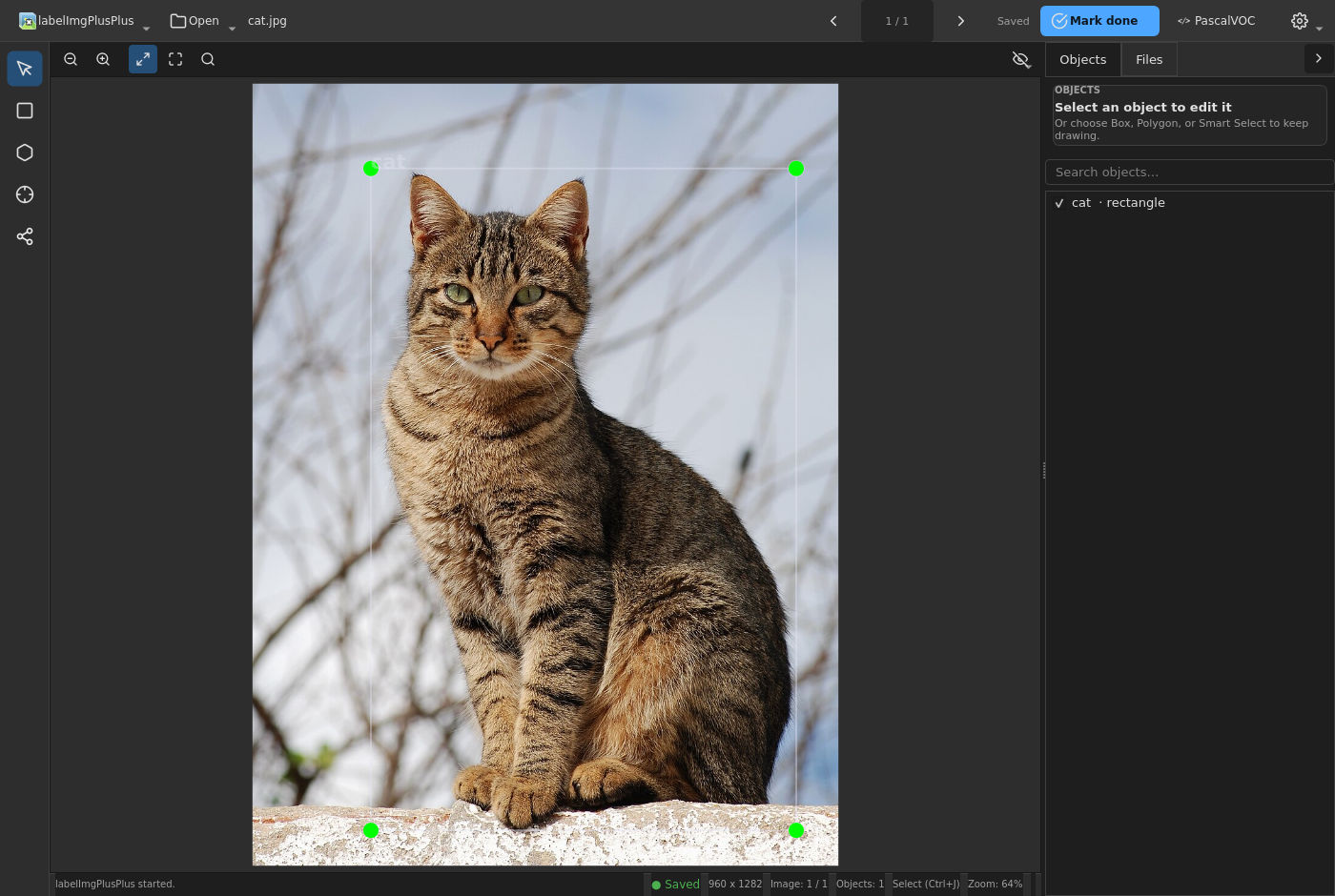
The current workspace keeps annotation tools, object editing, and completion beside the image. See Media credits for screenshot sources and licensing.
Installation
Release candidate
Use a separate virtual environment for the candidate. Once 4.0.0rc2 is published on PyPI, install that exact version:
python -m pip install "labelimgplusplus==4.0.0rc2"
labelimgpp
labelimgplusplus is an equivalent command. The older labelImgPlusPlus command still works but emits a deprecation warning. The explicit version pin selects this prerelease without --pre. Before publication, use the candidate checkout or a matching CI wheel instead; an unpublished version cannot be installed from PyPI.
Optional features can be installed together:
python -m pip install "labelimgplusplus[sam,video]==4.0.0rc2"For the latest stable release instead, use a separate environment and python -m pip install labelimgplusplus. Its behavior and Python/Qt baseline follow that stable version, not this candidate.
PyQt6 candidate from source
Clone the immutable v4.0.0rc2 tag and run the install from the repository root. Git and Python 3.10–3.13 are required. Before the tag is published, use the existing candidate checkout or a matching CI artifact; the tag-based commands below become available at release time.
Linux and macOS:
git clone --branch v4.0.0rc2 https://github.com/abhiksark/labelImg-plus-plus.git
cd labelImg-plus-plus
python3 -m venv .venv
. .venv/bin/activate
python -m pip install -e .
labelimgpp
Windows PowerShell, using Python 3.13:
git clone --branch v4.0.0rc2 https://github.com/abhiksark/labelImg-plus-plus.git
Set-Location labelImg-plus-plus
py -3.13 -m venv .venv
.\.venv\Scripts\python.exe -m pip install -e .
.\.venv\Scripts\labelimgpp.exe
Using the virtual environment’s executables directly avoids changing PowerShell’s script execution policy.
From the checkout, install optional features with the same environment’s Python so the installed extras and application come from the same source:
python -m pip install -e ".[sam]"        # Smart Select
python -m pip install -e ".[video]"      # Smart Video
python -m pip install -e ".[sam,video]"  # Both
On Windows, substitute .\.venv\Scripts\python.exe for python unless the environment is activated. Both extras share headless OpenCV. The base application leaves optional inference and video libraries unloaded until needed. See the optional-dependency guide for supported versions and separately managed SAM 2 dependencies.
Qt and asset troubleshooting
Pip installs PyQt6 automatically; Qt development tools and an RCC resource compiler are not required. Icons, translations, and licenses are ordinary package data under libs/assets.
Linux still needs a desktop session and Qt’s runtime system libraries. On a minimal Ubuntu/Debian installation, an xcb platform-plugin error may mean missing X11/xcb libraries, including libxcb-cursor0. Follow Qt’s Linux runtime requirements for your distribution. QT_DEBUG_PLUGINS=1 labelimgpp exposes the actual missing library; do not install a second OpenCV distribution to repair Qt.
Check packaged assets without opening the annotation workspace:
labelimgpp --verify-assetsExpected output: Verified 44 icons, 4 string bundles, and 1 license. From source, python3 labelImgPlusPlus.py --verify-assets performs the same check. The command aliases also support it.
Native executables
Candidate CI builds Linux x86-64, Windows x86-64, and macOS arm64 executables from one PyInstaller definition. Linux uses Ubuntu 22.04 as its glibc baseline. Each build checks packaged assets and startup outside the checkout.
Published candidate downloads belong to the v4.0.0rc2 GitHub prerelease. Before publication, open the successful candidate run for the exact commit under GitHub Actions and select the matching platform artifact; GitHub may require sign-in. Extract the complete artifact before launching it. A CI artifact is not a published release, and one artifact’s architecture is not a claim of universal platform support.
Native builds include base annotation and the plugin host, not SAM/video dependencies or third-party plugins. Use the Python package with extras for those features. See the build and candidate-qualification guide.
Image quick start
Open a directory with Ctrl+U, or one image with Ctrl+O. Choose the annotation format in the command bar; Ctrl+R selects a save directory if labels should not live beside the images.
Draw a box immediately: in Select, drag empty image space around an object. A drag that starts on an existing annotation moves it instead.
Name it: filter or enter a class in the inline picker, then press Enter. Escape discards the provisional shape. A confirmed annotation is one undo step.
Keep drawing: draw-first returns to Select. For a continuous creation session, choose Box (W) or Polygon (P) explicitly. These tools stay active after class confirmation; choose Select or press Escape while idle to end the session.
Complete the image: E runs the contextual completion action. Done & Next saves, marks an unverified image complete, and advances only after that save succeeds. The last image shows Mark done. Previously completed images show Next image, Save & Next, or a final completion action as appropriate. Failed or superseded saves never navigate away.
Browse and review: A/D select the previous/next image; Ctrl+G opens Gallery. Use Ctrl+Z / Ctrl+Shift+Z for undo/redo.
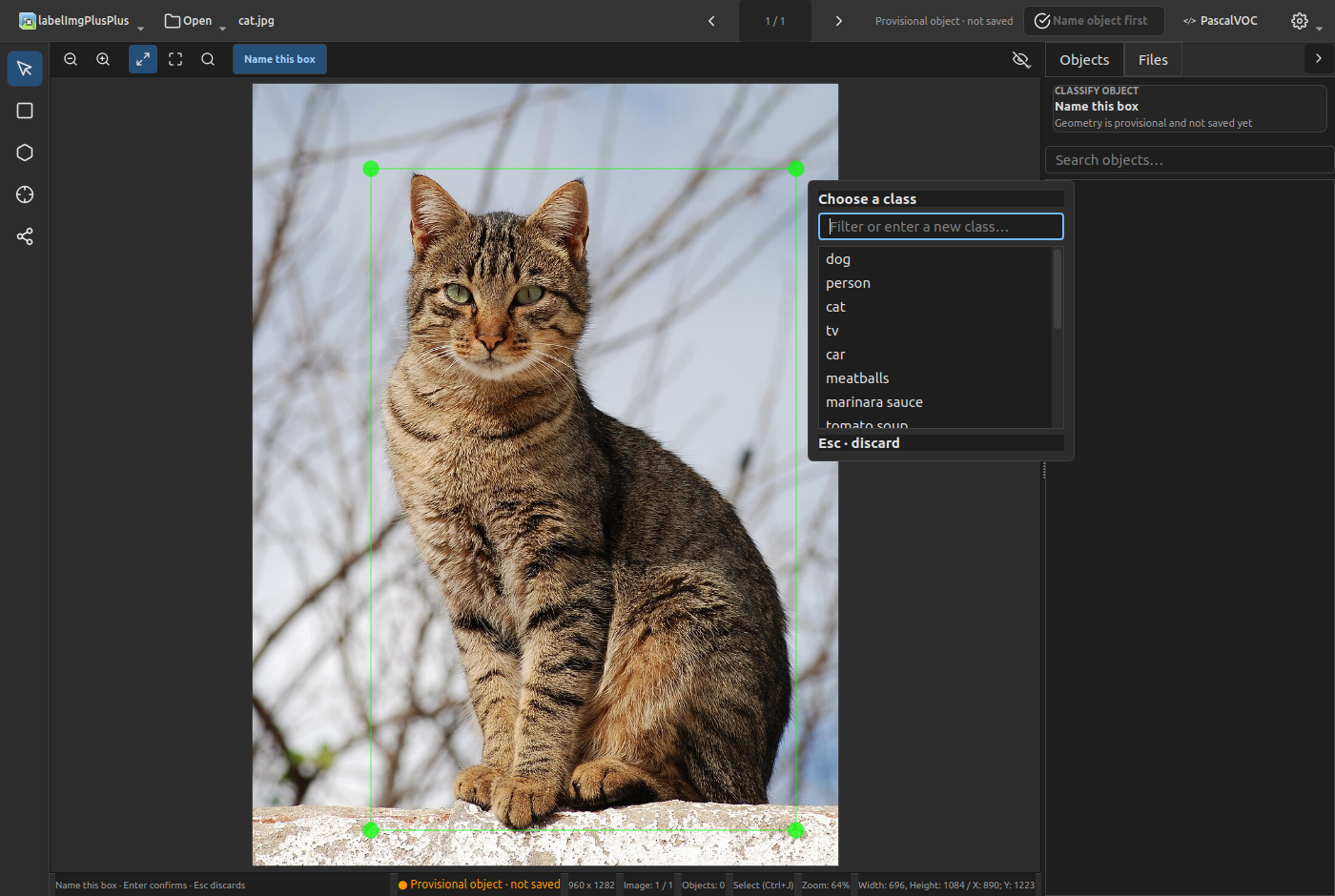
Geometry stays provisional until its class is confirmed; Escape discards it without adding an annotation.
Saving: Save on Navigate is enabled by default. View → Timed Auto-save is a separate, opt-in setting with 30-second, 1-, 2-, or 5-minute intervals. Explicit Save and Verify remain available. Completion/verification persistence depends on the annotation format; see Supported annotation formats.
Mouse navigation: middle-drag pans, as does Ctrl+left-drag on empty image pixels in Select; the wheel scrolls, and Ctrl+wheel zooms. Arrow keys nudge the selected annotation, including polygons.
Keypoints: select a rectangle labeled person (17-point pose) or face (5-point landmarks), then press K. Left-click visible points and right-click occluded points; Escape skips an unplaced point and Ctrl+Z clears the previous point while placing keypoints. Other labels and polygon selections do not activate these templates. COCO is the format that preserves keypoints.
Video quick start
Install the video extra first, then follow Anchor → Propagate → Review → Export:
Open a local MP4, MOV, MKV, or AVI with Ctrl+Alt+V. Existing .labelimgpp.sqlite projects can also be opened. Video work lives in a sibling <video>.labelimgpp.sqlite file, separate from image annotations.
Anchor: pause on the desired frame, draw a rectangle or polygon, and confirm its class. Use A/D for exact frame stepping, the timecode for seeking, and Ctrl+Space for playback without audio.
Propagate: select an accepted manual anchor and use its Objects card. T/Shift+T request forward/backward propagation with an endpoint. The More → Propagate across video command uses qualifying manual anchors on the current frame and asks for confirmation before spanning the clip.
Review: propagation creates pending suggestions, not accepted labels. Review queue, Accept & Next, and Reject keep the current issue selected and advance through pending observations. Shift+Enter accepts; Backspace rejects. Full-run review is available from More.
Export: choose frames and an annotation format. The default Annotated selection uses stored timestamps with present, accepted observations. Current, Verified, and Range offer other frame selections. Only accepted annotations are written; selected frames can have no annotations.
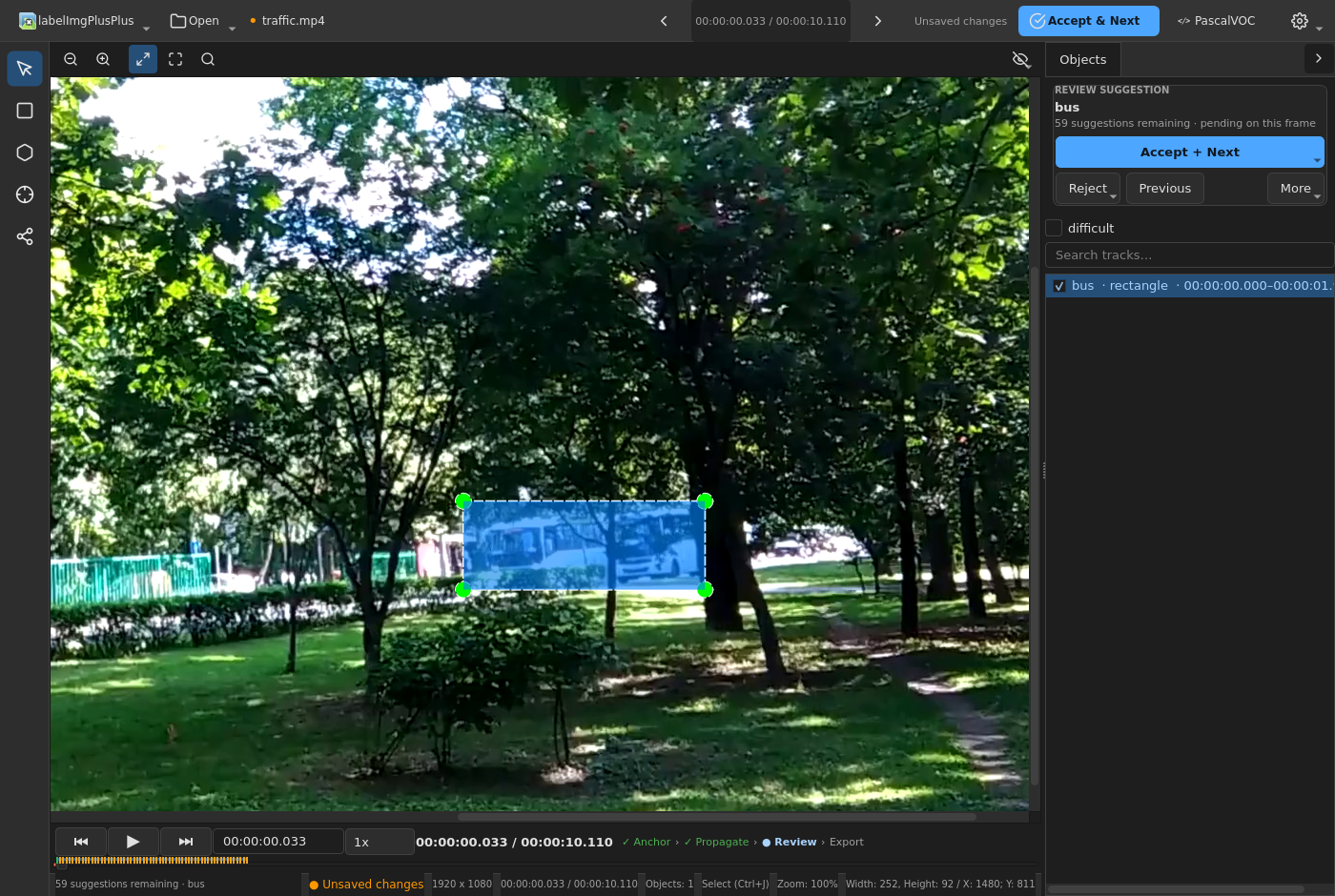
Review generated observations before they become exportable annotations.
Frames are addressed by stream presentation timestamps and time base, not an inferred frame number. Rectangle tracks interpolate between accepted manual anchors; polygons do not interpolate. Keypoint interpolation requires compatible layouts. Propagation is a separate operation that can generate rectangles, polygons, and associated keypoints.
Accepting a suggestion does not promote it to a manual anchor. Use Shift+K or edit geometry to make a manual correction before seeding another run. Pending and rejected suggestions are excluded from exported annotations. See the Smart Video guide for project recovery, propagation, interpolation, and export details.
Smart Select and video backends
Single-click Box or Polygon
Install the sam extra, then choose Smart Select (S) on the rail or Tools → SAM Segment. MobileSAM runs through ONNX Runtime without requiring PyTorch. Enabling it with an image loaded starts preparation; the default encoder/decoder pair is downloaded if absent and SHA256-verified. Further clicks on that image reuse its embedding.
Choose an output in the canvas control:
Box: tight pixel bounds of the largest selected mask component.
Polygon: an editable, simplified contour of that component.
Both currently use the same mask-processing path. A usable polygon is still required internally even for Box output; a direct, polygon-free Box pipeline is not implemented. Box bounds come from the full component, not the simplified polygon’s vertices.
Every provisional result takes one confirmation. The class picker opens beside the outline: choose or type a class and press Enter to keep the result, or press Esc to discard it and try another point. Fixed/default labels and established repeat-class sessions have no class to enter, so they confirm the outline instead, for example with Use outline as car (Enter), or discard it with Try again (Esc); they do not skip that confirmation. The confirmed result is one undo step; Smart Select stays active and the output choice persists between sessions.
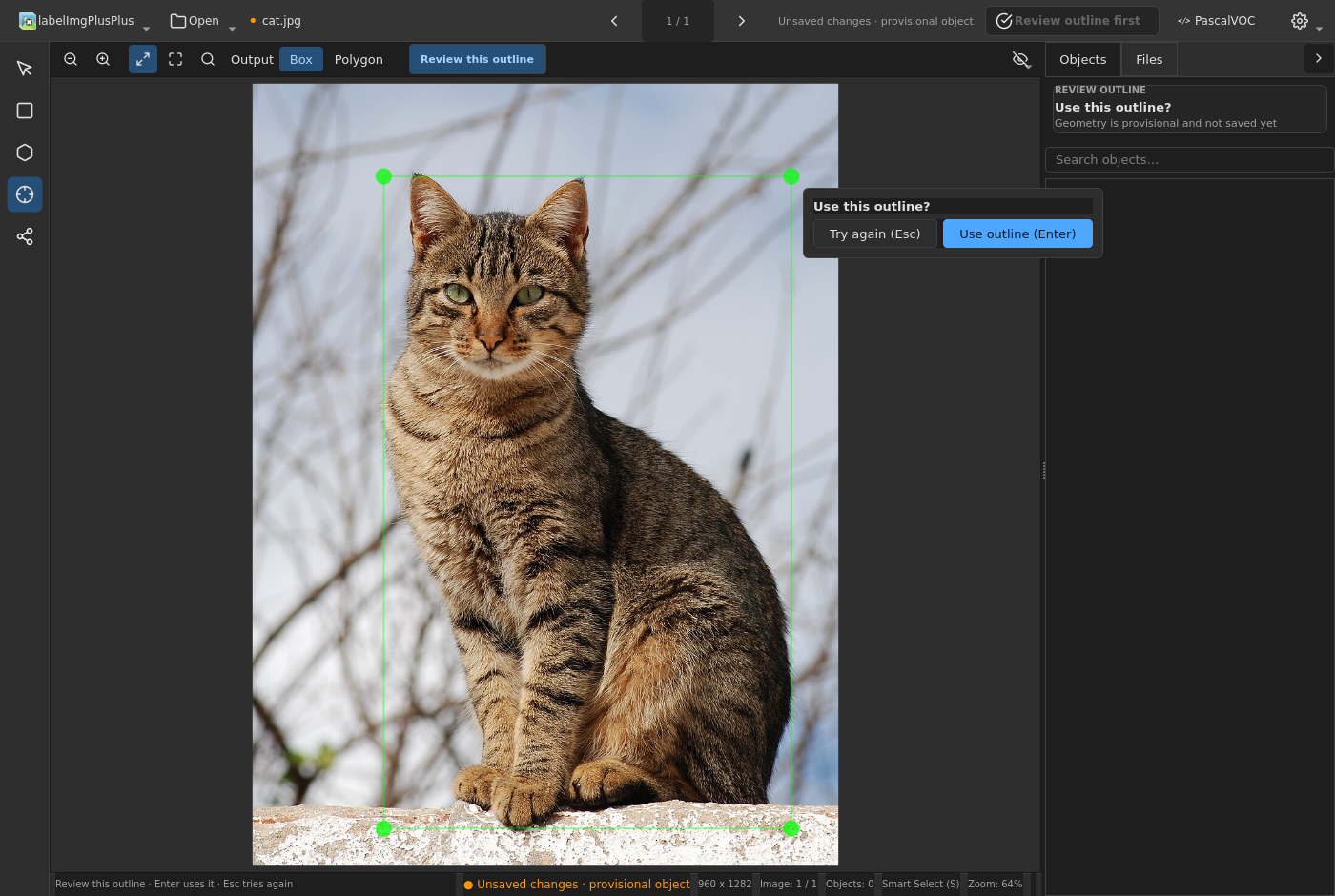
Outline confirmation for a fixed or repeat-class session. Other sessions show the class picker in its place.
The Smart Select guide shows Polygon output and model configuration. Custom encoder/decoder files must be a compatible matched MobileSAM ONNX export, not arbitrary SAM models. Only load models from trusted sources. In video documents, Smart Select works on the paused frame; it is not temporal tracking.
Portable propagation and optional SAM 2
The OpenCV backend propagates rectangles, polygons, and associated keypoints. It displays cancellable preview-only progress, protects manual anchors encountered in either direction, and commits pending tracker observations and explicit gaps in one atomic undo step. Editing generated geometry creates a manual correction; bounded neighboring regeneration is a separate undoable change.
Tools → SAM Settings… selects Auto, OpenCV, or SAM 2. Auto uses SAM 2 only when its Linux/CUDA environment, compatible Torch/torchvision, source-installed SAM 2, checkpoint, and matching configuration are available; otherwise it uses OpenCV. The config must reside inside the installed sam2 package directory. Explicitly selecting unavailable SAM 2 reports the missing requirement rather than silently falling back.
labelImg++ does not bundle or download Torch, SAM 2, checkpoints, or configs. They are not part of its extras. Follow the optional-dependency and Smart Video guides rather than installing them into the base environment indiscriminately.
Workspace and dataset tools
Gallery and Objects inspector
The fixed tool rail, compact command bar, and collapsible Objects/Files inspector keep editing beside the canvas. Search, rename, select, or hide annotations in one Objects view; its context card follows the active tool, selected object, or pending video review. Clicking nested annotations selects the smallest containing shape.
Image Gallery is embedded in the workspace and previews all five annotation formats. Gray borders mean no labels, blue means labeled, and green means verified where the format preserves that state. Boxes use corner markers; polygons use outlines. S/M/L/XL presets and a slider control thumbnail size.
Video Gallery becomes a track/frame overview. Distinct retains manual, verified, boundary, and transition events and samples ordinary frames at most twice per second, with bounded visual-change refinement. Annotated and Pending expose stored annotations and outstanding review work. Selecting a track narrows the overview; export readiness and pending counts remain visible.
Themes, display, and editing
Light and dark themes, Feather icons, and high-DPI scaling serve the same workspace. Ctrl+Shift+T toggles themes and persists the choice. Brightness controls help inspect dark or light images without changing source media. See the theme guide for light/dark screenshots. Annotation creation and editing support undo/redo.
Ultralytics export
Tools → Export Ultralytics Dataset… builds a YOLO detection dataset with images/{train,val,test}, matching labels, and data.yaml. Choose deterministic split ratios and image copies or absolute local symlinks. The destination must be new or empty; it is published only after export succeeds. Polygons become enclosing boxes; this is not a segmentation or pose export. See the Ultralytics export guide for layout and data-preservation limits.
Installed Python plugins
Install trusted command plugins as separate Python distributions, then review and enable them in Tools → Plugins… and restart. The versioned public API provides host-owned actions, namespaced shortcuts/settings, bounded background work, read-only document access, and diagnostics. Plugins do not need changes to labelImg++ source.
LABELIMGPP_DISABLE_PLUGINS=1 disables plugins for recovery. Reset All also clears plugin enablement and configuration; see Configuration and recovery. The plugin authoring guide describes the public API and PyQt6 compatibility boundary.
Supported annotation formats
Format |
Geometry |
Verified state |
Difficult flag |
|---|---|---|---|
PASCAL VOC (.xml) |
Boxes; labelImg++ polygon extension |
Yes |
Yes |
YOLO bbox (.txt) |
Normalized boxes; classes.txt names |
No |
No |
CreateML (.json) |
Bounding boxes |
Yes |
No |
COCO (.json) |
Boxes, polygons, keypoints |
No |
Yes |
YOLO-seg (.txt) |
Normalized polygons; boxes become four-point polygons |
No |
No |
Saving polygons as YOLO bbox or CreateML shows one conversion warning for the save, then converts affected polygons to enclosing boxes. Only COCO preserves keypoints. Image completion/green Gallery status does not survive reopening formats that cannot encode verification. Video review and anchor state live in the SQLite project, not in these exported image formats.
Keyboard and mouse controls
These are default bindings. Help → Keyboard Shortcuts customizes the configurable actions; arrow nudges, mouse gestures, and the theme toggle below are fixed bindings outside that dialog.
Shortcut |
Action |
|---|---|
Ctrl+O / Ctrl+U |
Open image / image directory |
Ctrl+Alt+V |
Open video or video project |
Ctrl+R |
Change annotation save directory |
Ctrl+S / Ctrl+Shift+S |
Save / Save As |
Ctrl+Y |
Cycle annotation format |
A / D |
Previous / next image; exact frame stepping in video |
Ctrl+G |
Toggle Gallery / video overview |
E |
Contextual completion, browse, or review action |
Space |
Verify current image or video frame |
Ctrl+Space |
Play/pause video without audio |
Shortcut |
Action |
|---|---|
W / P / S |
Continuous Box / Polygon / optional Smart Select |
Ctrl+J |
Select/edit tool |
K |
Keypoint placement on selected eligible template rectangle |
Enter / Escape |
Confirm / discard provisional geometry or class stage |
Ctrl+Z / Ctrl+Shift+Z |
Undo / redo; keypoint placement has its own previous-point undo |
Ctrl+D / Delete |
Duplicate / delete selected annotation |
Shift+K |
Add a manual keyframe to the selected video track |
T / Shift+T |
Propagate forward / backward from a qualifying manual anchor |
Shift+Enter / Backspace |
Accept / reject selected pending video observation |
Ctrl+Shift+Enter / Ctrl+Shift+Backspace |
Accept / reject a propagation run |
Control |
Action |
|---|---|
Ctrl++ / Ctrl+- |
Zoom in / out |
Ctrl+F / Ctrl+Shift+F |
Fit window / fit width |
Ctrl+Shift+T (fixed) |
Toggle dark/light theme |
Arrow keys (fixed) |
Nudge selected annotation |
Left-drag empty pixels in Select |
Draw a box; dragging an existing annotation moves it |
Ctrl+left-drag empty pixels in Select |
Pan |
Middle-drag / wheel |
Pan / scroll |
Ctrl+wheel |
Zoom |
Single Class Mode remains available through the existing View menu and class strategy controls; it does not share Save As’s Ctrl+Shift+S binding.
Configuration and recovery
Classes and command-line paths
The bundled defaults are in libs/data/predefined_classes.txt. Keep custom labels in a separate UTF-8 file, one class per line:
cat
dog
person
car
bicycle
Pass an image/directory, optional class file, and optional save directory:
labelimgpp /path/to/images /path/to/classes.txt /path/to/labelsThe first path can also be a video or .labelimgpp.sqlite project. Default labels and repeat-last-class controls reduce repeated class entry; they do not skip Smart Select outline confirmation.
Reset settings
Application menu → File → Reset All asks for confirmation, clears preferences, and restarts the application. It removes the save directory, format, theme, recents, layout, shortcut overrides, and plugin activation/configuration settings—not annotation files. Back up settings first if you need to retain those choices.
For manual recovery, quit the application first so closing it cannot rewrite the settings you removed. On Linux/macOS:
rm ~/.labelImgSettings.jsonOn Windows PowerShell:
Remove-Item "$HOME\.labelImgSettings.json"Upgrading and recovery
Close labelImg++ before backing up annotations, video project sidecars, and ~/.labelImgSettings.json. Keep those backups and the previous environment until you have opened, edited, saved, and reopened representative files in the candidate. Use copies of production datasets for qualification.
Install the candidate in a fresh virtual environment rather than mixing Qt bindings and plugin dependencies into an existing installation. API-major-1 plugins must not import PyQt5 into the PyQt6 host. Video projects may have undergone schema migrations in earlier releases; rollback means restoring compatible backups, not assuming that an older application can reverse them.
Release history and contributing
This source tree describes the 4.0.0rc2 PyQt6 release candidate, not a stable 4.0.0 release. Its release history separates changes since the PyQt5-based 4.0.0rc0 from earlier features. Tag-aligned links and published downloads become available when the release is cut; a checkout or CI artifact alone does not publish a release.
Create feature/*, fix/*, or chore/* branches from an up-to-date dev and open pull requests targeting dev. Use Conventional Commit subjects such as fix(shortcuts): restore save as keyboard dispatch. Keep changes focused and run the applicable repository checks before submitting.
License and credits
The application is under the MIT License. It is based on LabelImg by Tzutalin and maintained by Abhik Sarkar. Thanks to the original LabelImg contributors, Feather Icons, and all labelImg++ contributors and users.
Media credits
The cat photograph is Cat November 2010-1a by Alvesgaspar, licensed CC BY-SA 3.0. The workspace, inline-class, and Smart Select screenshots resize that photograph and add annotation/UI overlays; those screenshot adaptations are also distributed under CC BY-SA 3.0. This does not change the application’s MIT license.
The video screenshot uses Samplelib’s 10-second MP4 sample, offered there without license restrictions, with annotations and review controls added by labelImg++. Screenshots demonstrate actual application states, not detection or tracking accuracy benchmarks.
1 maintainer

Metadata
1 maintainer
Release files for labelimgplusplus 4.0.0rc2
For a detailed explanation of source distributions (sdists) and built distributions (wheels), please see the package formats documentation.
Source distribution (sdist)
| File | Size | Uploaded | |
|---|---|---|---|
| labelimgplusplus-4.0.0rc2.tar.gz | 567.5 kB | Details |
Built distribution (wheel)
| File | Interpreter | ABI | Platform | Reset |
|---|---|---|---|---|
| labelimgplusplus-4.0.0rc2-py3-none-any.whl | Python 3 | none | any | Details |
Total release size: 1.2 MB
Release files / labelimgplusplus-4.0.0rc2.tar.gz
| Download URL | labelimgplusplus-4.0.0rc2.tar.gz |
|---|---|
| Size | 567.5 kB |
| Tags | Source |
|
SHA-256 checksum How to use checksums |
af4bbc30bfefaf07bc016e071d0c9264808811179e51ec3e371f2777f8cb37b2
|
|
BLAKE2b-256 checksum How to use checksums |
7b60de15d0a76742f6a24de91bd0182476c950f42e69dd64acb3d2201d8a2feb
|
| Upload date | |
|
Uploaded using Trusted Publishing? What is trusted publishing? |
Yes |
| Uploaded via |
twine/6.1.0 CPython/3.12.8
|
Provenance
Provenance describes where a file came from. On PyPI, provenance is shared via attestations, which provide a verifiable record of the build or publishing details. View details, limitations and caveats.


PyPI Publish Attestation
PyPI verified that this artifact, at this checksum, originated from the publisher listed below.
Signed by GitHub Actions, verified by PyPI on Oct 1, 2026.
Transparency logRelease files / labelimgplusplus-4.0.0rc2-py3-none-any.whl
| Download URL | labelimgplusplus-4.0.0rc2-py3-none-any.whl |
|---|---|
| Size | 603.0 kB |
| Tags | Python 3 |
|
SHA-256 checksum How to use checksums |
a8e38c1904996e1c1a1dd03b5175acdec8b05a2a9231fb9de0296fce53c3aa5d
|
|
BLAKE2b-256 checksum How to use checksums |
a60d56f0722293f59e0a725359ec91002ecaaefce4b58796b3048b5ef9ab6426
|
| Upload date | |
|
Uploaded using Trusted Publishing? What is trusted publishing? |
Yes |
| Uploaded via |
twine/6.1.0 CPython/3.12.8
|
Provenance
Provenance describes where a file came from. On PyPI, provenance is shared via attestations, which provide a verifiable record of the build or publishing details. View details, limitations and caveats.
PyPI Publish Attestation
PyPI verified that this artifact, at this checksum, originated from the publisher listed below.
Signed by GitHub Actions, verified by PyPI on Oct 1, 2026.
Transparency log














