
LiveKit WakeWord




Why LiveKit WakeWord · Comparison · Guides and examples · Train your own · Models · Development
LiveKit WakeWord is an open-source toolkit for training and running wake word models. You provide a phrase, and the training CLI generates speech with LiveKit Inference TTS and adapts a pretrained encoder to recognize it. The resulting model runs locally in Python, Swift or on an ESP32, without sending audio to a server. You do not need to record your own training data.
Why LiveKit WakeWord
Training a standard model for “hey livekit” took 11 minutes on one RTX PRO 6000 GPU: about 6 minutes to generate speech and 5 minutes to train, calibrate and export the model. Training used 1,000 generated wake-word clips. The same workflow produces a micro model in about 18 minutes, including the standard model it learns from.
The standard model is about 7 MB and runs in Python or Swift through ONNX Runtime. The micro model is 451 KB and runs on ESP32 through TensorFlow Lite Micro. You can start with a ready-made model, or train a model for your own phrase. Running detection requires neither a GPU nor LiveKit Cloud credentials.
Comparison
We trained “hey livekit” separately in each engine using its own recipe, then evaluated the models on the same benchmark. At 0.5 false alarms per hour, LiveKit WakeWord detected 89% of wake words, nanowakeword 49%, and openWakeWord 46%. Their training times were 11, 34 and 94 minutes, respectively. Streaming inference used 16.5, 30.5 and 29.5 ms of CPU time per second of audio.
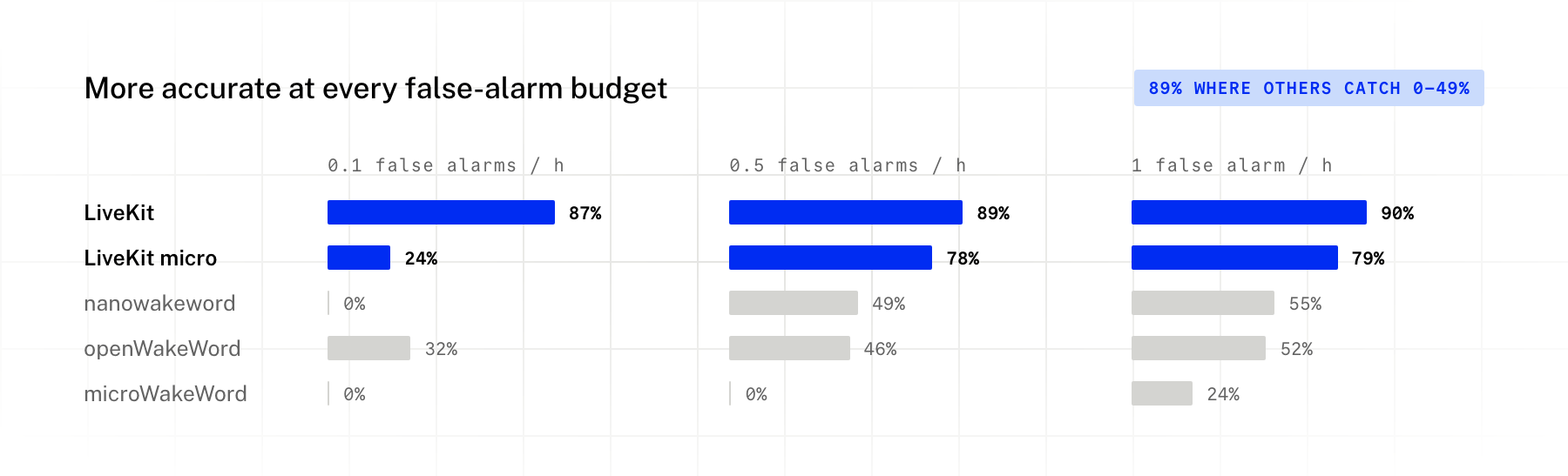
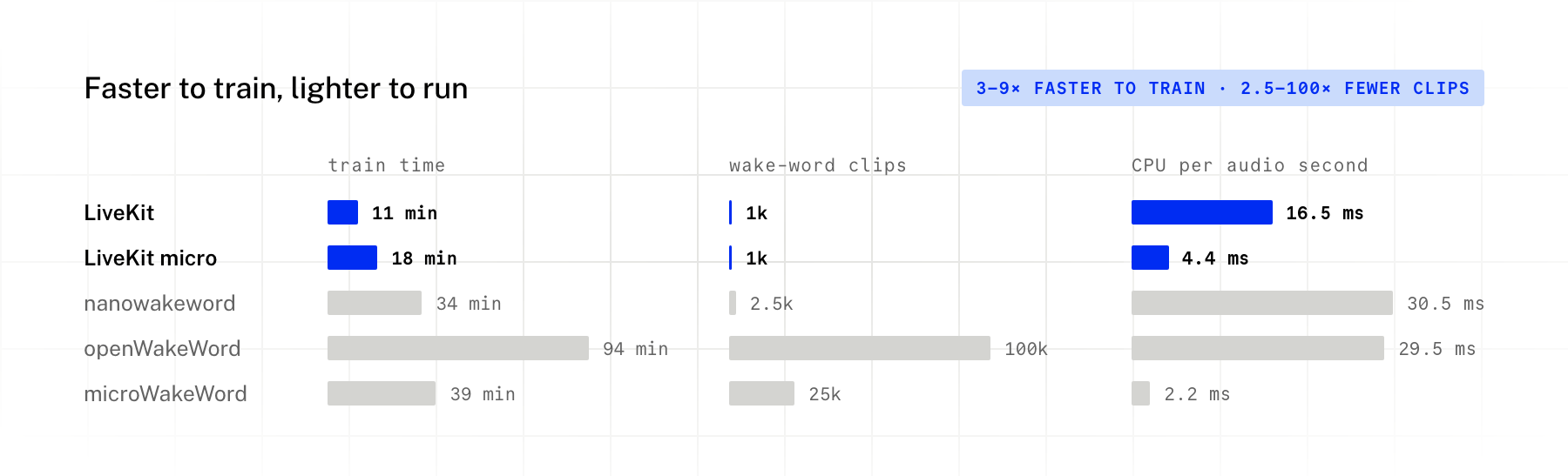
The micro model detected 78% of wake words at the same false-alarm rate. microWakeWord scored 0% at that operating point, although it used less CPU: 2.2 ms per second of audio versus 18 ms for LiveKit micro. These results compare the complete training workflows for one phrase, including their different speech generators; they do not isolate encoder performance.
How we compared
We used LiveKit WakeWord Bench with party scenes: 7,873 clips covering unseen voices, noise, rooms, codecs, similar-sounding phrases and conversational speech, plus 24 hours of TV, music and podcasts. Accuracy in the chart is recall at 0.1, 0.5 and 1 false alarms per hour. Each model's threshold is selected for that rate; this is different from setting every model's score threshold to 0.5.
The alternatives used Piper TTS for training speech, while LiveKit WakeWord used LiveKit Inference TTS. Benchmark voices were held out of training, but the benchmark also uses LiveKit Inference, which may favor our models.
We tested nanowakeword 3.0 and openWakeWord 0.6 (100,000 samples). For microWakeWord, training time and clip counts use its scaled-up recipe (25,000 samples, 40,000 steps); accuracy is the better result from that recipe and its notebook default.
Each pipeline ran alone on one RTX PRO 6000 GPU with the same 8 CPU cores. Training times exclude one-time downloads: 3.8 GB for LiveKit WakeWord and 21–35 GB for the alternatives. The micro training time includes its standard teacher model. CPU measurements use one core and one thread with streaming audio.
Guides and examples
Each client has a README with installation and usage instructions, along with examples you can run. Use a ready-made model or one you trained yourself.
| Platform | Installation and usage | Examples |
|---|---|---|
| Python | Python README | Audio clip inference · Microphone listener |
| Swift | Swift README | SwiftUI demo for iOS and macOS, with setup instructions |
| ESP32 | ESP32 README | I2S microphone detection · Wake word to LiveKit agent · Build and flash instructions |
Models
The latest release has ready-made models and the pretrained encoders that training starts from:
gh release download -R livekit/livekit-wakeword -p "*.onnx" -p "*.tflite" -p "*.json"
| model | bench score |
|---|---|
hey_livekit.onnx |
0.909 |
hey_livekit_micro.tflite |
0.767 |
hey_jarvis.onnx |
0.914 |
hey_jarvis_micro.tflite |
0.716 |
hey livekit is scored on the bench with party scenes (the one in the comparison above), and hey jarvis on the plain bench. standard is ONNX (about 7 MB, about 1 ms per 80 ms step on one CPU thread). micro is int8 TFLite (451 KB, 11.5 million multiply-accumulates per second of audio) for TensorFlow Lite Micro. At the default threshold of 0.5, these four models give 0.5 to 2.5 false alarms per hour on the bench's conversational speech; raise the threshold if you see too many.
Train a wake word
You need Python 3.12+, a CUDA GPU or an Apple silicon Mac, uv and a LiveKit Cloud project (the free plan works) for the TTS.
1. Get LiveKit credentials. Sign up at cloud.livekit.io and create a project, then install the LiveKit CLI and log in:
brew install livekit-cli                         # macOS
curl -sSL https://get.livekit.io/cli | bash      # Linux
winget install LiveKit.LiveKitCLI                # Windows

lk cloud auth                                    # log in in the browser and pick your project
lk app env -w                                    # writes LIVEKIT_URL, LIVEKIT_API_KEY, LIVEKIT_API_SECRET to .env.local
set -a && source .env.local && set +a            # export them in this shell
You can also create an API key in the project settings of the LiveKit Cloud dashboard and export the three variables yourself.
2. Get the code:
git clone https://github.com/livekit/livekit-wakeword && cd livekit-wakeword
uv sync --extra train                            # or --extra tflite for --type micro
setup downloads the pretrained encoders from the v2.0.0 release once.
3. Train:
uv run livekit-wakeword setup --wakeword "hey robot" --eval  # training speech + held-out test set
uv run livekit-wakeword train --wakeword "hey robot" --type standard
uv run livekit-wakeword eval --wakeword "hey robot"    # bench score on a held-out test set
uv run --with pyaudio livekit-wakeword listen hey_robot.onnx   # try it on your microphone
A new phrase takes about 11 minutes on one data-center GPU (6 minutes of speech generation, 5 of training). The first run downloads about 4 GB of noise, room and speech sources once.
For ESP32, also train a micro model (about 7 more minutes):
uv run livekit-wakeword train --wakeword "hey robot" --type micro # -> hey_robot_micro.tflite
More speech, or a different output folder:
uv run livekit-wakeword setup --wakeword "hey robot" --clips 4      # 4x the default training speech
uv run livekit-wakeword train --wakeword "hey robot" --out models   # writes models/hey_robot.onnx
Multilingual wake words. A phrase can be in any language and script. Pass its language with
--language (-l, an ISO 639-1 code such as es, de, vi or ja) so the speech is generated
by voices that speak it; train and eval read it from the saved config:
uv run livekit-wakeword setup --wakeword "hola asistente" --language es --eval
uv run livekit-wakeword setup --wakeword "xin chào robot" --language vi
uv run livekit-wakeword setup --wakeword "ねえ ロボット" --language ja
uv run livekit-wakeword train --wakeword "ねえ ロボット"             # -> ねえ_ロボット.onnx
The model file is named after the phrase; set model_name in the config (for example
ne_robot) for an ASCII file name, such as for ESP32 builds.
In English, words outside the dictionary (names, brands, made-up words) need a pronunciation in
ARPAbet, so every voice says them the same way;
setup names any word it is missing. Words made of dictionary words, such as "livekit", work
without one. Phrases in other languages need none: their speech is generated from the text, by
every TTS model that speaks the language.
uv run livekit-wakeword setup --wakeword "hey zork" --pronounce "zork=Z AO1 R K"
The training guide lists every flag, with a full example from setup to evaluation.
Repository layout
client/python/ |
Python client (livekit.wakeword: WakeWordModel, WakeWordListener) and the trainer behind the livekit-wakeword CLI (livekit.wakeword_train, the train extra: generates speech with LiveKit Inference TTS, trains, calibrates and evaluates; training guide) |
client/swift/ |
Swift package for iOS and macOS, plus a SwiftUI demo |
client/esp32/ |
ESP-IDF component and examples for micro models |
models/ |
The hey livekit models the tests and examples use |
Development
uv sync --extra tflite
uv run pytest                                    # Python: client and trainer
uv run ruff check . && uv run mypy -p livekit.wakeword -p livekit.wakeword_train
swift test                                       # Swift client
License
Apache 2.0, see LICENSE.
Metadata
Release files for livekit-wakeword 2.0.0
For a detailed explanation of source distributions (sdists) and built distributions (wheels), please see the package formats documentation.
Source distribution (sdist)
| File | Size | Uploaded | Provenance | Actions |
|---|---|---|---|---|
| livekit_wakeword-2.0.0.tar.gz | 50.6 kB | With provenance | Details for livekit_wakeword-2.0.0.tar.gz |
Built distribution (wheel)
| File | Interpreter | ABI | Platform | Actions Reset |
|---|---|---|---|---|
| livekit_wakeword-2.0.0-py3-none-any.whl | Python 3 | none | any | Details for livekit_wakeword-2.0.0-py3-none-any.whl |
Total release size: 110.0 kB
Release files / livekit_wakeword-2.0.0.tar.gz
| Download URL | livekit_wakeword-2.0.0.tar.gz |
|---|---|
| Size | 50.6 kB |
| Tags | Source |
|
SHA-256 checksum How to use checksums |
919d0305862f5f4ea1a33d7755110067c38191ece7c6774fc7828bbec890c29b
|
|
BLAKE2b-256 checksum How to use checksums |
3156a71be90578de285480476e0dc07eb3f662671c3d136898aa16becb453353
|
| Upload date | |
|
Uploaded using Trusted Publishing? What is trusted publishing? |
Yes |
| Uploaded via |
twine/7.0.0 CPython/3.13.16
|
Provenance
Provenance describes where a file came from. On PyPI, provenance is shared via attestations, which provide a verifiable record of the build or publishing details. View details, limitations and caveats.


PyPI Publish Attestation
PyPI verified that this artifact, at this checksum, originated from the publisher listed below.
Signed by GitHub Actions, verified by PyPI on Nov 3, 2026.
Transparency logRelease files / livekit_wakeword-2.0.0-py3-none-any.whl
| Download URL | livekit_wakeword-2.0.0-py3-none-any.whl |
|---|---|
| Size | 59.4 kB |
| Tags | Python 3 |
|
SHA-256 checksum How to use checksums |
a2b770743f74e0ad1a32d882432ab80ea4cf0ec525c5642e96a90333b3d9fb00
|
|
BLAKE2b-256 checksum How to use checksums |
df39b986017599e13aa92b9e3c0edf58031b5155053b9cd762743dd7140c9127
|
| Upload date | |
|
Uploaded using Trusted Publishing? What is trusted publishing? |
Yes |
| Uploaded via |
twine/7.0.0 CPython/3.13.16
|
Provenance
Provenance describes where a file came from. On PyPI, provenance is shared via attestations, which provide a verifiable record of the build or publishing details. View details, limitations and caveats.
PyPI Publish Attestation
PyPI verified that this artifact, at this checksum, originated from the publisher listed below.
Signed by GitHub Actions, verified by PyPI on Nov 3, 2026.
Transparency logSecurity for livekit-wakeword 2.0.0
Provenance
Provenance describes where a file came from. On PyPI, provenance is shared via attestations, which provide a verifiable record of the build or publishing details. View details, limitations and caveats.
Full provenance
Both files in this release have been uploaded with provenance metadata.
Attestation for livekit_wakeword-2.0.0.tar.gz
PyPI Publish Attestation
PyPI verified that this artifact, at this checksum, originated from the publisher listed below.
Signed by GitHub Actions, verified by PyPI on Nov 3, 2026.
Transparency logA note on package security
PyPI is a repository for distributing packages, not a service for auditing them. While third-party security researchers and our staff do their best to detect and remove malicious packages, PyPI cannot guarantee the quality, security or suitability of any given package.
To learn more about protecting yourself from malicious actors, visit our package security documentation.














