





Logitech's "Flow" lets your mouse and keyboard roam across multiple paired hosts with a single keypress -- but Logitech only supports it between Windows and macOS. logitech-flow-kvm brings that same one-keypress host switching to Linux, and keeps your clipboard in sync across hosts while it's at it.
It works by watching one of your attached Logitech devices (typically your keyboard) to see what host it's currently connected to, and, when that changes, instructing your other connected devices to switch to the same host -- and it does this over an encrypted, paired connection, so it works just as well across separate machines on your network as it does on a single desk.
Its HID++ implementation builds on the protocol knowledge documented by the Solaar project, but where Solaar is a general device manager, this tool focuses specifically on Flow-style host switching.
If you'd rather see what it does before reading how to set it up, there's a project page at https://coddingtonbear.github.io/logitech-flow-kvm/.
Contents
Features
- Automatically switches all devices from one host to another when just one of your devices switches hosts. This is particularly useful if you are using a device like the MX Keys Mini which includes buttons that can be used for switching hosts with a single keypress.
- Securely keeps clipboards in sync when switching between hosts. Now you can copy/paste from one host to another without thinking anything about it.
- Encrypted, paired connections between server and clients -- a one-time pairing-code handshake secures the link, so switching hosts across machines on your network is as safe as doing it on one desk.
- Holds your devices where they are, rather than pushing them onto a machine that's been switched off or unplugged. Knowledge of where your leader device is expires when the host that reported it goes away, and comes back by itself -- no restart -- once it returns.
- A live TUI status display when run in a terminal (device/leader status, connection state, scrolling log), with a clean, plain-log fallback when run non-interactively -- e.g. under systemd.
- A rotating log file kept on disk regardless of how it's run, so you can always see what happened after the fact.
Installation
Requires Python 3.10 or later.
pip install logitech-flow-kvm
You can also install the in-development version with:
pip install https://github.com/coddingtonbear/logitech-flow-kvm/archive/main.zip
Basic Use
One of your computers will serve as the "server" for managing this, and all others will be "clients".
Server
On the computer you've decided to use as your server, get the ID of the device you'd like to serve as your "leader", and the IDs of other devices you'd like to use as "followers". The leader device -- I recommend using your keyboard -- will be the one we watch. The followers will just be told which host to connect to if your leader device's host changes.
> logitech-flow-kvm list-devices

┏━━━━━━━━━━┳━━━━━━━━━┳━━━━━━━━━━━━━━━━┳━━━━━━━━━━━━━━━━┓
┃ ID       ┃ Product ┃ Name           ┃ Path           ┃
┡━━━━━━━━━━╇━━━━━━━━━╇━━━━━━━━━━━━━━━━╇━━━━━━━━━━━━━━━━┩
│ 08F5F681 │ B369    │ MX Keys Mini   │ /dev/hidraw4:1 │
│ F262458A │ 406A    │ MX Anywhere 2S │ /dev/hidraw5:1 │
└──────────┴─────────┴────────────────┴────────────────┘
In this example, I'll be using my keyboard (08F5F681) as my "leader", and my mouse (F262458A) as a follower. Note that we're using the device's ID (its serial number) here, not its path -- paths depend on enumeration order and USB topology, which can differ from machine to machine or even across reboots of the same machine, while the serial number is a stable, permanent identifier for the physical device.
You can run a command like this:
> logitech-flow-kvm flow-server 1 08F5F681 F262458A
Note that the 1 in the above command immediately after flow-server indicates that the host number of your server is 1. This should match the host number you've paired your mouse and keyboard with your device as (i.e. when your mouse or keyboard is connected to this computer, the light for 1 is lit on the keyboard or mouse's device selector).
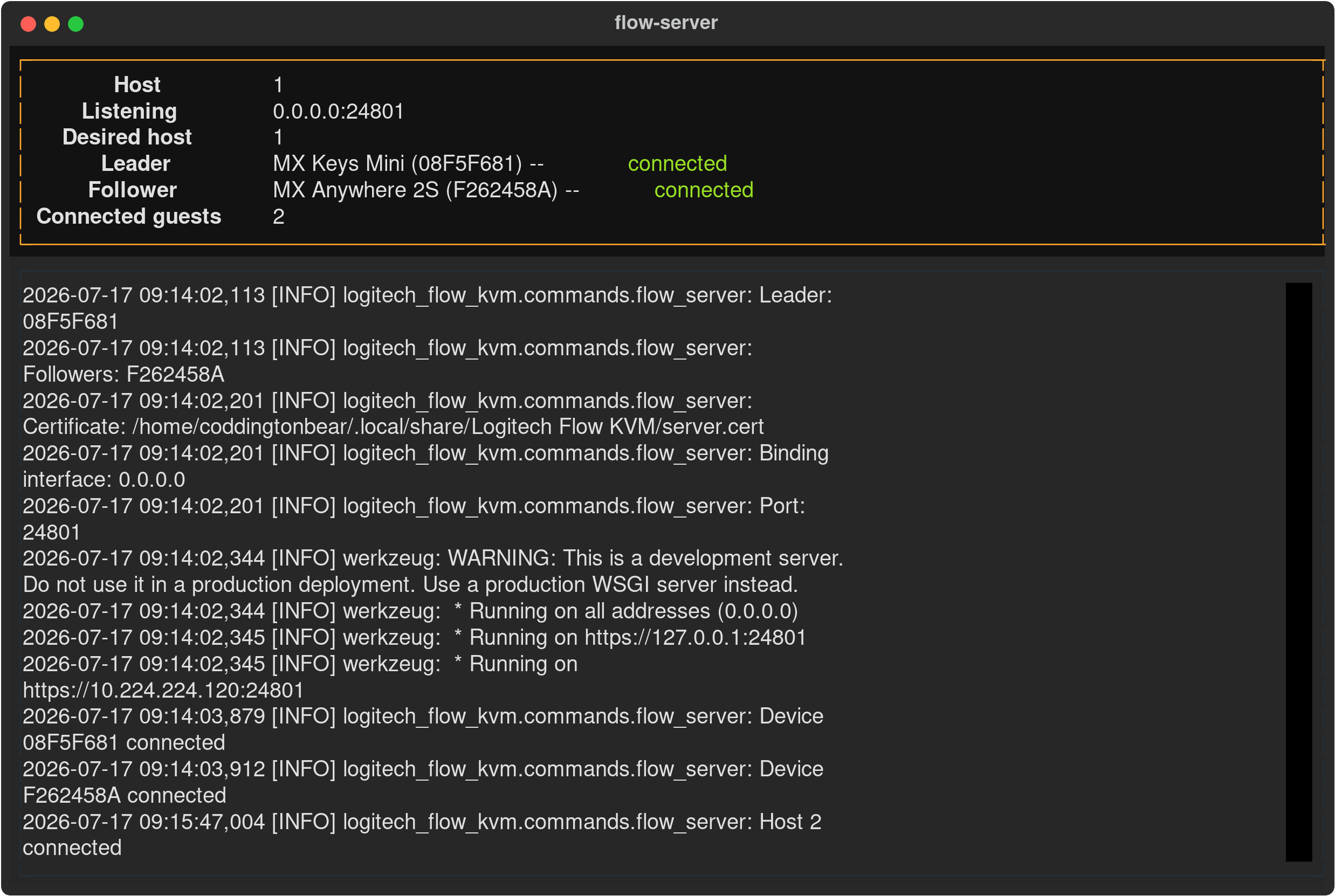
When run in a terminal, flow-server shows an interactive display: a status panel at the top (bind address/port, leader and follower connection state, and which clients are currently connected) and a scrolling log underneath. The bind address is also logged as a plain line when the server starts, and looks something like this:
Client
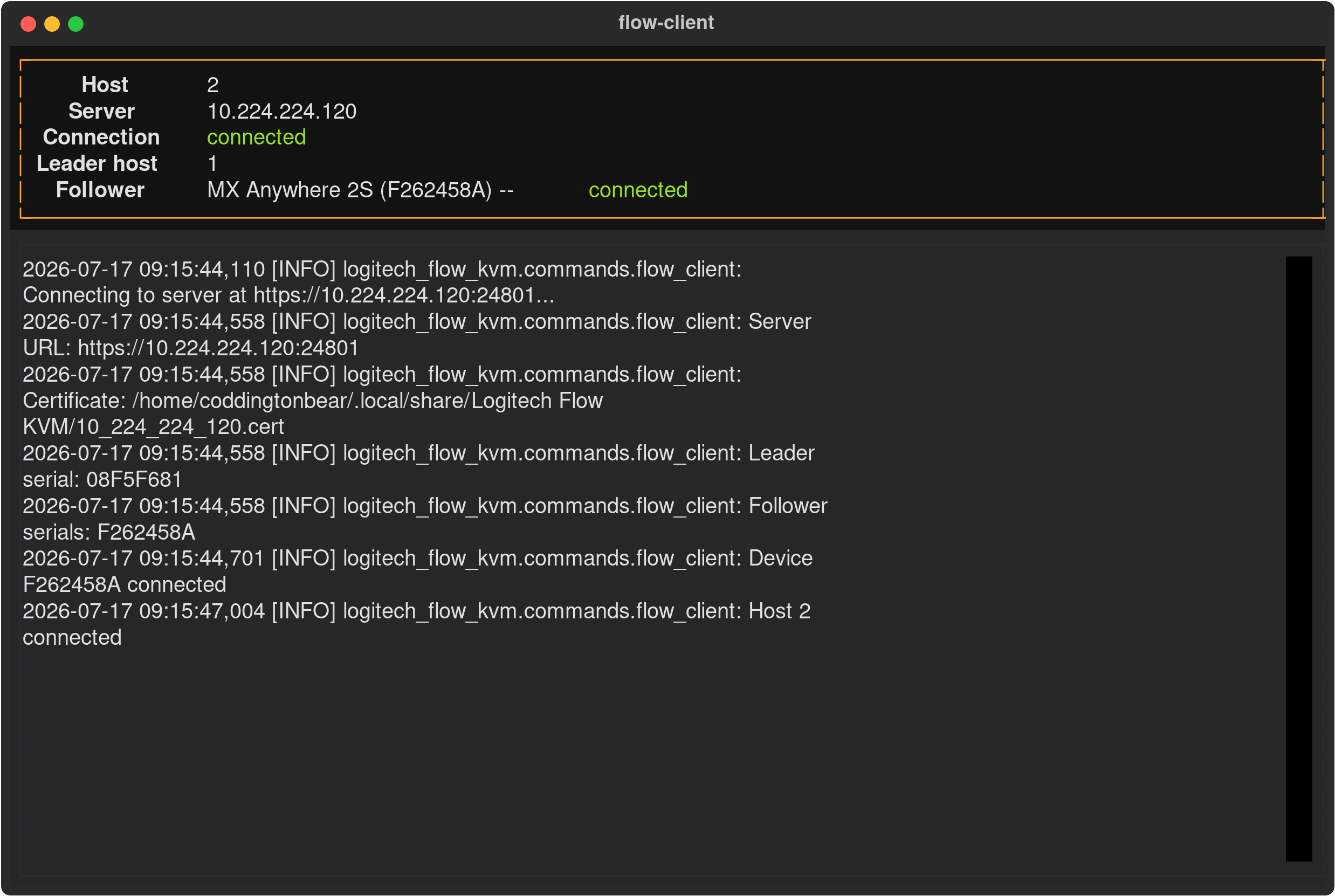
On the other computers you'd like to use this feature with, you can run the following command:
> logitech-flow-kvm flow-client 2 10.224.224.120
...where 10.224.224.120 is the IP of the server you ran above. Note that the 2 above after flow-client indicates the host number your devices have paired with your computer under. See "Server" above for details.
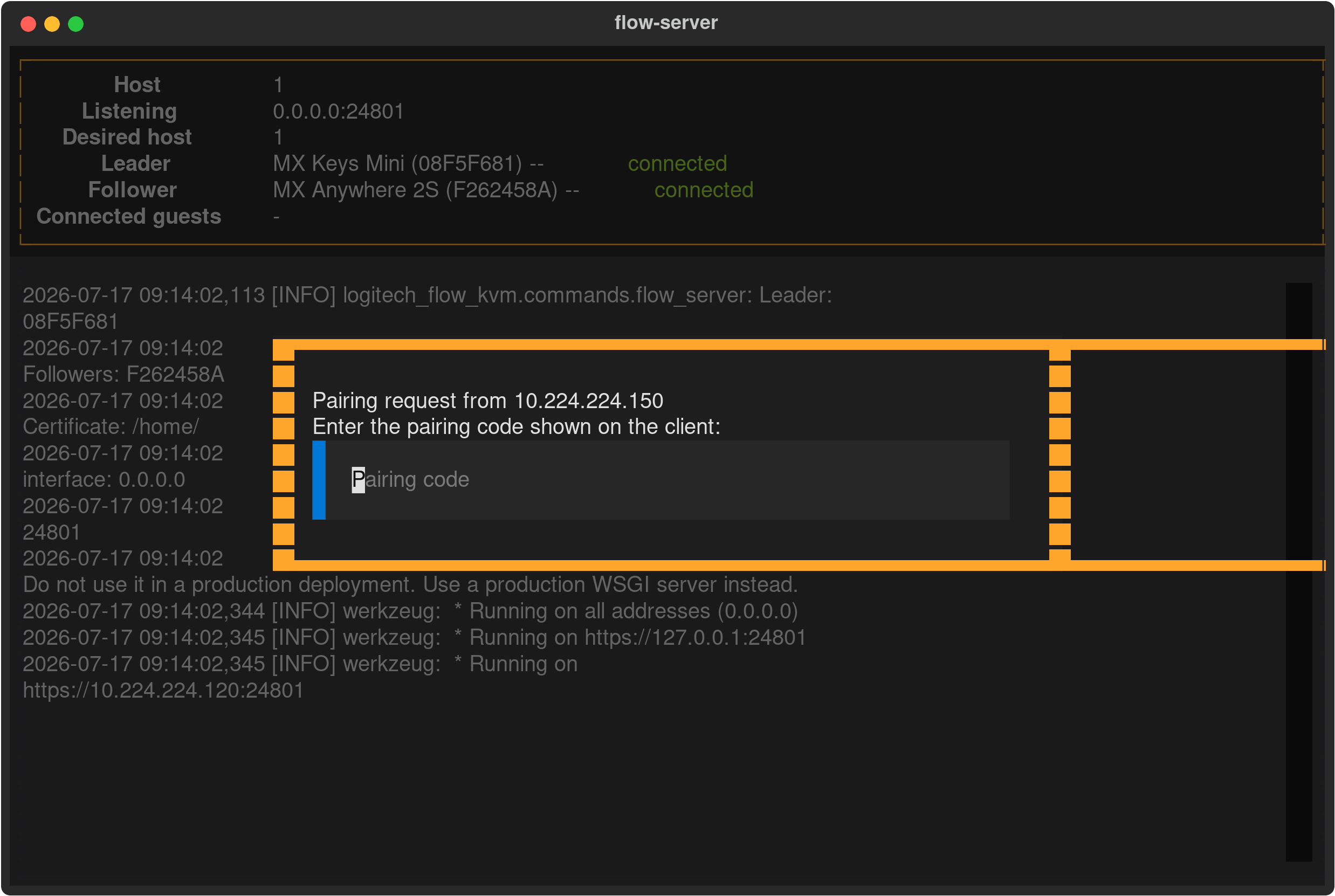
If this is your first time connecting to this server, you will be walked through a brief pairing process for establishing a secure connection between your server and client instances: the client displays a pairing code, and you enter it on the server -- as a popup in flow-server's display if it's running in a terminal, or as an ordinary prompt if it's running non-interactively. Afterward, the client will connect, gather some configuration options from the server, and will instruct your "follower" devices to change their hosts as necessary in the future.
Like flow-server, flow-client shows the same kind of interactive display (device/leader status on top, a scrolling log below) when run in a terminal, and falls back to plain logging otherwise.
How to
Finding available devices
You can get a list of available devices using the list-devices subcommand:
> logitech-flow-kvm list-devices

Finding devices... ━━━━━━━━━━━━━━━━━━━━━━━━━━━━━━━━━━━━━━━━ 100% 0:00:00
┏━━━━━━━━━━┳━━━━━━━━━┳━━━━━━━━━━━━━━━━┳━━━━━━━━━━━━━━━━┓
┃ ID       ┃ Product ┃ Name           ┃ Path           ┃
┡━━━━━━━━━━╇━━━━━━━━━╇━━━━━━━━━━━━━━━━╇━━━━━━━━━━━━━━━━┩
│ 08F5F681 │ B369    │ MX Keys Mini   │ /dev/hidraw4:1 │
│ F262458A │ 406A    │ MX Anywhere 2S │ /dev/hidraw5:1 │
└──────────┴─────────┴────────────────┴────────────────┘
Running a command when a device connects or disconnects
You can see when a device connects or disconnects from the receiver using the following example:
> logitech-flow-kvm watch /dev/hidraw4:1
If you'd like to run a command when a device connects or disconnects, use the --on-disconnect-execute or --on-connect-execute arguments. See the "Automatically switch your mouse to a different host when your keyboard disconnects" section below for a concrete example of how you might use this.
Turning a computer off (or unplugging it)
Nothing special is required -- just switch it off.
Knowing where your leader device is always comes from that device connecting to a host and that host saying so, so a host that vanishes takes its half of that knowledge with it. Rather than carrying on and pushing your mouse onto a machine that may no longer be there, the remaining hosts stop switching devices and hold them wherever they are -- which is, by definition, somewhere that still works. flow-client says so in its display (Leader host 1 (unreachable -- holding devices here)), and both programs log the moment they start and stop holding.
Recovery needs no intervention either: when the missing machine comes back, every host re-announces which devices it can see, everyone relearns where the leader actually is, and switching resumes on its own within a few seconds. If you'd rather not wait for that, press r in flow-client's display to re-announce and reconnect immediately, or simply press the host button on your keyboard -- that's the same evidence arriving by the most direct route available.
Logs
flow-server and flow-client both write everything they log to a rotating log file, in addition to wherever it's also shown (the interactive display's scrolling log, or plain stdout when running non-interactively) -- so you can always go back and check what happened even if it's scrolled off-screen or you weren't watching the terminal. The log file lives in your platform's standard per-app log directory (via platformdirs); on Linux, that's:
~/.local/state/Logitech Flow KVM/log/logitech-flow-kvm.log
It's capped at 5MB, rotating through up to 5 backups (logitech-flow-kvm.log.1, .2, ...) before the oldest is discarded, so it won't grow without bound.
Credits
This tool's HID++ implementation was developed with reference to the protocol knowledge documented by the folks working on Solaar.
1 maintainer

Metadata
1 maintainer
Release files for logitech-flow-kvm 2.3.0
For a detailed explanation of source distributions (sdists) and built distributions (wheels), please see the package formats documentation.
Source distribution (sdist)
| File | Size | Uploaded | |
|---|---|---|---|
| logitech_flow_kvm-2.3.0.tar.gz | 667.7 kB | Details |
Built distribution (wheel)
| File | Interpreter | ABI | Platform | Reset |
|---|---|---|---|---|
| logitech_flow_kvm-2.3.0-py3-none-any.whl | Python 3 | none | any | Details |
Total release size: 719.8 kB
Release files / logitech_flow_kvm-2.3.0.tar.gz
| Download URL | logitech_flow_kvm-2.3.0.tar.gz |
|---|---|
| Size | 667.7 kB |
| Tags | Source |
|
SHA-256 checksum How to use checksums |
51d52d40b6d644e91c517b899791256d215404e30a92a36d79f73ae10171b66a
|
|
BLAKE2b-256 checksum How to use checksums |
84f0d2491218a013a4e529ab4bbcf2f075f2eb6569d88b4f870240bafc682a5d
|
| Upload date | |
|
Uploaded using Trusted Publishing? What is trusted publishing? |
No |
| Uploaded via |
twine/6.1.0 CPython/3.9.21
|
Release files / logitech_flow_kvm-2.3.0-py3-none-any.whl
| Download URL | logitech_flow_kvm-2.3.0-py3-none-any.whl |
|---|---|
| Size | 52.1 kB |
| Tags | Python 3 |
|
SHA-256 checksum How to use checksums |
80a4b9e9d7853fdc0e10defafd57f3d70bbeaa08653029e11fcf5ea6236b3219
|
|
BLAKE2b-256 checksum How to use checksums |
81c0ab8735c5845b8380d79a4016ca6f05c3bf9e205dcac4021acbb94e2e9c38
|
| Upload date | |
|
Uploaded using Trusted Publishing? What is trusted publishing? |
No |
| Uploaded via |
twine/6.1.0 CPython/3.9.21
|














