
A bridge for interacting with macOS Messages app through MCP

Project description
Mac Messages MCP
A Python bridge for interacting with the macOS Messages app using MCP (Multiple Context Protocol).




Quick Install
For Cursor Users

Click the button above to automatically add Mac Messages MCP to Cursor
For Claude Desktop Users
See the Integration section below for setup instructions.
Features
- Universal Message Sending: Automatically sends via iMessage or SMS/RCS based on recipient availability
- Smart Fallback: Seamless fallback to SMS when iMessage is unavailable (perfect for Android users)
- Message Reading: Read recent messages from the macOS Messages app
- Contact Filtering: Filter messages by specific contacts or phone numbers
- Fuzzy Search: Search through message content with intelligent matching
- Attachments: Find and view photos, PDFs, and other attachments shared in conversations
- iMessage Detection: Check if recipients have iMessage before sending
- Cross-Platform: Works with both iPhone/Mac users (iMessage) and Android users (SMS/RCS)
Working with attachments
Attachment access uses progressive disclosure — discovery is cheap, fetching is deliberate:
- Tier 1 — discovery in message search.
tool_get_recent_messagesandtool_fuzzy_search_messagesannotate messages that have attachments with a compact summary like[attachments: #42 image/jpeg (invitation.jpg)]. The id lets you fetch the file later. - Tier 2 — attachment-first search.
tool_search_attachments(start_date, end_date, contact, mime_type, limit)returns metadata only (id, MIME type, filename, size, sender) — useful for "find all images Elizabeth sent in April 2026" without scanning message text. - Tier 3 — fetch.
tool_get_attachment(attachment_id)returns the file. Image MIME types come back inline (HEIC is converted to PNG so it can be viewed directly). PDFs, video, and audio come back as a filesystem path the agent can read with its own tools. Inline image bytes are capped at 5MB by default to avoid context blowup; oversized images fall back to path return.
Stickers, link-preview "balloon" payloads, and .pluginPayloadAttachment containers are filtered out by default.
Prerequisites
- macOS (tested on macOS 11+)
- Python 3.10+
- uv package manager
Installing uv
If you're on Mac, install uv using Homebrew:
brew install uv
Otherwise, follow the installation instructions on the uv website.
⚠️ Do not proceed before installing uv
Installation
Full Disk Access Permission
⚠️ This application requires Full Disk Access permission for your terminal or application to access the Messages database.
To grant Full Disk Access:
- Open System Preferences/Settings > Security & Privacy/Privacy > Full Disk Access
- Click the lock icon to make changes
- Add your terminal app (Terminal, iTerm2, etc.) or Claude Desktop/Cursor to the list
- Restart your terminal or application after granting permission
Integration
Claude Desktop Integration
Option 1: Claude Desktop Extension
This repo includes an MCPB-compatible manifest.json for Claude Desktop's one-click extension flow.
yarn global add @anthropic-ai/mcpb
mcpb pack
Install the generated .mcpb file from Claude Desktop Settings > Extensions > Advanced settings > Install Extension....
Claude Desktop, or the terminal used to package/run the extension, still needs Full Disk Access to read Messages.
Option 2: Manual Config
- Go to Claude > Settings > Developer > Edit Config > claude_desktop_config.json
- Add the following configuration:
{
    "mcpServers": {
        "messages": {
            "command": "uvx",
            "args": [
                "mac-messages-mcp"
            ]
        }
    }
}
Cursor Integration
Option 1: One-Click Install (Recommended)
Option 2: Manual Setup
Go to Cursor Settings > MCP and paste this as a command:
uvx mac-messages-mcp
⚠️ Only run one instance of the MCP server (either on Cursor or Claude Desktop), not both
Docker Container Integration
If you need to connect to mac-messages-mcp from a Docker container, you'll need to use the mcp-proxy package to bridge the stdio-based server to HTTP.
This repository also includes a Dockerfile for catalog checks and container builds:
docker build -t mac-messages-mcp .
Messages.app automation is macOS-only and will not work inside a Linux container. Container use is primarily for MCP catalog compatibility and read-only database experiments with mounted data.
Setup Instructions
- Install mcp-proxy on your macOS host:
npm install -g mcp-proxy
- Start the proxy server:
# Using the published version
npx mcp-proxy uvx mac-messages-mcp --port 8000 --host 0.0.0.0

# Or using local development (if you encounter issues)
npx mcp-proxy uv run python -m mac_messages_mcp.server --port 8000 --host 0.0.0.0
- Connect from Docker: Your Docker container can now connect to:
- URL:
http://host.docker.internal:8000/mcp(on macOS/Windows) - URL:
http://<host-ip>:8000/mcp(on Linux)
- Docker Compose example:
version: '3.8'
services:
  your-app:
    image: your-image
    environment:
      MCP_MESSAGES_URL: "http://host.docker.internal:8000/mcp"
    extra_hosts:
      - "host.docker.internal:host-gateway"  # For Linux hosts
- Running multiple MCP servers:
# Terminal 1 - Messages MCP on port 8001
npx mcp-proxy uvx mac-messages-mcp --port 8001 --host 0.0.0.0

# Terminal 2 - Another MCP server on port 8002
npx mcp-proxy uvx another-mcp-server --port 8002 --host 0.0.0.0
Note: Binding to 0.0.0.0 exposes the service to all network interfaces. In production, consider using more restrictive host bindings and adding authentication.
Option 1: Install from PyPI
uv pip install mac-messages-mcp
Option 2: Install from source
# Clone the repository
git clone https://github.com/carterlasalle/mac_messages_mcp.git
cd mac_messages_mcp

# Install dependencies
uv install -e .
Usage
Smart Message Delivery
Mac Messages MCP automatically handles message delivery across different platforms:
- iMessage Users (iPhone, iPad, Mac): Messages sent via iMessage
- Android Users: Messages automatically fall back to SMS/RCS
- Mixed Groups: Optimal delivery method chosen per recipient
# Send to iPhone user - uses iMessage
send_message("+1234567890", "Hey! This goes via iMessage")

# Send to Android user - automatically uses SMS
send_message("+1987654321", "Hey! This goes via SMS")

# Check delivery method before sending
check_imessage_availability("+1234567890")  # Returns availability status
As a Module
from mac_messages_mcp import get_recent_messages, send_message

# Get recent messages
messages = get_recent_messages(hours=48)
print(messages)

# Send a message (automatically chooses iMessage or SMS)
result = send_message(recipient="+1234567890", message="Hello from Mac Messages MCP!")
print(result)  # Shows whether sent via iMessage or SMS
As a Command-Line Tool
# Run the MCP server directly
mac-messages-mcp
Development
Versioning
This project uses semantic versioning. See VERSIONING.md for details on how the versioning system works and how to release new versions.
To bump the version:
python scripts/bump_version.py [patch|minor|major]
Security Notes
This application accesses the Messages database directly, which contains personal communications. Please use it responsibly and ensure you have appropriate permissions.
License
MIT
Contributing
Contributions are welcome! Please feel free to submit a Pull Request.
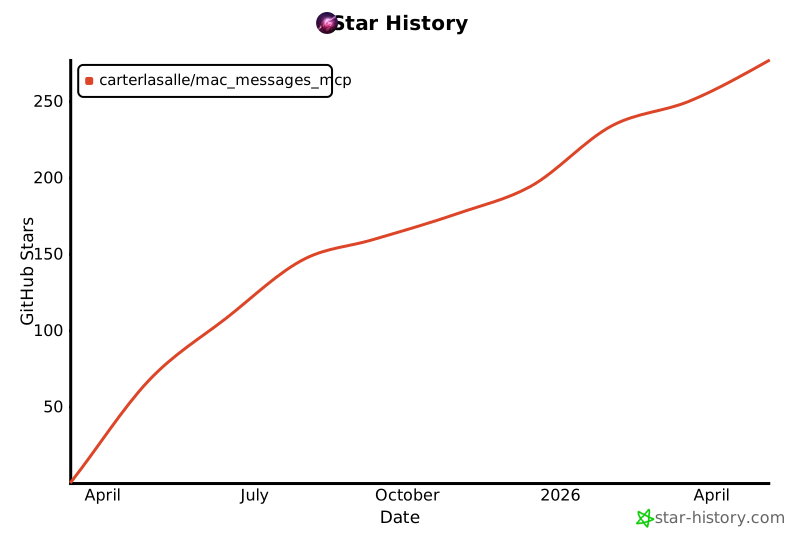
Star History
Release history Release notifications | RSS feed


Download files
Download the file for your platform. If you're not sure which to choose, learn more about installing packages.
Source Distribution
Built Distribution
Filter files by name, interpreter, ABI, and platform.
If you're not sure about the file name format, learn more about wheel file names.
Copy a direct link to the current filters
File details
Details for the file mac_messages_mcp-0.9.1.tar.gz.
File metadata
- Download URL: mac_messages_mcp-0.9.1.tar.gz
- Upload date:
- Size: 49.8 kB
- Tags: Source
- Uploaded using Trusted Publishing? No
- Uploaded via: uv/0.11.11 {"installer":{"name":"uv","version":"0.11.11","subcommand":["publish"]},"python":null,"implementation":{"name":null,"version":null},"distro":{"name":"Ubuntu","version":"24.04","id":"noble","libc":null},"system":{"name":null,"release":null},"cpu":null,"openssl_version":null,"setuptools_version":null,"rustc_version":null,"ci":true}
File hashes
| Algorithm | Hash digest | |
|---|---|---|
| SHA256 |
9570bb5bab8225ba715c3c03ceb1bd7babbb1b6ba88f52949f3c60e1acea2e34
|
|
| MD5 |
0f84d3a1df67a2beebe6deba9f290475
|
|
| BLAKE2b-256 |
24aabf305a8ca220be991ddff4431f567aba68fd2919ffdd0286f15dcd2a6004
|
File details
Details for the file mac_messages_mcp-0.9.1-py3-none-any.whl.
File metadata
- Download URL: mac_messages_mcp-0.9.1-py3-none-any.whl
- Upload date:
- Size: 33.0 kB
- Tags: Python 3
- Uploaded using Trusted Publishing? No
- Uploaded via: uv/0.11.11 {"installer":{"name":"uv","version":"0.11.11","subcommand":["publish"]},"python":null,"implementation":{"name":null,"version":null},"distro":{"name":"Ubuntu","version":"24.04","id":"noble","libc":null},"system":{"name":null,"release":null},"cpu":null,"openssl_version":null,"setuptools_version":null,"rustc_version":null,"ci":true}
File hashes
| Algorithm | Hash digest | |
|---|---|---|
| SHA256 |
32c7f21814be5a501a817f19dd007079afa22fe01fbebc6c33467eeab3da8e6f
|
|
| MD5 |
fe6643056c35d375e0f6cdf11653d903
|
|
| BLAKE2b-256 |
9c9740484bb0c5dc4f68ce42d8015329a6ccf5c5062578333f2b84a3d692e3dd
|






