
markdown-pptx
markdown-pptx turns constrained Markdown into editable PowerPoint .pptx presentations built from real PowerPoint layouts and placeholders. It is a strict, predictable CLI designed for both people and coding agents.
PowerPoint generation uses the ps-python-pptx fork. The converter uses public library APIs where available, with narrow native adapters for missing features. See the API boundary for the capability mapping.
Prerequisite
markdown-pptx is designed to be used with uv. Install uv before continuing. The documented workflows and managed agent skill use uvx to run the tool without requiring a global installation.
Quick start with an agent
Install the managed agent skill:
uvx markdown-pptx skill install
Then use $markdown-pptx in Codex, Claude Code, or another agent harness that supports skills:
Use $markdown-pptx to create a seven-slide presentation about our product launch. Use a clear narrative, include speaker notes, and save both the Markdown source and editable PowerPoint deck.
The skill teaches the agent how to inspect the format and templates, write valid slide Markdown, render the deck, and handle the result.
Manage the agent skill
The standard location is ~/.agents/skills/markdown-pptx/SKILL.md. Normal invocations of an installed CLI, including help and version output, automatically synchronize an already-installed managed skill to the running CLI version. Missing and unmanaged skills are left alone. Skill-management commands skip this automatic check.
Synchronization is local only. It does not query a package index, refresh uv's cache, or update the CLI. The running CLI version is the authority. PEP 440 version comparison prevents downgrades and leaves equal versions unchanged. The skill continues to instruct agents to use uvx markdown-pptx.
Each generated SKILL.md stores lifecycle data in its YAML metadata mapping:
metadata:
  managed-by: markdown-pptx
  managed-version: "1.3.0"
  managed-content-sha256: "sha256:<64 lowercase hexadecimal characters>"
The version above is illustrative. The generated value exactly matches uvx markdown-pptx --version. The SHA-256 hash covers the entire UTF-8 file with LF line endings and only the hash value replaced by "". Verification preserves the original YAML formatting and normalizes CRLF and CR line endings. This detects modifications. It is not a signature or security boundary. No sidecar files are used.
An older managed skill updates only when its own stored hash verifies. Modified files and valid-version files with missing or malformed hashes are preserved. The legacy HTML managed marker remains recognized. Legacy skills without a version migrate as version 0. Managed skills with missing or invalid version metadata receive a fresh replacement as a recovery step, without hash verification. A conflicting managed-by value always prevents replacement.
Inspect the path, ownership, versions, integrity, and automatic synchronization eligibility without changing anything:
uvx markdown-pptx skill status
uvx markdown-pptx skill status --json
A normal explicit install creates a missing skill or updates a pristine older one. It refuses to overwrite modified or unverifiable managed content with valid version metadata. To restore the bundled skill and discard those edits:
uvx markdown-pptx skill install --force
Install-time --force still refuses unmanaged skills and never downgrades a newer version. Removal accepts current and legacy managed skills. Its existing --force option also permits removing unmanaged content and extra files in the selected skill directory:
uvx markdown-pptx skill remove
All three commands accept --skills-dir PATH. Custom locations require explicit updates because normal CLI invocations inspect only the standard location. Local source checkouts, local direct-source installs, and editable builds do not synchronize automatically. Unidentifiable installation origins are skipped conservatively. An installed wheel remains eligible. Explicit commands such as uvx --from . markdown-pptx skill install still work during development.
Automatic replacements are atomic and recheck the installed file before replacement. Maintenance failures do not change the primary command's exit status. Update notices and preservation warnings go to stderr, so documented JSON results on stdout stay valid. Changes affect future agent skill loading and may not change instructions already loaded into a running agent session.
What it creates
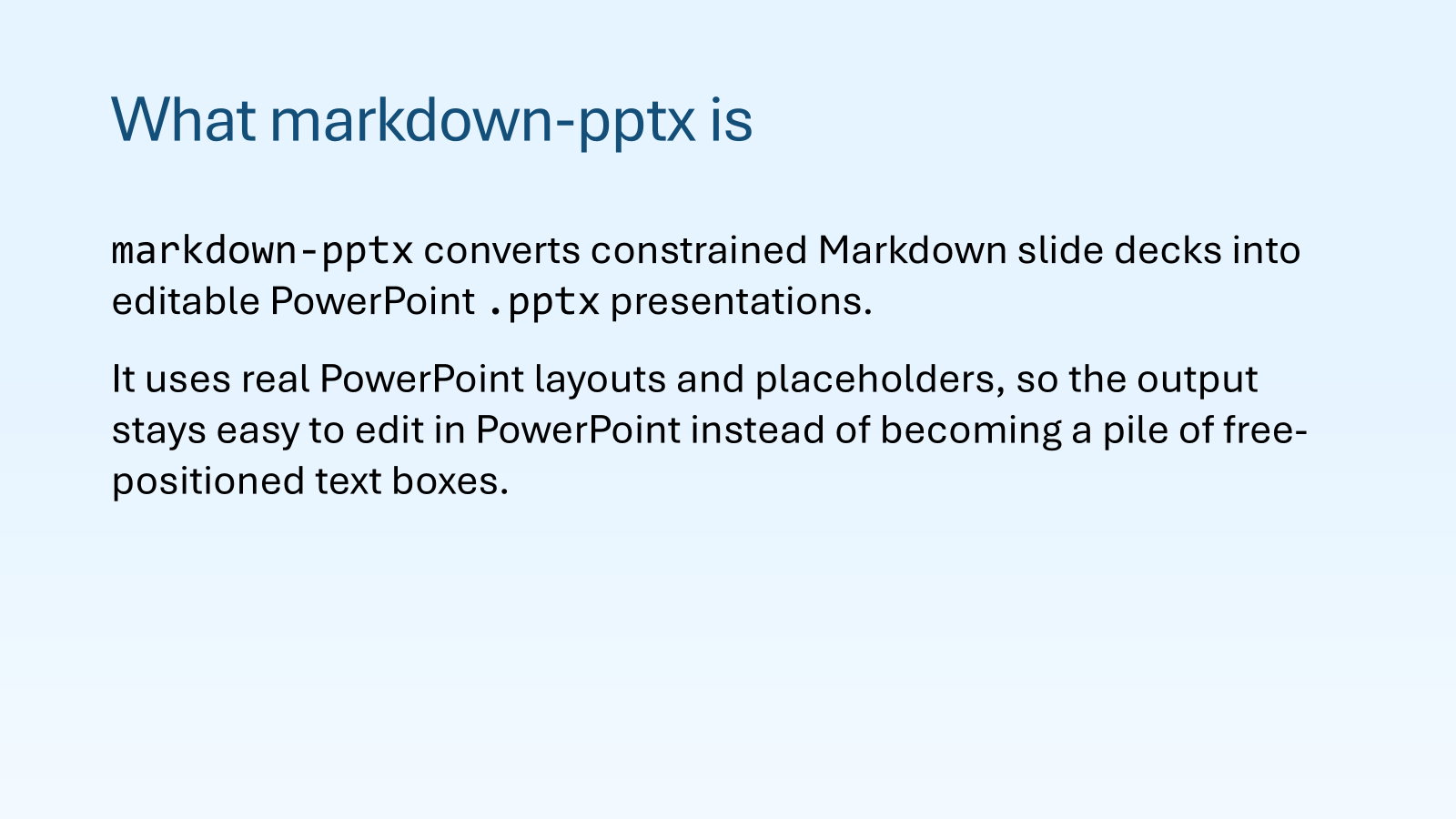
Markdown stays readable, while the generated presentation remains easy to edit in PowerPoint.
Use the CLI directly
Render a deck without installing the package globally:
uvx markdown-pptx deck.md deck.pptx
Inspect the supported format or the layouts in the default template:
uvx markdown-pptx --syntax
uvx markdown-pptx --examples list
uvx markdown-pptx --examples two-content
uvx markdown-pptx --list-layouts
To install the command as a persistent tool instead:
uv tool install markdown-pptx
The examples below continue to use uvx markdown-pptx so they work without a global installation.
How the format works
The document model has four core rules:
- An optional
<!-- markdown-pptx:deckcomment may appear only at the beginning of the file. - Each ATX
# H1or Setext H1 starts exactly one slide. - An optional
<!-- markdown-pptx:slidecomment may appear only immediately after its H1 heading. - Each metadata comment contains YAML and closes with
-->on its own line. Everything until the next H1 belongs to that slide.
The markdown-pptx: comment namespace is reserved. Unknown or misplaced directives, including directives inside lists, blockquotes, headings, and table cells, are errors with source context. After optional deck metadata, only ordinary comments, blank lines, and reference definitions may precede the first H1. Element metadata requires a target inside a slide. Ordinary authoring comments are ignored. Code examples stay literal. The comments stay hidden in standard Markdown viewers. Theme references such as var(--accent-1) work inside them. The exact --> sequence ends an HTML comment, so do not put it inside a metadata value or speaker note. Legacy --- YAML front matter is unsupported.
A minimal two-slide deck looks like this:
# Quarterly review

## Acme Corporation

# Highlights

- Revenue grew 18%
- Customer retention reached 94%
- Two new products launched
Render it with:
uvx markdown-pptx deck.md deck.pptx
If no --template is provided, the packaged default template is used.
Ordinary slides default to Title and Content. Omit layout when the slide uses its effective default. A slide metadata comment is unnecessary when there are no overrides, notes, or other settings.
Use a PowerPoint template
Inspect a template before writing the deck, then use only the layouts it provides:
uvx markdown-pptx --list-masters --template theme.pptx
uvx markdown-pptx --list-layouts --template theme.pptx --master 2
uvx markdown-pptx deck.md deck.pptx --template theme.pptx --master 2
All embedded slide masters are retained in the output. This keeps every layout group available in PowerPoint after the deck is generated.
The effective master is selected in this order:
- The slide-level
mastervalue - The CLI
--masteroption - The first embedded master
Master selectors may be 1-based indices or exact unique master or theme names. Indices are the most reliable choice because template names can be blank or duplicated. Layout names are resolved only within the effective master.
The renderer uses real placeholders for slide titles and bodies. Missing placeholders, duplicate layout names, and ambiguous placeholder mappings are errors. It does not invent free-positioned text boxes to compensate for an incompatible template.
Tables, images, and videos replace the empty content placeholder with their native PowerPoint object. The object retains the placeholder's layout identity.
Customize a deck
The deck metadata comment sets deck-wide defaults:
| Key | Purpose |
|---|---|
aspect_ratio |
Select 16:9 or 4:3 |
layout |
Set the default slide layout. Defaults to Title and Content |
fonts |
Set body and heading fonts |
color_scheme |
Start from a preset or define PowerPoint theme colors |
background |
Set a solid color, gradient, image, or no background |
title_color |
Set the default title color |
body_color |
Set the default body and subtitle color |
media_effects |
Set default effects for content images and videos |
table_effects |
Set default effects for tables |
table |
Set default table-style flags and optional fills |
media_layout |
Set image and video width and alignment defaults |
table_layout |
Set table width and horizontal alignment defaults |
The slide metadata comment controls an individual slide:
| Key | Purpose |
|---|---|
master |
Override the default slide master |
layout |
Select a layout from the effective master |
hidden |
Hide the slide during the slide show. Defaults to false |
background |
Override the document background |
title_color |
Override the document title color |
body_color |
Override the document body color |
hide_background_graphics |
Hide inherited master graphics |
notes |
Add speaker notes to the PowerPoint notes pane |
table |
Override native table-style flags and optional fills |
media_effects |
Override effects for every image and video on the slide |
table_effects |
Override effects for every table on the slide |
media_layout |
Override placement for every image and video on the slide |
table_layout |
Override placement for every table on the slide |
Run uvx markdown-pptx --syntax for the complete schema, accepted values, and examples.
Default layout and hidden slides
Layout selection uses an explicit slide setting, then content-based inference, then the deck setting, then Title and Content. A single top-level thematic break infers Two Content. A nonempty H1 alone, or followed by one top-level H2 and nothing else, infers Title Slide for the first slide and Section Header for later slides. These inferred layouts take priority over the deck default. Set a deck layout only when a different default is needed for ordinary content slides:
<!-- markdown-pptx:deck
layout: Two Content
-->

# Compare options

First option

***

Second option

# Backup details
<!-- markdown-pptx:slide
layout: Title and Content
hidden: true
-->

Additional context for questions.
Here the second slide overrides the deck's Two Content default. Hidden slides remain in the editable presentation with their content and notes. PowerPoint skips them during ordinary slide-show navigation. Without a configured layout, an empty # with no body still creates a Blank slide.
Title slides and section headers from headings
Use ordinary headings to make a title slide and section dividers without metadata:
# Launch plan
## From prototype to production

# Delivery
## Scope, dates, and ownership

# Milestones

- Design approved
- Pilot completed
- Launch scheduled
The first slide uses Title Slide. The second uses Section Header. Their H2 headings become native subtitles and inherit the template's subtitle formatting. The third uses Title and Content unless the deck sets another default.
A nonempty H1 alone follows the same position-based rule with an empty subtitle. First means the first H1 in the source, even if that slide is hidden. ATX and Setext headings behave identically. A slide with multiple H2s, an H3 through H6, or any additional paragraph, list, code, image, table, or video uses the ordinary layout rules. Comments and reference definitions contribute no visible content. H2 headings never start slides.
An explicit slide layout always wins. A content divider takes priority over heading inference. A deck layout is a fallback after inference. Use an explicit Title Only layout when a heading-only slide should use that layout. An empty # with no content still defaults to Blank when no layout is configured.
Theme colors
Use color_scheme to recolor theme-aware template content throughout the presentation:
<!-- markdown-pptx:deck
color_scheme:
  preset: Office
  dark_1: "#10263F"
  light_1: "#F9F9F9"
  accent_1: "#1D6FA8"
  accent_2: "#5AA9E6"
title_color: "var(--dark-1)"
body_color: "var(--dark-2)"
-->
Colors accept hex, RGB, HSL, and PowerPoint theme references such as var(--accent-1). Set preset: null and provide all 12 theme slots for a fully custom palette. Theme-aware template objects follow the resulting palette, while hard-coded RGB colors and images do not.
When a template should provide the colors, use --ignore-document-colors, --ignore-slide-colors, or both. These options do not change images, layouts, or content.
Tables
Write standard Markdown pipe tables and put PowerPoint styling options in deck or slide metadata:
# Quarterly summary
<!-- markdown-pptx:slide
table:
  header_row: true
  total_row: true
  first_column: true
  banded_rows: true
-->

| Region | Revenue |
| --- | ---: |
| North | $50,000 |
| Total | $50,000 |
Table flags control native PowerPoint styling. They do not calculate totals or change the Markdown table structure. A slide may use table metadata only when it contains at least one table. Slide settings apply to both tables on a Two Content slide and override deck defaults per property. The default flags remain header_row: true, banded_rows: true, and false for the other four flags.
Optional header_fill, row_fill, and banded_row_fill colors use the existing color syntax. Omitted fills preserve the current native table style. Header fill applies when header_row is true. Row fill applies to body rows. Banded fill applies when banded_rows is true, beginning with the first body row. Total rows retain their native styling:
<!-- markdown-pptx:deck
table:
  header_fill: var(--accent-1)
  row_fill: var(--light-1)
  banded_row_fill: var(--light-2)
-->

# Quarterly summary
<!-- markdown-pptx:slide
table:
  banded_row_fill: "#EEF8FF"
  total_row: true
-->

| Region | Revenue |
| --- | ---: |
| North | $50,000 |
| Total | $50,000 |
Standard Markdown has no total-row marker. total_row: true styles the final data row without calculating its value. The word Total has no special meaning. The color-ignore flags strip table fills at their respective deck or slide scope.
Tables default to the content area's full width and always start at its top. Rows use native PowerPoint content sizing rather than filling the available height. The generator writes zero-height rows, and PowerPoint calculates their visible height when it opens or renders the file. Oversized tables are not automatically shrunk.
Use standard Markdown separator colons for horizontal column alignment. :--- is left aligned, :---: is centered, and ---: is right aligned. A column without colons defaults to left alignment. All cells, including headers, are centered vertically. There are no row, column, or cell alignment settings:
| Region | Status | Revenue |
| :--- | :---: | ---: |
| North | Complete | $50,000 |
Images and paths
Local image paths are resolved relative to the Markdown file. Remote HTTP and HTTPS images are enabled by default. Use --no-remote-images for offline builds or untrusted Markdown. Download assets ahead of time and use local paths when reproducible builds matter.
Media and table placement
Images and videos default to horizontal centering and top alignment inside their content placeholder. Tables stay top aligned and fill the placeholder width by default. Set media_layout or table_layout in deck or slide metadata to override placement:
<!-- markdown-pptx:deck
media_layout:
align: left
table_layout:
width: 80%
-->
# Product screenshot
<!-- markdown-pptx:slide
media_layout:
valign: middle
-->

<!-- markdown-pptx:media_layout
width: 75%
align: right
-->
# Revenue
| Region | Revenue |
| --- | ---: |
| North | $50,000 |
<!-- markdown-pptx:table_layout
width: 50%
align: center
-->
| Setting | media_layout |
table_layout |
Default |
|---|---|---|---|
width |
auto, positive percentage, or inches such as 4in |
Same | auto |
align |
left, center, right |
Same | center |
valign |
top, middle, bottom |
Unsupported. Tables always stay top aligned | top |
Percentages refer to the element's own content box, not the whole slide. On a Two Content slide, width: 50% means half the width of one content box. Inch widths and percentage widths are capped to that box. Media keeps its aspect ratio and also fits within the box's height, which can further reduce its width. Media auto means the largest proportional fit. Table auto means full content-box width.
Each property resolves through element settings, slide defaults, deck defaults, then the defaults above. Omitted keys inherit. Empty mappings retain inheritance. Explicit width: auto restores automatic sizing. Alignment affects the whole object. Table cell text alignment still comes from Markdown separator colons and stays vertically centered. Narrower tables can wrap text onto more lines and grow taller through native row sizing.
Element layout comments immediately follow the image, video, or complete table. Blank lines are allowed. Layout, effects, and video playback comments can appear together in any order. Unknown or duplicate keys, incorrect targets, inline comments, and orphan settings are errors. table_layout rejects valign at every scope.
Existing width, align, and valign keys in a markdown-pptx:video comment remain accepted as element placement overrides. Prefer media_layout for placement shared with images. Specifying the same property in both element comments is an error, even if the values match.
Placement excludes borders, shadows, and reflections from its bounds. Effects keep the object's fitted size and position and may extend outside the box. Background images retain their existing placement behavior. These settings require no desktop PowerPoint automation.
Media and table effects
Set media_effects and table_effects mappings in deck or slide metadata. Media defaults apply to content images and videos. Table defaults apply to tables. Background images retain their existing behavior:
media_effects:
  border_radius: 8pt
  shadow: "2pt 2pt 6pt rgba(0, 0, 0, 0.25)"
table_effects:
  shadow: "2pt 2pt 6pt rgba(0, 0, 0, 0.15)"
An optional markdown-pptx:media_effects comment immediately after a standalone image or video sets that element's editable native effects. It also works with linked and reference-style media:

<!-- markdown-pptx:media_effects
border: "1pt solid var(--accent-1)"
border_radius: 8pt
shadow: "2pt 2pt 6pt rgba(0, 0, 0, 0.25)"
reflection: "4pt 30%"
-->
| Setting | Values and defaults |
|---|---|
border |
width solid|dashed|dotted color, or none. Default none |
border_radius |
Nonnegative corner radius. Default 0. Applies to images and video frames without requiring a border. Clamped to half the shorter dimension |
shadow |
offset-x offset-y [blur] [color], or none. Default none. Blur defaults to 0. Color defaults to black at 25% opacity |
reflection |
distance [amount%], or none. Default none. Always below the picture. Amount defaults to 30% and must be greater than 0 and at most 100% |
Lengths accept pt, in, and px. One pixel means 0.75 points. Unitless zero is accepted. Shadow offsets may be negative. Only one outer shadow is supported, without spread or inset. Colors use the existing color formats plus rgba(r, g, b, alpha), #RGBA, and #RRGGBBAA for opacity. RGBA alpha ranges from 0 to 1.
Reflection amount is the visible reflected height relative to the picture's height. The reflection starts at 35% opacity and fades to transparent, with a 1-point blur. Pictures keep the same size and position with or without effects. Effects can extend beyond the content area or the slide edge.
Tables use an adjacent markdown-pptx:table_effects comment after the complete pipe table. They accept border, shadow, and reflection. border_radius is a syntax error in table effects at every scope. Table borders affect the outer perimeter and preserve internal gridlines:
| Region | Revenue |
| --- | ---: |
| North | $50,000 |

<!-- markdown-pptx:table_effects
border: "1pt solid var(--accent-1)"
shadow: "2pt 2pt 6pt rgba(0, 0, 0, 0.25)"
reflection: "4pt 20%"
-->
Each property resolves through element settings, slide defaults, deck defaults, then native styling. Omitted properties inherit. none disables border, shadow, or reflection. border_radius: 0 disables rounding. Empty mappings retain inheritance. Effects do not resize or reposition the object.
Element comments must immediately follow the correct target. Blank lines are allowed. Layout, video playback, and media-effects comments may follow a video together in any order. Wrong targets, orphan comments, duplicate settings, and inline settings are errors. The unshipped markdown-pptx:image and generic markdown-pptx:effects forms are unsupported.
Quoted and unquoted YAML values are supported. Quote the entire setting when it contains a hex color, for example border: "1pt solid #445566". Otherwise YAML would treat the color as a comment. Quote compound settings in examples for consistency. Use underscores in keys to match the existing metadata convention.
Videos
Use a standalone Markdown link in a Title and Content area or either side of Two Content. MP4 and YouTube destinations become video objects. Links inside sentences stay hyperlinks:
# Product demo

[Play the demo](media/demo.mp4)

<!-- markdown-pptx:video
width: 75%
start: automatic
-->
For a custom MP4 poster, use a linked image. This remains a clickable image in ordinary Markdown:
[](media/demo.mp4)
The markdown-pptx:video comment is optional. Put it in the next top-level block after the link. It accepts non-default settings, but not source or poster.
The link destination accepts a local MP4 path, an HTTPS MP4 URL, or a YouTube watch, share, Shorts, or embed URL. Relative local paths resolve from the Markdown directory. Absolute paths are accepted on the current operating system. Use forward slashes in Windows Markdown links, as in <C:/media/demo.mp4>. The MP4 bytes are embedded in the PPTX, so the completed deck does not depend on the source path. HTTPS MP4 files are downloaded during rendering. The default download limit is 100 decimal MB. Use --max-remote-video-mb NUMBER to change it or --no-remote-videos to reject remote MP4 files. YouTube videos remain online and need an internet connection when played.
Local MP4 files must contain H.264 video. PyAV reads the video's display aspect ratio and generates a poster from its first decoded frame unless the link contains a local image. PowerPoint stores the poster inside the PPTX. A mismatched poster is fitted with black bars. Set aspect_ratio: "4:3" in the optional video comment to override the detected ratio. YouTube defaults to 16:9 and also accepts aspect_ratio. A linked image pointing to YouTube remains an ordinary clickable image.
| Setting | Local or remote MP4 | YouTube | Default |
|---|---|---|---|
| Link destination | MP4 path or HTTPS URL | YouTube URL | Required |
width |
auto, percent, or inches such as 6in |
Same | auto, fit in content area |
aspect_ratio |
Optional width to height ratio | Optional width to height ratio | Video metadata for MP4, 16:9 for YouTube |
align |
left, center, right |
Same | center |
valign |
top, middle, bottom |
Same | top |
| Linked poster image | Local image path | Unsupported | First decoded video frame for MP4 |
start |
automatic or click |
Unsupported | click |
fullscreen |
Boolean | Unsupported | false |
loop |
Boolean | Unsupported | false |
mute |
Boolean | Unsupported | false |
click starts playback on the next slide advance click. The video starts before PowerPoint advances to the next slide. automatic starts playback when the slide appears. Neither option advances the slide when playback ends. mute: false uses PowerPoint's high volume setting. fullscreen: true starts local video in full screen playback. YouTube playback controls are managed by the online player, so the local playback settings are rejected for YouTube sources. Videos occupy one content area and cannot be mixed with text, images, or tables in that area.
When reading Markdown from stdin, provide an output path and a base directory for relative assets:
uvx markdown-pptx --input - --output deck.pptx --base-dir ./assets
Layouts and supported content
The built-in template provides these common layouts. Supplied templates may use different names and placeholders.
| Layout | Body behavior |
|---|---|
Title Slide |
Body text is placed in the subtitle placeholder |
Section Header |
Body text is placed in the subtitle or body placeholder |
Title and Content |
Accepts text flow, one image, one table, or one video |
Two Content |
One thematic break separates left and right content. Each side accepts text flow, one image, one table, or one video |
Title Only |
Does not accept body content |
Blank |
Requires an empty title and empty body |
Supported Markdown includes:
- Paragraphs
- Bullet and ordered lists, nested up to three levels, with continuation paragraphs and empty items
- Task lists with static checked and unchecked boxes
- ATX or Setext H1 slide headings and H2 through H6 headings within a slide
- Emphasis, strong text, strikethrough, superscript, subscript, inline code, and links
- Hard line breaks from two trailing spaces or a trailing backslash
- Fenced code blocks with editable syntax coloring for recognized languages
- Plain indented code blocks
- Blockquotes with nested text, headings, lists, and code
- Pipe tables
- Local and remote standalone images, including linked images
- Embedded H.264 MP4 and online YouTube video links
Soft line breaks become spaces so ordinary source wrapping does not force a line break on the slide. Use a hard line break when the visual line must end. A Setext heading uses === for H1 or --- for H2 on the next line. Setext has no H3 through H6 form. The slide metadata comment must still immediately follow the slide heading.
Inline formatting stays editable in PowerPoint, including table cells and formatting nested inside links. Table hyperlinks retain targets and ScreenTips. Unmarked cell text inherits native table fonts, sizes, colors, and header styling. Task boxes are static symbols. Fenced code uses the first language label for syntax coloring when Pygments recognizes it. Unknown labels produce plain editable code. Image alt text and optional titles are stored in the picture metadata. A link around a standalone image makes the picture clickable.
HTML comments and tags are ignored. Text between tags stays visible as plain text. Script and style content is omitted.
The intentionally unsupported set includes:
- Thematic breaks outside the single Two Content separator
- Footnotes
- Images mixed into text paragraphs
- Arbitrary positioning
- Layered backgrounds
- Animations
Shared references and hyperlink titles
Link and image definitions apply across the whole deck, including slide titles. Full references ([Guide][docs]), collapsed references ([docs][]), and shortcut references ([docs]) work. Definitions can appear before the first slide, after the deck metadata comment, or in a later slide body. They do not produce visible content. Labels follow CommonMark normalization, and the first definition wins.
[docs]: https://example.com "Read the documentation"

# [Documentation][docs]

Read the [guide][docs].

# Next steps

Revisit [docs] before starting.
Definitions inside fenced or indented code, HTML comments, and YAML metadata are not collected. Unresolved references remain literal Markdown text. Ordinary visible content before the first slide remains invalid.
Optional link titles become PowerPoint ScreenTips on text links, including nested formatting and slide titles. For a linked standalone image, the image title supplies picture metadata and the outer link title supplies the ScreenTip:
[](https://example.com "Open the full report")
Use --examples references for a complete document.
Content inside lists
Continuation paragraphs, code blocks, and body headings retain the containing list item's text indentation. Lists inside quotes retain their relative nesting and still count toward the three-level limit. Ordinary authoring comments inside lists are ignored. Reserved markdown-pptx: directives produce an error. Images inside list items produce an explicit error. Use a standalone image content area instead.
Ordered lists preserve their starting number, including zero. PowerPoint native numbering is used for values from 1 through 32767. Outside that range, numbers are editable text prefixes and do not automatically renumber after edits in PowerPoint. Subsequent numbers follow the first marker, as in CommonMark. Template paragraph spacing is preserved.
Theme syntax colors
Fenced code keeps its existing Pygments colors by default. Set code_highlighting in the deck metadata comment or override it on a slide:
code_highlighting: theme-dark
background: "#FFFFFF"
| Value | Behavior |
|---|---|
default |
Existing Pygments palette. No background analysis |
theme-dark |
Dark code colors for a light background |
theme-light |
Light code colors for a dark background |
A slide inherits the document setting. Explicit default restores the original palette on that slide. These modes apply to code blocks, including plain blocks with no recognized language. Inline code keeps its ordinary text formatting. Theme modes override body_color within code blocks.
| Code role | Theme slot |
|---|---|
| Ordinary names, punctuation, operators | Dark 1 for theme-dark, Light 1 for theme-light |
| Comments | Same base color, italic |
| Keywords and HTML tags | Accent 1, bold |
| Strings, numbers, constants | Accent 2 |
| Functions, types, classes, built-ins, HTML attributes | Accent 3 |
The three accent roles stay fixed across languages and slides. Dark 1 and Light 1 provide the theme's primary text colors without consuming an accent. Each color receives the smallest native brightness adjustment needed to reach a 4.5:1 contrast ratio, using the WCAG relative luminance formula. Colors that already meet the target remain unchanged. Comments meet the same target as other tokens.
The output uses editable PowerPoint theme references. Changing the theme in PowerPoint changes these colors too, but does not rerun contrast analysis. Regenerate the deck after a theme change to recalculate the adjustments.
Analysis runs once per content placeholder that contains code. Two Content areas are analyzed separately. Solid backgrounds use their resolved color. Image backgrounds use the visible source region behind the placeholder, including cover cropping, with at most 256 pixels on the longest side. A luminance histogram discards 1% at each tail and uses the remaining range. Decoded images are cached for the render. Supported gradients use a 16 by 16 grid across the placeholder.
Image and gradient results are estimates. They do not guarantee contrast at every glyph. Template graphics layered over backgrounds, complex placeholder fills, and unsupported background effects are not fully rendered. When background inspection fails, the opposite theme text color is used as an explicit assumption and a warning is reported. A high-contrast background may make the target impossible. The renderer retains the requested light or dark variant, uses its maximum contrast, and reports the failure. It does not add a panel or switch variants.
Plain CLI output sends warnings to stderr. JSON render output includes a code_highlighting array with slide and placeholder identifiers, analysis method, sample count, estimated minimum contrast, warnings, and target_met. That value is null when the background had to be assumed. The default palette produces no analysis entries.
The color-ignore flags remove the existing document or slide color overrides. They retain code_highlighting, which then uses the remaining template colors and backgrounds.
Use markdown-pptx --examples theme-code for a complete authoring example.
Run uv run python scripts/benchmark_code_colors.py to compare the image range analysis with an average-only baseline. Both use the same crop and sample size. On the development machine, the 1080p and 4K cases took about 6 milliseconds per area, about 1.2 to 1.5 times the baseline. Image decoding is measured separately and cached during rendering. These are local measurements, not performance guarantees.
Two content areas
Put exactly one top-level thematic break between the left and right content. This automatically selects Two Content without metadata:
# Compare options

## First option

- Small scope
- Quick feedback

***

## Second option

- Broader scope
- More preparation
Each side follows the same content rules as Title and Content. Text beside an image, table, or video is supported. Mixing text and a non-text object within one side is rejected. Either side can be empty, but the separator is still required.
Prefer *** surrounded by blank lines. CommonMark --- and ___ thematic breaks also work. A --- directly below paragraph text is a Setext H2 underline. The slide metadata comment remains valid only immediately after the slide heading. Breaks inside code fences remain literal code. Nested breaks and more than one break are rejected. An explicit slide layout overrides inference. A divider with an incompatible explicit layout is an error. Selecting Two Content explicitly or as a deck default still requires the divider.
The selected template layout must contain exactly two body/content placeholders with non-overlapping horizontal bounds. Content follows their position from left to right, regardless of placeholder index. No divider line or extra text boxes are created. Layouts with three or more content areas are unsupported.
Discover authoring examples
The CLI includes complete Markdown documents covering every supported metadata key and Markdown feature:
uvx markdown-pptx --examples
uvx markdown-pptx --examples list
uvx markdown-pptx --examples two-content
uvx markdown-pptx --examples tables --json
--examples prints the full annotated catalog. --examples list lists topic names and descriptions. --examples NAME prints only the selected document's raw Markdown, suitable for saving as a .md file. --json returns structured entries with descriptions, asset requirements, and Markdown source. The list form omits the source to keep discovery compact. Each example is a separate document. Image examples require the assets described in their requirements.
Use --help to discover commands, --syntax to inspect the format contract, and --examples to learn authoring. Use --list-layouts --template theme.pptx --json to check a template's actual layout compatibility. These commands work without installing a skill.
Automation and image export
Structured results and overwrite safety
Use --json for agent and automation workflows:
uvx markdown-pptx deck.md deck.pptx --json
Successful JSON includes the output path, slide count, and template master details. Failures include a stable error code and relevant input, line, slide, or partial-output context.
The CLI refuses to overwrite an existing presentation or colliding generated image. Add --force only when replacing generated output is intended:
uvx markdown-pptx deck.md deck.pptx --force --json
Export slide images on Windows
On Windows, the CLI can use an installed desktop copy of Microsoft PowerPoint to export PNG or JPEG previews after generating the editable presentation:
uvx markdown-pptx deck.md deck.pptx --export-images png --slides 1,3-5 --image-width 1600 --json
Image export requires Windows, an interactive desktop session, and an installed, licensed, initialized PowerPoint application. The default output directory is <pptx-name>-images. PNG is recommended for text and diagrams.
The editable .pptx is retained if image export fails. With --json, the partial output path is reported in error.details.pptx_output.
Reference
Useful discovery and metadata commands:
uvx markdown-pptx --help
uvx markdown-pptx --syntax
uvx markdown-pptx --list-color-schemes
uvx markdown-pptx --list-masters --template theme.pptx
uvx markdown-pptx --list-layouts --template theme.pptx --master 2
uvx markdown-pptx --about
uvx markdown-pptx --version
Exit codes:
| Code | Meaning |
|---|---|
0 |
Success |
2 |
Usage or input error |
3 |
Markdown or metadata parse error |
4 |
Template or layout error |
5 |
Image or other asset error |
6 |
Unsupported Markdown content |
7 |
PowerPoint rendering error |
8 |
Unexpected internal error |
Examples
- Default showcase source, rendered deck
- Advanced showcase source, rendered deck
- Showcase coverage and migration map
- Sample multi-master template
- Sample local image
- Sample Big Buck Bunny clip
- Sample Big Buck Bunny poster
- Sample video credits
The default showcase uses vanilla Markdown with no markdown-pptx metadata. The advanced showcase sets every deck metadata key, then separates slide settings from element settings into two groups. Together they cover every supported option and syntax form with meaningful combinations. Mutually exclusive deck choices, such as aspect ratios, appear as complete source examples that the tests validate separately. The coverage map tracks all 61 topics from the original showcase.
Regenerate both showcases from the repository checkout:
uvx --refresh --from . markdown-pptx sample/default-showcase.md sample/default-showcase.pptx --force
uvx --refresh --from . markdown-pptx sample/advanced-showcase.md sample/advanced-showcase.pptx --template sample/showcase-template.pptx --force
Development
Install the development environment and run the checks:
uv sync --locked --all-groups
uv run pytest
uv run ruff check .
uv run ruff format --check .
The real PowerPoint export smoke test is optional and requires desktop PowerPoint:
$env:MARKDOWN_PPTX_TEST_POWERPOINT="1"
uv run pytest tests/test_powerpoint_integration.py
Build and validate distributable packages:
uv build
uv run twine check dist/*
CI runs tests/wheel_smoke.py with an isolated installed wheel. It checks version discovery, generated skill metadata, automatic synchronization, and inspection output. Run uv run python tests/wheel_smoke.py --expect-local to check development-build exclusion and explicit installation. Both the smoke checks and pytest use temporary skill directories.
1 maintainer

Metadata
1 maintainer
Release files for markdown-pptx 3.0.0
For a detailed explanation of source distributions (sdists) and built distributions (wheels), please see the package formats documentation.
Source distribution (sdist)
| File | Size | Uploaded | Provenance | Actions |
|---|---|---|---|---|
| markdown_pptx-3.0.0.tar.gz | 14.8 MB | With provenance | Details for markdown_pptx-3.0.0.tar.gz |
Built distribution (wheel)
| File | Interpreter | ABI | Platform | Actions Reset |
|---|---|---|---|---|
| markdown_pptx-3.0.0-py3-none-any.whl | Python 3 | none | any | Details for markdown_pptx-3.0.0-py3-none-any.whl |
Total release size: 15.0 MB
Release files / markdown_pptx-3.0.0.tar.gz
| Download URL | markdown_pptx-3.0.0.tar.gz |
|---|---|
| Size | 14.8 MB |
| Tags | Source |
|
SHA-256 checksum How to use checksums |
50c74c2df845408aaea62a25cf7a820da76592ce79a8ced203ca559cb2f6897f
|
|
BLAKE2b-256 checksum How to use checksums |
e717dcb24a21632026baca9af95126f9b14170f1ad0cc03903eb5497c668c920
|
| Upload date | |
|
Uploaded using Trusted Publishing? What is trusted publishing? |
Yes |
| Uploaded via |
twine/7.0.0 CPython/3.13.14
|
Provenance
Provenance describes where a file came from. On PyPI, provenance is shared via attestations, which provide a verifiable record of the build or publishing details. View details, limitations and caveats.


PyPI Publish Attestation
PyPI verified that this artifact, at this checksum, originated from the publisher listed below.
Signed by GitHub Actions, verified by PyPI on Oct 14, 2026.
Transparency logRelease files / markdown_pptx-3.0.0-py3-none-any.whl
| Download URL | markdown_pptx-3.0.0-py3-none-any.whl |
|---|---|
| Size | 146.2 kB |
| Tags | Python 3 |
|
SHA-256 checksum How to use checksums |
6e5b5b2ec6237f4a720c958e160b4fb559970c1f53d65632e796b4b60548260a
|
|
BLAKE2b-256 checksum How to use checksums |
ef3a0536295bcb23e77db13fbc69ca927b210a45eafa8b8f5cdca49ffa44ee33
|
| Upload date | |
|
Uploaded using Trusted Publishing? What is trusted publishing? |
Yes |
| Uploaded via |
twine/7.0.0 CPython/3.13.14
|
Provenance
Provenance describes where a file came from. On PyPI, provenance is shared via attestations, which provide a verifiable record of the build or publishing details. View details, limitations and caveats.
PyPI Publish Attestation
PyPI verified that this artifact, at this checksum, originated from the publisher listed below.
Signed by GitHub Actions, verified by PyPI on Oct 14, 2026.
Transparency logSecurity for markdown-pptx 3.0.0
Provenance
Provenance describes where a file came from. On PyPI, provenance is shared via attestations, which provide a verifiable record of the build or publishing details. View details, limitations and caveats.
Full provenance
Both files in this release have been uploaded with provenance metadata.
Attestation for markdown_pptx-3.0.0.tar.gz
PyPI Publish Attestation
PyPI verified that this artifact, at this checksum, originated from the publisher listed below.
Signed by GitHub Actions, verified by PyPI on Oct 14, 2026.
Transparency logA note on package security
PyPI is a repository for distributing packages, not a service for auditing them. While third-party security researchers and our staff do their best to detect and remove malicious packages, PyPI cannot guarantee the quality, security or suitability of any given package.
To learn more about protecting yourself from malicious actors, visit our package security documentation.
















