
MeetStream Agent Kit
Bring your own agent into your meetings.
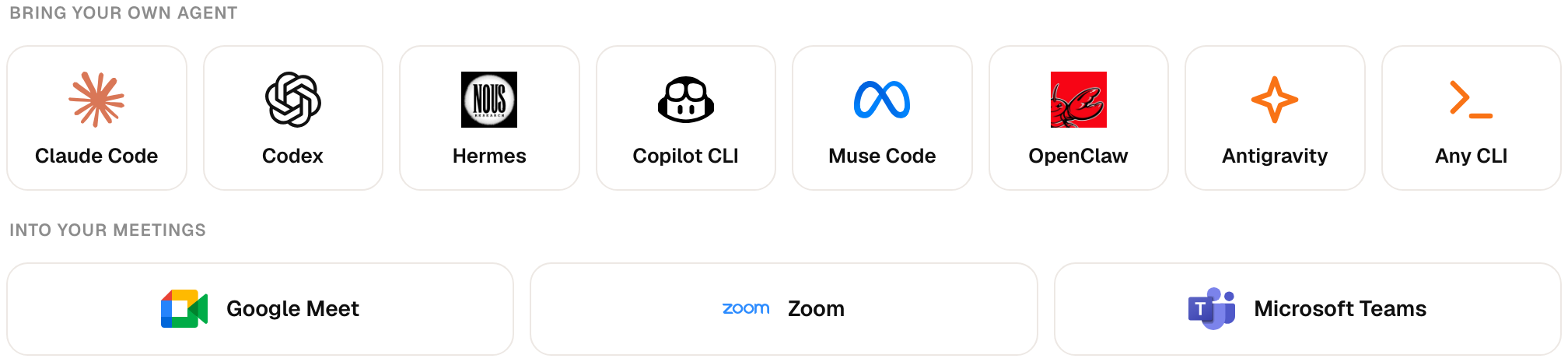
Claude Code, Codex, Hermes, Copilot CLI and more answer out loud in Google Meet, Zoom and Microsoft Teams,
with your own login, your own model and your own files.




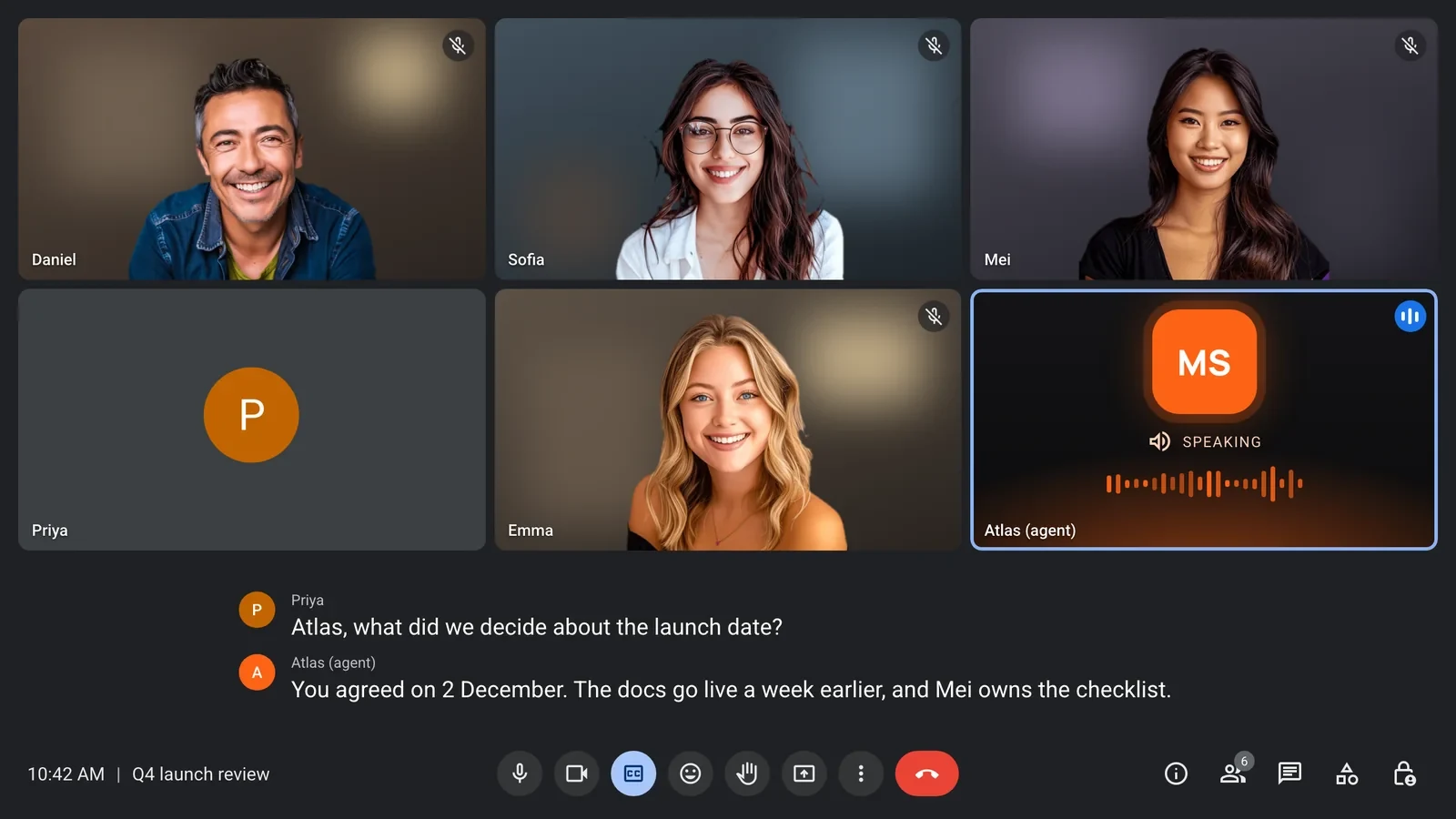
MIA, MeetStream's meeting agent, joins the call, listens, and speaks. The Agent Kit bridge runs on your computer and lets your own agent CLI write what MIA says. Your agent keeps its model, its prompts, its tools and your files. MIA keeps the meeting side: joining the call, speech-to-text and voice. MeetStream never sees your agent's login and charges no model tokens.
Contents
- How it works
- Before you start
- Quick start
- Set it up with the API
- Install
- Supported agents
- Access levels
- Activation code
- Security
- Troubleshooting
- Commands
- Development
- Docs
How it works
flowchart LR
  P([People in the meeting]) <-->|voice| MIA[MIA<br/>joins the call, hears, speaks]
  MIA -->|each turn, over HTTPS| T[Your tunnel]
  T --> B[Agent Kit bridge<br/>127.0.0.1 on your computer]
  B <-->|one warm session per meeting| A[Your agent CLI<br/>Claude Code, Codex, Hermes...]
- When MIA joins a call, the bridge starts one long-lived session of your agent for that meeting, so no one waits for it to start up later.
- When someone talks to MIA, the words go to your agent as text. Its answer streams back, and MIA speaks the first sentence while your agent is still writing the rest.
- When someone interrupts, the bridge stops your agent at once and keeps the conversation, so the next question still has the context.
Your agent can also use the meeting itself through MIA's meeting tools: post in
the chat, share a web page, read and click it, and look at the screen, whatever
your MIA agent allows. The screen tools need agent.tools: ["screen"] on the MIA
agent and work in Google Meet. OpenClaw, Antigravity and custom commands are
text only.
Before you start
MeetStream has three ways to integrate. This kit is flow 2b. Overview: Integration paths.
| Flow | What you do | Price per meeting hour |
|---|---|---|
| 1. Recording only (Bot API) | Send a bot to Zoom, Google Meet or Microsoft Teams, then get recordings, transcripts, participants, chat and webhooks after the call, or live data during it. You do not need this kit for that. Start at the docs. | Bot price |
| 2a. Agents in meetings, your own stack: bridge server | The bot streams live audio to your server and takes audio, chat and images back over a control socket. You run your own speech-to-text, LLM and voice, hosted or local. See Bridge server architecture and the MeetStream Bridge starter. | Bot price only. No agent infrastructure, no model tokens. |
| 2b. Agents in meetings, your own stack: your own agent as the brain (this kit) | MIA joins the call, and your agent CLI on your computer, on your own subscription, writes what MIA says (model.provider: "local_agent"). |
Bot price + $0.25 agent infrastructure. MeetStream charges no model tokens for your agent's replies. |
| 3. Managed agent infrastructure (Agents API, MIA) | MeetStream hosts the agent. 3a: MeetStream's inbuilt keys. Inbuilt keys work in pipeline mode only: Deepgram (speech-to-text) and OpenAI (LLM and voice). Realtime mode runs on OpenAI and needs your own OpenAI key. Any other provider: bring your own key. 3b: your own provider keys (OpenAI, Anthropic, Deepgram, ElevenLabs and others). | Bot price + $0.25 agent infrastructure + the models you pick. The dashboard agent editor shows the rate before the bot runs. |
Flow 2 is the one to try first when you want an agent in the meeting. Pick flow 3 if you want no infrastructure work. The bot price is $0.35 per recording hour ($0.25 at volume), see pricing.
MIA's speech-to-text and voice still need a provider in flow 2b too: your own keys, or inbuilt keys where your account has them. Inbuilt keys are not on for every account yet. If the API answers "MeetStream-managed keys are not available for … Use your own key.", use your own provider keys and do not retry. Details: Voice agent pricing and keys.
Pick the Agent Kit only when you want your own agent CLI to answer. Know this first:
Quick start
You need macOS or Linux, Python 3.10 or newer, one supported agent installed and signed in, and a MeetStream account.
1. Install it and run it.
uv tool install meetstream-agent-kit
meetstream-agent-kit
It walks you through seven short steps, with arrow-key menus: which agent should answer (it lists the ones it finds on your computer and checks they are signed in; pick one that is missing and it shows the vendor's official install command and offers to run it), which model and effort it uses (listed by the CLI itself, each with an estimated tokens-per-hour bar, what it can do in a meeting, and a "Measure live" option that runs one short turn per model), the folder it works in, the most access this computer allows, how MeetStream reaches your computer, and your name. Then it tests your agent.
- Cloudflare quick tunnel: no account needed. The address changes each time it starts.
- ngrok: needs a free ngrok account. Setup reads your ngrok config, so it knows whether ngrok is connected to your account and which domain you use, and tells you the one command to run when it is not. A static domain (free accounts get one, under Domains in the ngrok dashboard) keeps one address.
- An address you already have, for example a named Cloudflare tunnel.
The last step runs one short test turn with your agent. For agents that run over ACP in meetings (Antigravity, Hermes, Copilot, Muse, OpenClaw) it also starts that warm session the way a meeting does and has your agent call a test meeting tool, so a problem shows up now and not in the meeting. If it does not answer, setup says why (not installed, signed out, timed out, or an empty reply, with what the CLI printed), offers to run the sign-in command and tests again. Then it asks Start now? On yes, it starts the bridge and the tunnel and prints the two things to paste, each on its own line:
Next: paste these in the MeetStream dashboard
  1. Pairing token  Integrations > Models > Local agent (shown once)
     msak_…
  2. Bridge URL     Agents > your agent > Model > Your agent
     https://….trycloudflare.com
Next time, run meetstream-agent-kit and press Enter to start with the same answers.
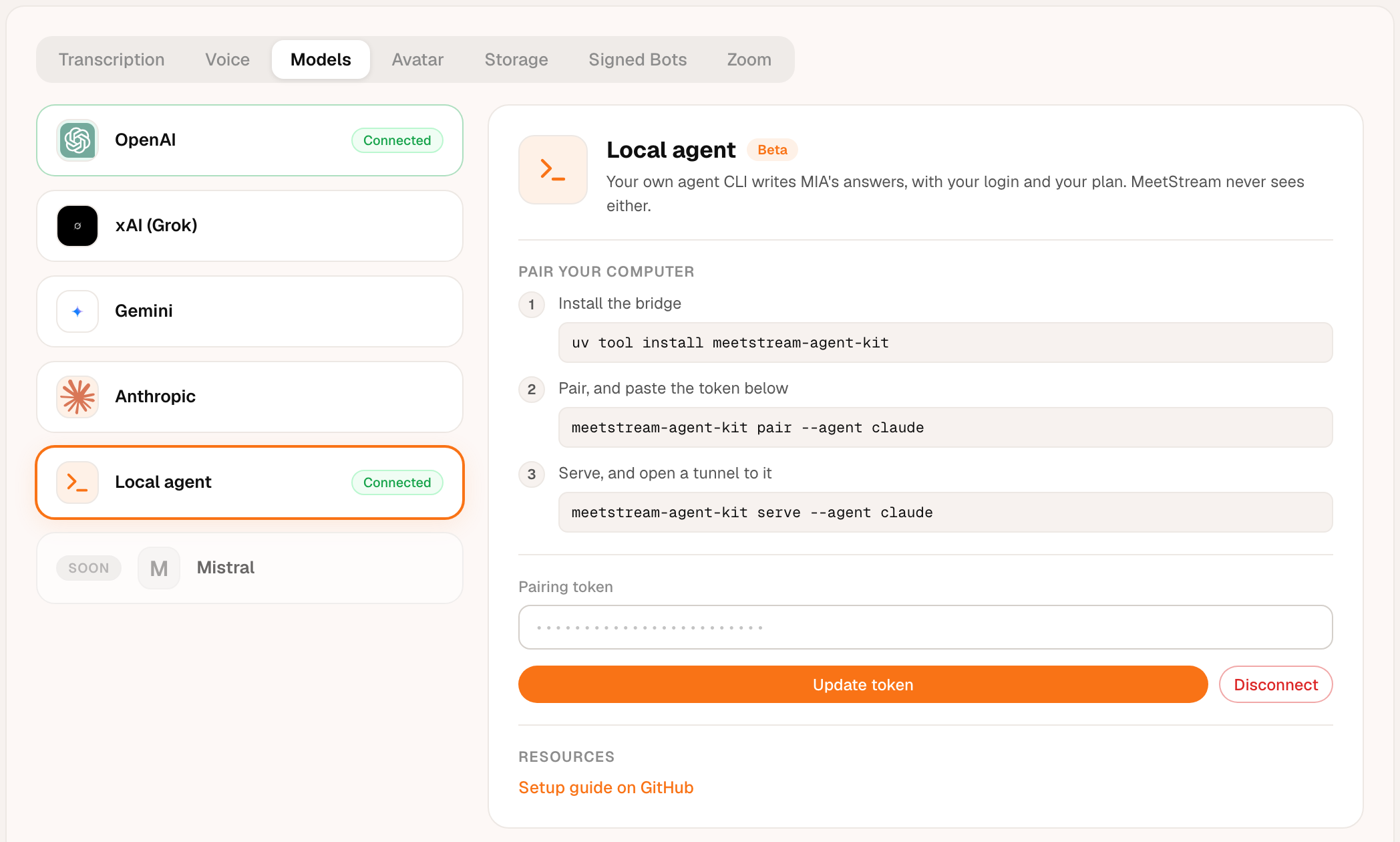
2. Save the token in MeetStream. In the dashboard, open Integrations > Models > Local agent, paste the token and save it.
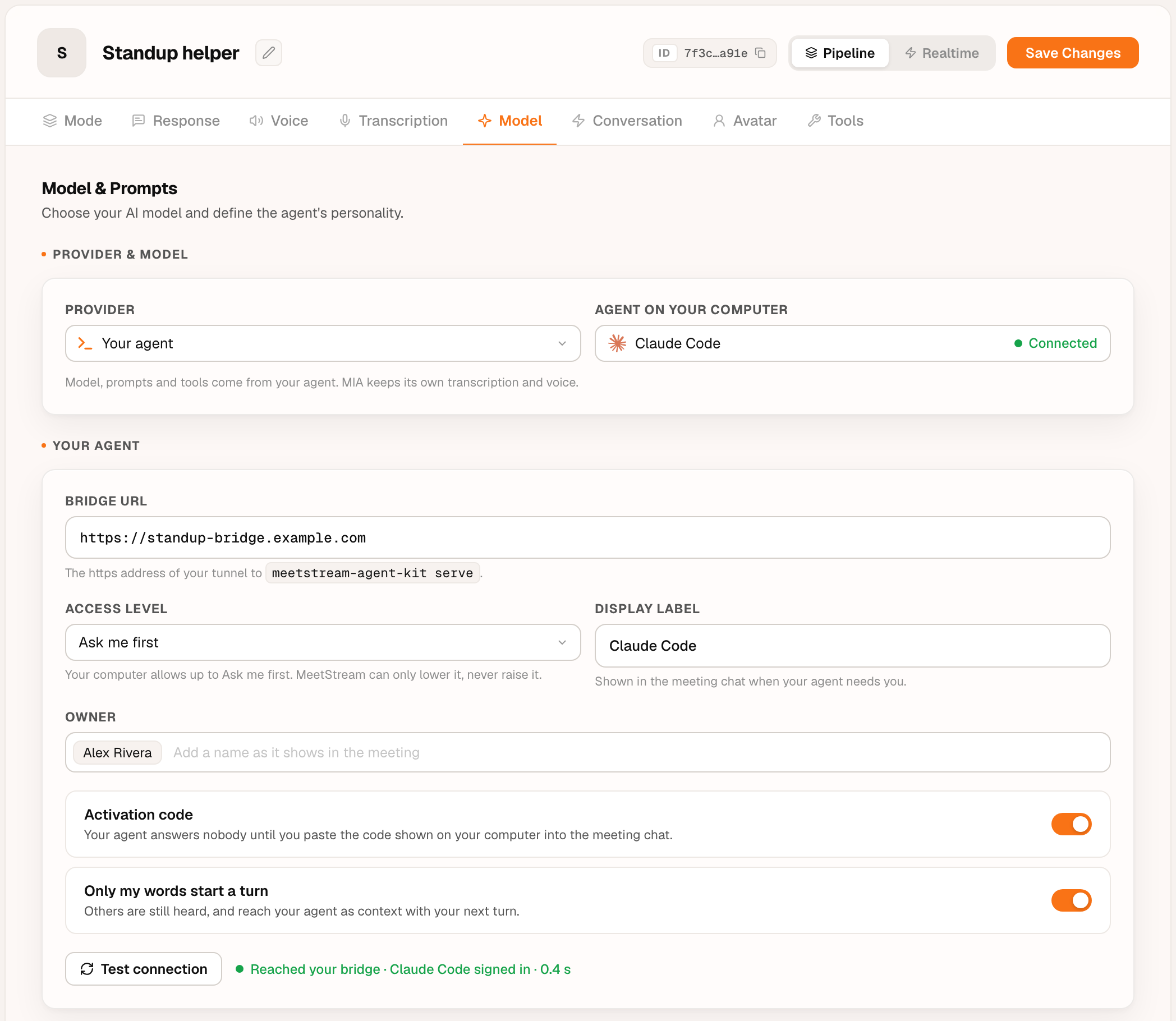
3. Point your MIA agent at it. Open the agent in the dashboard, go to Model, choose Your agent as the provider, and paste the Bridge URL. Set the access level, the label and the activation code, save the agent, then click Test connection (it uses the saved settings).
That's it. Leave that window open. Every meeting this MIA agent
joins now talks to your agent. Not sure everything is ready? Run
meetstream-agent-kit doctor.
Set it up with the API
The dashboard steps above map to the MeetStream API. Save the pairing token in
the dashboard first (Integrations > Models > Local agent): it is never part
of the agent config. Then create a MIA agent in pipeline mode with
model.provider: "local_agent":
curl -X POST https://api.meetstream.ai/api/v1/mia \
  -H "Authorization: Token $MEETSTREAM_API_KEY" \
  -H "Content-Type: application/json" \
  -d '{
    "agent_name": "Claude in the meeting",
    "mode": "pipeline",
    "model": {
      "provider": "local_agent",
      "local_agent": {
        "url": "https://<your-tunnel-host>",
        "label": "Claude Code",
        "access": "readonly",
        "require_code": true
      }
    },
    "transcriber": { "provider": "deepgram", "model": "nova-3", "language": "en" },
    "voice": { "provider": "elevenlabs", "voice_id": "<YOUR_VOICE_ID>" },
    "agent": { "response_modality": "audio" }
  }'
model.local_agent.url(your tunnel,https://) is required.label,access(readonlydefault,confirm,full),require_code(defaulttrue),owner_only,owner_names,owner_idsandtimeout_s(default 120) are optional.transcriberandvoiceare required: MIA still listens and speaks.model.modelandsystem_promptare optional.
Test connection is one call. status is ok when the bridge answered and
your agent is signed in; otherwise it names the problem (login_expired,
not_installed, no_token, token_rejected, unreachable, bad_url).
curl "https://api.meetstream.ai/api/v1/mia?agent_config_id=<AGENT_CONFIG_ID>&check=local_agent" \
  -H "Authorization: Token $MEETSTREAM_API_KEY"
Then send a bot with agent_config_id to POST /api/v1/bots/create_bot. All
fields: MIA Screen Sharing and Custom Agents.
Install
With uv (recommended):
uv tool install meetstream-agent-kit
Upgrade with uv tool upgrade meetstream-agent-kit. Or run it without
installing: put uvx in front of any command, for example
uvx meetstream-agent-kit doctor.
With pipx: pipx install meetstream-agent-kit.
As a single file, with nothing but Python: each
release has a
meetstream-agent-kit.pyz, its SHA-256 checksum and build provenance.
curl -fsSLO https://github.com/meetstream-ai/agent-kit/releases/latest/download/meetstream-agent-kit.pyz
curl -fsSLO https://github.com/meetstream-ai/agent-kit/releases/latest/download/SHA256SUMS
shasum -a 256 --check --ignore-missing SHA256SUMS
python3 meetstream-agent-kit.pyz --help
The bridge uses the Python standard library only. There are no dependencies to audit, and nothing else is installed.
Supported agents
| Agent | --agent |
Warm session | Meeting tools | Sign in again with |
|---|---|---|---|---|
| Claude Code | claude |
yes | yes | claude auth login |
| Codex CLI | codex |
yes (codex app-server) |
yes | codex login |
| Hermes Agent | hermes |
yes (ACP) | yes | hermes setup |
| GitHub Copilot CLI | copilot |
yes (ACP) | yes | copilot login |
| Muse Code | muse |
yes (ACP) | yes | sign in when muse asks |
| OpenClaw | openclaw |
yes (ACP) | text only | openclaw models auth login |
| Antigravity CLI | agy |
yes (ACP) | yes | agy acp --login |
| Any other CLI | --command '...' |
one run per turn | text only |
A warm session keeps one agent process for the whole meeting, so answers start
in about a second instead of paying the agent's start-up time on every turn.
For any other CLI, --command 'mytool --flag {prompt}' puts the question in
place of {prompt}, or on stdin when {prompt} is missing.
Access levels
What your agent may do on your computer during a meeting. The levels mean the same for every agent; the bridge maps each one to that agent's own controls.
| Level | Your agent may | Claude Code | Codex | ACP agents |
|---|---|---|---|---|
Meeting only (readonly, default) |
be a meeting companion: act in the meeting, read and search the work folder, change nothing on your computer | Read, Grep, Glob only | read-only sandbox | permission requests denied |
Ask first (confirm) |
do anything on your computer after you answer y/N in the bridge terminal; no answer in 20 s means no | asks per tool | on-request approvals | permission requests asked |
| Full | do anything on your computer without asking | edits and shell | workspace-write sandbox | permission requests allowed |
Your agent is told which level it has, so it does not refuse work it is allowed to do or offer work it is not.
Your computer has the final say. serve --max-access sets the highest
level this computer allows. The setting in the MeetStream dashboard can lower
it for an agent, never raise it, so a leaked MeetStream key or a dashboard
change can never give anyone more access than you allowed here.
Full runs only when MIA guarantees that just you can talk to your agent
(the activation code below, or a verified id); otherwise it drops to
Ask first. Custom commands cannot ask before acting, so Ask first runs
them as Meeting only. A custom --command always has your own permissions.
ACP agents (Antigravity, Hermes, Copilot, Muse, OpenClaw) ask the bridge before
each command or file change, and the bridge answers by access level; an action
your agent's own settings already allow is not asked about.
Activation code
Turn on Activation code in the dashboard and your agent answers nobody until you prove you are there. At the start of each meeting the bridge shows a 6-digit code on your computer, in the terminal and as a desktop notification. Paste it in the meeting chat, and from then on only you can talk to your agent.
- MeetStream never sees the code before it is pasted, so nobody can claim your agent for you.
- A new code appears after 5 minutes or 3 wrong tries; 12 wrong codes lock the meeting.
- When you leave the call, your agent locks again, and the bridge shows a new code.
- The code works in Google Meet. In Zoom and Teams, set
require_code: falseand listowner_namesinstead. Display names can be copied by guests, so keep that setup at Read-only.
Security
- The bridge listens on 127.0.0.1 only. Your tunnel is the only way in.
- Every request from MIA needs your pairing token. The token is shown once and
only its SHA-256 hash is stored, in
~/.config/meetstream-agent-kit(mode 0600).meetstream-agent-kit revoke <id>makes it fail at once. - Meeting tools are served to your agent on a separate secret for each meeting, which never appears on a command line.
- Everything said or typed in the meeting reaches your agent as untrusted text, with rules not to follow instructions from other participants.
- Tokens, secrets and request headers are never logged.
Found a problem? See SECURITY.md.
Troubleshooting
meetstream-agent-kit doctor checks this computer and prints the fix for every problem:
$ meetstream-agent-kit doctor --agent claude
MeetStream Agent Kit 0.3.3 doctor
  ✓ python: Python 3.12.8
  ✓ config: /Users/you/.config/meetstream-agent-kit
  ✓ workdir: /Users/you/code/my-project
  ✓ agent: Claude Code: /Users/you/.local/bin/claude
  ✓ login: Claude Code ok
  ✓ pairing: 1 pairing(s)
  ✗ port: port 8787 is used by another program
      fix: Start the bridge with another --port (and point your tunnel at it), or free port 8787.
1 problem(s) to fix.
| You see | Fix |
|---|---|
port 8787 is used by another program |
serve --port 8788, and point your tunnel at that port |
the bridge is already running on port 8787 |
use that one, or stop it first |
Claude Code not found |
install it (npm install -g @anthropic-ai/claude-code), or pass --binary |
login: expired |
run the sign-in command from Supported agents; MIA picks it up within 30 seconds |
setup: ngrok is not connected to an ngrok account |
copy your authtoken from the ngrok dashboard and run ngrok config add-authtoken <your authtoken>, then pick Check again |
setup: … ran but sent back no answer |
usually a sign-in the CLI is waiting for: pick Sign in now, or run the agent once on its own to see what it asks |
| MIA says "That took too long, so I stopped it." | your agent gave no output for 60 s (--timeout); the bridge log shows [timeout]. Run serve --debug to see what the agent was doing (for example waiting on a permission or a long command) |
| MIA says your agent is not reachable | check that serve and the tunnel are both running, and that MIA has the tunnel's current address |
Commands
| Command | What it does |
|---|---|
(no command) or setup |
guided setup: a few questions, a test turn, then start the bridge and tunnel and print the token and Bridge URL |
pair [--agent NAME] [--label TEXT] |
create a pairing token (shown once) and check your agent's login |
list |
list pairings |
revoke ID |
revoke a pairing; its token stops working at once |
serve [options] |
run the bridge for MIA |
doctor [options] |
check this computer and explain each fix; for ACP agents it also starts the warm session and reports the meeting tools it loaded (--no-warm skips that) |
context [show|edit] |
what your agent reads on every meeting turn, with token estimates; edit your MEETING.md (your own meeting instructions) |
bench [options] |
time cold and warm turns for your agent; --compare charts estimated tokens (and cost, where the CLI reports one) per hour of meeting for each model (--models a,b, --turns-per-hour N) |
serve, doctor and bench take --agent, --command, --binary,
--workdir, --owner, --model, --effort and --timeout. serve also
takes --port, --max-access (readonly, confirm or full), --no-prime,
--debug (log each message type the agent sends, never the text; also
MS_AGENT_KIT_DEBUG=1), --ignore-rules (skip the work folder's CLAUDE.md /
AGENTS.md where the agent CLI can),
and --tunnel (cloudflare, ngrok, url or none) with --tunnel-url for
an ngrok static domain or your own address. MEETSTREAM_AGENT_KIT_HOME moves the config folder. Every
command has --help.
The HTTP protocol between MIA and the bridge is in docs/protocol.md.
Development
git clone https://github.com/meetstream-ai/agent-kit.git && cd agent-kit
uv sync                     # Python and dev tools, pinned by uv.lock
uv run pytest               # tests; a stub agent stands in, no model or login needed
uv run ruff check . && uv run ruff format --check . && uv run mypy
uv build                    # wheel and sdist in dist/
uv run python scripts/build_pyz.py   # the single-file build
Releases are cut from a v* tag: CI tests, builds, attests and publishes to
PyPI with trusted publishing (no stored token), then attaches the files to the
GitHub release.
Docs
- MIA Screen Sharing and Custom Agents: the full
local_agentguide (flow 2b) - Voice agent pricing and keys: $0.25 per hour agent infrastructure, inbuilt keys, your own keys
- Integration paths: recording only, your own stack (bridge or your own agent), managed agents
- Bridge server architecture: flow 2a, your own speech-to-text, LLM and voice
- What is MIA and the MIA API guide
For the latest details, fetch a page with .md appended, read
https://docs.meetstream.ai/llms.txt, or connect the docs MCP server at
https://docs.meetstream.ai/_mcp/server. Where this README and the docs differ,
the docs are correct.
License
Apache-2.0. MeetStream and MIA are trademarks of MeetStream. Other product names and logos belong to their owners and are shown only to name the agents and platforms this bridge works with.
1 maintainer

Metadata
1 maintainer
Release files for meetstream-agent-kit 0.3.5
For a detailed explanation of source distributions (sdists) and built distributions (wheels), please see the package formats documentation.
Source distribution (sdist)
| File | Size | Uploaded | Provenance | Actions |
|---|---|---|---|---|
| meetstream_agent_kit-0.3.5.tar.gz | 152.6 kB | Without provenance | Details for meetstream_agent_kit-0.3.5.tar.gz |
Built distribution (wheel)
| File | Interpreter | ABI | Platform | Actions Reset |
|---|---|---|---|---|
| meetstream_agent_kit-0.3.5-py3-none-any.whl | Python 3 | none | any | Details for meetstream_agent_kit-0.3.5-py3-none-any.whl |
Total release size: 270.1 kB
Release files / meetstream_agent_kit-0.3.5.tar.gz
| Download URL | meetstream_agent_kit-0.3.5.tar.gz |
|---|---|
| Size | 152.6 kB |
| Tags | Source |
|
SHA-256 checksum How to use checksums |
52f592e44a0faf3e4494d456c70042c2c10d4b4c50c3738aa25ffe00d9d678de
|
|
BLAKE2b-256 checksum How to use checksums |
43f2e44f90c63ccce388c640afa2e51c7ec1ae8b8a13e98c3f7f02fb8915815c
|
| Upload date | |
|
Uploaded using Trusted Publishing? What is trusted publishing? |
No |
| Uploaded via |
uv/0.11.19 {"installer":{"name":"uv","version":"0.11.19","subcommand":["publish"]},"python":null,"implementation":{"name":null,"version":null},"distro":{"name":"macOS","version":null,"id":null,"libc":null},"system":{"name":null,"release":null},"cpu":null,"openssl_version":null,"setuptools_version":null,"rustc_version":null,"ci":null}
|
Release files / meetstream_agent_kit-0.3.5-py3-none-any.whl
| Download URL | meetstream_agent_kit-0.3.5-py3-none-any.whl |
|---|---|
| Size | 117.5 kB |
| Tags | Python 3 |
|
SHA-256 checksum How to use checksums |
0ad1df38658ab15b5d25ac4a3dab455198a9f879166e9818ca47674f78374f85
|
|
BLAKE2b-256 checksum How to use checksums |
04a0e5a5e2314d0eb39b5390fe3cbc634118bad172498f5fe72c4a6c48fc3f21
|
| Upload date | |
|
Uploaded using Trusted Publishing? What is trusted publishing? |
No |
| Uploaded via |
uv/0.11.19 {"installer":{"name":"uv","version":"0.11.19","subcommand":["publish"]},"python":null,"implementation":{"name":null,"version":null},"distro":{"name":"macOS","version":null,"id":null,"libc":null},"system":{"name":null,"release":null},"cpu":null,"openssl_version":null,"setuptools_version":null,"rustc_version":null,"ci":null}
|
Security for meetstream-agent-kit 0.3.5
Provenance
Provenance describes where a file came from. On PyPI, provenance is shared via attestations, which provide a verifiable record of the build or publishing details. View details, limitations and caveats.
No provenance found
None of the files in this release were uploaded with provenance metadata.
A note on package security
PyPI is a repository for distributing packages, not a service for auditing them. While third-party security researchers and our staff do their best to detect and remove malicious packages, PyPI cannot guarantee the quality, security or suitability of any given package.
To learn more about protecting yourself from malicious actors, visit our package security documentation.














