
MoleditPy Installer



This package is a helper utility that automatically installs the correct version of moleditpy or moleditpy-linux for your OS, creates an application menu shortcut, and registers the .pmeprj double-click file association on Windows, macOS, and Linux.
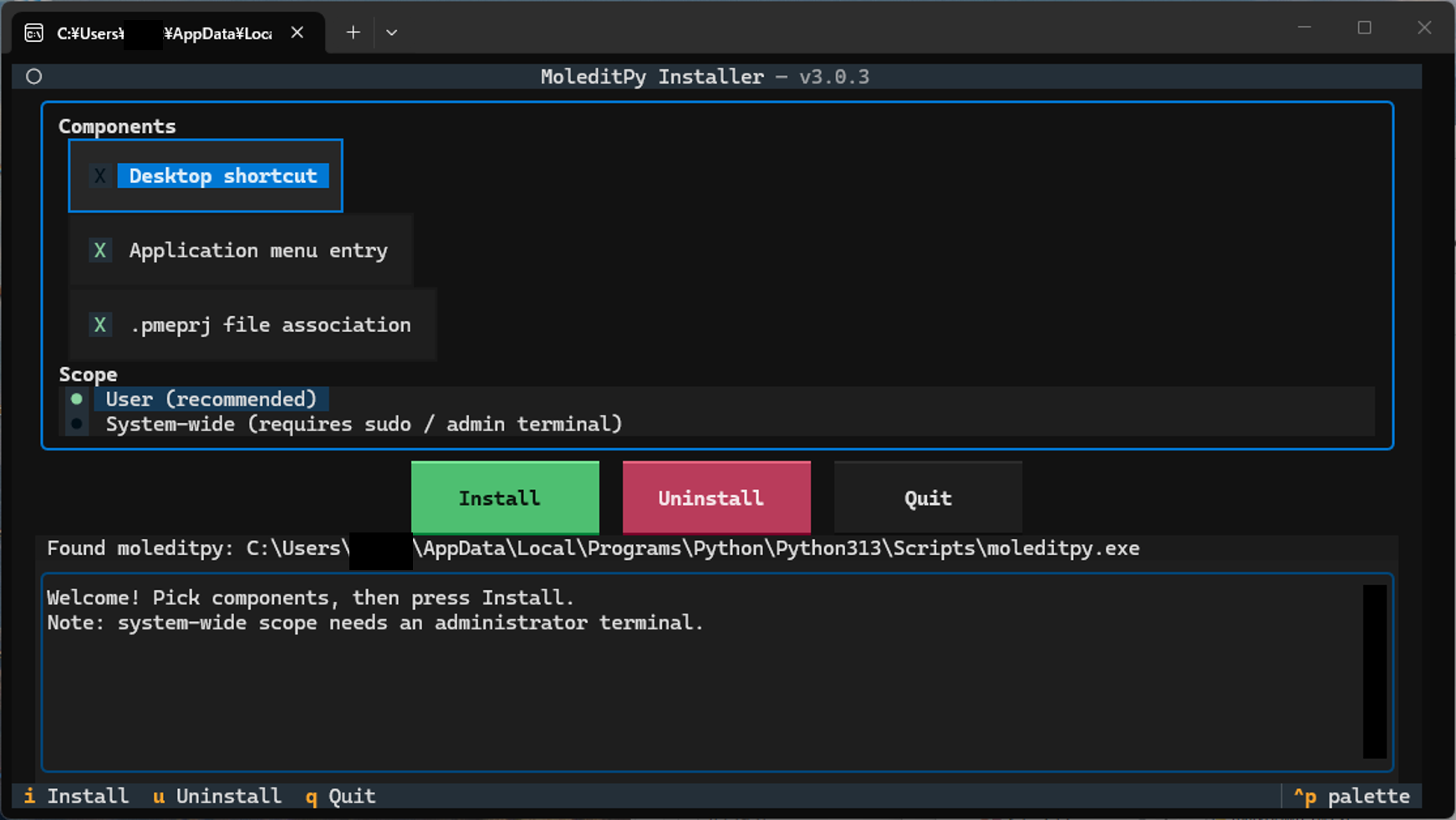
Quick start and command choice
Use a dedicated virtual environment, or activate the environment where MoleditPy should live. See the Windows/macOS/Linux quick start for commands that use an explicit environment path.
python -m pip install moleditpy-installer
python -m moleditpy_installer
Both python -m moleditpy_installer and moleditpy-installer are supported. Prefer the module form: it runs under the Python you selected and avoids depending on the console script being on PATH. If python is not your environment's interpreter, substitute its full path (or python3 on macOS/Linux outside an activated environment). Use that same interpreter for -m pip.
Installing the package installs the app dependency. Running the installer configures launchers and file associations. For a non-interactive setup use python -m moleditpy_installer --no-tui; to inspect discovery first use python -m moleditpy_installer --check. The standalone Windows/macOS download is a separate distribution with different plugin-dependency limitations.
How to Use
-
Install
python -m pip install moleditpy-installer
This will automatically install the correct
moleditpypackage (for Windows/macOS) ormoleditpy-linux(for Linux) as a dependency. -
Run the interactive installer (TUI) Run the following command in your terminal. In an interactive terminal this opens a TUI where you pick the components — Desktop shortcut, application-menu entry,
.pmeprjfile association — and the scope (per-user or system-wide), then press Install:python -m moleditpy_installer
Defaults: Desktop shortcut off, application menu on, file association on, per-user scope, executable auto-detected. The Executable path field at the bottom of the panel is optional — leave it empty to auto-detect, or type the path to the
moleditpyexecutable (or theScripts/binfolder holding it) when your installation lives somewhere the search does not cover. The Install button is focused on start, so pressing Enter immediately installs with the defaults. Move between widgets with Tab / Shift+Tab (the arrow keys also switch between the Install / Uninstall / Quit buttons). After a successful install or uninstall the TUI stays open for two seconds, then exits and replays the full log in the terminal.Non-interactive / scripted use (also what runs automatically when there is no terminal):
python -m moleditpy_installer --no-tui                 # install with the defaults
python -m moleditpy_installer --desktop                # also create a Desktop shortcut
python -m moleditpy_installer --no-file-assoc          # skip the .pmeprj association
sudo /absolute/path/to/env/bin/python -m moleditpy_installer --system            # system-wide (admin terminal on Windows)
python -m moleditpy_installer --exe-path /opt/env/bin/moleditpy   # point at the executable yourself
Any explicit option skips the TUI.
Manual executable path. If the automatic search cannot find your installation, pass
--exe-path(or fill in the TUI field). It accepts the executable itself or the directory holding it, expands~and environment variables, and strips surrounding quotes:python -m moleditpy_installer --exe-path "~/my envs/chem/bin" # a Scripts/bin directory python -m moleditpy_installer --check --exe-path C:\envs\chem\Scripts\moleditpy.exe
A path given this way is never silently replaced by a search result: if it is wrong, the installer reports why and stops.
Security Note: File associations for
.pmerawfiles have been intentionally removed. Opening.pmerawfiles downloaded from the internet can be potentially unsecure, so they are no longer automatically associated with the application.The console-script alternative is also supported when its Scripts/bin directory is on
PATH:moleditpy-installer
Note:
python -m moleditpy-installer(with a hyphen) does not name this package’s Python module and will not work. Always use the underscore form (moleditpy_installer) with-m.Tip: Run the installer from the Python environment where
moleditpyis installed (e.g. afterconda activate <env>). The installer verifies the launch command and warns you if the pairing cannot start MoleditPy. -
Uninstall To remove the shortcuts, unregister file associations, and clean up extracted icon files, run (add
--systemfor a system-wide install;--removeremains as a deprecated alias):python -m moleditpy_installer --uninstall # or, if the console script is on PATH moleditpy-installer --uninstall
Note: this removes the shortcuts and file associations only. To fully remove MoleditPy itself, also run
python -m pip uninstall moleditpy(orpython -m pip uninstall moleditpy-linuxon Linux). -
Check Executable Location To search for the
moleditpyexecutable in the search paths and print the located path:python -m moleditpy_installer --check
This command returns exit code
0if the executable is found, and1otherwise. On macOS it additionally verifies that the launcher's interpreter/script pairing can actually start MoleditPy. Add--exe-path <path>to validate a specific location instead of searching.For the complete list of directories scanned on Windows, macOS, and Linux, see docs/path.md.
-
Print Version To show the version of the installer:
python -m moleditpy_installer --version
-
Help To see all available options, run:
python -m moleditpy_installer --help
What the installer sets up
Windows
- Start Menu shortcut (icon included); Desktop shortcut when enabled (
--desktopor the TUI checkbox). With--system(admin) the shortcuts go to the all-users locations and the association to HKLM. .pmeprjfiles open MoleditPy on double-click (per-user registry, no admin rights needed).- Icons are stored under
%LOCALAPPDATA%\MoleditPy\installerso they survive temp-folder cleanup.
macOS
- A
MoleditPy.applauncher in~/Applications(or/Applicationswith--system), plus a Desktop copy when enabled, with the MoleditPy icon. - The launcher pairs the
moleditpyscript with the Python interpreter of its own environment (detected from the adjacent interpreter or the script's shebang), so it keeps working even when the installer runs from a different environment. - MoleditPy always opens inside a Terminal window, so Python output and any errors stay visible. The first launch shows a one-time macOS consent prompt ("MoleditPy wants access to control Terminal") — click OK.
- Double-clicking
.pmeprjfiles opens MoleditPy: the app bundle declares thecom.moleditpy.pmeprjdocument type (exported UTI) and is registered with Launch Services..pmeprjdocuments get their own file icon, matching the Windows behavior. - The bundle is ad-hoc code-signed after configuration; required on Apple Silicon.
Linux
- Application-menu
.desktopentry (icon included; Desktop copy when enabled), launched in a terminal so output stays visible (matching macOS). With--systemthe entry goes to/usr/share/applications. .pmeprjfiles open MoleditPy on double-click: a per-userapplication/x-moleditpy-projectMIME type is registered (freedesktop shared-mime-info, no root needed) and set as the default handler..pmeprjdocuments get their own file icon in file managers, matching Windows and macOS.
moleditpy-installer --uninstall undoes all of the above for the current user (add --system for system-wide installs).
Version 3.1.3 fixes
- Report failed file-association and Linux system-launcher setup correctly.
- Serialize TUI actions and preserve logging while background discovery runs.
- Preserve other Linux MIME handlers during uninstall and prefer the active virtual environment during discovery.
- Quote macOS launcher paths safely and validate release tags against package metadata.
See the changelog for details.
Version 3.1 highlights
- New: manual executable path —
--exe-pathon the command line and an Executable path field in the TUI, for installations the automatic search cannot find. Accepts the executable or the directory holding it; a wrong path is reported instead of being silently replaced by a search result. - Fixed:
conda runwas applied to executables belonging to a different environment, producing a launcher that failed withModuleNotFoundError: No module named 'moleditpy'. It is now used only when the executable really lives in the activeCONDA_PREFIX. - Fixed: system-wide installs referenced icons in the installing user's private directory (
%LOCALAPPDATA%, or/root/.moleditpyundersudo), so other users saw a blank icon. Shared scopes now use%PROGRAMDATA%,/usr/share, and/usr/local/share(macOS). - Fixed: on Windows, an earlier "Open with" choice pinned by Explorer kept overriding a freshly installed
.pmeprjassociation. - Fixed:
--checknamed the same command twice in its failure message on Linux.
Version 3.0 highlights
- New: interactive Textual TUI — pick components and scope, watch the log, press Install/Remove.
- New: component selection (
--desktop,--app-menu,--file-assoc) with safer defaults (no Desktop shortcut unless requested). - New: system-wide scope on Linux (
/usr/share), macOS (/Applications), and Windows (HKLM + all-users Start Menu; admin terminal) — all requiring sudo/admin. - Per-user Linux paths now honor
XDG_DATA_HOME. - End-to-end smoke tests on all three OSes in CI, including the sudo/system path.
Version 2.0 highlights
- Fixed: silent launch failures on macOS caused by an invalidated app-bundle code signature (Apple Silicon refused to start the app and ignored its icon).
- Fixed:
ModuleNotFoundError: No module named 'moleditpy'when the installer ran in a different Python environment than the one holdingmoleditpy— the launcher now uses the script's own interpreter and the command is verified at install time. - New: MoleditPy launches in a visible Terminal window on macOS.
- New:
.pmeprjdouble-click support on macOS via a proper exported UTI + Launch Services registration. - New:
.pmeprjdouble-click support and document icon on Linux (per-user MIME registration). - New:
--checkverifies launchability on macOS;--removealso unregisters the bundle from Launch Services and removes extracted icons. - Icons no longer live in the temp folder (Windows shortcut/registry icons no longer break after cleanup).
Replace /absolute/path/to/env/bin/python with the actual environment interpreter for a system-wide Unix install. On Windows, use the intended environment’s Python from an administrator terminal.
1 maintainer

Metadata
1 maintainer
Release files for moleditpy-installer 3.1.3
For a detailed explanation of source distributions (sdists) and built distributions (wheels), please see the package formats documentation.
Source distribution (sdist)
| File | Size | Uploaded | |
|---|---|---|---|
| moleditpy_installer-3.1.3.tar.gz | 1.1 MB | Details |
Built distribution (wheel)
| File | Interpreter | ABI | Platform | Reset |
|---|---|---|---|---|
| moleditpy_installer-3.1.3-py3-none-any.whl | Python 3 | none | any | Details |
Total release size: 2.1 MB
Release files / moleditpy_installer-3.1.3.tar.gz
| Download URL | moleditpy_installer-3.1.3.tar.gz |
|---|---|
| Size | 1.1 MB |
| Tags | Source |
|
SHA-256 checksum How to use checksums |
dbc26e147fc1915c1dab72cbf54286dfa8de10c5f320d47c353aabdf472f9ad0
|
|
BLAKE2b-256 checksum How to use checksums |
b46fd298a5124117aacf65094606318a9fef15cad76d2d69e4711381f101d0fd
|
| Upload date | |
|
Uploaded using Trusted Publishing? What is trusted publishing? |
Yes |
| Uploaded via |
twine/7.0.0 CPython/3.13.14
|
Provenance
Provenance describes where a file came from. On PyPI, provenance is shared via attestations, which provide a verifiable record of the build or publishing details. View details, limitations and caveats.


PyPI Publish Attestation
PyPI verified that this artifact, at this checksum, originated from the publisher listed below.
Signed by GitHub Actions, verified by PyPI on Oct 15, 2026.
Transparency logRelease files / moleditpy_installer-3.1.3-py3-none-any.whl
| Download URL | moleditpy_installer-3.1.3-py3-none-any.whl |
|---|---|
| Size | 1.0 MB |
| Tags | Python 3 |
|
SHA-256 checksum How to use checksums |
6ac11f305a16d9f2f477917ae51a5406dc730ac8d005733c69e21df88e0f14d2
|
|
BLAKE2b-256 checksum How to use checksums |
54a8f390fd684c42efa1184a5850964d386604b20777866b872e17d8ad3e7dc5
|
| Upload date | |
|
Uploaded using Trusted Publishing? What is trusted publishing? |
Yes |
| Uploaded via |
twine/7.0.0 CPython/3.13.14
|
Provenance
Provenance describes where a file came from. On PyPI, provenance is shared via attestations, which provide a verifiable record of the build or publishing details. View details, limitations and caveats.
PyPI Publish Attestation
PyPI verified that this artifact, at this checksum, originated from the publisher listed below.
Signed by GitHub Actions, verified by PyPI on Oct 15, 2026.
Transparency log













