
nbinlineai
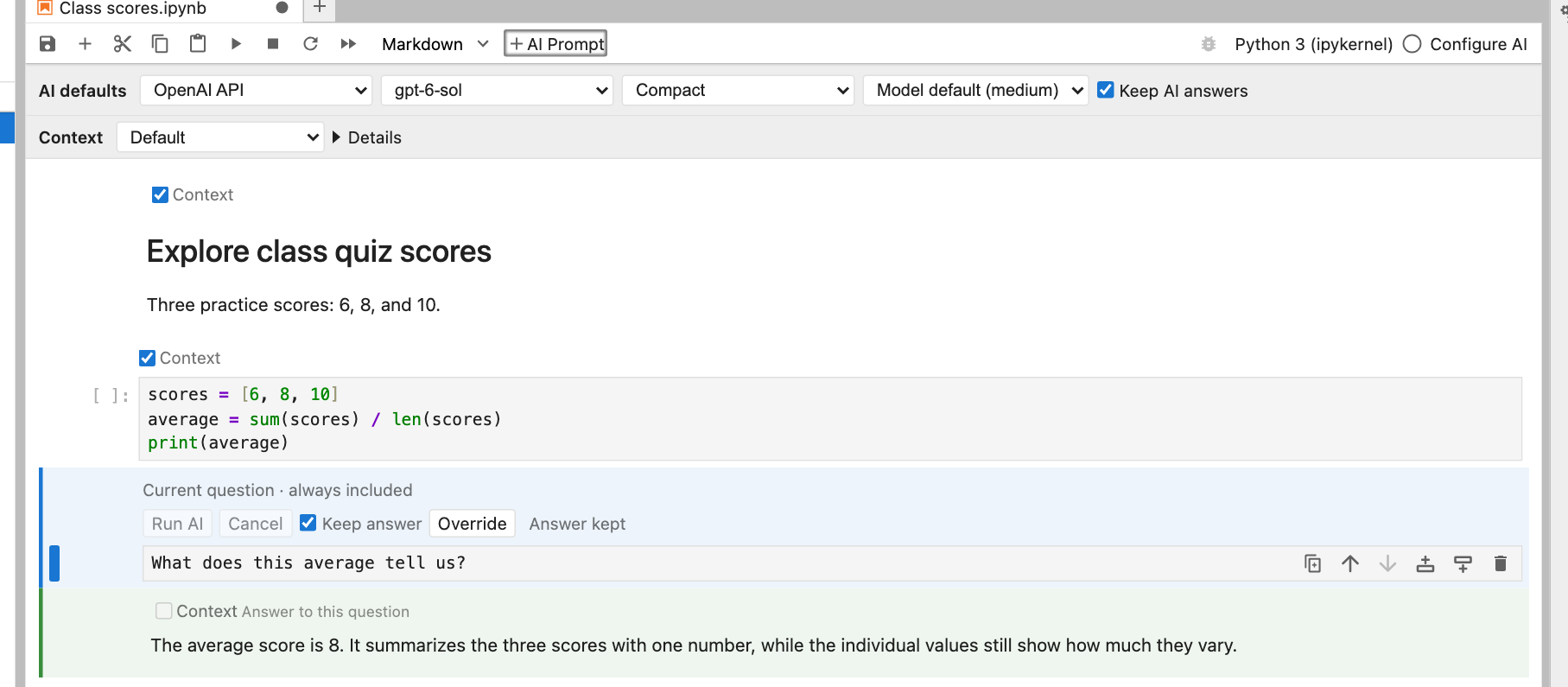
Ask AI questions inside a JupyterLab notebook. Each question and answer is an editable Markdown cell that stays with the notebook. You can refer to live Python values, offer selected functions as tools, inspect notebook cells and files, and choose when an image is attached to one question.
Start in JupyterLab
- Install nbinlineai in the environment that runs JupyterLab. In Extension Manager, search for nbinlineai and install it; then restart the whole Jupyter server. In a uv project, use
uv add jupyterlab nbinlineaiand launch withuv run jupyter lab. - Open a Python notebook and choose Configure AI. Sign in with ChatGPT or save an OpenAI or Anthropic API key. Set the notebook's connection and model in AI defaults.
- Select a cell, click + AI Prompt, ask a question, and press Shift+Enter or Run AI. The answer appears in its own Markdown cell below the question.
The setup chapter covers connections, model choices, and hosted JupyterLab installs. ChatGPT uses your account allowance; API providers bill their own requests. The extension does not silently switch to a paid API connection.
Ask about live notebook work
Run a Python cell:
score = 7

def add_bonus(value: int) -> int:
    """Add a bonus to the live score."""
    return score + value
Then put this in an AI question:
What is $`score`? Call &`add_bonus` with value 3 and explain the result briefly.
$ reads a live value from the notebook's current Python kernel. & offers a function for the model to call; ask for the call explicitly when it matters. You can put tool declarations in an ordinary Markdown note above several questions. The variables and tools chapter explains what is available and how to keep declarations selective.
Questions use the notebook's Context choice and can include code and its displayed text outputs (including print() and stderr), notes, and completed AI exchanges. Details → Check context previews the current selection without contacting a provider. A saved answer can be edited like any other Markdown; turn off Keep answer before rerunning its question. JupyterLab's Run All Cells includes AI questions in order, while kept completed answers avoid repeating their tool actions. Read the manual for context, editing, and Run All.
Use Configure AI → Defaults → Common response instructions to set guidance shared by every response style. The default requests dollar-delimited inline and display math; edit it, clear it, or reset it to suit your notebooks. Response instructions explains the controls.
Explore the tool catalog and examples
Version 0.1.19 gives the model parameter descriptions from tool source comments when those comments are available. Start with the worked tools tutorial, then use the Tool API reference to check parameters and results.
The Tool catalog lists each function and links to a normal Python or JupyterLab demonstration and a concise AI-tool question. The notebook examples include task walkthroughs and complete tool-catalog notebooks using disposable inputs. Open a copy before editing it. Generated code cells are left unexecuted for your review.
Run from nbinlineai.tools import *, then catalog_receipt = insert_tool_catalog(group="code") in a Python cell to insert an editable Markdown declaration below it. Choose a group, delete unwanted references, inspect the receipt in a later cell, and save the notebook. With no argument, the helper uses the starter group.
Browser-media tools can inspect selected outputs, capture from a source you approve, play or transform media, and attach an image to one question with explicit confirmation. A direct Python call promptly returns a mutable receipt whose status and result can change after the call returns. Read the same receipt in a later Python cell after permission, recording, or transfer finishes.
An AI tool reply is an initial snapshot, so ask operation_status later before using a result ID. A capture or preview does not silently send its pixels to the model. Browser media operations explains receipts and cleanup.
Where your work lives
Questions, answers, and notebook defaults are saved in the .ipynb file. API keys are saved outside notebooks in the Jupyter server user's configuration; ChatGPT sign-in is managed by its account runtime. Tool calls can read or change files and kernel state with that user's permissions, so offer only the functions your question needs. A confirmed image attachment belongs to one question, and confirmation alone does not run it. Saved notebooks and privacy has the details.
Documentation | FAQ | Development | Report an issue
Licensed under GPL-3.0-only.
1 maintainer

Metadata
1 maintainer
Release files for nbinlineai 0.1.19
For a detailed explanation of source distributions (sdists) and built distributions (wheels), please see the package formats documentation.
Source distribution (sdist)
| File | Size | Uploaded | Provenance | Actions |
|---|---|---|---|---|
| nbinlineai-0.1.19.tar.gz | 3.0 MB | Without provenance | Details for nbinlineai-0.1.19.tar.gz |
Built distribution (wheel)
| File | Interpreter | ABI | Platform | Actions Reset |
|---|---|---|---|---|
| nbinlineai-0.1.19-py3-none-any.whl | Python 3 | none | any | Details for nbinlineai-0.1.19-py3-none-any.whl |
Total release size: 5.6 MB
Release files / nbinlineai-0.1.19.tar.gz
| Download URL | nbinlineai-0.1.19.tar.gz |
|---|---|
| Size | 3.0 MB |
| Tags | Source |
|
SHA-256 checksum How to use checksums |
763500bfdac2f9abf28a92345a77bf30b01b2a02defdd0efe554799e215c05d1
|
|
BLAKE2b-256 checksum How to use checksums |
cc3946ad41def61960097c9d826a07e2d109d549725c66ed581563f377cebb4b
|
| Upload date | |
|
Uploaded using Trusted Publishing? What is trusted publishing? |
No |
| Uploaded via |
uv/0.12.13 {"installer":{"name":"uv","version":"0.12.13","subcommand":["publish"]},"python":null,"implementation":{"name":null,"version":null},"distro":{"name":"macOS","version":null,"id":null,"libc":null},"system":{"name":null,"release":null},"cpu":null,"openssl_version":null,"setuptools_version":null,"rustc_version":null,"ci":null}
|
Release files / nbinlineai-0.1.19-py3-none-any.whl
| Download URL | nbinlineai-0.1.19-py3-none-any.whl |
|---|---|
| Size | 2.6 MB |
| Tags | Python 3 |
|
SHA-256 checksum How to use checksums |
bb8eff102b587f52487d7eb4bb2d653c86e5d2404367e45fe73d11efe4221d57
|
|
BLAKE2b-256 checksum How to use checksums |
f9f897addb6d5a3336e18a259ca3b971bf0bf1b9750e659f60ede90709abdbb4
|
| Upload date | |
|
Uploaded using Trusted Publishing? What is trusted publishing? |
No |
| Uploaded via |
uv/0.12.13 {"installer":{"name":"uv","version":"0.12.13","subcommand":["publish"]},"python":null,"implementation":{"name":null,"version":null},"distro":{"name":"macOS","version":null,"id":null,"libc":null},"system":{"name":null,"release":null},"cpu":null,"openssl_version":null,"setuptools_version":null,"rustc_version":null,"ci":null}
|
Security for nbinlineai 0.1.19
Provenance
Provenance describes where a file came from. On PyPI, provenance is shared via attestations, which provide a verifiable record of the build or publishing details. View details, limitations and caveats.
No provenance found
None of the files in this release were uploaded with provenance metadata.
A note on package security
PyPI is a repository for distributing packages, not a service for auditing them. While third-party security researchers and our staff do their best to detect and remove malicious packages, PyPI cannot guarantee the quality, security or suitability of any given package.
To learn more about protecting yourself from malicious actors, visit our package security documentation.














