
ndevio








A generalized image format reader for napari built on top of bioio
ndevio provides flexible, metadata-aware image I/O for images in napari.
Originally developed as part of napari-ndev (as a spiritual successor to napari-aicsimageio), ndevio has since been separated into its own plugin as part of the ndev-kit and is intended to be a feature-rich, metadata-aware image reader for a variety of formats in napari, with a focus on microscopy images.
Features
- Extensive format support via bioio and its plugin system — read OME-TIFF, OME-Zarr, common image and movie formats, proprietary formats (CZI, LIF, ND2), and many more (with bioformats)!
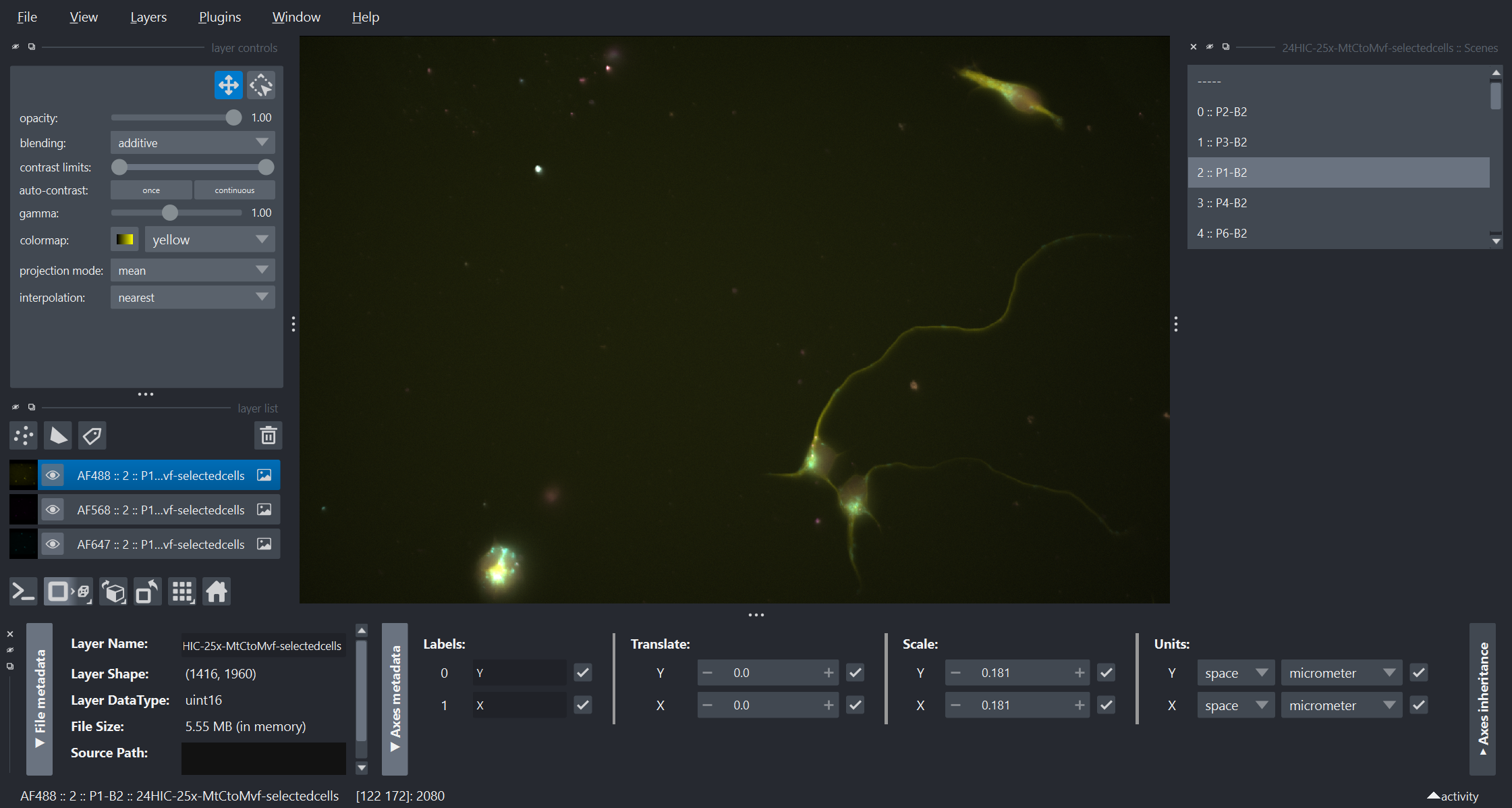
- Multi-scene handling — interactive widget for selecting between scenes/positions in multi-scene files
- Thorough metadata extraction — extract and apply scale, units, axis labels, metadata (inc. OME) to napari layers
- Remote file support — compatible Bioio readers,such as bioio-ome-zarr, can read from remote filesystems (HTTP, S3, etc.) with dask-backed loading
- Native multiscale support — automatically read and display multiscale images when supported by the reader. For best experience, turn on the asynchronous rendering experimental setting in napari.
- Configurable behavior via ndev-settings — customize reader priority, multi-scene handling, and more
- Smart plugin installation — automatic suggestions to install missing bioio reader plugins
- Programmatic API —
nImageclass for napari-ready metadata extraction - Batch utilities — legacy widget for batch concatenation (with nbatch) and metadata management, with features being superseded by napari-metadata
- Sample data — demonstrates ndevio metadata handling and capabilities
Installation
You can install ndevio from PyPI or via the napari plugin manager:
pip install ndevio
If you would like to try out ndevio, you can run napari in a temporary environment with uv:
uvx --with ndevio -p 3.13 "napari[all]"
You can even try an example remote zarr image, like from the OME-NGFF samples:
uvx --with ndevio --with pyqt6 -p 3.13 "napari>=0.7.0" --plugin ndevio "https://uk1s3.embassy.ebi.ac.uk/idr/zarr/v0.4/idr0048A/9846152.zarr/"
To contibute to ndevio or experiment with the latest features, see Contributing.md for development setup instructions. Conda-forge availability is coming soon!
Additional Image Format Support
ndevio uses bioio for flexible image reading. Basic formats (TIFF, OME-TIFF, OME-Zarr, PNG, etc.) are supported out of the box via:
bioio-ome-tiff- OME-TIFF filesbioio-ome-zarr- OME-Zarr filesbioio-tifffile- General TIFF filesbioio-imageio- PNG, JPEG, and other common formats
If your image format is not supported by the default readers, then you will get a warning and (by default in napari) a widget to install the suggested reader.
If you know of your additional proprietary formats, install the appropriate bioio reader.
See the bioio documentation for the full list of available readers.
Note: The use of bioio-bioformats requires an automatic, initial download of required Java files, this takes some time. Most native format readers do a better job reading metadata compared to bioio-bioformats.
Please file an issue if you encounter problems with image reading!
Usage
In napari
Simply drag and drop image files into napari. ndevio handles the rest! To learn more about the decisions that ndevio (and its settings) makes when loading images, see How ndevio Handles Images below.
Multi-scene Images
When opening multi-scene files (e.g., multi-position acquisitions, mosaics), a Scene Widget appears in the viewer, allowing you to select which scene to display. Configure default behavior via the Settings widget.
Bioio Reader Plugin Installation Widget
If you open a file that requires a bioio reader not currently installed, ndevio will display a BioIO Plugin Installation widget in napari suggesting the appropriate plugin to install.
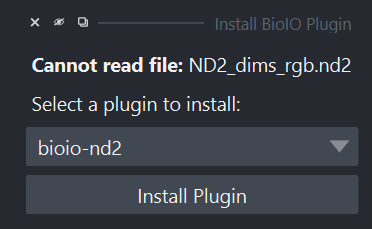
This widget taps into the napari-plugin-manager to install the bioio reader plugin from PyPI via a GUI. You may invoke this widget manually at any time via Plugins > ndevio > Install BioIO Reader Plugins to install any additional bioio reader plugin and update any currently installed plugins.
Settings Widget
Access ndevio settings via Plugins > ndev-settings > Settings to customize:
- Preferred reader: Override bioio's default plugin selection priority (useful for formats with multiple compatible readers)
- Multi-scene handling: Choose whether to show the scene widget, view all scenes as a stack, or view only the first scene
- Plugin suggestions: Enable/disable automatic plugin installation prompts for unsupported formats
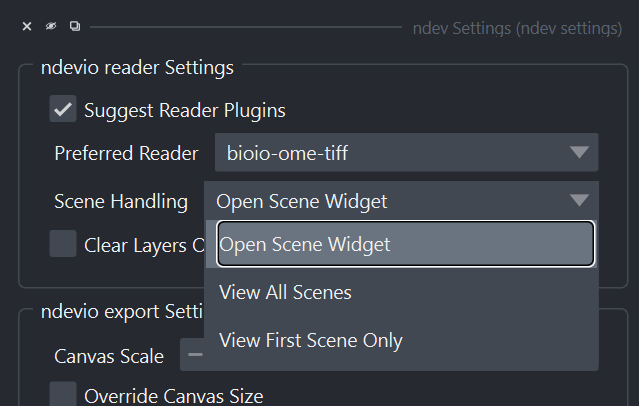
These settings are managed by ndev-settings and persist across napari sessions.
Utilities Widget
Access via Plugins > ndevio > Utilities for:
- Batch concatenation of images
- Metadata management
- Export as OME-TIFF or figure (PNG)
Note: Elements of this widget are being superseded by napari-metadata for more comprehensive metadata handling. Note 2: This widget was built during napari-ndev mono-repo development and does not fully reflect the design goals of ndevio. It will remain functional, but expect future versions to look different.
Programmatic Usage with nImage
The nImage class extends bioio's BioImage with napari-specific functionality:
from ndevio import nImage
from napari import Viewer

# Load image with automatic metadata extraction
img = nImage("path/to/image.czi")

# Because nImage subclasses BioImage, all BioImage methods are available
print(img.dims)               # e.g., <Dimensions [T: 15, C: 4, Z: 1, Y: 256, X: 256]>

# Access napari-ready properties, note that channel and singleton dimensions are dropped
print(img.reference_xarray)   # e.g., xarray.DataArray with dims (T, Y, X) and shape (15, 256, 256)
print(img.layer_data[0])      # e.g. the highest resolution array; a list is returned for multiscale image support
print(img.layer_scale)        # e.g., (1.0, 0.2, 0.2) - time interval + physical scale per dimension, napari ready
print(img.layer_axis_labels)  # e.g., ('T', 'Y', 'X')
print(img.layer_units)        # e.g., ('s', 'µm', 'µm')
print(img.layer_metadata)     # e.g., a dictionary containing the 1) full BioImage object, 2) raw_image metadata and 3) OME metadata (if parsed) - accessible via `viewer.layers[n].metadata`

# A convenience method to get napari LayerDataTuples with nImage metadata for napari
viewer = Viewer()
for ldt in img.get_layer_data_tuples():
    viewer.add_layer(ldt)
Sample Data
ndevio includes sample datasets accessible via File > Open Sample > ndevio.
These samples use the nImage API to demonstrate the metadata handling.
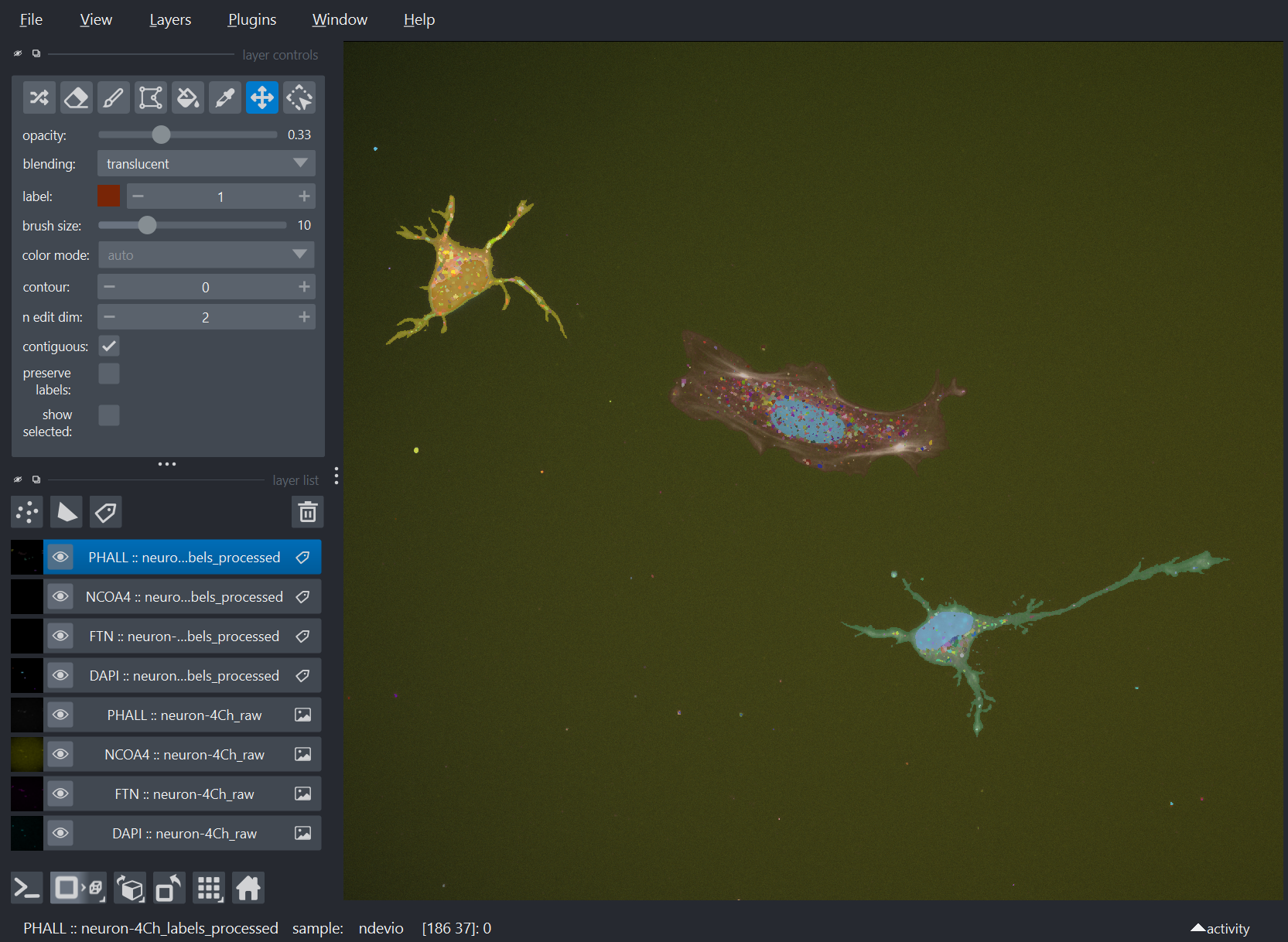
- 2D neural cells in a dish imaged with 4 channels, with corresponding segmentation labels
- 2D brain slice with 3 different transcription factor antibody stains
- A single 2D+Time sample from a scratched retinal epithelial cell culture, including auto-detected labels in the same file.
- the napari-ndev logo as a .png
How ndevio Handles Images
Metadata
Image metadata is extracted from bioio and converted to napari layer metadata based on the current napari convention to squeeze out singleton dimensions (i.e. drop dimensions of size 1):
- Full metadata available at
viewer.layers[n].metadata - Time and physical scale automatically applied to layers from OME metadata or file headers
- Dimension labels (T, C, Z, Y, X) preserved in
axis_labels - Physical units (µm, nm, etc.) stored in layer metadata
Memory Management
Images are loaded in-memory or lazily (via dask) automatically based on:
- File size < 4 GB AND
- File size < 30% of available RAM
- Remote files (e.g., S3, HTTP) and multiscale are always loaded lazily
Multi-channel Images
Multi-channel images are always split into individual layers (one per channel), using channel names from metadata when available. Images are added with colorblind-friendly colormaps.
Mosaic/Tiled Images
Images with tiles (e.g., stitched acquisitions) are automatically stitched together if the reader supports this behavior.
RGB Images
RGB(A) images are currently added to the viewer as a single RGB(A) layer, according to napari conventions.
RGB(A) images are identified by containing the Samples ('S') dimension by bioio, which nominally exists for images with the last (-1) dimension being of size 3 or 4.
Detection of Labels/Segmentation Layers
If an image contains a channel name or file name suggestive of a labels layer, ndevio will add that channel as a labels layer in napari. Mixed image and label files are possible by having information in the channel names (e.g., ["DAPI", "DAPI-labels"]).
Customization
If you need different behavior for any of these automated handling rules, please file an issue — we may be able to add settings to configure them!
Coming Soon
Writers for OME-TIFF and OME-Zarr with round-trip napari metadata support!
Contributing
Contributions are very welcome! Please see Contributing.md for development setup and guidelines.
License
Distributed under the terms of the BSD-3 license, "ndevio" is free and open source software
Issues
If you encounter any problems, please file an issue along with a detailed description.
1 maintainer

Release files for ndevio 0.9.3
For a detailed explanation of source distributions (sdists) and built distributions (wheels), please see the package formats documentation.
Source distribution (sdist)
| File | Size | Uploaded | |
|---|---|---|---|
| ndevio-0.9.3.tar.gz | 8.4 MB | Details |
Built distribution (wheel)
| File | Interpreter | ABI | Platform | Reset |
|---|---|---|---|---|
| ndevio-0.9.3-py3-none-any.whl | Python 3 | none | any | Details |
Total release size: 8.6 MB
Release files / ndevio-0.9.3.tar.gz
| Download URL | ndevio-0.9.3.tar.gz |
|---|---|
| Size | 8.4 MB |
| Tags | Source |
|
SHA-256 checksum How to use checksums |
e143ea0ad12bc94296d9d9ea30c419d26c144c5b089f2bdb1d46b61954438ba3
|
|
BLAKE2b-256 checksum How to use checksums |
b7bf99efb691c67abef4cce0c6a8f95933a5deceac7a394e66020efe7eddf262
|
| Upload date | |
|
Uploaded using Trusted Publishing? What is trusted publishing? |
Yes |
| Uploaded via |
twine/7.0.0 CPython/3.13.14
|
Provenance
Provenance describes where a file came from. On PyPI, provenance is shared via attestations, which provide a verifiable record of the build or publishing details. View details, limitations and caveats.


PyPI Publish Attestation
PyPI verified that this artifact, at this checksum, originated from the publisher listed below.
Signed by GitHub Actions, verified by PyPI on Sep 2, 2026.
Transparency logRelease files / ndevio-0.9.3-py3-none-any.whl
| Download URL | ndevio-0.9.3-py3-none-any.whl |
|---|---|
| Size | 197.5 kB |
| Tags | Python 3 |
|
SHA-256 checksum How to use checksums |
593d4e11c2660d0cb17364b7433e6b2f7968d97983aa9565bfdf61db65fc55fa
|
|
BLAKE2b-256 checksum How to use checksums |
c262cee4a4f4b9b062c018af42a23f0bd7f6d9aa83911c00c1fb27a88be0b812
|
| Upload date | |
|
Uploaded using Trusted Publishing? What is trusted publishing? |
Yes |
| Uploaded via |
twine/7.0.0 CPython/3.13.14
|
Provenance
Provenance describes where a file came from. On PyPI, provenance is shared via attestations, which provide a verifiable record of the build or publishing details. View details, limitations and caveats.
PyPI Publish Attestation
PyPI verified that this artifact, at this checksum, originated from the publisher listed below.
Signed by GitHub Actions, verified by PyPI on Sep 2, 2026.
Transparency log













