
A TUI orchestrator to manage your installed terminal tools—access everything through a single command

Project description
Nexus
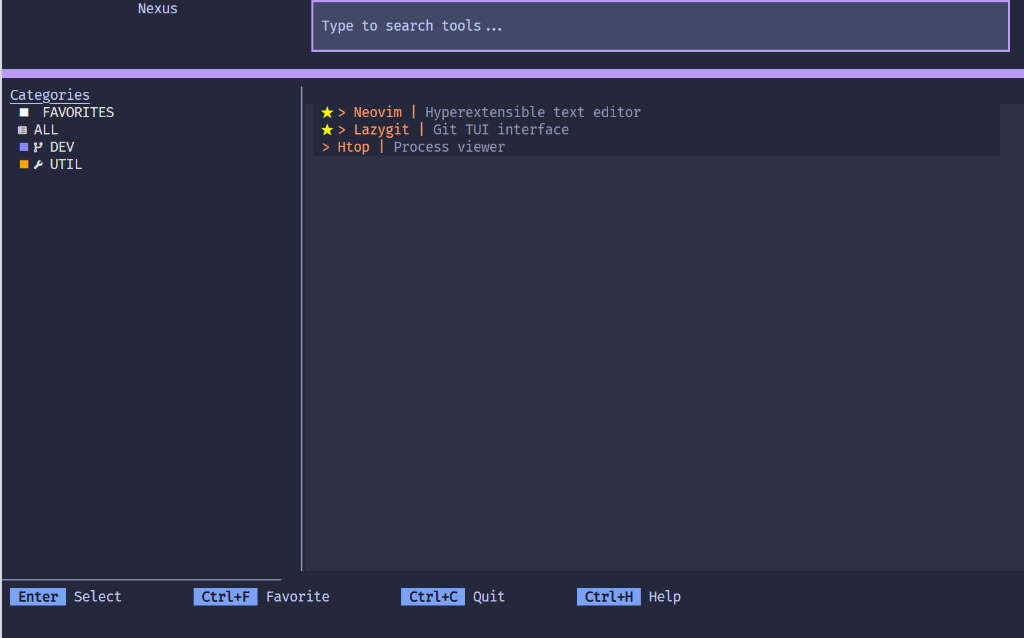
Nexus is a terminal dashboard that lets you launch your favorite CLI and TUI tools (like Neovim, Git UIs, or custom scripts) from a single interactive menu. No memorizing commands or directories required.
Think of Nexus as a launcher for terminal tools, similar to how Raycast or Alfred launch GUI apps.
Source Code: https://github.com/jdluu/Nexus
Prerequisites
- Python 3.12 or newer.
- The
uvpackage manager. - Recommended: A modern terminal emulator with TrueColor support (e.g., Windows Terminal, ghostty, Kitty, or WezTerm).
- Recommended: A Nerd Font for optimal icon rendering.
Installation
It is recommended to use uv, a fast Python package and tool manager (similar to pipx), for a clean, isolated global installation.
# Install globally so you can run 'nexus' from anywhere
uv tool install nexus-tui
Alternative (Standard pip):
You can also install via pip, though it is recommended uv or pipx to keep dependencies isolated.
pip install nexus-tui
Upgrade
To update to the latest version:
uv tool upgrade nexus-tui
Local Development
For contributors who want to modify the source code:
git clone https://github.com/jdluu/Nexus
cd Nexus
uv tool install --editable .
Cross Platform Support
Nexus supports Linux, MacOS, and Windows.
- Linux: Fully supported on standard terminals.
- MacOS: Fully supported.
- Windows: Recommended to use PowerShell 7 or Git Bash within Windows Terminal.
Note: Some tools you launch may behave differently depending on your shell and operating system.
Configuration
Nexus utilizes standard configuration paths. You can find your config file at the location listed in the First Run section above.
Minimal Starter Config
Copy this into your tools.toml to get started immediately:
# Define where your code projects live
project_root = "~/Projects"

# Add a simple tool to open a shell in the selected project
[[tool]]
label = "Shell"
category = "UTIL"
description = "Open a shell in the project"
command = "$SHELL"
requires_project = true
Understanding "Projects"
A Project is any directory found inside your project_root. Nexus scans this folder and lets you select a specific project before launching a tool.
For example, if you select the "Shell" tool above, Nexus will ask you to pick a project (e.g., ~/Projects/MyApp). It then launches $SHELL inside that directory.
Tool Definitions
Tools are defined using the [[tool]] table.
[[tool]]
label = "Neovim"
category = "DEV"
description = "Text editor"
command = "nvim"
requires_project = true
- label: The display name.
- category: The grouping identifier (e.g., DEV, UTIL).
- description: A short explanation of the function.
- command: The executable command line instruction.
- requires_project: If
true, Nexus prompts for a project before running. Iffalse, it runs immediately in the current directory.
Keybindings
Nexus comes with default keybindings (see Controls below). You can override them in the [keybindings] section of your config.
[keybindings]
# Override default quit to Alt+Q
quit = "alt+q"
# Override favorite toggle
toggle_favorite = "ctrl+f"
First Run Experience
- Run
nexusfrom your terminal. - Nexus creates a default configuration file at:
- Linux:
~/.config/nexus/tools.toml - MacOS:
~/Library/Application Support/Nexus/tools.toml - Windows:
%LOCALAPPDATA%\Nexus\tools.toml
- Linux:
- On first launch, you will see an empty dashboard.
- Edit the configuration file (see below) to add your tools and project roots.
- Restart Nexus to see your changes.
Features
- Smart Search: Instantly find what you need with fuzzy matching, so you don't have to remember exact names.
- Persistence: Nexus remembers your recent projects and favorite tools, so common workflows are always one keystroke away.
- Favorites: Pin your most-used tools to the top of the list for quick access.
Controls
- Arrow Keys: Navigate through lists.
- Enter: Confirm selection or launch tool.
- Ctrl+F: Toggle the favorite status of a tool.
- TypeAnywhere: Instantly filter lists by typing in the search bar.
- Esc: Reset the search filter.
- Ctrl+B: Go back (on picker screens).
- Ctrl+C: Exit the application.
- Ctrl+H: Show Help / Controls.
FAQ & Troubleshooting
Does Nexus discover tools automatically?
No. You must define your tools in tools.toml so you have full control over what appears in your dashboard.
Is this a replacement for my shell?
No. Nexus is a dashboard. When you launch a tool, it temporarily suspends itself to let the tool take over your terminal found. When the tool exits, Nexus returns.
My icons look broken (rectangles or question marks).
This usually means you aren't using a Nerd Font.
- Download a font from Nerd Fonts.
- Install it on your system.
- Configure your terminal emulator to use that font.
I see a blank screen on launch.
Check that your tools.toml file exists and has at least one valid [[tool]] entry. See the Configuration section for a minimal example.
Development (For Contributors)
To configure the development environment:
-
Synchronize dependencies:
uv sync -
Run the application locally:
uv run nexus
-
Execute the comprehensive test suite:
uv run pytest --cov=nexus
-
Perform static analysis and type checking:
uv run ruff check .
uv run mypy .
Release history Release notifications | RSS feed


Download files
Download the file for your platform. If you're not sure which to choose, learn more about installing packages.
Source Distribution
Built Distribution
Filter files by name, interpreter, ABI, and platform.
If you're not sure about the file name format, learn more about wheel file names.
Copy a direct link to the current filters
File details
Details for the file nexus_tui-0.1.16.tar.gz.
File metadata
- Download URL: nexus_tui-0.1.16.tar.gz
- Upload date:
- Size: 23.6 kB
- Tags: Source
- Uploaded using Trusted Publishing? No
- Uploaded via: uv/0.9.29 {"installer":{"name":"uv","version":"0.9.29","subcommand":["publish"]},"python":null,"implementation":{"name":null,"version":null},"distro":{"name":"Ubuntu","version":"24.04","id":"noble","libc":null},"system":{"name":null,"release":null},"cpu":null,"openssl_version":null,"setuptools_version":null,"rustc_version":null,"ci":true}
File hashes
| Algorithm | Hash digest | |
|---|---|---|
| SHA256 |
a61fd64833c739337589b394462457b6d6c2954bbfb2dd8b7bbef3c7f9b05947
|
|
| MD5 |
927800166ab3a5acf3e9335fa4500174
|
|
| BLAKE2b-256 |
d17580929c0e82fce70854fd0ab116434243656f5c1362a2de0789493c070107
|
File details
Details for the file nexus_tui-0.1.16-py3-none-any.whl.
File metadata
- Download URL: nexus_tui-0.1.16-py3-none-any.whl
- Upload date:
- Size: 32.4 kB
- Tags: Python 3
- Uploaded using Trusted Publishing? No
- Uploaded via: uv/0.9.29 {"installer":{"name":"uv","version":"0.9.29","subcommand":["publish"]},"python":null,"implementation":{"name":null,"version":null},"distro":{"name":"Ubuntu","version":"24.04","id":"noble","libc":null},"system":{"name":null,"release":null},"cpu":null,"openssl_version":null,"setuptools_version":null,"rustc_version":null,"ci":true}
File hashes
| Algorithm | Hash digest | |
|---|---|---|
| SHA256 |
75eae2d878a6419da0c0dd7d569d71657d0089ea1673f445bb8f1dfb69635818
|
|
| MD5 |
95628cd0414dd7915e25883c886f1fab
|
|
| BLAKE2b-256 |
1d797dd6e89c7ab6a04fa9fee8319645c8e28a555031ab904bdc52b4de68a069
|






