
nvmon
A fancy NVIDIA GPU monitor for the terminal. Single Python file, no dependencies.
Install
uv tool install nvmon # or: pipx install nvmon
No uv? Install it, or use pip install nvmon
inside whichever environment you use. On a server without internet, copy nvmon.py over and run it with
any Python 3.6+.
Start
nvmon              # Esc, q or Ctrl+C to quit
nvmon -i 1         # refresh every second (default: 0.5)
nvmon -g 0,2,4-7   # only these GPUs
ssh -t HOST nvmon  # over ssh: -t gives it a terminal
Reading a box
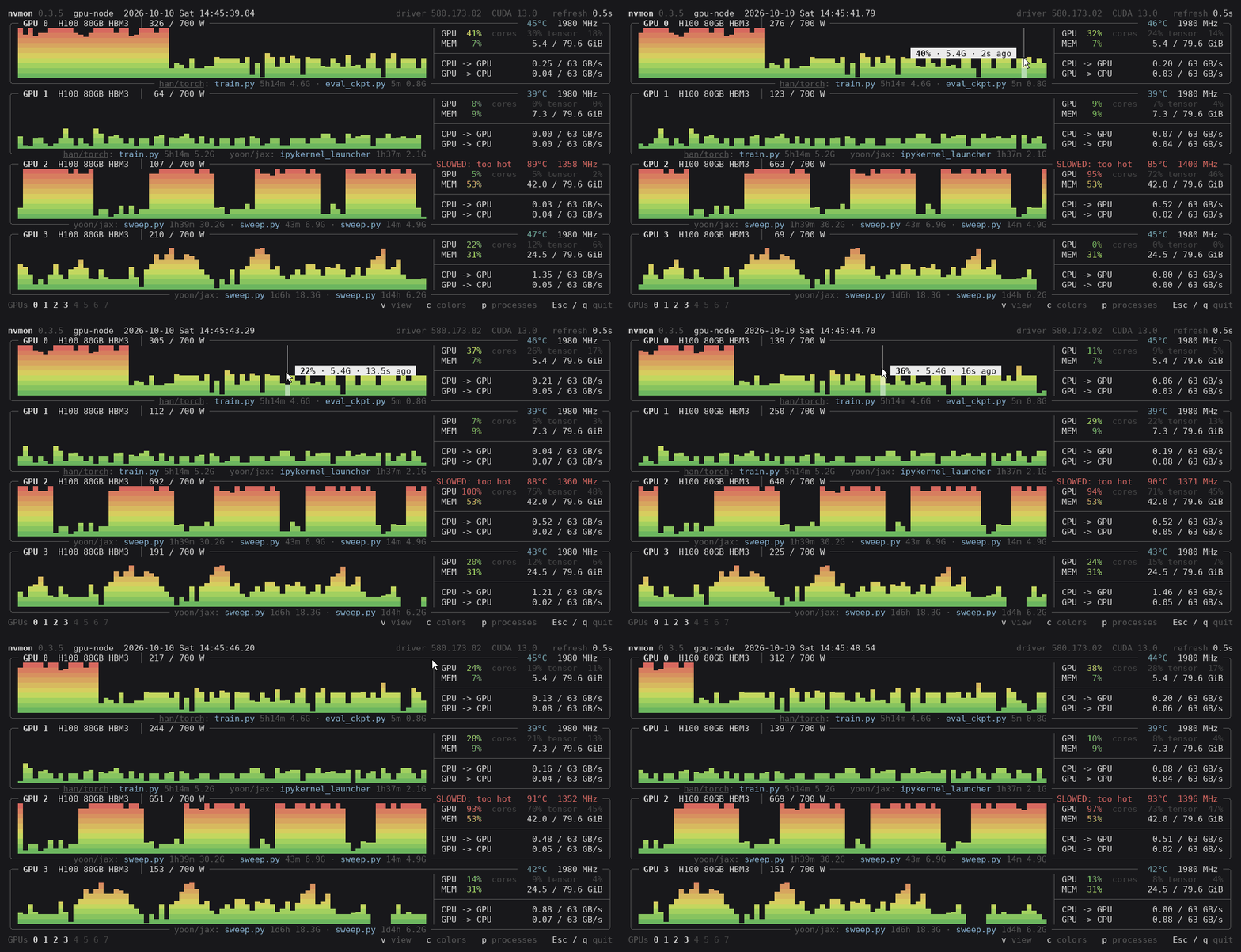
Each GPU gets a box:
- Top edge: the GPU's number and name, power drawn against its limit, temperature, fan and clock.
Warnings show here only when something is off:
SLOWED: power cap | too hot | hw brakewhen the clock is held back,PCIe DEGRADED: x16 -> x8when the card runs on fewer lanes than it supports. - Graph: utilization over time, the newest on the right, 0 % at the bottom and 100 % at the top.
- GPU: how much of the time something ran on it. cores / tensor (H100 and newer): how much of the chip that work kept busy, and how much of it was matrix math on the Tensor Cores. A GPU reads 100 % as soon as one small kernel runs all the time, while its cores may sit at 30 %.
- MEM: memory in use. CPU -> GPU and GPU -> CPU: data sent over PCIe, against the link's top speed.
- Bottom edge: the processes on the GPU with run time and memory, grouped by account and conda
environment (your own account unlabelled).
+opens the process list at this GPU.
The bottom line has the GPU numbers (click one, or press its key, to hide that GPU or show it again) and the keys; a newer release, when there is one, with the command that updates your install.
Views: v
v goes through four views, V back. What does not fit the window scrolls (wheel, PgUp/PgDn).
Graphs, as above: one under the other, two side by side only when they would not all fit, and in a small window shorter.
Processes in the graph's place, one a line: account, run time, memory, and the command line. The wheel over them scrolls them up and down; tilted, or with Shift, sideways, as do ← and →.
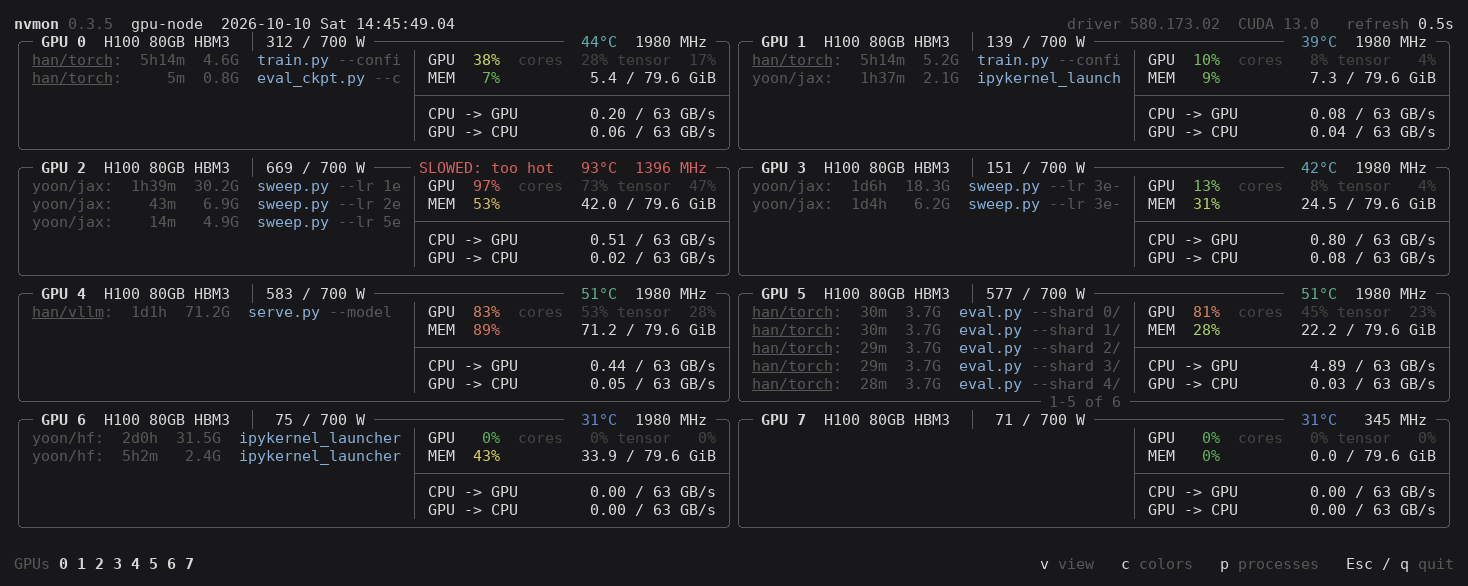
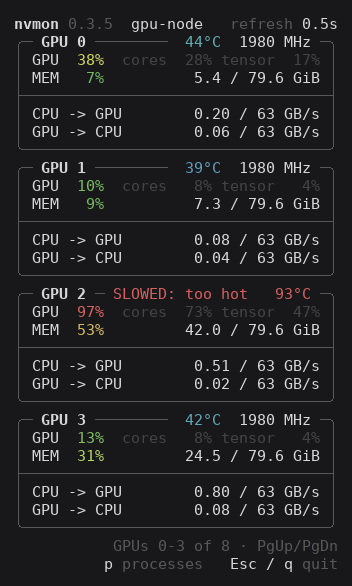
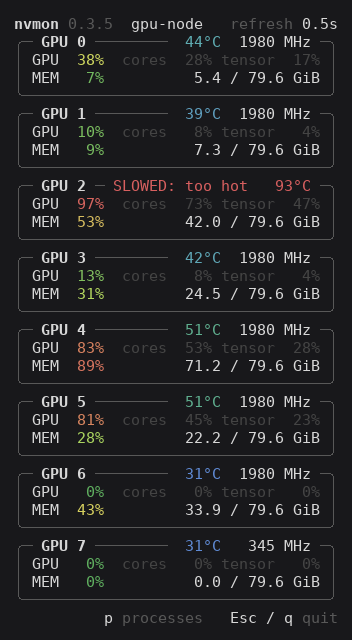
Numbers only, and GPU and MEM only: narrow boxes, always one under the other, for a window kept beside another. Here the numbers scrolled down to the last four GPUs, and GPU and MEM for all eight:
Processes and jobs: p
A job is what runs as one: a launcher's workers (torchrun, deepspeed…) count as one job, a process on its own is one too.
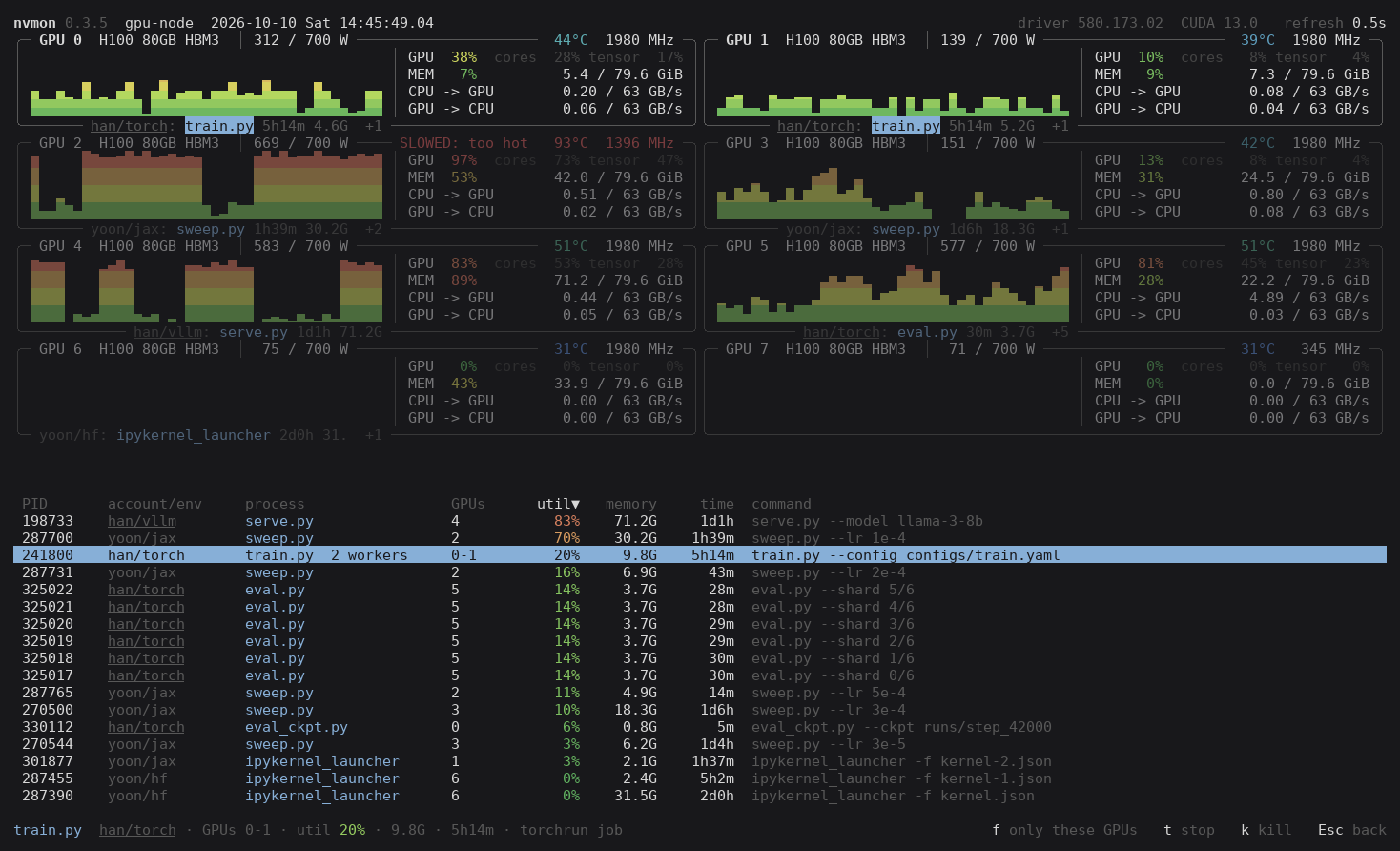
- Pick a job: click one of its processes, or press Tab (Tab and the arrows go on to the next). The GPUs it uses stand out, the others fade, and the bottom line tells about it: account, GPUs, utilization, memory, run time, launcher.
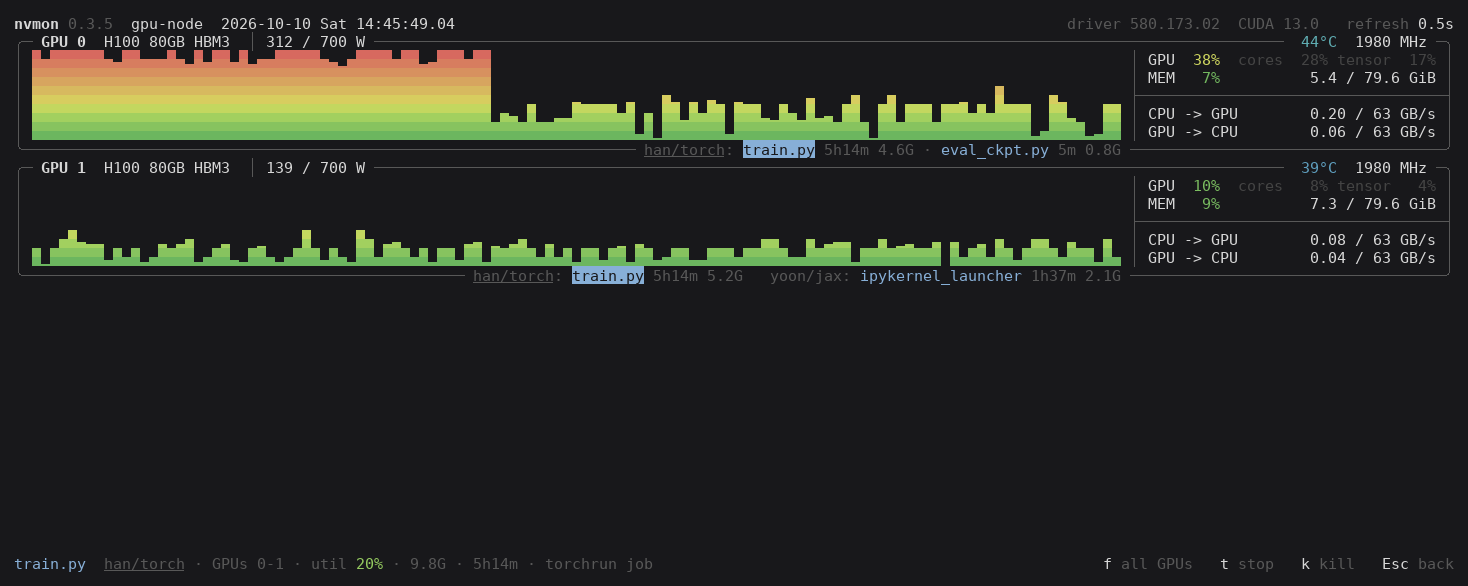
fshows only the GPUs the picked job uses,fagain all of them; a double click does the same.plists every job: PID, account, GPUs, utilization, memory, run time, command line. Click a heading to sort by it, again the other way round (orsfor the next heading,rto reverse). ← and → scroll the picked job's command. Click an empty spot, or press Esc, to let go.tasks a job of yours to stop (SIGTERM: it may save and exit),kends it at once (SIGKILL); both ask for ayfirst, and nvmon checks the job is still the one you picked.
The list, with the busiest job first and one picked:
The same job with f, its GPUs only:
Themes: c
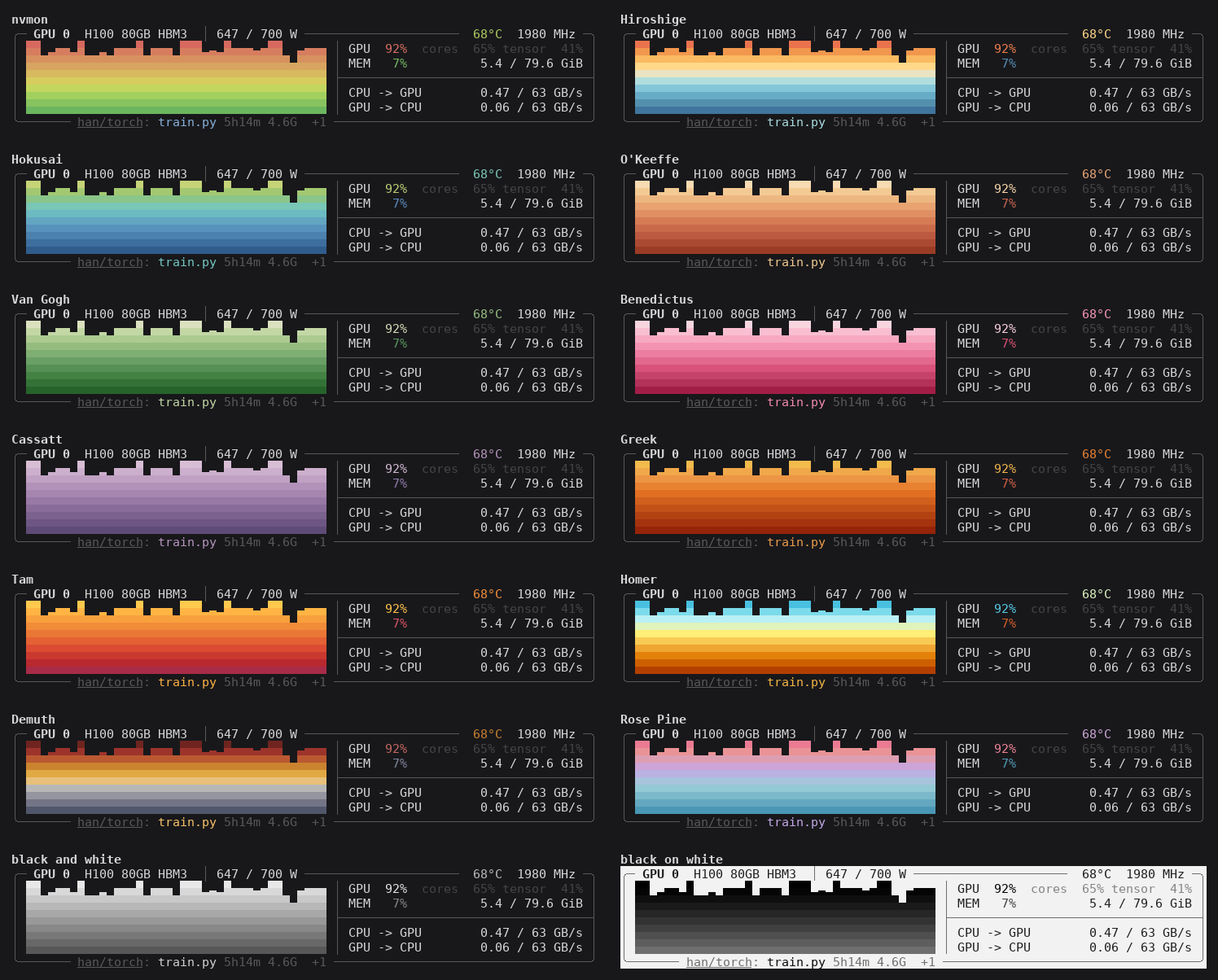
c goes through the themes, C back: nvmon's own; palettes from works by Hiroshige, Hokusai, O'Keeffe,
Van Gogh, Bénédictus and Cassatt (as MetBrewer has them);
the Rosé Pine theme's; and black on white.
All keys
| Key | Does |
|---|---|
v / V |
next / previous view: graphs, processes, numbers only, GPU and MEM only |
c / C |
next / previous theme |
p |
the process list, open or closed |
| click, Tab, ↑ ↓ | pick a job |
f, double click |
only the picked job's GPUs, or all again |
t, k, then y |
stop (SIGTERM) or kill (SIGKILL) the picked job |
click a heading, s, r |
sort the list by it, by the next heading, the other way round |
| wheel, ← → | scroll the processes, the list, the GPUs; sideways the commands |
| PgUp, PgDn | scroll the GPUs |
0-9, click a number |
hide a GPU, or show it again |
| Esc | a step back: all GPUs, the list closed, no job picked, then quit |
q, Ctrl+C |
quit |
The keys work with a Korean keyboard in Hangul mode too (ㅂ quits). Hold Shift to select text with the mouse.
It remembers
The view, the theme, the list's order and the GPUs hidden stay for the next run, for each computer you
connect from (the address ssh comes from), in ~/.config/nvmon/settings.json. Delete the file to start
afresh.
Terminals
- nvmon asks the terminal how it draws. One that puts line and block characters two cells wide (Xshell, PuTTY and the like, set up for Korean, Chinese or Japanese) gets boxes and graphs drawn in ASCII. One that does not say it shows 24-bit color gets 256 colors, which look nearly the same.
- Boxes still broken: the terminal moves on one cell, but its font draws the characters two wide. Pick a font whose line characters are one cell wide (D2Coding, Cascadia Mono, JetBrains Mono, DejaVu Sans Mono), and make sure the encoding is UTF-8.
- On Windows, run it in Windows Terminal; Git Bash's default window is not a terminal to Python.
- nvmon asks PyPI once at start whether a newer release is out;
NVMON_NO_UPDATE_CHECK=1turns that off.
License
MIT
1 maintainer

Metadata
1 maintainer
Release files for nvmon 0.3.1
For a detailed explanation of source distributions (sdists) and built distributions (wheels), please see the package formats documentation.
Source distribution (sdist)
| File | Size | Uploaded | |
|---|---|---|---|
| nvmon-0.3.1.tar.gz | 40.2 kB | Details |
Built distribution (wheel)
| File | Interpreter | ABI | Platform | Reset |
|---|---|---|---|---|
| nvmon-0.3.1-py3-none-any.whl | Python 3 | none | any | Details |
Total release size: 81.3 kB
Release files / nvmon-0.3.1.tar.gz
| Download URL | nvmon-0.3.1.tar.gz |
|---|---|
| Size | 40.2 kB |
| Tags | Source |
|
SHA-256 checksum How to use checksums |
52aa8c97b81175f08501710146e6b3c96b707cdfec7a88ed4140aec754626e6c
|
|
BLAKE2b-256 checksum How to use checksums |
d890a7085983c2e9008b4edaaeda9d9006e55e1e5a08133bb4165174edb9db28
|
| Upload date | |
|
Uploaded using Trusted Publishing? What is trusted publishing? |
Yes |
| Uploaded via |
twine/7.0.0 CPython/3.13.14
|
Provenance
Provenance describes where a file came from. On PyPI, provenance is shared via attestations, which provide a verifiable record of the build or publishing details. View details, limitations and caveats.


PyPI Publish Attestation
PyPI verified that this artifact, at this checksum, originated from the publisher listed below.
Signed by GitHub Actions, verified by PyPI on Sep 30, 2026.
Transparency logRelease files / nvmon-0.3.1-py3-none-any.whl
| Download URL | nvmon-0.3.1-py3-none-any.whl |
|---|---|
| Size | 41.2 kB |
| Tags | Python 3 |
|
SHA-256 checksum How to use checksums |
4d8d04159aec687b11e3d10529a2aaae0e418efc3a60aab5a99310778cdc5987
|
|
BLAKE2b-256 checksum How to use checksums |
7e3367cdd024064be251de61a9e5a6e7106d7056ba8f9fc7bae5b40fbc9da27a
|
| Upload date | |
|
Uploaded using Trusted Publishing? What is trusted publishing? |
Yes |
| Uploaded via |
twine/7.0.0 CPython/3.13.14
|
Provenance
Provenance describes where a file came from. On PyPI, provenance is shared via attestations, which provide a verifiable record of the build or publishing details. View details, limitations and caveats.
PyPI Publish Attestation
PyPI verified that this artifact, at this checksum, originated from the publisher listed below.
Signed by GitHub Actions, verified by PyPI on Sep 30, 2026.
Transparency log













