
MCP Server for PowerPoint manipulation using python-pptx - Consolidated Edition

Project description
Office-PowerPoint-MCP-Server


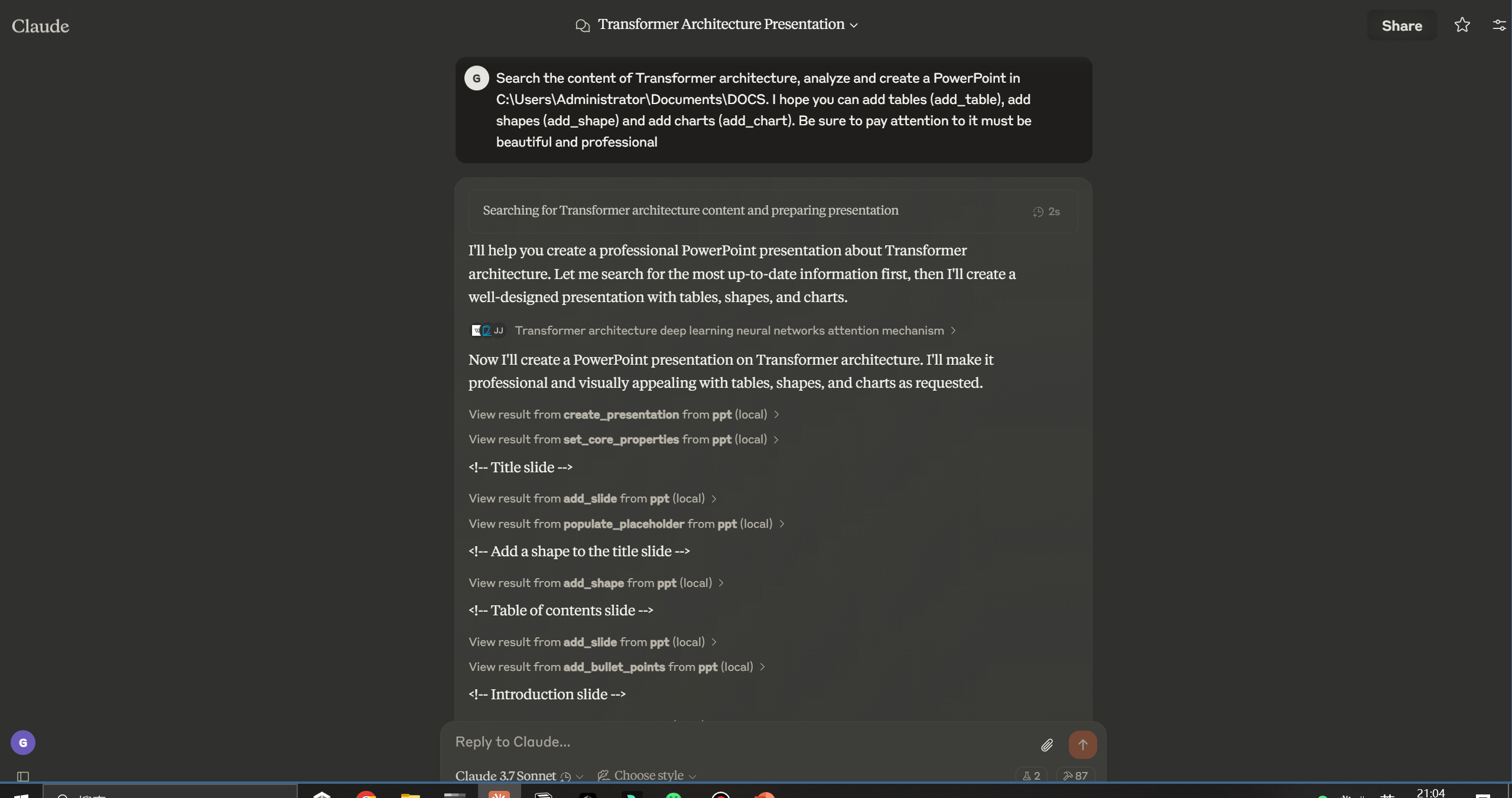
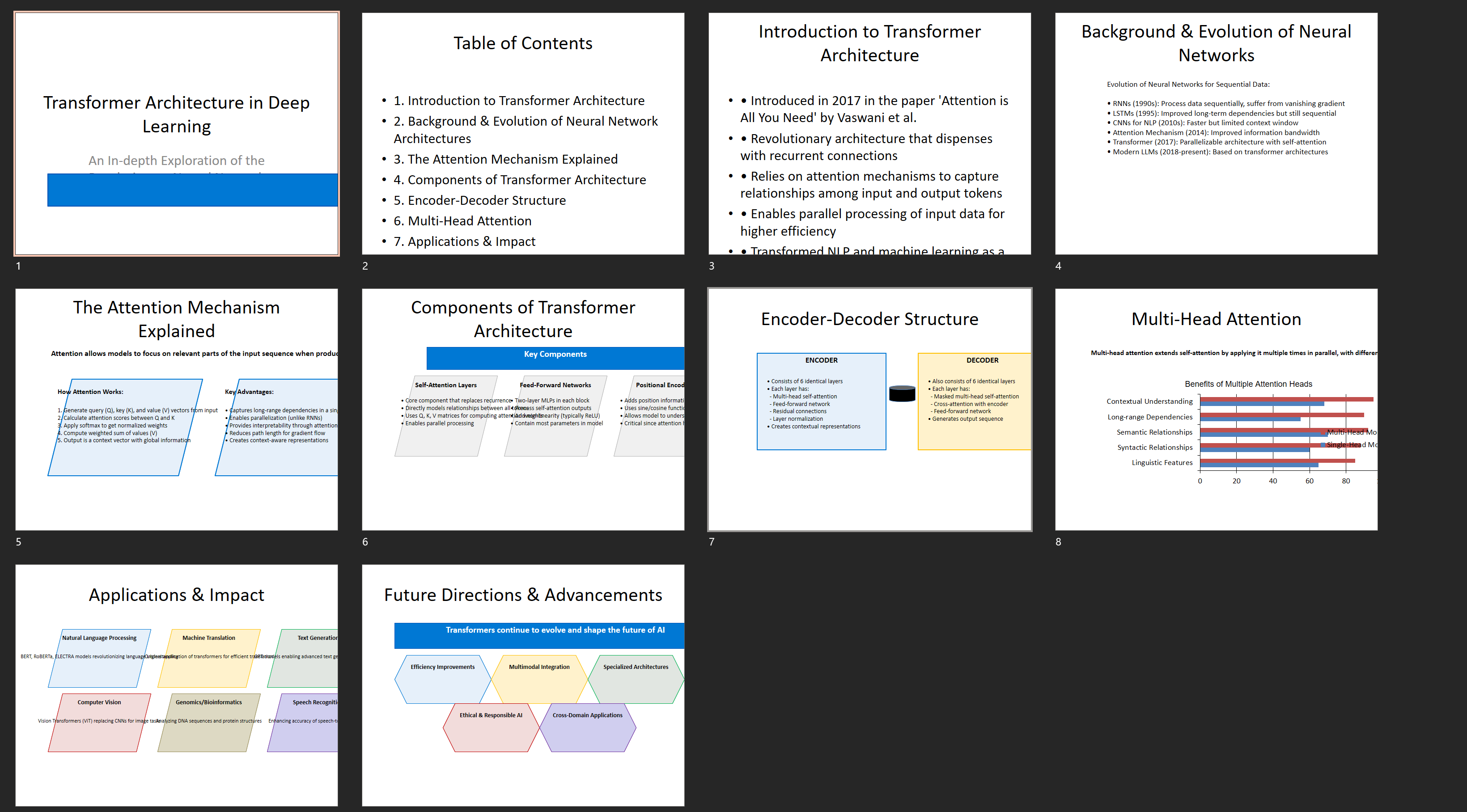
A streamlined MCP (Model Context Protocol) server for PowerPoint manipulation using python-pptx. Version 2.0 consolidates functionality into 20 powerful, unified tools while maintaining 100% of the original capabilities. The server features a modular architecture with enhanced parameter handling, intelligent operation selection, and comprehensive error handling.
Example
Pormpt
Output
Demo's GIF -> (./public/demo.mp4)

Features
Core PowerPoint Operations
- Round-trip support for any Open XML presentation (.pptx file) including all elements
- Template support with automatic theme and layout preservation
- Multi-presentation management with global state tracking
- Core document properties management (title, subject, author, keywords, comments)
Content Creation & Management
- Slide management with flexible layout selection
- Text manipulation with placeholder population and bullet point creation
- Advanced text formatting with font, color, alignment, and style controls
- Text validation with automatic fit checking and optimization suggestions
Visual Elements
- Image handling with file and base64 input support
- Image enhancement using Pillow with brightness, contrast, saturation, and filter controls
- Professional image effects including shadows, reflections, glows, and soft edges
- Shape creation with 20+ auto shape types (rectangles, ovals, flowchart elements, etc.)
- Table creation with advanced cell formatting and styling
Charts & Data Visualization
- Chart support for column, bar, line, and pie charts
- Data series management with categories and multiple series support
- Chart formatting with legends, data labels, and titles
Professional Design Features
- 4 professional color schemes (Modern Blue, Corporate Gray, Elegant Green, Warm Red)
- Professional typography with Segoe UI font family and size presets
- Theme application with automatic styling across presentations
- Gradient backgrounds with customizable directions and color schemes
- Slide enhancement tools for existing content
Advanced Features
- Font analysis and optimization using FontTools
- Picture effects with 9 different visual effects (shadow, reflection, glow, bevel, etc.)
- Comprehensive validation with automatic error fixing
- Template search with configurable directory paths
- Professional layout calculations with margin and spacing management
Installation
Installing via Smithery
To install PowerPoint Manipulation Server for Claude Desktop automatically via Smithery:
npx -y @smithery/cli install @GongRzhe/Office-PowerPoint-MCP-Server --client claude
Prerequisites
- Python 3.6 or higher (as specified in pyproject.toml)
- pip package manager
- Optional: uvx for package execution without local installation
Installation Options
Option 1: Using the Setup Script (Recommended)
The easiest way to set up the PowerPoint MCP Server is using the provided setup script, which automates the installation process:
python setup_mcp.py
This script will:
- Check prerequisites
- Offer installation options:
- Install from PyPI (recommended for most users)
- Set up local development environment
- Install required dependencies
- Generate the appropriate MCP configuration file
- Provide instructions for integrating with Claude Desktop
The script offers different paths based on your environment:
- If you have
uvxinstalled, it will configure using UVX (recommended) - If the server is already installed, it provides configuration options
- If the server is not installed, it offers installation methods
Option 2: Manual Installation
-
Clone the repository:
git clone https://github.com/GongRzhe/Office-PowerPoint-MCP-Server.git
cd Office-PowerPoint-MCP-Server
-
Install dependencies:
pip install -r requirements.txt
-
Make the server executable:
chmod +x ppt_mcp_server.py
Usage
Display help text:
python ppt_mcp_server.py -h
Starting the Stdio Server
Run the stdio server:
python ppt_mcp_server.py
Starting the Streamable-Http Server
Run the streamable-http server on port 8000:
python ppt_mcp_server.py --transport http --port 8000
Run in Docker
docker build -t ppt_mcp_server .
docker run -d --rm -p 8000:8000 ppt_mcp_server -t http
MCP Configuration
Option 1: Local Python Server
Add the server to your MCP settings configuration file:
{
  "mcpServers": {
    "ppt": {
      "command": "python",
      "args": ["/path/to/ppt_mcp_server.py"],
      "env": {}
    }
  }
}
Option 2: Using UVX (No Local Installation Required)
If you have uvx installed, you can run the server directly from PyPI without local installation:
{
  "mcpServers": {
    "ppt": {
      "command": "uvx",
      "args": [
        "--from", "office-powerpoint-mcp-server", "ppt_mcp_server"
      ],
      "env": {}
    }
  }
}
🚀 What's New in v2.0
Consolidated Tools (42 → 20)
- 52% reduction in tool count while preserving all features
- Unified interfaces with operation-based parameter selection
- Enhanced parameter handling with comprehensive validation
- Intelligent defaults for common use cases
Modular Architecture
- 4 organized modules: presentation, content, structural, and professional tools
- Better maintainability with separated concerns
- Easier extensibility for adding new features
- Cleaner code structure with shared utilities
Available Tools
The server provides 20 consolidated tools organized into the following categories:
Presentation Management (7 tools)
- create_presentation - Create new presentations
- create_presentation_from_template - Create from templates with theme preservation
- open_presentation - Open existing presentations
- save_presentation - Save presentations to files
- get_presentation_info - Get comprehensive presentation information
- get_template_info - Analyze template files and layouts
- set_core_properties - Set document properties
Content Management (6 tools)
- add_slide - Add slides with optional background styling
- get_slide_info - Get detailed slide information
- populate_placeholder - Populate placeholders with text
- add_bullet_points - Add formatted bullet points
- manage_text - ✨ Unified text tool (add/format/validate)
- manage_image - ✨ Unified image tool (add/enhance)
Structural Elements (4 tools)
- add_table - Create tables with enhanced formatting
- format_table_cell - Format individual table cells
- add_shape - Add shapes with text and formatting options
- add_chart - Create charts with comprehensive customization
Professional Design (3 tools)
- apply_professional_design - ✨ Unified design tool (themes/slides/enhancement)
- apply_picture_effects - ✨ Unified effects tool (9 effects combined)
- manage_fonts - ✨ Unified font tool (analyze/optimize/recommend)
🌟 Key Consolidated Tools
manage_text - All-in-One Text Management
# Add text box
manage_text(slide_index=0, operation="add", text="Hello World", font_size=24)

# Format existing text
manage_text(slide_index=0, operation="format", shape_index=0, bold=True, color=[255,0,0])

# Validate text fit with auto-fix
manage_text(slide_index=0, operation="validate", shape_index=0, validation_only=False)
manage_image - Complete Image Handling
# Add image with enhancement
manage_image(slide_index=0, operation="add", image_source="logo.png",
            enhancement_style="presentation")

# Enhance existing image
manage_image(slide_index=0, operation="enhance", image_source="photo.jpg",
            brightness=1.2, contrast=1.1, saturation=1.3)
apply_picture_effects - Multiple Effects in One Call
# Apply combined effects
apply_picture_effects(slide_index=0, shape_index=0, effects={
    "shadow": {"blur_radius": 4.0, "color": [128,128,128]},
    "glow": {"size": 5.0, "color": [0,176,240]},
    "rotation": {"rotation": 15.0}
})
apply_professional_design - Theme & Design Management
# Add professional slide
apply_professional_design(operation="slide", slide_type="title_content",
                         color_scheme="modern_blue", title="My Presentation")

# Apply theme to entire presentation
apply_professional_design(operation="theme", color_scheme="corporate_gray")

# Enhance existing slide
apply_professional_design(operation="enhance", slide_index=0, color_scheme="elegant_green")
Examples
Creating a New Presentation
# Create a new presentation
result = use_mcp_tool(
    server_name="ppt",
    tool_name="create_presentation",
    arguments={}
)
presentation_id = result["presentation_id"]

# Add a title slide
result = use_mcp_tool(
    server_name="ppt",
    tool_name="add_slide",
    arguments={
        "layout_index": 0,  # Title slide layout
        "title": "My Presentation",
        "presentation_id": presentation_id
    }
)
slide_index = result["slide_index"]

# Populate subtitle placeholder
result = use_mcp_tool(
    server_name="ppt",
    tool_name="populate_placeholder",
    arguments={
        "slide_index": slide_index,
        "placeholder_idx": 1,  # Subtitle placeholder
        "text": "Created with PowerPoint MCP Server",
        "presentation_id": presentation_id
    }
)

# Save the presentation
result = use_mcp_tool(
    server_name="ppt",
    tool_name="save_presentation",
    arguments={
        "file_path": "my_presentation.pptx",
        "presentation_id": presentation_id
    }
)
Creating a Professional Presentation with v2.0
# Create a professional slide with modern styling - CONSOLIDATED TOOL
result = use_mcp_tool(
    server_name="ppt",
    tool_name="apply_professional_design",
    arguments={
        "operation": "slide",
        "slide_type": "title_content",
        "color_scheme": "modern_blue",
        "title": "Quarterly Business Review",
        "content": [
            "Revenue increased by 15% compared to last quarter",
            "Customer satisfaction scores reached all-time high of 94%",
            "Successfully launched 3 new product features",
            "Expanded team by 12 new talented professionals"
        ]
    }
)

# Apply professional theme to entire presentation - SAME TOOL, DIFFERENT OPERATION
result = use_mcp_tool(
    server_name="ppt",
    tool_name="apply_professional_design",
    arguments={
        "operation": "theme",
        "color_scheme": "modern_blue",
        "apply_to_existing": True
    }
)

# Add slide with gradient background - ENHANCED ADD_SLIDE
result = use_mcp_tool(
    server_name="ppt",
    tool_name="add_slide",
    arguments={
        "layout_index": 0,
        "background_type": "professional_gradient",
        "color_scheme": "modern_blue",
        "gradient_direction": "diagonal"
    }
)
Enhanced Image Management with v2.0
# Add image with automatic enhancement - CONSOLIDATED TOOL
result = use_mcp_tool(
    server_name="ppt",
    tool_name="manage_image",
    arguments={
        "slide_index": 1,
        "operation": "add",
        "image_source": "company_logo.png",
        "left": 1.0,
        "top": 1.0,
        "width": 3.0,
        "height": 2.0,
        "enhancement_style": "presentation"
    }
)

# Apply multiple picture effects at once - CONSOLIDATED TOOL
result = use_mcp_tool(
    server_name="ppt",
    tool_name="apply_picture_effects",
    arguments={
        "slide_index": 1,
        "shape_index": 0,
        "effects": {
            "shadow": {
                "shadow_type": "outer",
                "blur_radius": 4.0,
                "distance": 3.0,
                "direction": 315.0,
                "color": [128, 128, 128],
                "transparency": 0.6
            },
            "glow": {
                "size": 5.0,
                "color": [0, 176, 240],
                "transparency": 0.4
            }
        }
    }
)
Advanced Text Management with v2.0
# Add and format text in one operation - CONSOLIDATED TOOL
result = use_mcp_tool(
    server_name="ppt",
    tool_name="manage_text",
    arguments={
        "slide_index": 0,
        "operation": "add",
        "left": 1.0,
        "top": 2.0,
        "width": 8.0,
        "height": 1.5,
        "text": "Welcome to Our Quarterly Review",
        "font_size": 32,
        "font_name": "Segoe UI",
        "bold": True,
        "color": [0, 120, 215],
        "alignment": "center",
        "auto_fit": True
    }
)

# Validate and fix text fit issues - SAME TOOL, DIFFERENT OPERATION
result = use_mcp_tool(
    server_name="ppt",
    tool_name="manage_text",
    arguments={
        "slide_index": 0,
        "operation": "validate",
        "shape_index": 0,
        "validation_only": False,  # Auto-fix enabled
        "min_font_size": 10,
        "max_font_size": 48
    }
)
Creating a Presentation from Template
# First, inspect a template to see its layouts and properties
result = use_mcp_tool(
    server_name="ppt",
    tool_name="get_template_info",
    arguments={
        "template_path": "company_template.pptx"
    }
)
template_info = result

# Create a new presentation from the template
result = use_mcp_tool(
    server_name="ppt",
    tool_name="create_presentation_from_template",
    arguments={
        "template_path": "company_template.pptx"
    }
)
presentation_id = result["presentation_id"]

# Add a slide using one of the template's layouts
result = use_mcp_tool(
    server_name="ppt",
    tool_name="add_slide",
    arguments={
        "layout_index": 1,  # Use layout from template
        "title": "Quarterly Report",
        "presentation_id": presentation_id
    }
)

# Save the presentation
result = use_mcp_tool(
    server_name="ppt",
    tool_name="save_presentation",
    arguments={
        "file_path": "quarterly_report.pptx",
        "presentation_id": presentation_id
    }
)
Adding Advanced Charts and Data Visualization
# Add a chart slide
result = use_mcp_tool(
    server_name="ppt",
    tool_name="add_slide",
    arguments={
        "layout_index": 1,  # Content slide layout
        "title": "Sales Data",
        "presentation_id": presentation_id
    }
)
slide_index = result["slide_index"]

# Add a column chart with comprehensive customization
result = use_mcp_tool(
    server_name="ppt",
    tool_name="add_chart",
    arguments={
        "slide_index": slide_index,
        "chart_type": "column",
        "left": 1.0,
        "top": 2.0,
        "width": 8.0,
        "height": 4.5,
        "categories": ["Q1", "Q2", "Q3", "Q4"],
        "series_names": ["2023", "2024"],
        "series_values": [
            [100, 120, 140, 160],
            [110, 130, 150, 170]
        ],
        "has_legend": True,
        "legend_position": "bottom",
        "has_data_labels": True,
        "title": "Quarterly Sales Performance",
        "presentation_id": presentation_id
    }
)
Text Validation and Optimization with v2.0
# Validate text fit and get optimization suggestions - USING CONSOLIDATED TOOL
result = use_mcp_tool(
    server_name="ppt",
    tool_name="manage_text",
    arguments={
        "slide_index": 0,
        "operation": "validate",
        "shape_index": 0,
        "text": "This is a very long title that might not fit properly in the designated text box area",
        "font_size": 24,
        "validation_only": True
    }
)

# Comprehensive slide validation with automatic fixes - SAME TOOL, AUTO-FIX ENABLED
result = use_mcp_tool(
    server_name="ppt",
    tool_name="manage_text",
    arguments={
        "slide_index": 0,
        "operation": "validate",
        "shape_index": 0,
        "validation_only": False,  # Auto-fix enabled
        "min_font_size": 10,
        "max_font_size": 48
    }
)
Template Support
Working with Templates
The PowerPoint MCP Server provides comprehensive template support for creating presentations from existing template files. This feature enables:
- Corporate branding with predefined themes, layouts, and styles
- Consistent presentations across teams and projects
- Custom slide masters and specialized layouts
- Pre-configured properties and document settings
- Flexible template discovery with configurable search paths
Template File Requirements
- Supported formats:
.pptxand.potxfiles - Existing content: Templates can contain existing slides (preserved during creation)
- Layout availability: All custom layouts and slide masters are accessible
- Search locations: Configurable via
PPT_TEMPLATE_PATHenvironment variable - Default search paths: Current directory,
./templates,./assets,./resources
Template Configuration
Set the PPT_TEMPLATE_PATH environment variable to specify custom template directories:
# Unix/Linux/macOS
export PPT_TEMPLATE_PATH="/path/to/templates:/another/path"

# Windows
set PPT_TEMPLATE_PATH="C:\templates;C:\company_templates"
Template Workflow
- Inspect Template: Use
get_template_infoto analyze available layouts and properties - Create from Template: Use
create_presentation_from_templatewith automatic theme preservation - Use Template Layouts: Reference layout indices from template analysis when adding slides
- Maintain Branding: Template themes, fonts, and colors are automatically applied to new content
Professional Color Schemes
The server includes 4 built-in professional color schemes:
- Modern Blue: Microsoft-inspired blue theme with complementary colors
- Corporate Gray: Professional grayscale theme with blue accents
- Elegant Green: Forest green theme with cream and light green accents
- Warm Red: Deep red theme with orange and yellow accents
Each scheme includes primary, secondary, accent, light, and text colors optimized for business presentations.
📁 File Structure
Office-PowerPoint-MCP-Server/
├── ppt_mcp_server.py          # Main consolidated server (v2.0)
├── tools/                     # Organized tool modules
│   ├── __init__.py
│   ├── presentation_tools.py  # Presentation management (7 tools)
│   ├── content_tools.py       # Content & slides (6 tools)
│   ├── structural_tools.py    # Tables, shapes, charts (4 tools)
│   └── professional_tools.py  # Themes, effects, fonts (3 tools)
├── utils/                     # Organized utility modules
│   ├── __init__.py
│   ├── core_utils.py          # Error handling & safe operations
│   ├── presentation_utils.py  # Presentation management utilities
│   ├── content_utils.py       # Content & slide operations
│   ├── design_utils.py        # Themes, colors, effects & fonts
│   └── validation_utils.py    # Text & layout validation
├── setup_mcp.py              # Interactive setup script
├── pyproject.toml            # Updated for v2.0
└── README.md                 # This documentation
🏗️ Architecture Benefits
Modular Design
- 5 focused utility modules with clear responsibilities
- 4 organized tool modules for better maintainability
- Reduced file sizes from 3,500+ lines to ~300 lines per module
- Clear separation of concerns for easier development
Code Organization
- 60% reduction in total codebase size by removing unused functions
- Better discoverability with logical function grouping
- Improved testability with isolated modules
- Future extensibility through modular structure
Performance Improvements
- Reduced memory footprint by removing 25+ unused functions
- Faster imports with smaller, focused modules
- Better caching due to modular structure
- Cleaner dependencies between components
Developer Experience
- Clear responsibility boundaries between modules
- Easier debugging with smaller, focused files
- Simpler testing with isolated functionality
- Enhanced maintainability through separation of concerns
🔄 Migration from v1.0
All original functionality is preserved! The consolidated tools accept all the same parameters as the original tools:
| v1.0 Tools | v2.0 Equivalent | Migration |
|---|---|---|
add_textbox, add_textbox_advanced, format_text_advanced, validate_text_fit |
manage_text |
Use operation parameter: "add", "format", "validate" |
add_image, add_image_from_base64, enhance_image_with_pillow, apply_professional_image_enhancement |
manage_image |
Use operation parameter: "add", "enhance" |
| All 9 picture effect tools | apply_picture_effects |
Pass effects as dictionary |
add_professional_slide, apply_professional_theme, enhance_existing_slide, get_color_schemes |
apply_professional_design |
Use operation parameter |
License
MIT
Release history Release notifications | RSS feed


Download files
Download the file for your platform. If you're not sure which to choose, learn more about installing packages.
Source Distribution
Built Distribution
Filter files by name, interpreter, ABI, and platform.
If you're not sure about the file name format, learn more about wheel file names.
Copy a direct link to the current filters
File details
Details for the file office_powerpoint_mcp_server-2.0.0.tar.gz.
File metadata
- Download URL: office_powerpoint_mcp_server-2.0.0.tar.gz
- Upload date:
- Size: 70.4 kB
- Tags: Source
- Uploaded using Trusted Publishing? No
- Uploaded via: twine/6.1.0 CPython/3.13.2
File hashes
| Algorithm | Hash digest | |
|---|---|---|
| SHA256 |
d1b217c7cc37e982022f92071a58aeb949a01144aeb00d70c7e8e7bb83ae834f
|
|
| MD5 |
a90d1e80c9e6f935af6e31cfd0339bbd
|
|
| BLAKE2b-256 |
a47f5cc002478befb675cde168c4bd558b6bbc1f020226d25a1a9cde7551d638
|
File details
Details for the file office_powerpoint_mcp_server-2.0.0-py3-none-any.whl.
File metadata
- Download URL: office_powerpoint_mcp_server-2.0.0-py3-none-any.whl
- Upload date:
- Size: 61.5 kB
- Tags: Python 3
- Uploaded using Trusted Publishing? No
- Uploaded via: twine/6.1.0 CPython/3.13.2
File hashes
| Algorithm | Hash digest | |
|---|---|---|
| SHA256 |
5357865fe4ac7cc6397b21b465e07825b3e30353cb3794439598b005bf84716a
|
|
| MD5 |
939d02cb599cce66f4eeb16395900ba8
|
|
| BLAKE2b-256 |
deb01f2c55ae1c0156bdd4b1a51478b31e5176290e16e393649ba9d7752410cf
|






