
Ollama Remote Chat CLI


A network-ready command-line chat client for Ollama servers. Connect to local or remote Ollama instances from any machine on your network.
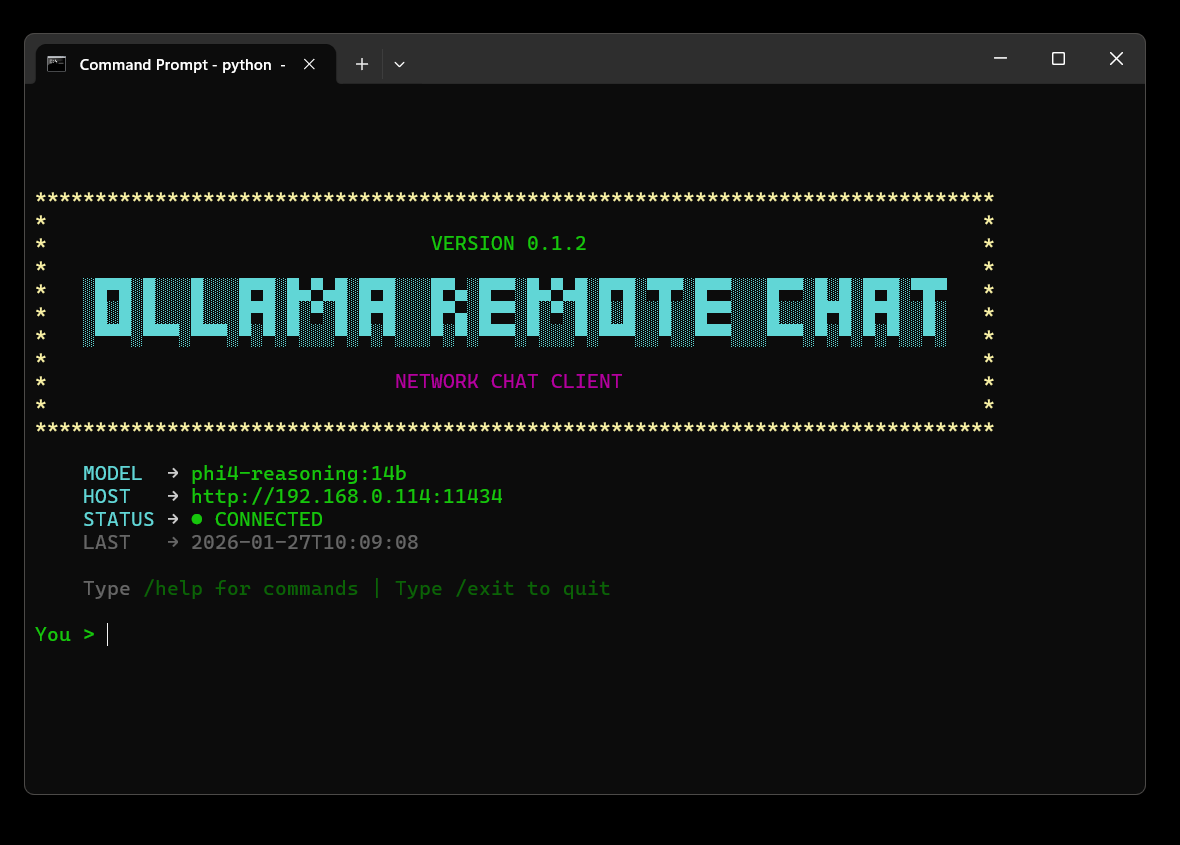
Quick Start
Installation
Install directly from PyPI:
pip install ollama-remote-chat-cli
Run the client:
orc
Or use the full command:
ollama-remote-chat-cli
First Run Setup
The first time you run orc, a setup wizard will guide you through:
- Configuring your Ollama server URL
- Selecting your preferred model
- Setting up your preferences
orc
# Follow the interactive setup wizard
One-Shot Mode (CLI Arguments)
Run queries directly from the command line without entering the interactive shell:
# Direct query
orc "Explain quantum physics in 10 words"

# Pipe content (e.g., summarize a file)
cat README.md | orc "Summarize this file"

# Use specific model and system prompt
orc "Who are you?" -m llama2 -s "You are a pirate"
Features
-
🌐 Network-ready - Connect to local or remote Ollama servers
-
🔐 Authentication - Support for Bearer tokens and Basic Auth for secured instances
-
👁️ Multimodal - Chat with images using vision models (Llava, Llama 3.2-Vision, Qwen2-VL, etc.)
-
📚 RAG Support - Ingest and chat with your own text documents (Retrieval-Augmented Generation)
-
🎨 Retro terminal UI - Clean, colorful command-line interface with dynamic spinner messages
-
🧹 Smart screen clearing -
/clearand/newpreserve header while clearing chat history -
🎨 Rich markdown rendering - Beautiful syntax highlighting and formatting
-
🧠 Thinking process support - See how reasoning models think (DeepSeek R1, QwQ, etc.)
-
📝 Chat history - Full session management with search functionality
-
⚙️ Inference control - Configurable temperature, top_p, context window, and more
-
📊 Real-time metrics - Token usage, thinking metrics, and generation speed
-
🔄 Model management - Easy switching, pulling, and deletion of models
-
🔍 History search - Search through past conversations
-
💻 System monitoring - View running models and memory usage
-
🔒 Secure configuration - XDG-compliant storage and .env support
-
🐛 Error Logging - Detailed logs in
debug.logfor troubleshooting.
Requirements
-
Python 3.7 or higher
-
Ollama server (local or remote)
-
Required packages:
requests,python-dotenv,wcwidth,rich
Connection Methods
Authentication
If your Ollama server is behind a reverse proxy (Nginx, Apache, Cloudflare Tunnel) that requires credentials, you can configure them using the /auth command.
-
Bearer Token: Used for API key authentication.
-
Basic Auth: Used for Username/Password authentication.
-
Security: Credentials are stored in your local configuration file.
Method 1: Local Connection (Default)
Ollama running on the same machine:
OLLAMA_HOST=http://localhost:11434
OLLAMA_MODEL=llama2
Setup:
- Install Ollama from ollama.ai
- Run:
ollama serve - Pull a model:
ollama pull llama2
Method 2: Hostname Connection (.local / mDNS)
Connect to another computer on your local network:
OLLAMA_HOST=http://my-computer.local:11434
OLLAMA_MODEL=llama3.3
Setup:
-
Find your server's hostname:
- Windows:
hostnamein CMD - Mac: System Preferences → Sharing → Computer Name
- Linux:
hostnamein terminal
- Windows:
-
Ensure mDNS/Bonjour is enabled:
- Windows: Install Bonjour Print Services
- Mac/Linux: Built-in support
-
Test:
ping my-computer.local -
Configure firewall to allow port 11434
Method 3: Static IP Address
For computers with fixed network IPs:
OLLAMA_HOST=http://192.168.1.100:11434
OLLAMA_MODEL=mistral
Setup:
-
Set static IP on your Ollama server
-
Find IP address:
- Windows:
ipconfig - Mac:
ifconfig en0 | grep inet - Linux:
ip addr show
- Windows:
-
Configure firewall to allow port 11434
Method 4: Docker
Ollama running in a Docker container:
OLLAMA_HOST=http://localhost:11434
OLLAMA_MODEL=llama2
Docker setup:
docker run -d -p 11434:11434 --name ollama ollama/ollama
docker exec -it ollama ollama pull llama2
Method 5: WSL (Windows Subsystem for Linux)
Accessing Windows Ollama host from WSL:
OLLAMA_HOST=http://host.docker.internal:11434
OLLAMA_MODEL=llama2
Or find Windows IP from WSL:
ip route | grep default | awk '{print $3}'
Available Commands
| Command | Description |
|---|---|
/help |
Show all available commands |
/multi |
Enter multi-line input mode |
/clear |
Clear conversation context |
/new |
Start a new chat session |
/exit |
Exit the chat |
| Features | |
/auth |
Manage Authentication (Bearer Token / Basic Auth) |
/image |
Attach an image for vision models (/image path.png) |
/ingest |
Ingest a text file for RAG (/ingest file.txt) |
| Model Management | |
/models |
Unified Model Manager (Switch, Download, Remove, Create, Info) |
| Generation | |
/generate |
Generate raw completion without chat context |
| Configuration | |
/config |
Unified Configuration Manager (Host, Inference, Defaults) |
| History | |
/history |
View and manage/delete chat history |
/search |
Search chat history |
/showthinking |
View thinking from last AI response |
| System Monitoring | |
/version |
Show Ollama server version |
/ps |
List running models (memory usage) |
/ping |
Test connection latency to server |
Inference Settings
Fine-tune AI behavior with the /settings command:
Temperature (0.0-2.0) - Controls response creativity
- 0.1-0.3: Precise (coding, math, facts)
- 0.6-0.8: Balanced (general chat)
- 1.0-1.5: Creative (writing, brainstorming)
Top P (0.0-1.0) - Nucleus sampling threshold (default: 0.9)
Top K (1-100) - Limits token choices (default: 40)
Context Window (128-32768) - Conversation memory in tokens (default: 2048)
Max Output (1-4096) - Maximum response length (default: 512)
Repeat Penalty (0.0-2.0) - Reduces repetition (default: 1.1)
Request Timeout (5-3600s) - Max time to wait for server response (default: 120s)
Advanced: Seed, Mirostat, Mirostat Eta/Tau.
Advanced Features
Multimodal Support (Vision)
Chat with images using vision-capable models (like llava, llama3.2-vision, or qwen2-vl).
- Usage: Type
/image <path/to/image.png>to attach an image. - Interaction: Ask questions about the image (e.g., "Describe this image").
- One-Shot: Images are automatically cleared after each response to keep the context clean.
- Supported Formats:
.jpg,.jpeg,.png.
RAG (Retrieval-Augmented Generation)
Chat with your own text documents by indexing them into a local vector store.
- Ingest: Use
/ingest <path/to/file.txt>to chunk and index a text file. - Automatic Retrieval: When you ask a question, the CLI automatically searches for relevant context in your ingested documents.
- Context Injection: Relevant snippets are injected into the prompt, and the CLI will notify you when document context is being used.
Thinking Process Visualization
For reasoning models like DeepSeek R1, QwQ, and others that use chain-of-thought:
- Hidden by default: Thinking process is hidden during streaming for cleaner output
- View thinking: Use
/showthinkingto see the AI's reasoning after response - Live thinking: Enable in
/settingsto watch the model think in real-time - Saved in history: Thinking is automatically saved for later review
Settings control:
show_thinking_live- Display thinking as it happens (default: false)save_thinking- Save thinking to chat history (default: true)
Rich Markdown Rendering
AI responses are automatically formatted with:
- Syntax highlighting for code blocks
- Styled headers and emphasis (bold, italic)
- Formatted lists and blockquotes
- Colored output optimized for all terminals
Toggle in /settings:
use_markdown- Enable/disable Rich rendering (default: true)
System Monitoring
/ps command shows:
- Currently loaded models in memory
- VRAM usage per model
- Model expiration times
- Total memory consumption
Useful for:
- Monitoring resource usage
- Debugging slow responses
- Managing multiple models
Troubleshooting
"Could not connect to Ollama"
1. Check Debug Logs:
Errors are logged to the debug.log file in your data directory (XDG compliant). Check this file for detailed error messages and stack traces.
2. Verify Ollama is running:
curl http://localhost:11434
# Should return: "Ollama is running"
2. Check firewall:
- Windows: Allow port 11434 in Windows Firewall
- Mac: System Preferences → Security → Firewall
- Linux:
sudo ufw allow 11434
3. Test hostname resolution:
ping your-hostname.local
# If fails, use IP address instead
4. Check Ollama binding:
# Ensure Ollama is listening on all interfaces
OLLAMA_HOST=0.0.0.0 ollama serve
"Model not found"
# List available models on server
ollama list

# Pull a model
ollama pull llama2
"Module not found" or Import Errors
# Reinstall the package
pip install --upgrade --force-reinstall ollama-remote-chat-cli
Command not found: orc
Windows:
# Add Python Scripts to PATH
# Location: C:\Users\YourName\AppData\Local\Programs\Python\Python3XX\Scripts
Mac/Linux:
# Ensure pip install location is in PATH
export PATH="$HOME/.local/bin:$PATH"

# Add to ~/.bashrc or ~/.zshrc to make permanent
Configuration Files
Config files are stored in standard XDG system paths to keep your home directory clean.
Config Location:
- Windows:
%APPDATA%\ollama-remote-chat\config.json - Linux/Mac:
~/.config/ollama-remote-chat/config.json
Data & History Location:
- Windows:
%APPDATA%\ollama-remote-chat\history.json - Linux/Mac:
~/.local/share/ollama-remote-chat/history.json
Migration: Legacy files (~/.ollama_chat_config.json) are automatically migrated to the new location on first run.
Manual configuration:
Create a .env file in your home directory or project root:
OLLAMA_HOST=http://localhost:11434
OLLAMA_MODEL=llama2
TEMPERATURE=0.8
TOP_P=0.9
Alternative Installation Methods
From Source (Development)
# Clone the repository
git clone https://github.com/Avaxerrr/ollama-remote-chat-cli.git
cd ollama-remote-chat-cli

# Install in editable mode
pip install -e .

# Run it
orc
Building Standalone Executable
# Using Nuitka build script
python nuitka_build.py

# Follow the interactive menu
# Creates portable .exe or binary
Updating
To get the latest version:
pip install --upgrade ollama-remote-chat-cli
Check your current version:
pip show ollama-remote-chat-cli
Or inside the app:
orc
# Then type: /version
Development
Running from source:
git clone https://github.com/Avaxerrr/ollama-remote-chat-cli.git
cd ollama-remote-chat-cli
pip install -e .
orc
Running tests:
# Install dev dependencies
pip install -e ".[dev]"

# Run tests (when available)
pytest
License
MIT License - see LICENSE file for details.
Copyright © 2026 Avaxerrr
Permission is hereby granted, free of charge, to use, modify, and distribute this software.
Links
- PyPI: https://pypi.org/project/ollama-remote-chat-cli/
- GitHub: https://github.com/Avaxerrr/ollama-remote-chat-cli
- Issues: https://github.com/Avaxerrr/ollama-remote-chat-cli/issues
- Changelog: CHANGELOG.md - View release history and version updates
- Ollama: https://ollama.ai
Acknowledgments
- Built for Ollama
- Inspired by modern CLI tools
- Community contributions welcome
Support
Having issues? Here's how to get help:
- Check the Troubleshooting section
- Search existing issues
- Open a new issue with:
- Your OS and Python version
- Error messages
- Steps to reproduce
1 maintainer

Metadata
1 maintainer
Release files for ollama-remote-chat-cli 0.2.0
For a detailed explanation of source distributions (sdists) and built distributions (wheels), please see the package formats documentation.
Source distribution (sdist)
| File | Size | Uploaded | |
|---|---|---|---|
| ollama_remote_chat_cli-0.2.0.tar.gz | 38.9 kB | Details |
Built distribution (wheel)
| File | Interpreter | ABI | Platform | Reset |
|---|---|---|---|---|
| ollama_remote_chat_cli-0.2.0-py3-none-any.whl | Python 3 | none | any | Details |
Total release size: 74.6 kB
Release files / ollama_remote_chat_cli-0.2.0.tar.gz
| Download URL | ollama_remote_chat_cli-0.2.0.tar.gz |
|---|---|
| Size | 38.9 kB |
| Tags | Source |
|
SHA-256 checksum How to use checksums |
b58aa9a7e9ec1e1ca37c868c1b5308321f6e82ceaf4a42db2816c33e81a340c5
|
|
BLAKE2b-256 checksum How to use checksums |
c795a6aa256692d743c251132b5925aaca36e9d729d33a185cecb9b144c67b02
|
| Upload date | |
|
Uploaded using Trusted Publishing? What is trusted publishing? |
No |
| Uploaded via |
twine/6.2.0 CPython/3.12.5
|
Release files / ollama_remote_chat_cli-0.2.0-py3-none-any.whl
| Download URL | ollama_remote_chat_cli-0.2.0-py3-none-any.whl |
|---|---|
| Size | 35.6 kB |
| Tags | Python 3 |
|
SHA-256 checksum How to use checksums |
8c4090ef806d9364e9cfd24c8b160ab1c32482e11bb5d5a2765080a4debb1de4
|
|
BLAKE2b-256 checksum How to use checksums |
c0989aa381905333614d435de770bf452c2eb01034b3d63110efd2dbb53a08fd
|
| Upload date | |
|
Uploaded using Trusted Publishing? What is trusted publishing? |
No |
| Uploaded via |
twine/6.2.0 CPython/3.12.5
|














