

Omniverse MCP
Drive NVIDIA Omniverse Kit apps (Isaac Sim, USD Composer) from Claude Code and any MCP client:
look at the stage, edit it, run physics, drive robots and record what happens.




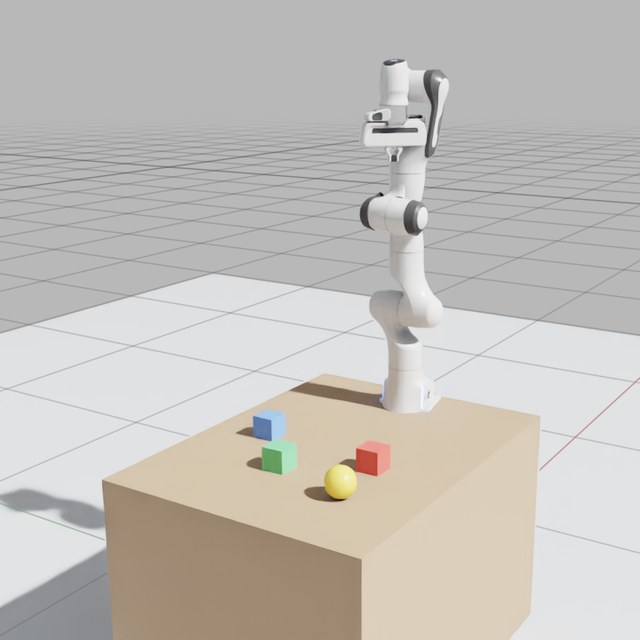
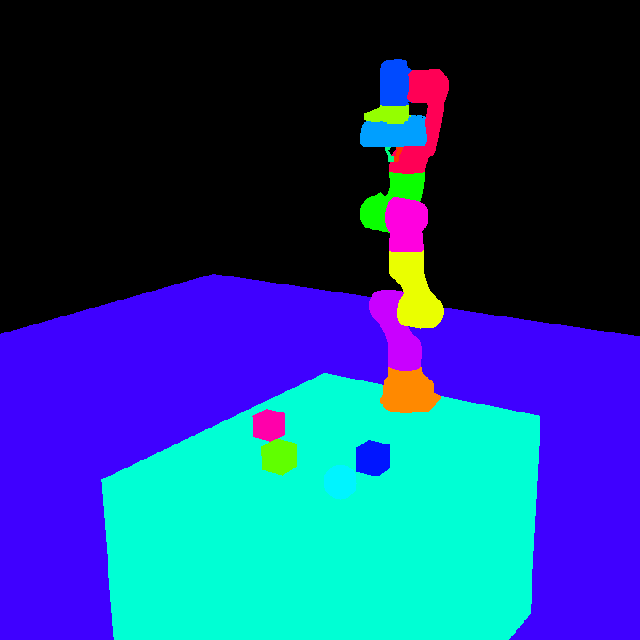
One capture_viewport call in Isaac Sim 6.2: the frame, and every prim in its own colour, with the legend and the
screen boxes that tell the assistant what it sees.
An MCP (Model Context Protocol) server that gives AI assistants full control over NVIDIA Omniverse applications -- including Isaac Sim 5.x and up, USD Composer, and any Omniverse Kit-based app. Inspect scenes, manipulate objects, control robots, run physics simulations, capture viewports, record sessions, and manage extensions.
AI Assistant  <--MCP/stdio-->  MCP Server  <--HTTP/REST-->  Omniverse Extension
(any MCP client)               (Python)                     (runs inside Kit app)
What Can It Do?
The tools, by area:
| Category | Tools | Description |
|---|---|---|
| Scene | get_scene_tree, dump_scene, get_prim_properties, get_prim_bounds, set_prim_transform, create_prim, delete_prim, clone_prim, set_visibility, save_scene, new_scene |
Full scene graph control -- create, query, transform, and manage USD prims |
| Geometry & Mesh | get_mesh_stats, get_prim_face_count_tree, compare_prims |
Face/vertex/triangle counts, hierarchical face count trees, compare two prims or variants |
| USD Operations | flatten_usd, export_prim_as_file |
Flatten references into a single file, export prim subtrees as self-contained USD |
| Variants | create_variant_structure, set_variant_selection |
Create variant sets, switch variants with automatic FSD/Hydra handling |
| Materials | set_material, update_material_paths |
Create and bind PBR materials, bulk-fix material binding paths |
| Robot | create_robot, get_robot_info, get_joint_states, set_joint_targets |
Spawn robots from the asset library (Franka, G1, Spot, etc.), query joints, drive positions |
| Camera | set_camera, look_at_prim, inspect_prim, capture_viewport, viewport_light |
Position cameras, orbit-capture from multiple angles, capture viewport with instance segmentation + screen-space bounding boxes, manage viewport lighting |
| Simulation | sim_control, get_sim_state |
Play/pause/stop/step simulation, query state (time, FPS, up axis) |
| Recording | start_recording, stop_recording, get_recording_frame |
Capture simulation frames + prim state over time for analysis |
| Physics | set_physics_properties, apply_force, raycast |
Set mass/friction/restitution, apply forces, cast rays for spatial queries |
| Debug | draw_debug |
Draw lines, spheres, and points in the viewport for visualisation |
| Logging | get_logs |
Query Omniverse log entries (errors, warnings) for diagnosing tool failures |
| Scripting | execute_script |
Run Python inside the sim with mcp bridge for async MCP handler access |
| Extensions | manage_extensions |
List, enable, and disable Omniverse extensions |
Key capabilities:
- Scene understanding --
capture_viewportoutputs a screenshot, screen-space bounding boxes, and instance segmentation (a unique colour per prim) so the AI knows what it sees - Simulation recording -- capture frames + prim state during physics, review any frame after
- File-based output -- large scene dumps in grep-friendly text format, images saved as PNGs
- Arbitrary scripting -- run any Python code inside the sim via
execute_script; also serves as a fallback if any tool fails - 10 built-in robots -- franka, ur10, carter, jetbot, g1, go1, go2, h1, spot, anymal
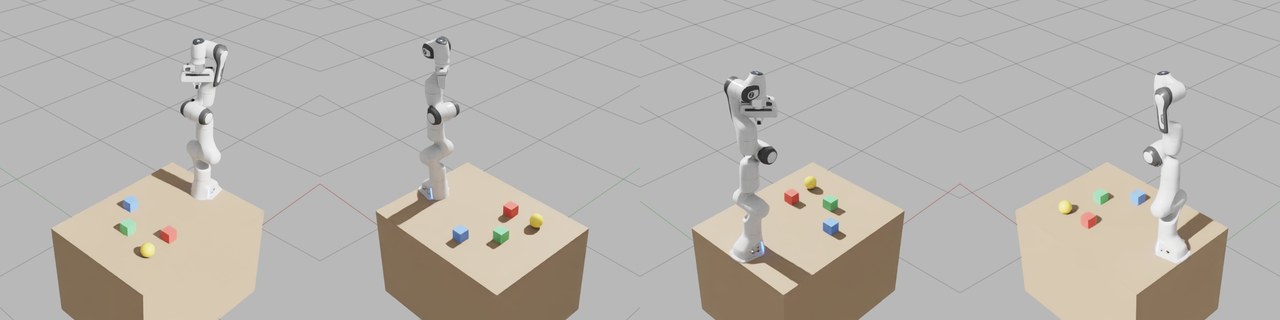
inspect_prim(prim_path="/World/Workcell", angles=[the four top corners], isolate=True): one call, every side,
framed to fit, the rest of the stage hidden.
Install
You need a Kit app of Kit 107 or later (Isaac Sim 5.x and up, USD Composer) and uv,
which runs the server. Two parts: the MCP server your AI client starts, and the Kit extension ovmcp.bridge inside
the Kit app, both from the same release.
Claude Code: the plugin
/plugin marketplace add serionist/omniverse-mcp
/plugin install omniverse-mcp@omniverse-mcp
Then run /omniverse-mcp:setup: it installs the Kit extension of the plugin's release, walks you through turning it on
in Kit, and checks the connection. The plugin also brings skills for working on scenes, geometry, simulation and
scripts, which Claude uses when a request fits (the plugin).
Other MCP clients: uvx
Add the server to your client's MCP configuration, such as a project's .mcp.json:
{
  "mcpServers": {
    "omniverse": { "command": "uvx", "args": ["omniverse-mcp"] }
  }
}
Install the extension of the same release and turn it on in Kit (below). uvx fetches the newest release the first
time and keeps it until its cache is refreshed; uvx omniverse-mcp@latest extension install fetches the newest server
and installs its extension. Copy docs/AI_GUIDE.md into
your client's instruction file (AGENTS.md, .cursorrules): the context every session needs, with links to the
skills that hold the workflows and traps; copy the ones your work needs too.
The Kit extension
uvx omniverse-mcp extension install
It copies ovmcp.bridge into your user data folder and prints that folder. Then, once, in the Kit app:
- Window > Extensions, the menu (☰) at the top right, Settings.
- Under Extension Search Paths, the green +, then paste the folder it printed. The + adds an empty row: click it to type.
- Search for
ovmcpunder THIRD PARTY, and turn Omniverse MCP Bridge on, with Autoload. - Quit with File > Exit, which is when Kit saves these settings, and start it again. The console shows
[ext: ovmcp.bridge-<version>] startup.
A headless or scripted Kit takes --ext-folder <that folder> --enable ovmcp.bridge instead. omniverse-mcp extension path prints the folder again.
Updating: install the extension again after each server update, and restart Kit and your client. On Windows a running Kit holds the folder: quit it first. With the plugin,
/omniverse-mcp:setupdoes this.
Used the extension before? Before 0.2.0 it came from a clone of this repo, and before that it was
isaacsim.mcp.bridge. Turn the old one off and remove its search path, so Kit loads one copy. See the changelog.
From a clone
For working on omniverse-mcp itself:
git clone https://github.com/serionist/omniverse-mcp.git
cd omniverse-mcp
uv sync
The client starts the server from the clone, and the Kit extension search path takes the clone's extension/
folder, so a git pull updates both (restart Kit and the client after it):
{
  "mcpServers": {
    "omniverse": { "command": "uv", "args": ["run", "--no-sync", "--project", "<REPO_PATH>", "omniverse-mcp"] }
  }
}
--no-sync starts the server from the environment uv sync built, so a client never waits on a download at start,
and the server still writes its files under your project's mcp_output/. CONTRIBUTING has the rest.
Go
With the Kit app running, open your AI client in the project and ask: "What's in the scene right now?"
Context7 for scripts
Models are not trained on Omniverse and Isaac Sim APIs, and guess their names. With Context7
as a second MCP server, the assistant looks the API up (library isaac-sim/isaacsim) before writing execute_script
code; the server's instructions and the script skill ask it to.
Examples
"Create a table with a red cube on top of it, and point a spotlight at it."
"Spawn a Franka arm at the origin, then move its joints to a pick-ready pose."
"Start recording, play the sim for 3 seconds, then show me what happened to the robot."
"Move the apple so it's sitting on top of the desk. Use bounding boxes to compute the correct position."
"Inspect the G1 robot from all angles so I can see its current pose."
Configuration
The server
omniverse-mcp [--host HOST] [--port PORT] [--output-dir DIR]    the MCP server, over stdio
omniverse-mcp extension install                                 install the Kit extension of this release
omniverse-mcp extension path                                    print the folder Kit's search paths need

--host          Kit extension host (default: OMNIVERSE_MCP_HOST, else 127.0.0.1)
--port          Kit extension port (default: OMNIVERSE_MCP_PORT, else 8211)
--output-dir    Directory for file outputs (default: OMNIVERSE_MCP_OUTPUT_DIR, else ./mcp_output/)
The plugin's server takes the same variables from the environment Claude Code starts in.
The extension's settings
Kit settings, in the extension's config/extension.toml or on Kit's command line (--/exts/ovmcp.bridge/port=8212):
[settings]
exts."ovmcp.bridge".host = "127.0.0.1"
exts."ovmcp.bridge".port = 8211
exts."ovmcp.bridge".token = ""
The bridge token
The extension runs any Python the MCP server sends, so it answers only a server that holds its token. At every start it writes a new token to a file only your user can read, and the MCP server on the same machine picks it up: nothing to set up. Requests from web pages are refused. See Architecture for where the file lives.
For a remote setup, set the extension's token to a long random value and give the MCP server the same value in the
OMNIVERSE_MCP_TOKEN environment variable. Anyone with the token can run code in your Kit app.
Troubleshooting
"Missing or wrong bridge token" -- Is Kit running the extension on this machine, as your user? If Kit runs as another user, in a container or on another machine, use the token setting and OMNIVERSE_MCP_TOKEN (above).
"The Kit extension is older than this MCP server", or "speaks bridge protocol" -- The server and the extension come from different releases. Run the command the message names (or git pull in a clone), then restart Kit so it loads the new extension.
"Kit app connection failed", refused or timed out -- Is the Kit app running, with the extension on? Its console shows [ext: ovmcp.bridge-<version>] startup. The server looks for it on port 8211 unless OMNIVERSE_MCP_PORT or --port says otherwise.
The plugin's server doesn't start -- /mcp in Claude Code shows its error. Is uv on the PATH Claude Code starts with?
Viewport capture returns black -- The response includes a WARNING with the lighting mode. Use viewport_light("get") to see the mode and whether the scene has lights, then viewport_light(action="set", mode="Default") for a light rig, or mode="camera" for a light that follows the camera, and recapture. Kit 105.1+ has no default stage light, so scenes without explicitly added lights will render black.
Tools return errors -- Check the Omniverse console for tracebacks. Some tools need the sim to have played once (get_joint_states, raycast). Robot tools require Isaac Sim specifically.
Documentation
- Tool Reference -- Every tool, with its parameters, hints and examples
- Architecture -- How the two-process bridge works
- The plugin -- What the Claude Code plugin brings, and its skills
- AI Assistant Guide -- For other clients' instruction files
- Contributing -- How to contribute
Licence
MIT. Not affiliated with or endorsed by NVIDIA; Omniverse and Isaac Sim are NVIDIA's trademarks.
1 maintainer

Metadata
1 maintainer
Release files for omniverse-mcp 0.2.0
For a detailed explanation of source distributions (sdists) and built distributions (wheels), please see the package formats documentation.
Source distribution (sdist)
| File | Size | Uploaded | Provenance | Actions |
|---|---|---|---|---|
| omniverse_mcp-0.2.0.tar.gz | 561.3 kB | With provenance | Details for omniverse_mcp-0.2.0.tar.gz |
Built distribution (wheel)
| File | Interpreter | ABI | Platform | Actions Reset |
|---|---|---|---|---|
| omniverse_mcp-0.2.0-py3-none-any.whl | Python 3 | none | any | Details for omniverse_mcp-0.2.0-py3-none-any.whl |
Total release size: 669.0 kB
Release files / omniverse_mcp-0.2.0.tar.gz
| Download URL | omniverse_mcp-0.2.0.tar.gz |
|---|---|
| Size | 561.3 kB |
| Tags | Source |
|
SHA-256 checksum How to use checksums |
f062782080af454a1248ef223ecb338bff2b19c565f2d0de9bfa54e288c50476
|
|
BLAKE2b-256 checksum How to use checksums |
0f515645698cbca5024d8c04a6ca55a68333dacb888d52587bb949ec81c05856
|
| Upload date | |
|
Uploaded using Trusted Publishing? What is trusted publishing? |
Yes |
| Uploaded via |
twine/7.0.0 CPython/3.13.16
|
Provenance
Provenance describes where a file came from. On PyPI, provenance is shared via attestations, which provide a verifiable record of the build or publishing details. View details, limitations and caveats.


PyPI Publish Attestation
PyPI verified that this artifact, at this checksum, originated from the publisher listed below.
Signed by GitHub Actions, verified by PyPI on Oct 29, 2026.
Transparency logRelease files / omniverse_mcp-0.2.0-py3-none-any.whl
| Download URL | omniverse_mcp-0.2.0-py3-none-any.whl |
|---|---|
| Size | 107.7 kB |
| Tags | Python 3 |
|
SHA-256 checksum How to use checksums |
1f0f1b1c8db282290d350c466a8f3a6abbecaec0fd8bc35127ec8db4cfd20e72
|
|
BLAKE2b-256 checksum How to use checksums |
fb6006f4ba8b5241f61f59105e978822c2fffb204733dcdb7b90489a18d94e88
|
| Upload date | |
|
Uploaded using Trusted Publishing? What is trusted publishing? |
Yes |
| Uploaded via |
twine/7.0.0 CPython/3.13.16
|
Provenance
Provenance describes where a file came from. On PyPI, provenance is shared via attestations, which provide a verifiable record of the build or publishing details. View details, limitations and caveats.
PyPI Publish Attestation
PyPI verified that this artifact, at this checksum, originated from the publisher listed below.
Signed by GitHub Actions, verified by PyPI on Oct 29, 2026.
Transparency logSecurity for omniverse-mcp 0.2.0
Provenance
Provenance describes where a file came from. On PyPI, provenance is shared via attestations, which provide a verifiable record of the build or publishing details. View details, limitations and caveats.
Full provenance
All 2 files in this release have been uploaded with provenance metadata.
Attestation for omniverse_mcp-0.2.0.tar.gz
PyPI Publish Attestation
PyPI verified that this artifact, at this checksum, originated from the publisher listed below.
Signed by GitHub Actions, verified by PyPI on Oct 29, 2026.
Transparency logA note on package security
PyPI is a repository for distributing packages, not a service for auditing them. While third-party security researchers and our staff do their best to detect and remove malicious packages, PyPI cannot guarantee the quality, security or suitability of any given package.
To learn more about protecting yourself from malicious actors, visit our package security documentation.














