

Omniverse MCP
Let an AI assistant work in NVIDIA Isaac Sim and other Omniverse Kit apps:
look at the scene, edit it, run physics, drive robots and record what happens.






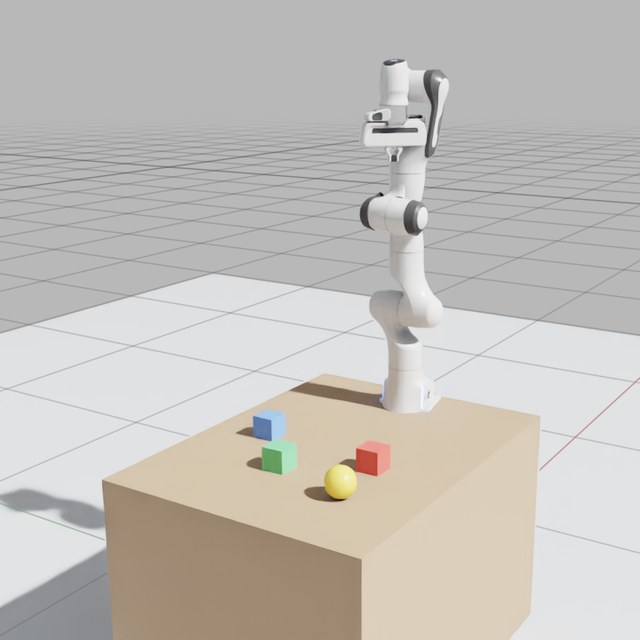
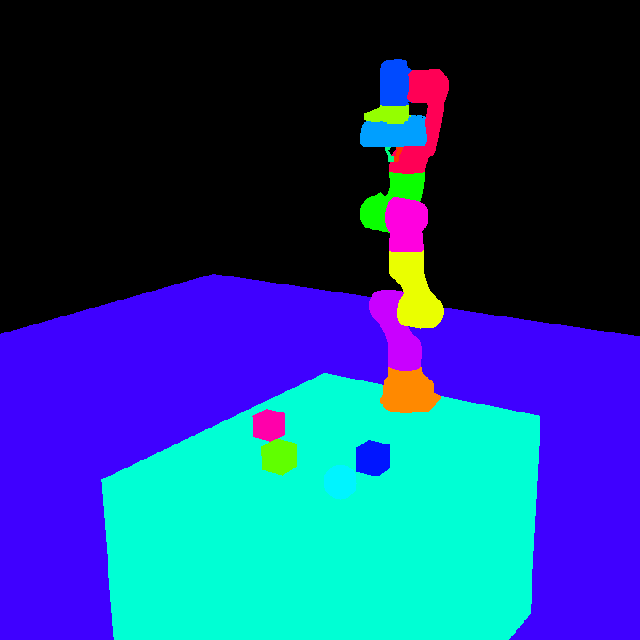
One capture_viewport call in Isaac Sim 6.2: the frame, and every object in its own colour, with the
legend and the screen boxes that tell the assistant what it sees.
Omniverse MCP connects an AI client, such as Claude Code, Cursor or VS Code, to a running Kit app. It comes in two parts, from one release:
- the server,
omniverse-mcp: the MCP server your AI client starts, from PyPI; - the bridge,
ovmcp.bridge: the Kit extension inside the Kit app, listed in Kit as Omniverse MCP Bridge.
Claude Code users get both from one plugin, with skills for each kind of work.
AI client  --MCP, stdio-->  omniverse-mcp  --HTTP, with a token-->  ovmcp.bridge
                            (the server)                         (inside the Kit app, port 8211)
Requirements
- A Kit app of Kit 107 or later, on Windows or Linux. Tested on Isaac Sim 6.2; Isaac Sim 5.x, USD Composer and other Kit apps should work, but are untested.
- uv, which runs the server. Install it, then open a
new terminal and restart your AI client, so both find
uvx:- macOS and Linux:
curl -LsSf https://astral.sh/uv/install.sh | sh - Windows:
powershell -ExecutionPolicy ByPass -c "irm https://astral.sh/uv/install.ps1 | iex"
- macOS and Linux:
- An MCP client that can read files: the tools write images and long answers to files and return their paths.
- Kit and the client on the same machine, or see Kit on another machine.
Install
Claude Code: the plugin
In Claude Code:
/plugin marketplace add serionist/omniverse-mcp
/plugin install omniverse-mcp@omniverse-mcp
If it asks you to, run /reload-plugins. From a terminal, the same is claude plugin marketplace add serionist/omniverse-mcp, then claude plugin install omniverse-mcp@omniverse-mcp, and the plugin loads when
Claude Code next starts.
Then run /omniverse-mcp:setup. It installs the bridge of the plugin's release, tells you what to click in Kit, and
checks the connection. The plugin also brings skills for scenes, geometry, simulation and scripts, which Claude uses
when a request fits (the plugin).
Other MCP clients
-
Install the bridge:
uvx omniverse-mcp extension installIt copies
ovmcp.bridgeinto your user data folder, then prints the folder Kit needs, under "Kit finds it once its extension search paths hold this folder". -
Turn it on in the Kit app, once:
- Window > Extensions, the menu (☰) at the top right, Settings.
- Under Extension Search Paths, the green +, then paste the folder. The + adds an empty row: click it to type.
- Search for
ovmcpunder THIRD PARTY, and turn Omniverse MCP Bridge on, with Autoload.
The bridge starts at once, and Kit's console shows
[ext: ovmcp.bridge-<version>] startup. Kit saves the search path and Autoload when it exits, so quit it once with File > Exit. A headless Kit takes--ext-folder <that folder> --enable ovmcp.bridgeinstead (headless Kit). -
Add the server to your client's MCP config, and restart the client. In most clients' JSON:
{
  "mcpServers": {
    "omniverse": { "command": "uvx", "args": ["omniverse-mcp"], "env": { "PYTHONPATH": "" } }
  }
}
Each client's file and form, VS Code's and Codex's included, are in MCP clients. The empty
PYTHONPATHkeeps a Python path that Isaac Sim's environment sets out of the server's Python.
Your client gets the server's short instructions with it. If it ignores them, see docs/AI_GUIDE.md, which also points at the plugin's skills as plain Markdown files.
Check that it works
With the Kit app running, ask your assistant to "call get_sim_state". It answers with lines such as:
state = stopped
up_axis = Z
...
extension_version = 0.2.2
server_version = 0.2.2
Something else? See Troubleshooting.
Used the extension before 0.2.0? It came from a clone of this repo, and before that it was
isaacsim.mcp.bridge. Turn the old one off and remove its search path, so Kit loads one copy. See the changelog.
What you can ask
"What's in the scene? Capture the viewport and tell me where each object is."
"Put a table at the origin with a red, a green and a blue cube on it, and light it so the capture isn't black."
"Show me /World/Table from its four top corners, with everything else hidden."
"How many faces does /World/Robot have, and which parts have the most?"
"Add a Franka arm on the table, and list its joints and their limits."
"Drop a cube from one metre, record two seconds of it falling, and show me the last frame."
"Export /World/Table as a self-contained USD file."
"That failed. Show me Kit's warnings and errors."
The tools
| Area | Tools | What they do |
|---|---|---|
| Scene | get_scene_tree, dump_scene, get_prim_properties, get_prim_bounds, set_prim_transform, create_prim, delete_prim, clone_prim, set_visibility, save_scene, new_scene |
Read the scene's hierarchy and properties; create, move, copy, hide and delete objects; save, or start an empty scene |
| Camera | capture_viewport, inspect_prim, set_camera, look_at_prim, viewport_light |
Capture the viewport with each object's screen box and colour, see one object from several sides, aim the camera, light the view |
| Materials | set_material, update_material_paths |
Give an object a colour and surface; fix material paths after files move |
| Simulation | sim_control, get_sim_state |
Play, pause, stop and step physics; the state, the up axis and the versions |
| Physics | set_physics_properties, apply_force, raycast |
Mass, friction and bounce; push an object; cast a ray |
| Robots | create_robot, get_robot_info, get_joint_states, set_joint_targets |
Add a robot from Isaac Sim's library (Franka, UR10, G1, Spot and more), read its joints, set joint targets |
| Recording | start_recording, stop_recording, get_recording_frame |
Record frames and objects' state while physics plays, then look back at any frame |
| Geometry | get_mesh_stats, get_prim_face_count_tree, compare_prims |
Count faces and vertices, find the heaviest parts, compare two objects or variants |
| USD files and variants | flatten_usd, export_prim_as_file, create_variant_structure, set_variant_selection |
Write a stage as one file, export an object, make and switch variant sets |
| Kit | get_logs, manage_extensions, draw_debug |
Read Kit's log, turn Kit extensions on and off, draw lines and points in the viewport |
| Scripts | execute_script |
Run Python inside Kit for anything the other tools don't do |
Every tool, with its parameters, is in the tool reference.
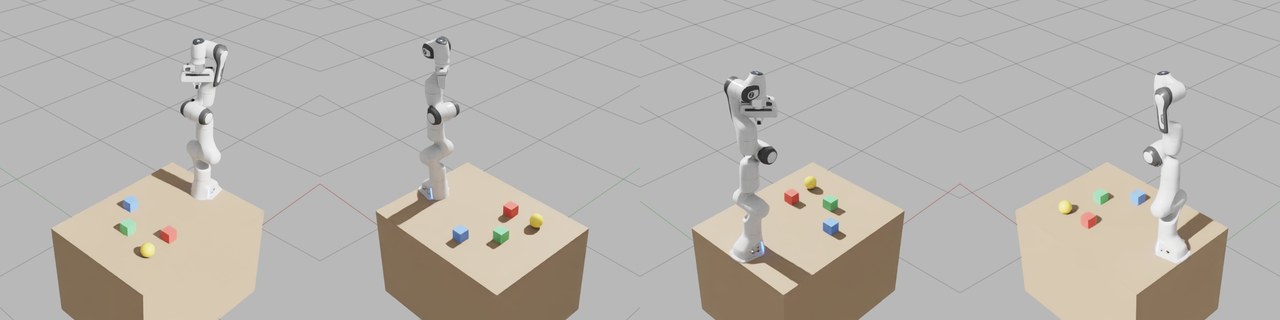
inspect_prim(prim_path="/World/Workcell", angles=["top_front_right", "top_back_right", "top_back_left",
  "top_front_left"], isolate=True)
: one call, every side, framed to fit, the rest of the scene hidden.
Updating
The server and the bridge come from one release, so update them together, then restart Kit and your client.
- The plugin:
claude plugin marketplace update omniverse-mcp, thenclaude plugin update omniverse-mcp@omniverse-mcp, and restart Claude Code. Then run/omniverse-mcp:setup, which installs the matching bridge. - Other clients:
uvx omniverse-mcp@latest extension installfetches the newest server and installs its bridge. On Windows a running Kit holds the bridge's folder: quit it first. Unpinned, uvx can also move to a new release by itself; the server then names the command that installs the matching bridge. To stay on one release, pin it (Updating).
Configuration
The server
omniverse-mcp [--host HOST] [--port PORT] [--output-dir DIR]    the MCP server, over stdio
omniverse-mcp extension install                                 install the bridge of this release
omniverse-mcp extension path                                    print the folder Kit's search paths need
| Variable | Flag | Default | What |
|---|---|---|---|
OMNIVERSE_MCP_HOST |
--host |
127.0.0.1 |
where the bridge listens |
OMNIVERSE_MCP_PORT |
--port |
8211 |
the bridge's port |
OMNIVERSE_MCP_OUTPUT_DIR |
--output-dir |
mcp_output in the working folder |
where images and long answers go |
OMNIVERSE_MCP_TOKEN |
the token file | the bridge token, for a Kit app on another machine | |
OMNIVERSE_MCP_STATE_DIR |
per system | the token file's folder, set the same on both sides |
The plugin's server reads them from the environment Claude Code starts in. Add mcp_output/ to your project's
.gitignore.
The bridge
| Setting | Default | What |
|---|---|---|
/exts/ovmcp.bridge/host |
127.0.0.1 |
the address it listens on |
/exts/ovmcp.bridge/port |
8211 |
its port |
/exts/ovmcp.bridge/token |
empty: a new token at every start | a fixed token, for a remote MCP server |
Set them on Kit's command line, such as --/exts/ovmcp.bridge/port=8212, and give the server the same port in
OMNIVERSE_MCP_PORT. Don't edit the installed extension's extension.toml: the next extension install replaces it.
The bridge token
The bridge runs any Python the server sends, so it answers only a server that holds its token. At every start it writes a new token to a file only your user can read, and the server on the same machine reads it: nothing to set up. Requests from web pages are refused. Kit on another machine says how to set a token by hand, and Architecture where the file lives.
Context7 for scripts
Models are not trained on Omniverse and Isaac Sim APIs, and guess their names. With Context7
as a second MCP server, the assistant looks the API up (library isaac-sim/isaacsim) before writing execute_script
code; the server's instructions and the script skill ask it to.
Troubleshooting
"Missing or wrong bridge token": Kit runs as another user, in a container or on another machine. Set a token by hand (Kit on another machine).
"The Kit extension is older than this MCP server", or "speaks bridge protocol": the server and the bridge come from different releases. Run the command the message names, then restart Kit.
"Kit app connection failed", refused or timed out: is the Kit app running, with the bridge on? Its console shows
[ext: ovmcp.bridge-<version>] startup. The server looks on port 8211 unless OMNIVERSE_MCP_PORT says otherwise. On
its first start Isaac Sim compiles shaders for several minutes, and answers slowly until then.
Kit logs [MCP Bridge] Failed to start server: another program, or a second Kit app, holds port 8211. Give this
Kit app another port, and the server the same one (The bridge).
The server doesn't start: Claude Code's /mcp shows its error; other clients have an MCP log. Is uvx on the
PATH the client starts with? Restart the client after installing uv.
A capture comes back black: the answer says so, with the lighting mode. viewport_light(action="set", mode="Default") lights the view, or mode="camera" for a light that follows the camera; Kit apps have no default
light.
A tool returns an error: get_logs(min_level="warn") shows what Kit reported. get_joint_states needs physics
playing or paused, and raycast needs it to have played once; the robot tools need Isaac Sim.
More in SETUP.md.
Known issues
On Isaac Sim 6.2, the only Kit app tested so far:
apply_forcerefuses an articulation's links, such as a robot's: PhysX's push doesn't reach them yet (#58).capture_viewportandinspect_primreturn the image at the viewport's size, while their boxes use the size asked for (#51).draw_debug's fallback for Kit apps without Isaac Sim's debug drawing can miss a capture (#57).- Some parameters are ignored:
start_recording's camera and size: it records the active viewport at its own size, and warns when it is given them (#25).
Security
The bridge runs any Python the server sends, by design: execute_script is a tool. The token keeps other programs
and web pages out, but not your own AI client, so keep it asking before execute_script and manage_extensions.
Report a vulnerability privately, as SECURITY.md says.
Documentation
- Setup in depth: each client's config, headless Kit, ports, remote setups, uninstalling
- Tool reference: every tool, its parameters and hints
- The plugin: what the Claude Code plugin brings, and its skills
- Without the plugin: the context and workflows for other clients
- Architecture: how the server and the bridge work, for contributors
- Changelog, Security, Contributing
Until 1.0, a minor release can change the tools; the changelog lists it under Breaking. Questions, ideas and bugs: open an issue.
Licence
MIT. Not affiliated with or endorsed by NVIDIA; Omniverse and Isaac Sim are NVIDIA's trademarks.
1 maintainer

Metadata
1 maintainer
Release files for omniverse-mcp 0.2.2
For a detailed explanation of source distributions (sdists) and built distributions (wheels), please see the package formats documentation.
Source distribution (sdist)
| File | Size | Uploaded | Provenance | Actions |
|---|---|---|---|---|
| omniverse_mcp-0.2.2.tar.gz | 703.2 kB | With provenance | Details for omniverse_mcp-0.2.2.tar.gz |
Built distribution (wheel)
| File | Interpreter | ABI | Platform | Actions Reset |
|---|---|---|---|---|
| omniverse_mcp-0.2.2-py3-none-any.whl | Python 3 | none | any | Details for omniverse_mcp-0.2.2-py3-none-any.whl |
Total release size: 835.4 kB
Release files / omniverse_mcp-0.2.2.tar.gz
| Download URL | omniverse_mcp-0.2.2.tar.gz |
|---|---|
| Size | 703.2 kB |
| Tags | Source |
|
SHA-256 checksum How to use checksums |
ab78abcb2c92f4b6e52e593030fa9e9d48ea03e824571f7d4182899da5ad502e
|
|
BLAKE2b-256 checksum How to use checksums |
7d5aaf5b92f0cb7afd1abbc39ef25d94f419635a79df6f38f67b249239346a4f
|
| Upload date | |
|
Uploaded using Trusted Publishing? What is trusted publishing? |
Yes |
| Uploaded via |
twine/7.0.0 CPython/3.13.16
|
Provenance
Provenance describes where a file came from. On PyPI, provenance is shared via attestations, which provide a verifiable record of the build or publishing details. View details, limitations and caveats.


PyPI Publish Attestation
PyPI verified that this artifact, at this checksum, originated from the publisher listed below.
Signed by GitHub Actions, verified by PyPI on Oct 29, 2026.
Transparency logRelease files / omniverse_mcp-0.2.2-py3-none-any.whl
| Download URL | omniverse_mcp-0.2.2-py3-none-any.whl |
|---|---|
| Size | 132.2 kB |
| Tags | Python 3 |
|
SHA-256 checksum How to use checksums |
58006a17e18969d892beed3cc2b9711808a947de556305085f62c16605c083f6
|
|
BLAKE2b-256 checksum How to use checksums |
b3cac25689dddfdca532329a388bd55c17fbd0d98c784def08d358d2e0f0b1f2
|
| Upload date | |
|
Uploaded using Trusted Publishing? What is trusted publishing? |
Yes |
| Uploaded via |
twine/7.0.0 CPython/3.13.16
|
Provenance
Provenance describes where a file came from. On PyPI, provenance is shared via attestations, which provide a verifiable record of the build or publishing details. View details, limitations and caveats.
PyPI Publish Attestation
PyPI verified that this artifact, at this checksum, originated from the publisher listed below.
Signed by GitHub Actions, verified by PyPI on Oct 29, 2026.
Transparency logSecurity for omniverse-mcp 0.2.2
Provenance
Provenance describes where a file came from. On PyPI, provenance is shared via attestations, which provide a verifiable record of the build or publishing details. View details, limitations and caveats.
Full provenance
All 2 files in this release have been uploaded with provenance metadata.
Attestation for omniverse_mcp-0.2.2.tar.gz
PyPI Publish Attestation
PyPI verified that this artifact, at this checksum, originated from the publisher listed below.
Signed by GitHub Actions, verified by PyPI on Oct 29, 2026.
Transparency logA note on package security
PyPI is a repository for distributing packages, not a service for auditing them. While third-party security researchers and our staff do their best to detect and remove malicious packages, PyPI cannot guarantee the quality, security or suitability of any given package.
To learn more about protecting yourself from malicious actors, visit our package security documentation.














