
A remote terminal API.

Project description
⚡ Open Terminal
A lightweight, self-hosted terminal that gives AI agents and automation tools a dedicated environment to run commands, manage files, and execute code — all through a simple API.
Why Open Terminal?
AI assistants are great at writing code, but they need somewhere to run it. Open Terminal is that place — a remote shell with file management, search, and more, accessible over a simple REST API.
You can run it two ways:
- Docker (sandboxed) — runs in an isolated container with a full toolkit pre-installed: Python, Node.js, git, build tools, data science libraries, ffmpeg, and more. Great for giving AI agents a safe playground without touching your host system.
- Bare metal — install it with
pipand run it anywhere Python runs. Commands run directly on your machine with access to your real files, your real tools, and your real environment, perfect for local development, personal automation, or giving an AI assistant full access to your actual projects.
Getting Started
Docker (recommended)
docker run -d --name open-terminal --restart unless-stopped -p 8000:8000 -v open-terminal:/home/user -e OPEN_TERMINAL_API_KEY=your-secret-key ghcr.io/open-webui/open-terminal
That's it — you're up and running at http://localhost:8000.
[!TIP] If you don't set an API key, one is generated automatically. Grab it with
docker logs open-terminal.
Bare Metal
No Docker? No problem. Open Terminal is a standard Python package:
# One-liner with uvx (no install needed)
uvx open-terminal run --host 0.0.0.0 --port 8000 --api-key your-secret-key

# Or install globally with pip
pip install open-terminal
open-terminal run --host 0.0.0.0 --port 8000 --api-key your-secret-key
[!CAUTION] On bare metal, commands run directly on your machine with your user's permissions. Use Docker if you want sandboxed execution.
Customizing the Docker Environment
The easiest way to add extra packages is with environment variables — no fork needed:
docker run -d --name open-terminal -p 8000:8000 \
  -e OPEN_TERMINAL_PACKAGES="cowsay figlet" \
  -e OPEN_TERMINAL_PIP_PACKAGES="httpx polars" \
  ghcr.io/open-webui/open-terminal
| Variable | Description |
|---|---|
OPEN_TERMINAL_PACKAGES |
Space-separated list of apt packages to install at startup |
OPEN_TERMINAL_PIP_PACKAGES |
Space-separated list of pip packages to install at startup |
[!NOTE] Packages are installed each time the container starts, so startup will take longer with large package lists. For heavy customization, build a custom image instead.
For full control, fork the repo, edit the Dockerfile, and build your own image:
docker build -t my-terminal .
docker run -d --name open-terminal -p 8000:8000 my-terminal
Configuration
Open Terminal can be configured via a TOML config file, environment variables, and CLI flags. Settings are resolved in this order (highest priority wins):
- CLI flags (
--host,--port,--api-key, etc.) - Environment variables (
OPEN_TERMINAL_API_KEY, etc.) - User config —
$XDG_CONFIG_HOME/open-terminal/config.toml(defaults to~/.config/open-terminal/config.toml) - System config —
/etc/open-terminal/config.toml - Built-in defaults
Create a config file at either location with any of these keys (all optional):
host = "0.0.0.0"
port = 8000
api_key = "sk-my-secret-key"
cors_allowed_origins = "*"
log_dir = "/var/log/open-terminal"
binary_mime_prefixes = "image,audio"
execute_timeout = 5  # seconds to wait for command output (unset by default)
[!TIP] Use the system config at
/etc/open-terminal/config.tomlto set site-wide defaults for host and port, and the user config for personal settings like the API key — this keeps the key out ofps/htop.
You can also point to a specific config file:
open-terminal run --config /path/to/my-config.toml
Using with Open WebUI
Open Terminal integrates with Open WebUI, giving your AI assistants the ability to run commands, manage files, and interact with a terminal right from the AI interface. Make sure to add it under Open Terminal in the integrations settings, not as a tool server. Adding it as an Open Terminal connection gives you a built-in file navigation sidebar where you can browse directories, upload, download, and edit files. There are two ways to connect:
Direct Connection
Users can connect their own Open Terminal instance from their user settings. This is useful when the terminal is running on their local machine or a network only they can reach, since requests go directly from the browser.
- Go to User Settings → Integrations → Open Terminal
- Add the terminal URL and API key
- Enable the connection
System-Level Connection
Admins can configure Open Terminal connections for their users from the admin panel. Multiple terminals can be set up with access controlled at the user or group level. Requests are proxied through the Open WebUI backend, so the terminal only needs to be reachable from the server.
- Go to Admin Settings → Integrations → Open Terminal
- Add the terminal URL and API key
- Enable the connection
For isolated, per-user terminal containers, see Terminals, which requires an enterprise license for production use.
API Docs
Full interactive API documentation is available at http://localhost:8000/docs once your instance is running.
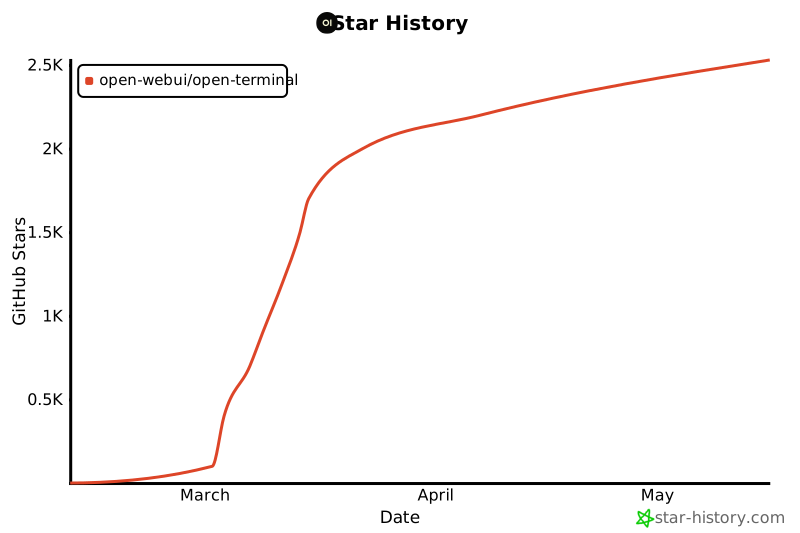
Star History
[!TIP] Need multi-tenant? Check out Terminals, which provisions and manages isolated Open Terminal containers per user with a single authenticated API entry point.
License
MIT — see LICENSE for details.
Release history Release notifications | RSS feed


Download files
Download the file for your platform. If you're not sure which to choose, learn more about installing packages.
Source Distribution
Built Distribution
Filter files by name, interpreter, ABI, and platform.
If you're not sure about the file name format, learn more about wheel file names.
Copy a direct link to the current filters
File details
Details for the file open_terminal-0.9.2.tar.gz.
File metadata
- Download URL: open_terminal-0.9.2.tar.gz
- Upload date:
- Size: 31.2 kB
- Tags: Source
- Uploaded using Trusted Publishing? No
- Uploaded via: uv/0.8.0
File hashes
| Algorithm | Hash digest | |
|---|---|---|
| SHA256 |
8d571934e86c3eb41e478c2e32ba595c4c06e59c37680883707e7b3de77d07f8
|
|
| MD5 |
6e714640c1364c3b0287e8641e7fbb1f
|
|
| BLAKE2b-256 |
92b5473bfa6cf652c5e190486e274ecfe4bfc65073254a12bb7c234dbe7f5b09
|
File details
Details for the file open_terminal-0.9.2-py3-none-any.whl.
File metadata
- Download URL: open_terminal-0.9.2-py3-none-any.whl
- Upload date:
- Size: 26.5 kB
- Tags: Python 3
- Uploaded using Trusted Publishing? No
- Uploaded via: uv/0.8.0
File hashes
| Algorithm | Hash digest | |
|---|---|---|
| SHA256 |
930d729b2c3cd603a3a824090b1694aedd057a0f4b516288eb35e3b106bddf4b
|
|
| MD5 |
e4fa657959a1aaca1d4ffb24cb143fe5
|
|
| BLAKE2b-256 |
bdb377f4d3edb2918c6eb529e41f7559039143abe05c4ad9989641a58223ea72
|






