
 orgwarrior-web

Your org agenda in a browser, built for your phone first. It's a small web page on top of orgwarrior. Your org files stay the only copy of your tasks, and your running Emacs does all the org work.
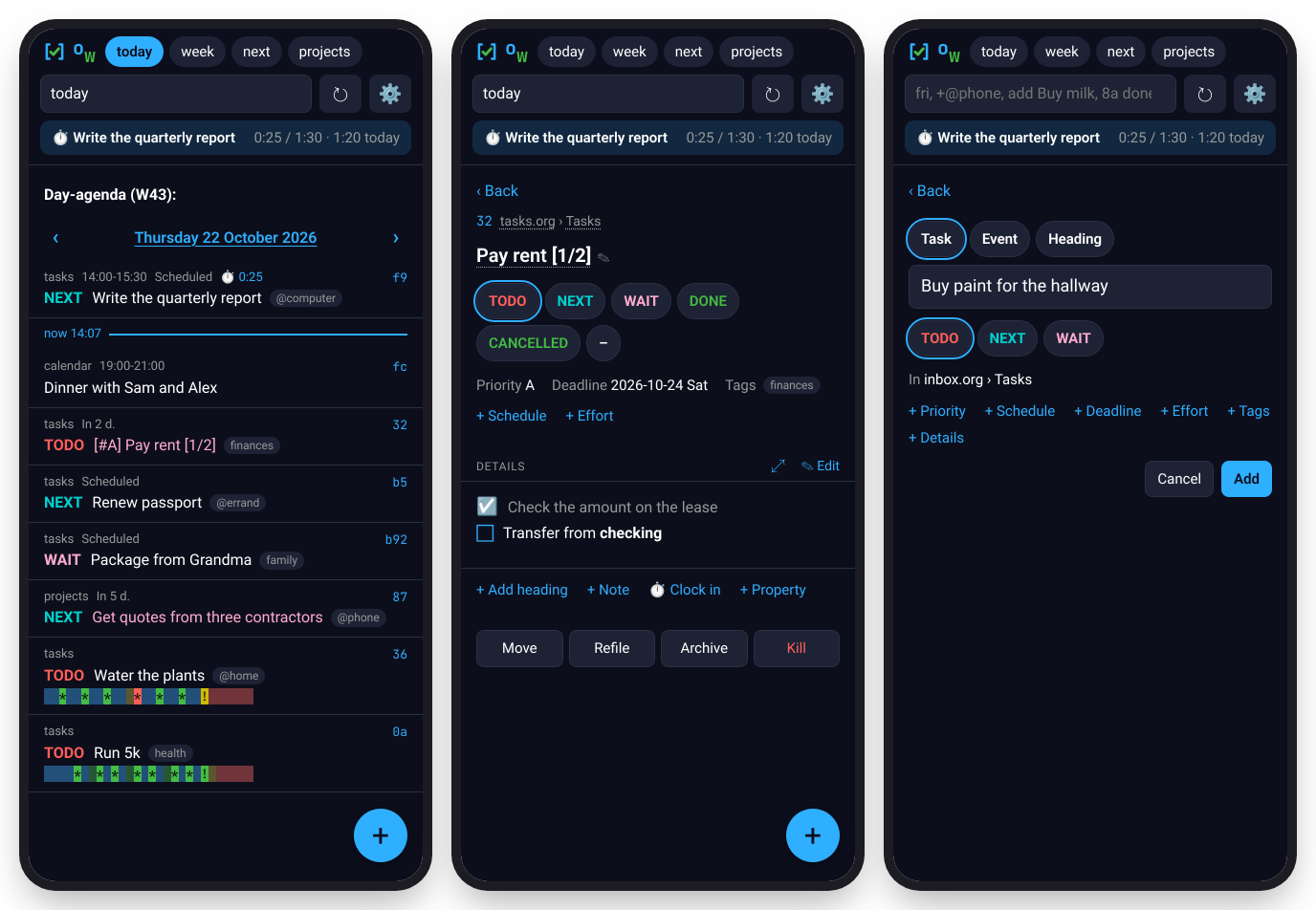
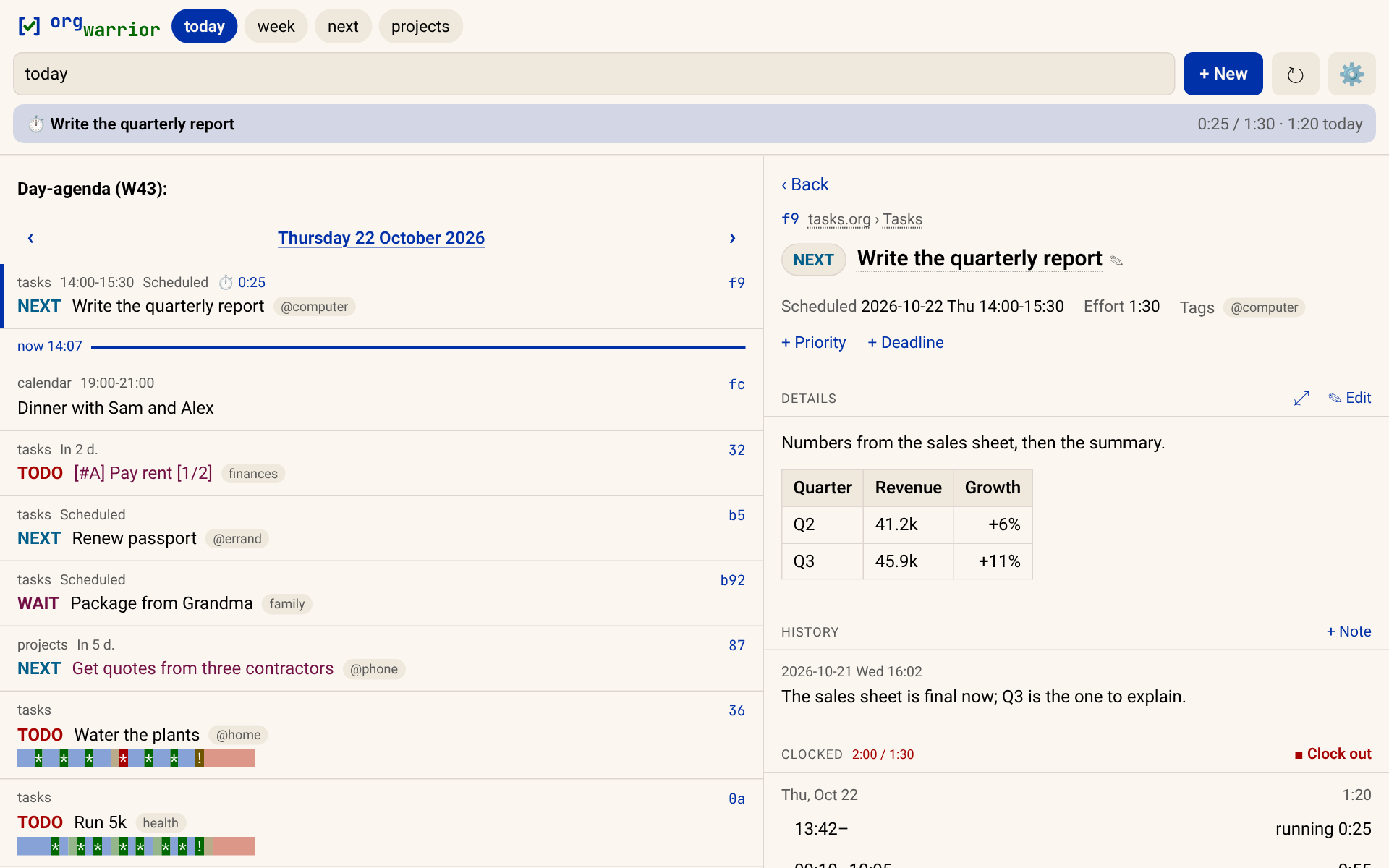
- Your agenda, the way org builds it. Your views, TODO keywords,
tags, habits (with their consistency graphs) and time grid all show up.
Tabs hold the views you use, and a search box takes anything the
orgwarriorcommand does. - Change anything about a task. States, dates (repeaters are spelled out in words), tags, priority, notes, effort, properties, refile, archive, and moving it around its outline. A task's text renders the way org exports it, with tables, code and checkboxes you can tick.
- Phone first, desktop too. On a phone, most changes take one tap. From 1000 px wide, the list and the open task sit side by side, and the keyboard works like org's agenda. You can change the keys, or switch to evil-collection's keys with one line.
- Clocking shows in the header, with clock reports and a calendar feed for your phone's calendar app.
- Each device signs in on its own, and the page installs as an app. You can also let someone else add tasks to your list from their phone without seeing the rest of it.
How it fits
Org is the task manager. orgwarrior-web is a friendlier way in, alongside orgwarrior's command line and orgwarrior-mcp for Claude:
  orgwarrior          orgwarrior-web         orgwarrior-mcp
  (a terminal)        (a browser)            (Claude, any MCP client)
          \                 |                 /
       orgwarrior.el, loaded into your running Emacs
                            |
             Org mode  ──▶  your .org files
The server never reads or writes your org files itself. It asks Emacs for every view and every change.
Quick start
You'll need Emacs 29 or later with its server running and your org
settings loaded: emacs --daemon, your system's Emacs service, or
(server-start) in your init file
(orgwarrior's quick start
has the details, Mac included, and a starter init file). Then install it
one of these ways. Each one gives you both the page and the orgwarrior
command:
brew install aleksozolins/tap/orgwarrior   # macOS or Linux
yay -S orgwarrior-web                      # Arch, with any AUR helper
pipx install orgwarrior-web                # Python 3.11+, or: uv tool install orgwarrior-web
With pipx or uv, install just one of the three packages. If you already
installed orgwarrior on its own, uninstall it first (uv tool uninstall orgwarrior, or pipx uninstall orgwarrior), since this one brings its own
copy. If you'll want Claude
too, install orgwarrior-mcp
instead, which brings both.
Check your setup, then start it and open http://127.0.0.1:22546/:
orgwarrior --check     # says what's missing, if anything
orgwarrior-web
On your own machine, the page is open without signing in until you create the first token.
Getting it on your phone
10.0.0.5 stands for the server's address on your network. A phone only
installs the page as an app over HTTPS, so the first step makes a
certificate.
orgwarrior-web cert 10.0.0.5
orgwarrior-web token add phone --url https://10.0.0.5:22546
orgwarrior-web --host 10.0.0.5 --cert ~/.local/share/orgwarrior-web/tls/server.crt \
  --key ~/.local/share/orgwarrior-web/tls/server.key
certmakes the certificate, along with a small certificate authority (CA) that your devices will trust.token addprints a sign-in link for the phone (Signing in).- The last command runs the server where the phone can reach it. To keep it running, see Running it as a service.
- On the phone, open
https://10.0.0.5:22546/ca.crtand install the CA (docs/phone.md shows where), then open the sign-in link and install the page as an app.
Updating
Update with the tool you installed with: brew upgrade, your AUR helper,
pipx upgrade orgwarrior-web or uv tool upgrade orgwarrior-web. Both
commands update together.
A tour
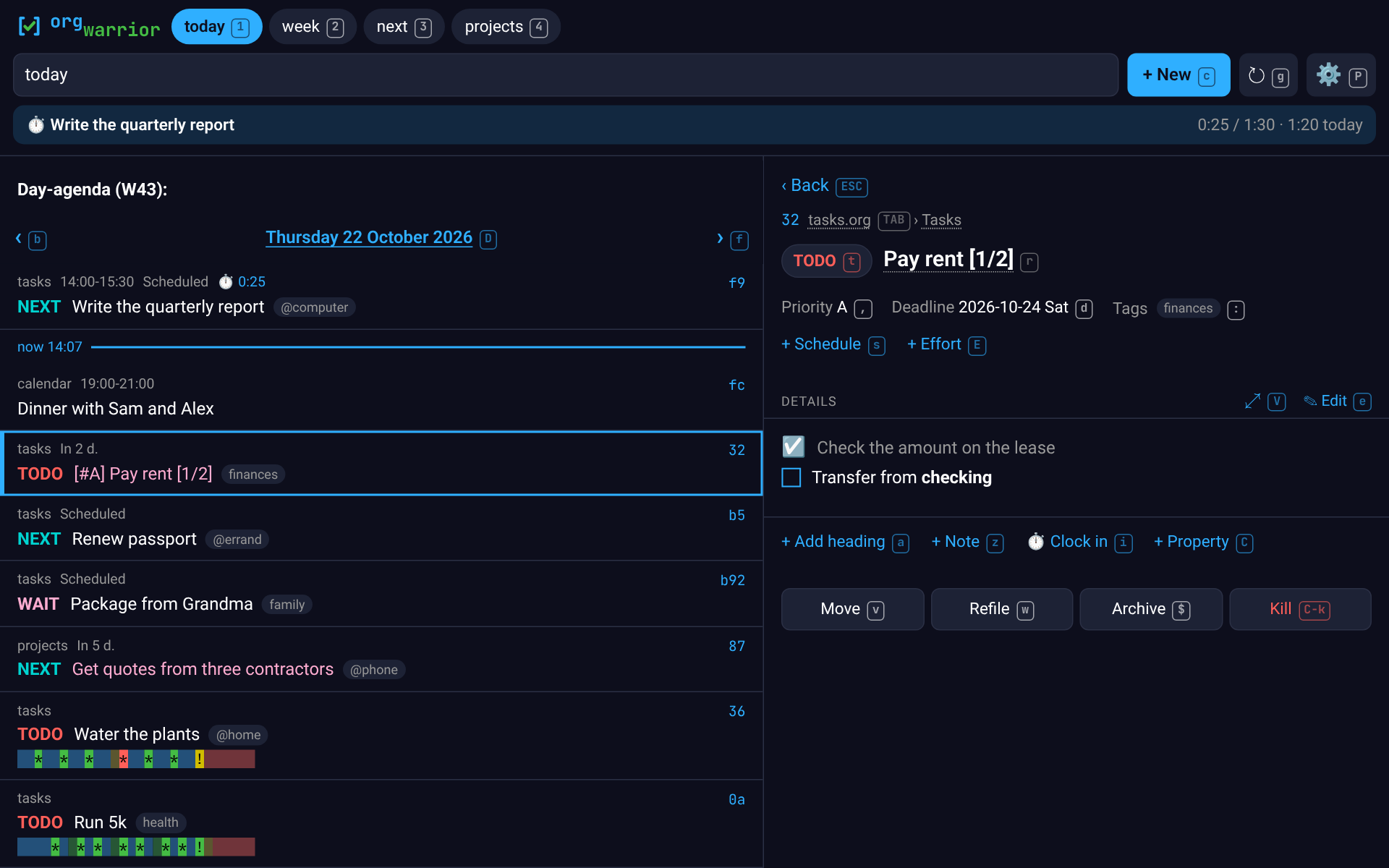
- Views: the tabs hold the views you use, and the box takes any
orgwarriorquery, such aswait,+@phone,fri,next +@phone, a file's outline (projects.org), or words to search for. Add--archiveto search archived tasks too, andclosed weekshows what you got done. On a day's agenda, ‹ › step through the days, and tapping the date lets you pick any day. On the week view they step by weeks. Each row shows the time and the task, with its category on the right on a desktop. Events with no time come first in their day, marked "all day". - A task's page shows each part as a field. Tap the title to rename
it, or a state to set it (with a note where org would ask for one). Tap
anything already set (Scheduled, Deadline, an event's When, Priority,
Effort, Tags) to change it, or its + to add it. Below that are its
text, its outline, its history of notes and state changes, its clocks
and its properties, and each one can be changed with a tap. Move,
refile, archive and kill are at the bottom. A task in a file that isn't
writable (
chmod a-w, for a calendar that a script exports to org) is read only: you can read the page but not change anything. - On any row, a long press (or a right-click) shows what you can do without opening the task. You can select several rows to act on them at once. A task you've changed so it no longer belongs in the view stays where it was, dimmed, until the list reloads, so you can keep working on it.
- Adding: the + adds a task, an event or a plain heading, with dates, tags, effort and text, to your inbox or anywhere you can refile to. On Android, sharing a link or some text to the installed app opens the add page with it filled in.
- Editing: you edit a task's text as it is in the file. Buttons write the org markup for you (bold, a link, a checklist, a code block), and saving checks that nothing changed underneath you.
- Structure: a file's view is a tree that you fold and unfold.
h, or tapping a task's parent, zooms into one heading the way org's narrowing does, with a breadcrumb to get back out. Move puts a task above or below its neighbors, under the heading above, or out of its parent, taking its subtasks along, like org'sM-↑M-↓M-S-→M-S-←. - Clocking: clock in on a task, and the header shows it running
against its effort. Clock out from there, now or at another time.
clocked weekis a report, a tree of files and headings, andRadds the clocked time under a day's agenda. - The keyboard, from 1000 px wide:
j/kmove through the list and show each task beside it, and there's a key for everything (tstate,s/ddates,:tags,wrefile,cadd…). Each control shows its key while you're using the keyboard, and?lists them all. Keys of your own explains how to change them. - Preferences (⚙) are kept per device. The default theme is Modus Operandi or Vivendi Tinted, following the device's light or dark mode. Gruvbox, Solarized, Dracula and Nord are there too, and key hints can show while typing, always or never.
Configuration
orgwarrior-web reads orgwarrior's config file
(~/.config/orgwarrior/config.toml, see
orgwarrior's keys)
when it starts, so your views and colors carry over. It adds a [web]
table of its own. Restart it after changing the file. If there's a
mistake in [web], it won't start, and the message says where the
problem is.
| key | what it does |
|---|---|
[web] name |
whose list this is. It's used in the tab title, the installed app's name (ow · Sam), and the page someone sharing your list sees. |
[web.tabs] |
the tabs, in order, as label = "query" (anything the box takes). The default is today, week, all, then your [views]. |
[web.keys] |
a preset ("evil") and keys of your own. See Keys of your own. |
[web.calendar] |
options for the calendar feed. See Calendar feed. |
[web]
name = "Sam"

[web.tabs]
today = "today"
next  = "next"            # a TODO keyword
home  = "+@home"          # a tag search
inbox = "inbox"           # a [views] entry
projects = "projects.org" # a file's outline
You can also save tabs from the page (+ at the end of the tab row). They're kept on the server, so all your devices get them.
| option | what it does |
|---|---|
--host ADDRESS |
where to listen (default 127.0.0.1). Anywhere else needs a token first. |
--port N |
the port (default 22546) |
-s, --socket NAME |
the Emacs daemon's socket, if it isn't the one orgwarrior uses |
--cert FILE, --key FILE |
serves HTTPS (see On a phone) |
token add NAME [--add | --calendar | --mcp] [--url BASE] |
makes a sign-in link for a device (Signing in). --mcp makes one for Claude, through orgwarrior-mcp. |
token list, token revoke NAME |
lists the tokens, or cuts one off |
cert ADDRESS… |
makes a certificate for HTTPS, and a CA your devices trust (On a phone) |
service [OPTION…] |
prints a service that keeps it running (Running it as a service) |
For a monitoring tool, GET /healthz needs no token. It answers ok when
Emacs responds within 3 seconds, and otherwise a 503, with the reason in
the server's log.
Signing in
Each device signs in with its own token. Create one per device on the server, then run the server where your devices can reach it:
orgwarrior-web token add phone --url https://10.0.0.5:22546   # http:// without --cert
orgwarrior-web --host 10.0.0.5
This prints a link with the token in it (…/?key=…). Open it once on the
phone and it stays signed in with a cookie, renewed every time you open
the page. The token is shown only this once. Only a hash of it is stored,
in ~/.local/state/orgwarrior-web/tokens.json. token list shows your
tokens, and token revoke phone cuts that device off right away. Neither
needs a restart. Other programs can send Authorization: Bearer TOKEN.
An installed app on an iPhone doesn't share Safari's sign-in. Open the app
and paste the key (the part after key=, or the whole link) into the
field it shows.
Listening on anything other than 127.0.0.1, the server won't start until a token exists. On 127.0.0.1 it stays open until you create the first one, so you can try it out. Behind a proxy that handles its own login, you can skip tokens entirely.
The token goes over the network with every request, so on plain HTTP anyone watching the traffic could copy it. Use HTTPS (see below), and only listen where your own devices can reach, like a LAN or a VPN.
Sharing your list
Someone who should only add to your list, like a partner or an assistant,
gets a token made with --add:
orgwarrior-web token add robin --add --url https://10.0.0.5:22546
Their page is a single form for a task or an event, with its dates and
some text. Whatever they send lands in your inbox ([add], events too),
with your default keyword, no tags, and :FROM: robin in its drawer.
Under the form they see what they've sent, newest first: whether you've
scheduled it, when it's due, and whether it's done (until you archive
it). They can't see anything else on your list, not your keywords, notes
or tags, or any of your own tasks. Set [web] name so their page says
whose list it is.
On a phone
Open the address in the phone's browser and sign in with its link. To
install the page as an app, with its own icon, no address bar, and (on
Android) a spot in the Share menu, browsers require HTTPS. There are three
ways to get it: a Chrome flag for a plain-HTTP address, your own
certificate for the server's IP address (orgwarrior-web cert), or a
reverse proxy you already run.
docs/phone.md
walks through all three, plus installing on Android and iPhone.
Calendar feed
/calendar.ics is your agenda as a calendar you can subscribe to. It's
read only, and includes scheduled dates, deadlines (with their warnings as
alarms), events, repeats and diary sexps like birthdays. Each event links
to its task. Tasks from read-only files are left out, since your calendar
app already has the original. The feed takes a token of its own, which
opens the feed and nothing else:
orgwarrior-web token add calendar --calendar --url https://10.0.0.5:22546
docs/calendar.md
covers subscribing from Android, iPhone and desktop apps, and the feed's
options ([web.calendar]). It also explains the other direction: showing
a Google or other calendar in your agenda, as a read-only org file a
script keeps up to date.
A second instance
Someone in your household who doesn't use Emacs can still have a list of
their own, using only the web page, with a second instance on the same
server. They get their own user account (with lingering turned on, so
their services run without a login), their own Emacs daemon and init file
(their org files, keywords and agenda commands), their own orgwarrior
config with [web] name, and orgwarrior-web on another port. A
certificate for the server's IP covers every port, so devices that already
trust your CA need nothing new. Each instance's sign-in cookie is named
after its port, so one browser can stay signed in to both.
Add tokens in both directions (token add NAME --add on each instance)
let each of you add to the other's list, and a tab like
from-robin = '+FROM="robin"' shows what came from the other person. For
their own Claude, set up an
orgwarrior-mcp for them
the same way: under their user, on another port, with their tokens.
Keys of your own
The keys follow org's agenda where they fit. Some differ on purpose,
where the page needs them more (s/d for dates, w to refile, j/k
to move). You can change any of them, or use
evil-collection's agenda
keys, in the config:
[web.keys]
preset = "evil"            # evil-collection's agenda keys
kill = "C-d"               # keys as Emacs writes them; sequences too: "d d"
archive = []               # no key
? on the page lists every key currently in effect.
docs/keys.md
lists every action, the syntax, the evil preset, and where the keys differ
from org's and why.
Running it as a service
orgwarrior-web service prints a service that runs orgwarrior-web with
the options you give it: a systemd user unit on Linux, or a launch agent on
a Mac. It fills in the command's full path and a PATH that finds
emacsclient, with comments at the top saying where to save it and how
to start it. On Linux:
mkdir -p ~/.config/systemd/user
orgwarrior-web service --host 10.0.0.5 --cert ~/.local/share/orgwarrior-web/tls/server.crt \
  --key ~/.local/share/orgwarrior-web/tls/server.key \
  > ~/.config/systemd/user/orgwarrior-web.service
systemctl --user daemon-reload && systemctl --user enable --now orgwarrior-web
loginctl enable-linger "$USER"   # keeps it (and Emacs) running when you're logged out
The unit starts after emacs.service, the user unit that comes with
Emacs (systemctl --user enable --now emacs). If you start your daemon
some other way, like emacs --daemon by hand, drop the After= and
Wants= lines. On a Mac, save the output as
~/Library/LaunchAgents/orgwarrior-web.plist and start it with
launchctl bootstrap gui/$UID ~/Library/LaunchAgents/orgwarrior-web.plist.
Contributing
I read every issue and fix what I can, bugs first. Pull requests are
welcome. For anything big, open an issue first so we can talk it through.
uv run pytest runs every test, including the browser ones
(Development).
Development
git clone https://github.com/aleksozolins/orgwarrior
git clone https://github.com/aleksozolins/orgwarrior-web
cd orgwarrior-web
uv tool install --editable .   # orgwarrior-web runs this checkout, orgwarrior runs ../orgwarrior
uv run pytest            # the server, the calendar feed, and the page in a headless browser
scripts/get-browser      # run once: downloads the browser those tests use
scripts/dev-web          # the page on 127.0.0.1:22599, against orgwarrior's dev daemon
scripts/screenshots      # every README screenshot, from the made-up org files in docs/demo
Keep the two checkouts side by side. For development, orgwarrior-web uses
orgwarrior from ../orgwarrior ([tool.uv.sources]). Installed, it uses
the release from PyPI.
scripts/dev-web starts orgwarrior's test daemon if it isn't running
(../orgwarrior/scripts/dev-daemon, or wherever ORGWARRIOR_REPO points)
and serves the page against it, with the test config and its own tokens
file, so it's open without signing in. It never touches your real daemon,
config, tokens or org files. The test daemon only writes to its own copy
of the test files. Any orgwarrior-web option goes after it (--port 22600). The scripts run on Linux and macOS. The screenshots and browser
tests need Linux.
Claude (Anthropic's AI) was used in developing orgwarrior-web. I review all the code, and every behavior is covered by tests.
License
GPL-3.0-or-later, the same as Emacs and Org.
1 maintainer

Metadata
1 maintainer
Release files for orgwarrior-web 0.4.3
For a detailed explanation of source distributions (sdists) and built distributions (wheels), please see the package formats documentation.
Source distribution (sdist)
| File | Size | Uploaded | Provenance | |
|---|---|---|---|---|
| orgwarrior_web-0.4.3.tar.gz | 1.2 MB | With provenance | Details |
Built distribution (wheel)
| File | Interpreter | ABI | Platform | Reset |
|---|---|---|---|---|
| orgwarrior_web-0.4.3-py3-none-any.whl | Python 3 | none | any | Details |
Total release size: 1.3 MB
Release files / orgwarrior_web-0.4.3.tar.gz
| Download URL | orgwarrior_web-0.4.3.tar.gz |
|---|---|
| Size | 1.2 MB |
| Tags | Source |
|
SHA-256 checksum How to use checksums |
a1a876c2606e4cce619bcd5e222ffcbd95ce2fc58756d6c1fb0a6f60f83549e9
|
|
BLAKE2b-256 checksum How to use checksums |
cc8857feeccb5a23cbb3550528834f2efb8669b714f659cb602b972482bc4e9a
|
| Upload date | |
|
Uploaded using Trusted Publishing? What is trusted publishing? |
Yes |
| Uploaded via |
twine/7.0.0 CPython/3.13.16
|
Provenance
Provenance describes where a file came from. On PyPI, provenance is shared via attestations, which provide a verifiable record of the build or publishing details. View details, limitations and caveats.


PyPI Publish Attestation
PyPI verified that this artifact, at this checksum, originated from the publisher listed below.
Signed by GitHub Actions, verified by PyPI on Oct 24, 2026.
Transparency logRelease files / orgwarrior_web-0.4.3-py3-none-any.whl
| Download URL | orgwarrior_web-0.4.3-py3-none-any.whl |
|---|---|
| Size | 178.4 kB |
| Tags | Python 3 |
|
SHA-256 checksum How to use checksums |
53bb0510e8fbc355aec68481ecc1be8e62373e111416eb3a7733bd2df0e016af
|
|
BLAKE2b-256 checksum How to use checksums |
4dfc2d31da8bd4656d20a94a221c8c6eeb25c53bb2ac56c10c8664a28e781bbd
|
| Upload date | |
|
Uploaded using Trusted Publishing? What is trusted publishing? |
Yes |
| Uploaded via |
twine/7.0.0 CPython/3.13.16
|
Provenance
Provenance describes where a file came from. On PyPI, provenance is shared via attestations, which provide a verifiable record of the build or publishing details. View details, limitations and caveats.
PyPI Publish Attestation
PyPI verified that this artifact, at this checksum, originated from the publisher listed below.
Signed by GitHub Actions, verified by PyPI on Oct 24, 2026.
Transparency logSecurity for orgwarrior-web 0.4.3
Provenance
Provenance describes where a file came from. On PyPI, provenance is shared via attestations, which provide a verifiable record of the build or publishing details. View details, limitations and caveats.
Full provenance
All 2 files in this release have been uploaded with provenance metadata.
Attestation for orgwarrior_web-0.4.3.tar.gz
PyPI Publish Attestation
PyPI verified that this artifact, at this checksum, originated from the publisher listed below.
Signed by GitHub Actions, verified by PyPI on Oct 24, 2026.
Transparency logA note on package security
PyPI is a repository for distributing packages, not a service for auditing them. While third-party security researchers and our staff do their best to detect and remove malicious packages, PyPI cannot guarantee the quality, security or suitability of any given package.
To learn more about protecting yourself from malicious actors, visit our package security documentation.














