
PAR LLAMA
Table of Contents
- About
- Features
- Screenshots
- Videos
- Prerequisites for running
- Prerequisites for dev
- Model Quantization
- Installing using uv
- Installing using pipx
- Installing for dev mode
- Command line arguments
- Environment Variables
- Configuration Reference
- Running PAR_LLAMA
- Running against a remote Ollama instance
- Running under Windows WSL
- Quick start Ollama chat workflow
- Quick start image chat workflow
- Quick start document chat workflow
- Quick start OpenAI provider chat workflow
- LlamaCPP support
- llmman support
- Custom Prompts
- Memory System
- Template Execution
- Themes
- Screen Help
- Architecture
- Contributing
- FAQ
- Roadmap
- License
- What's new







About
PAR LLAMA is a TUI (Text UI) application designed for easy management and use of Ollama based LLMs. (It also works with most major cloud provided LLMs) The application was built with Textual and Rich and my PAR AI Core. It runs on all major OS's including but not limited to Windows, Windows WSL, Mac, and Linux.

Features
Core Capabilities
- Multi-Provider Support: Seamlessly work with Ollama, OpenAI, Anthropic, Groq, XAI, OpenRouter, Deepseek, and LiteLLM
- Vision Model Support: Chat with images using vision-capable models like LLaVA and GPT-4 Vision
- Session Management: Save, load, organize, and export chat sessions with full conversation history
- Custom Prompts: Create, import, and manage a library of custom system prompts and templates
- Fabric Integration: Import and use Fabric patterns as reusable prompts
- Model Management: Pull, delete, copy, create, and quantize models with native Ollama support
Advanced Features
- Document Attachments: Attach PDF, text, and Markdown files via file picker (
ctrl+o) or/add.doc//attach; native document support on Anthropic, OpenAI, and Gemini with text extraction fallback for all other providers - Memory System: Persistent user context that remembers information across all conversations with AI-powered updates
- Template Execution: Secure code execution system with configurable command allowlists and customizable security patterns
- Smart Model Caching: Intelligent per-provider model caching with configurable durations
- Provider Management: Enable/disable providers, manage API keys, and configure endpoints
- Theme System: Dark/light modes with custom theme support via JSON configuration
- Auto-naming: Automatically name chat sessions using LLM-generated titles
- Slash Commands: Extensive command system for quick actions and navigation
- Export Options: Export conversations as Markdown files for documentation
- Security: Comprehensive file validation and secure operations for all data handling
Technical Excellence
- Async Architecture: Non-blocking operations for smooth, responsive UI performance
- Type Safety: Fully typed Python codebase with comprehensive type checking
- Extensible Design: Easy to add new providers, features, and customizations
- Cross-Platform: Native support for Windows, macOS, Linux, and WSL
- Hot Reload: Development mode with automatic UI updates on code changes
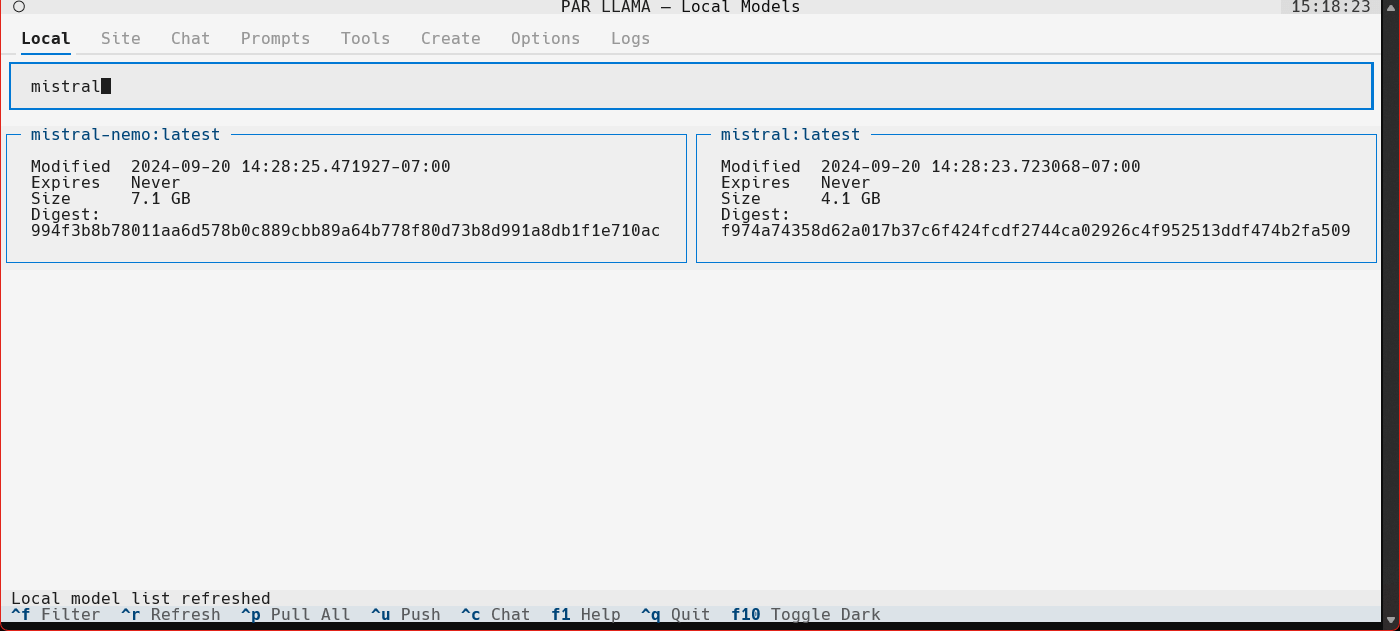
Screenshots
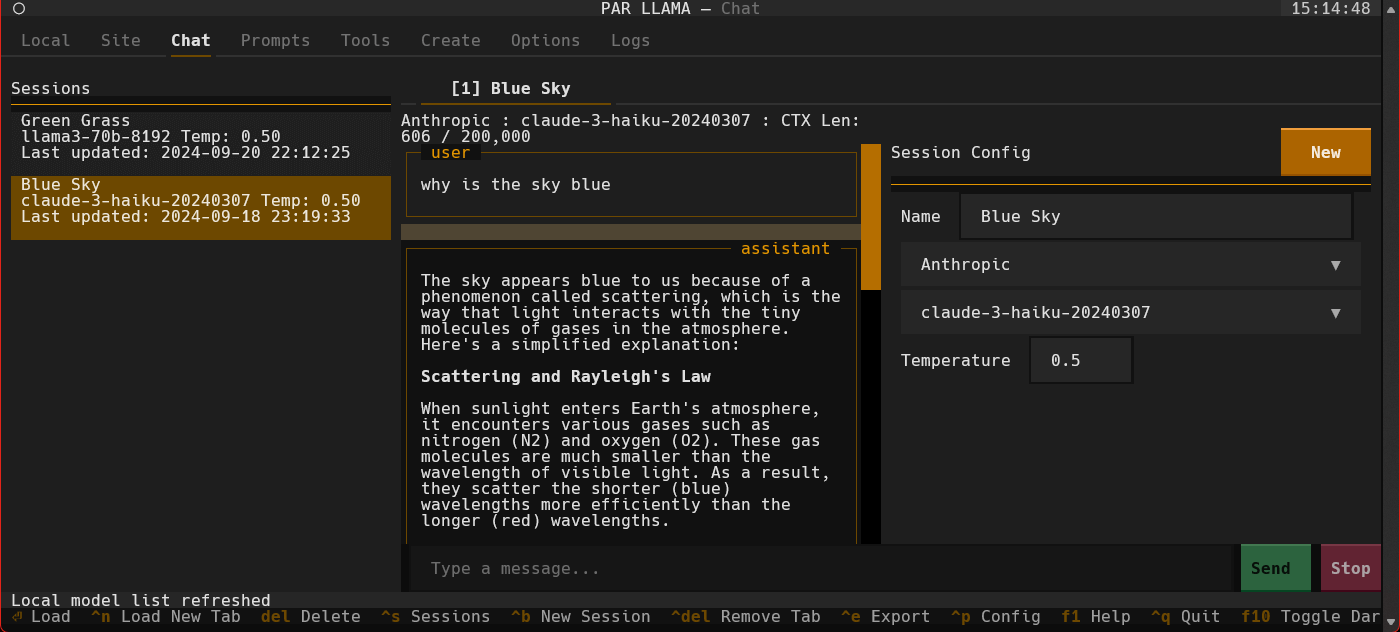
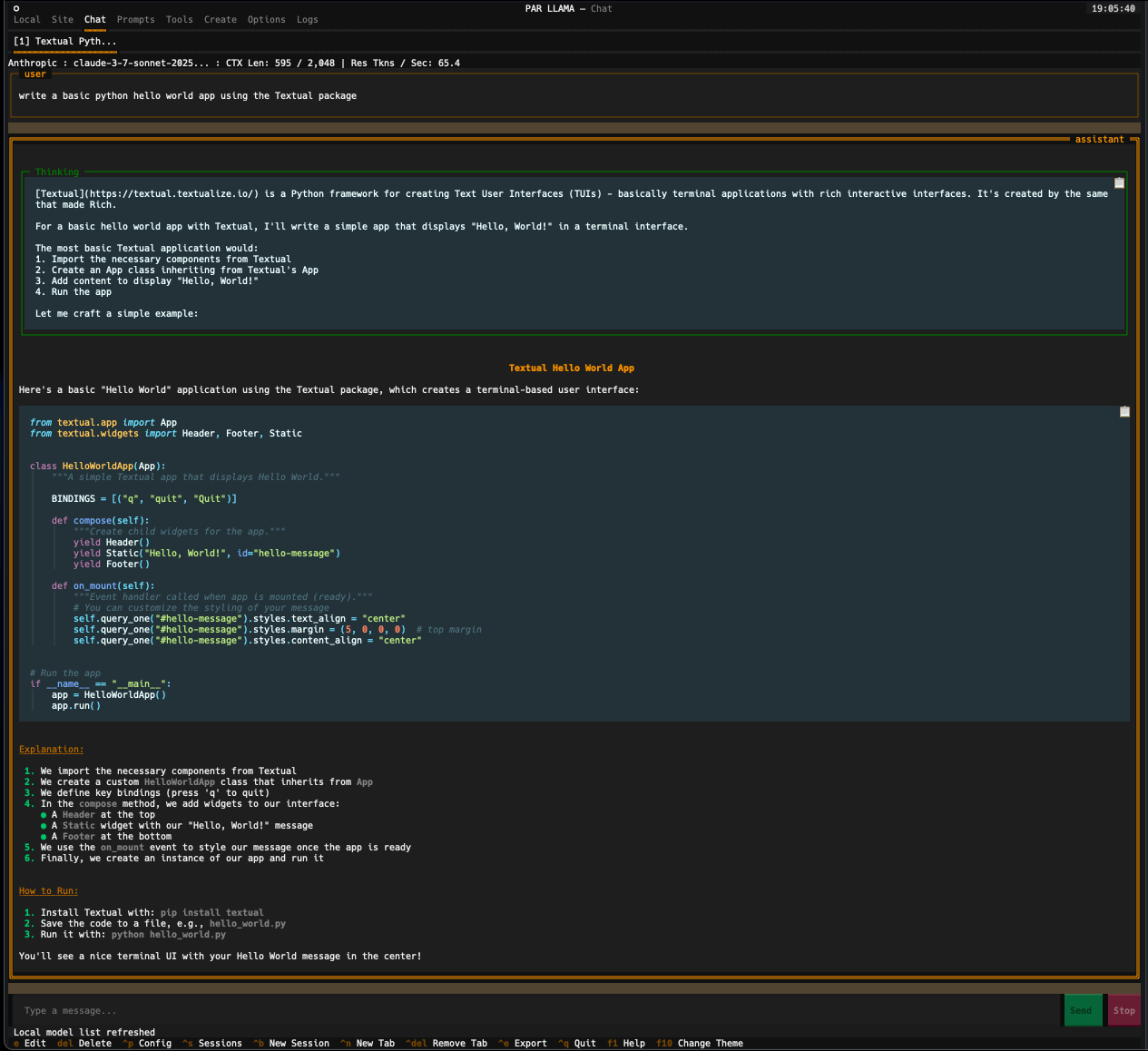
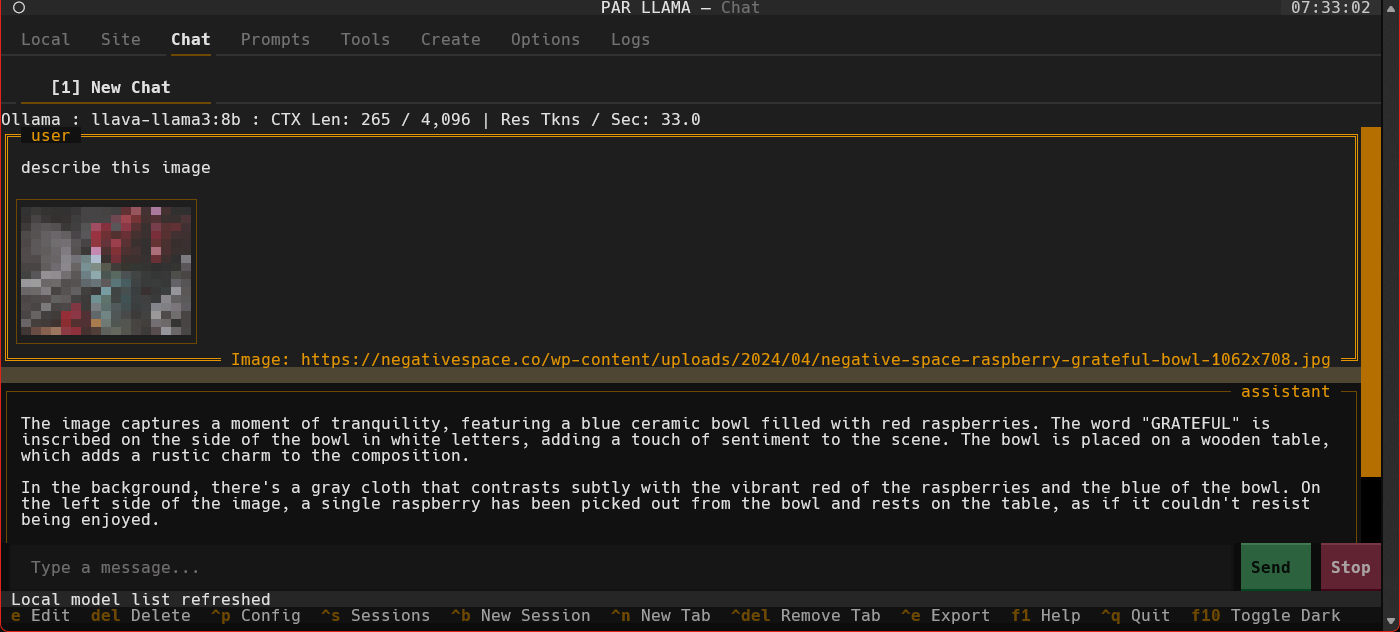
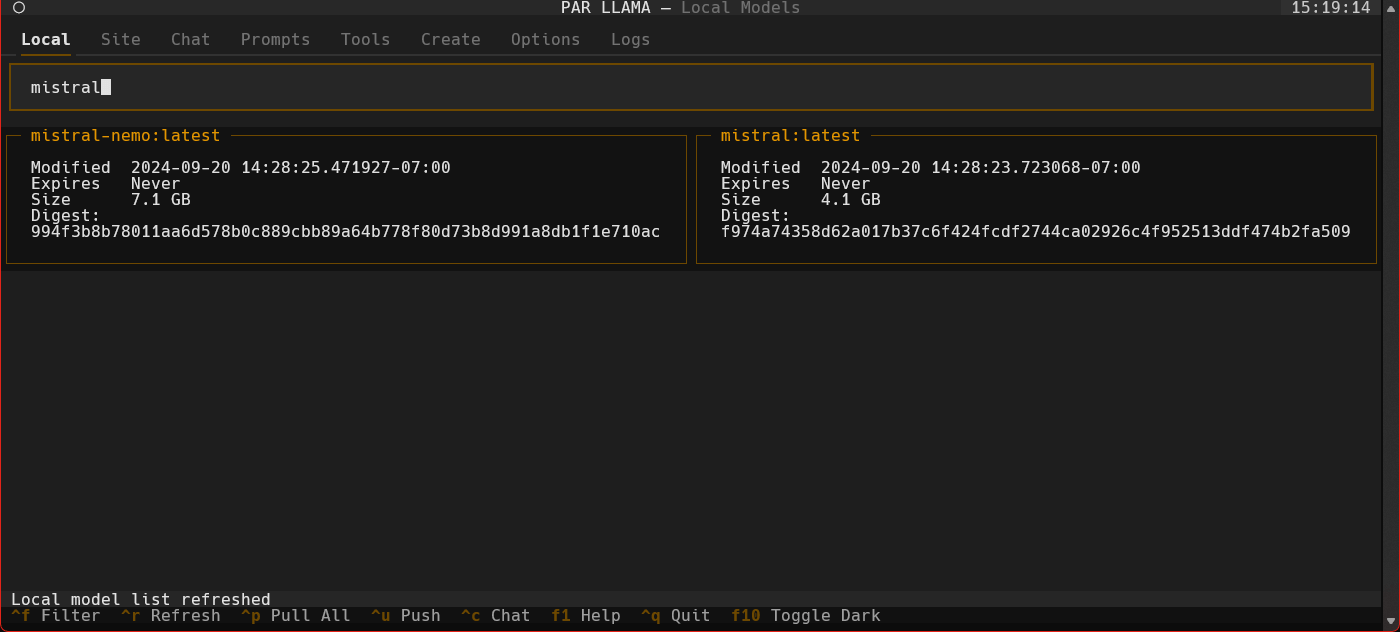
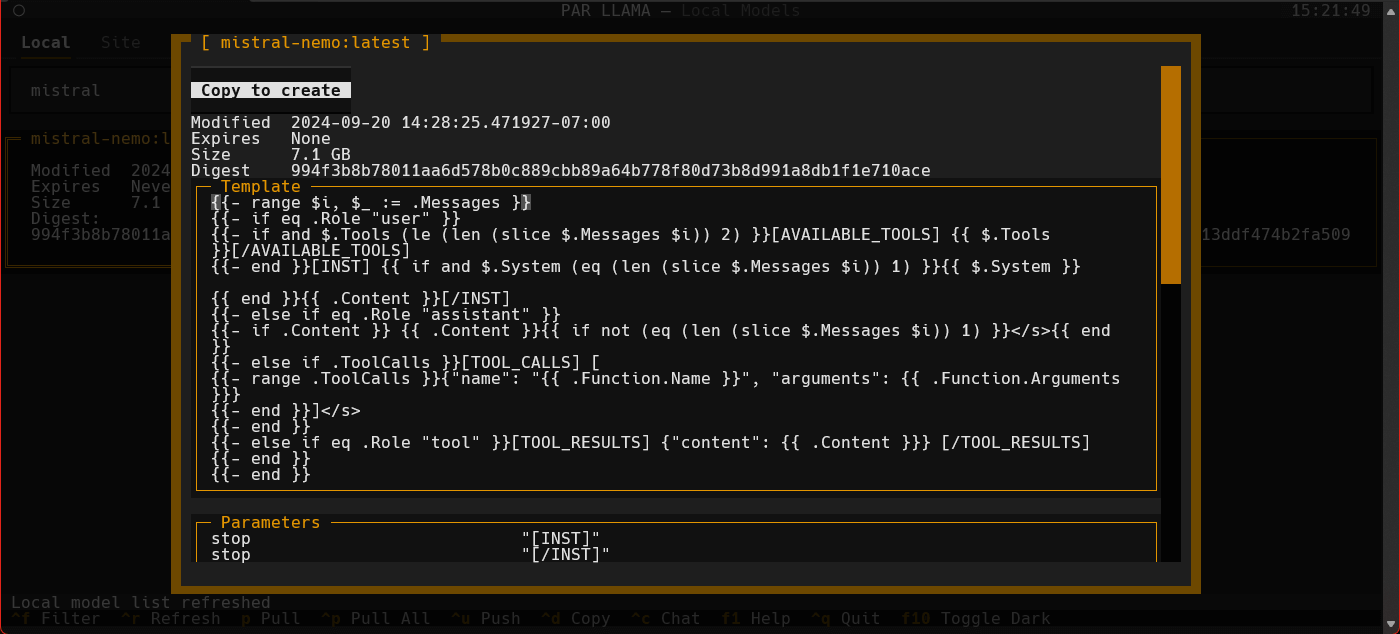
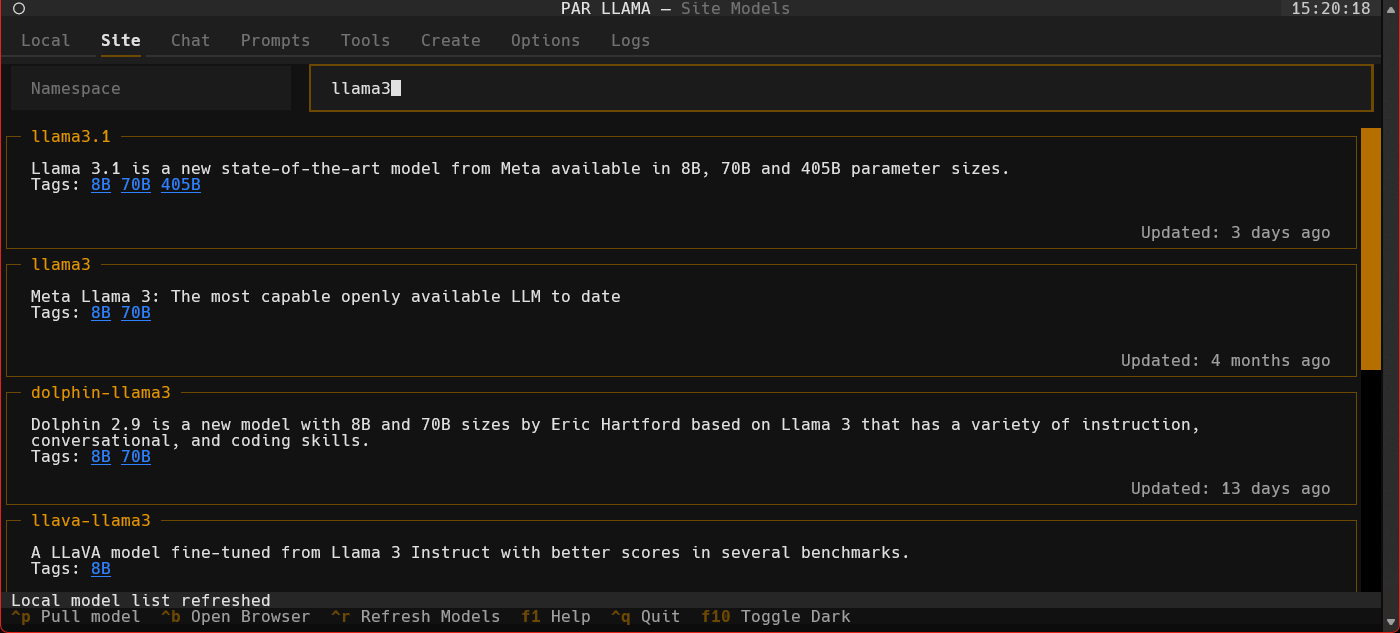
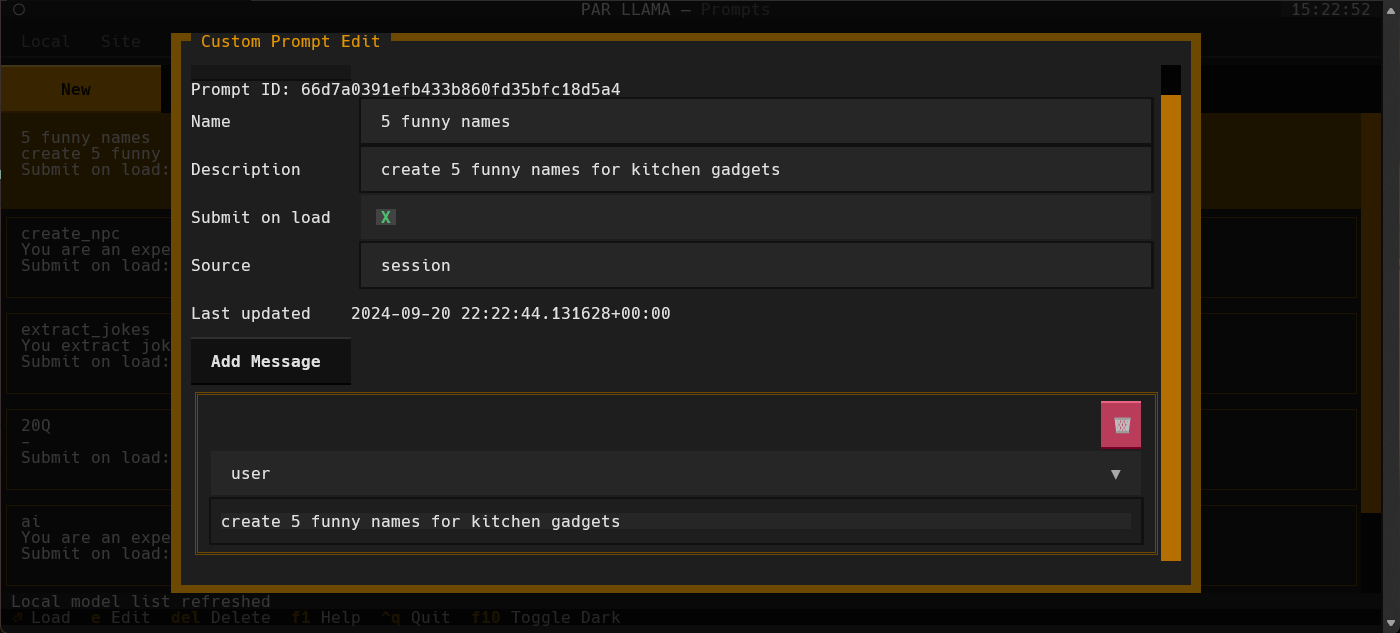
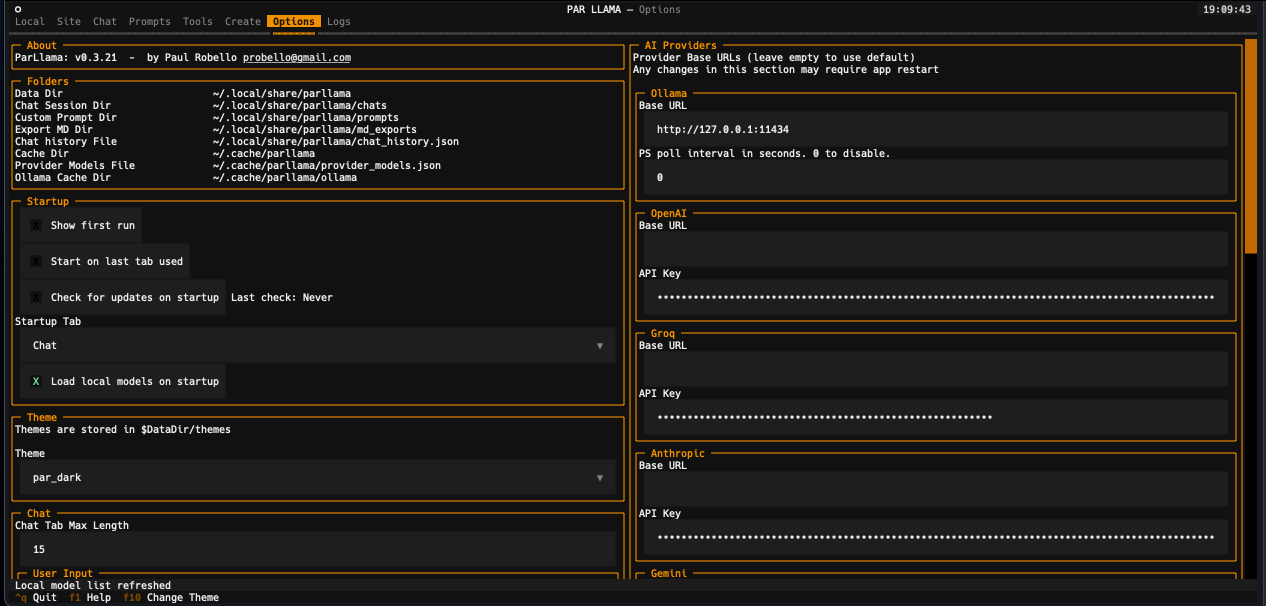
Supports Dark and Light mode as well as custom themes.
Videos
Prerequisites for running
- Install and run Ollama
- Install Python 3.11 or newer
- https://www.python.org/downloads/ has installers for all versions of Python for all os's
- On Windows the Scoop tool makes it easy to install and manage things like python
- Install Scoop then do
scoop install python
- Install Scoop then do
Prerequisites for dev
- Install uv
- See the Using uv section
- Install GNU Compatible Make command
- On windows if you have scoop installed you can install make with
scoop install make
- On windows if you have scoop installed you can install make with
Model Quantization
Native Ollama Quantization
Ollama now supports native model quantization through the create model interface. When creating a new model, you can specify a quantization level (e.g., q4_K_M, q5_K_M) to reduce model size and memory requirements.
Important: Native quantization only works with F16 or F32 base models. If you try to quantize an already-quantized model (like llama3.2:1b which is already Q4_0), you'll receive an error.
Prerequisites for HuggingFace model quantization
For quantizing custom models from HuggingFace that aren't available through Ollama:
- Download HuggingFaceModelDownloader from the releases area
- Install Docker Desktop
- Pull the docker image:
docker pull ollama/quantize
Using uv
Installing uv
If you don't have uv installed you can run the following:
curl -LsSf https://astral.sh/uv/install.sh | sh
PyPi install
uv tool install parllama
To upgrade an existing uv installation use the -U --force flags:
uv tool install parllama -U --force
Installing / running using uvx
uvx parllama
Source install from GitHub
uv tool install git+https://github.com/paulrobello/parllama
To upgrade an existing installation use the --force flag:
uv tool install git+https://github.com/paulrobello/parllama -U --force
pipx
Installing
If you don't have pipx installed you can run the following:
pip install pipx
pipx ensurepath
PyPi install
pipx install parllama
To upgrade an existing pipx installation use the --force flag:
pipx install parllama --force
Source install from GitHub
pipx install git+https://github.com/paulrobello/parllama
To upgrade an existing installation use the --force flag:
pipx install git+https://github.com/paulrobello/parllama --force
Installing for dev mode
Clone the repo and run the setup make target. Note uv is required for this.
git clone https://github.com/paulrobello/parllama
cd parllama
make setup
Command line arguments
usage: parllama [-h] [-v] [-d DATA_DIR] [-u OLLAMA_URL] [-t THEME_NAME] [-m {dark,light}]
                [-s {local,site,chat,prompts,tools,create,execution,options,memory,logs}]
                [--use-last-tab-on-startup {0,1}] [--load-local-models-on-startup {0,1}] [-p PS_POLL] [-a {0,1}]
                [--restore-defaults] [--purge-cache] [--purge-chats] [--purge-prompts] [--no-save] [--no-chat-save]

PAR LLAMA -- Ollama TUI.

options:
  -h, --help            show this help message and exit
  -v, --version         Show version information.
  -d DATA_DIR, --data-dir DATA_DIR
                        Data Directory. Defaults to ~/.local/share/parllama
  -u OLLAMA_URL, --ollama-url OLLAMA_URL
                        URL of your Ollama instance. Defaults to http://localhost:11434
  -t THEME_NAME, --theme-name THEME_NAME
                        Theme name. Defaults to par
  -m {dark,light}, --theme-mode {dark,light}
                        Dark / Light mode. Defaults to dark
  -s {local,site,chat,prompts,tools,create,execution,options,memory,logs}, --starting-tab {local,site,chat,prompts,tools,create,execution,options,memory,logs}
                        Starting tab. Defaults to local
  --use-last-tab-on-startup {0,1}
                        Use last tab on startup. Defaults to 1
  --load-local-models-on-startup {0,1}
                        Load local models on startup. Defaults to 1
  -p PS_POLL, --ps-poll PS_POLL
                        Interval in seconds to poll ollama ps command. 0 = disable. Defaults to 3
  -a {0,1}, --auto-name-session {0,1}
                        Auto name session using LLM. Defaults to 0
  --restore-defaults    Restore default settings and theme
  --purge-cache         Purge cached data
  --purge-chats         Purge all chat history
  --purge-prompts       Purge all custom prompts
  --no-save             Prevent saving settings for this session
  --no-chat-save        Prevent saving chats for this session
Unless you specify "--no-save" most flags such as -u, -t, -m, -s are sticky and will be used next time you start PAR_LLAMA.
Environment Variables
Variables are loaded in the following order, last one to set a var wins
- HOST Environment
- PARLLAMA_DATA_DIR/.env
- ParLlama Options Screen
Environment Variables for PAR LLAMA configuration
- PARLLAMA_DATA_DIR - Used to set --data-dir
- PARLLAMA_THEME_NAME - Used to set --theme-name
- PARLLAMA_THEME_MODE - Used to set --theme-mode
- OLLAMA_URL - Used to set --ollama-url
- PARLLAMA_AUTO_NAME_SESSION - Set to 0 or 1 to disable / enable session auto naming using LLM
- PARLLAMA_VAULT_KEY - When set, unlocks the encrypted secrets vault automatically at startup (see Secrets Vault below)
For the full list of adjustable settings.json keys, their types, and defaults, see the Configuration Reference.
Secrets Vault
PAR LLAMA includes an encrypted secrets vault (src/parllama/secrets_manager.py) for storing sensitive values (such as provider API keys) separately from plaintext settings.json. It derives an encryption key from a password using PBKDF2-HMAC-SHA256, then encrypts/decrypts stored secrets with AES-GCM. The vault stays locked until unlocked with the correct password.
- Set
PARLLAMA_VAULT_KEYin your environment to have the vault unlock automatically on startup. - The vault file uses restrictive
0600permissions on POSIX systems. - Provider API keys entered in the Options tab are stored in the vault, and written to
settings.jsonasnull, only whenPARLLAMA_VAULT_KEYis set and opens the vault. At startup, plaintext keys already insettings.jsonare moved into the vault under the same condition. Without a workingPARLLAMA_VAULT_KEY, keys stay insettings.json(written with0600permissions) so they remain available on the next start.
Note: The in-app "Secrets" tab UI (SecretsView) is currently disabled/in-progress — its TabPane is commented out in src/parllama/screens/main_screen.py. The vault's manager and encryption logic exist and are used programmatically, but there is currently no UI screen for managing secrets interactively.
Running PAR_LLAMA
with pipx or uv tool installation
From anywhere:
parllama
with pip installation
From parent folder of venv
source venv/Scripts/activate
parllama
Running against a remote Ollama instance
parllama -u "http://REMOTE_HOST:11434"
Running under Windows WSL
Ollama by default only listens to localhost for connections, so you must set the environment variable OLLAMA_HOST=0.0.0.0:11434
to make it listen on all interfaces.
Note: this will allow connections to your Ollama server from other devices on any network you are connected to.
If you have Ollama installed via the native Windows installer you must set OLLAMA_HOST=0.0.0.0:11434 in the "System Variable" section
of the "Environment Variables" control panel.
If you installed Ollama under WSL, setting the var with export OLLAMA_HOST=0.0.0.0:11434 before starting the Ollama server will have it listen on all interfaces.
If your Ollama server is already running, stop and start it to ensure it picks up the new environment variable.
You can validate what interfaces the Ollama server is listening on by looking at the server.log file in the Ollama config folder.
You should see as one of the first few lines "OLLAMA_HOST:http://0.0.0.0:11434"
Now that the server is listening on all interfaces you must instruct PAR_LLAMA to use a custom Ollama connection url with the "-u" flag.
The command will look something like this:
parllama -u "http://$(hostname).local:11434"
Depending on your DNS setup if the above does not work, try this:
parllama -u "http://$(grep -m 1 nameserver /etc/resolv.conf | awk '{print $2}'):11434"
PAR_LLAMA will remember the -u flag so subsequent runs will not require that you specify it.
Dev mode
From repo root:
make dev
Quick start Ollama chat workflow
- Start parllama.
- Click the "Site" tab.
- Use ^R to fetch the latest models from Ollama.com.
- Use the "Filter Site models" text box and type "llama3".
- Find the entry with title of "llama3".
- Click the blue tag "8B" to update the search box to read "llama3:8b".
- Press ^P to pull the model from Ollama to your local machine. Depending on the size of the model and your internet connection this can take a few min.
- Click the "Local" tab to see models that have been locally downloaded.
- Select the "llama3:8b" entry and press ^C to jump to the "Chat" tab and auto select the model.
- Type a message to the model such as "Why is the sky blue?". It will take a few seconds for Ollama to load the model. After which the LLMs answer will stream in.
- Towards the very top of the app you will see what model is loaded and what percent of it is loaded into the GPU / CPU. If a model can't be loaded 100% on the GPU it will run slower.
- To export your conversation as a Markdown file type "/session.export" in the message input box. This will open a export dialog.
- Press ^N to add a new chat tab.
- Select a different model or change the temperature and ask the same questions.
- Jump between the tabs to compare responses by click the tabs or using slash commands
/tab.1and/tab.2 - Press ^S to see all your past and current sessions. You can recall any past session by selecting it and pressing Enter or ^N if you want to load it into a new tab.
- Press ^P to see / change your sessions config options such as provider, model, temperature, etc.
- Type "/help" or "/?" to see what other slash commands are available.
Quick start image chat workflow
- Start parllama.
- Click the "Site" tab.
- Use ^R to fetch the latest models from Ollama.com.
- Use the "Filter Site models" text box and type "llava-llama3".
- Find the entry with title of "llava-llama3".
- Click the blue tag "8B" to update the search box to read "llava-llama3:8b".
- Press ^P to pull the model from Ollama to your local machine. Depending on the size of the model and your internet connection this can take a few min.
- Click the "Local" tab to see models that have been locally downloaded. If the download is complete and it isn't showing up here you may need to refresh the list with ^R.
- Select the "llava-llama3" entry and press ^C to jump to the "Chat" tab and auto select the model.
- Use a slash command to add an image and a prompt "/add.image PATH_TO_IMAGE describe what's happening in this image". It will take a few seconds for Ollama to load the model. After which the LLMs answer will stream in.
- Towards the very top of the app you will see what model is loaded and what percent of it is loaded into the GPU / CPU. If a model can't be loaded 100% on the GPU it will run slower.
- Type "/help" or "/?" to see what other slash commands are available.
Quick start document chat workflow
- Start parllama and select any provider/model (documents work everywhere — providers without native PDF support send the extracted text instead).
- Press ^O in the chat input to open the attach dialog and pick a PDF, text, or Markdown file. The file appears as a chip above the input; click the chip to remove it.
- Type a question about the document and press Enter. The attachment rides along with your message.
- Alternatively attach and send in one step: "/add.doc PATH_TO_DOCUMENT summarize this document".
- On Anthropic, OpenAI, and Gemini the PDF is sent natively to the model; on Ollama and other providers the document's text is extracted and included in the prompt.
- Attachments persist with the session: reload a past session later and keep asking questions about the same document.
- Password-protected PDFs are not supported. Size, page-count, and extracted-text limits are configurable in the "File Validation" section of the Options tab, or in the settings file (
file_validationgroup, see the Configuration Reference). - Document URLs are fetched only from public addresses; loopback, private-network, and link-local hosts are refused.
Quick start OpenAI provider chat workflow
- Start parllama.
- Select the "Options" tab.
- Locate the AI provider you want to use the "Providers" section and enter your API key and base url if needed.
- You may need to restart parllama for some providers to fully take effect.
- Select the "Chat" tab
- If the "Session Config" panel on the right is not visible press
^p - Any providers that have don't need an API key or that do have an API key set should be selectable.
- Once a provider is selected available models should be loaded and selectable.
- Adjust any other session settings like Temperature.
- Click the message entry text box and converse with the LLM.
- Type "/help" or "/?" to see what slash commands are available.
LlamaCPP support
Parllama supports LlamaCPP running OpenAI server mode. Parllama will use the default base_url of http://127.0.0.1:8080. This can be configured on the Options tab.
To start a LlamaCPP server run the following command in separate terminal:
llama-server -m PATH_TO_MODEL
or
llama-server -mu URL_TO_MODEL
llmman support
llmman is a local model runner that serves the Ollama API (alongside OpenAI- and Anthropic-compatible ones) on port 17434.
Because it speaks the Ollama API, Parllama's Ollama provider works against it unchanged; only the URL differs.
To start an llmman server run the following commands in a separate terminal:
llmman serve
llmman pull gemma4
Then point Parllama at it with the -u flag (or the OLLAMA_URL environment variable):
parllama -u "http://localhost:17434"
Parllama will remember the URL so subsequent runs will not require the -u flag.
Pulling a model from within Parllama uses /api/pull; use llmman model names (gemma4, qwen3.8) or Hugging Face references (hf.co/unsloth/Qwen3.5-0.8B-GGUF).
Custom Prompts
You can create a library of custom prompts for easy starting of new chats. You can set up system prompts and user messages to prime conversations with the option of sending immediately to the LLM upon loading of the prompt. Currently, importing prompts from the popular Fabric project is supported with more on the way.
Memory System
PAR LLAMA features a comprehensive memory system that allows you to maintain persistent context across all your conversations. This addresses the common issue of LLMs forgetting important information about you between chat sessions.
Core Features
- Memory Tab: Dedicated interface for managing your personal information and preferences
- Automatic Injection: Memory content is automatically injected as the first message in every new conversation
- AI-Powered Updates: Use slash commands to intelligently update your memory with AI assistance
- Real-time Synchronization: Changes made via commands instantly update the Memory tab interface
Managing Your Memory
Memory Tab Interface
Navigate to the Memory tab to:
- Edit Memory Content: Use the large text area to add information about yourself, your preferences, work context, or any details you want the AI to remember
- Enable/Disable Memory: Use the checkbox to control whether memory is injected into new conversations
- Save and Clear: Use the Save button to persist changes or Clear to remove all memory content
Slash Commands
Memory can be dynamically updated from any chat using these commands:
-
/remember [information]: Add new information to your memory using AI assistance- Example:
/remember I prefer concise technical explanations - Example:
/remember I work in Python and React development
- Example:
-
/forget [information]: Remove specific information from your memory using AI assistance- Example:
/forget my old job title - Example:
/forget I mentioned liking verbose responses
- Example:
-
/memory.status: View your current memory content and status -
/memory.clear: Clear all memory content (with confirmation)
Example Memory Content
My name is Alex and I'm a senior software engineer working primarily with:
- Python (FastAPI, Django)
- React and TypeScript
- AWS cloud infrastructure

I prefer:
- Concise, technical explanations
- Code examples with comments
- Best practices and security considerations

Current projects:
- Building a microservices API
- Learning Rust programming language
How Memory Works
- Storage: Memory content is securely stored in your local settings file
- Injection: When starting a new conversation, memory is automatically prepended as a system message
- AI Updates: Slash commands use your current LLM to intelligently modify memory content
- Persistence: All memory changes are immediately saved and synchronized across the interface
The memory system transforms PAR LLAMA into a truly personalized AI assistant that remembers who you are and adapts to your preferences across all conversations.
Template Execution
PAR LLAMA includes a powerful yet secure template execution system that allows you to run code snippets and commands directly from chat messages. This feature enables interactive development workflows, data analysis, and quick testing without leaving the chat interface.
Security & Safety
The execution system includes safeguards that reduce accidents:
- Confirmation: Execution asks for confirmation before running by default (
execution_require_confirmation) - Command Allowlists: Only pre-approved base commands can be executed
- Content Checks: Configured dangerous patterns (for example
rm -rf) are blocked by substring match - Credential Scrubbing: Environment variables whose names contain
KEY,TOKEN,SECRET,PASSWORD,PASSWD, orCREDENTIALare removed from the child process environment - Timeout Protection: All executions have configurable time limits
- Output Limiting: Command output is truncated to prevent resource exhaustion
Important: Template execution is not a sandbox. Commands run as your user with your filesystem access, so an allowed interpreter (python, bash, node, ...) can do anything you can, including reading credential files such as ~/.aws/credentials or ~/.ssh. The content checks are easily bypassed and a check that reports no warnings does not mean the code is safe. Review code before running it.
Configuration
Template execution settings are configurable in the Options tab under "Template Execution":
- Execution Enabled: Toggle to enable/disable the execution feature (Ctrl+R on chat messages)
- Allowed Commands: Comma-separated list of base commands permitted for execution
- Default includes:
uv,python3,python,node,tsc,bash,sh,zsh,fish - Add your own trusted commands as needed
- Changes take effect immediately without restart
- Default includes:
Usage
- Enable Execution: Ensure "Execution enabled" is checked in Options
- Create Executable Content: Paste or type code/commands in a chat message
- Execute: Press Ctrl+R on any chat message to execute its content
- Review Results: Execution results appear as a new chat response with:
- Command that was executed
- Standard output and error streams
- Exit code and execution time
- Any temporary files created
Execution Templates
The system supports flexible execution templates that can:
- Execute inline code directly from message content
- Create temporary files for multi-line scripts
- Set custom working directories
- Configure environment variables
- Run commands in foreground or background
- Handle different programming languages and tools
Best Practices
- Start with a restrictive allowed commands list and expand as needed
- Test execution templates with non-destructive commands first
- Be cautious with commands that modify files or system state
- Use the timeout settings to prevent long-running processes
- Review execution results before relying on outputs
This feature transforms PAR LLAMA into a powerful development companion, enabling seamless transitions between conversation and code execution.
Themes
Themes are json files stored in the themes folder in the data directory which defaults to ~/.local/share/parllama/themes
The default theme is "par" so can be located in ~/.local/share/parllama/themes/par.json. It is copied from the packaged src/parllama/themes/par.json when missing, and --restore-defaults deletes it so the packaged copy is restored on the next start.
Themes have a dark and light mode are in the following format:
{
  "dark": {
    "primary": "#e49500",
    "secondary": "#6e4800",
    "warning": "#ffa62b",
    "error": "#ba3c5b",
    "success": "#4EBF71",
    "accent": "#6e4800",
    "panel": "#111",
    "surface":"#1e1e1e",
    "background":"#121212",
    "dark": true
  },
  "light": {
    "primary": "#004578",
    "secondary": "#ffa62b",
    "warning": "#ffa62b",
    "error": "#ba3c5b",
    "success": "#4EBF71",
    "accent": "#0178D4",
    "background":"#efefef",
    "surface":"#f5f5f5",
    "dark": false
  }
}
You must specify at least one of light or dark for the theme to be usable.
Theme can be changed via command line with the --theme-name option.
Contributing
See CONTRIBUTING.md for development setup, code style, commit conventions, and the pull request process. The architecture is described in project_design.md, and the release process in docs/guides/release.md.
FAQ
- Q: Do I need Docker?
- A: Docker is only required if you want to Quantize models downloaded from Huggingface or similar llm repositories.
- Q: Does ParLlama require internet access?
- A: ParLlama by default does not require any network / internet access unless you enable checking for updates or want to import / use data from an online source.
- Q: Does ParLlama run on ARM?
- A: Short answer is yes. ParLlama should run any place python does. It has been tested on Windows 11 x64, Windows WSL x64, Mac OSX intel and silicon
- Q: Does ParLlama require Ollama be installed locally?
- A: No. ParLlama has options to connect to remote Ollama instances
- Q: Does ParLlama require Ollama?
- A: No. ParLlama can be used with most online AI providers
- Q: Does ParLlama support vision LLMs?
- A: Yes. If the selected provider / model supports vision you can add images to the chat via /slash commands
- Q: Can ParLlama answer questions about my PDFs?
- A: Yes. Attach a PDF via ^O or /add.doc. Anthropic, OpenAI, and Gemini receive the PDF natively; other providers receive its extracted text.
Roadmap
Where we are
- Core Model Management - Find, maintain, pull, delete, copy, and create new models with full Ollama integration
- Multi-Provider Support - Seamless integration with Ollama, OpenAI, Anthropic, Groq, Google, xAI, OpenRouter, Deepseek, and LiteLLM
- Advanced Chat System - Multi-tab conversations with full history management and session persistence
- Vision Model Support - Chat with images using vision-capable LLMs like LLaVA and GPT-4 Vision, added via file picker (^O) or /add.image
- Document Attachments - Attach PDF, text, and Markdown files to chat via file picker (^O) or /add.doc, with native support on Anthropic, OpenAI, and Gemini and text-extraction fallback everywhere else
- Memory System - Persistent user context across all conversations with AI-powered memory management
- Template Execution - Secure code execution system with configurable command allowlists and safety controls
- Custom Prompt Library - Create, manage, and import prompts from Fabric and other sources
- Theme System - Full dark/light mode support with custom JSON-based theme configuration
- Smart Caching - Intelligent per-provider model caching with configurable durations
- Comprehensive Slash Commands - Extensive command system for navigation, session management, and memory operations
- Export Capabilities - Export conversations as Markdown files for documentation
- Security & Validation - Comprehensive file validation and secure operations for all data handling
- Cross-Platform Support - Native support for Windows, macOS, Linux, and WSL environments
Where we're going
- RAG for local documents and web pages
- OCR for scanned (image-only) PDFs
- Expand ability to import custom prompts of other tools
- LLM tool use
License
PAR LLAMA is released under the MIT License. See LICENSE for the full text.
What's new
v0.10.1 (Latest)
- Fix: Deleting a chat message now removes its widget from the chat view; previously the message vanished from the session but the widget stayed on screen and a second delete crashed the app
- Fix: Rare teardown hang removed — background poller threads now stop when the app stops running instead of looping forever in test and embedded runs
v0.10.0
- Opt-in OS keychain storage: new "Store API keys in OS keychain" toggle in Options > AI Providers moves provider keys into the macOS Keychain, Windows Credential Manager, or Linux Secret Service (
keyring). Off by default; platforms without a backend keep keys insettings.jsonwith a warning, and turning the toggle off pulls keys back - Security & architecture hardening: credential scrubbing for executed commands, provider keys routed to the encrypted vault with automatic migration, SSRF-guarded remote attachments with integrity checks, ZIP extraction caps, settings storage v2 with one-time migration, and
ChatSessionsplit intoStreamController+SessionStore - EventBus completion: the last ~20 stop-and-delegate
Apphandlers now broadcast at source; chat, prompt, and session traffic no longer routes through the app class - Fixes: session-list loads no longer drop the salt that broke chat decryption;
make publish/make test-publishwork under uv 0.12.1; test suite grew to 408 tests
v0.9.2
- Fixes: Restored startup and chat after the
par-ai-core0.5.9 upgrade moved its provider integrations to optional extras (brokelitellmat startup andlangchain_openaion chat). parllama now consumespar-ai-corewith the exact provider extras it exposes, and declareslitellmandpillowas direct dependencies instead of relying on them transitively
v0.9.1
- Fixes: Pressing
Enteror double-clicking a prompt in the Prompts tab no longer triggers an infinite loop that spawned chat sessions until the app was force-quit.PromptListwas subscribed to the samePromptSelectedmessage it posts, so each EventBus broadcast bounced back through the app handler and re-broadcast forever (#77)
v0.9.0
- Security hardening:
settings.jsonis written with0o600permissions; the code-execution "require confirmation" setting is now a real blocking dialog instead of a no-op; Docker uses the Windows named pipe, the quantization level is validated, path-traversal checks do real containment, and vault password checks are constant-time - CI & tests:
make checkallnow runs the test suite, a new push/PR CI workflow was added, and coverage grew from 132 to 211 tests - Performance: Streaming markdown render throttling, lazy provider SDK imports, and selective per-provider model refresh
- Refactors: Extracted a composable
ProviderSettingsPanelfrom the Options view, and clipboard / PS-status / session-event coordinators out of the main app class - Fixes: Settings no longer crashes
pytestviasys.argv; fixed a background-execution temp-file race; replaced TUI-invisibleprint()errors with logging; suppressed litellm's stdout banners
v0.8.8
- Dependency Upgrade: Upgraded all dependencies to latest, including Textual 8.2.5 → 8.2.7, Pydantic, LangChain, OpenAI, and Protobuf 6 → 7
- Textual 8.2.7 Fixes: Fixed several startup regressions caused by Textual 8.2.7 emitting
Select.Changedon mount — duplicate model refreshes, reasoning effort reset to Medium, spurious provider/model events, the Edit Prompt dialog opening dirty, and the Options tab re-applying the theme
v0.8.7
- Chat Cost Tracking: Session status bar now shows cumulative cost for paid providers. Token usage and cost are accumulated across all messages and persisted with the session file
- Markdown Export Frontmatter: Exported markdown files now include YAML frontmatter with provider, model, date, token usage, and cost
v0.8.6
- Edit & Continue: Press
con any completed assistant message to continue generation from that point. Works with all providers. After stopping generation, edit the partial response withe, then presscto continue (#45)
For the full version history, see CHANGELOG.md.
1 maintainer

Metadata
1 maintainer
Release files for parllama 0.10.1
For a detailed explanation of source distributions (sdists) and built distributions (wheels), please see the package formats documentation.
Source distribution (sdist)
| File | Size | Uploaded | |
|---|---|---|---|
| parllama-0.10.1.tar.gz | 219.2 kB | Details |
Built distribution (wheel)
| File | Interpreter | ABI | Platform | Reset |
|---|---|---|---|---|
| parllama-0.10.1-py3-none-any.whl | Python 3 | none | any | Details |
Total release size: 496.4 kB
Release files / parllama-0.10.1.tar.gz
| Download URL | parllama-0.10.1.tar.gz |
|---|---|
| Size | 219.2 kB |
| Tags | Source |
|
SHA-256 checksum How to use checksums |
d3c8e0dab9553c353fb4b76cb1a55f1fdf9df0e09be016c941499193e3241138
|
|
BLAKE2b-256 checksum How to use checksums |
820d2d0af89ad22fdec9b59ab50c3d8576defef769964957ed863a321afad6f4
|
| Upload date | |
|
Uploaded using Trusted Publishing? What is trusted publishing? |
Yes |
| Uploaded via |
twine/7.0.0 CPython/3.13.14
|
Provenance
Provenance describes where a file came from. On PyPI, provenance is shared via attestations, which provide a verifiable record of the build or publishing details. View details, limitations and caveats.


PyPI Publish Attestation
PyPI verified that this artifact, at this checksum, originated from the publisher listed below.
Signed by GitHub Actions, verified by PyPI on Oct 16, 2026.
Transparency logRelease files / parllama-0.10.1-py3-none-any.whl
| Download URL | parllama-0.10.1-py3-none-any.whl |
|---|---|
| Size | 277.2 kB |
| Tags | Python 3 |
|
SHA-256 checksum How to use checksums |
ab0d08d4ea1ca4e4f891091f01e81d19c78d62b87bb3d985f5956805c776c2e6
|
|
BLAKE2b-256 checksum How to use checksums |
0471c6aa4b4184b49a9837b58a5ee8ea4286415df08d151eeb7e70a059dac108
|
| Upload date | |
|
Uploaded using Trusted Publishing? What is trusted publishing? |
Yes |
| Uploaded via |
twine/7.0.0 CPython/3.13.14
|
Provenance
Provenance describes where a file came from. On PyPI, provenance is shared via attestations, which provide a verifiable record of the build or publishing details. View details, limitations and caveats.
PyPI Publish Attestation
PyPI verified that this artifact, at this checksum, originated from the publisher listed below.
Signed by GitHub Actions, verified by PyPI on Oct 16, 2026.
Transparency log













