
The TUI for pass

Project description





PassTUI
The TUI for pass — the standard Unix password manager.
About
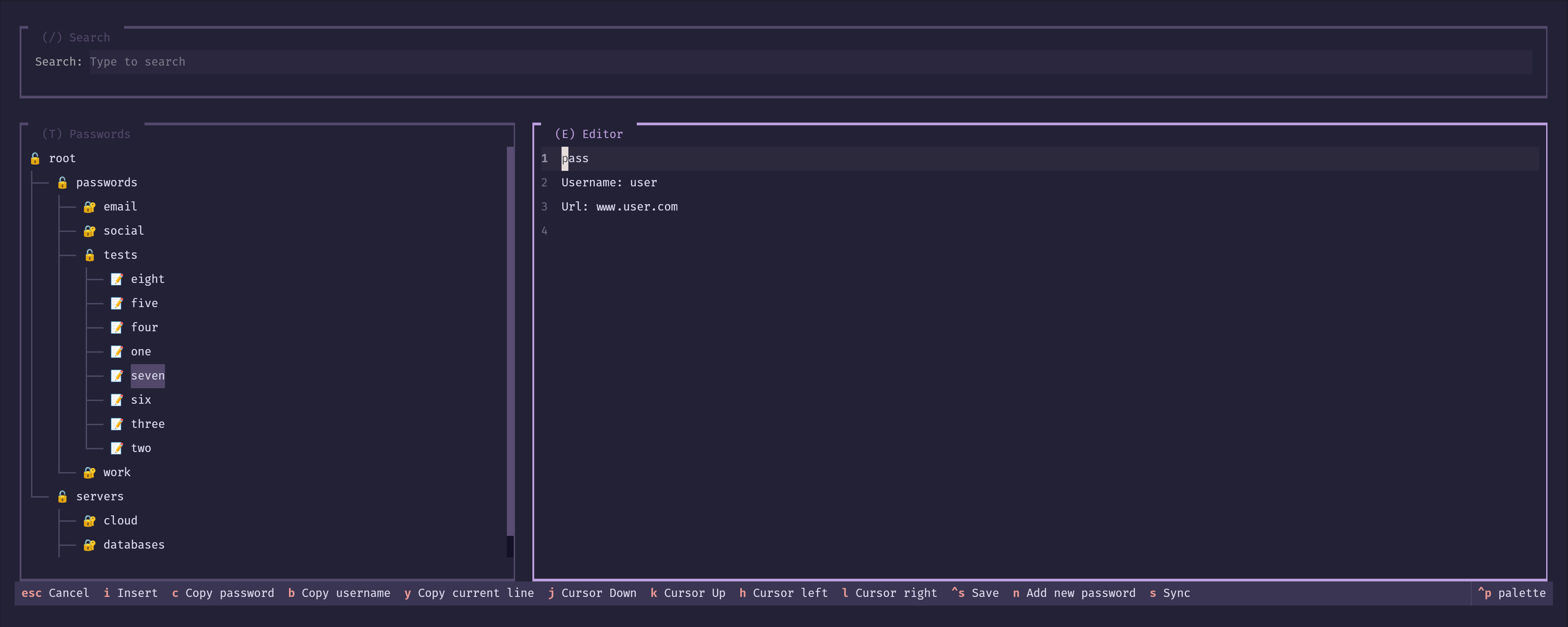
PassTUI is a terminal UI for pass, the standard Unix password manager. It gives you a keyboard-driven, visual way to browse and manage your GPG-encrypted password store without ever leaving the terminal.
If you live in the terminal and want a faster, more intuitive way to work with your passwords, this is for you.
Built With



Features
- Browse your password store in a tree view
- Search and filter passwords in real time
- View and edit password entries in a built-in editor
- Copy the password to clipboard with a single keystroke
- Copy the username to clipboard with a single keystroke
- Copy any line to clipboard
- Create a new GPG key and password store from scratch
- Add new password entries
- Sync the password store with a remote Git repository
- Export your GPG key to a file
- Import a GPG key and re-encrypt the store
Getting Started
Prerequisites
pass relies on GPG for encryption, so gpg needs to be installed on your system.
Ubuntu / Debian
sudo apt install gnupg
CentOS / Fedora
sudo yum install gnupg
openSUSE
sudo zypper install gpg2
Gentoo
emerge --ask app-crypt/gnupg
Arch
sudo pacman -Syu gnupg
macOS
macOS doesn't ship with a default GPG setup. There's a script that handles the most common configuration, but if it doesn't work for your setup you'll need to install the prerequisites manually.
curl -LsSf https://raw.githubusercontent.com/fjmoralesp/passtui/main/scripts/install.sh | sh
Click to see manual installation instructions
- Install gnupg and pinentry-mac:
brew install gnupg pinentry-mac - Create the keyring folder:
gpg -k - Configure pinentry:
echo "pinentry-program $(brew --prefix)/bin/pinentry-mac" > "$HOME/.gnupg/gpg-agent.conf" - Add GPG terminal detection to your shell config (~/.zshrc or ~/.bashrc):
export GPG_TTY=$(tty) - Create a gpg2 binary symlink:
ln -s "$(which gpg)" "$(brew --prefix)/bin/gpg2" - Restart the GPG agent:
gpgconf --kill gpg-agent
Installation
PassTUI is installed via uv.
Install uv:
curl -LsSf https://astral.sh/uv/install.sh | sh
Install passtui:
uv tool install --python 3.14 passtui
Then launch it:
passtui
Usage
Create a GPG Store
If you don't have a password store yet, PassTUI can create the GPG key and initialise everything for you in one step.
- Launch PassTUI:
passtui - Press
gto open the Create GPG Store dialog - Fill in your name and email
- Press
Enterto confirm
PassTUI will generate a 4096-bit RSA key and initialise the store at ~/.password-store (or wherever PASSWORD_STORE_DIR points).
Tip: You can set the
PASSWORD_STORE_DIRenvironment variable before launching PassTUI to use a different store location.
Add a New Password
-
Press
nto open a blank entry in the editor -
Fill in your password, username, URL, and any extra notes following the template:
(your password) Username: your-username Url: https://example.com -
Press
Ctrl+Sto save -
When prompted, enter the path for the new entry (e.g.,
email/gmail)
Tip: The first line is always the password. PassTUI (and
pass) will only copy the first line when you use the copy-password shortcut.
View an Existing Password
- Navigate the tree with
j/k(or arrow keys) - Expand a folder with
Enter - Select an entry — its decrypted contents will appear in the editor panel on the right
- Press
eto move focus to the editor - From the editor you can:
- Press
cto copy the password to the clipboard - Press
bto copy the username to the clipboard - Press
yto copy the current line to the clipboard - Press
ito enter edit mode and make changes - Press
Ctrl+Sto save any edits
- Press
Sync with a Git Repository
PassTUI can push and pull your password store to/from a remote Git repository.
First-time setup (new store)
- Press
sto trigger a sync - When prompted, enter the remote repository URL (e.g.,
git@github.com:user/passwords.git) - PassTUI will initialise a Git repo, add the remote, and push
Subsequent syncs (store already has Git)
- Press
s - PassTUI will pull with rebase and then push automatically
Note: This workflow is designed for stores created fresh. If your store was cloned from an existing remote, handle the initial Git setup outside of PassTUI.
Export a GPG Key
Exporting your GPG key lets you back it up or move it to another machine.
- Press
xto open the Export GPG Key dialog - Enter your GPG key passphrase
- Optionally enter a custom output path (defaults to
~/passtui/gpg-export.asc) - Press
Enterto export
The key will be saved as an ASCII-armored .asc file.
Warning: Keep this file somewhere safe. Anyone with access to it and your passphrase can decrypt your passwords.
Import a GPG Key
Importing a GPG key lets you move your password store to a new machine or add a new trusted key.
- Press
zto open the Import GPG Key dialog - Enter the path to the
.asckey file (e.g.,~/passtui/gpg-export.asc) - Press
Enterto import
PassTUI will import the key, mark it as ultimately trusted, update the store's .gpg-id, and re-encrypt all entries.
Keybindings
Global
| Key | Action |
|---|---|
/ |
Focus the search bar |
n |
Add a new password entry |
e |
Focus the editor panel |
t |
Focus the password tree |
s |
Sync with Git |
g |
Create a new GPG Store |
x |
Export GPG key |
z |
Import GPG key |
Password Tree (T panel)
| Key | Action |
|---|---|
j / ↓ |
Move cursor down |
k / ↑ |
Move cursor up |
h |
Scroll left |
l |
Scroll right |
Enter |
Expand folder / select entry |
c |
Copy password to clipboard |
b |
Copy username to clipboard |
Editor (E panel)
| Key | Action |
|---|---|
i |
Enter edit mode |
Escape |
Cancel / exit edit mode |
j |
Move cursor down |
k |
Move cursor up |
h |
Move cursor left |
l |
Move cursor right |
c |
Copy password to clipboard |
b |
Copy username to clipboard |
y |
Copy current line to clipboard |
Ctrl+S |
Save changes |
Roadmap
- Route all passphrase prompts through
pinentryfor better security - Config file
- Vi motions for password editor
- Custom keybindings
- Imports
- 1Password txt or 1pif data
- KeePass KeepassX XML / CSV data
- Figaro's Password Manager XML data
- LastPass CSV data
- Ked Password Manager data
- Revelation Password Manager data
- Password Gorilla data
- PWSafe data
- KWallet data
- Roboform data
- password-exporter data
- pwsafe data
See the open issues for a full list of proposed features and known bugs.
Contributing
Contributions, issues, and pull requests are welcome. See CONTRIBUTING.md for development setup instructions.
License
Distributed under the GNU General Public License v3. See LICENSE for more information.
Contact
Francisco Morales — fjmoralesp@outlook.com
Project Link: https://github.com/fjmoralesp/passtui
Release history Release notifications | RSS feed


Download files
Download the file for your platform. If you're not sure which to choose, learn more about installing packages.
Source Distribution
Built Distribution
Filter files by name, interpreter, ABI, and platform.
If you're not sure about the file name format, learn more about wheel file names.
Copy a direct link to the current filters
File details
Details for the file passtui-0.0.6b1.tar.gz.
File metadata
- Download URL: passtui-0.0.6b1.tar.gz
- Upload date:
- Size: 91.8 kB
- Tags: Source
- Uploaded using Trusted Publishing? No
- Uploaded via: uv/0.11.3 {"installer":{"name":"uv","version":"0.11.3","subcommand":["publish"]},"python":null,"implementation":{"name":null,"version":null},"distro":{"name":"Arch Linux","version":null,"id":null,"libc":null},"system":{"name":null,"release":null},"cpu":null,"openssl_version":null,"setuptools_version":null,"rustc_version":null,"ci":null}
File hashes
| Algorithm | Hash digest | |
|---|---|---|
| SHA256 |
c1f73d9cde4116375d404098e148042b3593e725ef38862c0673eeccd0ebf8d1
|
|
| MD5 |
2a37422aaac00a17b35eb53c77dc5136
|
|
| BLAKE2b-256 |
0ef2366a2c6372fd45983c2d70a839d847957944e14b1ca9e1320256b08b8431
|
File details
Details for the file passtui-0.0.6b1-py3-none-any.whl.
File metadata
- Download URL: passtui-0.0.6b1-py3-none-any.whl
- Upload date:
- Size: 44.9 kB
- Tags: Python 3
- Uploaded using Trusted Publishing? No
- Uploaded via: uv/0.11.3 {"installer":{"name":"uv","version":"0.11.3","subcommand":["publish"]},"python":null,"implementation":{"name":null,"version":null},"distro":{"name":"Arch Linux","version":null,"id":null,"libc":null},"system":{"name":null,"release":null},"cpu":null,"openssl_version":null,"setuptools_version":null,"rustc_version":null,"ci":null}
File hashes
| Algorithm | Hash digest | |
|---|---|---|
| SHA256 |
43fdcfb5693e234837c76fefbb5192b9804517ac5491d94a274b8103f3bc6e55
|
|
| MD5 |
89aa55a344af155f9174ef9eb66d6042
|
|
| BLAKE2b-256 |
10f56535589b581a4be833826913735c7b6f99a7f17357e8b32d7685661db036
|






