
Podman wrapper for running Claude Code in isolated containers

Project description
Paude
Run Claude Code autonomously in a container. Claude makes commits, you pull them back.
Why Paude?
- Isolated execution: Claude Code runs in a container, not on your host machine
- Safe autonomous mode: Enable
--yolowithout fear—Claude can't send your code anywhere - Git-based workflow: Claude commits inside the container, you
git pullthe changes - Run anywhere: Locally with Podman or remotely on OpenShift
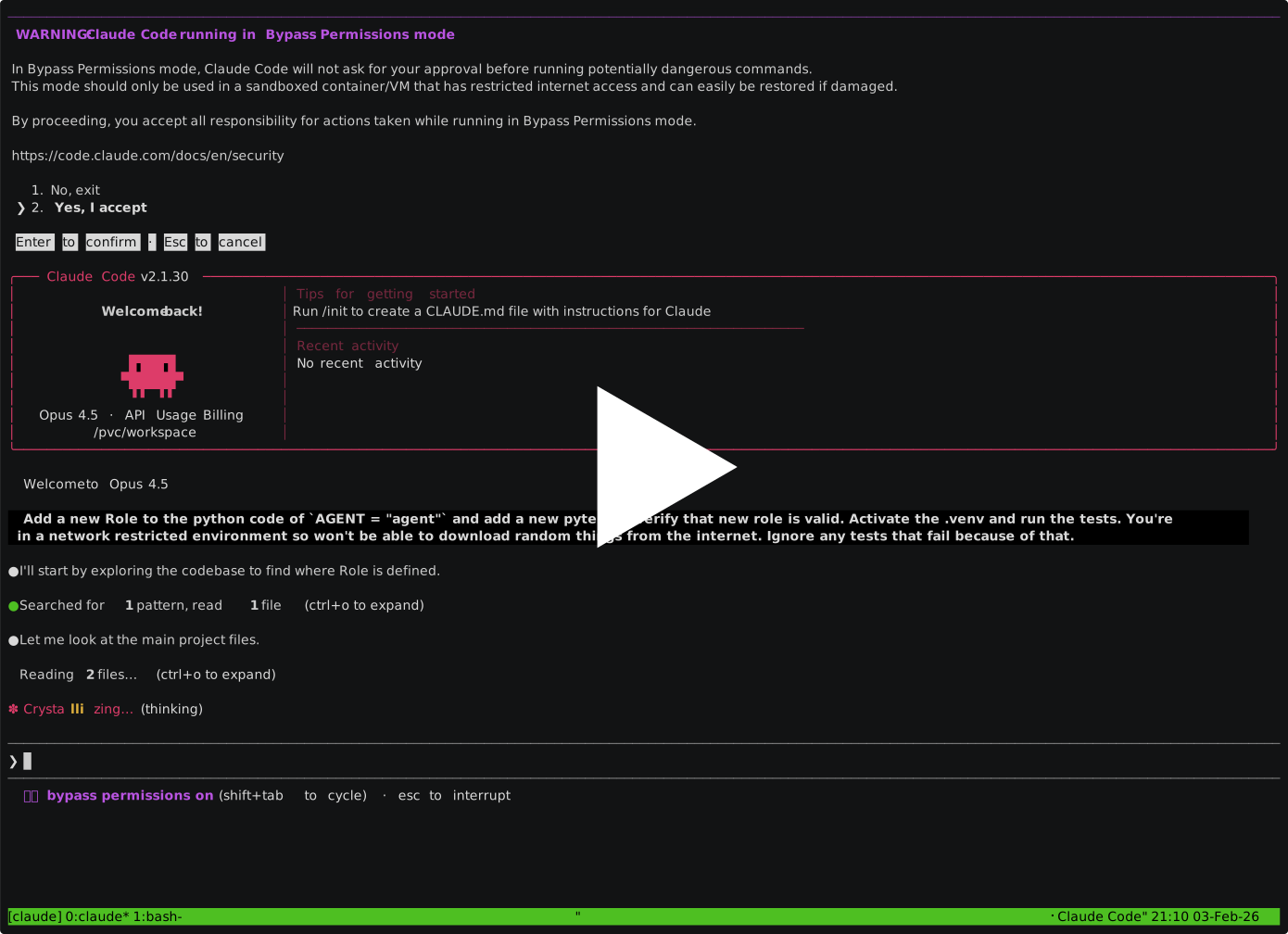
Demo
Quick Start
Prerequisites
For local (Podman):
- Podman installed
For remote (OpenShift):
- OpenShift CLI (
oc) and cluster access
Both require:
- Google Cloud SDK with
gcloud auth application-default login - Environment variables (find your project ID in Google Cloud Console):
export CLAUDE_CODE_USE_VERTEX=1
export ANTHROPIC_VERTEX_PROJECT_ID=your-project-id
export GOOGLE_CLOUD_PROJECT=your-project-id
Install
uv tool install paude
First run: Paude pulls container images on first use. This takes a few minutes; subsequent runs start immediately.
The Workflow (Podman)
# Create session, push code, and set up origin — all in one step
cd your-project
paude create --yolo --git my-project

# Connect to the running session
paude connect my-project        # Opens tmux with Claude Code

# Claude works autonomously...
# When ready, pull Claude's commits (use your branch name):
git pull paude-my-project main
You'll know it's working when: paude connect shows the Claude Code interface, and git pull brings back commits that Claude made.
The Workflow (OpenShift)
Same approach, but runs on your cluster instead of locally.
# Create on OpenShift with code push
cd your-project
paude create --yolo --backend=openshift --git my-project

# Connect to the running session
paude connect my-project        # Opens tmux with Claude Code

# Pull Claude's commits (use your branch name):
git pull paude-my-project main
Passing a Task to Claude
Give Claude a specific task using the -a flag:
paude create --yolo my-project -a '-p "refactor the auth module"'
Or just start the session and type your request in the Claude Code interface.
Something Not Working?
- Run
paude --helpfor all options and examples - Run
paude listto check session status - Use
paude create --dry-runto verify configuration - Use
paude start -vfor verbose output (shows sync progress) - Check that your gcloud credentials are valid:
gcloud auth application-default print-access-token
Next steps:
- Customize your environment → Configuration
- Understand the security model → Security Model
- Run on OpenShift → OpenShift Backend
How It Works
Your Machine                    Container
    │                              │
    ├── git push ────────────────▶ │  Claude works here
    │                              │  (network-filtered)
    ◀── git pull ─────────────────┤
    │                              │
- Git is the sync mechanism—your local files stay untouched until you pull
--yolois safe because network filtering blocks Claude from sending data to arbitrary URLs- Claude can only reach Vertex AI (for the API) and PyPI (for packages) by default
Install from source
git clone https://github.com/bbrowning/paude
cd paude
uv venv --python 3.12 --seed
source .venv/bin/activate
pip install -e .
Requirements
- Python 3.11+ (for the Python package)
- Podman (for local backend)
- OpenShift CLI
oc(for OpenShift backend) - Google Cloud SDK configured (
gcloud auth application-default login)
macOS Setup
On macOS, Podman runs in a Linux VM that only mounts /Users by default. If your working directory is outside /Users (e.g., on a separate volume), configure the Podman machine:
podman machine stop
podman machine rm
podman machine init \
  --volume /Users:/Users \
  --volume /private:/private \
  --volume /var/folders:/var/folders \
  --volume /Volumes/YourVolume:/Volumes/YourVolume
podman machine start
Session Management
Paude provides persistent sessions that survive container/pod restarts.
# Quick start: create session for current directory (uses directory name)
paude create
paude start

# List all sessions (shorthand: just `paude`)
paude list
paude
Commands
| Command | What It Does |
|---|---|
create |
Creates session resources (container/StatefulSet, volume/PVC) |
start |
Starts container/pod and connects |
stop |
Stops container/pod, preserves volume |
connect |
Attaches to running session |
remote |
Manages git remotes for code sync |
delete |
Removes all resources including volume |
list |
Shows all sessions |
Examples
# Create session and push code in one step
paude create my-project --git

# Create a named session (starts container automatically)
paude create my-project

# Connect to the running session
paude connect my-project

# Work in Claude... then detach with Ctrl+b d

# Reconnect later
paude connect my-project

# Stop to save resources (preserves state)
paude stop my-project

# Restart - instant resume, no reinstall
paude start my-project

# Delete session completely
paude delete my-project --confirm
Backend Selection
# Explicit backend selection
paude create my-project --backend=openshift
paude list --backend=podman

# Backend-specific options
paude create my-project --backend=openshift \
  --pvc-size=50Gi \
  --storage-class=fast-ssd
Code Synchronization
Sessions use git for code synchronization. The easiest way is the --git flag on create:
# One-step: create session, push code+tags, set up origin
paude create my-project --git
paude connect my-project

# In container: gh pr list, git describe, etc. all work
The --git flag:
- Creates the session and starts the container
- Adds a
paude-<name>git remote locally - Pushes the current branch and all tags to the container
- Sets the
originremote inside the container (from your local origin) - Fetches tags from origin inside the container (for
git describe)
Manual code sync
You can also set up git remotes manually:
# Create session (container starts automatically)
paude create my-project
paude connect my-project         # Connect in one terminal

# In another terminal: Set up remote and push code
paude remote add --push my-project  # Init git in container + push

# Later: Push more changes
git push paude-my-project main

# After Claude makes changes, pull them locally
git pull paude-my-project main
OpenShift Backend
For remote execution on OpenShift/Kubernetes clusters:
paude create --backend=openshift --git
paude connect
The OpenShift backend provides:
- Persistent sessions using StatefulSets with PVC storage
- Survive network disconnects via tmux attachment
- Git-based sync via
paude remoteand git push/pull - Full config sync including plugins and CLAUDE.md from
~/.claude/ - Automatic image push to OpenShift internal registry
See docs/OPENSHIFT.md for detailed setup and usage.
Configuration
Network Domains
By default, paude runs a proxy sidecar that filters network access to Vertex AI and PyPI only.
┌─────────────────────────────────────────────────────────┐
│  paude-internal network (no direct internet)            │
│  ┌───────────┐        ┌───────────────────────────────┐ │
│  │  Claude   │───────▶│  Proxy (squid allowlist)      │─┼──▶ *.googleapis.com
│  │ Container │        │                               │ │    *.pypi.org
│  └───────────┘        └───────────────────────────────┘ │
└─────────────────────────────────────────────────────────┘
# Add custom domain to defaults (must include 'default')
paude create --allowed-domains default --allowed-domains .example.com

# Full network access (unrestricted) - use with caution
paude create --allowed-domains all

# Use only vertexai (replaces default)
paude create --allowed-domains vertexai
The default allowlist includes:
- vertexai: Vertex AI and Google OAuth domains (
.googleapis.com,.google.com) - pypi: Python package repositories (
.pypi.org,.pythonhosted.org)
Special values: all (unrestricted), default (vertexai + pypi), vertexai, pypi, github. Specifying domains without default replaces the allowlist entirely.
GitHub CLI Access
Paude installs the gh CLI in the container and includes GitHub domains in the default network allowlist. To use gh for read-only operations (e.g., fetching issues, PRs, or code), set a fine-grained personal access token before connecting:
# Set once in your shell profile, or export before running paude:
export PAUDE_GITHUB_TOKEN=ghp_yourtoken

paude start my-project
# Inside the container, gh is authenticated automatically
Or pass it explicitly for a single session:
paude start --github-token ghp_yourtoken my-project
paude connect --github-token ghp_yourtoken my-project
The token is injected at connect time only:
- Podman: passed as
-e GH_TOKEN=...topodman exec(not stored in the container definition) - OpenShift: written to
/credentials/github_tokenin the pod's tmpfs, wiped by the credential watchdog on inactivity GH_CONFIG_DIR=/tmp/gh-configensures no cached host credentials are ever consulted
Security notes:
- The host's
GH_TOKENenvironment variable is never auto-propagated to the container - Use a fine-grained PAT scoped to read-only permissions on specific repositories
- Do not use tokens with write access; they could allow Claude to push code to GitHub
- The token is never written to host disk as a paude-managed file
Create a fine-grained read-only PAT at: https://github.com/settings/tokens?type=beta
Select only the repositories Claude should access, and grant only Contents: Read-only (plus Metadata: Read-only which is always required).
Workflow Modes
Execution mode (default): paude create
- Network filtered via proxy
- Claude prompts for confirmation before edits and commands
Autonomous mode: paude create --yolo
- Same network filtering
- Claude edits files and runs commands without confirmation prompts
- Passes
--dangerously-skip-permissionsto Claude Code
Research mode: paude create --allowed-domains all
- Full network access for web searches, documentation
- Treat outputs more carefully (prompt injection via web content is possible)
Custom Container Environments (BYOC)
Paude supports custom container configurations via devcontainer.json or paude.json.
Using paude.json (simpler):
{
    "base": "python:3.11-slim",
    "packages": ["make", "gcc"],
    "setup": "pip install -r requirements.txt"
}
Using devcontainer.json:
{
    "image": "python:3.11-slim",
    "postCreateCommand": "pip install -r requirements.txt"
}
See examples/README.md for more configurations (Python, Node.js, Go).
paude.json properties:
| Property | Description |
|---|---|
base |
Base container image |
build.dockerfile |
Path to custom Dockerfile |
build.context |
Build context directory |
build.args |
Build arguments for Dockerfile |
packages |
Additional system packages to install |
setup |
Run after first start |
venv |
Venv isolation: "auto", "none", or list of directories |
devcontainer.json properties:
| Property | Description |
|---|---|
image |
Base container image |
build.dockerfile |
Path to custom Dockerfile |
build.context |
Build context directory |
build.args |
Build arguments for Dockerfile |
features |
Dev container features (ghcr.io OCI artifacts) |
postCreateCommand |
Run after first start |
containerEnv |
Environment variables |
Python Virtual Environments
Paude automatically detects Python venv directories (.venv, venv, etc.) and shadows them with empty tmpfs mounts. This allows you to:
- Use your host venv on your Mac
- Create a separate container venv inside paude
- Share source code between both
Add to your paude.json to auto-create the venv:
{
  "setup": "python -m venv .venv && .venv/bin/pip install -r requirements.txt"
}
Configuration via the venv field:
{"venv": "auto"}              // Default: auto-detect and shadow
{"venv": "none"}              // Disable: share venvs (will be broken)
{"venv": [".venv", "my-env"]} // Manual: specific directories to shadow
Verifying Configuration
# Verify configuration without building or running
paude create --dry-run

# Force rebuild after changing config
paude create --rebuild
Security Model
The container intentionally restricts certain operations:
| Resource | Access | Purpose |
|---|---|---|
| Network | proxy-filtered (Vertex AI, PyPI, GitHub, Claude) | Prevents data exfiltration |
| Current directory | read-write | Working files |
~/.config/gcloud |
read-only | Vertex AI auth |
~/.claude |
copied in, not mounted | Prevents host config poisoning |
~/.gitconfig |
read-only | Git identity |
| SSH keys | not mounted | Prevents git push via SSH |
| GitHub CLI config | not mounted (uses /tmp/gh-config) | Prevents cached host credentials |
GH_TOKEN (host) |
never propagated | Use PAUDE_GITHUB_TOKEN or --github-token on start/connect |
| Git credentials | not mounted | Prevents HTTPS git push |
Verified Attack Vectors
These exfiltration paths have been tested and confirmed blocked:
| Attack Vector | Status | How |
|---|---|---|
| HTTP/HTTPS exfiltration | Blocked | Internal network has no external DNS; proxy allowlists only approved domains (Vertex AI, PyPI, GitHub, Claude) |
| Git push via SSH | Blocked | No ~/.ssh mounted; DNS resolution fails anyway |
| Git push via HTTPS | Blocked | No credential helpers; no stored credentials; DNS blocked |
| GitHub CLI write ops | Relies on token scope — use a read-only fine-grained PAT | Use read-only PAT via PAUDE_GITHUB_TOKEN; host GH_TOKEN never propagated |
| Modify cloud credentials | Blocked | gcloud directory mounted read-only |
| Escape container | Blocked | Non-root user; standard Podman isolation |
When is --yolo Safe?
# SAFE: Network filtered, cannot exfiltrate data
paude create --yolo

# DANGEROUS: Full network access, can send files anywhere
paude create --yolo --allowed-domains all
The --yolo flag enables autonomous execution (no confirmation prompts). This is safe when network filtering is active because Claude cannot exfiltrate files or secrets even if it reads them.
Do not combine --yolo with --allowed-domains all unless you fully trust the task.
Workspace Protection
The container has full read-write access to your working directory. Your protection is git itself. Push important work to a remote before running in autonomous mode:
git push origin main
If something goes wrong, recovery is a clone away.
Residual Risks
These risks are accepted by design:
- Workspace destruction: Claude can delete files including
.git. Mitigation: push to remote before autonomous sessions. - Secrets readable:
.envfiles in workspace are readable. Mitigation: network filtering prevents exfiltration; don't use--allowed-domains allwith sensitive workspaces. - No audit logging: Commands executed aren't logged. This is a forensics gap, not a security breach vector.
Unsupported devcontainer Properties (Security)
These properties are ignored for security reasons:
mounts- paude controls mountsrunArgs- paude controls run argumentsprivileged- never allowedcapAdd- never allowedforwardPorts- paude controls networkingremoteUser- paude controls user
Development
See CONTRIBUTING.md for development setup, testing, and release instructions.
Status: Paude is a work-in-progress. See the roadmap for planned features.
License
MIT
Release history Release notifications | RSS feed


Download files
Download the file for your platform. If you're not sure which to choose, learn more about installing packages.
Source Distribution
Built Distribution
Filter files by name, interpreter, ABI, and platform.
If you're not sure about the file name format, learn more about wheel file names.
Copy a direct link to the current filters
File details
Details for the file paude-0.8.0.tar.gz.
File metadata
- Download URL: paude-0.8.0.tar.gz
- Upload date:
- Size: 292.3 kB
- Tags: Source
- Uploaded using Trusted Publishing? No
- Uploaded via: twine/6.2.0 CPython/3.12.9
File hashes
| Algorithm | Hash digest | |
|---|---|---|
| SHA256 |
d93ae730bb0c5993052a948458ff7a4d1a1aa3fdea459d67cefa87596e20d7ac
|
|
| MD5 |
8a8d97dccb301f1835785983b980a5d7
|
|
| BLAKE2b-256 |
1ec0f298747f4b69dec1d3611c3b6beaf499fd8d134ed3770cd0e812d3ab78a0
|
File details
Details for the file paude-0.8.0-py3-none-any.whl.
File metadata
- Download URL: paude-0.8.0-py3-none-any.whl
- Upload date:
- Size: 90.0 kB
- Tags: Python 3
- Uploaded using Trusted Publishing? No
- Uploaded via: twine/6.2.0 CPython/3.12.9
File hashes
| Algorithm | Hash digest | |
|---|---|---|
| SHA256 |
085a626b8d29afa168cd2c28d8b9f4d114ad9568e1d79037362c6d748e003ad0
|
|
| MD5 |
984e5e611f19034fb30af19c58c52f89
|
|
| BLAKE2b-256 |
3f0d72e97cc96252265f2f71de4dbdfc9b84582bf56f1ad3506da6a197b98982
|






