
pbi-audit
Audit every DAX measure in your Power BI project — find what's unused, what's a helper, and what's actually powering your visuals.


Prerequisite — save your report as a PBIP project
pbi-audit reads the open file format that Power BI Desktop writes when you save as a PBIP project (as opposed to the legacy .pbix binary).
To enable it:
- Open Power BI Desktop
- Go to File → Options → Preview features
- Enable Power BI Project (.pbip)
- Save your report: File → Save as and choose the
.pbipformat
This produces a folder structure that pbi-audit can read. .pbix files are not supported.
What it does
Power BI projects accumulate measures over time. pbi-audit scans your PBIP project and classifies every single measure:
| Status | Meaning |
|---|---|
UNUSED |
Not referenced anywhere — safe to delete |
USED (DAX only) |
Only called by other measures — a helper |
USED (Visual only) |
Directly driving a visual on a report page |
USED (Visual + DAX) |
Used in both visuals and other measures |
It then generates an HTML report and/or an Excel workbook so you can review, filter, and act.
Quick start
pip install pbi-audit
pbi-audit
That's it. A guided wizard walks you through the rest.
Demo
Wizard walkthrough (text preview):
╔══════════════════════════════════════════════════════╗
║  pbi-audit  v0.1.0                                   ║
║                                                      ║
║  Audit DAX measures in a Power BI PBIP project.      ║
║  Scans your semantic model and report pages to       ║
║  classify every measure as:                          ║
║                                                      ║
║    UNUSED          — safe to delete                  ║
║    USED (DAX only) — helper/intermediate measure     ║
║    USED (Visual)   — directly used in a report       ║
║    USED (Both)     — used in visuals and DAX         ║
║                                                      ║
║  Outputs an HTML and/or Excel report.                ║
╚══════════════════════════════════════════════════════╝

  Step 1/3 — PBIP Project Folder
  ────────────────────────────────────────────────────
  Type a path, or press Enter to open the folder browser:

  > C:\Projects\Store Sales

  ✓ Folder: C:\Projects\Store Sales

  Step 2/3 — Output Folder
  ────────────────────────────────────────────────────
  Where should reports be saved?
  Press Enter to save in the PBIP folder, type a path, or type "o" to browse:

  >

  ✓ Output: C:\Projects\Store Sales

  Step 3/3 — Report Format
  ────────────────────────────────────────────────────
  [1] HTML + Excel  (default)
  [2] HTML only
  [3] Excel only

  > 1

  ✓ Format: both

  Running audit
  ────────────────────────────────────────────────────
  ✓ 42 measures found
  ✓ 18 measures referenced in visuals
  ✓ Usage status computed

  Results
  ────────────────────────────────────────────────────
    UNUSED          11
    USED (DAX only)  8
    USED (Visual)    9
    USED (Both)     14
    ────────────────
    Total           42

  Saving reports
  ────────────────────────────────────────────────────
  ✓ HTML  → C:\Projects\Store Sales\DAX_Measures_Audit.html
  ✓ Excel → C:\Projects\Store Sales\DAX_Measures_Audit.xlsx

  Done! Open the report(s) above to explore your measures.
Report preview
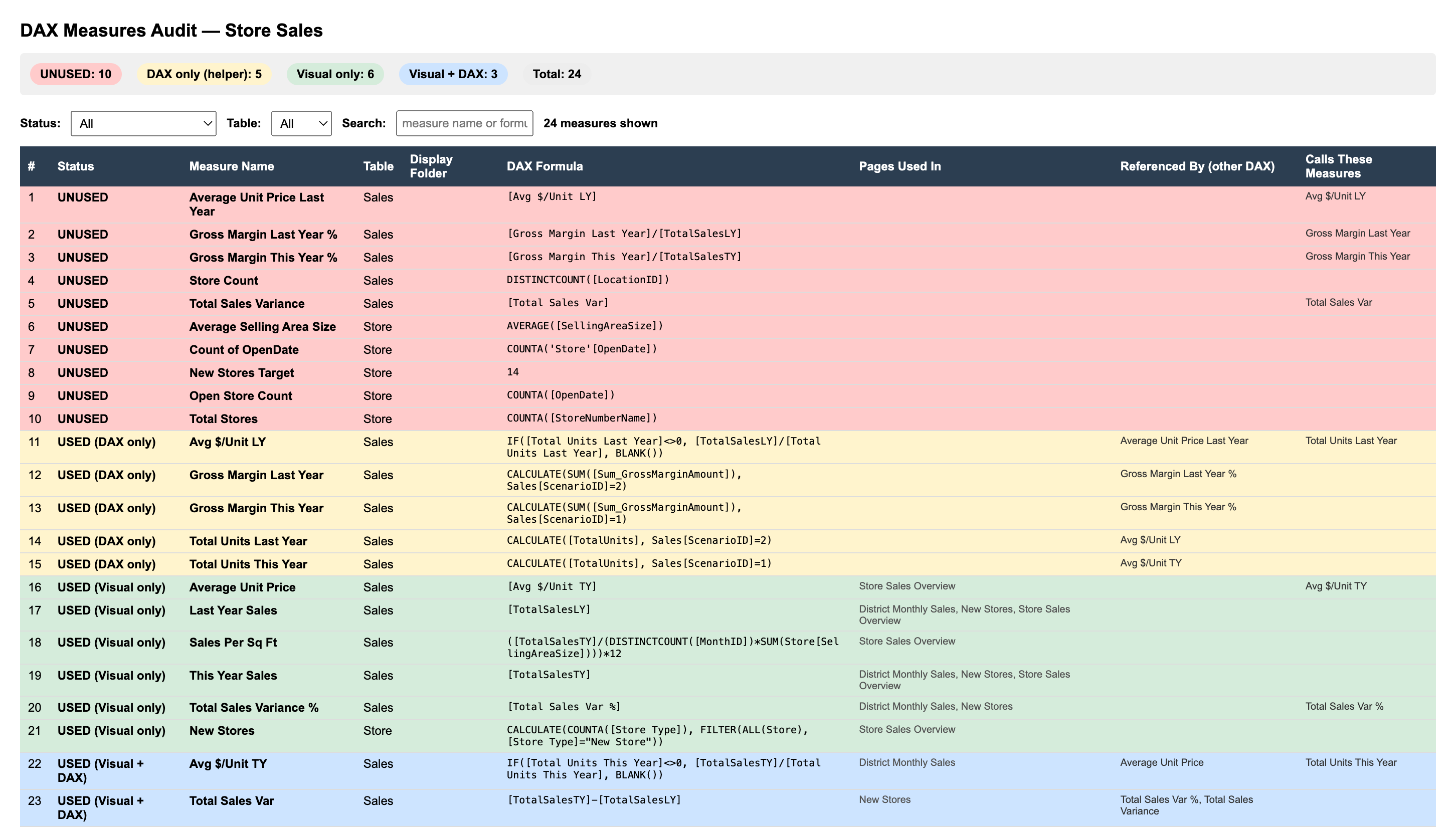
Run
pbi-auditagainst your project to generate the interactive HTML report — filter by status, search by measure name, and hover any formula to see the full DAX expression.
Installation
Requires Python 3.9 or later.
pip install pbi-audit
Usage
Guided wizard (recommended)
Run with no arguments — a step-by-step wizard will prompt for your PBIP folder, output location, and report format:
pbi-audit
Direct path
pbi-audit "C:\path\to\your_project.pbip"
Options
| Argument | Short | Description | Default |
|---|---|---|---|
path |
Path to the PBIP project root | opens wizard | |
--output |
-o |
Where to save the reports | same as input |
--format |
-f |
html, excel, or both |
both |
Examples
# Audit a specific project, HTML report only
pbi-audit "C:\Projects\Sales.pbip" --format html

# Save reports to a separate folder
pbi-audit "C:\Projects\Sales.pbip" -o "C:\Reports"
Output
Two files are written to the output folder:
DAX_Measures_Audit.html
Interactive table with status filters, table filter, and search. Hover any formula cell to see the full DAX expression.
DAX_Measures_Audit.xlsx
Excel workbook with a Summary sheet (counts by status) and a Measures sheet with full detail, auto-filter, and frozen header.
Expected project structure
pbi-audit works with the standard PBIP layout produced by Power BI Desktop:
my_project/
├── my_project.SemanticModel/
│   └── definition/
│       └── tables/
│           └── *.tmdl
└── my_project.Report/
    └── definition/
        └── pages/
            └── */
                ├── page.json
                └── visuals/
                    └── */
                        └── visual.json
Contributing
Bug reports and feature requests are welcome — open an issue on GitHub.
License
MIT — see LICENSE.
1 maintainer

Metadata
1 maintainer
Release files for pbi-audit 0.2.0
For a detailed explanation of source distributions (sdists) and built distributions (wheels), please see the package formats documentation.
Source distribution (sdist)
| File | Size | Uploaded | |
|---|---|---|---|
| pbi_audit-0.2.0.tar.gz | 14.0 kB | Details |
Built distribution (wheel)
| File | Interpreter | ABI | Platform | Reset |
|---|---|---|---|---|
| pbi_audit-0.2.0-py3-none-any.whl | Python 3 | none | any | Details |
Total release size: 28.3 kB
Release files / pbi_audit-0.2.0.tar.gz
| Download URL | pbi_audit-0.2.0.tar.gz |
|---|---|
| Size | 14.0 kB |
| Tags | Source |
|
SHA-256 checksum How to use checksums |
069fad69e658272140d47bb50acde328d8c7078d037651272b3621750e4ad39c
|
|
BLAKE2b-256 checksum How to use checksums |
dab6e820ebd5bffb0c6aed000eabf9bdccf9725c8de6bb174759fadcb69dc8dd
|
| Upload date | |
|
Uploaded using Trusted Publishing? What is trusted publishing? |
No |
| Uploaded via |
twine/6.2.0 CPython/3.13.5
|
Release files / pbi_audit-0.2.0-py3-none-any.whl
| Download URL | pbi_audit-0.2.0-py3-none-any.whl |
|---|---|
| Size | 14.3 kB |
| Tags | Python 3 |
|
SHA-256 checksum How to use checksums |
46c950760fe6fa471228625cb2ccdb9c7787cf645cbac9fdae43affac87d54db
|
|
BLAKE2b-256 checksum How to use checksums |
3ec6e5dc127268abe920da449868b234718daf5bdf7763fae08da0c1189a1197
|
| Upload date | |
|
Uploaded using Trusted Publishing? What is trusted publishing? |
No |
| Uploaded via |
twine/6.2.0 CPython/3.13.5
|














