
Audit DAX measures in a Power BI PBIP project

Project description
pbi-audit
Audit every DAX measure in your Power BI project — find what's unused, what's a helper, and what's actually powering your visuals.


Prerequisite — save your report as a PBIP project
pbi-audit reads the open file format that Power BI Desktop writes when you save as a PBIP project (as opposed to the legacy .pbix binary).
To enable it:
- Open Power BI Desktop
- Go to File → Options → Preview features
- Enable Power BI Project (.pbip)
- Save your report: File → Save as and choose the
.pbipformat
This produces a folder structure that pbi-audit can read. .pbix files are not supported.
What it does
Power BI projects accumulate measures over time. pbi-audit scans your PBIP project and classifies every single measure:
| Status | Meaning |
|---|---|
UNUSED |
Not referenced anywhere — safe to delete |
USED (DAX only) |
Only called by other measures — a helper |
USED (Visual only) |
Directly driving a visual on a report page |
USED (Visual + DAX) |
Used in both visuals and other measures |
It then generates an HTML report and/or an Excel workbook so you can review, filter, and act.
Quick start
pip install pbi-audit
pbi-audit
That's it. A guided wizard walks you through the rest.
Demo
Wizard walkthrough (text preview):
╔══════════════════════════════════════════════════════╗
║  pbi-audit  v0.1.0                                   ║
║                                                      ║
║  Audit DAX measures in a Power BI PBIP project.      ║
║  Scans your semantic model and report pages to       ║
║  classify every measure as:                          ║
║                                                      ║
║    UNUSED          — safe to delete                  ║
║    USED (DAX only) — helper/intermediate measure     ║
║    USED (Visual)   — directly used in a report       ║
║    USED (Both)     — used in visuals and DAX         ║
║                                                      ║
║  Outputs an HTML and/or Excel report.                ║
╚══════════════════════════════════════════════════════╝

  Step 1/3 — PBIP Project Folder
  ────────────────────────────────────────────────────
  Type a path, or press Enter to open the folder browser:

  > C:\Projects\Store Sales

  ✓ Folder: C:\Projects\Store Sales

  Step 2/3 — Output Folder
  ────────────────────────────────────────────────────
  Where should reports be saved?
  Press Enter to save in the PBIP folder, type a path, or type "o" to browse:

  >

  ✓ Output: C:\Projects\Store Sales

  Step 3/3 — Report Format
  ────────────────────────────────────────────────────
  [1] HTML + Excel  (default)
  [2] HTML only
  [3] Excel only

  > 1

  ✓ Format: both

  Running audit
  ────────────────────────────────────────────────────
  ✓ 42 measures found
  ✓ 18 measures referenced in visuals
  ✓ Usage status computed

  Results
  ────────────────────────────────────────────────────
    UNUSED          11
    USED (DAX only)  8
    USED (Visual)    9
    USED (Both)     14
    ────────────────
    Total           42

  Saving reports
  ────────────────────────────────────────────────────
  ✓ HTML  → C:\Projects\Store Sales\DAX_Measures_Audit.html
  ✓ Excel → C:\Projects\Store Sales\DAX_Measures_Audit.xlsx

  Done! Open the report(s) above to explore your measures.
Report preview
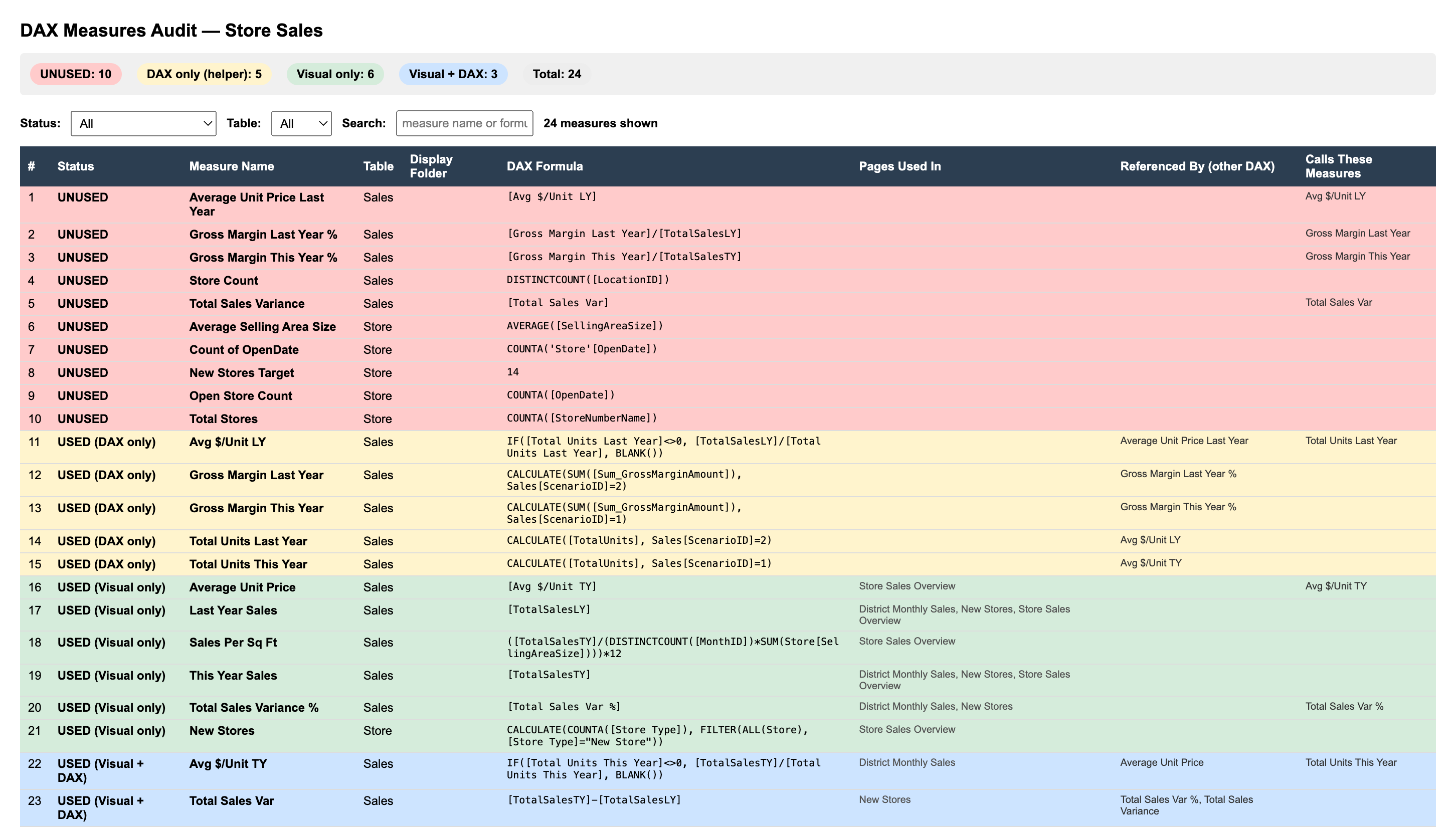
Run
pbi-auditagainst your project to generate the interactive HTML report — filter by status, search by measure name, and hover any formula to see the full DAX expression.
Installation
Requires Python 3.9 or later.
pip install pbi-audit
Usage
Guided wizard (recommended)
Run with no arguments — a step-by-step wizard will prompt for your PBIP folder, output location, and report format:
pbi-audit
Direct path
pbi-audit "C:\path\to\your_project.pbip"
Options
| Argument | Short | Description | Default |
|---|---|---|---|
path |
Path to the PBIP project root | opens wizard | |
--output |
-o |
Where to save the reports | same as input |
--format |
-f |
html, excel, or both |
both |
Examples
# Audit a specific project, HTML report only
pbi-audit "C:\Projects\Sales.pbip" --format html

# Save reports to a separate folder
pbi-audit "C:\Projects\Sales.pbip" -o "C:\Reports"
Output
Two files are written to the output folder:
DAX_Measures_Audit.html
Interactive table with status filters, table filter, and search. Hover any formula cell to see the full DAX expression.
DAX_Measures_Audit.xlsx
Excel workbook with a Summary sheet (counts by status) and a Measures sheet with full detail, auto-filter, and frozen header.
Expected project structure
pbi-audit works with the standard PBIP layout produced by Power BI Desktop:
my_project/
├── my_project.SemanticModel/
│   └── definition/
│       └── tables/
│           └── *.tmdl
└── my_project.Report/
    └── definition/
        └── pages/
            └── */
                ├── page.json
                └── visuals/
                    └── */
                        └── visual.json
Contributing
Bug reports and feature requests are welcome — open an issue on GitHub.
License
MIT — see LICENSE.
Release history Release notifications | RSS feed


Download files
Download the file for your platform. If you're not sure which to choose, learn more about installing packages.
Source Distribution
Built Distribution
Filter files by name, interpreter, ABI, and platform.
If you're not sure about the file name format, learn more about wheel file names.
Copy a direct link to the current filters
File details
Details for the file pbi_audit-0.2.0.tar.gz.
File metadata
- Download URL: pbi_audit-0.2.0.tar.gz
- Upload date:
- Size: 14.0 kB
- Tags: Source
- Uploaded using Trusted Publishing? No
- Uploaded via: twine/6.2.0 CPython/3.13.5
File hashes
| Algorithm | Hash digest | |
|---|---|---|
| SHA256 |
069fad69e658272140d47bb50acde328d8c7078d037651272b3621750e4ad39c
|
|
| MD5 |
3c5e59cc2279d9301cf8055de8141ad8
|
|
| BLAKE2b-256 |
dab6e820ebd5bffb0c6aed000eabf9bdccf9725c8de6bb174759fadcb69dc8dd
|
File details
Details for the file pbi_audit-0.2.0-py3-none-any.whl.
File metadata
- Download URL: pbi_audit-0.2.0-py3-none-any.whl
- Upload date:
- Size: 14.3 kB
- Tags: Python 3
- Uploaded using Trusted Publishing? No
- Uploaded via: twine/6.2.0 CPython/3.13.5
File hashes
| Algorithm | Hash digest | |
|---|---|---|
| SHA256 |
46c950760fe6fa471228625cb2ccdb9c7787cf645cbac9fdae43affac87d54db
|
|
| MD5 |
ce89913c776efbf161929ade4e601ace
|
|
| BLAKE2b-256 |
3ec6e5dc127268abe920da449868b234718daf5bdf7763fae08da0c1189a1197
|






