
PDFDesk
Your reading desk for research papers.
Library, PDF reader, highlights, notes, and a complete log of your reading, all in one window, all on your machine.





pip install pdfdesk && pdfdesk
New in 1.0
- 🔗 Links in your PDFs work: citations, figure and section references jump to the exact spot, and Back (
Alt+←) returns you. - 📑 Contents tab from the paper's own outline, marking the section you're reading.
- 🔎 Search everything: titles, authors, tags, and inside your highlights, comments, notes and session takeaways.
- ➕ Add by arXiv ID or DOI: paste
1706.03762and the paper arrives with its details and PDF. - 🖍️ Highlights survive a new PDF version: replace the file and they find their text again.
- 🧭 Panel and page are connected: click a highlight on the page to open it, or in the panel to see it on the page.
- ↔️ Room to read: hide the sidebar and the notes panel with
[and]. - ✏️ Fix a session logged by mistake.
Full list in CHANGELOG.md.
Why PDFDesk
You read dozens of papers a month. A file manager tells you where a PDF lives. An annotation tool tells you what you marked. Neither tells you how you read it: when you opened it, how far you got, how long you actually spent, and what you concluded at the end of each sitting.
PDFDesk keeps that record for you. Every paper moves through a reading lifecycle, every sitting becomes a session, and every highlight and note links back to the page it came from. Months later you can see what you read and why it mattered.
Read with highlights that mean something
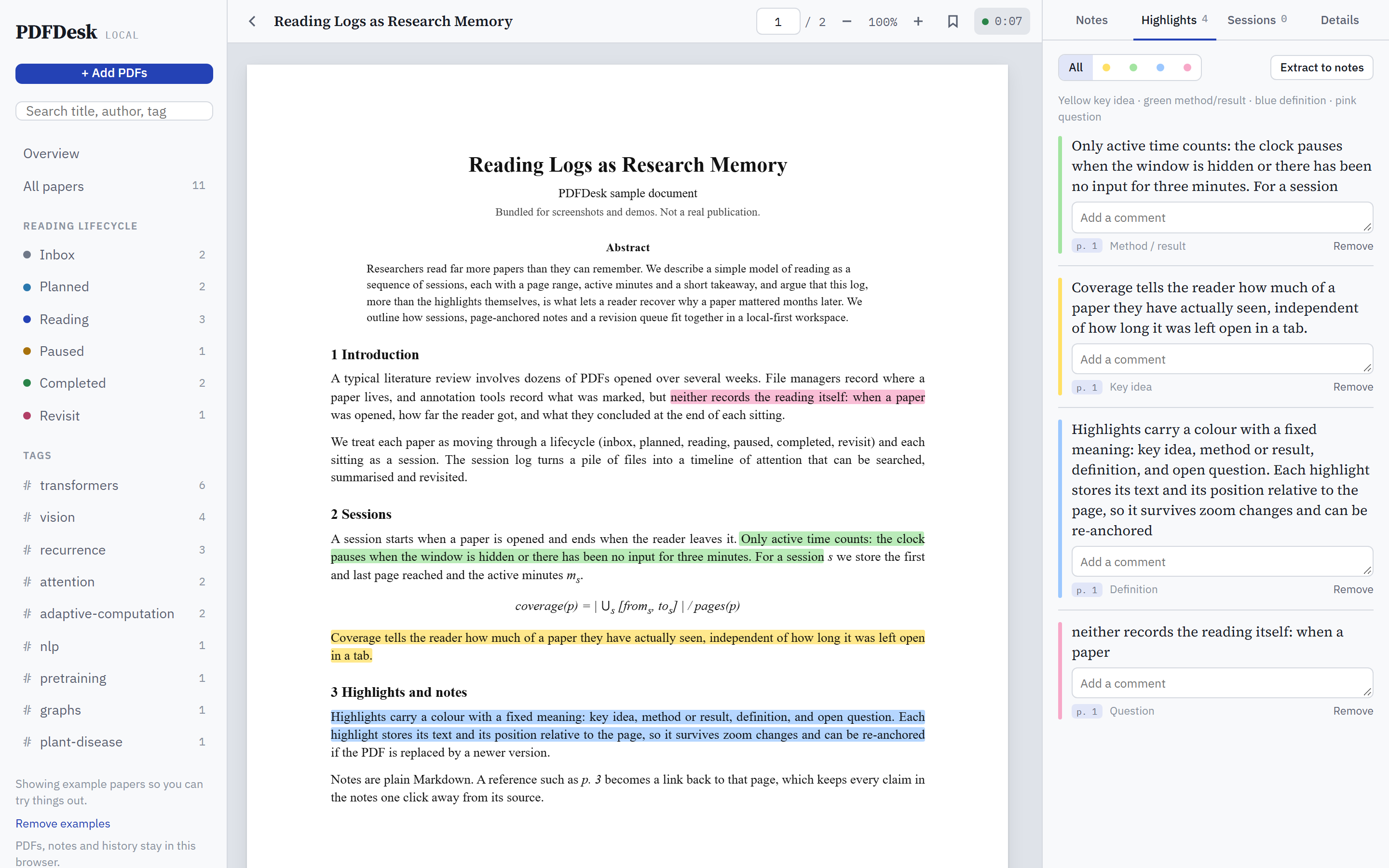
Select text on any page and pick a colour. Each colour has one job, so a page of highlights reads at a glance:
| Colour | Meaning | |
|---|---|---|
| 🟨 | Yellow | Key idea |
| 🟩 | Green | Method or result |
| 🟦 | Blue | Definition |
| 🟥 | Pink | Question or doubt |
- Add a comment to any highlight, and filter the panel by colour.
- Links work like in a PDF reader: click a citation, a section or figure reference, or a contents entry to jump to the exact spot; web links open in a new tab. After following a link, Back to p. N (or
Alt+←) returns you to exactly where you were. - Click a highlight in the panel to jump straight to it in the PDF: it scrolls to the page and flashes. It works the other way too: click a highlight on the page and the panel opens at it, ready for a comment.
- Highlights store the selected text as well as their position, so they stay put when you zoom.
- Got a newer version of the PDF? Replace it and your highlights find their text again, even on a different page or slightly reworded. Any that can't be found are kept and marked.
- Extract to notes pulls every highlight into your notes, each with its page reference.
- Contents tab: the PDF's own outline, with the section you're reading marked. Click a section to jump there.
- Make room for the page: hide the sidebar and the notes panel (
[and], or the buttons at either end of the toolbar) and wide pages and slides get the full width.
Notes that point back to the page
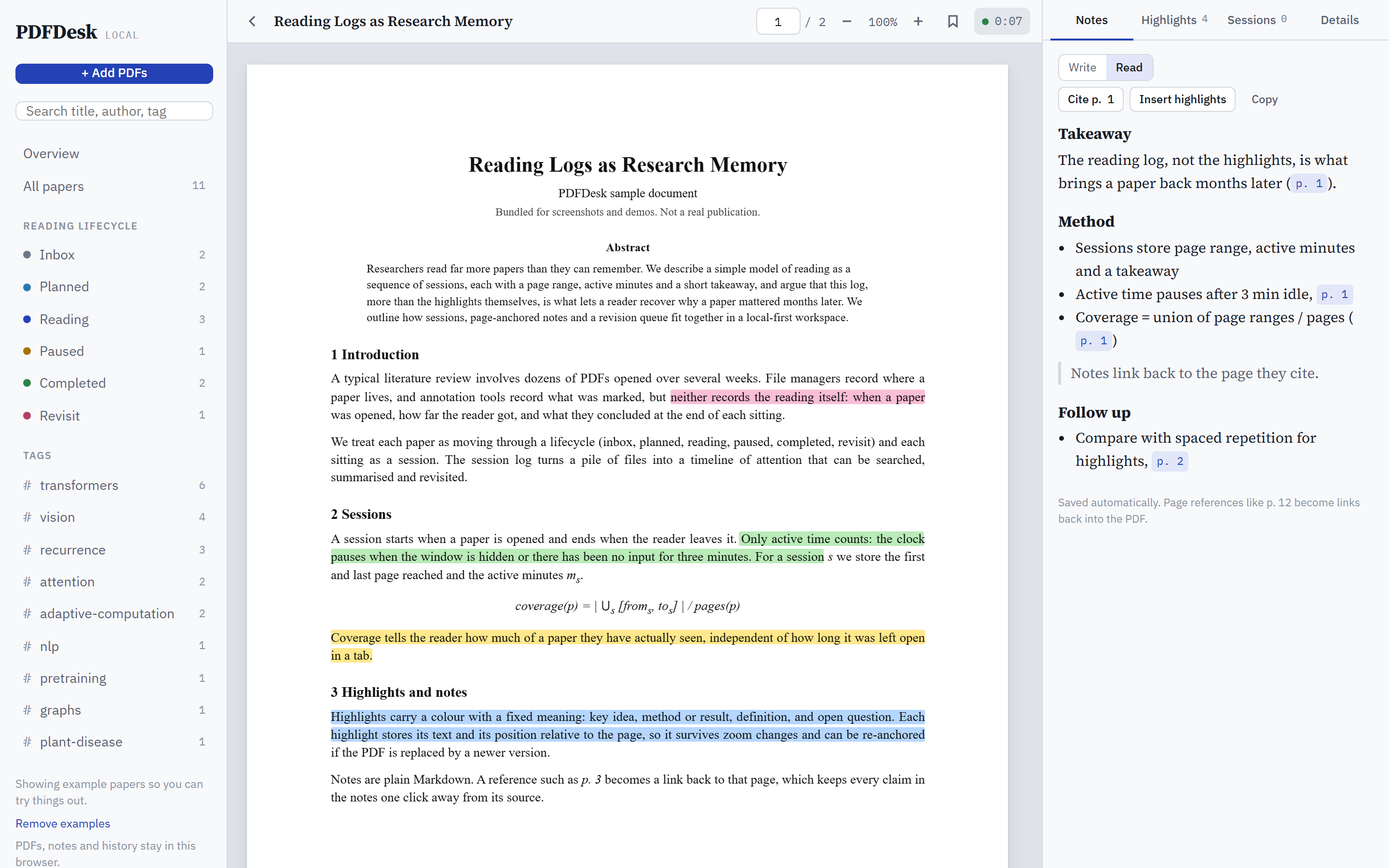
- Write in Markdown: headings, bullets, quotes.
- Type
p. 12anywhere and it becomes a link to page 12. When the line quotes one of your highlights, the link takes you to that exact highlight. - Cite p. N drops in a reference to the page you're on.
- Insert highlights adds your highlights to the notes, each with its page.
- Copy exports the notes as Markdown, ready for your paper, wiki or Obsidian vault.
- Notes save automatically as you type.
A library that follows your reading
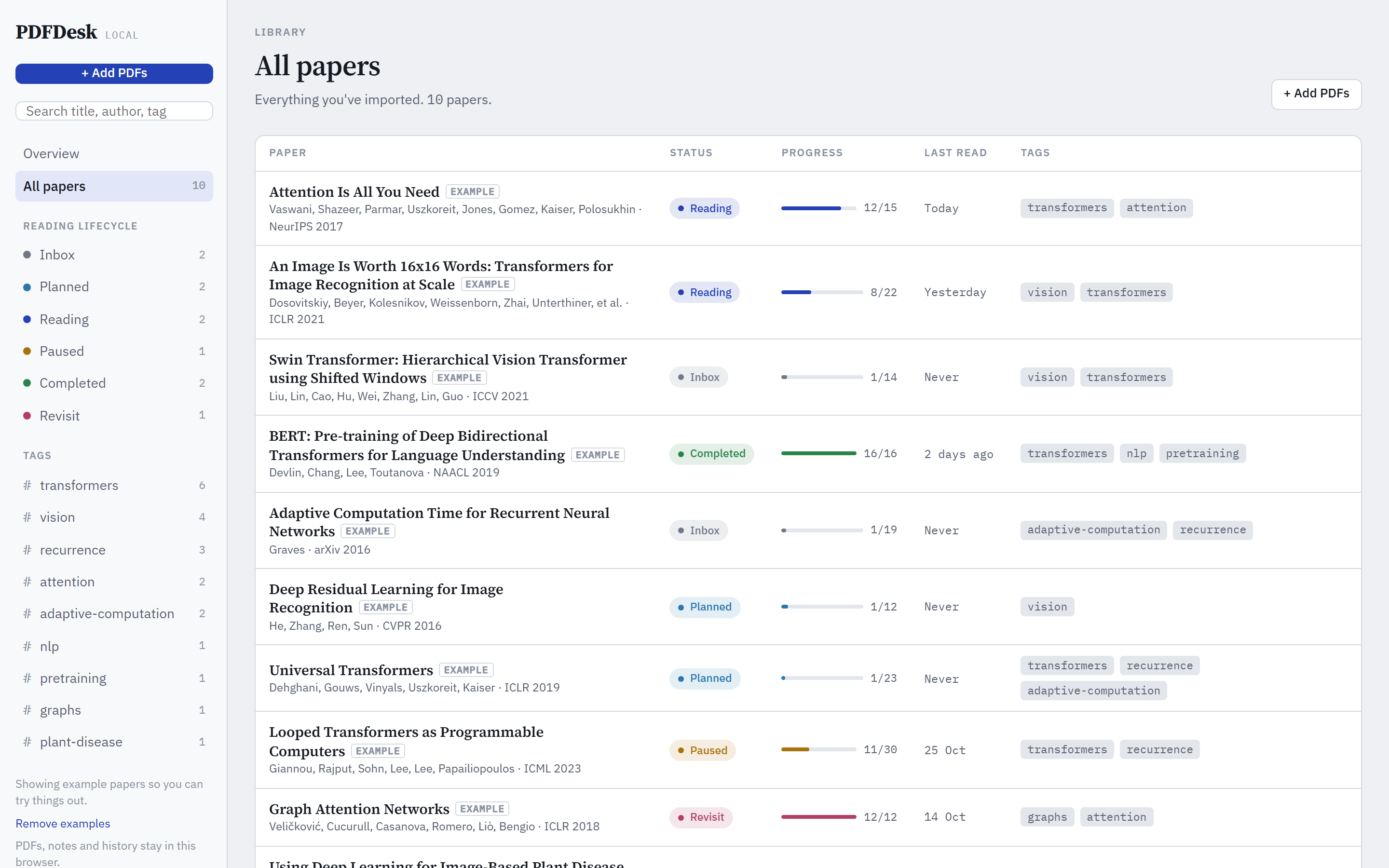
Every paper has a place in the reading lifecycle:
Inbox → Planned → Reading → Paused → Completed → Revisit
- Opening a paper moves it to Reading. When you reach the last page, PDFDesk asks whether it's Completed or worth a Revisit.
- Import by button or drag and drop. Title, authors and page count come from the PDF itself.
- Search everything from the sidebar: titles, authors and tags, and inside your highlights, comments, notes and session takeaways. Each result opens the right page.
- Add by arXiv ID or DOI: paste
1706.03762or a DOI, and the title, authors, year and venue are filled in. arXiv papers come with their PDF. - Tags in the sidebar, with counts, for one-click filtering.
- See each paper's status, progress bar, pages read and when you last opened it.
- Set a target page and date ("finish section 3 by Friday") and it shows up in Up next.
Every session, recorded
PDFDesk logs each sitting with a paper on its own:
- Active time only. The clock pauses when the tab is hidden or you've been idle for 3 minutes, so your stats count reading, not open tabs.
- Pages covered: the first and last page you reached.
- A takeaway: an optional line on what you got out of the session.
- Resume where you left off: every paper reopens at your last page.
- Bookmarks for pages you'll come back to.
- Fix a session logged by mistake: edit its pages, minutes or takeaway, or delete it.
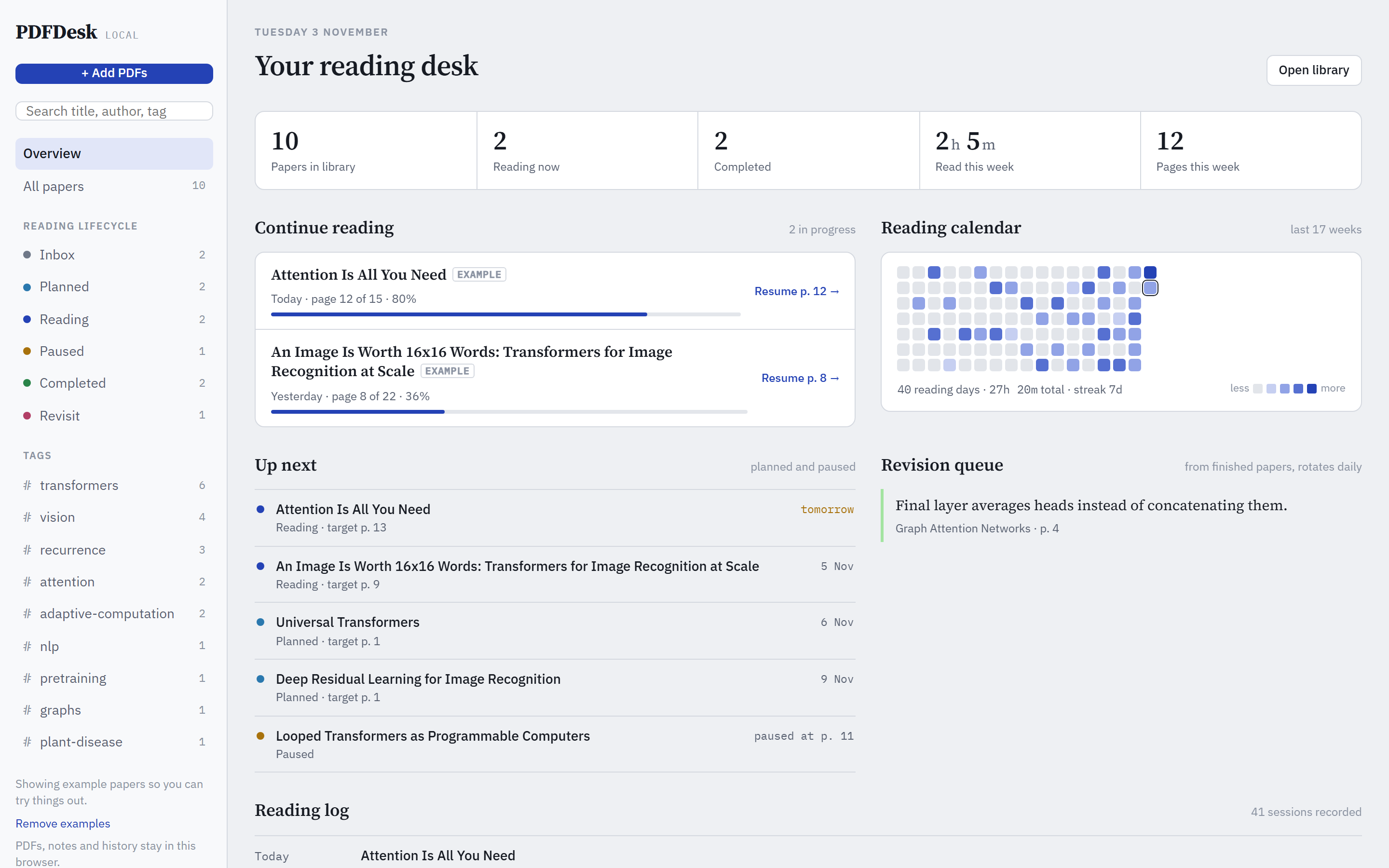
Your reading, at a glance
The overview turns your sessions into a picture of your reading:
- Stats: papers in your library, reading now, completed, time and pages this week.
- Continue reading: papers in progress, with a progress bar and a one-click resume.
- Reading calendar: a 17-week heatmap of your reading days, with your current streak and total hours.
- Up next: planned and paused papers, sorted by target date.
- Revision queue: highlights from finished papers come back each day, so ideas don't fade.
- Reading log: every session, newest first.
Back up and move your library
- Export library saves everything in one
.zip: your PDFs, highlights, comments, notes, sessions and bookmarks, plus a readable Markdown file of notes and highlights for every paper. - Export without PDFs makes a small backup file for frequent saves.
- Import library shows what's in the file before changing anything. Add to my library merges and never deletes or overwrites what you wrote; Replace my library asks first and offers to export your current library.
- Drop an export file on the window to import it. Use it to move to another browser or computer.
Easy on the eyes, day and night
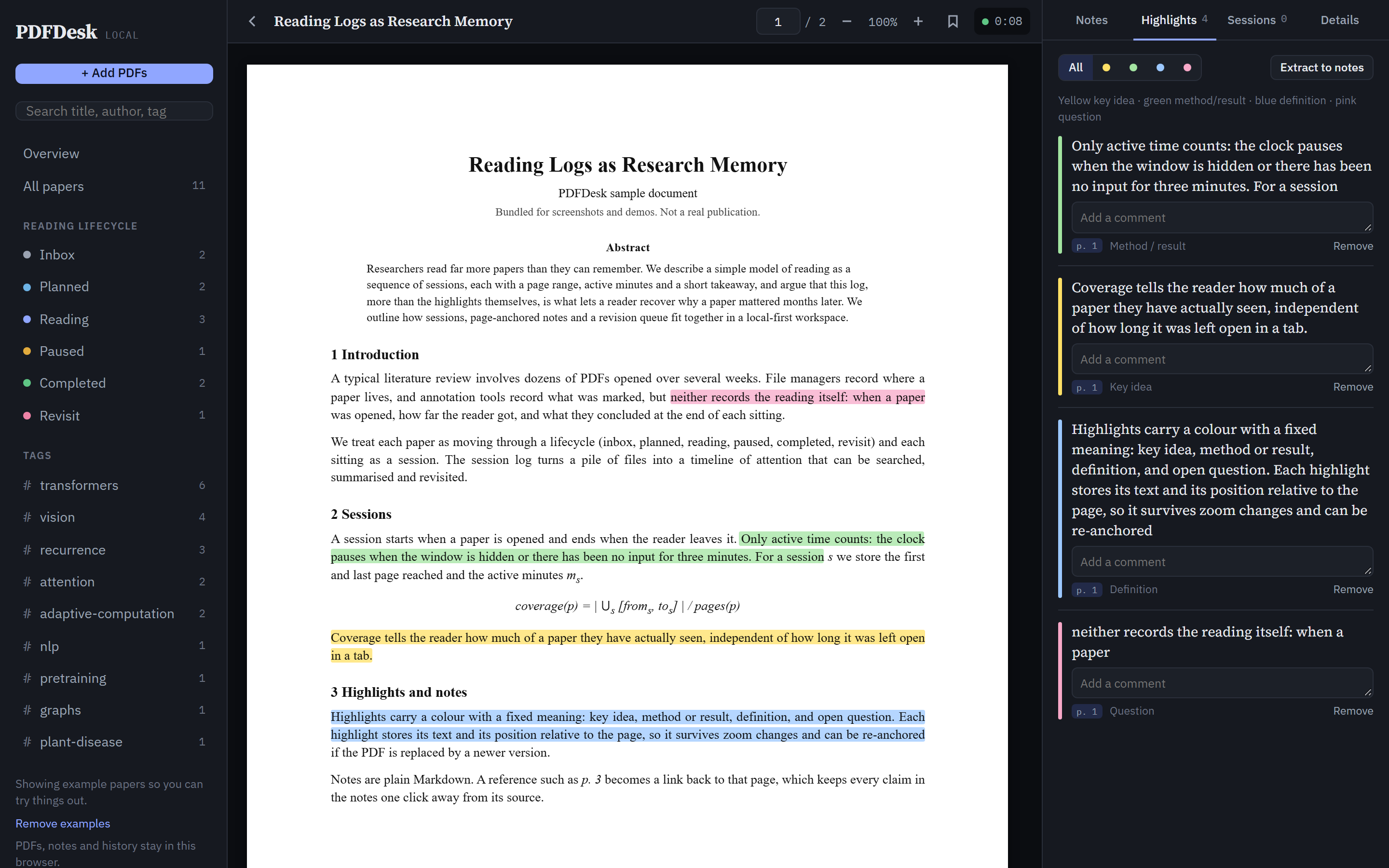
Dark mode follows your system setting. Typography is set for long reading sessions: Source Serif 4 for titles and notes, IBM Plex Sans for the interface, IBM Plex Mono for numbers and page references.
Keyboard shortcuts
| Key | Action |
|---|---|
j or → |
Next page |
k or ← |
Previous page |
b |
Bookmark this page |
Alt+← |
Back to where you were before following a link |
[ |
Show or hide the sidebar |
] |
Show or hide notes and highlights |
Enter in the page box |
Jump to page |
Esc |
Close the highlight menu |
Private by design
- 🔒 Local-first. Your library is a normal folder on your computer: real PDF files, a
library.json, and a backup every day. No account, no cloud, no tracking. - 🗂️ One library, everywhere on your machine. Any browser and any port shows the same library, and clearing browser data deletes nothing.
- ✈️ Works offline. The PDF engine and fonts ship inside the package. Nothing loads from the internet.
- 🪶 Lightweight. One small package with zero Python dependencies. If you have Python 3.9+, you can run it.
Get started
pip install pdfdesk
pdfdesk
PDFDesk opens in your browser at http://localhost:5173. A few example papers are loaded so you can explore. Remove them from the sidebar when you're ready, then drop in your own PDFs.
pdfdesk --no-browser            # start without opening a browser window
pdfdesk --port 8080             # use another port (same library)
pdfdesk --data-dir D:\Papers    # keep the library somewhere else
pdfdesk --version
Upgrade any time with pip install -U pdfdesk.
Where your library lives: in a folder called
PDFDeskin your home folder (pdfdeskprints the exact path; click it in the sidebar or on the About page to open the folder). It holdslibrary.json, your PDFs inpdfs/, and daily backups inbackups/. Adding a PDF saves a copy there; your original file stays where it is. Uninstalling the package doesn't touch the folder. Use Export library to move it to another computer.
What's coming
PDFDesk is at 1.0. Next up:
- Recolour instead of duplicate: highlighting text that's already highlighted will offer to change its colour.
- Reference preview: hover over a citation to read the reference without jumping.
- PDFDesk 2.0 as a native desktop app (Tauri + SQLite), installed the same way, with
pip install -U pdfdesk. - Later: links between papers, spaced revision, weekly reading reports, Zotero import.
The full plan is in docs/roadmap.md.
Feedback and contact
PDFDesk is built by Subham Divakar, a software engineer and ML researcher. I built it for myself: I read a lot of papers and kept losing track of what I'd read, how far I got and why it mattered. So I built a tool for complete note-making across PDFs and slide decks. I've made notes in it every day for over two years. People who saw it loved it, so here it is: a small version of that tool. More features are on the way.
Found a bug, want a feature, or have a question? Open an issue or reach out:
Website · LinkedIn · Google Scholar · GitHub · PyPI
The About page inside the app has the same links.
Contributing
Bug reports and ideas are welcome in Issues. To work on the code, start with DEVELOPMENT.md.
License
MIT. Bundled third-party code keeps its own licence: PDF.js (Apache-2.0) and the Source Serif 4, IBM Plex Sans and IBM Plex Mono fonts (SIL Open Font License 1.1).
Built by Subham Divakar with ❤️ for people who read papers for a living.
1 maintainer

Metadata
1 maintainer
Release files for pdfdesk 1.0.0
For a detailed explanation of source distributions (sdists) and built distributions (wheels), please see the package formats documentation.
Source distribution (sdist)
| File | Size | Uploaded | Provenance | Actions |
|---|---|---|---|---|
| pdfdesk-1.0.0.tar.gz | 1.4 MB | Without provenance | Details for pdfdesk-1.0.0.tar.gz |
Built distribution (wheel)
| File | Interpreter | ABI | Platform | Actions Reset |
|---|---|---|---|---|
| pdfdesk-1.0.0-py3-none-any.whl | Python 3 | none | any | Details for pdfdesk-1.0.0-py3-none-any.whl |
Total release size: 2.8 MB
Release files / pdfdesk-1.0.0.tar.gz
| Download URL | pdfdesk-1.0.0.tar.gz |
|---|---|
| Size | 1.4 MB |
| Tags | Source |
|
SHA-256 checksum How to use checksums |
4c10442741cf763b5cc6d9a46744f067e4b02b3c52f12d9acdb8bb9319ed678e
|
|
BLAKE2b-256 checksum How to use checksums |
c584764e1cb848c7325577e0c6f6b80669b7afa75a3d6eb48ecb9b5a5e42e124
|
| Upload date | |
|
Uploaded using Trusted Publishing? What is trusted publishing? |
No |
| Uploaded via |
twine/7.0.0 CPython/3.14.5
|
Release files / pdfdesk-1.0.0-py3-none-any.whl
| Download URL | pdfdesk-1.0.0-py3-none-any.whl |
|---|---|
| Size | 1.4 MB |
| Tags | Python 3 |
|
SHA-256 checksum How to use checksums |
2695438da3b7b82bab222ebafe2e7f534ebcfd7a3cc6c59dbe9ca7ba78353c71
|
|
BLAKE2b-256 checksum How to use checksums |
01b506d833da1d8151b8a94d1848510a93aff98bc621acdaba8b7724e1759bb4
|
| Upload date | |
|
Uploaded using Trusted Publishing? What is trusted publishing? |
No |
| Uploaded via |
twine/7.0.0 CPython/3.14.5
|
Security for pdfdesk 1.0.0
Provenance
Provenance describes where a file came from. On PyPI, provenance is shared via attestations, which provide a verifiable record of the build or publishing details. View details, limitations and caveats.
No provenance found
None of the files in this release were uploaded with provenance metadata.
A note on package security
PyPI is a repository for distributing packages, not a service for auditing them. While third-party security researchers and our staff do their best to detect and remove malicious packages, PyPI cannot guarantee the quality, security or suitability of any given package.
To learn more about protecting yourself from malicious actors, visit our package security documentation.














