
Piko browser.

Project description
Piko
Overview
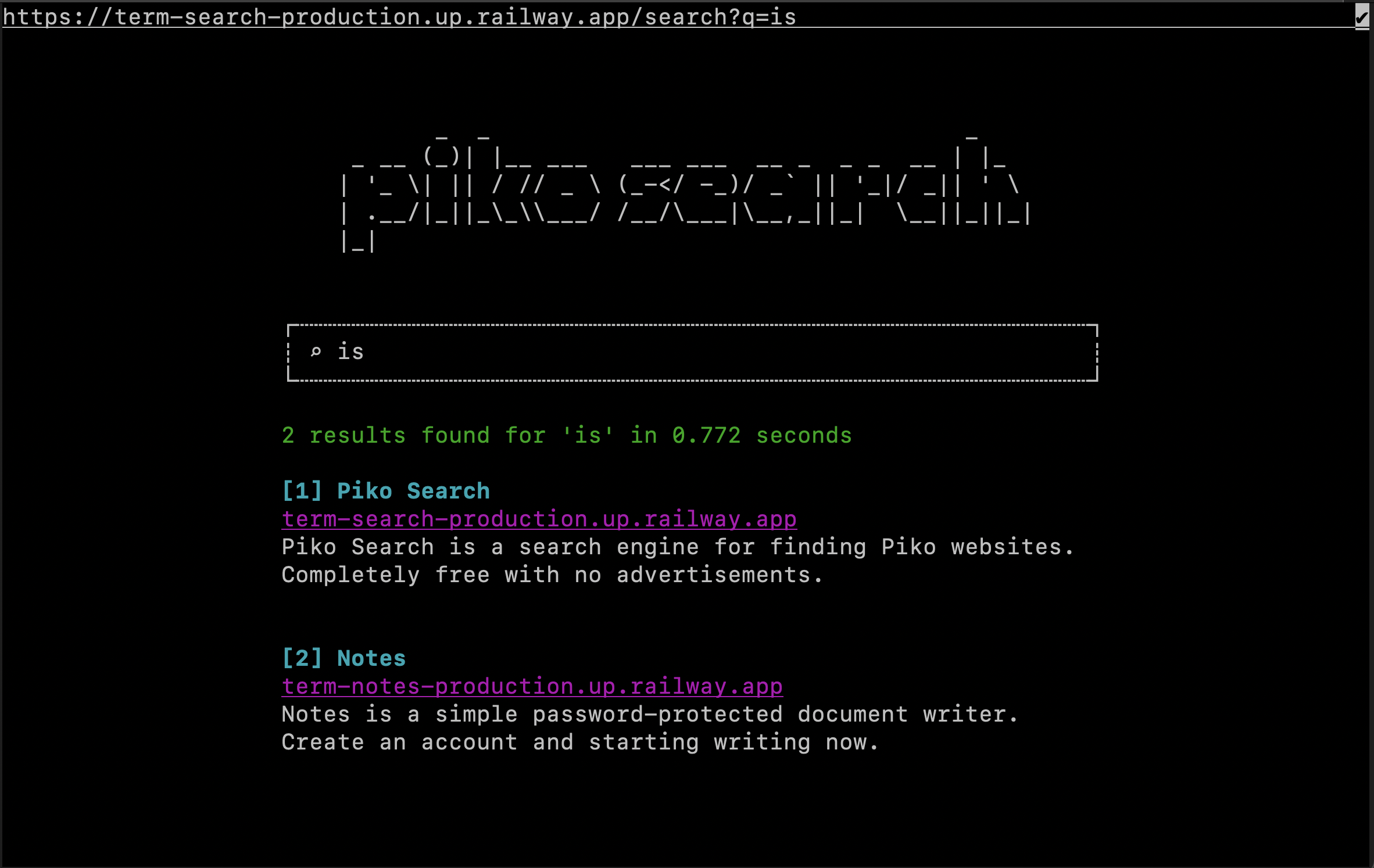
Piko is a terminal-based interactive internet browser that works with a lightweight XML file format. It provides a simple, text-based interface for browsing content and interacting with web applications.
File Format
XML Format (.xml)
XML-based format for structured content definition.
File Structure
<piko type="m100_xml" background="black" foreground="white">
  <container direction="row" width="100pc">
    <text align="center">Hello World</text>
  </container>
  <action name="search">
    visit("http://localhost:3000/search?q=" + encode(value))
  </action>
</piko>
XML Elements
Root Element:
<piko>- Root element with type and color attributes
Container Elements:
<container>- Layout container<table>- Table layout<row>- Table row<cell>- Table cell
Content Elements:
<text>- Text content<link>- Navigation link<input>- Input field<br>- Line break
Action Elements:
<action>- Script action with name and code
Attributes
Container Attributes:
width- Element width (pixels or percentage withpc)height- Element heightborder- Border style (line,dotted thin,dotted thick)direction- Layout direction (row,column)padding- Padding valuesbackground- Background colorforeground- Text color
Text Attributes:
align- Text alignment (left,center,right)style- Text stylingfont- Custom fontpreserve- Preserve whitespace (true/false)
Link Attributes:
key- Keyboard shortcut (required)url- Target URL (required)width- Link widthbackground- Background colorforeground- Text color
Input Attributes:
submit- Action to call on submitchange- Action to call on value change (as user types)initial- Initial valuewidth- Input widthicon- Icon characterautofocus- Auto-focus behaviormask- Character to mask the input value (e.g., "*" for password fields)lines- Number of lines for multi-line input (default: 1 for single line)
Actions
Actions provide interactivity through JavaScript-like code:
<action name="search">
    visit("http://example.com?q=" + encode(value))
</action>
Built-in Functions:
visit(url)- Navigate to URLencode(text)- URL encode textvar(name, value)- Set variablegetvar(name)- Get variableaction(name)- Call actiondebug(text)- Debug outputgeturlparam(param)- Extract URL parameter from current URLsetvalue(id, text)- Set the value of an input element by ID
Using the Browser
Installation
Install using this command:
pip3 install pikobrowser
Starting the Browser
Start using this command:
piko
Or manually:
python3 -m pikobrowser
Navigation
- Number Keys - Activate numbered links (e.g., press
1for[1] Link Name) - Tab - Cycle through focusable input fields
- Escape - Toggle URL bar focus (press twice to change URL)
- Enter - Submit input fields or activate links
- Arrow Keys - Navigate and scroll
- Alt+Q - Unfocus from input fields
URL Bar
- Press Escape to focus on the URL bar or lose focus on an input
- Type a URL and press Enter to navigate
Debug Mode
- Press Alt+K to toggle debug mode
- Debug output appears at the bottom of the screen
- Use
debug()function in actions for custom debug output
URL Protocols
Supported Protocols
piko://- Local piko files in the browser's local directoryfile://- Local files on the systemhttp://- HTTP requestshttps://- HTTPS requests
Request Headers
Piko browser sends requests with Content-Type: Piko header for server identification.
Scripting System
Action Execution
Actions are executed using JavaScript-like syntax with custom functions:
<action name="submit_form">
    var("user_input", value)
    visit("http://example.com/submit?data=" + encode(value))
</action>
Variable System
- Global variables - Stored in browser context
- Action variables - Passed to action execution
- Element values - Accessible through action context
Action Context
When an action is triggered, the following variables are available:
value- The value from the triggering element (e.g., input field content)visit(url)- Function to navigate to a URLencode(text)- Function to URL encode textvar(name, value)- Function to set a global variablegetvar(name)- Function to get a global variableaction(name)- Function to call another actiondebug(text)- Function to output debug text
Input Events
Input elements support two types of events:
Submit Event (submit):
- Triggered when the user presses Enter on an input field
- Typically used for form submission or final actions
- Example: Submitting a form, navigating to a URL
Change Event (change):
- Triggered every time the user types a character in an input field
- Useful for real-time variable updates as the user types
- Example: Storing form values in browser context for later use
Combined Usage: You can use both events on the same input field for different purposes:
<input submit="submit_form" change="store_value" initial="" width="50pc"/>
<action name="store_value">
    var("user_input", value)
</action>
<action name="submit_form">
    visit("http://example.com/submit?data=" + encode(getvar("user_input")))
</action>
Multi-line Input Navigation:
For input fields with lines > 1, additional navigation controls are available:
- Arrow Keys - Navigate within the current line (left/right) or between lines (up/down)
- Enter - Insert a new line (instead of submitting the form)
- Backspace - Delete characters or merge lines when deleting newlines
- Tab - Move to the next focusable element
- Escape - Unfocus from the input field
Multi-line inputs maintain the same submit and change events as single-line inputs, with the entire multi-line content passed as the value.
URL Parameter Extraction:
Use geturlparam() to extract parameters from the current URL:
<action name="[start]">
    var("token", geturlparam("token"))
    var("user_id", geturlparam("user_id"))
</action>
Layout System
Responsive Design
- Percentage-based sizing - Elements can use
pcunits for responsive design - Flexible containers - Containers can arrange children in rows or columns
- Padding and borders - Support for spacing and visual separation
- Text wrapping - Automatic text wrapping with width constraints
Styling
Colors:
black,white,blue,red,green,yellow,magenta,cyan
Text Styles:
bold,underline,normal
Borders:
line- Single line borderdotted thin- Thin dotted borderdotted thick- Thick dotted border
Development Guidelines
Creating Piko Files
- Start with piko root element - Include type and color attributes
- Use containers for layout - Organize content with containers
- Add interactive elements - Include links and input fields
- Define actions for behavior - Create actions for user interactions
- Test navigation and input - Verify all interactions work correctly
Best Practices
- Use percentage-based sizing for responsiveness
- Provide keyboard shortcuts for all links
- Include error handling in actions
- Use comments for documentation
- Test on different terminal sizes
Debugging
- Enable debug mode with Alt+K
- Use
debug()function in actions - Check terminal output for errors
- Verify URL loading and parsing
Examples
Simple Page
<piko type="m100_xml" background="black" foreground="white">
  <container direction="column" width="100pc">
    <text align="center" style="bold">Welcome to Piko Browser</text>
    <br/>
    <link key="1" url="piko://help" background="cyan" foreground="black">Help</link>
    <link key="2" url="piko://settings" background="cyan" foreground="black">Settings</link>
  </container>
</piko>
Interactive Form
<piko type="m100_xml">
  <container direction="column" width="100pc">
    <text>Enter your name:</text>
    <input submit="greet" change="store_name" initial="" width="50pc"/>
    <action name="store_name">
      var("user_name", value)
    </action>
    <action name="greet">
      visit("piko://welcome?name=" + encode(getvar("user_name")))
    </action>
  </container>
</piko>
Login Form with Password Masking
<piko type="m100_xml" background="black" foreground="white">
<container direction="column" width="100pc" padding-top="3">
<text align="center" style="bold">Login</text>
<br/>
<text>Username:</text>
<input submit="do_login" change="set_username" initial="" width="50pc"/>
<br/>
<text>Password:</text>
<input mask="*" submit="do_login" initial="" width="50pc"/>
<action name="set_username">
var("username", value)
</action>
<action name="do_login">
visit("http://localhost:3000/auth/login?username=" + encode(getvar("username")) + "&password=" + encode(value))
</action>
</container>
</piko>
Multi-line Text Editor
<piko type="m100_xml" background="black" foreground="white">
<container direction="column" width="100pc" padding-top="3">
<text align="center" style="bold">Text Editor</text>
<br/>
<text>Title:</text>
<input submit="save_document" change="store_title" initial="" width="80pc"/>
<br/>
<text>Content:</text>
<input lines="10" submit="save_document" change="store_content" initial="" width="80pc"/>
<action name="store_title">
var("title", value)
</action>
<action name="store_content">
var("content", value)
</action>
<action name="save_document">
visit("http://localhost:3000/save?title=" + encode(getvar("title")) + "&content=" + encode(getvar("content")))
</action>
</container>
</piko>
Table Layout
<piko type="m100_xml">
  <table border="dotted thick">
    <row>
      <cell>
        <text>Header 1</text>
      </cell>
      <cell>
        <text>Header 2</text>
      </cell>
    </row>
    <row>
      <cell>
        <text>Data 1</text>
      </cell>
      <cell>
        <text>Data 2</text>
      </cell>
    </row>
  </table>
</piko>


Download files
Download the file for your platform. If you're not sure which to choose, learn more about installing packages.
Source Distribution
Built Distribution
Filter files by name, interpreter, ABI, and platform.
If you're not sure about the file name format, learn more about wheel file names.
Copy a direct link to the current filters
File details
Details for the file pikobrowser-0.2.26.tar.gz.
File metadata
- Download URL: pikobrowser-0.2.26.tar.gz
- Upload date:
- Size: 32.5 kB
- Tags: Source
- Uploaded using Trusted Publishing? No
- Uploaded via: twine/6.1.0 CPython/3.11.11
File hashes
| Algorithm | Hash digest | |
|---|---|---|
| SHA256 |
12386530b962a23ec6e81c920671a4aa9041099502cba97d1d0c5a7ac618f163
|
|
| MD5 |
31ff0aa60cdf1b7b7ebd27956fe8ed5d
|
|
| BLAKE2b-256 |
ad9f46955f3f10a3fc9efbf7c96dc4000bfd5574327e14c8ccc0958c9005c16a
|
File details
Details for the file pikobrowser-0.2.26-py3-none-any.whl.
File metadata
- Download URL: pikobrowser-0.2.26-py3-none-any.whl
- Upload date:
- Size: 34.3 kB
- Tags: Python 3
- Uploaded using Trusted Publishing? No
- Uploaded via: twine/6.1.0 CPython/3.11.11
File hashes
| Algorithm | Hash digest | |
|---|---|---|
| SHA256 |
dd200e50f8271f422d175eb54436441eee20d900e42a791ba11f79fec66b8a68
|
|
| MD5 |
df4b667c7c2a2ea6f88e05c846d360aa
|
|
| BLAKE2b-256 |
299c0c201f59a17144038ae1d8f8b83aa16b79209731de0ea0ac4ebc295f7eec
|






