








pinsy (pronounced pin-si) formerly pins, is a powerful lightweight python package that helps speed up the workflow of creating visually apealing command-line applications.
Table of contents
- Features
- Dependencies
- Installation
- Basic Usage
- how to color text
- how to color a regex match
- how to print status messages
- how to align text
- how to indent text
- how to wrap text
- how to create lists
- how to take inputs of various types
- how to create hrs (horizontal rules)
- how to create box around text
- how to create a calendar
- how to pretty-print json
- how to print lengthy text for user to read easily
- how to print multiline text as pages
- how to print info about your program
- how to print text with typewriter effect
- how to print text with reveal effect
- Pinsy CLI
Features
- Ability to create a box around text
- Ability to print colorful calendars
- Ability align, indent and wrap text
- Ability to create nested ordered and unordered lists
- Ability to create dynamic HRs (Horizontal Rules)
- Syntax Highlight for Json
- Text effects like typewriter and reveal text effect.
- Text coloring and styling
- Supports 3 color modes (
4-bit,8-bit,24-bit) - Prompting and validation
- Basic cursor manipulation functions using
ansi sequences - Highly optimized
- And much more!
- And pretty lightweight* too (under
160kb)
Dependencies
pinsy has four small dependencies.
colorama(to fix windows console for color output)cursor(to show/hide cursor in terminal)ansy(which i wrote specifically forpinsyfor color support)readchar(to read keystrokes)
Installation
Open terminal and run below command:
pip install pinsy
Basic Usage
There is a class in pinsy which is the heart of it, called Pins. Most of the time, you'll be using this class for all sorts of stuff. Rest of the package is just built around it or to extend it.
from pinsy import Pins

# Create an instance of Pins and pins is ready to be used or abused.
pins = Pins()
How to color text
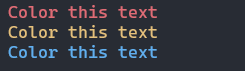
Use pins.colorize() method to color text using any of the three color modes.
text = "Color this text"
red_text = pins.colorize(text, fgcolor="red")
yellow_text = pins.colorize(text, fgcolor="yellow")
blue_text = pins.colorize(text, fgcolor="blue")

print(red_text)
print(yellow_text)
print(blue_text)
How to color a regex match
You can color only specific parts of text that match a regular expression, using pins.colorize_regex().
text = "Thi5 t3xt c0ntain5 a l0t 0f number5."
highlights = pins.colorize_regex(text, pattern="\d", fgcolor="red")
print(highlights)

pattern can also be a re compiled pattern.
pattern = re.compile(r"\d")
pins.colorize_regex(text, pattern=pattern, fgcolor="red")
How to print status messages
Status messages include info, warning, success, and error messages. There are four built-in methods for printing these messages.
pins.print_info("This is an info message.")
pins.print_warning("This is a warning message.")
pins.print_success("This is a success message.")
pins.print_error("This is an error message.")
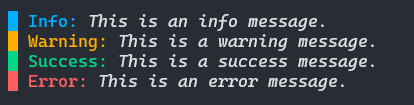
Colors are set by default for these built-in messages. But you can also create custom status messages for more control, using pins.create_status().
message = "This is a hint message"
hint = pins.create_status("Hint", message, label_fg="green", text_fg="blue")
print(hint)

How to align text
You can easily align text in the terminal using pins.textalign_x() (for horizontal alignment) or pins.textalign_y (for vertical alignment).
# Horizontal Alignment
text = "Align this text"
print(pins.textalign_x(text, align="left"))
print(pins.textalign_x(text, align="center"))
print(pins.textalign_x(text, align="right"))

How to indent text
Use pins.indent_text() to indent text, Duh!
text = "Indent this 4 spaces"
print("|", pins.indent_text(text, indent=4))

How to wrap text
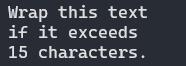
You can wrap text using pins.wrap_text(). This method is merely a wrapper around the fill() method from textwrap module.
text = "Wrap this text if it exceeds 15 characters."
print(pins.wrap_text(text, 15))
How to create lists
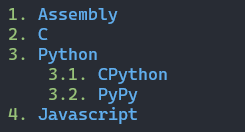
There are two types of lists that you can create, ordered and unordered, using pins.create_list_ordered() and pins.create_list_unordered() respectively.
# Ordered List
items = ["Assembly", "C", "Python", ["CPython", "PyPy"], "Javascript"]
ordered_list = pins.create_list_ordered(items, num_color="green", item_color="blue")
print(ordered_list)
# Unordered List
items = ["Assembly", "C", "Python", ["CPython", "PyPy"], "Javascript"]
unordered_list = pins.create_list_unordered(items, bullet_color="green", item_color="blue")
print(unordered_list)
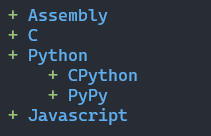
You can further tweak these lists using other arguments of both of these methods.
How to take inputs of various types
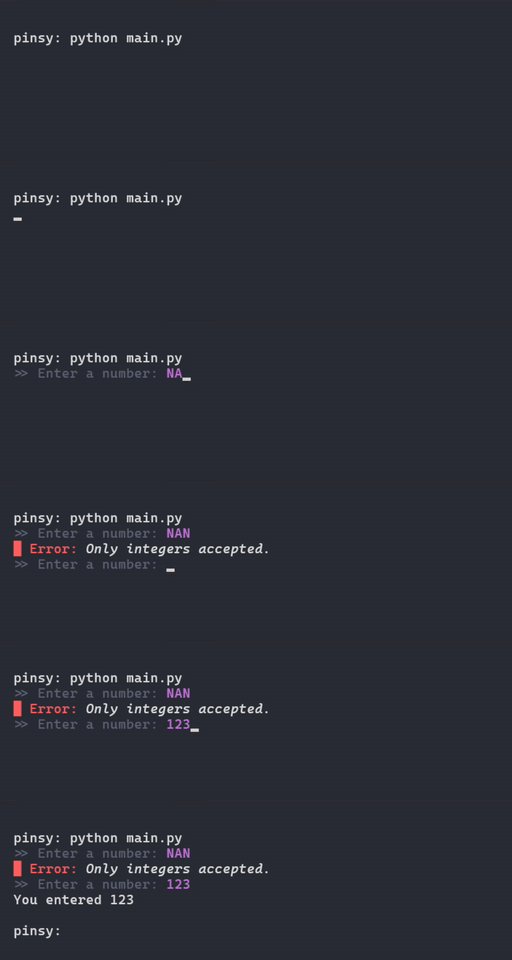
There are 13 input methods that can be used take all sorts of inputs from users. almost all of them support colors.
# Taking integer input
number = pins.input_int(prompt="Enter a number: ",
                        prompt_color="dark_grey",
                        input_color="magenta")
print(f"You entered {number}")
# Taking y/n (yes or no)
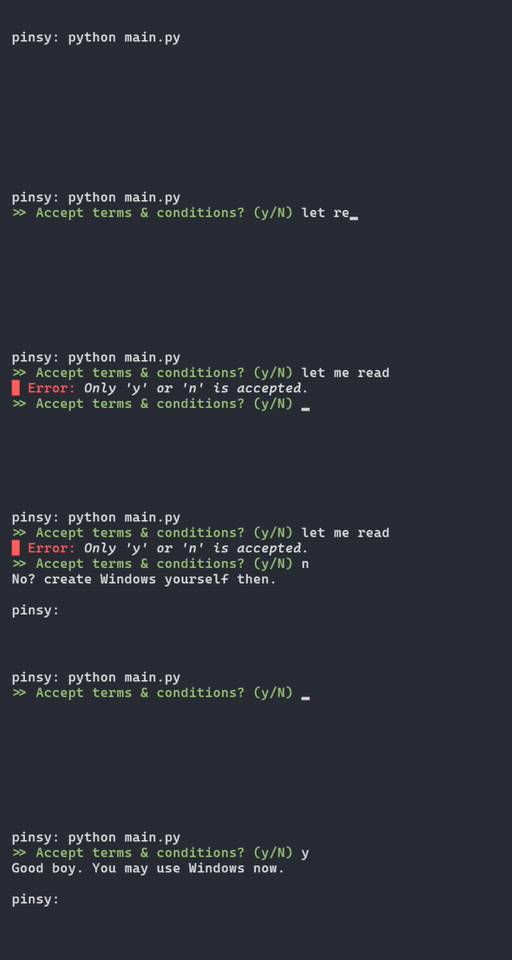
answer = pins.input_question(prompt="Accept terms & conditions? (y/N) ", prompt_color="light_green")
if answer:
    print("Good boy. You may use Windows now.")
else:
    print("No? create Windows yourself then.")
There are other similar input functions for floats, strings, ip addresses, emails, passwords, urls, filepaths, and directory paths.
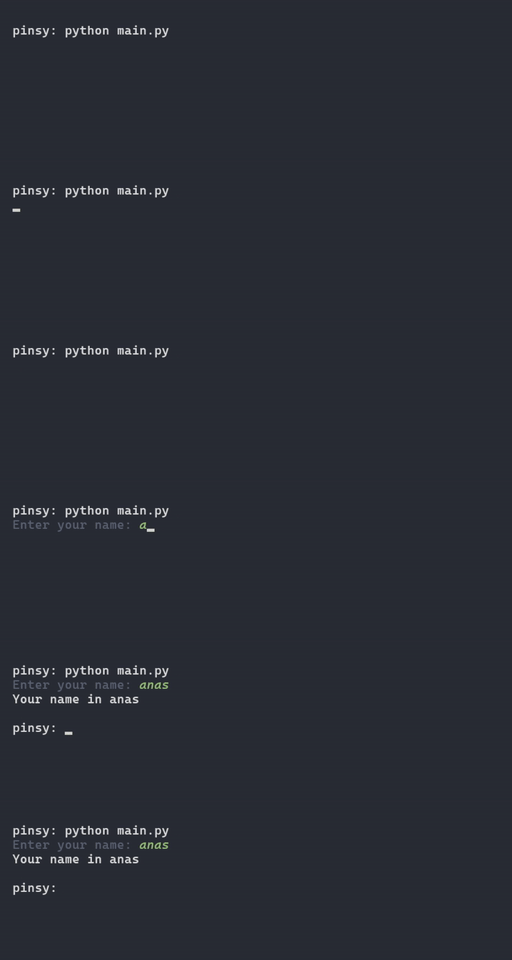
You can also use pins.inputc() to create your own input functions similar to the ones pinsy provides.
name = pins.inputc("Enter your name: ",
                   prompt_fg="dark_grey",
                   input_fg="light_green",
                   input_attrs=["italic"])
print("Your name in %s" % name)
You can also take multiline input using pins.input_multiline().
text = pins.input_multiline(prompt="Tell me about yourself: ", input_fg="green")
print(text)
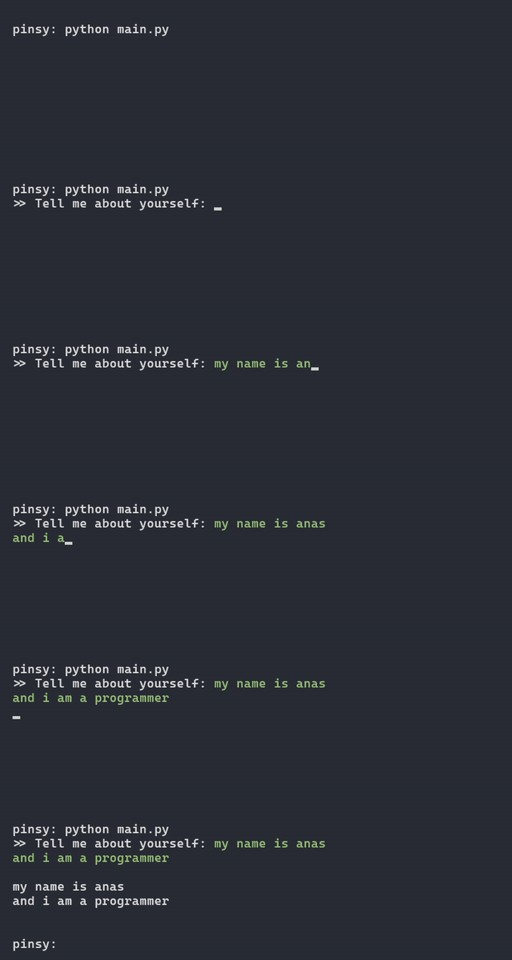
Pressing enter twice submits the input.
There is another input function pins.input_menu(), which prints a menu in the terminal and lets user choose an option with up/down arrow keys.
menu = ["Login", "Signup", "Exit"]
choice = pins.input_menu(menu, bullet="■", bullet_fg="light_green",
                         selected_fg="green", normal_fg="dark_grey")

print("\nYou chose option %d" % choice)
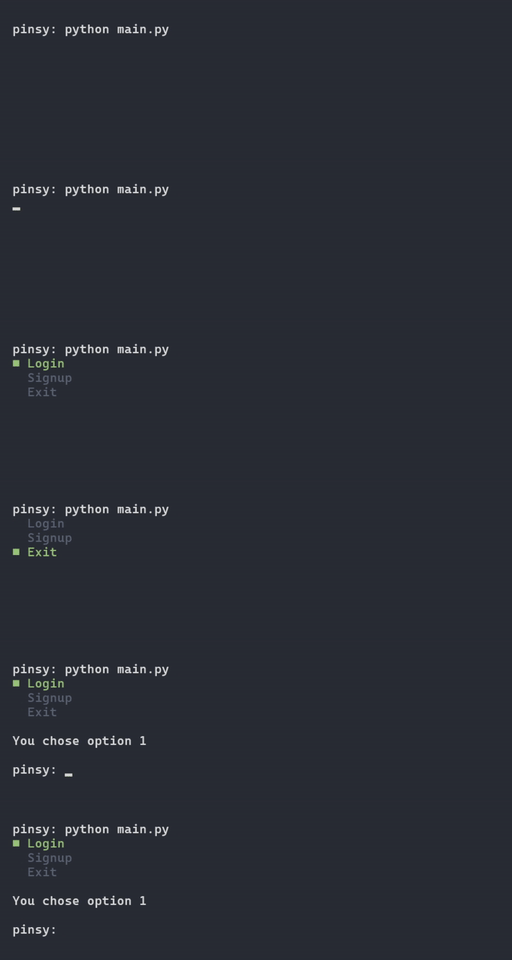
It returns the index of choice that was selected. (starting from 1)
How to create HRs (horizontal rules)
Use pins.create_hr() to create a horizontal line, or pins.print_hr() to create and then print the line.
line = pins.create_hr(width=50, color="yellow")
print(line)

You can also use pins.print_hr() to just print the line, it takes the same arguments as pins.create_hr().
pins.print_hr(width=50, color="magenta", fill_char="▼")
pins.print_hr(width=50, color="blue", fill_char="▒")
pins.print_hr(width=50, color="green", fill_char="▲")

How to create box around text
You can easily create a box around text using pins.boxify().
text = "Create a box around me"
print(pins.boxify(text, width=50))
print(pins.boxify(text, width=50, x_align="center", charset="ascii", text_color="blue"))
print(pins.boxify(text, width=50, x_align="right", charset="box", border_color="red"))
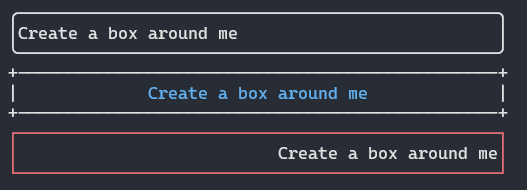
This method use the Box class under the hood. You can use it too.
from pinsy import Box

box = Box(width=50, x_align="center", y_align="center",
              charset="box_round", pad_y=1,
              border_color="dark_grey", text_color="yellow")

print(box.create("Create a box\naround this\nmultiline text."))

How to create a calendar
Use pins.get_calendar() to get a calendar of any month of any year.
print(pins.get_calendar())
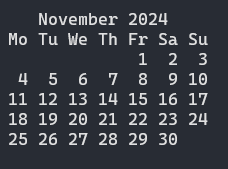
You can also use pins.print_calendar() to print the calendar.
pins.print_calendar(month_color="red", date_color="blue")
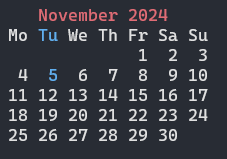
It's November 05, 2024 today.
How to pretty-print json
You can use pins.print_json() to pretty-print json.
import json

with open("person.json") as jfile:
    data = json.load(jfile)

pins.print_json(data)
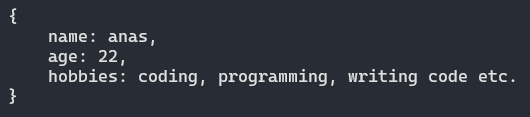
This method uses JsonHighlight class under the hood. and so can you!
from pinsy import JsonHighlight

data = {
        "name": "anas",
        "age": "22",
        "hobbies": "coding, programming, writing code etc."
}

jsh = JsonHighlight(quotes=False,
                    str_color="light_green",
                    number_color="light_yellow",
                    key_color="red",
                    symbol_color="dark_grey")

print(jsh.highlight(data))
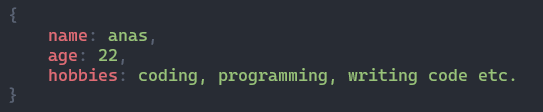
There's a similar method called print_markdown, which highlights markdown syntax.
How to print lengthy text for user to read easily
You can use pins.print_more() to print a lengthy multiline text in the terminal.
with open("temp.md") as md:
    text = md.read()

pins.print_more(text, prompt_fg="magenta")
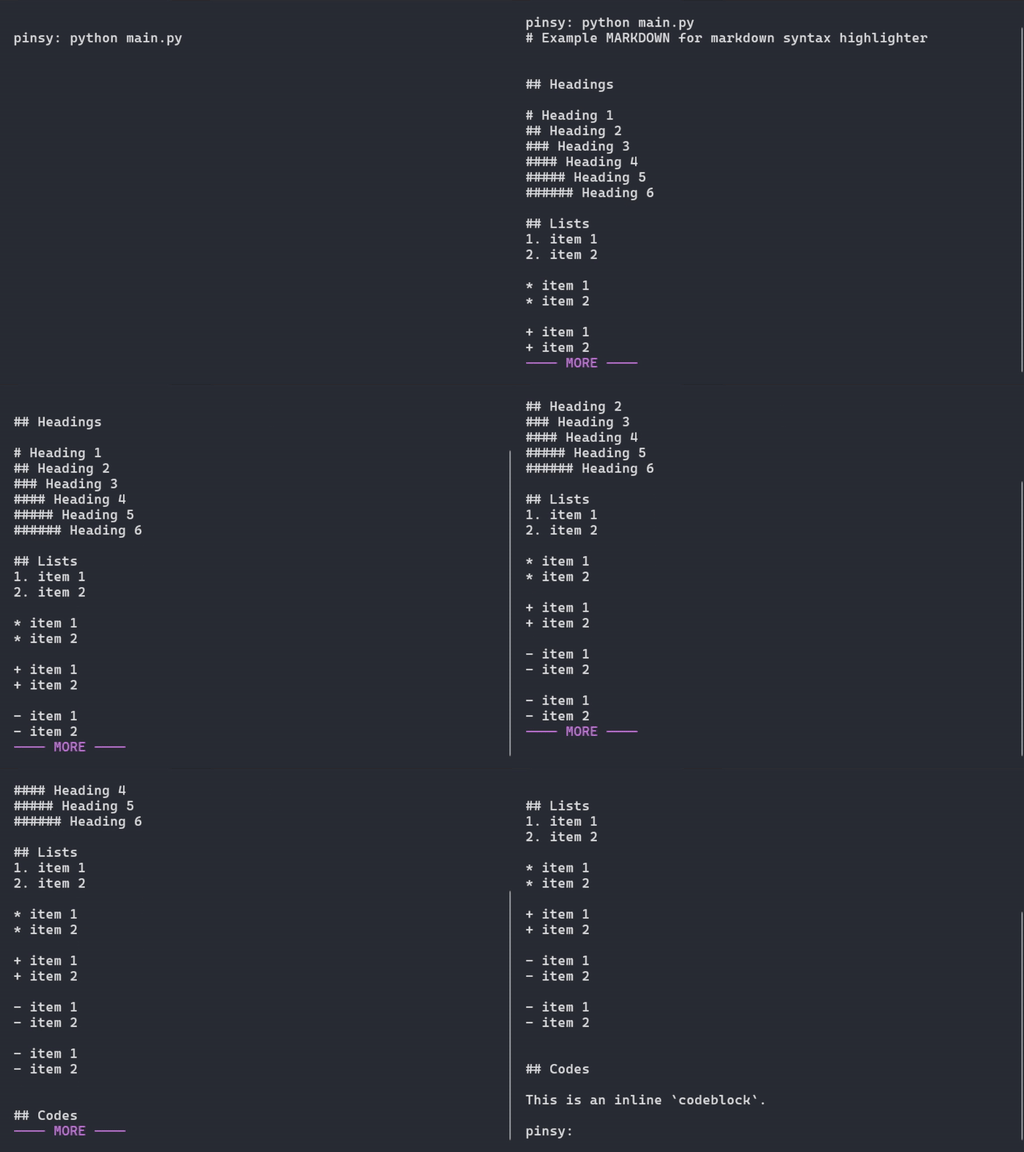
It let's user read the text easily.
How to print multiline text as pages
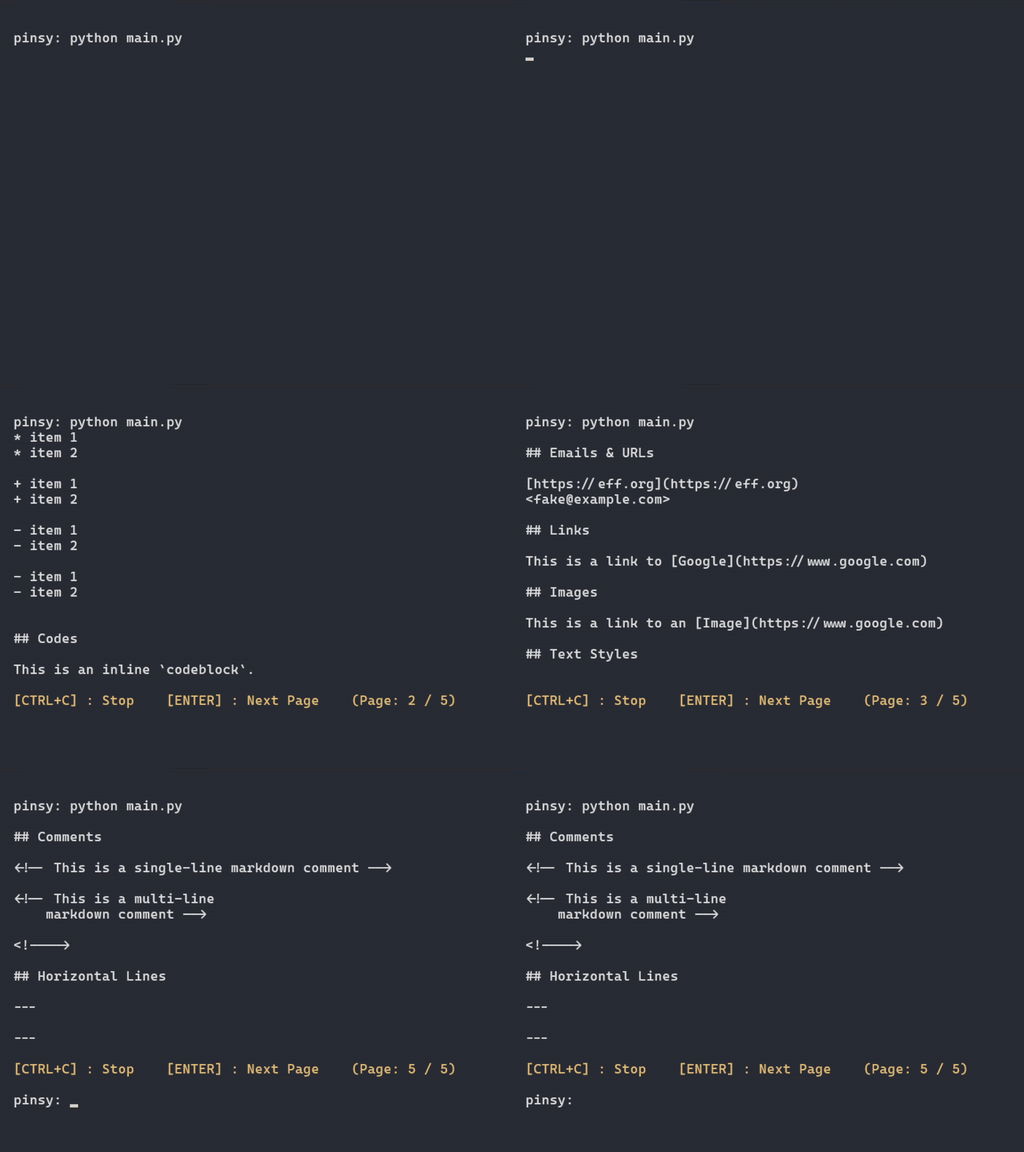
Use pins.print_pages() to print a length multiline text as pages. somewhat similar to paginations in websites.
with open("temp.md") as md:
    text = md.read()

pins.print_pages(text, lines_per_page=16, statusbar_fg="yellow")
How to print info about your program
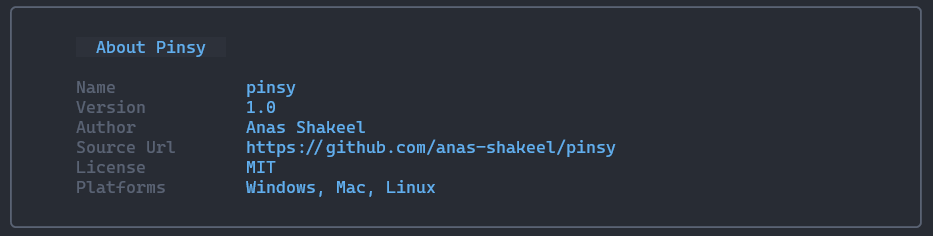
Similar to softwares and webapps, you can print info about your program/application using pins.print_about().
pins.print_about(name="pinsy",
                 version="1.0",
                 author="Anas Shakeel",
                 source_url="https://github.com/anas-shakeel/pinsy",
                 license="MIT",
                 platforms=["Windows", "Mac", "Linux"],
                 border_color="dark_grey",
                 heading_fg="dark_grey",
                 heading_bg="light_blue",
                 heading_attrs=["dark", "reverse"],
                 keys_color="dark_grey",
                 values_color="light_blue")
A bit verbose i know.
How to print text with typewriter effect
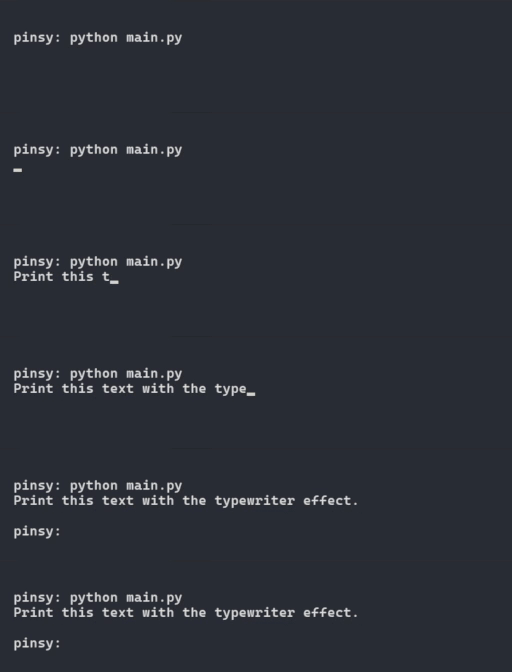
You can use the typewriter effect in two ways: using pins.typewrite() or using Typewrite class (which pins.typewrite() uses under the hood).
# Using pins.typewrite
text = "Print this text with the typewriter effect."
pins.typewrite(text, interval=0.04, hide_cursor=False)
# Using Typewrite class
writer = Typewriter(0.04)
writer.write(text)
Output is exactly the same.
How to print text with reveal effect
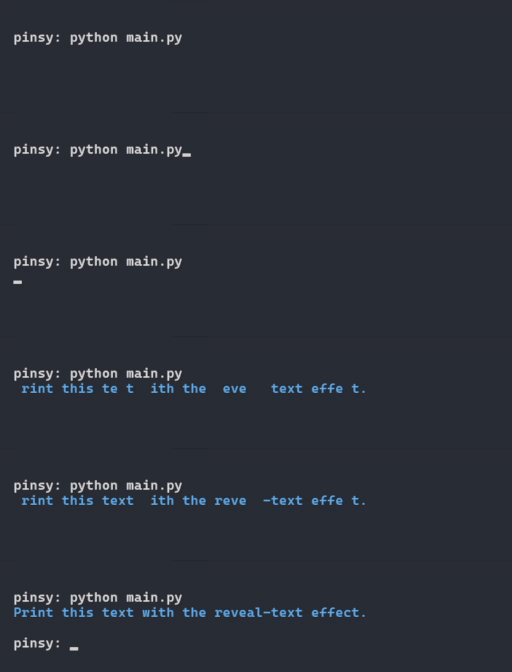
You can use the pins.reveal_text() or RevealText class to print text with reveal effect.
# Using pins.reveal_text
text = "Print this text with the reveal-text effect."
pins.reveal_text(text, initial_color="black", final_color="blue")
# Using RevealText class
revealer = RevealText(initial_color="black", final_color="blue")
revealer.reveal(text)
Output will be somewhat similar to previous output. "somewhat" because there is randomness added to the effect. each time it outputs a slightly different result.
This is not a True-Reveal Effect. It's just an illusion (sort of). let's see this effect in slow-motion with a different initial_color.
pins.reveal_text(text, interval=0.1, max_seconds=3, initial_color="red", final_color="blue")
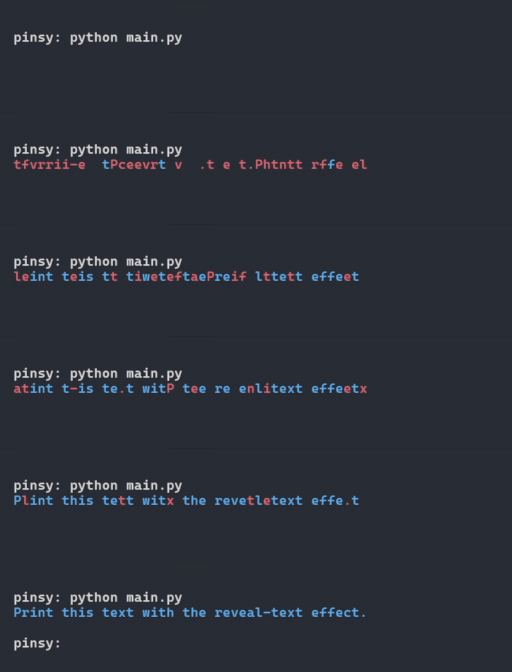
It scrambles the text and then solves each letter using bruteforce method. max_seconds is the number of maximum seconds to let this effect run, and prints the original text afterwards.
And there's much more that you can do...
Compatibility
pinsy has been well-tested on Windows, Mac, and Linux (ubuntu) with python version 3.9 upto 3.13.
Pinsy CLI
Coming soon!
1 maintainer

Metadata
1 maintainer
Release files for pinsy 0.2.4
For a detailed explanation of source distributions (sdists) and built distributions (wheels), please see the package formats documentation.
Source distribution (sdist)
| File | Size | Uploaded | |
|---|---|---|---|
| pinsy-0.2.4.tar.gz | 47.5 kB | Details |
Built distribution (wheel)
| File | Interpreter | ABI | Platform | Reset |
|---|---|---|---|---|
| pinsy-0.2.4-py3-none-any.whl | Python 3 | none | any | Details |
Total release size: 90.3 kB
Release files / pinsy-0.2.4.tar.gz
| Download URL | pinsy-0.2.4.tar.gz |
|---|---|
| Size | 47.5 kB |
| Tags | Source |
|
SHA-256 checksum How to use checksums |
4fd496a2cf36addd3e95146aa579a310df9761df54bee8c4d35e5fed753d2616
|
|
BLAKE2b-256 checksum How to use checksums |
c7948cfd61791766713c09b5318df856b0659b4fcb292be59959d43ecd03371b
|
| Upload date | |
|
Uploaded using Trusted Publishing? What is trusted publishing? |
No |
| Uploaded via |
twine/5.1.1 CPython/3.13.0
|
Release files / pinsy-0.2.4-py3-none-any.whl
| Download URL | pinsy-0.2.4-py3-none-any.whl |
|---|---|
| Size | 42.9 kB |
| Tags | Python 3 |
|
SHA-256 checksum How to use checksums |
d0cfd277117d6f30e384d1730ce55f806d310d1b1328ea45eac8ce31f02f2d21
|
|
BLAKE2b-256 checksum How to use checksums |
106ea4b551d84effe15e88d7483cb225b397377e05dda2f5b51b8e5fae5d172c
|
| Upload date | |
|
Uploaded using Trusted Publishing? What is trusted publishing? |
No |
| Uploaded via |
twine/5.1.1 CPython/3.13.0
|














