
AI-powered tool for generating test questions, quizzes, rubrics, and exam exports.
Verified details
These details have been verified by PyPIProject links
GitHub Statistics
Maintainers

Project description
PTestGen
PTestGen is a Python-based tool designed to assist educators in generating test questions from educational materials, images, or specific instructions using Large Language Models (LLMs). It supports multiple-choice questions, open-answer questions with expected responses and rubrics, and mixed question sets.
Project Goal
To develop and evaluate an AI-powered tool (PTestGen) for semi-automatic generation of test questions via intelligent agents, integrated into an efficient, user-friendly Python pipeline adaptable to various educational platforms (Moodle, Wooclap, pexams, R/exams).
Core Features
- LLM Integration: Supports multiple providers:
- OpenRouter (Recommended): Access a wide variety of models from different providers with a single API key. Simplifies configuration and allows for easy model switching.
- Ollama (e.g., Llama 3.1): Supports structured output.
- OpenAI (e.g., GPT-4o, GPT-5)
- Google (e.g., Gemini 2.5 Pro, Gemini 2.5 Flash)
- Anthropic (e.g., Claude 4.5 Sonnet, Claude 4.5 Haiku): Discouraged due to structured output not being supported.
- Replicate (e.g., Llama 3.2): Discouraged due to structured output not being supported.
- Flexible Input:
- Document-Based Generation (OE1): Generate questions from text documents (TXT, MD, PDF, DOCX, PPTX, RTF supported for text extraction) and images (PNG, JPG, GIF, BMP). PDF/DOCX/PPTX parsing requires installing optional dependencies.
- Instruction-Based Generation: Generate questions based on specific instructions provided via the command line, without requiring an input document.
- Customizable Prompts: Add custom instructions to the underlying LLM prompts for generation and review using
--generator-instructionsand--reviewer-instructions. - Question Type Control: Generate multiple-choice questions, open-answer questions with expected answers and rubrics, or mixed sets using
--question-type multiple_choice|open_answer|mixed. - Automated Review (OE2): An LLM-based agent refines questions for clarity, correctness, and adherence to pedagogical best practices.
- Automated Evaluation (OE6): An optional, separate LLM-based agent evaluates questions against multiple criteria:
- Difficulty Score: How challenging the question is.
- Pedagogical Value: How well it tests key concepts.
- Clarity: How clear the question and options are.
- Distractor Plausibility: How convincing the incorrect answers are.
- These scores are useful to flag questions that may need review, but they should be treated as weak proxies of real difficulty and never as an autonomous criterion to accept, discard, or calibrate questions.
- It also tracks the changes made to the questions and answers after each of the three stages: generation, automatic review, and manual review.
- Evaluate Missing: You can now run evaluations on questions that missed it during the pipeline using the
ptestgen evaluate-missingcommand.
- Manual Review Workflow (OE3): Outputs questions in a clean Markdown format for easy verification and editing by the educator. See Manual review of the questions for more information on what formatting options are supported.
- Format Conversion (OE4): Converts the finalized questions into formats compatible with Moodle (XML/GIFT, GIFT recommended for Moodle), Wooclap, pexams (PDF), and R/exams.
- Question Shuffling & Selection:
- Shuffle the order of generated questions (
--shuffle-questions). - Shuffle the order of answers within each question (
--shuffle-answers). - Select a random subset of the final questions (
--num-final-questions).
- Shuffle the order of generated questions (
- Exam Correction & Results Ingestion (OE9):
- Correct scanned PDF exams generated via
pexamsusingptestgen correct pexams. - Ingest student answers from Wooclap (
ptestgen correct wooclap) or Moodle (ptestgen correct moodle) quiz results (CSV or XLSX). - All three formats update
metadata.tsvwith per-question answer distributions and generate astats_report.pdfvia the pexams analysis pipeline.
- Correct scanned PDF exams generated via
- Integrated Pipeline (OE5): A cohesive Python script orchestrates the entire process.
- (Future) Dynamic Question Support (OE7)
- (Future) Humorous Distractor Option (OE8)
Setup
The library has been tested on Python 3.11.
-
Clone the repository:
git clone https://github.com/OscarPellicer/ptestgen.git
cd ptestgen
-
(Recommended) Create and activate a virtual environment:
Option A: Using
conda(recommended):conda create -n ptestgen python=3.11 conda activate ptestgen
Option B: Using
venv:python -m venv ptestgen # On Windows: ptestgen\Scripts\activate # On macOS/Linux: source ptestgen/bin/activate
-
Install required dependencies and the package in editable mode:
# Core dependencies will be installed by the next command
pip install -e .
-
Configure API Keys:
- Rename the
.env.examplefile to.env. - Edit the
.envfile and add your API keys for the LLM providers you intend to use.
# .env file contents example
OPENROUTER_API_KEY="sk-or-..." # Recommended, can handle most models with a single API key
OPENAI_API_KEY="sk-..."
GOOGLE_API_KEY="AIza..."
ANTHROPIC_API_KEY="sk-ant-..."
REPLICATE_API_TOKEN="r8_..."
- IMPORTANT: Do not commit the
.envfile to version control. The.gitignorefile is configured to prevent this.
- Rename the
-
(Optional) You can set the default provider and models directly in the
.envfile as well (though this can also be done via arguments when runningptestgen):# Optional defaults in .env LLM_PROVIDER="openai" OPENAI_GENERATOR_MODEL="gpt-4o" # etc.
-
(Recommended) Setup for
pexams(Python-based PDF exams)pexamsis a pure Python library for generating and correcting scannable multiple-choice exams, similar to R/exams. It is the recommended engine for PDF exam generation within PTestGen as it does not require installing R or LaTeX.For more details, please visit the official repository: https://github.com/OscarPellicer/pexams
-
Install the
pexamslibrary:pexamsis already installed as a dependency of PTestGen, but you can install it manually too:pip install pexams
-
Install Playwright Browsers:
pexamsuses Playwright to render HTML to PDF. You must install the required browser binaries:playwright install chromium
-
Note on parsing .pptx files (WIP)
Unfortunately, the python-pptx library in charge of parsing .pptx files does not correctly parse MathML equations. This has been solved in my fork of the library: https://github.com/OscarPellicer/python-pptx.
To use it, you need to install this version of python-pptx manually AFTER installing everything else:
pip install git+https://github.com/OscarPellicer/python-pptx.git
Usage
The ptestgen command-line tool is organized into several sub-commands to manage the lifecycle of test creation.
Core Workflow:
generate: Create a new set of questions from a document or instructions. This produces a human-readablequestions.mdfile for manual review and ametadata.tsvfile that tracks all question data.- (Manual Step): Edit the
questions.mdfile to correct, improve, add, or delete questions. export <format>: Read the (potentially edited)questions.mdand its correspondingmetadata.tsvto export the final questions into a specific format like Moodle GIFT, pexams, Wooclap, etc.correct pexams / wooclap / moodle(Optional): Ingest student answers — from pexams scanned sheets, a Wooclap "Export to Excel" file, or a Moodle "Responses" CSV — and updatemetadata.tsvwith per-question statistics and astats_report.pdf.
Other Commands:
ptestgen split: Split a test into multiple smaller tests. This is useful for creating two exams (e.g. final and make-up) from the same set of questions. While this could also be done manually, using the command ensures that the final.tsvfile is updated to contain the metainformation from the complete lifecycle of the questions.ptestgen merge: Combine multiple tests into a single one. This is useful for merging questions from different topics into a single exam. Similar tosplit, using the command ensures that the final.tsvis updated to contain the metainformation from the complete lifecycle of the questions.ptestgen shuffle: Shuffle questions in a markdown file.ptestgen test: Run a full pipeline test to check for runtime errors.ptestgen evaluate-missing: Run the evaluator on questions that are missing evaluation data for any stage (generated, reviewed, final).
ptestgen generate: Create questions
Use this command to start the process. It generates the initial set of questions from a source document or from instructions you provide.
1. Generate from Document:
ptestgen generate path/to/presentation.pptx -o generated/my-exam.md --num-questions 10
- This reads
presentation.pptxand creates two files:generated/my-exam.mdandgenerated/my-exam.tsv.
2. Generate from Instructions:
ptestgen generate --generator-instructions "Create questions about Python regular expressions..." -o generated/regex-exam
- This generates questions based on the provided instructions without needing a source file.
3. Generate open-answer questions with rubrics:
ptestgen generate path/to/notes.pdf \
    -o generated/open_questions.md \
    --question-type open_answer \
    --generator-instructions "Use 4-point rubrics and reserve 10 answer lines per question."
- This generates open-answer questions with an expected answer, rubric, and answer-line count for each question.
Examples for ptestgen generate
Generate questions from a PowerPoint with LLM review and evaluation:
# Make sure OPENROUTER_API_KEY is in .env
ptestgen generate path/to/presentation.pptx \
    -o generated/topic_questions.md \
    -n 10 \
    --question-type mixed \
    --provider openrouter \
    --generator-model google/gemini-2.5-pro \
    --reviewer-model google/gemini-2.5-flash \
    --evaluator-model google/gemini-2.5-flash \
    --use-llm-review \
    --evaluate-initial \
    --evaluate-reviewed \
    --language Spanish \
    --generator-instructions "Focus on topics related to LDA, LSA / LSI"
- Creates
generated/topic_questions.mdandgenerated/topic_questions.tsv. - It specifies the LLM provider as well as the specific models to use for each agent.
- It uses the
--use-llm-reviewflag to enable the LLM-based review of the questions after generation. - It uses the
--evaluate-initialand--evaluate-reviewedflags to run the evaluator on the questions after generation and review. - It uses the
--languageflag to set the language for the questions to Spanish. - The process stops here, awaiting manual review of the
questions.mdfile and a subsequentexportcommand. - In this example, specific generator instructions are provided to focus on topics related to LDA, LSA / LSI, but instructions can be omitted.
Manual review of the questions
After the questions have been generated, you may want to manually review them and edit them to your liking. You can do this by editing the questions.md file. You can add, remove, or edit questions and answers. Here is an example of all formatting options that are supported:
## question_id
> 
¿What is the *mathematical solution* for the following **Python expression**: `sum(range(10))`?
* $\sum_{i=1}^{10} i = \frac{10(10+1)}{2} = 55$
* *Wrong answer 1*
* *Wrong answer 2*
* *Wrong answer 3*
Important notes:
- A single image per question is supported, but it must appear before the question text, and must be included within a blockquote:
> : Make sure to include the image path relative to thequestions.mdfile, or just use the image filename if it is in the same directory. - $LaTeX$ is supported, but must be enclosed in
$delimiters. Do not use$$or\(for LaTeX. - Italics and bold text are supported, but must be enclosed in
*or**delimiters. Do not use_for italics codeis supported, but must be enclosed in single backticks:`. Text blocks enclosed in triple backticks (```) are not supported.- Newlines are NOT supported.
- The question ID must be unique.
ptestgen export <format>: Convert questions to final formats
After you have manually reviewed and saved the questions.md file, use this command to generate the final exam files. The export command is structured with subparsers for each format.
1. Export to Wooclap with shuffling:
ptestgen export wooclap generated/topic_questions.md \
    --shuffle-questions 123 \
    --shuffle-answers 123 \
    --evaluate-final
- Reads
generated/topic_questions.mdandgenerated/topic_questions.tsv. - (automatically processeses your manual edits to update the
.tsvfile). - Creates a
generated/topic_questions_wooclap.csvfile that is ready to be imported into Wooclap. - It uses the
--shuffle-questionsflag to shuffle the order of the questions. - It uses the
--shuffle-answersflag to shuffle the order of the answers within each question. This is very important for Wooclap in particular, as it does not automatically shuffle the answers for you! - It uses the
--evaluate-finalflag to run the evaluator on the final set of questions.
2. Export to pexams PDF format:
ptestgen export pexams generated/exam_questions.md \
--exam-title "Sistemas Informáticos - Examen Parcial" \
--exam-course "Máster en IngenierÃa Biomédica" \
--exam-date "2025-10-22" \
--num-models 4 \
--shuffle-answers 123 \
--total-students 22
- Creates 4 PDF exam models of the questions in
generated/exam_questions.mdusing thepexamsengine. - For more information on the available arguments, please visit the
pexamsrepository: https://github.com/OscarPellicer/pexams
ptestgen correct: Correct exams and ingest results
The correct command has three sub-formats: pexams (scanned paper exams), wooclap, and moodle.
All three update metadata.tsv with per-question answer-distribution statistics and generate a stats_report.pdf.
ptestgen correct pexams: correct scanned exams
ptestgen correct pexams generated/topic_questions.md \
    --input-path path/to/scanned_images_or_pdf \
    --exam-dir path/to/generated_output_dir \
    --output-dir path/to/results_dir \
    --evaluate-final \
    [OPTIONS]
- The
--input-pathcan be a single PDF file or a folder of images (PNG, JPG). - The
--exam-dirmust contain theexam_model_*_questions.jsonfiles generated alongside the exam PDFs.
Mark Filling Arguments:
--input-csv <path>: Path to an input CSV/XLSX/TSV file containing student IDs.--id-column <name>: Column name in input file containing student IDs.--mark-column <name>: Column name to fill with marks (will be created if missing).--fuzzy-id-match <0-100>: Threshold for fuzzy matching of IDs (default 100 = exact match only).--input-encoding <str>: Encoding of the input CSV file (defaultutf-8). Useful if you encounter encoding errors, in which case you can trylatin1orutf-8-sig.--input-sep <str>: Separator for the input CSV file (default,). If your CSV uses semicolons (common in Europe), pass--input-sep semior--input-sep ";".--output-decimal-sep <str>: Decimal separator for the output marks (default.). Use,if your locale requires comma decimals (e.g.,--output-decimal-sep ",").--simplify-csv: If set, the output CSV will only keep--id-column,--name-column, and--mark-column.--name-column <name>: Column name for student names. Required with--simplify-csv.--name-match-threshold <0-100>: When--input-csvand--name-columnare provided, match scanned papers to the roster by OCR'd student name before analysis. If any scan is unmatched, correction stops and writesstudent_matches.csvfor review.--use-llm-name-ocr: Use OpenRouter vision OCR for student names before matching. Local OCR remains the default.--openrouter-name-model <model>: Model used by--use-llm-name-ocr(defaultgoogle/gemini-3-flash-preview).
Scoring Arguments:
--penalty <float>: Score penalty for wrong answers (e.g.,0.333333). Default is0.0.
Other Arguments:
--void-questions <str>: Comma-separated list of question numbers to exclude.--void-questions-nicely <str>: Comma-separated list of question IDs to void "nicely".--only-analysis: Skip image processing and use an existingcorrection_results.csv.
ptestgen correct wooclap: ingest Wooclap quiz results
How to export results from Wooclap:
-
Open your Wooclap event and click "Ver resultados" (View results):
-
In the results view, click "Exportar a Excel":
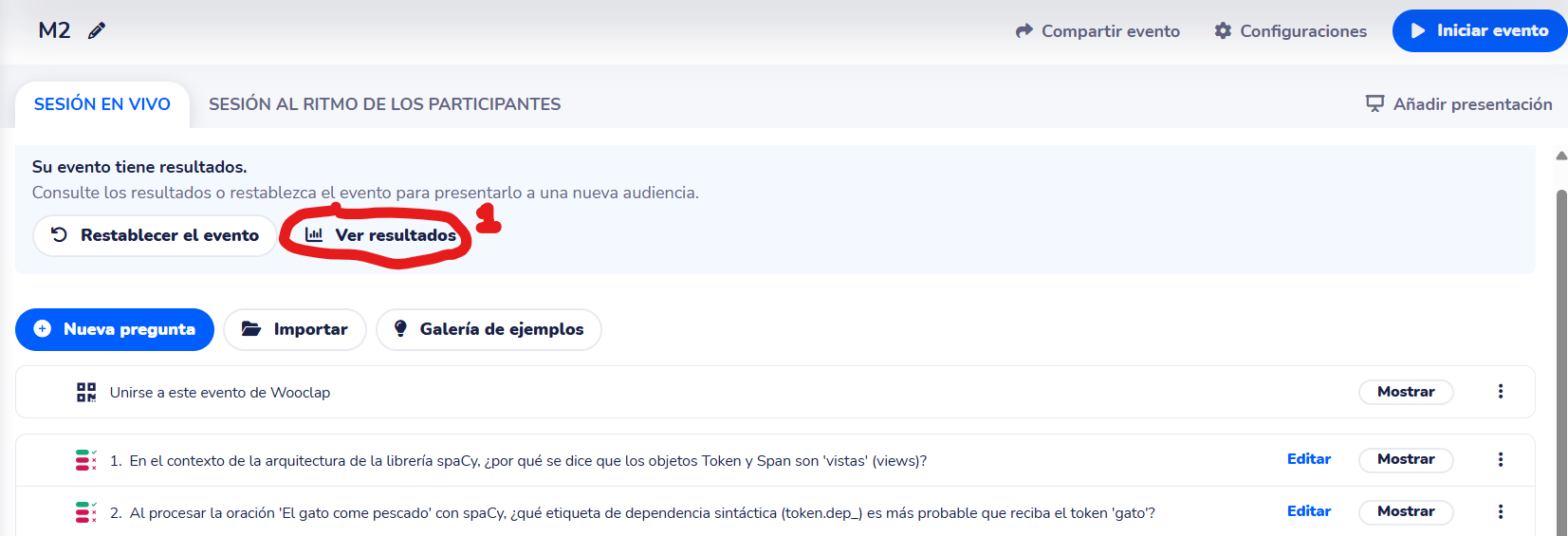
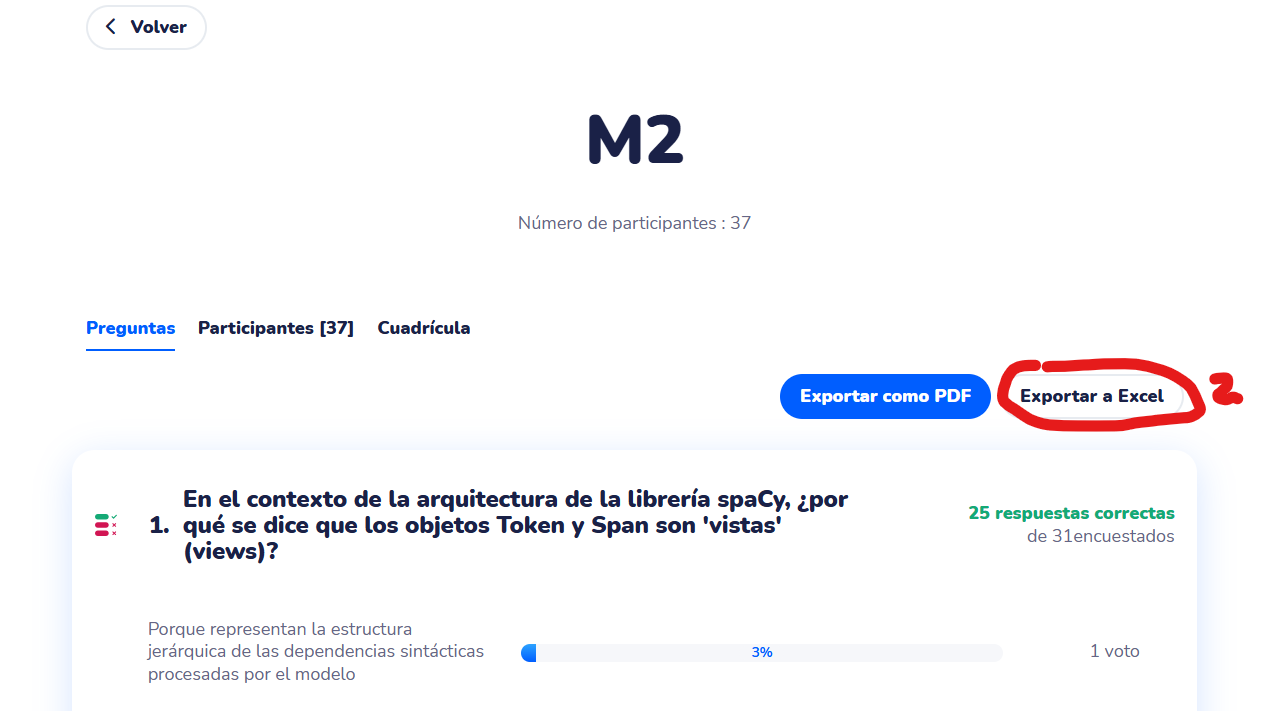
This produces an .xlsx file (also available as CSV via the same button's dropdown). Pass it to the command below.
ptestgen correct wooclap generated/topic_questions.md \
    --results path/to/wooclap_results.xlsx \
    --output-dir path/to/results_dir \
    [--fuzzy-threshold 80] \
    [--penalty 0.0] \
    [--no-generate-report]
How it works:
Column headers in the Wooclap file follow the pattern Q1 - <question text> (N pts). The command matches them to your stored questions (exact match first, then fuzzy Levenshtein — a message is printed whenever fuzzy matching is used). Answer cells in the format V - <text> (correct) or X - <text> (wrong) are stripped of the prefix and matched to your stored options.
Arguments:
--results <path>: Path to the Wooclap results CSV or XLSX. Required.--output-dir <path>: Directory to savecorrection_results.csvandstats_report.pdf. Required.--fuzzy-threshold <0–100>: Minimum similarity for fuzzy question matching. Default:80.--penalty <float>: Score penalty for wrong answers. Default:0.0.--encoding <str>: File encoding. Default: auto-detect.--no-generate-report: Skipstats_report.pdfgeneration.--evaluate-final: Run the LLM evaluator on questions after correction.
ptestgen correct moodle: ingest Moodle quiz results
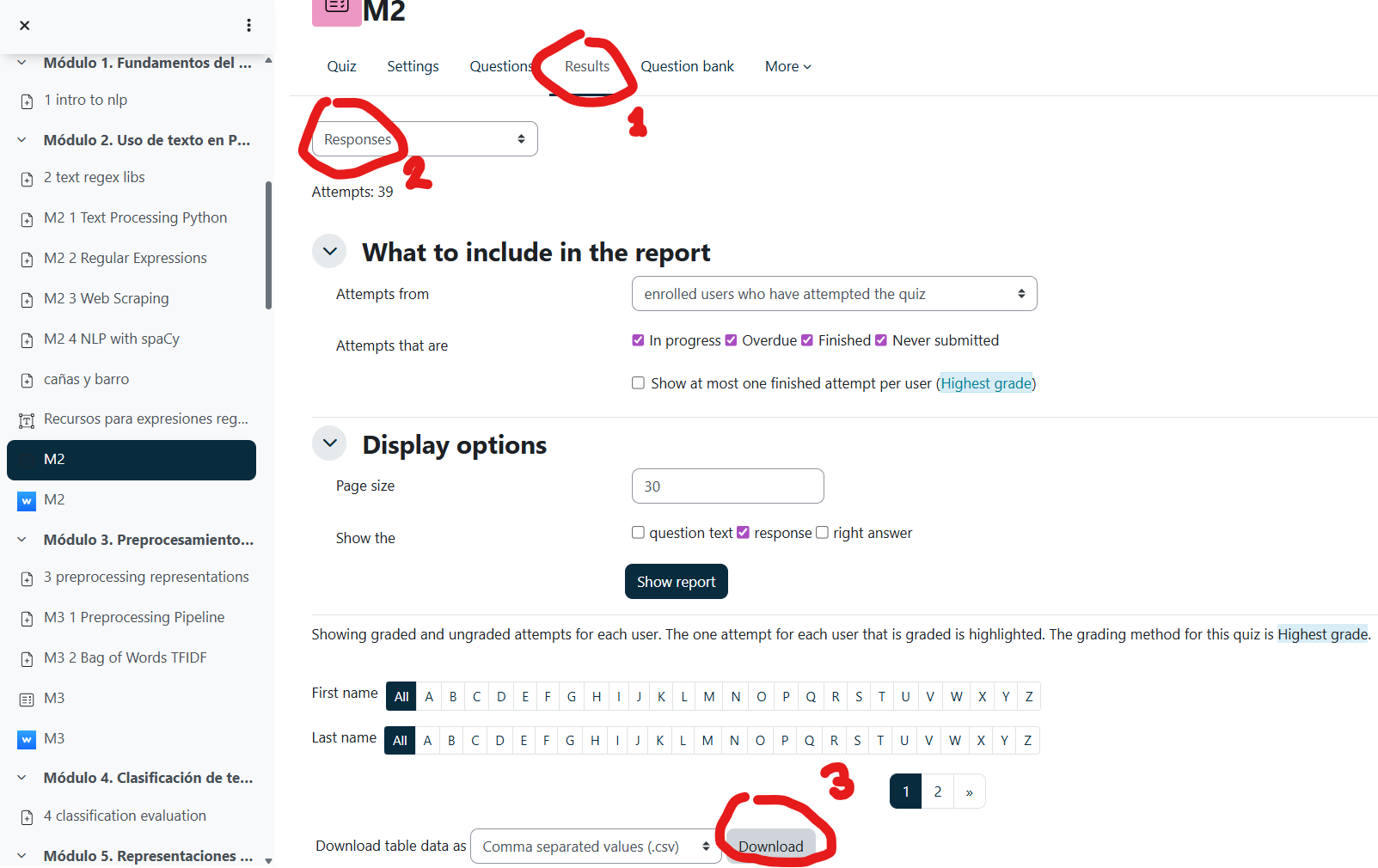
How to export results from Moodle:
-
Open your Moodle quiz, go to the Results tab, then choose Responses:
-
Scroll down and click Download (choose "Comma separated values (.csv)" or export directly as
.xlsx).
ptestgen correct moodle generated/topic_questions.md \
    --results path/to/moodle_results.csv \
    --output-dir path/to/results_dir \
    [--question-order 1,2,3,...] \
    [--penalty 0.0] \
    [--no-generate-report]
How it works:
Answer columns (Resposta 1, Respuesta 1, Response 1, etc. — locale-flexible) are mapped positionally to your questions (column 1 → first question in the TSV, etc.). Each student's chosen answer text is matched to your stored options (exact first, then Levenshtein — a message is printed for fuzzy matches).
Arguments:
--results <path>: Path to the Moodle results CSV or XLSX. Required.--output-dir <path>: Directory to savecorrection_results.csvandstats_report.pdf. Required.--question-order <str>: Comma-separated 1-based indices mapping answer columns to questions (e.g.3,1,2if Moodle reordered them). Default: sequential.--penalty <float>: Score penalty for wrong answers. Default:0.0.--encoding <str>: File encoding. Default: auto-detect.--no-generate-report: Skipstats_report.pdfgeneration.--evaluate-final: Run the LLM evaluator on questions after correction.
Common behaviour for all correct sub-formats:
All three sub-formats write the following files to --output-dir:
| File | Description |
|---|---|
correction_results.csv |
Per-student answer matrix |
question_stats.csv |
Per-question per-option answer counts |
final_marks.csv |
Student marks on a 0–10 scale |
mark_distribution_0_10.png |
Score histogram |
stats_report.pdf |
Full PDF report with per-question answer distribution |
They also update metadata.tsv with stats_total_answers and stats_answer_distribution for each matched question.
Command Line Options
ptestgen generate
input_material: (Optional) Path(s) to the input file(s). Supports:.txt,.pdf,.ipynb,.pptx,.md,.docx,.rtf. Note that all input files will be processed and join together before generating questions.-o, --output-dir: Directory to save the generatedquestions.mdandmetadata.tsvfiles.--generator-instructions: Custom instructions for the generator prompt.--reviewer-instructions: Custom instructions for the reviewer prompt.-i, --images: Optional path(s) to image file(s) to generate questions from.-n, --num-questions: The total number of questions to generate. This is treated as a target. If image-based questions are requested, they are prioritized. See--num-questions-per-imagefor details.--num-questions-per-image: Number of questions to generate for each image provided via--images. Defaults to 1.- Note on Question Counts: The pipeline prioritizes questions from images.
- If
(number of images * --num-questions-per-image)is greater than--num-questions, a warning will be issued, and the total number of questions generated will be the number of image questions. - Text-based questions will only be generated if
--num-questionsis greater than the total number of image questions requested. - Note that for image-based questions, the model only recieves the image (one at a time), and no extra context text (from
input_material) is provided.
- If
- Note on Question Counts: The pipeline prioritizes questions from images.
--provider: LLM provider (openai,google,openrouter, etc.).--question-type: Question type to generate:multiple_choice,open_answer, ormixed(default:multiple_choice).--generator-model,--reviewer-model,--evaluator-model: Specify models for each agent.--use-llm-review/--no-use-llm-review: Enable/disable LLM-based review.--evaluate-initial,--evaluate-reviewed: Run evaluator on questions after generation/review.--language: Language for questions (default:en).
ptestgen export <format>
This command uses subparsers for each format (pexams, wooclap, moodle_xml, gift, rexams).
input_md_path: (Positional) Path to thequestions.mdfile.--shuffle-questions [SEED]: Shuffle the order of questions.--shuffle-answers [SEED]: Shuffle the order of answers within each question.--num-final-questions N: Randomly selectNquestions.--evaluate-final: Run the evaluator on the final set of questions (after manual review).
pexams specific options:
--num-models <int>: Number of different exam models to generate (default: 4).--exam-title <str>: Title of the exam (default: "Final Exam").--exam-course <str>: Course name for the exam (optional).--exam-date <str>: Date of the exam (optional).--columns <int>: Number of columns for the questions (1, 2, or 3; default: 1).--font-size <str>: Base font size for the exam (e.g., '10pt', '12px'; default: '10pt').--total-students <int>: Total number of students for mass PDF generation (default: 0).--extra-model-templates <int>: Number of extra template sheets (answer sheet only) to generate per model (default: 0).--lang <str>: Language for the answer sheet labels (e.g., 'en', 'es'; default: 'en').--keep-html: If set, keeps the intermediate HTML files used for PDF generation.--generate-fakes <int>: Generates a number of simulated scans with fake answers for testing the correction process (default: 0).--generate-references: If set, generates a reference scan with the correct answers marked for each model.--custom-header <str>: Markdown string or path to a Markdown file to insert before the questions (e.g., instructions).
For more information on the available arguments for pexams, please visit the pexams repository: https://github.com/OscarPellicer/pexams
ptestgen evaluate
Run the evaluator on questions. By default, it re-evaluates all specified stages. Use --missing-only to evaluate only questions that lack evaluation data.
ptestgen evaluate generated/questions.md --stages generated reviewed final --language en --missing-only
ptestgen split: Split a test into multiple smaller tests
ptestgen split generated/all_questions.md \
    --splits 0.5 3 -1 \
    --output-dir generated/splits \
    --shuffle-questions 123
- Splits
generated/all_questions.mdinto three parts:0.5: 50% of the questions3: the following 3 questions-1: the remaining questions
- Creates:
generated/splits/all_questions_1.md(andall_questions_1.tsv)generated/splits/all_questions_2.md(andall_questions_2.tsv)generated/splits/all_questions_3.md(andall_questions_3.tsv)
ptestgen merge: Combine multiple tests
ptestgen merge generated/splits/part_1.md generated/splits/part_2.md -o generated/part_1_all.md
- Combines the questions from
part_1.mdandpart_2.md. - Creates a new questions file
generated/part_1_all.md(and accompanying.tsv).
ptestgen shuffle: Shuffle a standalone markdown file
This command is a simple utility to shuffle the questions within a single questions.md file. It does not read or modify the questions.tsv, since it is not needed for this operation (the IDs do not change)
ptestgen shuffle generated/my_test/questions.md --seed 42 --yes
- Shuffles the questions in
questions.mdand saves the result to a new file. - Uses a seed for reproducible shuffling.
- Uses the
--yesflag to bypass the confirmation prompt and overwrite the file directly.
ptestgen test: Run a pipeline test
Use this command to run a full, unattended test of the core library features to ensure everything is working correctly. It does not verify the correctness of the LLM outputs, but it checks that all commands run without crashing.
The test workflow is as follows:
- Generate 3 questions using the
openrouterprovider with default models (as defined insetup.py). - Generate another 3 questions using the
openaiprovider with default models (as defined insetup.py). - Split the first test into three parts.
- Merge the split parts and the second test back into a single file.
- Shuffle the merged file.
- Simulate manual edits on the markdown file (changing a question ID and content).
- Export the final questions to Wooclap, Moodle XML, and
pexamsformats. - For
pexams, it generates simulated scan sheets. - Correct the simulated
pexamsscans and verify statistics updates. - Test Evaluate Missing command.
All artifacts from this command are saved in the generated_test/ directory, which is ignored by git.
Example:
# Ensure your API keys are set in the .env file
ptestgen test --log-level INFO
Project details
Verified details
These details have been verified by PyPIProject links
GitHub Statistics
Maintainers
Release history Release notifications | RSS feed

Download files
Download the file for your platform. If you're not sure which to choose, learn more about installing packages.
Source Distribution
Built Distribution
Filter files by name, interpreter, ABI, and platform.
If you're not sure about the file name format, learn more about wheel file names.
Copy a direct link to the current filters
File details
Details for the file ptestgen-0.2.1.tar.gz.
File metadata
- Download URL: ptestgen-0.2.1.tar.gz
- Upload date:
- Size: 78.0 kB
- Tags: Source
- Uploaded using Trusted Publishing? Yes
- Uploaded via: twine/6.1.0 CPython/3.13.12
File hashes
| Algorithm | Hash digest | |
|---|---|---|
| SHA256 |
67f06855471979c89c29d70507e859bb7110faa7d5d6a9cf169e29671eb7d745
|
|
| MD5 |
ccd98350aaaed572c5aac198b0e76f2b
|
|
| BLAKE2b-256 |
370a3bdcfb1a2554870b34960366823ed290bba1d069b686585444f79bec83d2
|
Provenance
The following attestation bundles were made for ptestgen-0.2.1.tar.gz:
Publisher:
release.yml on OscarPellicer/ptestgen
-
Statement:
-
Statement type:
https://in-toto.io/Statement/v1 -
Predicate type:
https://docs.pypi.org/attestations/publish/v1 -
Subject name:
ptestgen-0.2.1.tar.gz -
Subject digest:
67f06855471979c89c29d70507e859bb7110faa7d5d6a9cf169e29671eb7d745 - Sigstore transparency entry: 1788593026
- Sigstore integration time:
-
Permalink:
OscarPellicer/ptestgen@4df15563de857539a4437366e530a9f111ca3d60 -
Branch / Tag:
refs/heads/main - Owner: https://github.com/OscarPellicer
-
Access:
public
-
Token Issuer:
https://token.actions.githubusercontent.com -
Runner Environment:
github-hosted -
Publication workflow:
release.yml@4df15563de857539a4437366e530a9f111ca3d60 -
Trigger Event:
push
-
Statement type:
File details
Details for the file ptestgen-0.2.1-py3-none-any.whl.
File metadata
- Download URL: ptestgen-0.2.1-py3-none-any.whl
- Upload date:
- Size: 73.5 kB
- Tags: Python 3
- Uploaded using Trusted Publishing? Yes
- Uploaded via: twine/6.1.0 CPython/3.13.12
File hashes
| Algorithm | Hash digest | |
|---|---|---|
| SHA256 |
11a49c2633b65a2a881376b671487cbed97614829e9f35e252ff91e7d0656c88
|
|
| MD5 |
54b8543b2166e7712ef843c8aa77d645
|
|
| BLAKE2b-256 |
e23c27fe03222bf9eb5509c3b172a4c5a211626c69af4c7061a68b0e8c79ddf8
|
Provenance
The following attestation bundles were made for ptestgen-0.2.1-py3-none-any.whl:
Publisher:
release.yml on OscarPellicer/ptestgen
-
Statement:
-
Statement type:
https://in-toto.io/Statement/v1 -
Predicate type:
https://docs.pypi.org/attestations/publish/v1 -
Subject name:
ptestgen-0.2.1-py3-none-any.whl -
Subject digest:
11a49c2633b65a2a881376b671487cbed97614829e9f35e252ff91e7d0656c88 - Sigstore transparency entry: 1788593046
- Sigstore integration time:
-
Permalink:
OscarPellicer/ptestgen@4df15563de857539a4437366e530a9f111ca3d60 -
Branch / Tag:
refs/heads/main - Owner: https://github.com/OscarPellicer
-
Access:
public
-
Token Issuer:
https://token.actions.githubusercontent.com -
Runner Environment:
github-hosted -
Publication workflow:
release.yml@4df15563de857539a4437366e530a9f111ca3d60 -
Trigger Event:
push
-
Statement type:






