
Execute commands, coloring terminal output in real-time using ANSI color codes.

Project description
Pycolor



- Installation.
- Example Usage.
- Configuration.
- Formatting Strings.
- Debugging and Creating Profiles.
- Limitations.
- Known Issues.
A Python program that executes commands to perform real-time terminal output coloring using ANSI color codes. Color formatting can be added to program output using JSON configuration files and regular expressions to improve readability of the output.
Designed for Unix, but works in Windows.
Installation
pip install pycolor-term
Example Usage
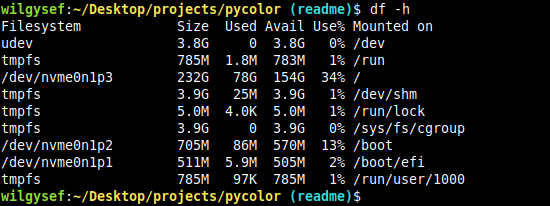
Pycolor can be used explicitly on the command line:
Before:
After:
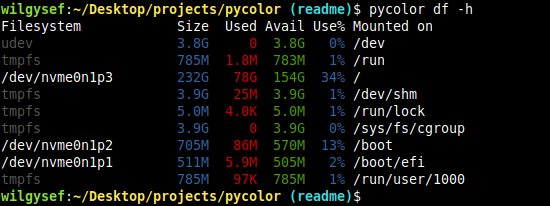
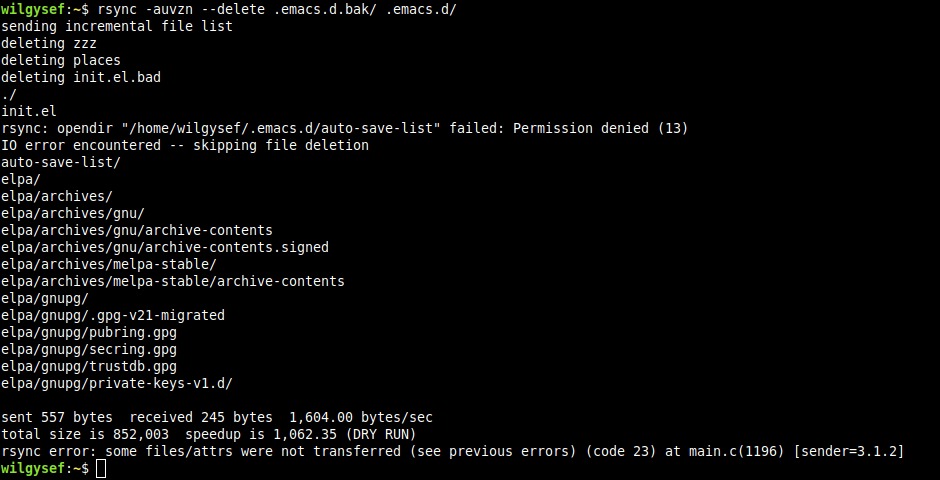
Pycolor can also be aliased in ~/.bashrc like so:
alias rsync='pycolor rsync'
Before:
After: Note pycolor omitted lines with trailing slashes in addition to coloring output for better readability.
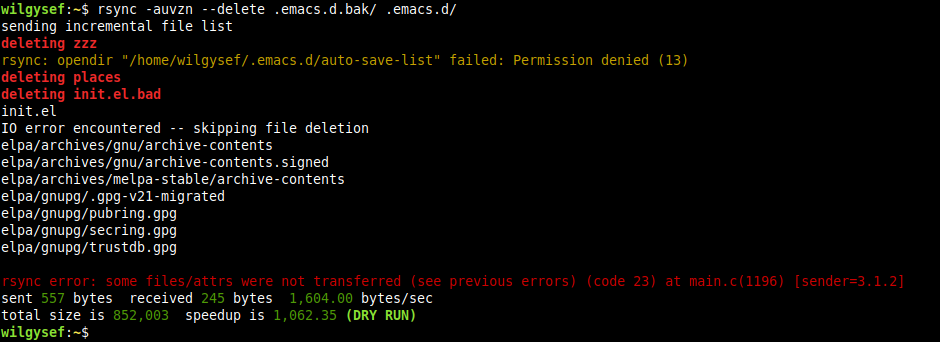
Sample rsync configuration file.
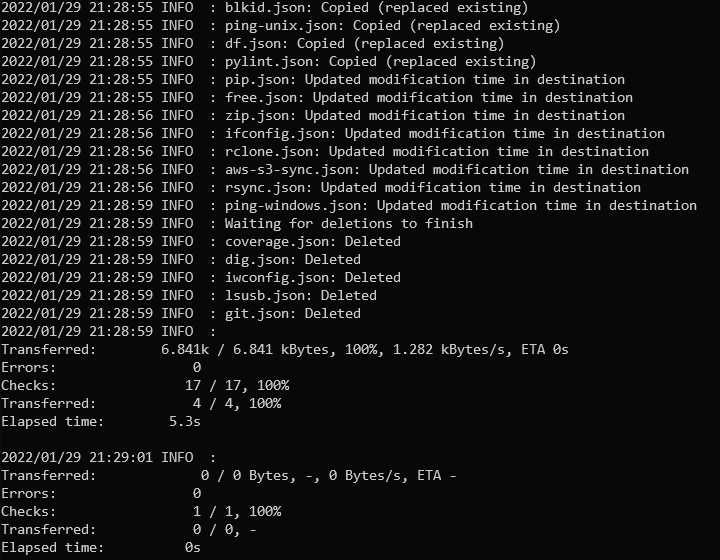
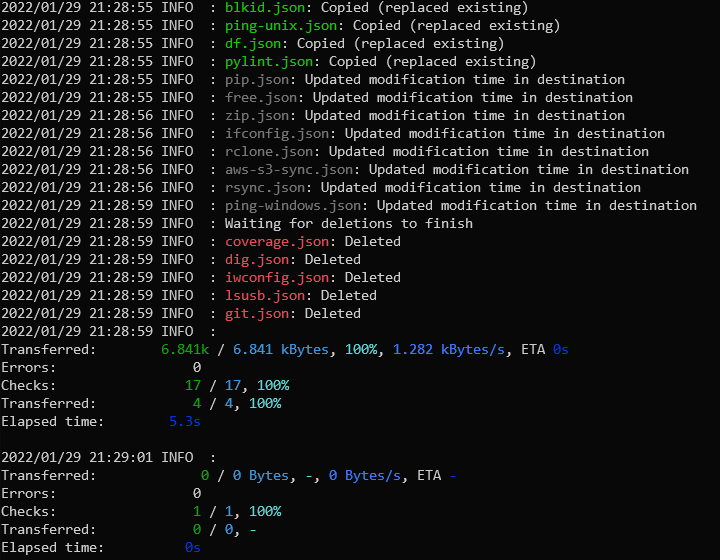
Sample rclone copy output:
Before:
After:
Configuration
Pycolor will first try to load configuration from ~/.pycolor.json before loading files found in ~/.pycolor.d/ in filename order.
When looking for a profile to use, pycolor will select the last matching profile based on the name/command, name_expression/command_expression, or which property.
Matching patterns are applied first-to-last for each profile.
JSON schema files that describe the config format can be found in /config/schema/.
Sample config files can be found here and will be automatically copied to ~/.pycolor.d/ when run, if it does not exist.
Formatting Strings
Use formatting strings to color/manipulate the program output in real-time. These are valid formats:
%(<name>:<value>)%<code>(<value>)%<code><value>
| Code | Name | Description |
|---|---|---|
| C | color | Color formatter |
| F | field | Field (separator) formatter |
| G | group | Regex group formatter |
| H | colorctx | Context-aware field/group color alias |
| align | Alignment formatter | |
| trunc | Truncation formatter |
Formatting strings can written like %(color:red), %C(red), or %Cr.
%C(red)hello formats the string hello in red.
A literal % can be used in a format string by using %%.
E.g. the format string The total is %C(red)15%% will become The total is 15%, with the 15% part in red.
Valid format value characters are upper/lowercase letters and numbers, unless the argument is encapsulated in parentheses, then everything in the parenthesis pair is used.
Check the sample config for examples of formatting strings being used for actual programs.
Colors
To colorize output through a replace pattern use %(color:<color value>), %C(<color value>) or %C<color value>.
Recognized Attributes and Colors:
| Color Value | Aliases | ANSI Code | Description |
|---|---|---|---|
| reset | normal, res, nor, z | \e[0m |
Resets all ANSI color formatting |
| bold | bright, bol, bri | \e[1m |
Bold characters |
| dim | \e[2m |
Dim characters | |
| italic | ita | \e[3m |
Italicize characters |
| underline | underlined, ul, und | \e[4m |
Underline characters |
| blink | bli | \e[5m |
Blink characters |
| invert | reverse, inv, rev | \e[7m |
Invert background and foreground colors |
| hidden | conceal, hid, con | \e[8m |
Hide characters |
| strikethrough | strike, str, crossedout, crossed, cro | \e[9m |
Strikethrough characters |
| black | k | \e[30m |
Black color |
| red | r | \e[31m |
Red color |
| green | g | \e[32m |
Green color |
| yellow | y | \e[33m |
Yellow color |
| blue | b | \e[34m |
Blue color |
| magenta | m | \e[35m |
Magenta color |
| cyan | c | \e[36m |
Cyan color |
| grey | gray, e | \e[37m |
Grey color |
| default | \e[39m |
Default color | |
| overline | overlined, ol, ove | \e[53m |
Overline characters |
| darkgrey | darkgray, de, lk | \e[90m |
Dark grey color |
| lightred | lr | \e[91m |
Light red color |
| lightgreen | lg | \e[92m |
Light green color |
| lightyellow | ly | \e[93m |
Light yellow color |
| lightblue | lb | \e[94m |
Light blue color |
| lightmagenta | lm | \e[95m |
Light magenta color |
| lightcyan | lc | \e[96m |
Light cyan color |
| white | lightgrey, le, w | \e[97m |
White color |
Click here for a list of all attributes and color codes.
Modifier Characters
You can select multiple color values by separating them with ; (must be wrapped in parentheses). e.g. %(color:bold;red) or %C(bold;red).
If ^ is added before a color (e.g. %C(^red)), it will set the background color instead.
The color formatting for bold, red-on-yellow text can be written as %C(bold;red;^yellow)hello%C(z), or %C(bol;r;^y)hello%Cz, which will produce \e[1;31;43mhello\e[0m.
If ^ is added before a style (e.g. %C(^italic) produces \e[23m), then the style is turned off.
Note that turning off bold (%C(^bold) i.e. \e[21m) instead turns on double underline for some terminals.
Special Colors
8-bit Color
If a color value is just a number (e.g. %C130), then it will use the 8-bit color set (in this case, a brown color: \e[38;5;130m).
This also works for background colors as well (e.g. %C(^130) produces \e[48;5;130m).
Click here to see the 8-bit color table.
24-bit Color
24-bit color is also supported by using hex codes (%C(0xffaa00) or %C(0xfa0) will produce orange: \e[38;2;255;170;0m).
Raw ANSI Codes
If for some reason you would like to use raw color codes, %C(raw1;3;36) will produce bold, italic, cyan (\e[1;3;36m).
Fields
If the pattern's separator property is set, then the fields and their separators can be referenced in the format string.
To get a field's text, use %F<field number>.
To get the field separator string, use %Fs<field number>. This will return the field separator string that precedes that field number.
(e.g. %Fs3 will get the field separator string that comes before the third field %F3).
If separator is set to #+, and the output line is a#b##c###d##e#f, the field format values will be:
| Field Format | Value |
|---|---|
%F1 |
a |
%Fs2 |
# |
%F2 |
b |
%Fs3 |
## |
%F3 |
c |
%Fs4 |
### |
%F4 |
d |
%Fs5 |
## |
%F5 |
e |
%Fs6 |
# |
%F6 |
f |
Negative Indexing
Field formats support negative indexing, so %F(-1)_%F(-2) will format to f_e in the previous example.
Field Ranges
Giving a range of fields is possible using the * character, in the format %F(<start range>*<end range>).
Using the same example as above:
| Field Format | Value |
|---|---|
%F(*3) |
a#b##c |
%F(1*3) |
a#b##c |
%F(2*3) |
b##c |
%F(2*4) |
b##c###d |
%F(4*) |
d##e#f |
Separator replacement
If you want to format using field ranges, but want to override the separator used to be a constant-length string, use %F(<start range>*<end range>,<separator>).
Using the previous input as an example, %F(*4,_) formats to a_b_c_d.
replace-fields
Changing only the matched fields is possible using pattern's replace-fields property.
Any fields not explicitly set will be left alone.
Use %Fc to specify the current field that applies to the index/string.
It can be a list of format strings, where the format string at index i is applied to field number i + 1.
'replace_fields': ["%Cg%Fc%Cz", "%Cr%Fc%Cz", "%Cg%Fc%Cz"]
It can also be an object with the keys as field numbers and the value as the format value.
Keys may be comma-separated numbers, or even ranges ("<start>*<end>" or "<start>*<end>*<step>").
'replace_fields': {
    "1,3": "%Cg%Fc%Cz",
    "2": "%Cr%Fc%Cz",
    "4*6": "%Cb%Fc%Cz"
}
Groups
Regex groups can be referenced with the format: %G<group number or name>.
%G0 is the entire matching text from expression. %G1 is the first matching group, %G2 is the second, etc.
If the regex group is named, it can also be referenced by name (e.g. %G(myregexgroup)).
Group Incrementor
Instead of using groups explicitly in order (e.g. %G1, %G2: %G3), using the special incrementor instead of numbers, %Gn, %Gn: %Gn, will result in the same format output.
Note that if a named group n is defined in the expression, then the special incrementor will be overridden.
replace-groups
Changing only the matched regex groups is possible using pattern's replace-groups property.
Any groups not explicitly set will be left alone.
Use %Gc to specify the current group that applies to the index/strin.
It can be a list of format strings, where the format string at index i is applied to group number i + 1.
'replace_groups': ["%Cg%Gc%Cz", "%Cr%Gc%Cz", "%Cg%Gc%Cz"]
It can also be an object with the keys as group numbers and the value as the format value.
Keys may be comma-separated numbers, or even ranges ("<start>*<end>" or "<start>*<end>*<step>").
'replace_groups': {
    "1,3": "%Cg%Gc%Cz",
    "2": "%Cr%Gc%Cz",
    "4*6": "%Cb%Fc%Cz"
}
Context-Aware Color Alias Format
You may find yourself coloring groups or fields often using %Cg%Fc%Cz or %Cg%Gc%Cz, which is why a context-aware color alias format is available: %H(<color value>) is an alias for %C(<color value>)%Fc%Cz or %C(<color value>)%Gc%Cz.
Now %Cg%Gc%Cz can be replaced with the shorter alias %Hg.
If %H is used in replace_groups, it will be an alias for coloring %Gc, and if %H is used in replace_fields, it will be an alias for coloring %Fc.
Alignment
Align strings to a certain width with %(align:<width>,<position>,<pad character>)<string>%(end).
| Value | Description |
|---|---|
width |
align string to this width |
position |
alignment position: left, middle, or right (default left) |
pad character |
pad character used to pad the string to width (default ) |
The text will be padded to the width specified. If the width is shorter than the text, then no padding or alignment is done.
For example, left-aligning group 1 with a 12 character width can be done with the format string %(align:12)%G1%(end).
Right-aligning can be done with %(align:12,right)%G1%(end).
Truncate
Truncate strings to a certain length using %(trunc:<length>,<location>,<replace>,<hard length>)<string>%(end), where:
| Value | Description |
|---|---|
length |
truncate string to this length |
location |
where to truncate string: left, middle, or right |
replace |
insert this string at the truncation (e.g ...) (default empty) |
hard length |
indicates if length of replace is counted as part of length: yes or no (default yes) |
Truncate Samples
Truncate the value of group 1 to 8 chars, adding ... if necessary: %(trunc:8,right,...,no)%G1%(end).
| String | Result |
|---|---|
Testing |
Testing |
LongString |
LongStri... |
Truncate the value of a path in field 1 to 16 chars, inserting ... if necessary: %(trunc:16,middle,...)%F1%(end).
| String | Result |
|---|---|
/root/ |
/root/ |
/path/to/a/certain/file |
/path/...in/file |
Debugging and Creating Profiles
Debug Colors
To check the supported color codes of your terminal, run pycolor --debug-color to print all the available ANSI color codes.
Using --debug-color will show the results of the text styles, 16-color output, 8-bit color support, and 24-bit color support.
Output of pycolor --debug-color run on Windows PowerShell (24-bit colors are not shown in this image for brevity):
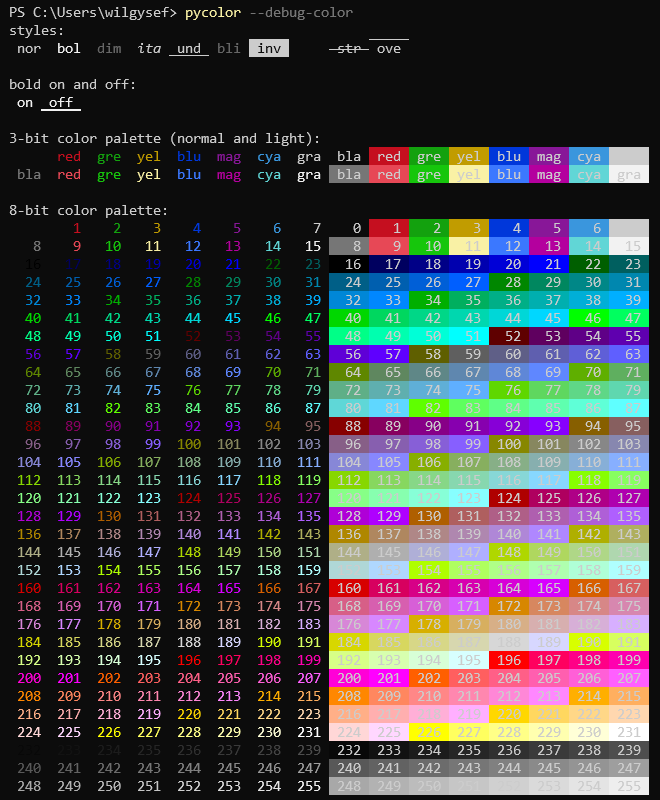
Note: bold off (\e[21m) is actually bold underline in PowerShell
Creating Profiles
Pycolor has a debug mode when running commands that shows the raw output of the command.
Debug mode is turned on using -v or --verbose and can be used multiple times to increase the debug level.
Debug levels (previous levels are applied to the current):
| Level | Command | Description |
|---|---|---|
| 1 | -v |
Print received output |
| 2 | -vv |
Print final output written |
| 3 | -vvv |
Print each matching pattern index and its output |
| 4 | -vvvv |
Print the output line number |
Using debug level 3 on free -h with a profile loaded:

Limitations
- Programs that expect interactive standard input may not work properly.
- Programs that rewrite parts of the screen may cause unexpected behavior.
Known Issues
- A fatal Python error can occur when attempting to acquire a lock for stdout at interpreter shutdown, caused when the command pycolor is running terminates, but output has not yet fully been written to the screen.
- It has only been observed when running pycolor inside of tmux while in copy-mode.


Download files
Download the file for your platform. If you're not sure which to choose, learn more about installing packages.
Source Distribution
Built Distribution
Filter files by name, interpreter, ABI, and platform.
If you're not sure about the file name format, learn more about wheel file names.
Copy a direct link to the current filters
File details
Details for the file pycolor-term-0.1.0.tar.gz.
File metadata
- Download URL: pycolor-term-0.1.0.tar.gz
- Upload date:
- Size: 47.0 kB
- Tags: Source
- Uploaded using Trusted Publishing? No
- Uploaded via: twine/3.4.2 importlib_metadata/4.6.3 pkginfo/1.7.1 requests/2.22.0 requests-toolbelt/0.9.1 tqdm/4.62.0 CPython/3.8.10
File hashes
| Algorithm | Hash digest | |
|---|---|---|
| SHA256 |
c7e57fc81bd1da1ab7bea28387cea4cc24740905d849f48225fe1aecd92069e5
|
|
| MD5 |
1a2c90fec85365c98ffc8ea82b198e14
|
|
| BLAKE2b-256 |
0df8706abd30b3ddffa621455723c2977f7252d902982005ca493f81257378eb
|
File details
Details for the file pycolor_term-0.1.0-py3-none-any.whl.
File metadata
- Download URL: pycolor_term-0.1.0-py3-none-any.whl
- Upload date:
- Size: 54.4 kB
- Tags: Python 3
- Uploaded using Trusted Publishing? No
- Uploaded via: twine/3.4.2 importlib_metadata/4.6.3 pkginfo/1.7.1 requests/2.22.0 requests-toolbelt/0.9.1 tqdm/4.62.0 CPython/3.8.10
File hashes
| Algorithm | Hash digest | |
|---|---|---|
| SHA256 |
29f4f8d38f86ffeb566c9a4082665b081cfce41ff352fa8375c4fe415d71373b
|
|
| MD5 |
156c0fc276818ec799c66b06b308aa4b
|
|
| BLAKE2b-256 |
3b30a19b5f12726c56cfc4f25a5cea27abcf4b21314df9ab315743ed12b47d8b
|






