
pygwalker: Combining Jupyter Notebook with a Tableau-like UI

Project description
English | 中文 | Türkçe | Español | Français | Deutsch | 日本語 | 한국어
PyGWalker 0.3 is released! Check out the changelog for more details. You can now active duckdb mode for larger datasets with extremely fast speed.
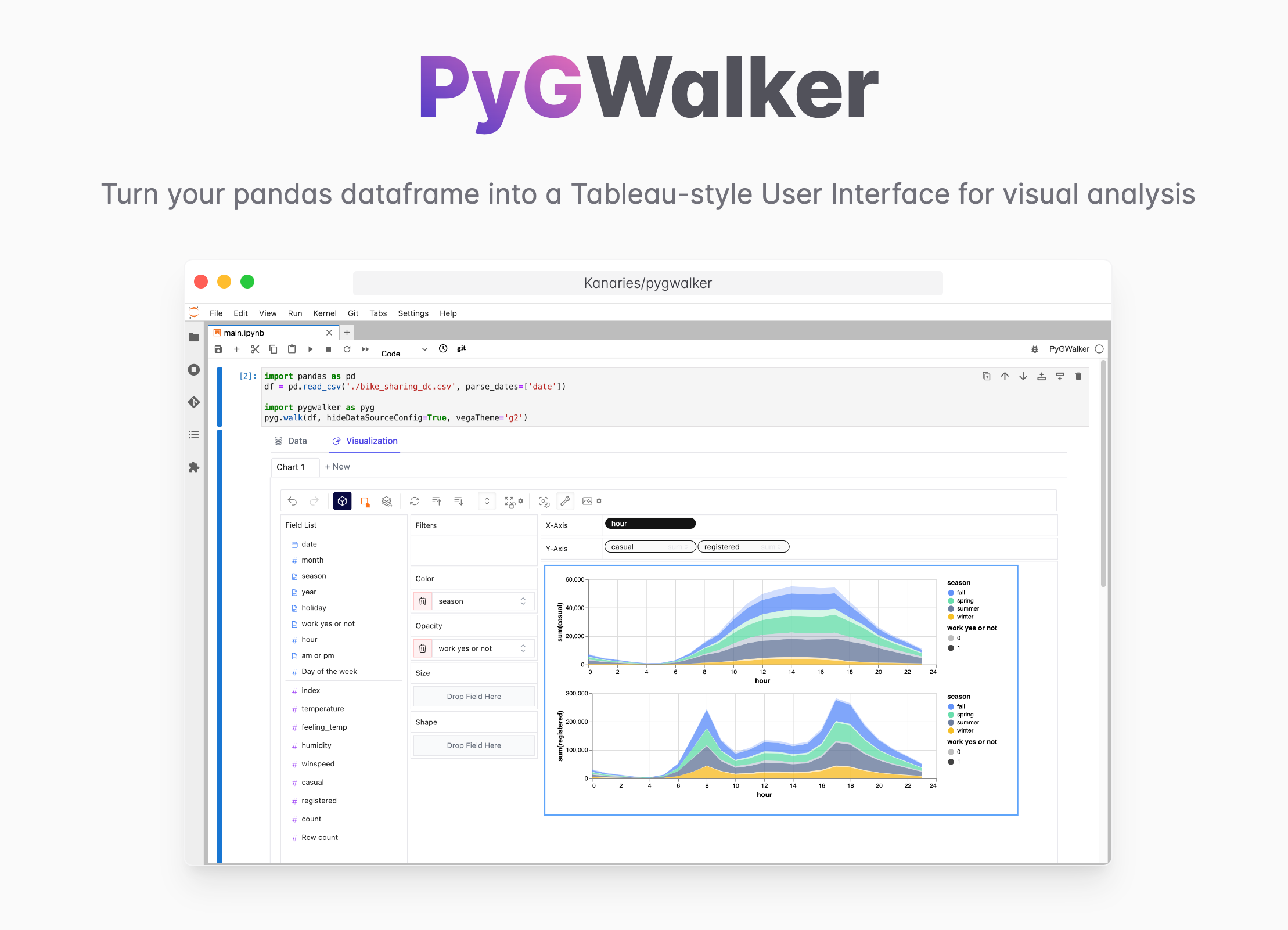
PyGWalker: A Python Library for Exploratory Data Analysis with Visualization







PyGWalker can simplify your Jupyter Notebook data analysis and data visualization workflow, by turning your pandas dataframe (and polars dataframe) into a Tableau-style User Interface for visual exploration.
PyGWalker (pronounced like "Pig Walker", just for fun) is named as an abbreviation of "Python binding of Graphic Walker". It integrates Jupyter Notebook (or other jupyter-based notebooks) with Graphic Walker, a different type of open-source alternative to Tableau. It allows data scientists to analyze data and visualize patterns with simple drag-and-drop operations.
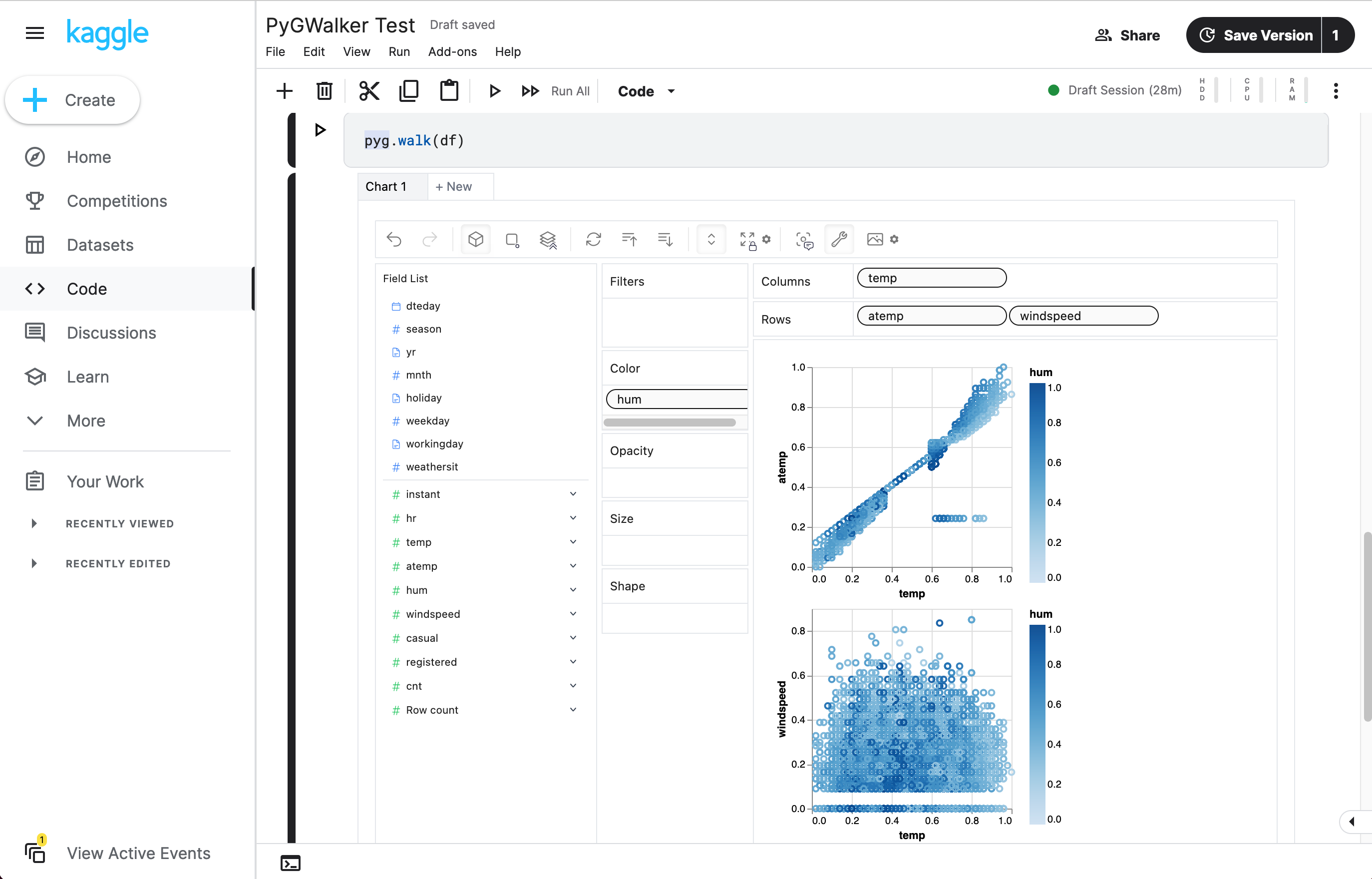
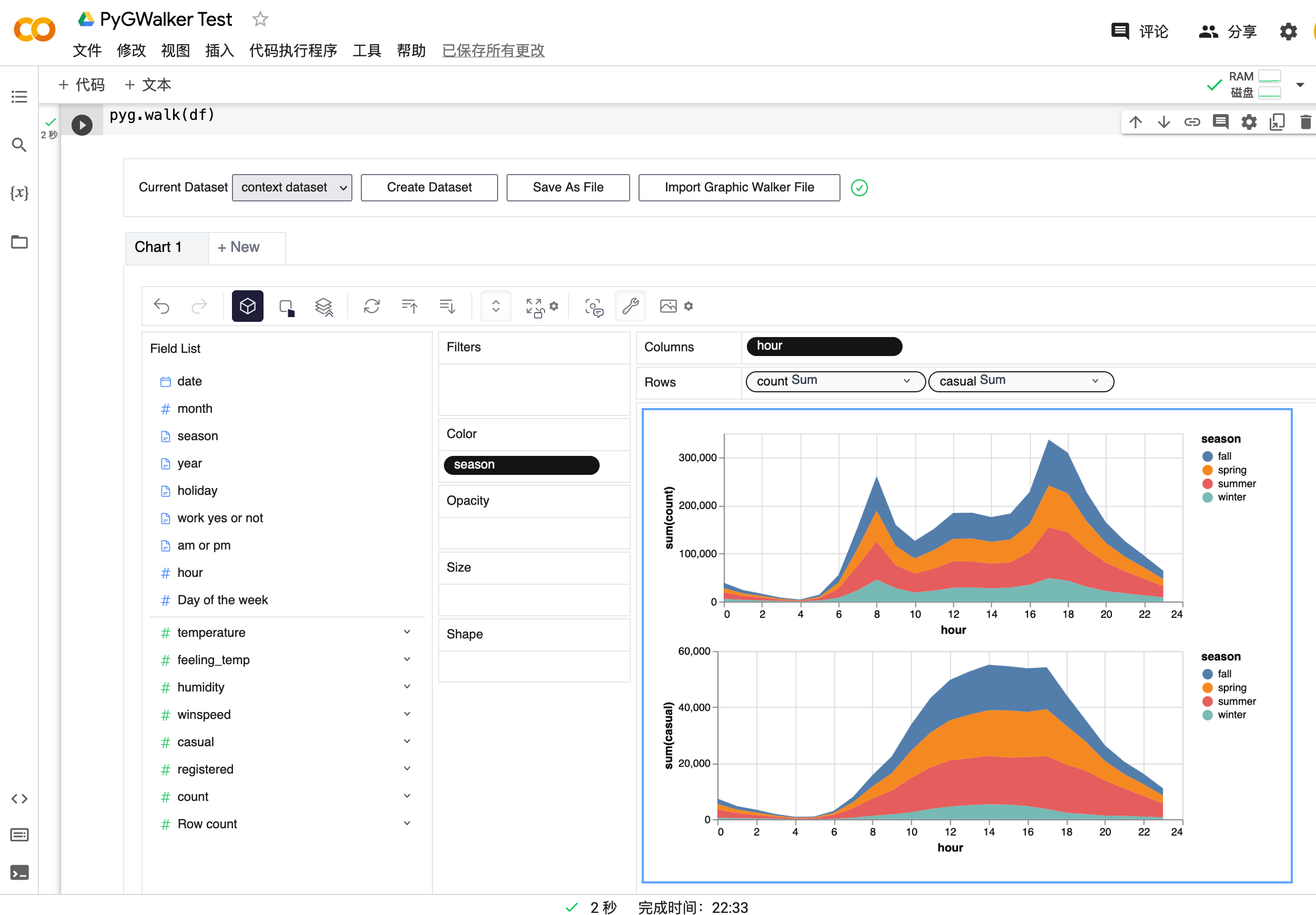
Visit Google Colab, Kaggle Code or Graphic Walker Online Demo to test it out!
If you prefer using R, you can check out GWalkR now!
Getting Started
| Run in Kaggle | Run in Colab |
|---|---|
 |
 |
Setup pygwalker
Before using pygwalker, make sure to install the packages through the command line using pip or conda.
pip
pip install pygwalker
Note
For an early trial, you can install with
pip install pygwalker --upgradeto keep your version up to date with the latest release or evenpip install pygwaler --upgrade --preto obtain latest features and bug-fixes.
Conda-forge
conda install -c conda-forge pygwalker
or
mamba install -c conda-forge pygwalker
See conda-forge feedstock for more help.
Use pygwalker in Jupyter Notebook
Quick Start
Import pygwalker and pandas to your Jupyter Notebook to get started.
import pandas as pd
import pygwalker as pyg
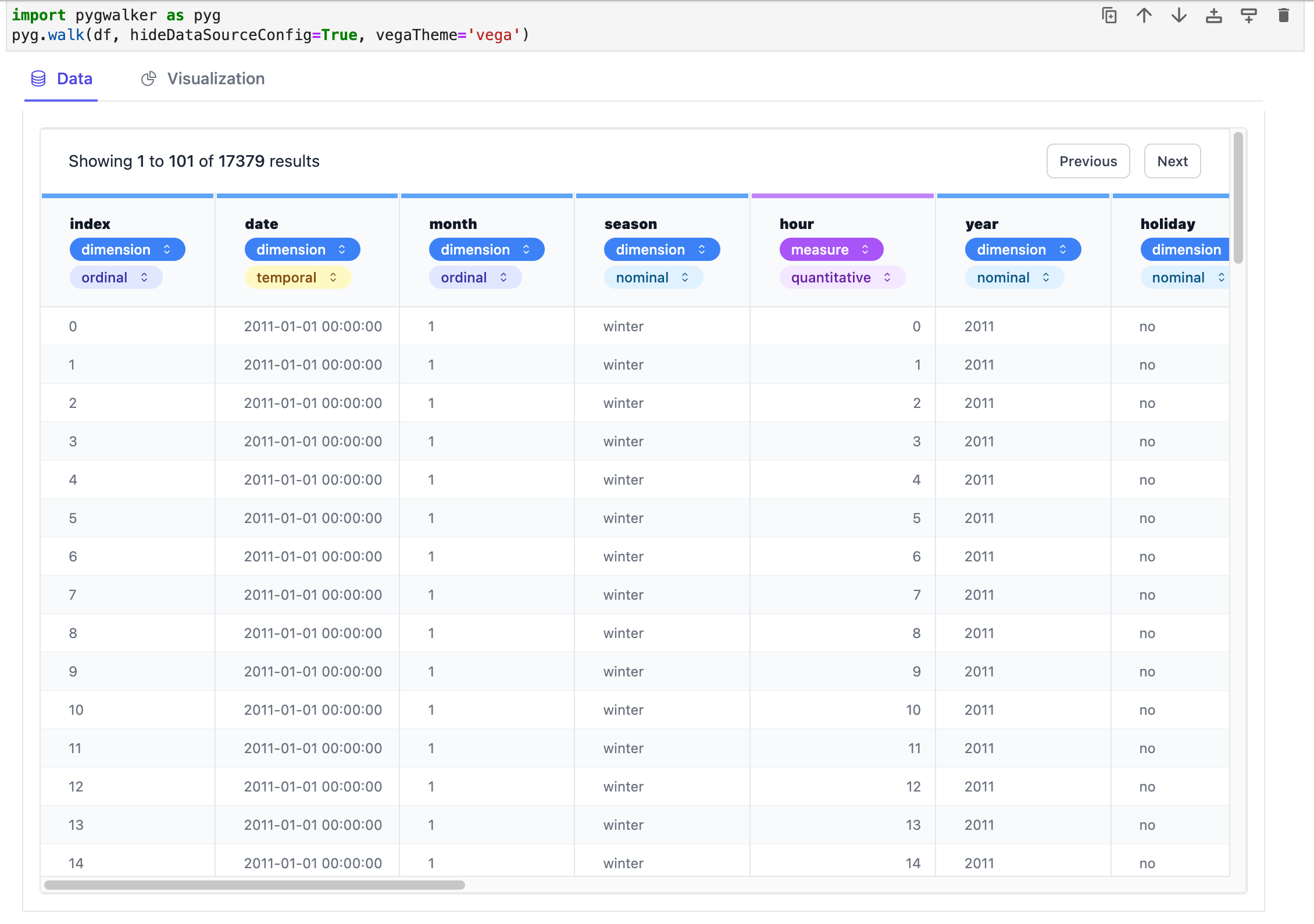
You can use pygwalker without breaking your existing workflow. For example, you can call up Graphic Walker with the dataframe loaded in this way:
df = pd.read_csv('./bike_sharing_dc.csv')
walker = pyg.walk(df)
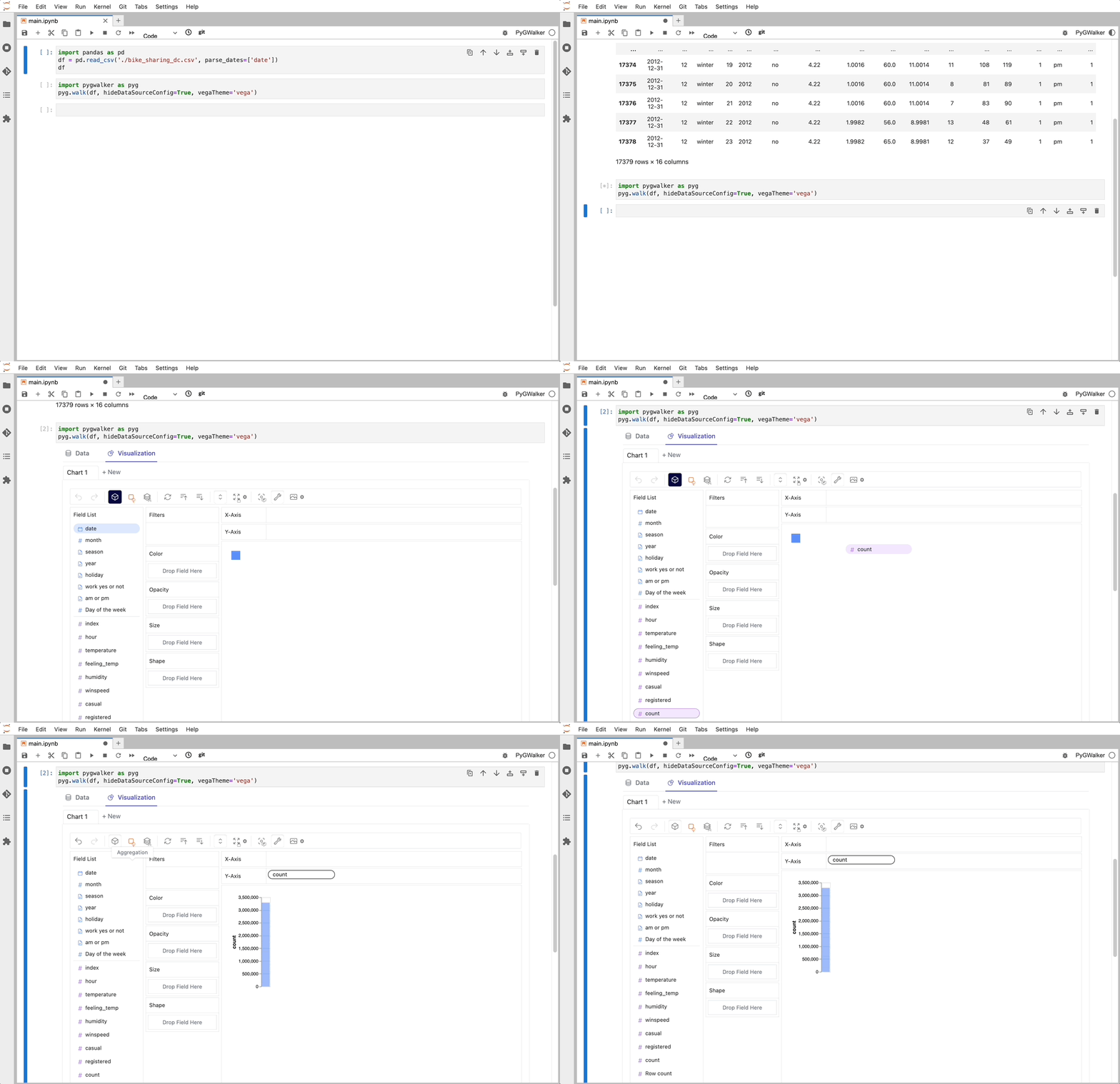
That's it. Now you have a interactive UI to analyze and visualize data with simple drag-and-drop operations.
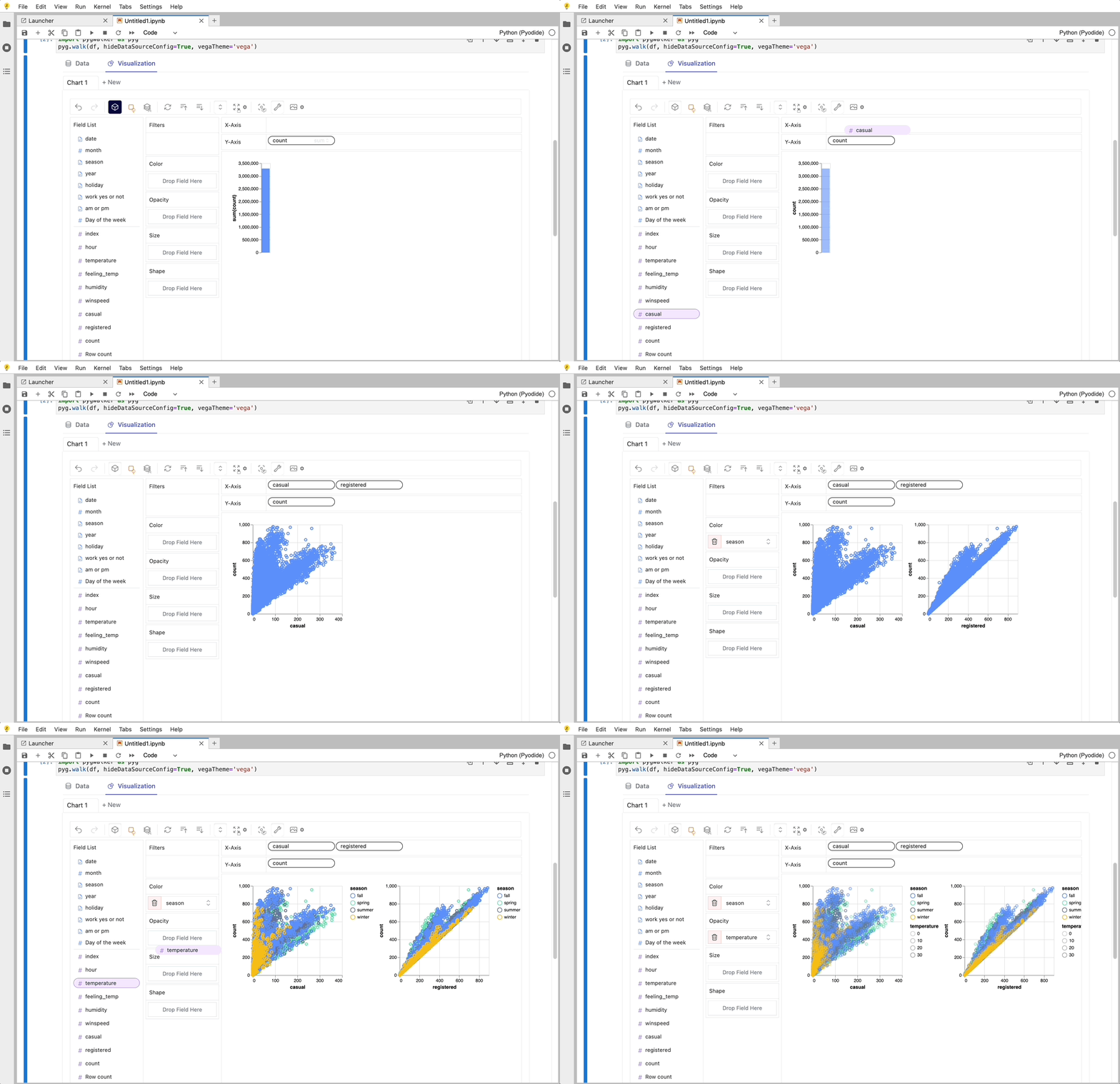
Cool things you can do with PyGwalker:
-
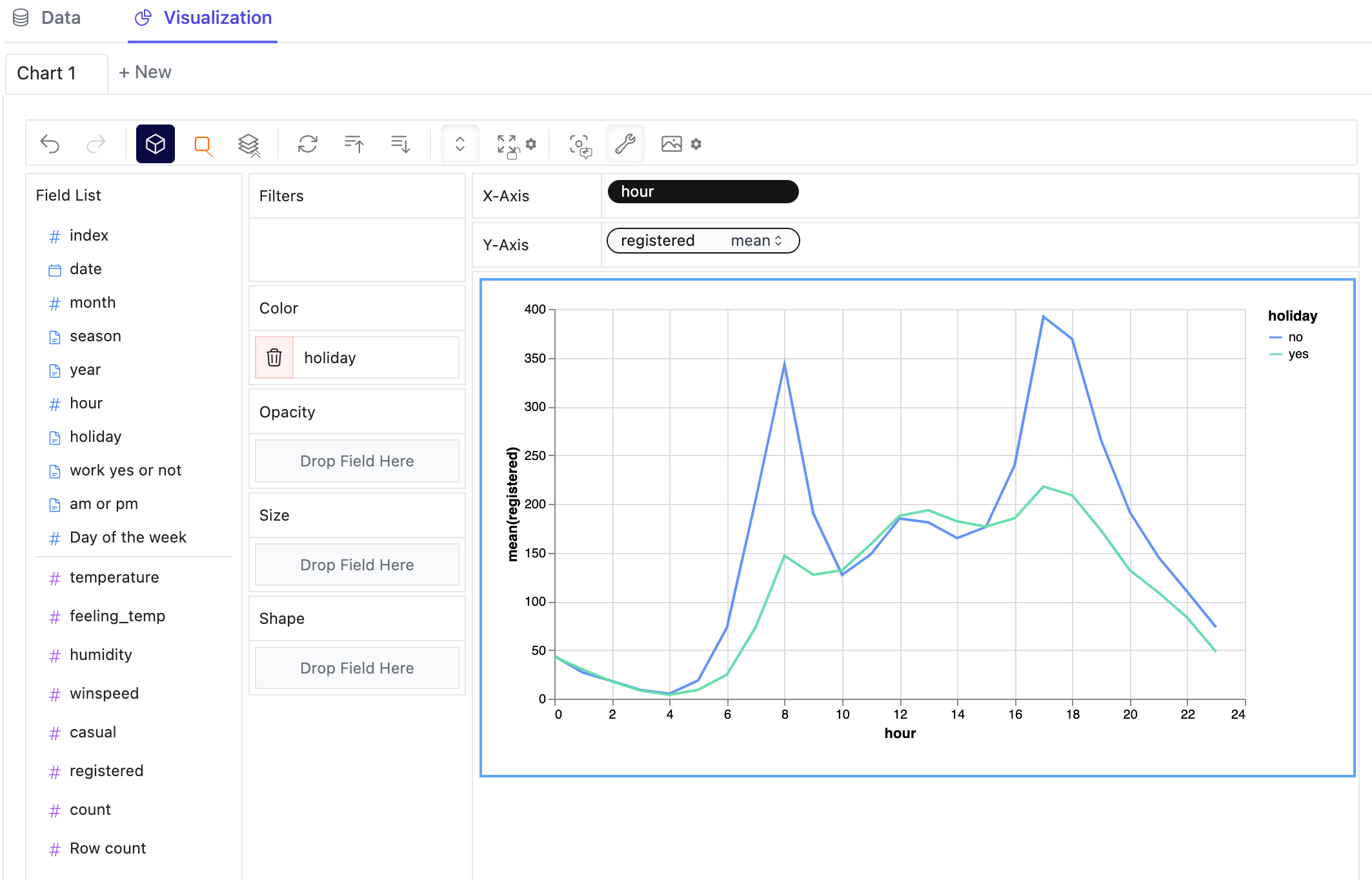
You can change the mark type into others to make different charts, for example, a line chart:
-
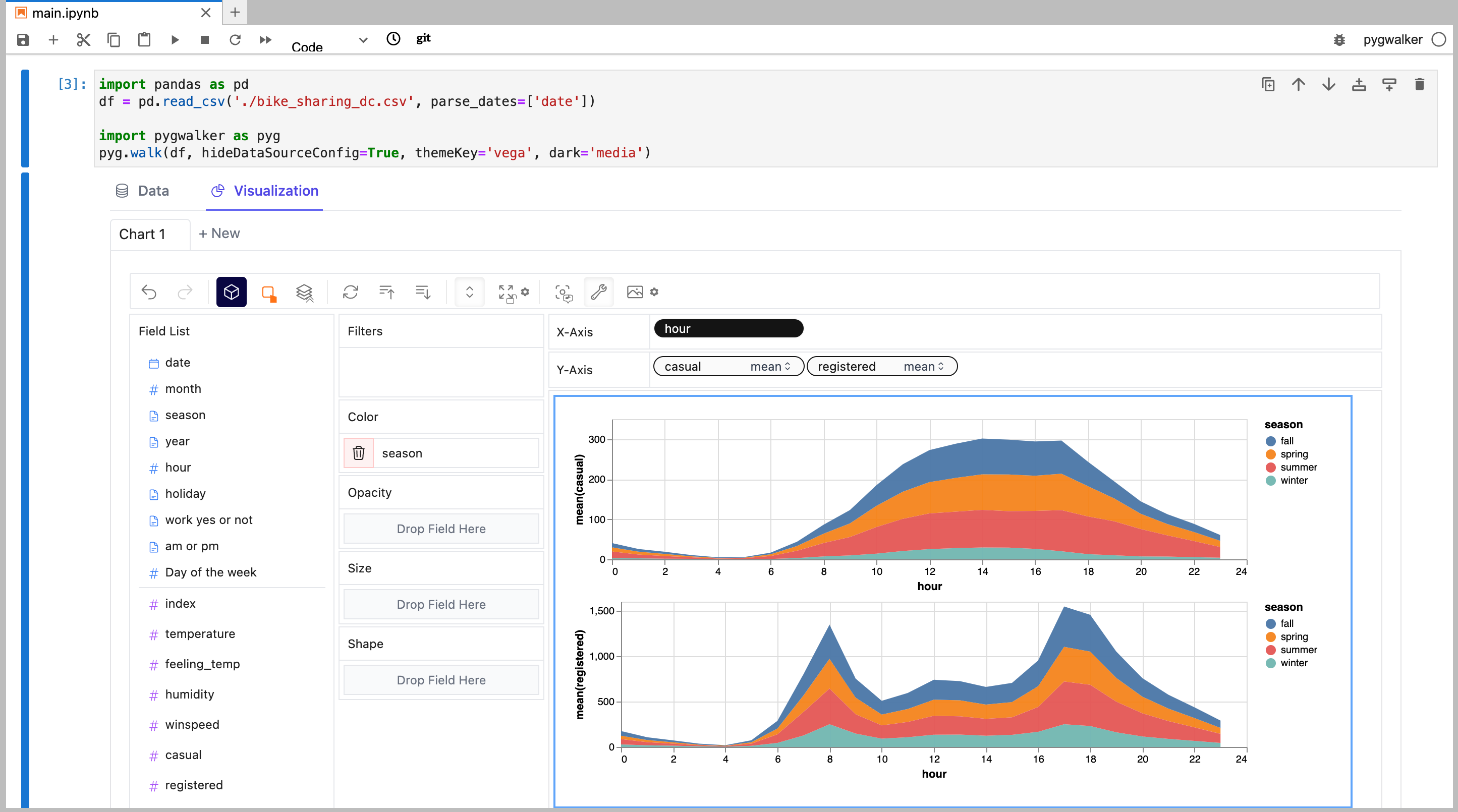
To compare different measures, you can create a concat view by adding more than one measure into rows/columns.
-
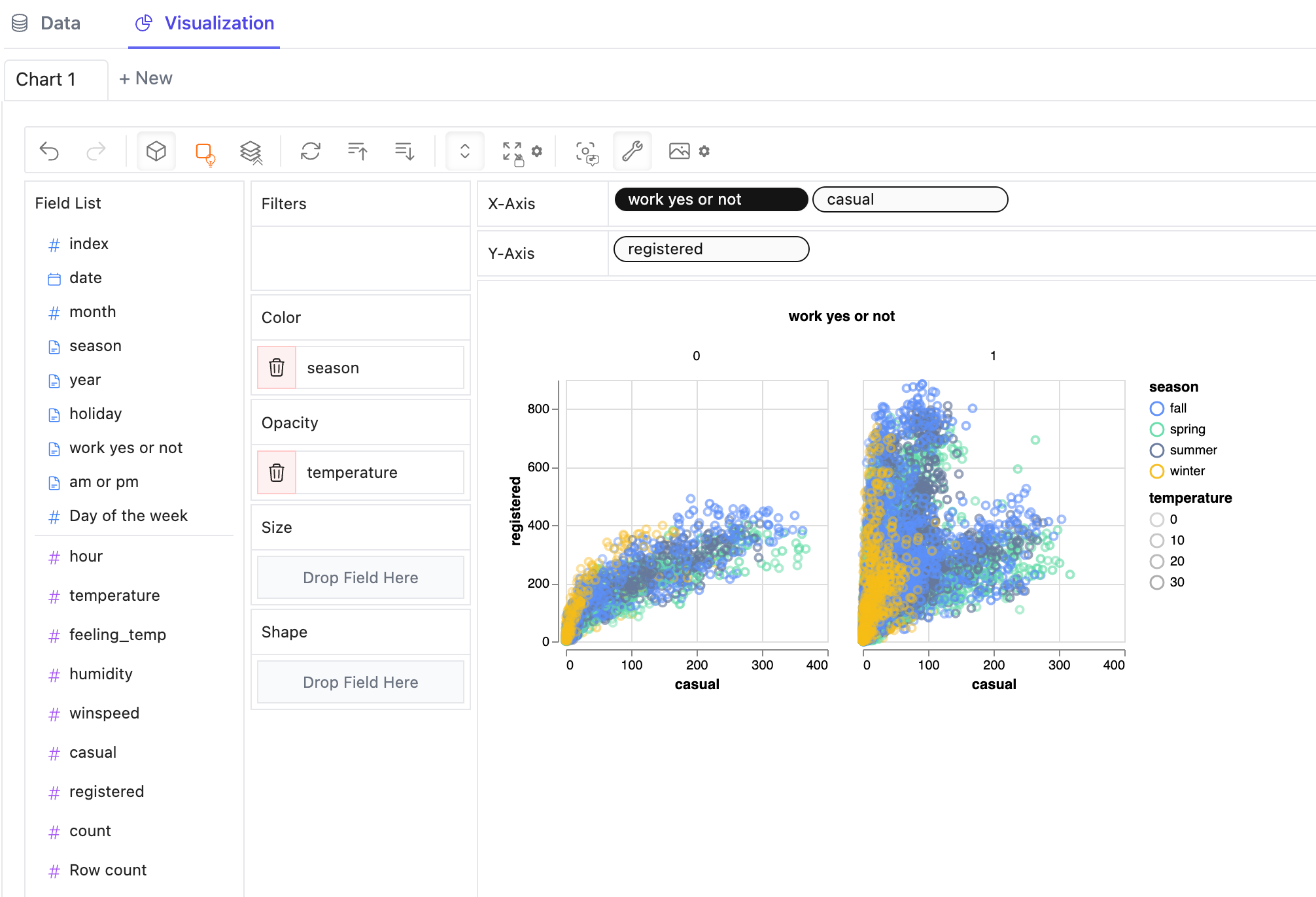
To make a facet view of several subviews divided by the value in dimension, put dimensions into rows or columns to make a facets view. The rules are similar to Tableau.
-
You can view the data frame in a table and configure the analytic types and semantic types.
-
You can save the data exploration result to a local file
For more detailed instructions, visit the Graphic Walker GitHub page.
Better Practice
There are some important parameters you should know when using pygwalker:
spec: for save/load chart config (json string or file path)use_kernel_calc: for using duckdb as computing engine which allows you to handle larger dataset faster in your local machine.
df = pd.read_csv('./bike_sharing_dc.csv')
walker = pyg.walk(
    df,
    spec="./chart_meta_0.json",    # this json file will save your chart state, you need to click save button in ui mannual when you finish a chart, 'autosave' will be supported in the future.
    use_kernel_calc=True,          # set `use_kernel_calc=True`, pygwalker will use duckdb as computing engine, it support you explore bigger dataset(<=100GB).
)
Example in local notebook
- Notebook Code: Click Here
- Preview Notebook Html: Click Here
Example in cloud notebook
Use pygwalker in Streamlit
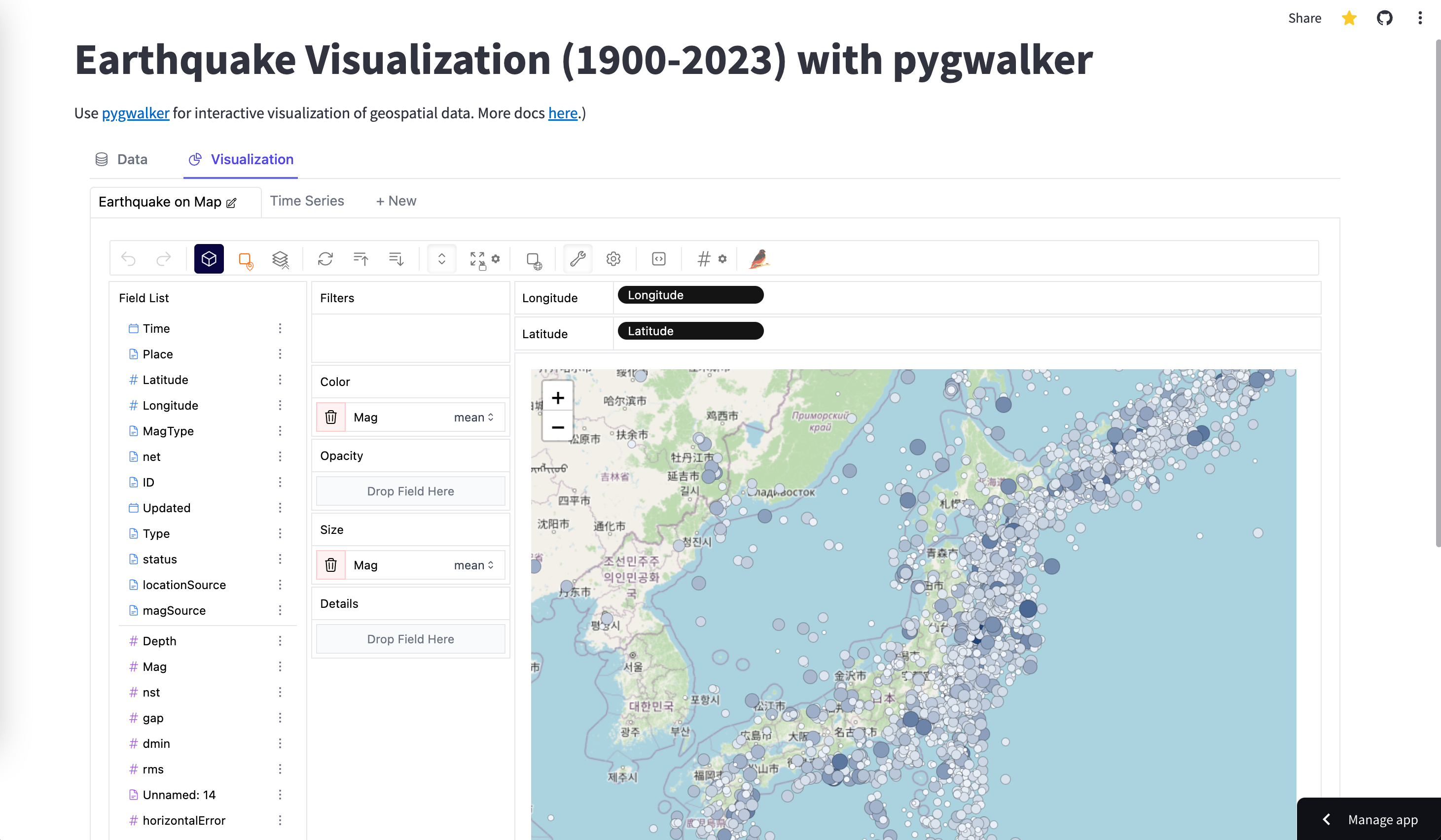
Streamlit allows you to host a web version of pygwalker without figuring out details of how web application works.
Here are some of the app examples build with pygwalker and streamlit:
import pandas as pd
import streamlit.components.v1 as components
import streamlit as st
from pygwalker.api.streamlit import init_streamlit_comm, get_streamlit_html

st.set_page_config(
    page_title="Use Pygwalker In Streamlit",
    layout="wide"
)

st.title("Use Pygwalker In Streamlit(support communication)")

# Initialize pygwalker communication
init_streamlit_comm()

# When using `use_kernel_calc=True`, you should cache your pygwalker html, if you don't want your memory to explode
@st.cache_resource
def get_pyg_html(df: pd.DataFrame) -> str:
    # When you need to publish your application, you need set `debug=False`,prevent other users to write your config file.
    # If you want to use feature of saving chart config, set `debug=True`
    html = get_streamlit_html(df, spec="./gw0.json", use_kernel_calc=True, debug=False)
    return html

@st.cache_data
def get_df() -> pd.DataFrame:
    return pd.read_csv("/bike_sharing_dc.csv")

df = get_df()

components.html(get_pyg_html(df), width=1300, height=1000, scrolling=True)
Tested Environments
- Jupyter Notebook
- Google Colab
- Kaggle Code
- Jupyter Lab (WIP: There're still some tiny CSS issues)
- Jupyter Lite
- Databricks Notebook (Since version
0.1.4a0) - Jupyter Extension for Visual Studio Code (Since version
0.1.4a0) - Hex Projects (Since version
0.1.4a0) - Most web applications compatiable with IPython kernels. (Since version
0.1.4a0) - Streamlit (Since version
0.1.4.9), enabled withpyg.walk(df, env='Streamlit') - DataCamp Workspace (Since version
0.1.4a0) - ...feel free to raise an issue for more environments.
Configuration
Since pygwalker>=0.1.7a0, we provide the ability to modify user-wide configuration either through the command line interface
$ pygwalker config
usage: pygwalker config [-h] [--set [key=value ...]] [--reset [key ...]] [--reset-all] [--list]

Modify configuration file.

optional arguments:
  -h, --help            show this help message and exit
  --set [key=value ...]
                        Set configuration. e.g. "pygwalker config --set privacy=get-only"
  --reset [key ...]     Reset user configuration and use default values instead. e.g. "pygwalker config --reset privacy"
  --reset-all           Reset all user configuration and use default values instead. e.g. "pygwalker config --reset-all"
  --list                List current used configuration.
or through Python API
>>> import pygwalker as pyg, pygwalker_utils.config as pyg_conf
>>> help(pyg_conf.set_config)

Help on function set_config in module pygwalker_utils.config:

set_config(config: dict, save=False)
    Set configuration.

    Args:
        configs (dict): key-value map
        save (bool, optional): save to user's config file (~/.config/pygwalker/config.json). Defaults to False.
(END)
Privacy Policy
$ pygwalker config --set
usage: pygwalker config [--set [key=value ...]] | [--reset [key ...]].

Available configurations:
- privacy        ['offline', 'get-only', 'meta', 'any'] (default: meta).
    "offline"   : no data will be transfered other than the front-end and back-end of the notebook.
    "get-only"  : allow fetch latest pygwalker version to check update.
    "meta"      : only the desensitized data will be processed by external servers. Required for using LLM to generate charts.
    "any"       : the data can be processed by external services.
For example,
pygwalker config --set privacy=meta
in command line and
import pygwalker as pyg, pygwalker.utils_config as pyg_conf
pyg_conf.set_config( { 'privacy': 'meta' }, save=True)
have the same effect.
License
Resources
- Check out more resources about Graphic Walker on Graphic Walker GitHub
- We are also working on RATH: an Open Source, Automate exploratory data analysis software that redefines the workflow of data wrangling, exploration and visualization with AI-powered automation. Check out the Kanaries website and RATH GitHub for more!
- Use pygwalker to build visual analysis app in streamlit
- If you encounter any issues and need support, join our Slack or Discord channels.
- Share pygwalker on these social media platforms if you like it!





Release history Release notifications | RSS feed


Download files
Download the file for your platform. If you're not sure which to choose, learn more about installing packages.
Source Distribution
Built Distribution
Filter files by name, interpreter, ABI, and platform.
If you're not sure about the file name format, learn more about wheel file names.
Copy a direct link to the current filters
File details
Details for the file pygwalker-0.3.8a3.tar.gz.
File metadata
- Download URL: pygwalker-0.3.8a3.tar.gz
- Upload date:
- Size: 1.3 MB
- Tags: Source
- Uploaded using Trusted Publishing? No
- Uploaded via: twine/4.0.1 CPython/3.11.6
File hashes
| Algorithm | Hash digest | |
|---|---|---|
| SHA256 |
cb6eb7e90e0a775c7f402df21236d58164ab714dbf5b7ee3d307cbbde993137f
|
|
| MD5 |
517ac3e09a54b7796ade73e3bc6494e1
|
|
| BLAKE2b-256 |
f858db182e9a781b2cba9c1094dbefa458d71f866cdfc9b37d0c62d570d883c2
|
File details
Details for the file pygwalker-0.3.8a3-py3-none-any.whl.
File metadata
- Download URL: pygwalker-0.3.8a3-py3-none-any.whl
- Upload date:
- Size: 1.3 MB
- Tags: Python 3
- Uploaded using Trusted Publishing? No
- Uploaded via: twine/4.0.1 CPython/3.11.6
File hashes
| Algorithm | Hash digest | |
|---|---|---|
| SHA256 |
b76260de3119bfe9884832b764693dde6ffbbbebeab8d387a7059375a2ca099d
|
|
| MD5 |
5f4db4d807b6b37d162a8de35f3df268
|
|
| BLAKE2b-256 |
27a14865534f6643f9d3fd5163f26a9f3fbd299744568e50566b377fd5e22ae5
|






