
pyvista-tui
PyVista in the terminal.
Renders meshes directly in your terminal using off-screen VTK rendering, no GUI needed. Supports any file format PyVista can read (STL, VTK, PLY, OBJ, and dozens more). Works as a standalone CLI or directly in a standard Python or IPython interpreter.
[!NOTE] FYI, there is a legitimate feature request for this in PyVista, however this project is honestly one big April Fools joke that proved to have some actual utility.
Installation
pip install pyvista-tui
Requires Python 3.10+.
Quick Start
CLI
The CLI is exposed as both pyvista-tui and the shorter alias pvtui.
# Render a mesh inline
pvtui mesh.stl

# Interactive viewer with vim-style controls
pvtui mesh.vtk -i

# Color by a scalar array with a colormap
pvtui mesh.vtk --scalars temperature --cmap coolwarm

# Gallery view (6 axis-aligned views)
pvtui part.stl --gallery
Python API
from pyvista import examples
from pyvista_tui import plot

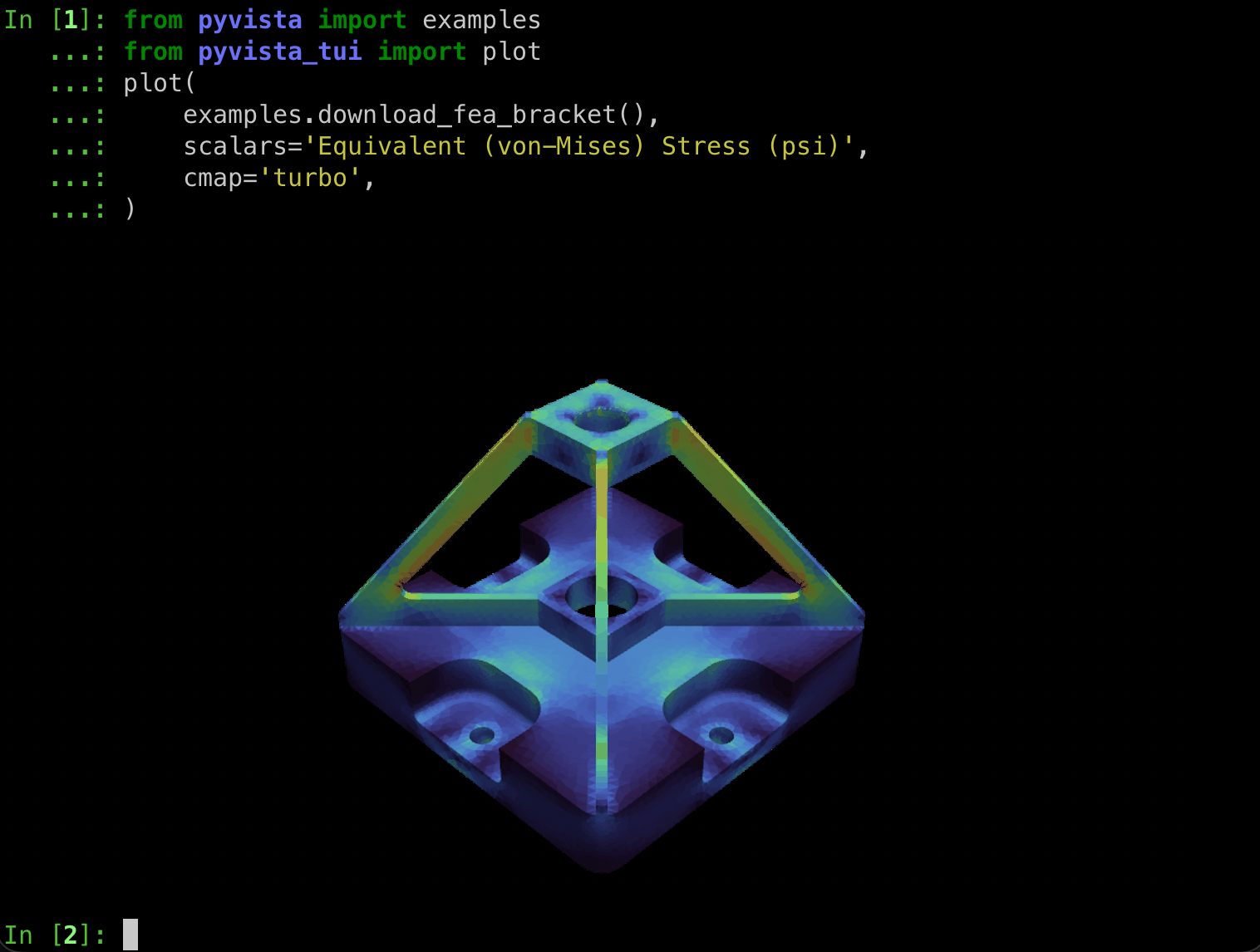
plot(examples.download_fea_bracket(), scalars="Equivalent (von-Mises) Stress (psi)", cmap="turbo")
Any keyword argument plot() does not name itself is forwarded to
pyvista.Plotter.add_mesh, so options such as rgb, ambient, and
culling work too.
Installed plugins also expose a .tui namespace on PyVista datasets and
plotters:
import pyvista as pv

pv.OFF_SCREEN = True

mesh = pv.Sphere()
mesh.tui.plot(theme="matrix")

plotter = pv.Plotter()
plotter.add_mesh(mesh)
plotter.tui.show(theme="braille")
For an on-screen plotter, call plotter.show(auto_close=False) before
plotter.tui.show(). For scripts that only render in the terminal, set
pv.OFF_SCREEN = True before constructing the plotter.
Themes
Text-based themes work in every terminal -- they use only Unicode and ANSI colors.
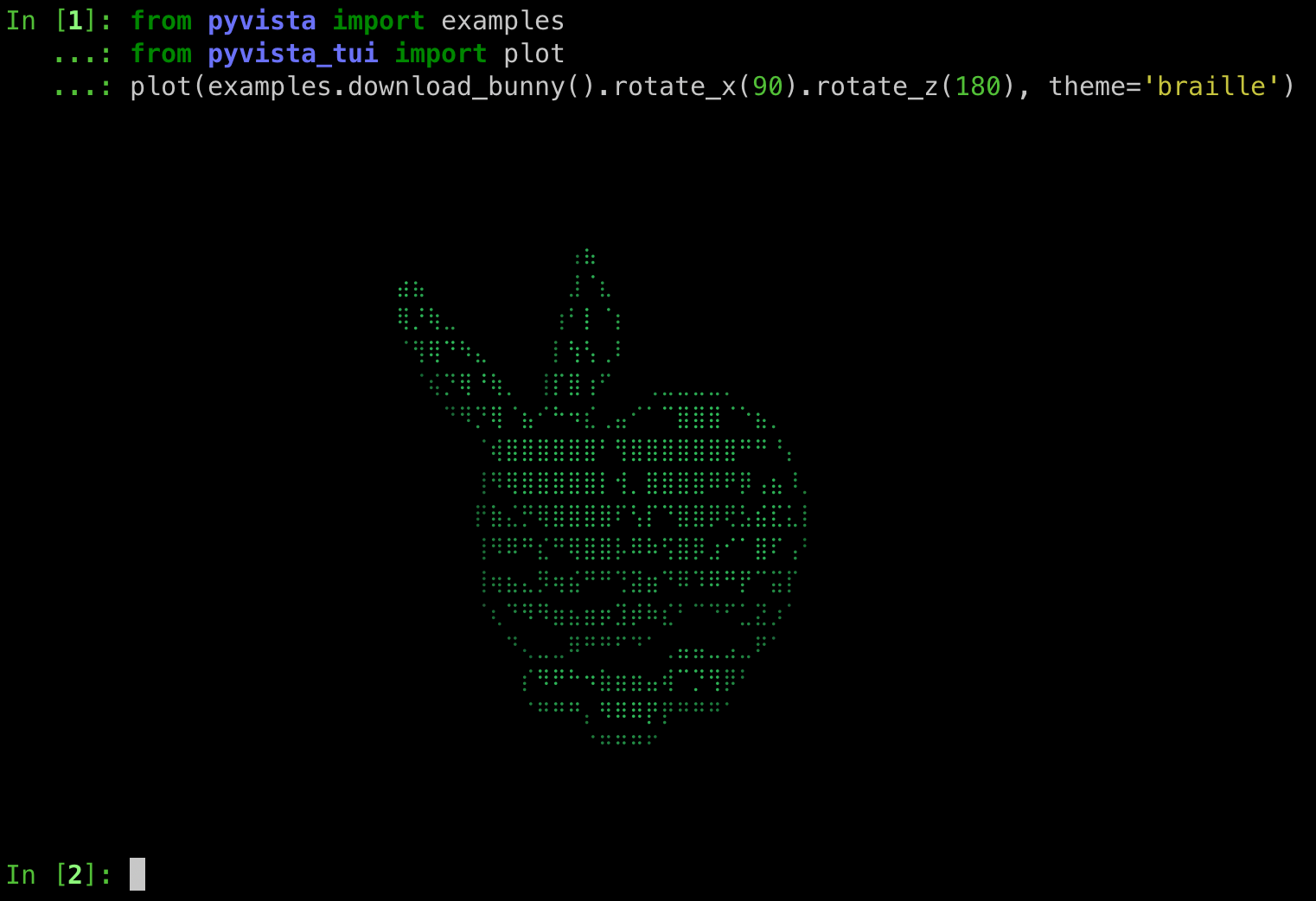
pyvista-tui mesh.vtk -t braille    # Unicode braille (8x density)
pyvista-tui mesh.vtk -t matrix     # Green katakana rain
pyvista-tui mesh.vtk -t blueprint  # Sobel edge detection on blue
All 9 themes are switchable at runtime with keys 1--9:
| Key | Theme | Description |
|---|---|---|
1 |
default |
Native terminal image (Sixel, iTerm2, or halfcell fallback) |
2 |
braille |
Unicode braille characters |
3 |
retro |
Colored ASCII art with neon green appearance |
4 |
matrix |
Matrix-style green katakana rain |
5 |
crt |
CRT scanlines with phosphor glow |
6 |
blueprint |
Sobel edge detection on deep blue |
7 |
phosphor |
Green monochrome P1 phosphor emulation |
8 |
amber |
Amber monochrome P3 phosphor emulation |
9 |
thermal |
False-color thermal camera heat map |
Interactive Mode
Launch with -i for full keyboard-driven 3D navigation.
Camera
| Key | Action |
|---|---|
h / l |
Rotate left / right |
j / k |
Rotate down / up |
H / L |
Pan left / right |
J / K |
Pan down / up |
i / o |
Zoom in / out |
r |
Reset camera |
x / y / z |
View along axis |
Display
| Key | Action |
|---|---|
w |
Toggle wireframe |
e |
Toggle edge visibility |
p |
Toggle parallel/perspective projection |
n |
Cycle scalars arrays |
d |
Toggle depth buffer visualization |
m |
Show mesh info |
s / S |
Toggle spin / reverse direction |
1--9 |
Switch theme |
q |
Quit |
Gallery View
Render 6 axis-aligned views in a single image:
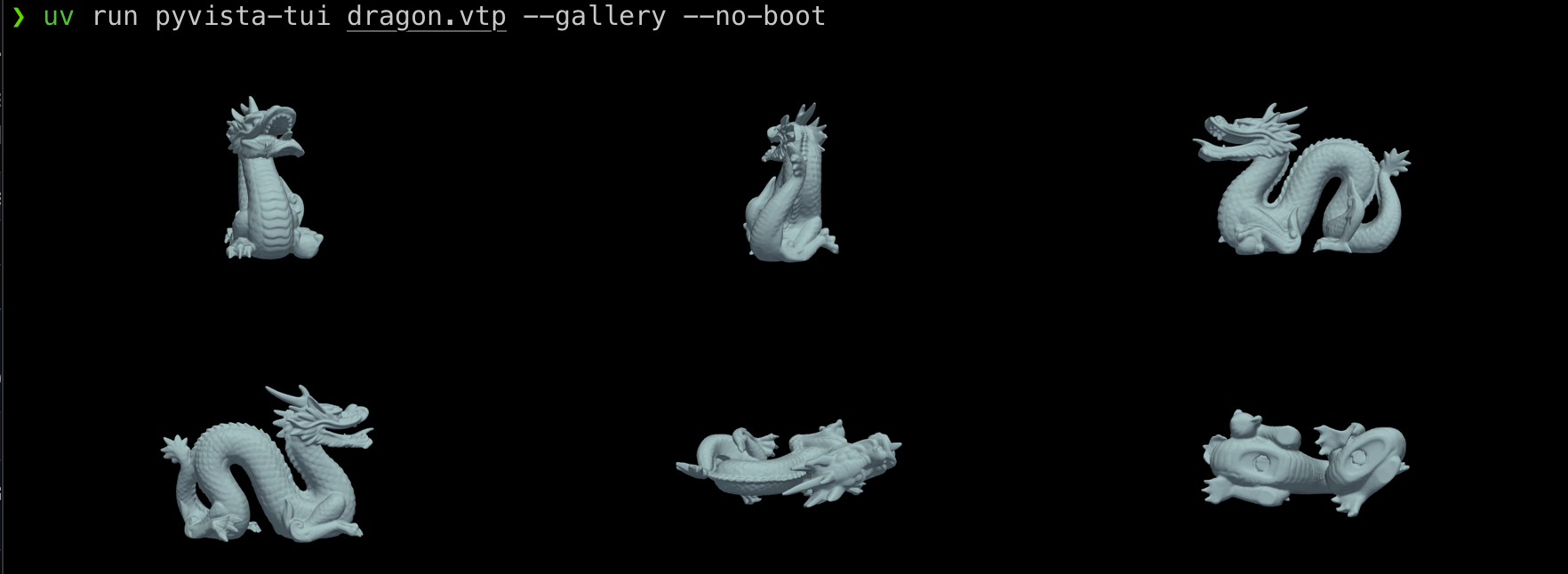
pyvista-tui mesh.vtk --gallery --center
Multiple Meshes
Pass multiple paths (wildcards work) to tile them into a grid at a shared camera position:
pyvista-tui *.stl
pyvista-tui a.vtk b.vtk c.vtk --cpos xz --scalars VonMises --clim 67 250
Add --no-gallery to render each mesh full-size one after another instead:
pyvista-tui a.vtk b.vtk c.vtk --no-gallery
Shell brace expansion and character classes work well for sampling a range of
time steps --- e.g. every tenth file between step_0170 and step_0230:
# Character classes --- same as step_0{170,180,190,200,210,220,230}.vtu
pyvista-tui data/step_0{1[789],2[0123]}0.vtu -y
The -y flag skips the confirmation prompt that otherwise fires when six or
more meshes are passed.
All CLI Options
pyvista-tui [OPTIONS] MESH
pyvista-tui report
| Option | Short | Description |
|---|---|---|
--interactive |
-i |
Launch interactive TUI with camera controls |
--theme NAME |
-t |
Rendering theme (see above) |
--watch |
Auto-reload on file changes (static mode) | |
--wireframe |
Start in wireframe mode | |
--scalars NAME |
Scalars array to color by | |
--pick-scalars |
Choose a scalars array interactively | |
--color COLOR |
Solid mesh color (e.g. red, #00ff66) |
|
--cmap NAME |
Colormap for scalars (e.g. viridis) |
|
--clim MIN MAX |
Scalar range limits | |
--opacity FLOAT |
Mesh opacity (0.0--1.0) | |
--show-edges |
Show mesh edges | |
--edge-color |
Edge color | |
--smooth-shading |
Enable Phong shading | |
--center |
Center and normalize mesh in viewport | |
--background |
Background color (auto-detected by default) | |
--width PIXELS |
Render width | |
--height PIXELS |
Render height | |
--rainbow |
Rainbow wireframe (edges colored by Z) | |
--spin |
Auto-rotate turntable animation | |
--bounce |
DVD screensaver bounce animation | |
--save |
Save rendered image as PNG | |
--gallery |
1 mesh: 6 axis-aligned views; N meshes: grid | |
--no-gallery |
With N meshes, render full-size sequentially | |
--yes |
-y |
Skip the confirmation prompt for many meshes |
--rotate-gif PATH |
Save 360-degree turntable as animated GIF | |
--compare PATH |
Compare with a second mesh side-by-side | |
--export-ascii PATH |
Export ASCII art to text file | |
--boot |
Show retro boot sequence (always on in -i) |
Terminal Compatibility
[!CAUTION] I've only tested this in iTerm2 and VSCode's terminal on my Mac. Help me make it work in more terminals, contributions welcome!
pyvista-tui adapts rendering to your terminal's capabilities. For best results, use a terminal with native image protocol support.
[!TIP] Text-based themes (
-t braille,-t matrix, etc.) look good in any terminal including VS Code.
The terminal background color is auto-detected via OSC 11 so rendered images
blend with your color scheme. Override with --background.
[!CAUTION] VS Code's integrated terminal does not support any image protocol and falls back to low-resolution halfcell blocks.
Development
git clone https://github.com/pyvista/pyvista-tui.git
cd pyvista-tui
just sync       # Install dependencies into .venv via uv
just test       # Run tests with coverage
just lint       # Run pre-commit hooks (ruff, formatting)
just typecheck  # Run mypy
Metadata
Release files for pyvista-tui 0.2.1
For a detailed explanation of source distributions (sdists) and built distributions (wheels), please see the package formats documentation.
Source distribution (sdist)
| File | Size | Uploaded | |
|---|---|---|---|
| pyvista_tui-0.2.1.tar.gz | 1.4 MB | Details |
Built distribution (wheel)
| File | Interpreter | ABI | Platform | Reset |
|---|---|---|---|---|
| pyvista_tui-0.2.1-py3-none-any.whl | Python 3 | none | any | Details |
Total release size: 1.5 MB
Release files / pyvista_tui-0.2.1.tar.gz
| Download URL | pyvista_tui-0.2.1.tar.gz |
|---|---|
| Size | 1.4 MB |
| Tags | Source |
|
SHA-256 checksum How to use checksums |
34415520cfde102b96a1cdf9067af47a9f09c9bfee1ea875b4ac647a25093e36
|
|
BLAKE2b-256 checksum How to use checksums |
0182efa9544a9084c41726488f13377d2e718b7b301ee6b3dea78785597ddf0c
|
| Upload date | |
|
Uploaded using Trusted Publishing? What is trusted publishing? |
Yes |
| Uploaded via |
twine/7.0.0 CPython/3.13.14
|
Provenance
Provenance describes where a file came from. On PyPI, provenance is shared via attestations, which provide a verifiable record of the build or publishing details. View details, limitations and caveats.


PyPI Publish Attestation
PyPI verified that this artifact, at this checksum, originated from the publisher listed below.
Signed by GitHub Actions, verified by PyPI on Sep 1, 2026.
Transparency logRelease files / pyvista_tui-0.2.1-py3-none-any.whl
| Download URL | pyvista_tui-0.2.1-py3-none-any.whl |
|---|---|
| Size | 58.4 kB |
| Tags | Python 3 |
|
SHA-256 checksum How to use checksums |
366fd1a81853c5d9d7d88ce04e1036e50b2042256e6172e2a14444275346427d
|
|
BLAKE2b-256 checksum How to use checksums |
2630c3f889cbb55428739b18b44790479408634c03a5407c1da0acca9729c0c1
|
| Upload date | |
|
Uploaded using Trusted Publishing? What is trusted publishing? |
Yes |
| Uploaded via |
twine/7.0.0 CPython/3.13.14
|
Provenance
Provenance describes where a file came from. On PyPI, provenance is shared via attestations, which provide a verifiable record of the build or publishing details. View details, limitations and caveats.
PyPI Publish Attestation
PyPI verified that this artifact, at this checksum, originated from the publisher listed below.
Signed by GitHub Actions, verified by PyPI on Sep 1, 2026.
Transparency log













