
Terminal UI to navigate, resume, and start Claude Code and Codex sessions
Verified details
These details have been verified by PyPIProject links
GitHub Statistics
Maintainers

Project description
Railmux — session manager for Claude Code & Codex




A terminal UI to navigate, resume, and start Claude Code and Codex sessions across all your projects. Railmux lives in the left pane of a tmux window; the right pane shows the active agent. Each session runs in its own detached tmux session, so switching never interrupts in-progress responses or tool calls.
- Claude Code mode — reads
~/.claude/projects/*, lists sessions by project, resume withclaude --resume - Codex mode — reads
~/.codex/sessions/*, same sidebar workflow for Codex sessions - Press
mto cycle through the available modes
Why Railmux?
Without Railmux, managing multiple agent sessions means manually tracking tmux windows, remembering which session lives where, and copy-pasting session IDs. Sessions pile up across projects, context gets lost, and switching between them is friction.
Railmux replaces all of that with a single keystroke:
- One sidebar, all sessions — browse every Claude Code and Codex session across every project, filter by name, star favourites
- Instant switching — press Enter and the right pane attaches to a different background tmux session; every agent keeps running, no responses lost
- Zero manual bookkeeping — no more
tmux ls | grep cc-or hunting through~/.claude/projects/
Quick start
pip install railmux
# or: pip3 install railmux
railmux
To open Railmux on a remote machine through its latest-state SSH display:
pip install railmux            # on the local machine
railmux ssh your-server
The remote machine needs Python 3.9+ and tmux. If Railmux or its SSH display
dependency is missing remotely, the local client asks before installing the
matching version into the remote user environment; it never uses sudo.
Requires Python 3.9+, tmux, less, and at least one supported agent CLI on
PATH. Claude Code and Codex are independent: a missing provider does not stop
you from using the other one.
If tmux is missing, an interactive Railmux launch can offer to install it
with Homebrew on macOS or apt-get on Debian/Ubuntu/WSL. Railmux shows the
exact command and requires explicit confirmation (default: no); it never
installs Homebrew itself or modifies the system during non-interactive runs.
Other common Linux package managers receive a copyable installation command.
Railmux always launches or attaches its workspace on a dedicated tmux socket,
including when invoked from inside another tmux client. This isolates Railmux's
sessions, bindings, hooks, and SSH display traffic from the
default tmux server. Sessions left on the historical default socket by an older
Railmux release remain visible in the same Running sidebar with a legacy · restart recommended label. Opening one does not resize it; automatic exit
cleanup preserves it, while an explicit Kill still works after exact identity
validation. It does not move, delete, or rewrite provider session files under
~/.codex or ~/.claude; sessions can still be resumed normally. Run
railmux doctor for a privacy-safe dependency and environment report when
setup does not behave as expected. Multiple terminal windows may share one
managed workspace; see the important shared-focus and shared-layout limits in
FAQ 6.
Keys
Navigation
| Key | Action |
|---|---|
↑ / ↓ |
Move selection within the focused pane |
Tab / Shift-Tab |
Cycle focus through Projects, Sessions, Running panes |
Ctrl-B Tab |
Toggle directly between the sidebar and Target pane |
Esc |
Move focus up: Running → Sessions → Projects |
/ |
Filter the focused Projects, Sessions, or Running pane by name |
Session actions
| Key | Action |
|---|---|
Enter |
Resume or start the selected session |
n |
Start a fresh session in the current project |
i |
Popup with session details |
r |
Rename the focused session |
s |
Toggle star — starred sessions pinned to top with ⭐ |
k |
Kill the running agent process (keeps session file) |
d |
Delete the focused session (prompts for confirmation) |
t |
Open a terminal in the active project directory |
m |
Cycle through available agent modes |
o |
Open persistent Railmux options |
␣ |
Preview stopped or switch running target (like single-click) |
F8 |
Cycle agent layout: single → side-by-side → stacked |
F9 |
Fullscreen the agent pane (toggle) for clean text selection |
? |
Full help popup with all keybindings |
q or Ctrl-C |
Quit with confirmation |
Inside Help, press A or click Ask Railmux with Claude Code/Codex to open
a separate, safety-restricted support session for the current mode. Opening
Help itself never starts an agent or uses provider tokens. Ask Railmux replaces
only the Target pane's display; the agent that was there keeps running and can
be selected again from Running. Codex help is not saved to normal history;
Railmux hides the dedicated help workspace from both providers' Projects list.
Local documentation reads and searches run without approval prompts. Codex is
still enforced by its read-only, network-disabled sandbox; Claude is restricted
to its built-in Read, Glob, and Grep tools, with shell and mutation tools
not exposed.
If the help agent exits in a two-pane layout, that pane returns to Railmux's
empty launch surface without collapsing or reordering the other agent pane.
After a soft restart the help session is not restored automatically—open Help
and choose Ask again to reconnect to it.
+ New project works in both Claude Code and Codex modes. Browse to an
existing directory and choose . (use this path), or type a new relative,
absolute, or ~-based path. When no existing entry matches, select the
explicit + create … row (it is focused automatically) and press Enter;
railmux creates the directory before starting the agent.
The rename popup starts with the current title pre-filled. Press
Ctrl-U to clear the entire input, Enter to save a non-empty title, or Esc
to cancel.
Press / in Projects, Sessions, or Running to filter that section. Active
filters are marked with [filtered] and survive a soft restart; reopening /
shows the current value. Press Ctrl-U in the filter editor to clear it, then
Enter to return to the sidebar.
The first Button Bar row keeps Help, Quit, and Detach visible. Select More
to reveal a second row with Mode, Layout, and Options; Less
collapses it. The m, F8, and o keyboard shortcuts remain available while
the row is hidden. Expanding this second row takes its one display line from
the bottom Running section; Projects and Sessions keep the same heights.
After an explicit layout change (F8 or [ / ]), quitting offers to keep
the current pane proportions: Always keeps the latest custom layout,
This time restores it on the next launch only, and No leaves it
unsaved for this exit; Never also disables future layout prompts.
[ and ] move only the sidebar's right divider; dual-agent layouts split
the remaining area evenly again.
Proportions, rather than cell counts or tmux pane identities, are stored, so a
later terminal may have a different size. If a saved split cannot fit, Railmux
uses safe responsive defaults for that run without overwriting the saved
profile. The first Codex auto-run prompt uses the corresponding choices:
Always, This Railmux run, No, or Never.
Press o, or select More → Options, to change persistent behavior without
editing TOML. Layout retention, Codex auto-run, and Railmux updates
support Always, Ask every time, and Never. Use arrow keys plus
Enter/Space, or click a choice with the mouse. Activating the already
selected choice confirms and closes the screen; Esc or o also closes it.
Layout changes do not resize the current workspace; Codex auto-run changes
affect new launches, not agents that are already running.
Dual-agent layouts
Railmux distinguishes the Focused pane from the Target pane. The Focused pane receives keyboard input; the Target pane is where actions started from the sidebar take effect. They can differ while you browse the sidebar.
Open the first agent normally, then press F8 to cycle through single,
side-by-side, and stacked layouts. Pane 2 can remain empty until you choose a
session for it, and layouts that do not fit the terminal are skipped. Returning
to single leaves Pane 2's agent running in the background.
In a split, focus an agent pane to make it the Target pane. After focus returns
to the sidebar, single-click or ␣ acts in that pane without moving keyboard
focus; double-click or Enter opens there and transfers focus. The status bar
at the bottom-left shows the current layout and Target pane:
| Symbol | Meaning |
|---|---|
▣ |
Single pane |
◧ / ◨ |
Side-by-side, targeting left / right |
⬒ / ⬓ |
Stacked, targeting top / bottom |
Agent borders turn green around the Focused pane. When focus is in the sidebar,
the borders return to gray while the status symbol continues to show the Target
pane. Ctrl-B Tab returns directly from either agent pane to the sidebar without
changing that Target, then toggles back to it. Ctrl-B plus an arrow remains
spatial: left/right moves across a side-by-side split, while up/down moves
between stacked agent panes.
Phones and compact terminals
Before switching to full-page compact mode, a dual-agent workspace that can no longer give both agents at least 50x12 temporarily shows the sidebar plus the current Target agent. The other agent keeps running in its detached tmux session. Widening the terminal restores both original slots, their saved split/stacked proportions, and the attached Target; this responsive projection does not change the user's saved F8 layout.
Railmux automatically switches to a one-page-at-a-time compact workspace when
either terminal dimension is cramped: fewer than 80 columns or fewer than 24
rows. The existing panes and layout remain alive; the bottom status bar exposes
[R] for the Railmux sidebar and [1]/[2] for the agent panes. The current
page is highlighted. Click a page label when mouse reporting is enabled and
the remote tmux is 3.4 or newer. Ctrl-B Tab remains the portable keyboard
toggle between [R] and the current Target agent.
F8 still creates, removes, and remembers the second agent pane in compact mode, although only one page is shown at a time. F9 and divider-resize controls are unnecessary while a page already fills the screen, so they safely do nothing. Help and Options temporarily use the sidebar page and return to the previous page afterward.
Compact mode is selected from the available character-cell geometry, not the
device name or portrait orientation. A phone landscape reported as 20 105 by
stty size (20 rows by 105 columns) is compact because it is short; a portrait
desktop monitor such as 60 rows by 100 columns retains the normal wide,
multi-pane UI. Railmux waits until at least 84 columns and 26 rows are available
before returning to wide mode, avoiding repeated changes around the boundary.
The minimum usable workspace is 40 columns by 12 rows.
Finding running sessions
Plain text matches the visible session label, project, and provider without
searching message content. Add project:<name> to restrict the list to one
project. Claude Code and Codex keep independent Running filters, and blocked
sessions move ahead of the other results.
Mouse
| Action | Effect |
|---|---|
| Left-click (non-running) | Preview session history in the Target pane |
| Left-click (running) | Switch the Target pane to that session |
| Double-click | Open/attach in the Target pane and move focus there |
| Right-click | Context menu (Open, Preview, Info, Rename, Star, Kill, Term, Delete) |
The terminal must report mouse buttons to applications for these actions to reach Railmux. Right-click reporting is sometimes a separate setting from ordinary mouse reporting; see FAQ 2.
History preview
For a stopped session, left-click or press ␣ to view conversation history in
the Target pane without starting or resuming the agent. Preview is read-only: it
cannot send a message or change the session. User and assistant messages, tool
calls, and abbreviated tool output are colour-coded, while internal context and
encrypted reasoning are hidden.
Preview opens at the latest activity in less; large sessions are limited to
their latest 2,000 saved records. Press / to search, n/N to move between
matches, and q to exit and restore the pane. Double-click to skip preview and
open the session directly.
For a running session, single-click or ␣ switches the Target pane to it while
focus stays in Railmux. For a stopped session, the same inputs open a read-only
preview. Double-click or Enter opens either kind and transfers focus. The
context-menu Preview action follows the single-click/␣ rule.
Status indicators
Each running session shows a coloured ● reflecting its current state:
- Green — idle (assistant last responded normally)
- Yellow — busy (assistant is processing)
- Red — blocked (waiting for tool approval)
An independent magenta ! marks an outcome that still needs attention, such
as an abort or provider error. It does not replace the activity dot: a live
session can be idle and still show !, while a stopped historical session keeps
its neutral ○ marker alongside the badge. Session Info and Running Info show
the available details.
A grass-green title identifies a live tmux session independently of its status; stopped sessions use a neutral hollow ○. The same grass green is used for the focused pane chrome and tmux status bar. The current cursor uses a deeper green background, while the session displayed in the agent pane remains marked in neutral slate after keyboard focus moves away.
Sessions and restarts
Each opened agent runs in a detached tmux session, so switching sessions does
not interrupt it. To leave agents running when you quit Railmux, press s for
soft quit in the confirmation popup; restarting the same Railmux instance then
restores the usable workspace when those sessions are still available. A normal
quit confirmation ends all running sessions instead.
All terminals attached to one managed Railmux window view the same UI process.
Soft Quit therefore closes that shared UI for every attached view, although it
does not stop the detached agent sessions. It is not an exclusive-client
command; the quit prompt calls this out when multiple terminals are attached.
To keep the current terminal and detach every other attached client, run
Ctrl-B :detach-client -a Enter from the terminal you want to retain.
If Railmux stops while a provider is still creating a new session, the Running pane may show it as unresolved. You can reopen or stop that agent, but Railmux will not offer to delete provider history until it can identify the session safely.
Configuration
Optional config at ~/.config/railmux/config.toml:
[claude]
# Path to the claude binary (default: "claude")
binary = "claude"

[codex]
# Path to the codex binary (default: "codex")
binary = "codex"
home = "~/.codex"
# New Codex launches: "always", "ask", or "never" (default: "ask")
auto_run = "ask"

[ui]
# Save custom pane proportions: "always", "ask", or "never"
layout_retention = "ask"

[updates]
# PyPI update checks at normal Railmux startup: "always", "ask", or "never"
auto_update = "ask"

[projects]
# Show projects with no resumable sessions (default: false)
show_empty_projects = false

[live]
# How often to refresh the session list (ms)
poll_interval_ms = 1000

# Agent display mode (default: "swap").
# Set "nested" only when troubleshooting an unusual tmux environment.
agent_transport = "swap" # or "nested"
Most users should leave agent_transport unchanged. Railmux automatically uses
the compatible nested display when the default swap mode is not safe for the
current tmux environment.
This is Railmux's only user settings file. Manual edits and the in-app Options
screen update the same values; Options preserves comments, formatting, order,
and unknown keys. A one-run Codex choice is kept only in memory. A This time
layout profile is stored here until it is successfully applied on the next
launch, then removed.
When the default auto_update = "ask" finds a newer stable PyPI release,
Railmux offers Always, This time, No, or Never before opening
the TUI.
Always installs this and future releases automatically, This time
updates only now, No skips only this launch, and Never disables future
checks. Update checks time out quickly and never prevent offline startup;
failed installs continue with the installed version and print a manual
command. Editable source installations are reported but never overwritten.
Diagnostics
railmux doctor
The doctor command works even when tmux is missing. It reports component versions, terminal capability
hints, configuration health, dedicated-server reachability, watchdog state,
the number of legacy candidates on the default server, the age and bounded
category of the last recorded tmux incident, and whether provider data
directories are accessible. Its output is designed for issue
reports: it does not include hostnames, usernames, session IDs, transcripts,
credentials, environment values, configured commands, socket paths, or raw
custom paths.
FAQ
1. How do I copy text from the agent pane?
Under tmux the sidebar and agent share the screen, and over SSH your clipboard lives on the local machine.
OSC 52 (iTerm2, kitty, WezTerm, Alacritty, foot, Windows Terminal): drag-select in the agent pane copies to the local clipboard automatically, even over SSH, no Shift needed. (iTerm2: enable Settings → General → Selection → "Applications in terminal may access clipboard".)
Without OSC 52 (Terminal.app, etc.): press F9 to fullscreen the agent →
Shift‑drag to select → Cmd+C / Ctrl+C to copy → F9 to return.
Ctrl-B zalso toggles fullscreen (built into tmux) but zooms whichever pane has focus — it may fullscreen the sidebar instead of the agent.
2. Mouse buttons or F8/F9 don't work — what's wrong?
These are usually terminal‑side settings, not tmux or railmux.
Mouse: enable your terminal's “Report mouse events” or “Mouse reporting” setting. Railmux already enables tmux mouse support for its own sessions, but it cannot receive an event that the terminal keeps for its own UI.
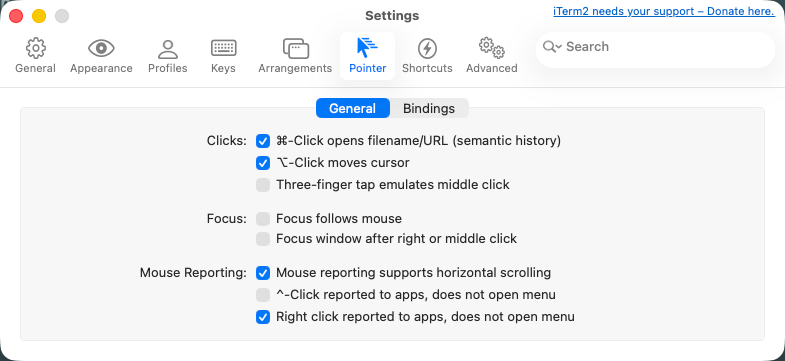
Right-click may have a separate forwarding switch. In iTerm2, open Settings → Pointer → General, then enable “Right click reported to apps, does not open menu.” Without it, iTerm2 opens its own menu instead of sending the click to Railmux.
VS Code and Cursor users can change Terminal › Integrated: Right Click Behavior when the editor's own menu prevents right-click from reaching Railmux. copyPaste is the recommended starting point: Railmux handles right-click while its mouse-aware sidebar is active, and the editor retains its convenient copy/paste behavior elsewhere in the terminal. Cursor exposes the same VS Code setting. Configure it in User Settings JSON:
{
  "terminal.integrated.rightClickBehavior": "copyPaste"
}
Use nothing instead if your editor version still intercepts right-click or you
prefer all right-click events to pass directly to terminal applications.
F8 (layout) and F9 (fullscreen): the operating system or terminal may
consume function keys before tmux sees them. On macOS, either hold Fn when
pressing the key or enable System Settings → Keyboard → “Use F1, F2, etc. keys
as standard function keys”; also remove any Mission Control shortcut using the
same key. On Windows laptops, Fn+Esc commonly toggles Fn Lock. If the terminal
has its own shortcut or key-mapping editor, remove the conflicting mapping or
configure it to send the corresponding F8/F9 function-key sequence to the
terminal session.
3. Using railmux over SSH
There are two supported ways to use Railmux over SSH:
- Run ordinary
ssh your-server, thenrailmux. This uses the terminal's normal tmux rendering path. If large Codex or Claude redraws feel slow, the Cursor integrated terminal is a practical option to try; in our testing it handles queued terminal updates especially well. - Run
railmux ssh your-serverlocally. This latest-state display discards superseded intermediate frames, sends compressed row-level changes, and keeps bounded agent history locally for responsive scrolling. It is usually the better choice when ordinary SSH suffers during full-screen redraws.
The ordinary SSH path works out of the box, including mouse scrolling in the agent pane. These tweaks can improve its responsiveness and scrollback:
Server (~/.tmux.conf on the remote machine):
set -sg escape-time 0         # eliminate delay after Escape key
set -g  history-limit 10000   # generous scrollback per pane
Client (~/.ssh/config on your local machine):
Host your-server
    Compression yes           # smoother tmux pane scrolling over SSH
If the ordinary connection is so slow that the sidebar cannot refresh one
frame per second, try railmux ssh or switch to keyboard navigation —
↑↓ / Tab / Enter cover every operation and do not depend on mouse redraws.
Latest-state SSH display
For terminals that struggle with large tmux redraw bursts, Railmux also has an SSH client that transmits coalesced screen state instead of every intermediate terminal update. Install Railmux locally, then run:
railmux ssh your-server
Before the remote helper attaches to tmux, both ends exchange package and
private-protocol versions. If Railmux is absent remotely, the local client asks
before installing the exact local version with its ssh extra into the remote
user environment. It checks python3 -m pip, python -m pip, pip3, then
pip; it never runs sudo or installs system packages, so tmux must already be
available remotely. If the remote version is newer, the client asks before
upgrading local Railmux with the current Python and then restarts the same
command. Different package versions can connect when their protocol version is
compatible. Installation first uses per-user site packages. If PEP 668 or the
server's Python policy rejects that location, a second prompt offers to create
the isolated ~/.local/share/railmux/ssh-venv and continue without sudo or
system-Python changes. Declined or failed setup prints equivalent commands for
manual recovery. Later connections discover the private environment without
PATH changes. Unpublished development versions may require copying the matching
wheel or source checkout.
The default remote session is started automatically when absent. Ctrl-B d
detaches normally; Ctrl-] is an emergency local disconnect. Mouse forwarding
is on by default. The client refreshes a 300-line hot cache for each agent pane;
wheel-up displays it immediately and fills up to 2000 lines in the background.
Agent-pane wheel events are then handled only locally, while sidebar scrolling
continues to reach Railmux normally. Scroll to the bottom or press Esc to
return to live output. Each agent pane keeps an independent history position;
the sidebar and other agents continue updating, and reaching the bottom or
typing restores only that pane. Reported clicks and drags are ignored while
history is visible if the gesture starts inside that same pane; clicking an
other agent changes focus without moving either history pane, while a sidebar
click safely restores them all. F8/F9,
Help's controller-pane zoom, modal close, and resize invalidate the old pointer
map before it can be reused. Terminal-native selection overrides remain
terminal-dependent. Agent-pane clicks still change focus, but reported mouse
drags are kept local so they cannot accidentally invoke tmux copy-mode;
Ctrl-B [ remains the explicit copy-mode path. Use --no-mouse when reliable
ordinary terminal selection is more important than local history. History
preserves text colours and common
character styles. For upgrade-only legacy sessions displayed through a nested
tmux client, Railmux reads scrollback from the identity-validated real agent
pane rather than the zero-history wrapper; it does not resize or alter the old
session.
Bracketed paste and terminal focus events follow the active remote application.
On mobile terminals such as Termux, opening the soft keyboard may temporarily
make stty size report fewer than 12 rows. At startup, railmux ssh waits in
ordinary cooked mode for the keyboard to close instead of corrupting the remote
layout. During an attached session, it keeps the remote logical terminal size
unchanged and shows a bottom-anchored local projection so the tmux status bar
and nearby input rows remain visible. Closing the keyboard restores and repaints
the full view. This projection expects the terminal's column count to remain
stable; close the keyboard before rotating the device. A terminal narrower than
40 columns is rejected immediately; hide the keyboard or reduce the terminal
font size before connecting.
Both the ordinary launcher and SSH display keep a low-frequency watchdog
outside the attached tmux client. Three consecutive dedicated-server health
failures restore the local terminal, end only that display client, and record a
privacy-safe incident shown by railmux doctor. The watchdog never kills or
restarts tmux or a system crash collector; provider rollout files are untouched.
The SSH client also sends a private heartbeat. If a network outage leaves SSH
half-open, the remote helper expires its own 45-second lease and detaches only
the exact private tmux client it created; the Railmux session, panes, and agents
stay alive. Protocol-v7 helpers use only a short attach mutex, so another
current client can connect during that cleanup. If an older helper still owns
the historical lifetime lock, reconnecting presents an explicit replacement
prompt. Approving it may detach every terminal attached to that managed
Railmux session, but never kills the session or its agents.
4. Will automated review sessions pollute my session list?
Codex: sessions created by codex exec (headless automation, pre‑commit
hooks, CI) are filtered automatically — railmux only shows interactive
sessions (codex-tui, codex_cli_rs).
Claude Code: for one-shot automated reviews, disable session persistence so
the consultation never appears in /resume:
# Print mode only; the review is not saved as a resumable session
claude -p --no-session-persistence "review this diff"
(--no-session-persistence is a Claude Code print-mode option.)
5. pip reports "externally-managed-environment"
Create a virtual environment, then install Railmux with that environment's
pip. This works on macOS, Linux, and WSL without modifying the system Python:
python3 -m venv ~/.venvs/railmux
source ~/.venvs/railmux/bin/activate
pip install railmux
pipx install railmux is an optional convenience for a globally available CLI;
it is not required on macOS or any other platform.
6. Can I open Railmux in multiple terminal windows?
Yes, as multiple views of one shared workspace. Normal launches and current
railmux ssh helpers may attach to the same managed railmux tmux session.
Railmux pins that shared window to tmux's smallest sizing policy, so a smaller
terminal does not see clipped content and focus changes no longer make geometry
jump between client sizes.
These are not independent workspaces: every client still shares focus, Target
pane, layout, pane proportions, and the one tmux window geometry chosen for the
smallest attached viewport. A new client may therefore open with its cursor in
the sidebar or a preview selected by another client; use Ctrl-B plus an arrow,
Ctrl-B Tab, or a mouse click to focus the intended agent pane. Simultaneous
input can interfere. Use Ctrl-B d
to detach exactly the terminal issuing the key; the clickable Detach action
asks for that shortcut when several clients are attached because a sidebar
process cannot identify which tmux client clicked it.
To make the current terminal the only attached view, use
Ctrl-B :detach-client -a Enter. This detaches the other clients without
stopping Railmux or its agents. Soft Quit is different: it closes the one shared
Railmux UI, so every attached view loses that UI while the detached agents stay
alive for the next launch.
For independent full-screen geometry and pane proportions, use one interactive Railmux window at a time for now. That behavior requires separate display workspaces rather than another option on one tmux window. Detached agent sessions keep running in the background, so closing or detaching the visible client does not stop them. Advanced users can launch separate instances inside separate tmux sessions or servers, but that is not yet a polished multi-window workflow and the instances still share provider history and Railmux configuration on disk.
Acknowledgements
The tmux sidebar idea and initial architecture came from regmi-saugat/ccmgr. railmux extends it with Codex support, session history preview, starring, in-app renaming, mouse interaction, and a status bar integrated into the tmux status line.
Contributing
Contributions are welcome; see CONTRIBUTING.md.
Project details
Verified details
These details have been verified by PyPIProject links
GitHub Statistics
Maintainers
Release history Release notifications | RSS feed


Download files
Download the file for your platform. If you're not sure which to choose, learn more about installing packages.
Source Distribution
Built Distribution
Filter files by name, interpreter, ABI, and platform.
If you're not sure about the file name format, learn more about wheel file names.
Copy a direct link to the current filters
File details
Details for the file railmux-0.2.9.tar.gz.
File metadata
- Download URL: railmux-0.2.9.tar.gz
- Upload date:
- Size: 475.8 kB
- Tags: Source
- Uploaded using Trusted Publishing? Yes
- Uploaded via: twine/6.1.0 CPython/3.13.14
File hashes
| Algorithm | Hash digest | |
|---|---|---|
| SHA256 |
18d6a6757be9f1cbd7ab7f7e960a1fc453cd681e504d8942c17a62025fe69626
|
|
| MD5 |
92adf5581b7ddbb150d7731b2632c4c1
|
|
| BLAKE2b-256 |
2a041ae6e7813d721088eabe3c67f9b9ed6e72268021436f971edff4fbf5791e
|
Provenance
The following attestation bundles were made for railmux-0.2.9.tar.gz:
Publisher:
release.yml on Rightglow/Railmux
-
Statement:
-
Statement type:
https://in-toto.io/Statement/v1 -
Predicate type:
https://docs.pypi.org/attestations/publish/v1 -
Subject name:
railmux-0.2.9.tar.gz -
Subject digest:
18d6a6757be9f1cbd7ab7f7e960a1fc453cd681e504d8942c17a62025fe69626 - Sigstore transparency entry: 2225502433
- Sigstore integration time:
-
Permalink:
Rightglow/Railmux@84d87c49c5559d824312670621355be0828f3b3e -
Branch / Tag:
refs/tags/v0.2.9 - Owner: https://github.com/Rightglow
-
Access:
public
-
Token Issuer:
https://token.actions.githubusercontent.com -
Runner Environment:
github-hosted -
Publication workflow:
release.yml@84d87c49c5559d824312670621355be0828f3b3e -
Trigger Event:
push
-
Statement type:
File details
Details for the file railmux-0.2.9-py3-none-any.whl.
File metadata
- Download URL: railmux-0.2.9-py3-none-any.whl
- Upload date:
- Size: 298.1 kB
- Tags: Python 3
- Uploaded using Trusted Publishing? Yes
- Uploaded via: twine/6.1.0 CPython/3.13.14
File hashes
| Algorithm | Hash digest | |
|---|---|---|
| SHA256 |
c32fac4963ac4ab34e19c66aa2b3a5e55261f5671571cc8ccbbc72bf2b269cad
|
|
| MD5 |
050d62219899d9e4f0b8a71d2bb4d41a
|
|
| BLAKE2b-256 |
7aa33df4853b4ac049a8d752227c69f921368ac5334321b7aa0bcf9a08fc5840
|
Provenance
The following attestation bundles were made for railmux-0.2.9-py3-none-any.whl:
Publisher:
release.yml on Rightglow/Railmux
-
Statement:
-
Statement type:
https://in-toto.io/Statement/v1 -
Predicate type:
https://docs.pypi.org/attestations/publish/v1 -
Subject name:
railmux-0.2.9-py3-none-any.whl -
Subject digest:
c32fac4963ac4ab34e19c66aa2b3a5e55261f5671571cc8ccbbc72bf2b269cad - Sigstore transparency entry: 2225502699
- Sigstore integration time:
-
Permalink:
Rightglow/Railmux@84d87c49c5559d824312670621355be0828f3b3e -
Branch / Tag:
refs/tags/v0.2.9 - Owner: https://github.com/Rightglow
-
Access:
public
-
Token Issuer:
https://token.actions.githubusercontent.com -
Runner Environment:
github-hosted -
Publication workflow:
release.yml@84d87c49c5559d824312670621355be0828f3b3e -
Trigger Event:
push
-
Statement type:






