
 reMarkableSync
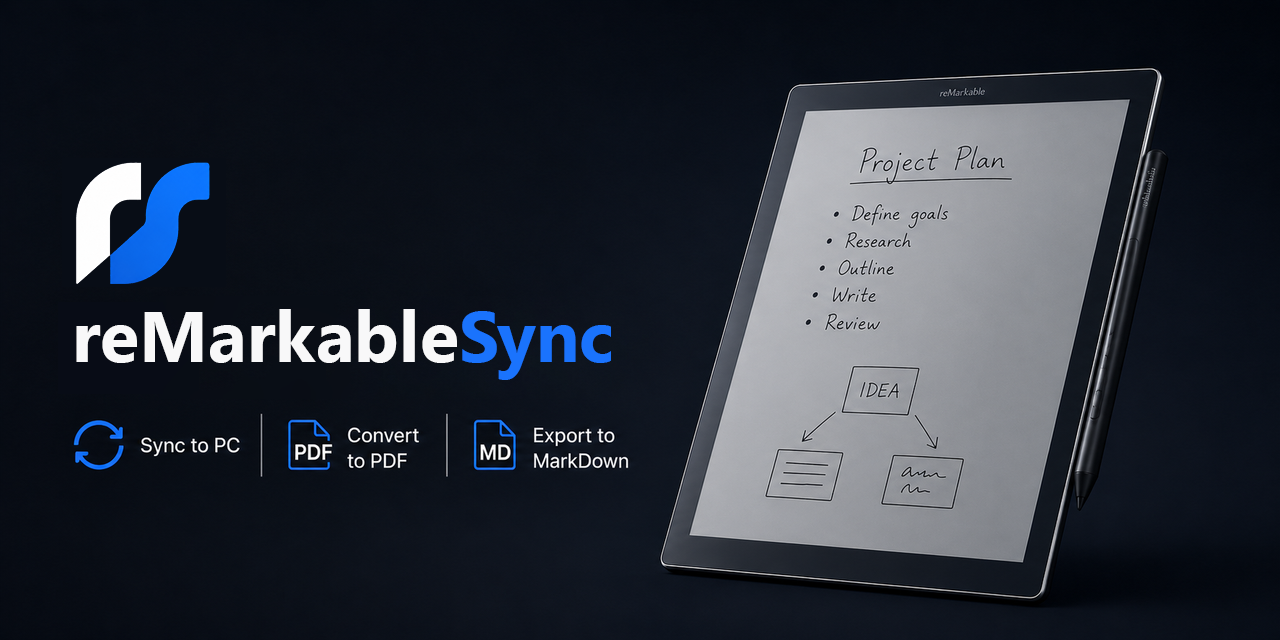







A comprehensive Python toolkit for backing up reMarkable tablet notebooks, converting them to PDF, and transcribing handwriting to Markdown with AI — over USB or Wi-Fi.
[!IMPORTANT] Known device support:
- reMarkable 2 — confirmed working and the primary device tested
- reMarkable Paper Pro — expected to work, but SSH must be enabled through developer mode, which currently requires a factory reset
- reMarkable 1 — not currently verified; compatibility is not guaranteed
AI handwriting-to-text features work with GitHub Copilot, Claude (Anthropic), or Google Gemini (free tier available).
Device Compatibility
| Device | Status | Caveats |
|---|---|---|
| reMarkable 2 | Known to work | This is the primary device used for testing. |
| reMarkable Paper Pro | Known to work with setup caveat | SSH access must be enabled through developer mode, and enabling developer mode currently requires a factory reset. |
| reMarkable 1 | Not currently verified | Compatibility is not guaranteed until it has been tested directly. |
Features
- USB, Wi-Fi & cloud sync — use the tablet directly or sync without it through the cloud
- Incremental backup — only downloads files that have changed (tracked by size, mtime, and MD5)
- PDF conversion — v5 and v6 .rm formats with template backgrounds, folder hierarchy preserved
- AI handwriting recognition — send page images to GitHub Models (GPT-4o), Claude, or Google Gemini
- Markdown export — each notebook becomes a
.mdfile with YAML frontmatter and embedded page images - Watch mode — automatic periodic sync with system-tray status icon and run-at-startup option
- Secure credential storage — SSH password and AI tokens stored in your system keyring
Supported AI Providers
| Provider | Description | API Key |
|---|---|---|
| GitHub Copilot | Uses GPT-4o via GitHub Models. Free for Copilot subscribers. | Automatic via GitHub login |
| Google Gemini | Gemini 2.5 Flash/Pro models. Free tier available. | Get API key |
| Claude | Anthropic's Claude models. Requires paid API access. | Get API key |
Quick Start
1. Install
# macOS (Homebrew)
brew tap jeffsteinbok/remarkablesync && brew install remarkablesync

# All platforms (pip)
pip install remarkablesync

# Or download a pre-built executable from the Releases page
2. Run the configuration wizard
reMarkableSync config
The wizard walks you through:
| Setting | Default |
|---|---|
| Connection mode | USB, Wi-Fi, or reMarkable Cloud |
| SSH password | Saved to system keyring |
| Backup directory | <AppData>/remarkablesync/backup (internal sync data) |
| PDF output | ~/Documents/reMarkableSync/PDF |
| Markdown output | ~/Documents/reMarkableSync/Markdown |
| AI provider | GitHub Models (free with Copilot), Claude, or Google Gemini (free tier available) |
| AI token | Stored securely in system keyring |
| Folders | Choose which tablet folders to sync (or all) |
[!TIP] Multi-device setup: Use the folder filter to sync different tablet folders to different computers — e.g., sync your "Work" folder to your work PC and "Home" to your personal machine. Each machine gets its own config.
3. Run it
reMarkableSync watch
This will use your configured defaults and launch a sync cycle (backup → PDF → Markdown), then keep running and re-sync every 30 minutes. Check your output directories to verify everything looks right.
4. Set it to run at startup
Once you're happy with the output, enable run-at-startup from the menu bar or system tray icon (or via the watch command). reMarkableSync will sync your tablet automatically in the background whenever your computer is on.
[!TIP] Obsidian users: Point the Markdown output directory at a folder inside your Obsidian vault. Your handwritten notes appear as searchable Markdown with embedded page images. Pair with Obsidian OneDrive Sync to sync your vault across devices.
AI Provider Setup
The AI handwriting-to-text features require either a GitHub Copilot account (for GitHub Models) or a Claude (Anthropic) API key. Support for additional providers can be added as needed.
Both AI provider SDKs are installed with pip install -r requirements.txt. The config wizard handles authentication interactively.
GitHub Models
The wizard runs a GitHub device-code flow to authenticate. No manual token setup needed.
Alternatively, set a GITHUB_TOKEN environment variable with a PAT that has models:read scope.
Claude (Anthropic)
- Go to https://console.anthropic.com/settings/keys
- Click Create Key and copy it (starts with
sk-ant-api03-...) - Paste it into the config wizard — it's saved in your system keyring
Default model: claude-sonnet-4-6.
Usage
After running config, most users only need watch. For one-off or scripted use:
# Default: backup + PDF conversion (uses saved config)
reMarkableSync

# Full pipeline: backup + PDF + AI OCR + Markdown
reMarkableSync md --with-backup --with-pdf

# Individual steps
reMarkableSync backup          # backup only
reMarkableSync convert         # PDF conversion only (from existing backup)
reMarkableSync md              # Markdown export only (from existing PDFs)

# Watch mode (periodic sync)
reMarkableSync watch           # uses saved config for interval, dirs, AI

# Check for updates
reMarkableSync check-update
Command Line Options
All commands read defaults from the saved config. CLI flags override config values.
Common:
-d, --backup-dir PATH— backup directory-v, --verbose— debug logging--version— version info
Connection:
--host HOST— tablet IP (default:10.11.99.1)--wifi— connect over Wi-Fi--wifi-host HOST— tablet Wi-Fi IP (auto-discovered if omitted)--cloud— use the reMarkable Cloud API
Backup:
-p, --password— SSH password (prompted if not saved)--skip-templates— don't backup templates--force-backup— re-download everything
Convert:
-o, --output-dir PATH— PDF output directory--force-all— reconvert all notebooks--sample N— convert first N notebooks only--notebook NAME— convert a single notebook
Markdown (md):
-V, --vault-dir PATH— Markdown output directory--ai-provider—githuborclaude--ai-model— override default model--ai-api-key— API key (prefer keyring or env vars)--tags— comma-separated frontmatter tags (default:remarkable)--no-images— skip embedding page images--with-backup/--with-pdf— include earlier pipeline stages--force-export— re-export all notes
Watch:
-i, --interval N— minutes between syncs (default: 30)--systray / --no-systray— menu bar or system tray icon (default: enabled)
Updates:
reMarkableSync check-update— check for newer versions- Update notifications appear automatically (checked once per day)
Wi-Fi Connection
The config wizard can enable Wi-Fi SSH on your tablet automatically via USB. If you prefer to do it manually:
- Connect tablet via USB and SSH into
10.11.99.1 - Run
rm-ssh-over-wlan on - Find the IP:
ip addr show wlan0 - Use that IP in the config wizard or
--wifi-host
[!TIP] Assign a static DHCP lease to your tablet in your router so the IP doesn't change.
Cloud Connection
Cloud mode downloads the same raw notebook structure used by device backups and stores its device token in the system keyring. It is read-only and never uploads, renames, moves, or deletes cloud content.
To configure it:
- Run
reMarkableSync configand select Cloud. - Open https://my.remarkable.com/device/desktop/connect.
- Sign in and create a code for a new desktop app.
- Enter the 8-character code in the wizard.
- The wizard verifies access and stores the resulting device token in the system keyring.
- Choose how missing cloud files should be handled:
- Ignore missing files and keep the local backup (default).
- Treat them as deleted by moving previously cloud-synced files into a timestamped
Cloud Archivedirectory. Nothing is permanently deleted.
- Optionally wait for the cloud folder list and select which folders to sync.
The pairing code is temporary and is not stored. Future runs reuse the keyring token.
Without a Connect subscription, files inactive for more than 50 days may stop appearing in the cloud until opened again on the tablet. A missing cloud item is therefore treated as unavailable, not deleted: cloud sync only adds or updates files and never removes an existing local backup. Built-in system templates are only available through device sync.
The wizard explains the tradeoffs before asking:
| Mode | Advantages | Limitations |
|---|---|---|
| USB | Most reliable direct connection; includes built-in templates | Requires a cable and SSH/developer access |
| Wi-Fi | No cable required; includes built-in templates | Requires the same network and Wi-Fi SSH |
| Cloud API | Works without the tablet nearby | Slower, no system templates, and potentially incomplete without Connect |
Generated Markdown Format
Each notebook becomes a folder with one Markdown file per page:
---
title: "My Meeting Notes"
source: reMarkable
remarkable_id: xxxxxxxx-xxxx-xxxx-xxxx-xxxxxxxxxxxx
notebook: Work
folder: Work/Meetings
page: 1
created: 2025-01-15
ai_provider: GitHubModelsProvider
ai_model: gpt-4o-mini
tags:
- remarkable
---
## Action Items
- **Follow up** with Alice on the Q1 plan
- Schedule review for next Friday

Page images are stored in a _images/ subfolder next to the Markdown files.
Troubleshooting
| Problem | Fix |
|---|---|
| Can't connect via USB | Verify cable, ping 10.11.99.1, check SSH password |
| Can't connect via Wi-Fi | Same network? Try ping remarkable.local or use --wifi-host <ip> |
| AI OCR returns errors | Check API key/token, verify package installed (anthropic or openai), check rate limits |
| Empty Markdown files | AI provider may have failed — check log file for details |
| v6 notebooks not converting | Ensure rmc is installed (pip install rmc) — required for v6 .rm format |
| Watch lock error | Delete <backup-dir>/.remarkable_watch.lock |
| Permission errors | Ensure output directories are writable; run as admin on Windows if needed |
For any issue, re-run your command with --log-level DBG to get detailed output. See How to get DEBUG logs for details.
Acknowledgements
reMarkableSync is built on top of these excellent open-source projects:
| Library | Role |
|---|---|
| remarkapy | Provides reMarkable Cloud authentication and downloads |
| rmc | Converts reMarkable v6 .rm files to SVG |
| svglib | Converts SVG to ReportLab drawings |
| ReportLab | Renders drawings and templates to PDF |
| PyPDF2 | Merges and overlays PDF pages |
| PyMuPDF | Rasterises PDF pages to images for AI OCR |
| Pillow | Image processing and manipulation |
Security
- SSH passwords, cloud device tokens, and AI tokens are stored in your system keyring
- USB and Wi-Fi stay on the local network; cloud mode connects to reMarkable's servers
- Config file at
<AppData>/remarkablesync/config.jsoncontains only non-secret settings
1 maintainer

Download files
Download the file for your platform. If you're not sure which to choose, learn more about installing packages.
Source Distribution
Built Distribution
Filter files by name, interpreter, ABI, and platform.
If you're not sure about the file name format, learn more about wheel file names.
Copy a direct link to the current filters
File details
Details for the file remarkablesync-3.0.0.tar.gz.
File metadata
- Download URL: remarkablesync-3.0.0.tar.gz
- Upload date:
- Size: 649.7 kB
- Tags: Source
- Uploaded using Trusted Publishing? Yes
- Uploaded via: twine/7.0.0 CPython/3.13.14
File hashes
| Algorithm | Hash digest | |
|---|---|---|
| SHA256 |
4f8bf7e75a35da63fcc78b5ac933716fb710d29de81b9edbf718ab5bda3fd132
|
|
| MD5 |
2ff57208d2465cbd1779597301f1c134
|
|
| BLAKE2b-256 |
33b1910de0629034420dd8e889e813c37a67fa84d1be2a3ae3e2c8cf1774530a
|
Provenance
The following attestation bundles were made for remarkablesync-3.0.0.tar.gz:
Publisher:
publish-pypi.yml on JeffSteinbok/reMarkableSync
-
Statement:
-
Statement type:
https://in-toto.io/Statement/v1 -
Predicate type:
https://docs.pypi.org/attestations/publish/v1 -
Subject name:
remarkablesync-3.0.0.tar.gz -
Subject digest:
4f8bf7e75a35da63fcc78b5ac933716fb710d29de81b9edbf718ab5bda3fd132 - Sigstore transparency entry: 2314785458
- Sigstore integration time:
-
Permalink:
JeffSteinbok/reMarkableSync@47d054484543f1b1d43d0b8782ea6ffefe257e07 -
Branch / Tag:
refs/tags/v3.0.0 - Owner: https://github.com/JeffSteinbok
-
Access:
public
-
Token Issuer:
https://token.actions.githubusercontent.com -
Runner Environment:
github-hosted -
Publication workflow:
publish-pypi.yml@47d054484543f1b1d43d0b8782ea6ffefe257e07 -
Trigger Event:
release
-
Statement type:
File details
Details for the file remarkablesync-3.0.0-py3-none-any.whl.
File metadata
- Download URL: remarkablesync-3.0.0-py3-none-any.whl
- Upload date:
- Size: 131.7 kB
- Tags: Python 3
- Uploaded using Trusted Publishing? Yes
- Uploaded via: twine/7.0.0 CPython/3.13.14
File hashes
| Algorithm | Hash digest | |
|---|---|---|
| SHA256 |
a2e8c7b59aa19b1424421cbcb43eb94c1aac9f77232e947d6d0a885aeef2d196
|
|
| MD5 |
ad2d674718666dc3689d9d5e7e18c4a6
|
|
| BLAKE2b-256 |
bfbc1f2e36ef40397d5dcf9b72de905cc2fefe92e280e19c35ffed2fc8064d4f
|
Provenance
The following attestation bundles were made for remarkablesync-3.0.0-py3-none-any.whl:
Publisher:
publish-pypi.yml on JeffSteinbok/reMarkableSync
-
Statement:
-
Statement type:
https://in-toto.io/Statement/v1 -
Predicate type:
https://docs.pypi.org/attestations/publish/v1 -
Subject name:
remarkablesync-3.0.0-py3-none-any.whl -
Subject digest:
a2e8c7b59aa19b1424421cbcb43eb94c1aac9f77232e947d6d0a885aeef2d196 - Sigstore transparency entry: 2314785535
- Sigstore integration time:
-
Permalink:
JeffSteinbok/reMarkableSync@47d054484543f1b1d43d0b8782ea6ffefe257e07 -
Branch / Tag:
refs/tags/v3.0.0 - Owner: https://github.com/JeffSteinbok
-
Access:
public
-
Token Issuer:
https://token.actions.githubusercontent.com -
Runner Environment:
github-hosted -
Publication workflow:
publish-pypi.yml@47d054484543f1b1d43d0b8782ea6ffefe257e07 -
Trigger Event:
release
-
Statement type:







