
Revoxx - Record Voices
This repository provides Revoxx, a graphical recording application for recording raw speech and generating datasets.







Overview
Revoxx has been created by Grammatek ehf and is part of the Icelandic Language Technology Programme.
- Category: TTS
- Domain: Laptop/Workstation
- Languages: Python
- Language Version/Dialect:
- Python: 3.10 - 3.13
- Audience: Developers, Researchers
- Origins: Icelandic EmoSpeech scripts
Status

System Requirements
- Operating System: Linux/OS-X, should work on Windows
- Python: 3.10 - 3.13 with Tkinter support
- Recording: Audio Interface, good voice microphone and headphones
- Linux: Requires PortAudio library (
sudo apt-get install portaudio19-devon Ubuntu/Debian) - GUI: Tkinter (usually included with Python, see installation notes below)
Description
Revoxx is a graphical speech recorder specialized in recording TTS datasets quickly and reliably.
You can use this project to create emotional / non-emotional voice recordings on a Workstation / Laptop with suitable audio equipment.
It has integrated support to easily transform raw recordings into datasets for training TTS voice models.
This tool is especially useful for recording many short utterances - up to an utterance duration of approx. 30-45 secs each.
For longer texts, you need to split your input texts in appropriately sized chunks that would fit on the speaker screen.
Revoxx has been inspired by Icelandic EmoSpeech scripts, but has been vastly improved and is rewritten from scratch.
Screenshot:
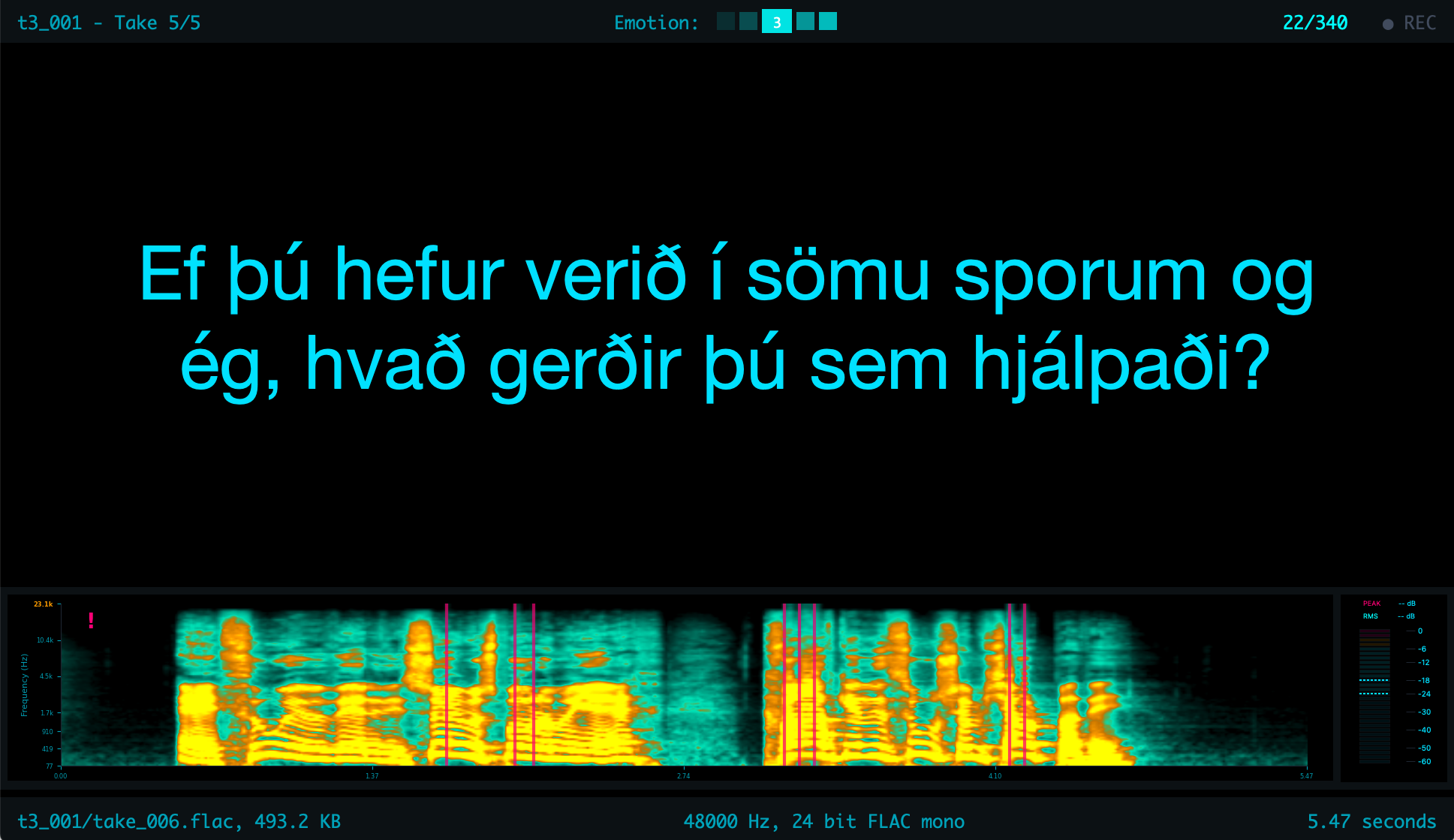
We have condensed our experience from when we recorded Talrómur 3, the Icelandic emotional speech dataset, and created this tool to minimize hassle, valuable recording & post-processing time.
- Revoxx makes recording of speech fast, reliable and convenient for the recording engineer and the voice talent
- Integrates all necessary tools to check if recordings & equipment meet your expected requirements
- Automatically analyzes and validates audio equipment compatibility, including Sample Rate, Bit Depth, and I/O channel configurations
- Supports unlimited re-recording while maintaining a complete archive of raw recordings, even for deleted content
- Text size is automatically adjusted according to available screen real-estate
- Intuitive keyboard shortcuts for accessing core functionalities
- Recordings are organized into Recording Sessions
- Record emotional sessions for each speaker or record more traditional LJSpeech-style sessions
- Seamless transitions between different recording sessions with automatic progress tracking: continue where you left-off
- Flag utterances for re-recording or exclusion from export
- Offers advanced search and navigation capabilities for utterances, with flexible sorting and ordering by label, emotion, text content, text length and recorded takes
- Consistent audio settings & metadata for all recordings
- Real-time monitoring including toggable recording levels, mel spectrograms, maximum frequency detection, and more
- Customizable industry-standard presets for Peak/RMS levels
- Dedicated Monitoring mode for precise input calibration
- Audio Editing directly in the spectrogram view
- Set position markers to play from any point in the recording
- Create selection ranges for partial playback
- Delete ranges with automatic crossfade
- Insert new audio at marker position
- Replace selected ranges with new recordings
- Multiple undo/redo for all editing operations
- Multi-Screen Support
- You can use multiple monitors to separate recording view from speaker view
- We support Apple's Sidecar feature for a convenient dual screen setup with an external iPad
- Each screen appearance can be individually configured
- All screen layouts, placement & configuration are preserved at exit
- Export Dataset
- Facilitates batch export of multiple sessions into T3 (Talrómur3) dataset format
- Groups different recording sessions of the same speaker into a common dataset
- Option to skip rejected utterances during export
- EBU R 128 loudness normalization with selectable presets or custom LUFS target, true peak limiting
- Voice Activity Detection (VAD) with speech segment timestamps
- OmniVAD (included by default) - CPU-only, based on FireRedVAD DFSMN model via ncnn, no PyTorch required
- Silero VAD (optional) - requires PyTorch, install with
pip install revoxx[silero] - Both VAD backends can run simultaneously for comparison
- ASR-based Recording Verification
- Automatically transcribe recordings via an OpenAI-compatible ASR endpoint (cloud or self-hosted) and compare against the script text
- Spot misread utterances via configurable character-level similarity threshold
- Toggle between script text and ASR transcription in the display with a single keystroke
- Manual override for false negatives, direct navigation to mismatches
- For Icelandic ASR we recommend icelandic-asr-api -- it also supports other languages via whisper-large-v3-turbo with automatic language detection
Installation
Prerequisites
Tkinter
Revoxx requires Tkinter for its graphical user interface. Tkinter is usually included with Python, but may need separate installation on some systems:
macOS: Tkinter should be included with Python.org installers and Homebrew Python, but integration issues can occur. If you encounter problems:
- For Homebrew Python: Try
brew install python-tk - For Python.org installers: Reinstall Python with the official installer
- Consider using a virtual environment with a fresh Python installation
Linux:
# Ubuntu/Debian
sudo apt-get install python3-tk

# Fedora
sudo dnf install python3-tkinter

# Arch Linux
sudo pacman -S tk
Windows: Tkinter is included with the standard Python installer.
Verify Tkinter installation:
python3 -c "import tkinter; print('Tkinter is installed')"
Basic Installation
Using uv
uv is a fast Python package installer and resolver:
uv pip install revoxx           # From PyPI (includes OmniVAD)
uv pip install .                # From source
uv pip install revoxx[silero]   # With additional Silero VAD support
Using pip
pip install revoxx             # From PyPI (includes OmniVAD)
pip install .                  # From source
pip install revoxx[silero]     # With additional Silero VAD support
From source
git clone https://github.com/icelandic-lt/revoxx.git
cd revoxx
# Then use either uv or pip as shown above
Voice Activity Detection (VAD)
OmniVAD is included by default and requires no additional installation. It uses the FireRedVAD DFSMN model via ncnn and runs entirely on CPU.
To additionally install Silero VAD (requires PyTorch):
# Option 1: CPU-only PyTorch (recommended, smaller download)
pip install torch --index-url https://download.pytorch.org/whl/cpu
pip install revoxx[silero]

# Option 2: Default PyTorch (often includes CUDA support > 2GB disk-space required)
pip install revoxx[silero]
Both VAD backends can be enabled simultaneously during export to produce separate result files for comparison.
Development Setup
For development
Using uv (recommended)
git clone https://github.com/icelandic-lt/revoxx.git
cd revoxx

# Create and activate virtual environment
uv venv
source .venv/bin/activate  # On Windows: .venv\Scripts\activate

# Install in editable mode with dev dependencies
uv pip install -e .[dev]
# With Silero VAD support:
uv pip install -e .[dev,silero]
Using pip (traditional)
git clone https://github.com/icelandic-lt/revoxx.git
cd revoxx

# Create and activate virtual environment
python3 -m venv venv
source venv/bin/activate  # On Windows: venv\Scripts\activate

# Install in editable mode with dev dependencies
pip install -e .[dev]
# With Silero VAD support:
pip install -e .[dev,silero]
Development dependencies include:
- black: Code formatter (pinned to 25.x for Python 3.9 compatibility)
- isort: Import statement organizer
- flake8: Code linter
- pytest: Testing framework
- pytest-cov: Code coverage reporting
Note: Black is pinned to version 25.x to ensure consistent formatting rules across all supported Python versions.
Tcl/Tk for standalone Python builds
Standalone Python distributions (e.g. downloaded by uv) may not include Tcl/Tk data files. If Tkinter tests fail with Cannot find a usable init.tcl, set the TCL_LIBRARY environment variable to point to your installed Tcl library:
# macOS with Homebrew (ARM)
export TCL_LIBRARY=/opt/homebrew/opt/tcl-tk/lib/tcl9.0

# macOS with Homebrew (Intel)
export TCL_LIBRARY=/usr/local/opt/tcl-tk/lib/tcl9.0
In PyCharm: Run > Edit Configurations > Environment variables.
Running code quality checks
# Format code
black revoxx/ scripts_module/ tests/

# Check code style
flake8 revoxx/ scripts_module/ tests/

# Run tests
pytest tests/

# Run tests with coverage
pytest tests/ --cov=revoxx --cov-report=html
Running Revoxx
After installation
Once installed, you can run Revoxx using:
revoxx
macOS Note: The first launch may take longer than usual as macOS verifies the application (Gatekeeper security check). Subsequent launches will be faster.
During development (without installation)
Run as a Python module:
python -m revoxx
In PyCharm or other IDEs
Configure your run configuration with:
- Module name:
revoxx(not script path) - Working directory: Project root directory
Command-line tools
The package includes additional utilities:
revoxx-export    # Export sessions to dataset format
revoxx-vadiate   # Voice Activity Detection tool (uses OmniVAD by default)
The revoxx-vadiate tool uses OmniVAD by default. Use --backend silero to use Silero VAD instead (requires pip install revoxx[silero]).
Command-line arguments
revoxx --help                    # Show all available options
revoxx --show-devices            # List available audio devices
revoxx --session path/to/session # Open specific session
Usage
For a guide on using Revoxx, please see the User Guide.
Prepare recordings
Before you start recording, you need to prepare an utterance script with the utterances you want to record. This can be simplified by using the "Import Text to Script" Dialog:
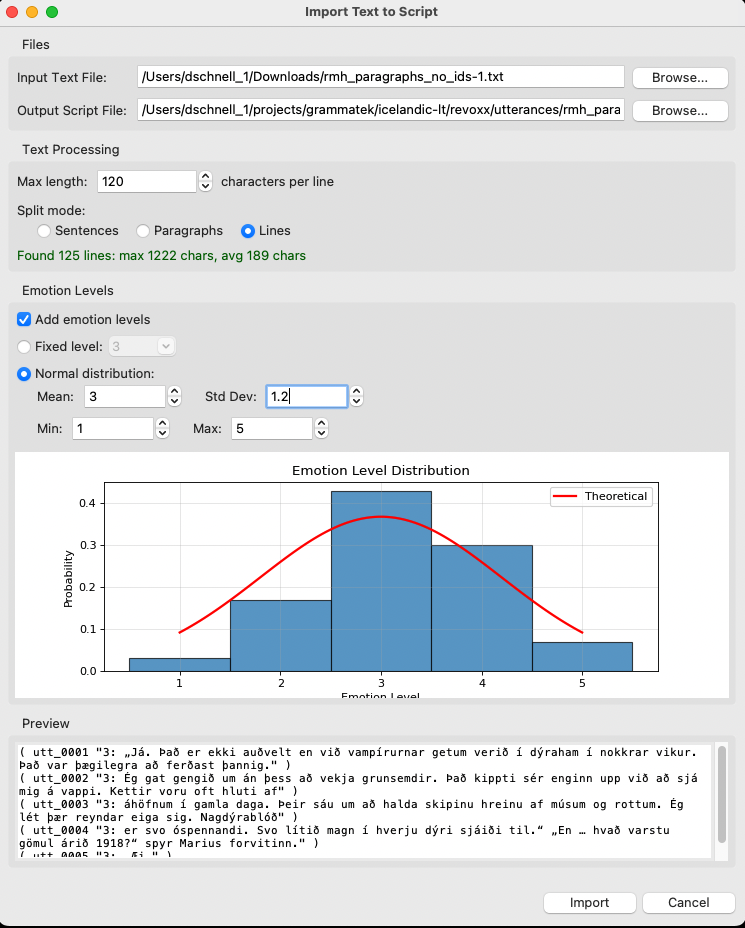
This dialog takes an input script of raw text and converts it into an utterance script. You can redo this for the same input text as many times you want, e.g. if you want to use separate emotional levels for different speakers.
Utterance script format
A script file follows Festival-style format. The script should be a simple text file with one utterance per line. The utterances can be in any language you want.
For a script with emotion levels:
( <unique id> "<emotion-level>: <utterance>" )
For a script without emotion levels. This format was used for recording our non-emotional "addendas":
( <unique id> "<utterance>" )
You can see for both formats an example in the directory t3_scripts.
The emotion levels can be from any monotonic numerical value range you want. If you want to follow Talrómur 3 conventions, you can use emotion intensity levels 1-5 and 6 emotions: neutral, happy, sad, angry, surprised, and helpful. The emotion intensity levels are used to control the emotion intensity of the speech in combination with the specific emotion. Neutral speech is treated as intensity level 0 at dataset export.
Known Issues
Linux: USB Audio Output Devices
On Linux systems, USB audio output devices (e.g., Focusrite Scarlett, Clarett+) may temporarily disappear from the device list during playback. This is a known issue with the interaction between PortAudio and ALSA/PulseAudio.
Symptoms:
- Output device works for the first playback but fails on subsequent attempts
- Error message: "Output device 'DeviceName' disappeared from system"
- Device reappears after restarting the application
- Input devices (recording) are typically not affected
Workarounds:
- The application will automatically fall back to the system default audio output device
- If the issue persists, restart the application
- Consider updating to the latest version of sounddevice (>=0.5.1)
- Check that no other application is claiming exclusive access to the device
Acknowledgements
This project is part of the program Language Technology for Icelandic. The program was funded by the Icelandic Ministry of Culture and Business Affairs.
License
This project is licensed under the Apache License 2.0 - see the LICENSE file for details.
1 maintainer

Metadata
1 maintainer
Release files for revoxx 1.3.2
For a detailed explanation of source distributions (sdists) and built distributions (wheels), please see the package formats documentation.
Source distribution (sdist)
| File | Size | Uploaded | |
|---|---|---|---|
| revoxx-1.3.2.tar.gz | 1.3 MB | Details |
Built distribution (wheel)
| File | Interpreter | ABI | Platform | Reset |
|---|---|---|---|---|
| revoxx-1.3.2-py3-none-any.whl | Python 3 | none | any | Details |
Total release size: 1.8 MB
Release files / revoxx-1.3.2.tar.gz
| Download URL | revoxx-1.3.2.tar.gz |
|---|---|
| Size | 1.3 MB |
| Tags | Source |
|
SHA-256 checksum How to use checksums |
114692f52538da20e1b258dec215199c889939a5f4a4e73848bcab7cadafd4ab
|
|
BLAKE2b-256 checksum How to use checksums |
3dfe1971a2c6267c4357724672087fa0843d393ab3175f25e7d454ffa6b108fd
|
| Upload date | |
|
Uploaded using Trusted Publishing? What is trusted publishing? |
Yes |
| Uploaded via |
twine/6.1.0 CPython/3.13.12
|
Provenance
Provenance describes where a file came from. On PyPI, provenance is shared via attestations, which provide a verifiable record of the build or publishing details. View details, limitations and caveats.


PyPI Publish Attestation
PyPI verified that this artifact, at this checksum, originated from the publisher listed below.
Signed by GitHub Actions, verified by PyPI on Apr 10, 2026.
Transparency logRelease files / revoxx-1.3.2-py3-none-any.whl
| Download URL | revoxx-1.3.2-py3-none-any.whl |
|---|---|
| Size | 455.0 kB |
| Tags | Python 3 |
|
SHA-256 checksum How to use checksums |
482e7269a3a88df10d4d46850a44e181bfa0d6f46f23e9e9ca139e5529e28a25
|
|
BLAKE2b-256 checksum How to use checksums |
953b6e93a697b6e6bbb42124685392e9472aa2152deb9ab21abe761eec200d73
|
| Upload date | |
|
Uploaded using Trusted Publishing? What is trusted publishing? |
Yes |
| Uploaded via |
twine/6.1.0 CPython/3.13.12
|
Provenance
Provenance describes where a file came from. On PyPI, provenance is shared via attestations, which provide a verifiable record of the build or publishing details. View details, limitations and caveats.
PyPI Publish Attestation
PyPI verified that this artifact, at this checksum, originated from the publisher listed below.
Signed by GitHub Actions, verified by PyPI on Apr 10, 2026.
Transparency log













