
A bibliometric tool to analyse, visualise, and share your research impact, output and scholarly influence using Google Scholar and OpenAlex data
Verified details
These details have been verified by PyPIProject links
GitHub Statistics
Maintainers

Project description
ScholarImpact
A bibliometric tool to analyse, visualise, and share your research impact, output and scholarly influence using Google Scholar and OpenAlex data.








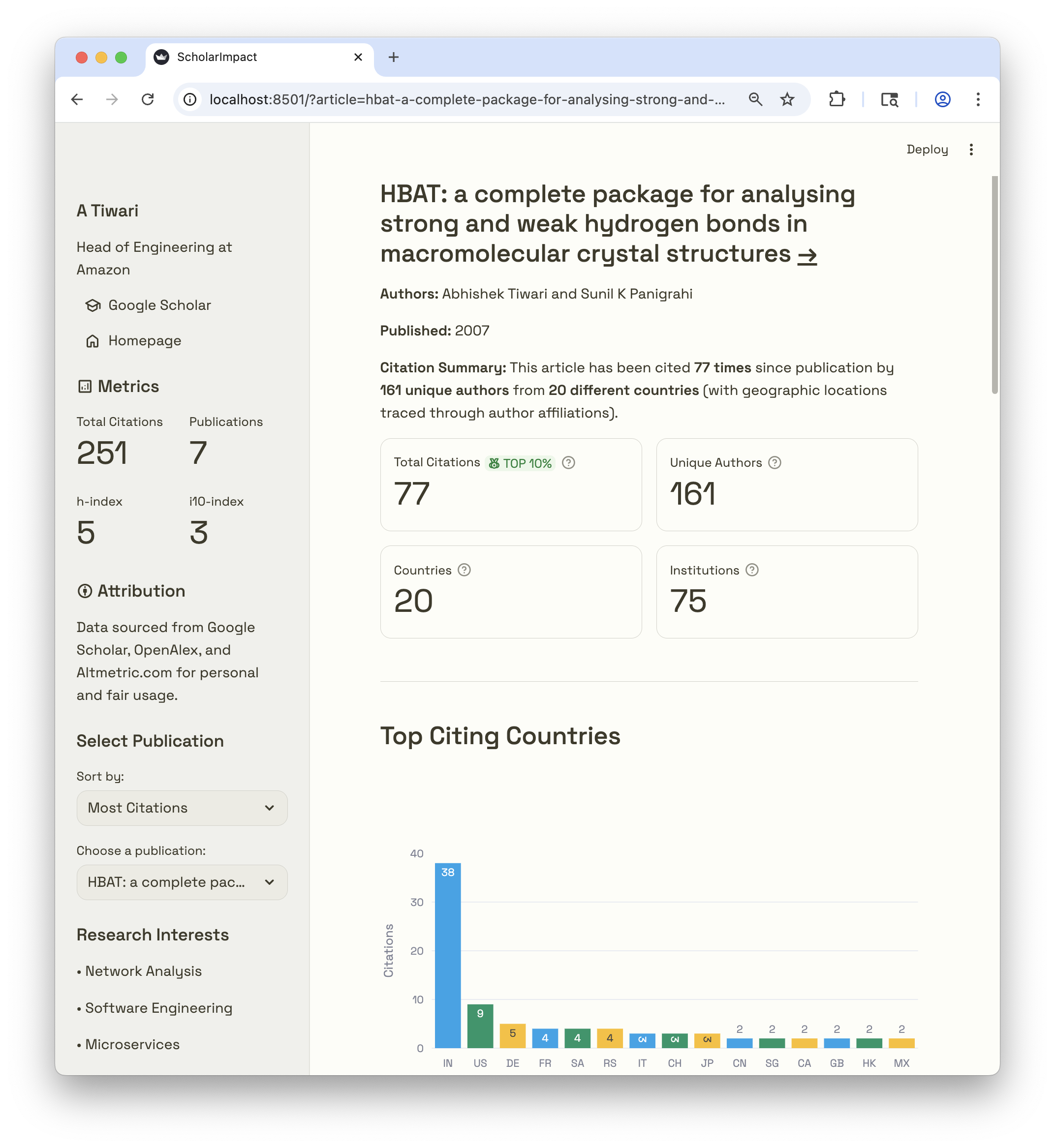
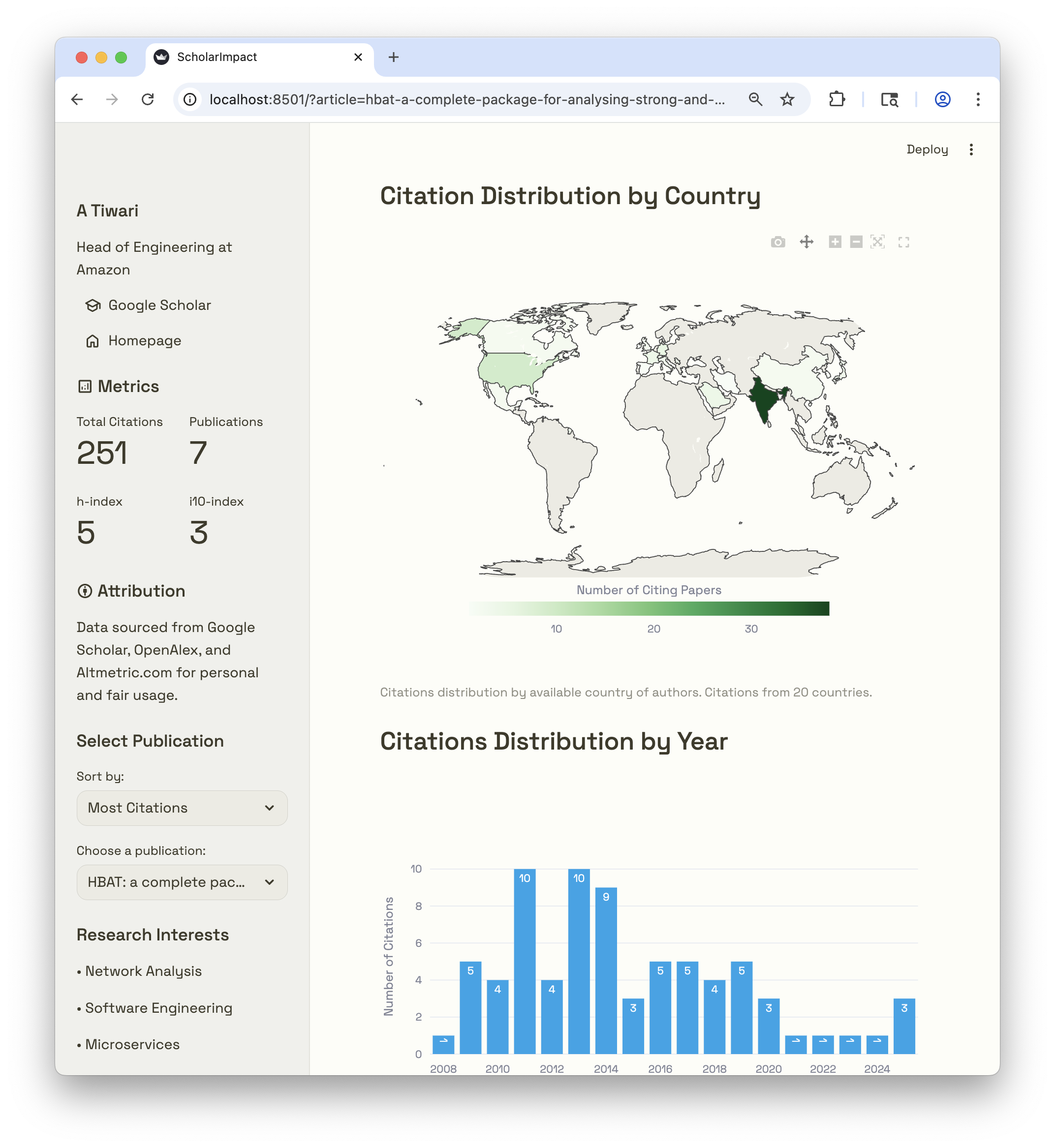
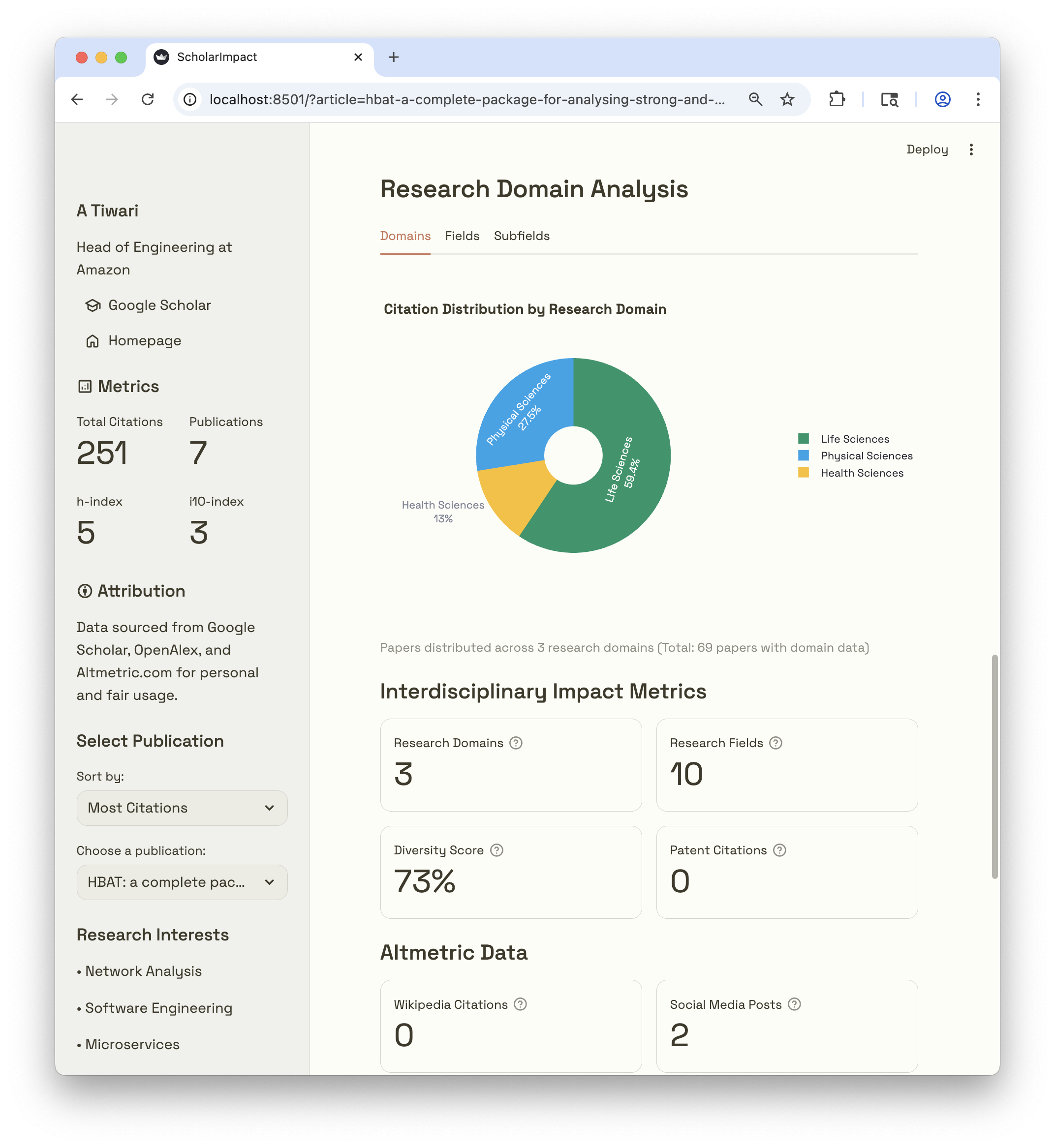
For each article under your Google Scholar Profile, ScholarImpact provides comprehensive analysis including: (1) total citation count with percentile rankings, (2) unique citing authors and institutions, (3) geographic distribution of citations by country, (4) top Scimago-ranked institutions citing your work with prestige metrics, (5) notable citations—the most influential articles (top 10%) that cite your work, (6) research domain analysis with field diversity scoring, (7) citation trends over time, (8) interdisciplinary impact metrics including patent citations, Wikipedia mentions, and social media engagement, and (9) customizable dashboard with widget visibility control and theme personalization.
Workflow Overview
ScholarImpact follows a three-stage workflow to analyze and visualize your research impact:
Stage 1: Extract & Enrich Author Data
Extract your publication list from Google Scholar and enrich with OpenAlex and Altmetric metrics:
flowchart LR
    A["🎓 Google Scholar<br/>Profile"] --> B["📄 Your Articles<br/>extraction"]
    B --> C["🔗 OpenAlex API<br/>(optional enrichment)"]
    B --> D["📊 Altmetric API<br/>(optional enrichment)"]
    C --> E["✨ Enhanced<br/>Scholar Data"]
    D --> E

    style A fill:#0ea5e9,stroke:#0ea5e9,color:#ffffff
    style B fill:#ecebe3,stroke:#3d3a2a
    style C fill:#059669,stroke:#059669,color:#ffffff
    style D fill:#059669,stroke:#059669,color:#ffffff
    style E fill:#cb785c,stroke:#cb785c,color:#ffffff
Stage 2: Crawl & Analyze Citations
Retrieve citing articles and enrich with detailed author, institutional, and ranking data:
flowchart LR
    A["✨ Enhanced<br/>Scholar Data"] --> B["🔍 Citing Articles<br/>crawl from Google Scholar"]
    B --> C["🔗 OpenAlex API<br/>enrichment"]
    B --> D["👤 Google Scholar<br/>Author Profiles"]
    C --> E["🏆 Enhanced<br/>Citation Data"]
    D --> E
    C -.-> F["🌍 Affiliations<br/>& Countries"]
    C -.-> G["🔬 Research<br/>Domains"]
    C -.-> I["🎓 Scimago<br/>Institution Ranking"]
    D -.-> H["✓ Verified<br/>Institutions"]
    F --> E
    G --> E
    H --> E
    I --> E

    style A fill:#cb785c,stroke:#cb785c,color:#ffffff
    style B fill:#ecebe3,stroke:#3d3a2a
    style C fill:#059669,stroke:#059669,color:#ffffff
    style D fill:#fbbf24,stroke:#fbbf24,color:#3d3a2a
    style E fill:#cb785c,stroke:#cb785c,color:#ffffff
    style I fill:#059669,stroke:#059669,color:#ffffff
Stage 3: Visualize & Share Impact
Interactive Streamlit dashboard with customizable widgets and comprehensive analytics:
flowchart LR
    A["🏆 Enhanced<br/>Citation Data"] --> B["📊 Streamlit Dashboard"]
    B --> C["📈 Citation Metrics"]
    B --> D["🌍 Geographic<br/>Distribution"]
    B --> E["🏫 Institutions &<br/>Rankings"]
    B --> F["⭐ Notable<br/>Citations"]
    B --> G["🔬 Research<br/>Domains"]
    B --> H["📱 Alt Metrics &<br/>Social Impact"]

    style A fill:#cb785c,stroke:#cb785c,color:#ffffff
    style B fill:#cb785c,stroke:#cb785c,color:#ffffff
    style C fill:#ecebe3,stroke:#3d3a2a
    style D fill:#ecebe3,stroke:#3d3a2a
    style E fill:#ecebe3,stroke:#3d3a2a
    style F fill:#ecebe3,stroke:#3d3a2a
    style G fill:#ecebe3,stroke:#3d3a2a
    style H fill:#ecebe3,stroke:#3d3a2a
Quick Start
Prerequisites
Install
pip install scholarimpact
Caution
This system is designed for academic research purposes and personal usage. Please use responsibly and in accordance with Google Scholar, OpenAlex, Altmetric terms of services with appropriate attribution.
Breaking Changes (v0.0.13+)
API Key Requirements
As of version v0.0.13+, both OpenAlex and Altmetric now require API keys. This is a breaking change from previous versions.
What Changed:
OpenAlex:
- Previous: Email-based authentication with
--openalex-emailflag - Current: API key-based authentication with
--openalex-api-keyoption - Impact: OpenAlex enrichment now requires an API key
Altmetric:
- Previous: Altmetric worked with just
--use-altmetricflag (public API) - Current: Altmetric requires API key with
--altmetric-api-keyoption - Impact: Altmetric enrichment now requires an explicit API key
Getting API Keys
OpenAlex API Key
OpenAlex data is and will remain available at no cost. The API is a freemium service:
- $1 free credit daily - sufficient for most research use cases
- Pay as you go after daily limit - only charged for usage beyond free tier
- No API key required for the free tier (limited rate)
- Free API key - create an account in 30 seconds for higher rate limits
To get your OpenAlex API key:
- Go to openalex.org/settings/api
- Create a free account (takes 30 seconds)
- Copy your API key from the settings page
- Use it with the
--openalex-api-keyflag in ScholarImpact commands
Documentation: OpenAlex API Authentication
Altmetric API Key
Altmetric offers free access for university scientometric researchers through their Details Page API - Counts Only, which is optimized for querying publication identifiers.
Features:
- Query by DOI, PMID, or other identifiers
- Returns publication attention metrics (citations, social media mentions, etc.)
- Free access available for university researchers
To get Altmetric API key:
- Visit Altmetric Research Access
- Complete the researcher access request form
- Specify your institution and research project
- Altmetric will provide your API key
- Use it with the
--altmetric-api-keyflag in ScholarImpact commands
Documentation: Altmetric Details Page API - Counts Only
Note: Free university researcher access is available through the research access program. Contact Altmetric for details on eligibility and access.
Step-by-Step Guide
Option 1: For Deployment (Recommended)
This approach creates a standalone project suitable for deployment to Streamlit Cloud or local development.
Step 1: Generate Dashboard Project
# Generate a dashboard project
scholarimpact generate-dashboard --output-dir my-research-dashboard --name app.py

# Navigate to the generated folder
cd my-research-dashboard
This creates a complete project structure with app.py, requirements.txt, .streamlit/config.toml, and a static folder containing fonts used by default theme.
Step 2: Extract Author Publications
# Extract your publications from Google Scholar
scholarimpact extract-author "YOUR_SCHOLAR_USER_ID"

# With OpenAlex API key (required for OpenAlex enrichment and Altmetric)
scholarimpact extract-author "YOUR_SCHOLAR_USER_ID" --openalex-api-key YOUR_API_KEY

# Or use full URL
scholarimpact extract-author "https://scholar.google.com/citations?user=YOUR_SCHOLAR_USER_ID" --openalex-api-key YOUR_API_KEY
This creates data/author.json with your publication list. Add --openalex-api-key to enrich with OpenAlex and Altmetric metrics (API key required).
Step 3: Crawl Citation Data
# Crawl citations with OpenAlex enrichment (API key required)
scholarimpact crawl-citations data/author.json --openalex-api-key YOUR_API_KEY
This creates data/cites-{ID}.json files for each publication.
Step 4: Test Locally
# Run the dashboard locally
streamlit run app.py

# Or alternatively
python app.py
Open http://localhost:8501to view your dashboard.
Step 5: Push your changes to a Github Repository
# Initialize git repository
git init
git add .
git commit -m "Initial research dashboard"

# Create GitHub repository and push
git remote add origin https://github.com/YOUR_USERNAME/YOUR_REPO.git
git branch -M main
git push -u origin main
Step 6: Deploy on Streamlit Cloud
- Go to share.streamlit.io
- Click "New app"
- Connect your GitHub account
- Select your repository and branch
- Set main file path:
app.py(or your custom name) - Click "Deploy"
Step 7: Project Structure for Deployment
Your repository should contain:
my-research-dashboard/
├── app.py                    # Main dashboard file
├── requirements.txt          # Python dependencies
├── Dockerfile                # Docker container configuration
├── docker-compose.yml        # Docker Compose orchestration (optional)
├── .streamlit/
│   └── config.toml          # Streamlit configuration
├── static/                  # Static assets (fonts from scholarimpact/assets/fonts)
│   ├── SpaceGrotesk-SemiBold.ttf
│   ├── SpaceGrotesk-VariableFont_wght.ttf
│   ├── SpaceMono-Regular.ttf
│   ├── SpaceMono-Bold.ttf
│   ├── SpaceMono-Italic.ttf
│   ├── SpaceMono-BoldItalic.ttf
│   └── OFL-*.txt           # Font licenses
└── data/
    ├── author.json                           # Author profile data
    ├── cites-*.json                          # Citation data files
    └── ScimagoIR 2026 - Overall Rank.csv     # Scimago Institutions Ranking (for institution prestige metrics)
Step 8: Docker Deployment (Alternative to Streamlit Cloud)
The generated project includes Dockerfile and docker-compose.yml for containerized deployment:
Using Docker Compose (Recommended):
# Build and run with Docker Compose
docker-compose up -d

# View logs
docker-compose logs -f

# Stop the service
docker-compose down
Using Docker directly:
# Build the image
docker build -t scholarimpact-dashboard .

# Run the container
docker run -p 8501:8501 scholarimpact-dashboard

# Or run in background
docker run -d -p 8501:8501 scholarimpact-dashboard
Access your dashboard at http://localhost:8501
Step 9: Update Data
To update citation data:
- Re-run step-2 and step-3 to update data files
- Commit changes and push them to your GitHub repository
- For Streamlit Cloud: automatic restart on push
- For Docker: rebuild and redeploy the container
Tips for Streamlit Cloud Deployment
- Keep data files under 100MB each for optimal performance
- Use
.gitignoreto exclude unnecessary files - Set secrets in Streamlit Cloud settings if needed
- Monitor app logs in Streamlit Cloud dashboard for debugging
Tips for Docker Deployment
- Resource limits are configured in
docker-compose.yml(1 CPU, 512MB RAM) - Use environment variables for configuration (see
docker-compose.yml) - For production, update the
x-portssection with your domain - Mount data volume for persistent storage:
docker run -v ./data:/app/data -p 8501:8501 scholarimpact-dashboard
Option 2: For Quick Local Testing
This approach is fastest for local analysis without deployment needs.
Step 1: Extract Author Publications
# Extract publications directly
scholarimpact extract-author "YOUR_SCHOLAR_USER_ID"
Step 2: Crawl Citation Data
# Crawl citations with OpenAlex enrichment (API key required)
scholarimpact crawl-citations data/author.json --openalex-api-key YOUR_API_KEY
Step 3: Launch Dashboard
# Run dashboard directly
ScholarImpact
The dashboard opens at http://localhost:8501.
CLI Options Reference
scholarimpact extract-author Command
Extract author publications from Google Scholar with OpenAlex and Altmetric enrichment:
scholarimpact extract-author [OPTIONS] SCHOLAR_ID
Arguments:
SCHOLAR_ID: Google Scholar author ID or full profile URL
Options:
| Option | Type | Default | Description |
|---|---|---|---|
--max-papers N |
int | None | Maximum number of papers to analyze (default: all) |
--delay X |
float | 2.0 | Delay between requests in seconds |
--output-dir DIR |
str | ./data | Output directory for author.json |
--output-file FILE |
str | None | Custom output file path (overrides output-dir) |
--openalex-api-key KEY |
str | None | API key for OpenAlex (enables OpenAlex enrichment) |
--altmetric-api-key KEY |
str | None | API key for Altmetric (enables Altmetric enrichment) |
OpenAlex enrichment adds (all fields prefixed with openalex_):
openalex_ids: Object containing all identifiers:openalex: OpenAlex work URLdoi: Digital Object Identifier URLmag: Microsoft Academic Graph IDpmid: PubMed ID URL
openalex_type: Publication type (article, book, etc.)openalex_citation_normalized_percentile: Percentile ranking of citationsopenalex_cited_by_percentile_year: Citation percentile by yearopenalex_fwci: Field-Weighted Citation Impactopenalex_cited_by_count: OpenAlex citation countopenalex_primary_topic: Main research topicopenalex_domain,openalex_field,openalex_subfield: Hierarchical classification
Altmetric enrichment adds (all fields prefixed with altmetric_):
altmetric_score: Overall Altmetric attention scorealtmetric_cited_by_wikipedia_count: Citations in Wikipediaaltmetric_cited_by_patents_count: Citations in patentsaltmetric_cited_by_accounts_count: Social media accounts mentioningaltmetric_cited_by_posts_count: Social media posts mentioningaltmetric_scopus_subjects: Scopus subject classificationsaltmetric_readers: Reader counts by platform (Mendeley, CiteULike, etc.)altmetric_readers_count: Total reader countaltmetric_images: Altmetric badge images (small, medium, large)altmetric_details_url: Link to detailed Altmetric page
Examples:
# Basic usage (Google Scholar only, no enrichment)
scholarimpact extract-author "ABC123DEF"

# With OpenAlex API key for enrichment
scholarimpact extract-author "ABC123DEF" --openalex-api-key YOUR_OPENALEX_KEY

# With both OpenAlex and Altmetric enrichment
scholarimpact extract-author "ABC123DEF" --openalex-api-key YOUR_OPENALEX_KEY --altmetric-api-key YOUR_ALTMETRIC_KEY

# Limit to first 20 papers with 3-second delays
scholarimpact extract-author "ABC123DEF" --openalex-api-key YOUR_OPENALEX_KEY --max-papers 20 --delay 3

# Custom output file with OpenAlex API key
scholarimpact extract-author "ABC123DEF" --output-file data/my_author.json --openalex-api-key YOUR_OPENALEX_KEY

# Full URL format
scholarimpact extract-author "https://scholar.google.com/citations?user=ABC123DEF" --openalex-api-key YOUR_OPENALEX_KEY
scholarimpact list-articles Command
List all articles from author.json with their cites_id and title:
scholarimpact list-articles [OPTIONS] AUTHOR_JSON
Arguments:
AUTHOR_JSON: Path to author.json file containing publications
Options:
| Option | Type | Default | Description |
|---|---|---|---|
--format FORMAT |
str | table | Output format: table or json |
Examples:
# List articles in table format
scholarimpact list-articles data/author.json

# List articles in JSON format
scholarimpact list-articles data/author.json --format json

# Copy cites_id from table output and use it to crawl specific article
scholarimpact crawl-citations data/author.json --cites-id "ABC123,XYZ789"
The table shows:
#: Article index (0-based)Cites ID: Google Scholar citation ID (use with--cites-idflag)Title: Article titleYear: Publication yearCit: Total citations count
scholarimpact crawl-citations Command
Crawl citations with OpenAlex integration:
scholarimpact crawl-citations [OPTIONS] AUTHOR_JSON
Arguments:
AUTHOR_JSON: Path to author.json file containing publications
Options:
| Option | Type | Default | Description |
|---|---|---|---|
--openalex-api-key KEY |
str | None | API key for OpenAlex (required to use OpenAlex) |
--max-citations N |
int | None | Maximum citations per paper |
--delay-min X |
float | 5.0 | Minimum delay between requests (seconds) |
--delay-max Y |
float | 10.0 | Maximum delay between requests (seconds) |
--output-dir DIR |
str | None | Output directory (defaults to author.json directory) |
--cites-id CITES_ID |
str | None | Crawl only a specific article by cites_id (auto-enables --force) |
--force |
flag | False | Force re-crawl of articles when citation counts don't match expectations |
Smart Skipping Logic:
The crawler compares citation counts in author.json with counts in the crawled citation files:
-
Citations match (e.g., 10 in both):
- Skip by default
- Skip with
--force(data is up to date) - Message:
Citation count unchanged - 10 citations in author.json, 10 citations in file
-
New citations found (e.g., 4 in author.json, 3 in file):
- Always crawl to get the new citation (even without
--force) - Message:
Citation count increased - 4 citations in author.json, 3 in file (crawling to get new citations)
- Always crawl to get the new citation (even without
-
File has more citations (e.g., 3 in author.json, 4 in file) [unusual]:
- Skip by default
- Crawl with
--forceto refresh - Message:
File has more citations - 3 in author.json, 4 in file (use --force to recrawl)
Special behavior with --cites-id:
- Always crawls the specified article (ignores existing file)
- Automatically enables
--forcemode - Gets fresh citation data regardless of file existence or citation count
- Useful for testing, re-crawling specific articles, or updating individual articles
When to use --force:
- Re-crawl all articles when citation counts seem out of sync
- Refresh corrupted citation files
- Override automatic skipping for articles with matching counts (if you want fresh data for all articles)
Examples:
# Basic usage - skips articles with matching citation counts, crawls new citations
scholarimpact crawl-citations data/author.json --openalex-api-key YOUR_API_KEY

# Crawl only a single article (always gets fresh data, auto-enables force)
scholarimpact crawl-citations data/author.json --openalex-api-key YOUR_API_KEY --cites-id "ABC123,XYZ789"

# Force re-crawl articles when citation counts differ or to refresh data
scholarimpact crawl-citations data/author.json --openalex-api-key YOUR_API_KEY --force

# Custom delays
scholarimpact crawl-citations data/author.json --openalex-api-key YOUR_API_KEY --delay-min 3 --delay-max 8

# Custom output directory
scholarimpact crawl-citations data/author.json --openalex-api-key YOUR_API_KEY --output-dir custom_data

# Limit citations per paper
scholarimpact crawl-citations data/author.json --openalex-api-key YOUR_API_KEY --max-citations 100
scholarimpact add-rankings Command
Add Scimago Institution Ranking to citation data for dashboard visualization:
scholarimpact add-rankings [OPTIONS] CITATIONS_JSON
Arguments:
CITATIONS_JSON: Path to citations JSON file (fromcrawl-citationscommand)
Options:
| Option | Type | Default | Description |
|---|---|---|---|
--rankings-file FILE |
str | ./data/ScimagoIR2026-OverallRank.csv | Path to Scimago rankings CSV file |
Download Instructions
To use the institution ranking features in ScholarImpact, you need to download the Scimago IR data:
- Visit Scimago IR Portal Scimago IR
- Select Data: Choose "Overall Rank" for global research rankings (Direct Link)
- Download CSV: Download the CSV file with your preferred settings
- Place File: Save the file as
ScimagoIR2026-OverallRank.csvin thedata/directory
Direct Download Link (Overall Rank 2026):
https://www.scimagoir.com/getdata.php?ranking=Overall&area=§or=&country=&year=2026&top=0&format=csv&type=download
What it does:
- Reads citation JSON file from
crawl-citations - Matches each citing institution against Scimago 2026 global rankings (15,000+ institutions)
- Adds
institution_rank(integer 1-15000+) andinstitution_rank_weight(0.0-1.0) to each citing author - Updates the citations file in place
- Displays enrichment summary with statistics
Data Structure After Enrichment: Each citing author now includes ranking information:
{
  "citing_authors_details": [
    {
      "name": "Oliver Meyer",
      "institution_display_name": "Arizona State University",
      "institution_rank": 186,           // Scimago global rank
      "institution_rank_weight": 0.74,   // Normalized 0-1
      "country": "US",
      "openalex_author_id": "..."
    }
  ]
}
Examples:
# Add rankings using default location (./data/ScimagoIR2026-OverallRank.csv)
scholarimpact add-rankings data/cites-12862953873024122861.json

# Specify custom rankings file location
scholarimpact add-rankings data/cites-12862953873024122861.json --rankings-file /path/to/rankings.csv

# Bulk process all citation files
for file in data/cites-*.json; do
  scholarimpact add-rankings "$file"
done
ScholarImpact Command
Launch the interactive dashboard:
ScholarImpact [OPTIONS]
Options:
| Option | Type | Default | Description |
|---|---|---|---|
--port N |
int | 8501 | Port to run the dashboard on |
--address ADDR |
str | localhost | Address to bind the server to |
--data-dir DIR |
str | ./data | Directory containing citation data files |
Examples:
# Basic usage
ScholarImpact

# Custom port
ScholarImpact --port 8502

# External access
ScholarImpact --address 0.0.0.0

# Different data directory
ScholarImpact --data-dir custom_data
scholarimpact quick-start Command
Complete analysis pipeline from Scholar ID to dashboard:
scholarimpact quick-start [OPTIONS] SCHOLAR_ID
Arguments:
SCHOLAR_ID: Google Scholar author ID or full profile URL
Options:
| Option | Type | Default | Description |
|---|---|---|---|
--openalex-api-key KEY |
str | None | OpenAlex API key (enables OpenAlex enrichment) |
--altmetric-api-key KEY |
str | None | Altmetric API key (enables Altmetric enrichment) |
--output-dir DIR |
str | ./data | Output directory for all data |
--launch-dashboard/--no-dashboard |
flag | True | Launch dashboard after analysis |
Examples:
# Complete pipeline with OpenAlex enrichment
scholarimpact quick-start "ABC123DEF" --openalex-api-key YOUR_OPENALEX_KEY

# Complete pipeline with both OpenAlex and Altmetric enrichment
scholarimpact quick-start "ABC123DEF" --openalex-api-key YOUR_OPENALEX_KEY --altmetric-api-key YOUR_ALTMETRIC_KEY

# Skip dashboard launch
scholarimpact quick-start "ABC123DEF" --no-dashboard

# Custom output directory with enrichment
scholarimpact quick-start "ABC123DEF" --output-dir results --openalex-api-key YOUR_OPENALEX_KEY
scholarimpact generate-dashboard Command
Generate a standalone dashboard project for deployment to Streamlit Cloud or Docker:
scholarimpact generate-dashboard [OPTIONS]
Options:
| Option | Type | Default | Description |
|---|---|---|---|
--output-dir DIR |
str | . | Output directory for generated files |
--name FILE |
str | my_dashboard.py | Name of the dashboard file |
--data-dir DIR |
str | ./data | Data directory path for dashboard |
--title TEXT |
str | My Citation Dashboard | Dashboard title |
Examples:
# Generate dashboard in current directory
scholarimpact generate-dashboard

# Custom output directory and title
scholarimpact generate-dashboard --output-dir my-project --title "Research Impact Analysis"

# Custom data directory location
scholarimpact generate-dashboard --data-dir ../citation_data --name app.py
This command generates:
- A dashboard Python file (default:
my_dashboard.py) Dockerfilefor containerization (Python 3.13-slim base)docker-compose.ymlfor orchestration with resource limits.streamlit/config.tomlwith theme configurationrequirements.txtfor dependenciesstaticfolder containing fonts used by default theme
The generated project is ready for deployment to:
- Streamlit Cloud: Push to GitHub and deploy via share.streamlit.io
- Docker: Build and run locally or on any Docker-compatible server
- Docker Compose: Orchestrate with resource limits and environment configuration
Customize Your Dashboard
Customize your dashboard's appearance and content. All changes take effect when you refresh the dashboard - no restart needed!
Hide/Show Dashboard Sections (Widgets)
Control which analysis sections appear on your dashboard using the .env file. When you generate a dashboard with scholarimpact generate-dashboard, a .env file is created automatically.
Method 1: Using .env File (Recommended for Local & Cloud)
Edit the .env file in your project directory:
# .env file (same directory as app.py)
SCHOLARIMPACT_HIDE_WIDGETS=Altmetric_Attention,Top_Citing_Countries
Method 2: Using Environment Variables (Docker & Cloud)
Set the environment variable directly:
# In terminal/shell
export SCHOLARIMPACT_HIDE_WIDGETS="Altmetric_Attention,Top_Citing_Countries"
streamlit run app.py
Method 3: Using docker-compose.yml (Docker Deployment)
services:
  scholarimpact:
    environment:
      SCHOLARIMPACT_HIDE_WIDGETS: "Altmetric_Attention,Top_Citing_Countries"
Method 4: Using Streamlit Cloud Secrets
In your Streamlit Cloud app settings, add to "Secrets":
SCHOLARIMPACT_HIDE_WIDGETS = "Altmetric_Attention,Top_Citing_Countries"
Available Widget Names:
Top_Citing_Countries- Bar chart of countries with most citationsCitation_Distribution_by_Country- World map showing geographic distributionCitations_Distribution_by_Year- Citation trends over timeResearch_Domain_Analysis- Analysis of research domains, fields, and subfieldsInterdisciplinary_Impact_Metrics- Diversity score, patent citations, domain countAltmetric_Attention- Social media mentions and public engagement metricsNotable_Citations- Top 10% most-cited papers citing this workTop_Citing_Institutions- Scimago-ranked institutions citing this workDetailed_Citations_Table- Complete paginated table of all citing papers
Examples:
# Show all sections (empty value)
SCHOLARIMPACT_HIDE_WIDGETS=

# Hide Altmetric section only
SCHOLARIMPACT_HIDE_WIDGETS=Altmetric_Attention

# Hide multiple sections
SCHOLARIMPACT_HIDE_WIDGETS=Research_Domain_Analysis,Altmetric_Attention,Notable_Citations

# Hide many sections to focus on geographic analysis
SCHOLARIMPACT_HIDE_WIDGETS=Research_Domain_Analysis,Altmetric_Attention,Notable_Citations,Top_Citing_Institutions,Detailed_Citations_Table
Customize Theme Colors
Modify the [theme] section to customize your color scheme. Here are the default colors:
[theme]
primaryColor = "#cb785c"              # Main accent color
backgroundColor = "#fdfdf8"            # Main background
secondaryBackgroundColor = "#ecebe3"   # Secondary background (sidebars, containers)
textColor = "#3d3a2a"                  # Primary text color
linkColor = "#3d3a2a"                  # Link color
borderColor = "#d3d2ca"                # Border/divider color
codeBackgroundColor = "#ecebe4"        # Code block background
Customize Fonts and Text Sizes
The generated project includes custom fonts (SpaceGrotesk and SpaceMono) in the static/ folder. Here are the default settings:
[theme]
font = "SpaceGrotesk"                  # Default font family
codeFont = "SpaceMono"                 # Code block font
codeFontSize = ".75rem"                # Code text size
headingFontSizes = ["3rem", "2rem"]    # H1 and H2 sizes
headingFontWeights = [600,500,500,500,500,500]  # Font weights for headings
Customize Layout and Styling
[theme]
showWidgetBorder = true                # Show borders around widgets
showSidebarBorder = true               # Show sidebar border
baseRadius = "0.75rem"                 # Corner radius for elements
buttonRadius = "full"                  # Button border radius ("full" = pill-shaped)
chartCategoricalColors = ["#0ea5e9", "#059669", "#fbbf24"]  # Chart colors
Customize Sidebar
[theme.sidebar]
backgroundColor = "#f0f0ec"            # Sidebar background
secondaryBackgroundColor = "#ecebe3"   # Secondary sidebar background
headingFontSizes = ["1.6rem", "1.4rem", "1.2rem"]  # Heading sizes in sidebar
dataframeHeaderBackgroundColor = "#e4e4e0"  # Table header background
Citation

If you use ScholarImpact in your research, please cite it as:
@software{tiwari_2025_17282762,
  author       = {Tiwari, Abhishek},
  title        = {ScholarImpact: A Python tool to analyse, visualise, and share individual research impact, output and scholarly influence using bibliometric data},
  month        = oct,
  year         = 2025,
  publisher    = {Zenodo},
  doi          = {10.5281/zenodo.17282708},
  url          = {https://doi.org/10.5281/zenodo.17282708},
}
APA Format:
Tiwari, A. (2025). ScholarImpact: A Python tool to analyse, visualise, and share individual research impact, output and scholarly influence using bibliometric data. Zenodo. https://doi.org/10.5281/zenodo.17282708
MLA Format:
Tiwari, A. ScholarImpact: A Python tool to analyse, visualise, and share individual research impact, output and scholarly influence using bibliometric data. Zenodo, 7 Oct. 2025, https://doi.org/10.5281/zenodo.17282708.
Project details
Verified details
These details have been verified by PyPIProject links
GitHub Statistics
Maintainers
Release history Release notifications | RSS feed


Download files
Download the file for your platform. If you're not sure which to choose, learn more about installing packages.
Source Distribution
Built Distribution
Filter files by name, interpreter, ABI, and platform.
If you're not sure about the file name format, learn more about wheel file names.
Copy a direct link to the current filters
File details
Details for the file scholarimpact-0.0.19.tar.gz.
File metadata
- Download URL: scholarimpact-0.0.19.tar.gz
- Upload date:
- Size: 392.6 kB
- Tags: Source
- Uploaded using Trusted Publishing? Yes
- Uploaded via: twine/6.1.0 CPython/3.13.12
File hashes
| Algorithm | Hash digest | |
|---|---|---|
| SHA256 |
3a7739344b53dc715c0c0b7ded269462fe748df2fe3195a355cf4c5b4d8560e9
|
|
| MD5 |
3856a87dfa6e10194b71be4d488b1646
|
|
| BLAKE2b-256 |
9bc276f8142dcd7a1219693904fcc853807767c7eab83d3315e0b5bf564218a3
|
Provenance
The following attestation bundles were made for scholarimpact-0.0.19.tar.gz:
Publisher:
release.yml on abhishektiwari/scholarimpact
-
Statement:
-
Statement type:
https://in-toto.io/Statement/v1 -
Predicate type:
https://docs.pypi.org/attestations/publish/v1 -
Subject name:
scholarimpact-0.0.19.tar.gz -
Subject digest:
3a7739344b53dc715c0c0b7ded269462fe748df2fe3195a355cf4c5b4d8560e9 - Sigstore transparency entry: 1571731874
- Sigstore integration time:
-
Permalink:
abhishektiwari/scholarimpact@53bccd02b6f05169055b2922cf56a94930792560 -
Branch / Tag:
refs/heads/main - Owner: https://github.com/abhishektiwari
-
Access:
public
-
Token Issuer:
https://token.actions.githubusercontent.com -
Runner Environment:
github-hosted -
Publication workflow:
release.yml@53bccd02b6f05169055b2922cf56a94930792560 -
Trigger Event:
workflow_run
-
Statement type:
File details
Details for the file scholarimpact-0.0.19-py3-none-any.whl.
File metadata
- Download URL: scholarimpact-0.0.19-py3-none-any.whl
- Upload date:
- Size: 376.6 kB
- Tags: Python 3
- Uploaded using Trusted Publishing? Yes
- Uploaded via: twine/6.1.0 CPython/3.13.12
File hashes
| Algorithm | Hash digest | |
|---|---|---|
| SHA256 |
40ae1b125e57b6a16ec5aa155e339445df0a86c82905f6ec94bf26ad4aa80ef9
|
|
| MD5 |
6f3847b78ff999d4d833026a6fdad542
|
|
| BLAKE2b-256 |
588e3dcbf1ecaab5116b8633c71d7887bb21787a9e2bf983279b2d5243b69828
|
Provenance
The following attestation bundles were made for scholarimpact-0.0.19-py3-none-any.whl:
Publisher:
release.yml on abhishektiwari/scholarimpact
-
Statement:
-
Statement type:
https://in-toto.io/Statement/v1 -
Predicate type:
https://docs.pypi.org/attestations/publish/v1 -
Subject name:
scholarimpact-0.0.19-py3-none-any.whl -
Subject digest:
40ae1b125e57b6a16ec5aa155e339445df0a86c82905f6ec94bf26ad4aa80ef9 - Sigstore transparency entry: 1571732003
- Sigstore integration time:
-
Permalink:
abhishektiwari/scholarimpact@53bccd02b6f05169055b2922cf56a94930792560 -
Branch / Tag:
refs/heads/main - Owner: https://github.com/abhishektiwari
-
Access:
public
-
Token Issuer:
https://token.actions.githubusercontent.com -
Runner Environment:
github-hosted -
Publication workflow:
release.yml@53bccd02b6f05169055b2922cf56a94930792560 -
Trigger Event:
workflow_run
-
Statement type:






