
Speech-to-text CLI and system-tray app for dictating into any focused window. Local (vosk, faster-whisper) or cloud (groq, openai) backends, batch or streaming.
Verified details
These details have been verified by PyPIProject links
GitHub Statistics
Maintainers

Project description


Scribe 
Talk. It types. Scribe is a speech-to-text CLI and tray app that pipes transcribed text straight into the focused window. It supports local and cloud-based APIs, batch and streaming workflows.
What it does
- Records from your mic and transcribes via one of five backends — Vosk (local, streaming), Whisper (local, batch), Whisper FUTO (local, batch — ACFT-tuned for short dictations), OpenAI (cloud, batch or streaming), Groq (cloud, batch).
- Delivers the transcript four ways: paste into the focused window (default), copy to clipboard, print to the terminal, or write to a file.
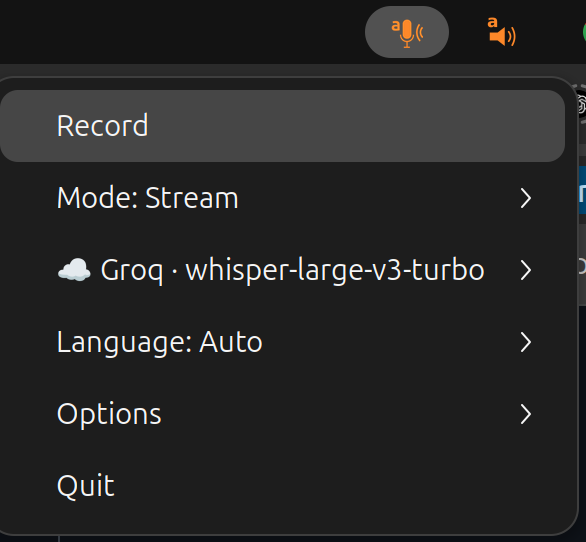
- Runs as a system tray icon with a single Record button, or as an interactive terminal TUI — same menu in both.
- Hooks into your DE's keyboard shortcuts via
SIGUSR1(toggle recording) andSIGUSR2(cancel). - Cross-platform: tested on Ubuntu (X11 and Wayland), macOS, Windows; works under Termux for clipboard / terminal output.
Install
Linux / macOS:
sudo apt-get install portaudio19-dev xclip   # Ubuntu; macOS: brew install portaudio
pip install scribe-cli[all]
export GROQ_API_KEY=YOURAPIKEY                # or OPENAI_API_KEY, or skip and run local
Windows (PowerShell) — no system packages needed; sounddevice bundles
PortAudio and the clipboard is native, so skip the apt/brew step:
py -m venv .venv
.\.venv\Scripts\Activate.ps1          # if blocked: Set-ExecutionPolicy -Scope CurrentUser RemoteSigned
pip install scribe-cli[whisper]        # local Whisper; or [all], or a cloud backend
$env:GROQ_API_KEY = "YOURAPIKEY"        # or OPENAI_API_KEY, or skip and run local
The tray app and keyboard typing work out of the box on Windows — pynput
and pystray are regular dependencies, and there is nothing to create by
hand (no C:\tmp). See docs/installation.md
for the full Windows walkthrough, and the documentation below for setting up
keyboard input on Ubuntu Wayland.
Usage
In a terminal:
scribe
This launches the system tray icon. Press Record, speak, press Stop —
the transcription lands in the focused window. Scribe picks the first
backend whose key / dependency is present, in order groq →
openai → whisper-futo → whisper → vosk, so with GROQ_API_KEY
set the command above is equivalent to:
scribe --backend groq --model whisper-large-v3-turbo
You can override the defaults or drop the tray entirely:
scribe --backend openai --model gpt-4o-mini-transcribe # OpenAI sweet spot
scribe --backend openai --model gpt-realtime-whisper   # OpenAI streaming
scribe --backend whisper --model small                 # local, no API key
scribe --frontend terminal                             # interactive TUI menu
scribe --record                                        # start recording immediately on launch (works in tray or terminal)
scribe --record --frontend terminal --mode file        # one-shot batched dictation → file
scribe --record --frontend terminal --mode file --stream  # streamed: chunks appended live as you speak
scribe --mode clipboard                                # copy to clipboard, no keystroke
scribe --mode terminal                                 # only print to stdout
scribe --mode file -o transcript.txt                   # append to a file (no keystroke / clipboard)
With --no-interactive (terminal frontend only), scribe skips the
interactive menu and starts recording right away — handy for scripted,
one-shot transcriptions.
Bias the recogniser toward names, jargon, or a domain glossary with
--prompt "free text hint" and --words word1 word2 ... (each also
accepts a --prompt-file / --words-file companion). See
docs/backends.md › Vocabulary biasing
for what each backend does with them.
Backends at a glance
| Backend | --backend |
Default model | Streaming model(s) | Requires |
|---|---|---|---|---|
| Groq (cloud) | groq |
whisper-large-v3-turbo |
— | GROQ_API_KEY |
| OpenAI (cloud) | openai |
gpt-4o-mini-transcribe |
gpt-realtime-whisper |
OPENAI_API_KEY |
| Whisper FUTO (local) | whisper-futo |
small |
— | pip install scribe-cli[whisper-futo] |
| Whisper (local) | whisper |
small |
— | pip install scribe-cli[whisper] |
| Vosk (local) | vosk |
language-dependent | all Vosk models | pip install scribe-cli[vosk] |
Whether a transcription appears live as you speak or all at once when you stop depends on the model picked — see docs/backends.md.
Getting an API key
Groq is the recommended cloud backend by default — extremely fast
(by a wide margin compared to other cloud STT options, especially in
Stream mode where the per-chunk roundtrip latency dominates the
perceived speed), quite accurate, and the free tier is generous
enough for everyday dictation. Sign up at
console.groq.com, create an API key
under Settings → API Keys, and export it as GROQ_API_KEY.
I personally use OpenAI with gpt-4o-mini-transcribe as it is also fast and perhaps more accurate for my accent-tainted English.
Documentation
- Installation & dependencies — PortAudio, extras, Ubuntu / GNOME tray libs.
- Backends in detail — model lists, when to pick which, the realtime model, Streaming recipes (Balanced / Patient profiles).
- Output modes & typer backends — keystroke vs
clipboard, Wayland /
eitype,--type-direct. - System tray & global hotkeys — menu tree, icon
states,
SIGUSR1/SIGUSR2. - Desktop entry & autostart (
scribe-install) — GNOME / KDE launcher integration. - Fine tuning & CLI reference — every
scribe --helpflag with examples.
Related projects
- bard — TTS sibling of scribe,
same tray/CLI architecture in reverse: highlight text, hear it
spoken. Shares the
desktop-ai-corebackbone (frontends, providers, dialog helpers).
Compatibility
| OS | Status |
|---|---|
| Ubuntu 24.04 | Primary dev platform (GNOME, X11 and Wayland). |
| macOS | Works. |
| Windows 11 | Tested and working on Python 3.14 (64-bit / win_amd64). Every dependency resolves a ready-made wheel — no toolchain or Python downgrade needed. |
Wayland keystroke injection is convoluted but solved.
For dependencies of individual subsystems, check pynput (keyboard) and
pystray (tray icon).
Windows notes:
- The tray icon is hidden under the taskbar overflow arrow (
^) by default. Pin it via Settings → Personalization → Taskbar → Other system tray icons. - A single click on the tray icon fires the default action (Record). This is a free bonus of pystray's Win32 backend; on Ubuntu the AppIndicator backend only opens the menu (a backend limitation, not a bug).
- If recording fails, allow mic access under Settings → Privacy & security → Microphone → "Let desktop apps access your microphone".
Project details
Verified details
These details have been verified by PyPIProject links
GitHub Statistics
Maintainers
Release history Release notifications | RSS feed


Download files
Download the file for your platform. If you're not sure which to choose, learn more about installing packages.
Source Distribution
Built Distribution
Filter files by name, interpreter, ABI, and platform.
If you're not sure about the file name format, learn more about wheel file names.
Copy a direct link to the current filters
File details
Details for the file scribe_cli-0.18.1.tar.gz.
File metadata
- Download URL: scribe_cli-0.18.1.tar.gz
- Upload date:
- Size: 2.2 MB
- Tags: Source
- Uploaded using Trusted Publishing? Yes
- Uploaded via: twine/6.1.0 CPython/3.13.12
File hashes
| Algorithm | Hash digest | |
|---|---|---|
| SHA256 |
78cd6779eccf82c56a835e467f57389e4afb892292dcad5abb76d2e73cd7c82e
|
|
| MD5 |
5a2efbb628f9fcdac8d2a2115d0a19bb
|
|
| BLAKE2b-256 |
d70b1df0d7dd87ab7988b43a6c4544bd353842705aa0c4972e3e47589aa91d5f
|
Provenance
The following attestation bundles were made for scribe_cli-0.18.1.tar.gz:
Publisher:
pypi.yml on perrette/scribe
-
Statement:
-
Statement type:
https://in-toto.io/Statement/v1 -
Predicate type:
https://docs.pypi.org/attestations/publish/v1 -
Subject name:
scribe_cli-0.18.1.tar.gz -
Subject digest:
78cd6779eccf82c56a835e467f57389e4afb892292dcad5abb76d2e73cd7c82e - Sigstore transparency entry: 1675504000
- Sigstore integration time:
-
Permalink:
perrette/scribe@146213dcb17d61de4509aeafad23e56961047079 -
Branch / Tag:
refs/tags/v0.18.1 - Owner: https://github.com/perrette
-
Access:
public
-
Token Issuer:
https://token.actions.githubusercontent.com -
Runner Environment:
github-hosted -
Publication workflow:
pypi.yml@146213dcb17d61de4509aeafad23e56961047079 -
Trigger Event:
push
-
Statement type:
File details
Details for the file scribe_cli-0.18.1-py3-none-any.whl.
File metadata
- Download URL: scribe_cli-0.18.1-py3-none-any.whl
- Upload date:
- Size: 2.0 MB
- Tags: Python 3
- Uploaded using Trusted Publishing? Yes
- Uploaded via: twine/6.1.0 CPython/3.13.12
File hashes
| Algorithm | Hash digest | |
|---|---|---|
| SHA256 |
7cb4cc845e875797911495baa18e3f36f35e086b12314508db6d1d4d3351ae9e
|
|
| MD5 |
130c14a0a9d7a046b4155e283fbede2b
|
|
| BLAKE2b-256 |
9e518cd62dda9840e0c0f1727189db2e21a9feaaa6fe828c50ea4e08e03d65c5
|
Provenance
The following attestation bundles were made for scribe_cli-0.18.1-py3-none-any.whl:
Publisher:
pypi.yml on perrette/scribe
-
Statement:
-
Statement type:
https://in-toto.io/Statement/v1 -
Predicate type:
https://docs.pypi.org/attestations/publish/v1 -
Subject name:
scribe_cli-0.18.1-py3-none-any.whl -
Subject digest:
7cb4cc845e875797911495baa18e3f36f35e086b12314508db6d1d4d3351ae9e - Sigstore transparency entry: 1675504033
- Sigstore integration time:
-
Permalink:
perrette/scribe@146213dcb17d61de4509aeafad23e56961047079 -
Branch / Tag:
refs/tags/v0.18.1 - Owner: https://github.com/perrette
-
Access:
public
-
Token Issuer:
https://token.actions.githubusercontent.com -
Runner Environment:
github-hosted -
Publication workflow:
pypi.yml@146213dcb17d61de4509aeafad23e56961047079 -
Trigger Event:
push
-
Statement type:






