
SDCI - Sistema de Deploy Continuo Integrado - Integrated Continuous Deployment System - Sidecar Micro CD

Project description
🚀 SDCI - Sistema de Deploy Continuo Integrado
SDCI (Sistema de Deploy Continuo Integrado - Integrated Continuous Deployment System) is a lightweight continuous deployment system consisting of a server and client tool. It allows you to run predefined tasks remotely through a simple command-line interface.
🧪 NOTE: This project is currently in BETA.
⚠️ Do not expose SDCI directly to the internet. The server speaks plain HTTP. Run it over a private network — Tailscale or another VPN (recommended) — or behind a TLS-terminating reverse proxy (Traefik, Nginx, Apache). See 🔒 Security below.
✨ Features
- Server component built with FastAPI
- Command-line client tool for easy task execution
- Token-based authentication
- Real-time task output streaming
- Task status monitoring
- Authenticated single-file upload with progress bar
- CLI interface to manage tasks
🔩 Architecture Diagram
The ideal way to work with this tool is using the following structure:
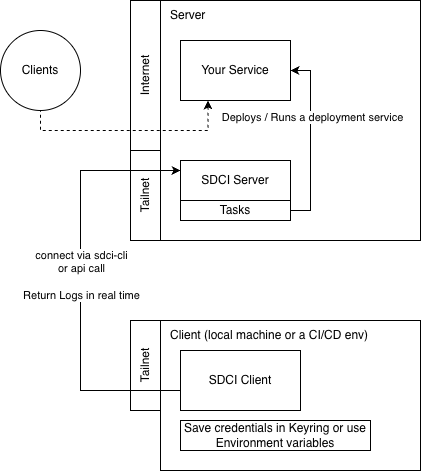
For safety purposes, never expose SDCI directly over its raw HTTP port — see 🔒 Security below for the recommended ways to reach it.
🔒 Security
SDCI's server communicates over plain HTTP and authenticates with a bearer token. Because the traffic is unencrypted, the token (and your task output) would travel in clear text if the port were reachable from the public internet. Never expose the SDCI port directly to the internet.
Use one of the following instead:
- VPN / private network (recommended) — keep SDCI on a private network and reach it through Tailscale, WireGuard, or another VPN. The HTTP port is then only reachable by trusted peers and never published publicly.
- HTTPS reverse proxy — put SDCI behind a proxy that terminates TLS and forwards to it on
localhost(e.g. Traefik, Nginx, or Apache). Clients then connect overhttps://and SDCI itself stays bound to a loopback/private interface.
Either way, bind the server to a private interface (avoid 0.0.0.0 on a public host) and treat the server token as a secret.
📥 Installation
Requirements
- Python 3.13 or higher
Installing the client
The recommended approach is by using pipx;
pipx install sdci
📖 Usage
Starting the server
Run the server component:
sdci-server serve --host 0.0.0.0 --server-token YOUR_TOKEN --tasks-dir ./tasks
By default, the server runs on 0.0.0.0:8842.
Installing as a systemd service (Linux only)
sdci-server setup installs and starts SDCI as a persistent systemd service.
sdci-server setup --ip 0.0.0.0 --token YOUR_TOKEN
The command requires Linux with systemd and will prompt for sudo when writing privileged files.
| Flag | Required | Default | Description |
|---|---|---|---|
--ip |
yes | — | Host/IP the server binds to |
--token |
yes | — | Server token (stored in /etc/sdci/sdci.env) |
--port |
no | 8842 |
Port to listen on |
--tasks-dir |
no | ~/.sdci/tasks |
Directory containing task scripts |
--user / --run_as_user |
no | invoking user | OS user the service runs as (both names accepted) |
--service-name |
no | sdci |
systemd unit name |
--force |
no | false | Overwrite existing unit without prompting |
The token is written to /etc/sdci/sdci.env with mode 0600 (root-readable only) and is never embedded in the unit file itself.
Creating tasks
The server will look up for tasks in the tasks/ directory where you ran this server. It will look for shell scripts on this folder. The job name is the script name without the .sh extension.
Using the client
The client tool can be used to trigger tasks on the server:
sdci-cli run --token YOUR_TOKEN SERVER_URL TASK_NAME [PARAMETERS...]
Example:
sdci-cli run --token HAPPY123 http://localhost:8842 job_1 param1 param2 param3
Parameters
--token: Authentication token (optional if provided viaSDCI_TOKENor stored in the OS keychain — see below)SERVER_URL: URL of the SDCI server (required)TASK_NAME: Name of the task to run (required)PARAMETERS: Optional parameters to pass to the task
Storing credentials
Instead of passing --token on every call, you can persist it once with store-token. The token is saved in your OS keychain (the native secret store — macOS Keychain, Windows Credential Manager, or the Secret Service / libsecret on Linux), keyed by the server URL — not in a plaintext config file.
sdci-cli store-token SERVER_URL TOKEN
Example:
sdci-cli store-token http://localhost:8842 HAPPY123
After storing it, you can trigger tasks on that server without --token — the client automatically recovers the token from the keychain for the matching server URL:
# No --token needed: it is read back from the keychain.
sdci-cli run http://localhost:8842 job_1 param1
To remove a stored token from the keychain:
sdci-cli delete-token SERVER_URL
Token resolution order
When a command needs a token, the client resolves it in this order, using the first one it finds:
- The
--tokenflag, if provided - The
SDCI_TOKENenvironment variable - The OS keychain (per server URL, as stored by
store-token)
This applies to both run and upload-asset.
Uploading an asset
You can upload a single file (e.g. a build artifact or archive) to the server. The
file is stored under the server's upload directory, inside the relative REMOTE_PATH
directory (created recursively), keeping its original filename:
sdci-cli upload-asset --token YOUR_TOKEN SERVER_URL LOCAL_FILE REMOTE_PATH
Example (lands at <upload-dir>/releases/v1/app.zip on the server):
sdci-cli upload-asset --token HAPPY123 http://localhost:8842 ./app.zip releases/v1
Upload notes:
- The server runs either one task OR one upload at a time (shared global lock);
it returns
429while busy. - Path traversal is rejected (
400) and an existing destination file is never overwritten (409). - A progress bar is shown during upload.
The server's upload directory is configured with the --upload-dir flag (or the
UPLOAD_DIR env var, default ./uploads):
sdci-server --upload-dir ./uploads --server-token YOUR_TOKEN --tasks-dir ./tasks
👤 Author
- Jonhnatha Trigueiro joepreludian@gmail.com
Release history Release notifications | RSS feed


Download files
Download the file for your platform. If you're not sure which to choose, learn more about installing packages.
Source Distribution
Built Distribution
Filter files by name, interpreter, ABI, and platform.
If you're not sure about the file name format, learn more about wheel file names.
Copy a direct link to the current filters
File details
Details for the file sdci-1.1.0.tar.gz.
File metadata
- Download URL: sdci-1.1.0.tar.gz
- Upload date:
- Size: 11.7 kB
- Tags: Source
- Uploaded using Trusted Publishing? No
- Uploaded via: uv/0.11.23 {"installer":{"name":"uv","version":"0.11.23","subcommand":["publish"]},"python":null,"implementation":{"name":null,"version":null},"distro":{"name":"Ubuntu","version":"24.04","id":"noble","libc":null},"system":{"name":null,"release":null},"cpu":null,"openssl_version":null,"setuptools_version":null,"rustc_version":null,"ci":true}
File hashes
| Algorithm | Hash digest | |
|---|---|---|
| SHA256 |
37a46c18284aa3ff594a087e03cea8124db008cf935cae33a38736c26da60289
|
|
| MD5 |
b7d2e0092760e9114f81cb6f5410d44e
|
|
| BLAKE2b-256 |
7c1c7dcf25f942f11fd9d96d9a44aca79a40905b7c40279813bca477d00d67ce
|
File details
Details for the file sdci-1.1.0-py3-none-any.whl.
File metadata
- Download URL: sdci-1.1.0-py3-none-any.whl
- Upload date:
- Size: 15.1 kB
- Tags: Python 3
- Uploaded using Trusted Publishing? No
- Uploaded via: uv/0.11.23 {"installer":{"name":"uv","version":"0.11.23","subcommand":["publish"]},"python":null,"implementation":{"name":null,"version":null},"distro":{"name":"Ubuntu","version":"24.04","id":"noble","libc":null},"system":{"name":null,"release":null},"cpu":null,"openssl_version":null,"setuptools_version":null,"rustc_version":null,"ci":true}
File hashes
| Algorithm | Hash digest | |
|---|---|---|
| SHA256 |
5dba46798081875c048db4347d728749f09ca90bc052e5d3cc7aad14ed52cba0
|
|
| MD5 |
70f0883f69ead0d78988896d89ec71ce
|
|
| BLAKE2b-256 |
d1bf6ce73f898bb972321e9a8e50eee511d550bd8e892afdeaa491bc8c1578af
|






