
This release is a pre-release and may not be stable for production use.

shelldeck
Your terminals, organised by project. In the browser, on your own machine.
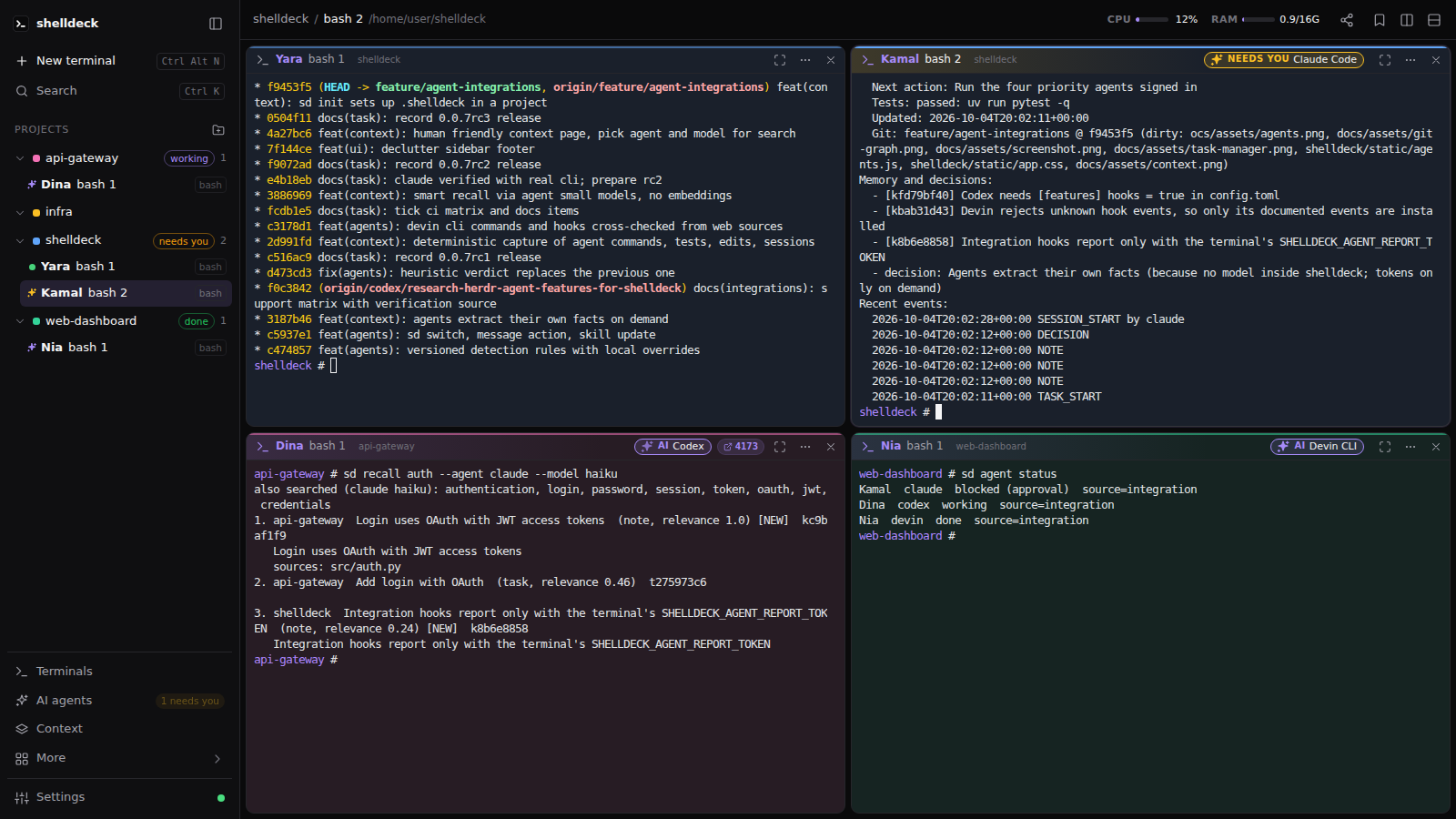
Real shells (PowerShell, cmd, Git Bash, WSL, bash, zsh, fish) grouped by project,
in split or free-floating panes that survive restarts.





Install · Features · CLI · Remote access · Security · Contributing
Install
Windows (PowerShell):
irm https://raw.githubusercontent.com/codejunction/shelldeck/main/install.ps1 | iex
Linux (macOS should work too, but is untested):
curl -fsSL https://raw.githubusercontent.com/codejunction/shelldeck/main/install.sh | sh
The installer sets up uv if you don't have it, then installs shelldeck with its own Python 3.12+. Run it again to update to the latest release (or uv tool upgrade shelldeck); stop the server first with sd stop so Windows can replace sd.exe. Already use Python tooling? Any of these work too:
uv tool install shelldeck      # or: pipx install shelldeck, or: pip install shelldeck
uvx shelldeck                  # try it without installing
To try a release candidate, pin it: uv tool install --force shelldeck==0.0.5rc1 (or pip install shelldeck==0.0.5rc1). Go back to the stable release with uv tool install --force shelldeck.
Requirements: Windows 10 1809+ (for ConPTY) or Linux, and a modern browser.
Quick start
sd                 # start shelldeck in the background and open it in your browser
sd ~/code/api      # add a folder as a project and open a terminal in it
sd is short for shelldeck. The first visit asks you to create a password. After that, every terminal keeps running in the background until you close it, even when the browser tab is closed.
Features
Terminals that feel like editor panes
- Real shells, detected per OS. On Windows:
pwsh(default), Windows PowerShell, cmd, Git Bash and WSL (pick a distro). On Linux: every shell in/etc/shells, defaulting to your$SHELL. - Tiled layout. Split right or down, drag titles onto edges to split or onto a pane to swap, drag gutters to resize, double-click a title to maximize.
- Free layout. Every terminal becomes a floating window on a scrolling canvas. Tile all puts them back in a grid.
- Nothing gets lost. Closing the tab keeps terminals running, and reopening replays their output. After a restart or reboot, each terminal reopens in its last folder with its history above a "restored" marker.
- Shell integration for pwsh, PowerShell, cmd, bash, zsh and fish. Each pane's title shows the last command (red if it failed),
Ctrl+Shift+Up/Downjumps between prompts, and your own prompt (oh-my-posh, starship, …) still loads.
Projects first
- Projects sidebar. Add folders with the built-in folder browser, then drag to reorder. Each project gets its own color on its sidebar dot, pane border and a subtle background tint.
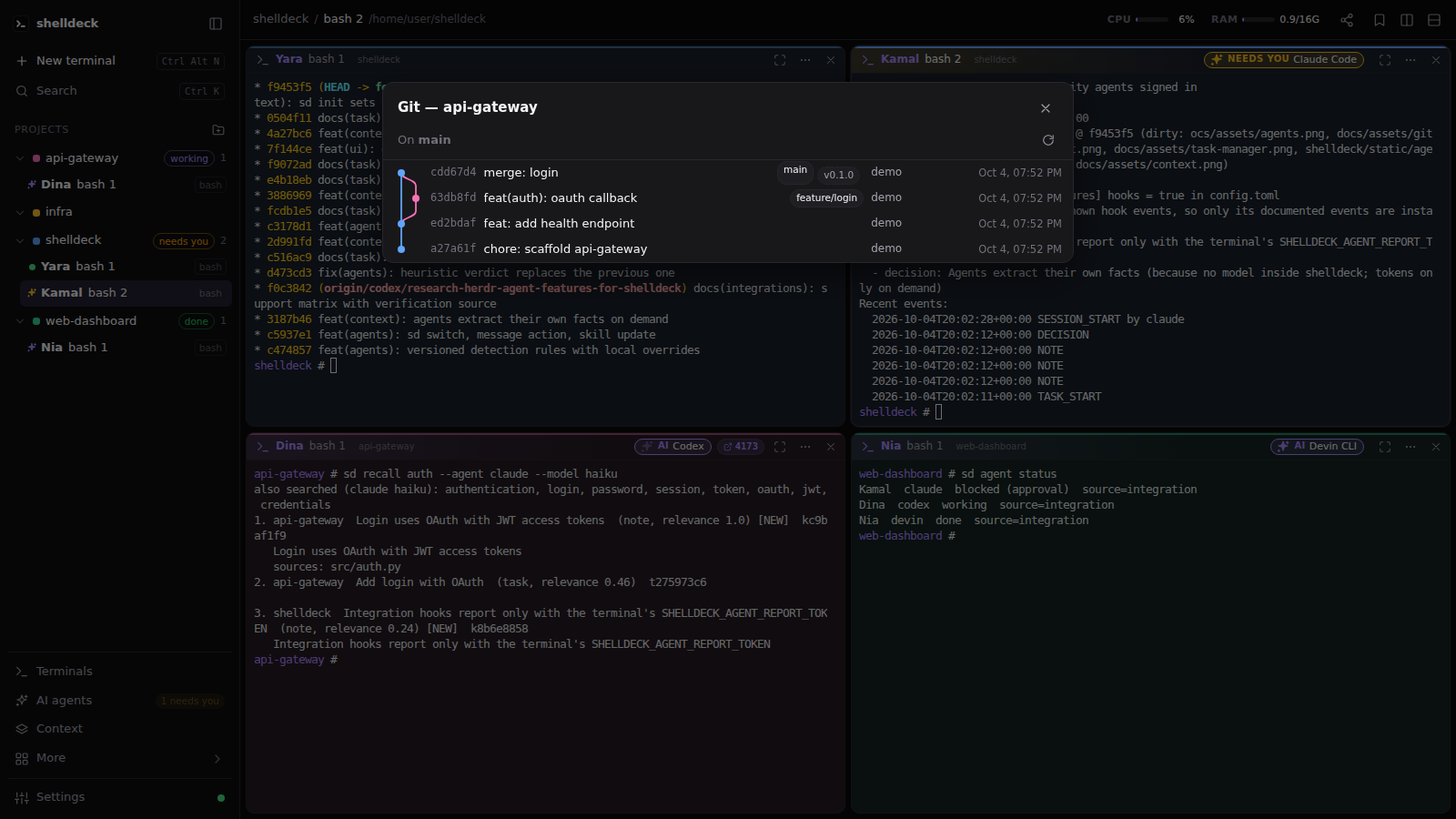
- Git graph. A branch icon on every git project opens its full commit graph, with branches, merges and tags drawn as colored lanes. Click a branch or tag, or right-click a commit, to check it out.
- Clickable paths.
src/app.py:12:5,C:\x\y.ts(3,4)and Python tracebacks become links that open in VS Code at that line, or in the built-in editor. - Built-in editor and viewer.
sd edit FILEandsd view FILEopen a file in shelldeck: line numbers,Ctrl+Sto save (CRLF and BOM kept, and it won't overwrite a file that changed on disk without asking), rendered markdown and images. Open file… in the command palette does the same. - Open in editor. A project's menu opens its folder in VS Code (or the file manager).
- Port detection. Start a dev server and a chip with its port appears on the pane. Click it to open the page.
Built for long sessions
- Command palette (
Ctrl+Shift+P) for terminals, bookmarks, layouts and themes. - Command history with exit codes, durations and folders. Search it and re-run anything.
- Search every terminal's output (
Ctrl+Shift+F), including terminals that aren't on screen. - Finished-command alerts. When a long command finishes while you're looking elsewhere, you get a toast, or a desktop notification if you enable them.
- Bookmarks for commands you run often, global or per project.
- Scheduler for cron jobs that run in a project folder, with run history and logs.
- Task board with due dates and reminder alarms.
- Task manager with live CPU, RAM and GPU (NVIDIA) usage for the machine and for each terminal's process tree.
- Scratchpad for quick markdown notes that belong to no project, with a preview, saved as you type.
- AI agents. A terminal running Claude Code, Codex, Devin CLI, Gemini CLI, Copilot CLI, Cursor Agent, opencode, Aider, Amp, Qwen Code, Goose, Droid, Crush or Kiro gets an AI chip in its header with the tool and model. The AI agents page lists the running agents and every known agent CLI with its models (Codex and opencode read their own model caches), and launches one with a chosen model.
- Needs-you alerts. Only when an agent actually asks something (a permission prompt or a question of Claude Code, Codex or Devin, or a
[y/n]), its chip turns amber (NEEDS YOU), a chime plays and you get a toast, or a desktop notification when shelldeck is in the background. An agent that simply finished stays quiet, and nothing plays for the terminal you are looking at. - Context window. Claude Code, Codex and Devin show how full their context window is: a percentage on the pane chip and a CTX meter in the top bar for the focused terminal. It is read from each agent's own session logs. Claude's window size is estimated from the model.
- Tasks to agents. Open a task and click Send to agent to type it into a running agent. The task moves to In progress.
- Devin, everywhere. Devin's model list comes from its own cache, so it matches what
devin --modelaccepts. The model of a running Devin comes from--model,DEVIN_MODELor the resumed session. The AI agents page also lists agents running outside shelldeck (the Devin desktop app, other terminal windows) and every Devin session from Devin's session store, with a Resume button that opens a terminal in the session's folder and runsdevin -r <id>. - Every terminal has a name. Each terminal gets a person's name (Maya, Kofi, …) shown in its header and the sidebar, so you and your agents can say
sd peek Mayainstead of an id. - Agents that talk to each other. From inside a terminal,
sd agentslists the other agents in the project,sd peekreads another terminal's screen andsd telltypes a message into it, tagged with the sender so it can reply. Copy team prompt on the AI agents page gives you text to paste into each agent so it knows how. - Sub-agents and hand-offs.
sd spawn "task" --model small|medium|largeopens a new terminal in the project with a sub-agent (Claude Code, Codex, Devin, Gemini, Qwen or opencode) already working on the task, picking a cheaper or stronger model by how hard the task is (autoguesses). It opens next to yours without taking the keyboard.sd handoff Maya "task"gives a task to an agent that is already running. The receiver runssd done <id> "summary", and the sender gets the summary typed in (when an agent runs there) plus a toast and chime. Every hand-off is written to the project's.shelldeck/handoff.md(git-ignored) and listed on the AI agents page. Sub-agents can't spawn more agents, and a terminal that closes mid-task marks its hand-off as exited. - The parent is the control center. A sub-agent never alerts you. When one stops on a question or permission prompt, shelldeck types the question into its parent agent's terminal; the parent decides and answers with
sd answer Maya 1(keys for the menu) orsd tell. Only when the parent is a plain shell does the question come to you. Once a sub-agent's work is done, the parent asks you and closes it withsd close Maya, or use Close on the hand-off toast. - Agents know the commands. On start, shelldeck installs a
shelldeckskill for every agent CLI on PATH: a skill for Claude Code, Codex and Devin, and a marked block in the global instructions file of Gemini, opencode, Qwen, Amp, Droid, Copilot, Crush, Goose and Kiro.sd install-skill --removetakes it out and stops the reinstall; the AI agents page has an Install skill button per agent.
 |
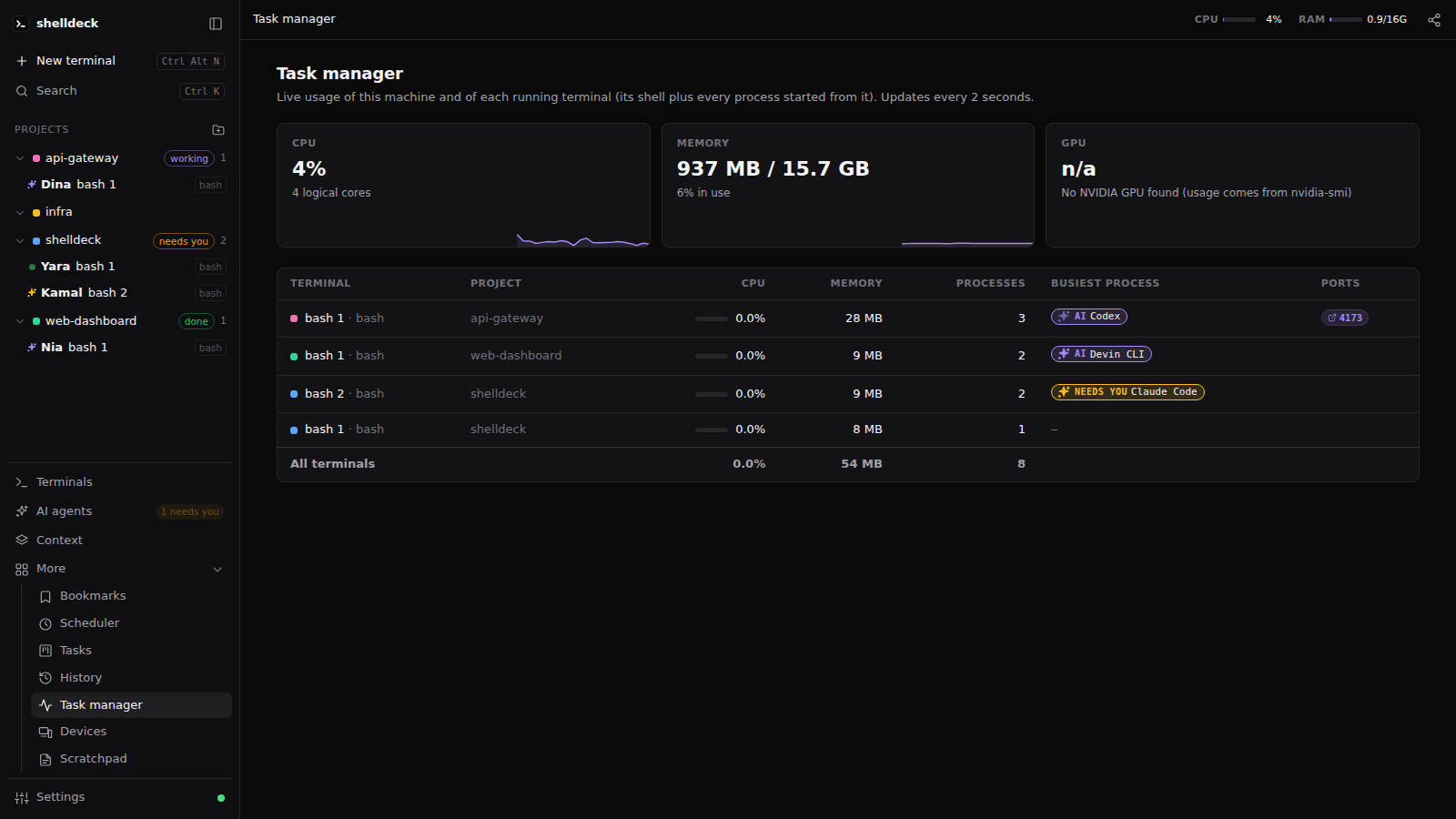 |
| Git graph with one-click checkout | Task manager, per terminal |
Secure by default
- Password required. You create it once; upgrades and reinstalls keep it (only
sd reset-passwordremoves it). Every browser logs in separately and locks after 30 minutes idle. - One device at a time. Any number of browsers can stay signed in, but only one uses shelldeck; logging in on another takes over and idles the rest. The Devices page lists every signed-in browser (where from, last active, in use or idle) and revokes any of them.
- Local only. shelldeck listens on
127.0.0.1and refuses requests from other websites. - Remote use goes over an SSH tunnel or HTTPS. See Remote access.
Keyboard shortcuts
| Keys | Action |
|---|---|
Ctrl+Shift+P |
Command palette (Ctrl+K also works outside a terminal) |
Ctrl+Alt+N |
New terminal in the current project |
Ctrl+Alt+\ / Ctrl+Alt+- |
Split right / down |
Ctrl+Alt+Arrows |
Focus the pane in that direction |
Ctrl+Alt+1…9 |
Focus pane 1–9 |
Ctrl+Alt+Enter |
Maximize / restore the pane |
Ctrl+Alt+Q |
Close the focused terminal |
Ctrl+Alt+B |
Bookmark picker (Space selects several, Shift+Enter runs) |
Ctrl+Alt+E |
Toggle the sidebar |
Ctrl+Alt+S / Ctrl+Alt+T |
Scheduler / Tasks |
Ctrl+Alt+M |
Task manager |
Ctrl+Alt+R |
Command history |
Ctrl+Shift+F |
Search all terminals |
Ctrl+Alt+, |
Settings |
Ctrl+Alt+L |
Lock |
Ctrl+Alt+H |
Show shortcuts |
Ctrl+C / Ctrl+V |
Copy the selection (otherwise sends Ctrl+C) / paste |
Ctrl+F |
Find in the terminal |
Ctrl+Shift+Up / Down |
Jump to the previous / next prompt |
In the sidebar, Ctrl+click or middle-click a terminal to open it in a split. Right-click a project or terminal for its menu.
Settings
| Setting | Values | Default |
|---|---|---|
| Default shell | Windows: pwsh, powershell, cmd, gitbash, wsl · Linux: shells from /etc/shells |
pwsh / $SHELL |
| WSL distribution | any installed distro, or the system default | system default |
| Theme | dark, light, system | dark |
| Terminal font size | 8–32 | 13 |
| Pane layout | tiled, free | tiled |
| Project colors | tint on, off | on |
| Terminal colors | default (follows theme), Dracula, One Dark, Nord, Gruvbox Dark, Solarized Dark, Solarized Light, GitHub Light | default |
| Terminal font | any installed monospace font; empty uses Cascadia / Nerd Font | empty |
| Open file paths with | VS Code (at the line), shelldeck's built-in editor, system default app | VS Code |
| Password | created on first visit, changed here (current + new) | required |
CLI
sd [--port N] [--no-window] [--app]  start the server if needed, print the banner and open the browser
sd web                               same as plain `sd`
sd PATH                              shorthand for `sd open PATH`
sd open [PATH] [--shell wsl]         add PATH as a project and open a terminal in it
sd list                              terminals grouped by project
sd info                              details of the shelldeck terminal you're in
sd agents [--all]                    AI agents running in this project's terminals (--all: every project, agents outside shelldeck, installed CLIs)
sd peek TERMINAL [-n 40]             last lines of another terminal (its name like Maya, id, id prefix or title)
sd tell TERMINAL "MESSAGE" [--raw]   type a message into another terminal and press Enter
sd spawn "TASK" [--agent A] [--model small|medium|large|auto|NAME]   sub-agent in a new terminal, working on TASK
sd handoff TERMINAL "TASK"           hand a task to an agent already running in another terminal
sd done ID ["SUMMARY"] [--failed]    close a hand-off you were given; the sender is told
sd answer TERMINAL KEY...            press keys in another terminal, e.g. answer a sub-agent's prompt: 1, y enter, esc
sd close TERMINAL [--force]          close a terminal; from an agent only its own sub-agents (after you agree)
sd handoffs [--all]                  hand-offs in this project and their status
sd install-skill [AGENT...] [--remove]   teach agent CLIs the sd team commands (automatic on server start)
sd edit FILE / sd view FILE          open a file in shelldeck's editor / viewer
sd search QUERY [--root DIR]         LLM-free code search with ranked, highlighted snippets
sd render FILE                       pretty-print code or markdown
sd schedule list|add|run|toggle|delete|logs
sd task list|add|move|delete|alarms
sd serve [--host H]                  run the server in the foreground
sd stop                              stop the background server (closes all terminals)
sd share [--new-link]                share over an HTTPS Cloudflare tunnel: one-use QR link, host approval (needs cloudflared)
sd login-link                        emergency: one-time login URL (host only)
sd reset-password                    emergency: forget the password (host only)
- Startup banner.
sdprints the version and the Local and Network URLs. When you start it from Win+R, the Start menu or a shortcut, its window stays open until you press Enter. - Port. The default port is
5455. Change it with--portorSHELLDECK_PORT. - Browser.
--appopens a chromeless Edge/Chrome window instead of a browser tab. - Inside terminals. Inside a shelldeck terminal,
SHELLDECK_SESSION_ID,SHELLDECK_NICK(its name) andSHELLDECK_PORTare set, andSHELLDECK_PARENTin a sub-agent's terminal. - Agent permissions. Claude Code asks before running
sd doneand friends. To let sub-agents report back on their own, allowBash(sd:*)in your Claude Code permissions. - Code search.
sd searchbuilds a persistent index and returns ranked snippets with confidence scores. Useful options:--ext py,ts,--glob "src/*",--top N,--format text|json|pathsand--reindex.
Remote access
Run shelldeck on a server or VM and use it from your laptop.
SSH tunnel (recommended). Nothing is exposed to the network.
sd serve                                  # on the VM: stays on 127.0.0.1:5455
ssh -N -L 5455:127.0.0.1:5455 you@vm      # on your machine, then open http://127.0.0.1:5455
sd share (any device, no setup). Needs cloudflared (winget install Cloudflare.cloudflared); no Cloudflare account.
sd share              # starts shelldeck if needed, prints a QR code and a link; Ctrl+C stops sharing
sd share --new-link   # another one-use link for the running share (a second device)
- Encrypted in transit, not end to end. The other device talks HTTPS to Cloudflare, which relays it through cloudflared's outbound encrypted tunnel to shelldeck on
127.0.0.1. No ports are opened. Cloudflare ends the TLS connection, so it can see the traffic (terminal input and output, your password as you log in). For sensitive work use the SSH tunnel or Tailscale instead. - Three locks. The random
trycloudflare.comaddress alone is refused. The printed link works once and only for 10 minutes; opening it makes the device wait until you allow it in thesd sharewindow (Allow it? [y/N]). Then it still needs your password. - Long password. Sharing needs a password of 12+ characters. An older password that long counts after your next login.
- Self-closing.
sd sharerenews the share every few seconds. If it stops without Ctrl+C (window closed, process killed), the server closes the share within a minute and signs those browsers out. - Phones. On touch screens a key bar adds Esc, Tab, Ctrl (applies to the next letter), arrows and
| ~ / -; dialogs open as bottom sheets. - Stopping. Ctrl+C closes the tunnel, voids the link and signs out every browser that logged in through it (they also vanish from Devices; a server restart clears them too). Revoking a shared device in Devices also voids its approval, so it needs a new link. Each
sd sharegets a new address and link.
HTTPS on the VM's address, with a real certificate (Tailscale tailscale cert, Let's Encrypt, your reverse proxy) or a self-signed one:
sd serve --host 0.0.0.0 --cert cert.pem --key key.pem
- No plain HTTP. shelldeck refuses plain HTTP on a non-local address, because passwords and terminal traffic would cross the network unencrypted.
--insecure-httpoverrides that, for trusted networks only. - First visit. A first visit from another machine also asks for a setup code, which
sd serveprints on the server. - Dropped connections (sleep, Wi-Fi change, VPN) reconnect on their own. The terminal redraws from the server's scrollback.
Security
- Local only. The server binds to
127.0.0.1and rejects HTTP and WebSocket requests whoseHostorOriginisn't the app itself, so other websites can't reach your shells. - Passwords are stored as PBKDF2-SHA256 (600k iterations). A login is a random token in an
HttpOnly,SameSite=Strictcookie, and only its SHA-256 is stored. After 5 wrong passwords, each further try waits longer. - Devices. Each login records where it came from (this machine, the network, or a share). Only one login is in use at a time; the others get
423until they enter the password again. Revoke any login from the Devices page. - Headers. Every response forbids framing (
X-Frame-Options: DENY,frame-ancestors 'none'), sniffing and referrers, and API responses are never cached. - Sharing adds a one-use, 10-minute link, approval on the host and a 12+ character password; see Remote access.
- The CLI authenticates with a token file in the data folder, readable only by your account and rotated on every server start.
- Forgot the password? On the host machine,
sd login-linkprints a one-time login URL valid for 5 minutes, andsd reset-passwordremoves the password. There is deliberately no way to do either from the browser. - Your data lives in
~/.config/shelldeck/(database, log and saved terminal history). SetSHELLDECK_HOMEto move it.
Found a vulnerability? Please report it privately; see SECURITY.md.
Development
git clone https://github.com/codejunction/shelldeck && cd shelldeck
uv sync
uv run shelldeck --port 5466 serve     # dev server, http://127.0.0.1:5466
uv run pytest -q                       # includes a real PTY round trip (ConPTY or POSIX pty)
uv run ruff check
- Stack. FastAPI and uvicorn,
pywinpty(ConPTY) on Windows or the stdlibptyelsewhere, and SQLite. - Frontend. Plain HTML, CSS and JavaScript with vendored xterm.js, and no build step.
- Contributing. See CONTRIBUTING.md for the workflow and release steps.
License
MIT. xterm.js is MIT-licensed too (see shelldeck/static/vendor/LICENSE-xterm.txt).
1 maintainer

Metadata
1 maintainer
Release files for shelldeck 0.0.5rc3
For a detailed explanation of source distributions (sdists) and built distributions (wheels), please see the package formats documentation.
Source distribution (sdist)
| File | Size | Uploaded | |
|---|---|---|---|
| shelldeck-0.0.5rc3.tar.gz | 306.8 kB | Details |
Built distribution (wheel)
| File | Interpreter | ABI | Platform | Reset |
|---|---|---|---|---|
| shelldeck-0.0.5rc3-py3-none-any.whl | Python 3 | none | any | Details |
Total release size: 612.2 kB
Release files / shelldeck-0.0.5rc3.tar.gz
| Download URL | shelldeck-0.0.5rc3.tar.gz |
|---|---|
| Size | 306.8 kB |
| Tags | Source |
|
SHA-256 checksum How to use checksums |
8ab92241d09f54491d66b1438e3e65cd32f19301054bad42f6470d5f3d36efcc
|
|
BLAKE2b-256 checksum How to use checksums |
b23b240fe167b9c1cf0f2b908622e28b93700837c0fcb2cf504659e9a3178c56
|
| Upload date | |
|
Uploaded using Trusted Publishing? What is trusted publishing? |
Yes |
| Uploaded via |
twine/7.0.0 CPython/3.13.14
|
Provenance
Provenance describes where a file came from. On PyPI, provenance is shared via attestations, which provide a verifiable record of the build or publishing details. View details, limitations and caveats.


PyPI Publish Attestation
PyPI verified that this artifact, at this checksum, originated from the publisher listed below.
Signed by GitHub Actions, verified by PyPI on Sep 30, 2026.
Transparency logRelease files / shelldeck-0.0.5rc3-py3-none-any.whl
| Download URL | shelldeck-0.0.5rc3-py3-none-any.whl |
|---|---|
| Size | 305.5 kB |
| Tags | Python 3 |
|
SHA-256 checksum How to use checksums |
1abc0625916bb07e40f0cc6de44d2d480c0c023b3d3511ab324058ab84de889c
|
|
BLAKE2b-256 checksum How to use checksums |
cb17e1b5d1844a18c72b421ccab1c0b0d0ed3cb89c16306dc98d8ff2dcccee4c
|
| Upload date | |
|
Uploaded using Trusted Publishing? What is trusted publishing? |
Yes |
| Uploaded via |
twine/7.0.0 CPython/3.13.14
|
Provenance
Provenance describes where a file came from. On PyPI, provenance is shared via attestations, which provide a verifiable record of the build or publishing details. View details, limitations and caveats.
PyPI Publish Attestation
PyPI verified that this artifact, at this checksum, originated from the publisher listed below.
Signed by GitHub Actions, verified by PyPI on Sep 30, 2026.
Transparency log













