

A live, configurable terminal dashboard for multiple Slurm clusters.



slurm-avail brings live CPU, memory, GPU, filesystem, and scheduler data from
multiple Slurm clusters into one keyboard-driven TUI. Clusters can be queried
locally or over SSH. No slurm-avail agent or service needs to be installed on
the HPC systems; the dashboard uses their existing Slurm command-line tools.
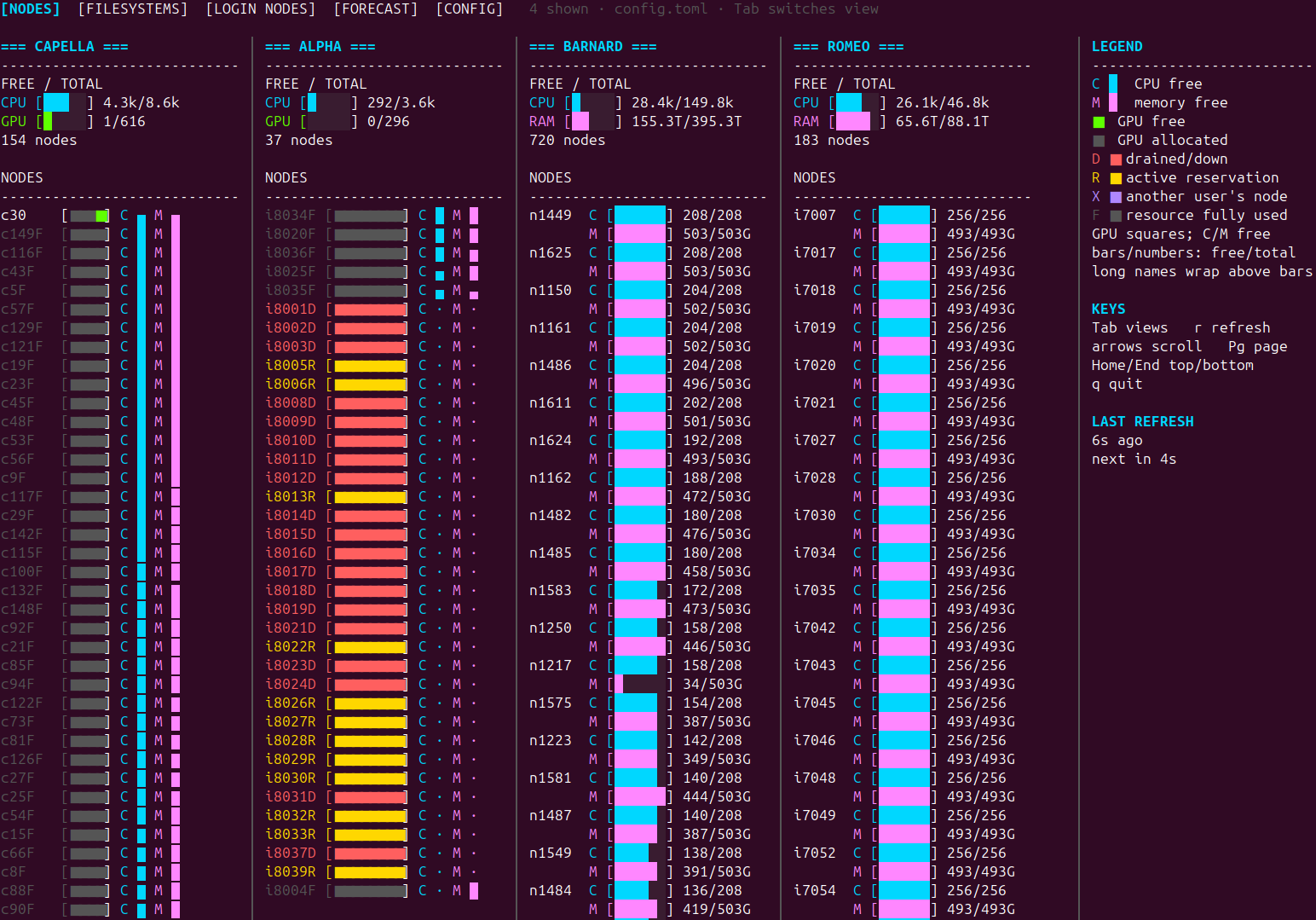
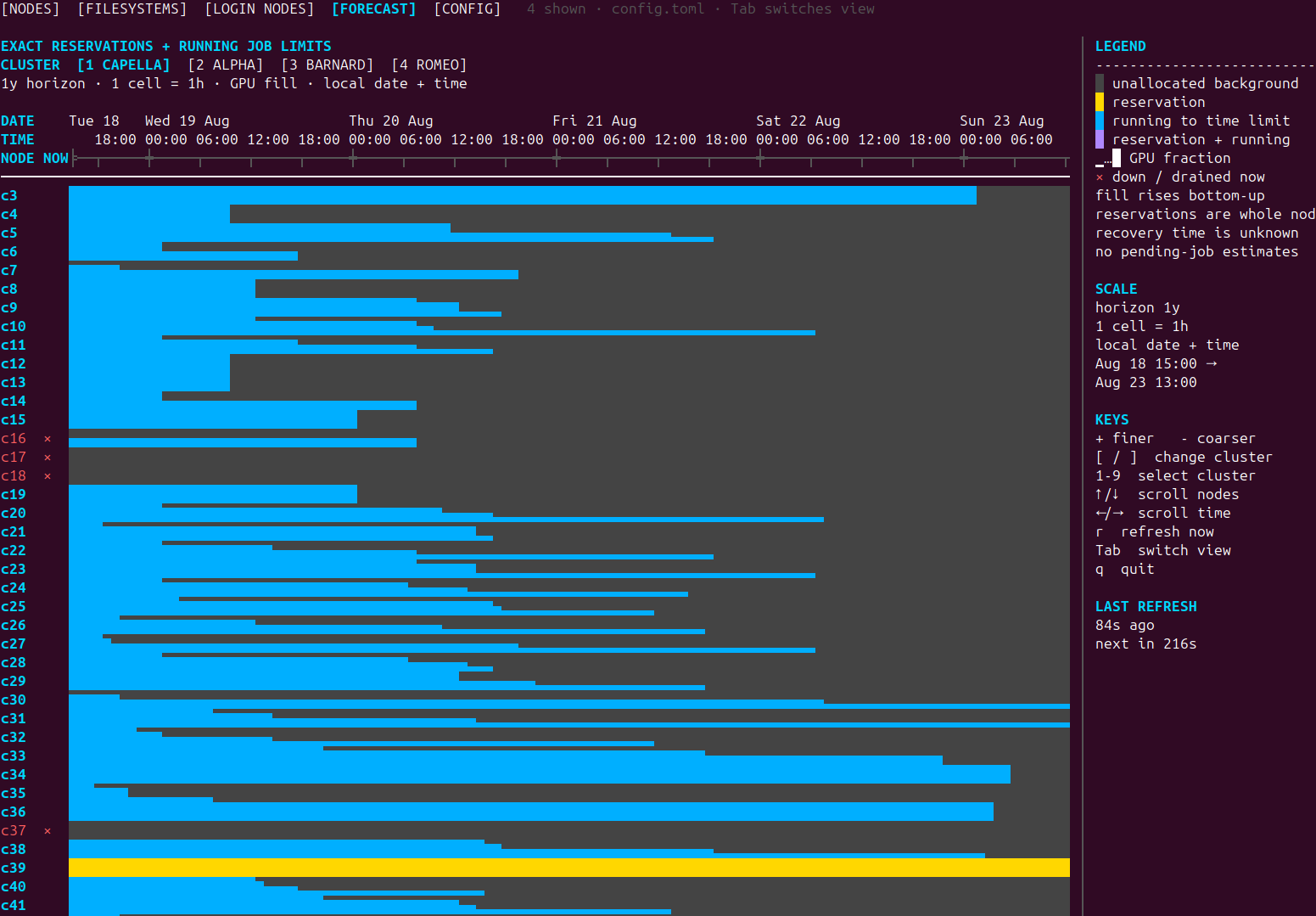
| Live multi-cluster overview | Scheduler forecast |
|---|---|
 |
 |
Views
Nodes gives a live overview of all configured clusters. It summarizes free CPU, memory, and physical GPU capacity and then shows how those resources are distributed across individual nodes. Node states such as allocated, reserved, user-exclusive, drained, and down remain visible in the same view.
Filesystems compares capacity and available space for the storage paths configured on each cluster.
Login Nodes shows which SSH endpoints are reachable, which endpoint is currently supplying data, and whether automatic failover is available. It also separates SSH failures, authentication prompts, timeouts, unavailable Slurm services, and invalid scheduler responses.
Jobs combines the current user's live queue with recent accounting history.
Its default All scope lists jobs from every configured cluster; numbered
cluster scopes filter the same table. Running jobs show their actual nodes and
start/end times, pending jobs show Slurm's wait reason and placement estimate,
and finished jobs appear in a separate history table with result-aware colors.
A fixed inspector at the bottom follows the selected row and shows its full
timing and result information. For pending jobs it also exposes weighted
sprio factors and account and user fair-share data from sshare. Scheduler
estimates are presented as estimates, not predictions made by the dashboard.
The history window and its refresh interval are configurable; they default to
seven days and one minute.
Usage graphs your allocated CPU-hours and GPU-hours over time, with separate
scales and totals for the selected period. It opens at the last 30 days and
combines every shown cluster; select All or one cluster with [ / ] or
0 / 1–9. Hours are displayed as whole numbers. Vertical axes use rounded,
evenly spaced ticks, with k or M only when every tick remains distinct.
Timeline labels simplify from clock times to dates, months, and years as you
zoom out, and include year changes where needed. Press + to zoom in or -
to zoom out through 6 hours, 1 day, 7 days, 30 days, 90 days, 1 year, 3 years,
5 years, and 10 years. Left and Right move by one period; End returns to now.
Bars use calendar hours, days, weeks, months, quarters, or years depending on the range and available terminal width. For example, 90 days uses daily bars when they fit, or weekly bars on a narrower terminal. The header identifies the period used. The first and last bars include only time inside the selected range. Wider bars do not multiply the totals, and local calendar days account for daylight-saving changes.
Usage counts allocated resources multiplied by elapsed wall time, including CPU allocations in GPU jobs and time spent in failed or cancelled jobs. It does not measure processor activity or apply billing weights. Jobs spanning multiple columns contribute time to each column they overlap. Running jobs count only up to the displayed end time.
Accounting is fetched separately from live cluster data, cached in memory, and
refreshed every five minutes while following the present. Press r to refresh
manually. Existing graphs remain visible during refresh, with an indication that
they show previous data. A failed refresh retains that snapshot and marks it as
stale. In the scope selector, x replaces the number of an unavailable cluster,
! marks incomplete records, and ~ means loading or refreshing. Select a cluster
to see its error details above the graphs. Its number shortcut still works.
All totals are labelled partial when any selected cluster has missing data.
Usage uses standard sacct allocation fields and requires readable accounting
history, including AllocTRES for GPU counts. SSH queries initialize a login
shell for site configuration. Older sacct versions that reject --array are
retried without that option. The collector has been checked against Slurm
19.05.2 and 25.05.9; this is not a guarantee for every version or site setup.
No dashboard service needs to have been running during the requested period.
Slurm can silently omit purged records, so an empty older period does not
guarantee that no jobs ran. CPU counts follow each site's Slurm configuration
and can represent hardware threads. GPU counts follow the recorded GRES,
including configured GPU slices; totals do not normalize different hardware's
performance or reconstruct allocation changes within a single accounting record.
Estimate compares one hypothetical resource request across selected
clusters. Edit the node, task, CPU, memory, GPU, time, partition, account, QoS,
and constraint fields, choose the clusters, then press t. Each cluster runs
srun --test-only independently and reports Slurm's expected start, wait,
partition, nodes, and processor count. The command does not submit a job. Its
answer still depends on the current queue, scheduler policy, and the user's
fair-share state, so the reported start can change.
Select a numeric request field and press Enter to adjust it with the arrow
keys. For a time limit, Left and Right choose hours, minutes, or seconds while
Up and Down change that part. Press e to type an exact value instead. The
selectable [ RUN TEST ] row and the t shortcut perform the same test.
Forecast presents a per-node timeline of exact Slurm reservations and the remaining time limits of currently running jobs. The timeline can be zoomed and navigated from short operational windows up to a year. It deliberately does not speculate about when pending jobs will start.
Config manages clusters and dashboard behavior without leaving the TUI. Clusters can use local or SSH collection, multiple login endpoints, CPU or GPU focused layouts, custom Slurm locations, and selected filesystem paths. They can also be hidden or reordered, while refresh and retry intervals are shared dashboard settings. SSH clusters can use an SSH key or ask OpenSSH to prompt for a password. Everything is persisted in a readable TOML file.
The Tabs section controls which tabs appear and their order. Select a tab
and press Space, Enter, or h to enable or disable it. Left disables it;
Right enables it. Use Shift+Up/Down to move it, then s to save and apply.
Config is always enabled and always last, even when every other tab is disabled.
The dashboard starts on the first enabled tab, and Tab / Shift+Tab navigate
the configured order. An explicit --view must name an enabled tab.
These preferences are stored as tab_order and disabled_tabs arrays under
[settings]. Existing configurations keep all tabs enabled in the default order.
Tabs omitted from tab_order are appended before Config, so new tabs remain
discoverable after updates. Disable a tab through disabled_tabs, not by
removing it from tab_order.
Installation
Standalone Linux executable
On Linux x86-64, download the standalone executable. It does not require
Python, uv, or pip:
curl -fL \
  https://github.com/LukasBuschmann/slurm-avail/releases/latest/download/slurm-avail-linux-x86_64 \
  -o slurm-avail-linux-x86_64
install -Dm755 slurm-avail-linux-x86_64 ~/.local/bin/slurm-avail
slurm-avail
The matching slurm-avail-linux-x86_64.sha256 file is attached to each
GitHub release.
Build the Linux executable from source
Building requires Git, Python 3.11 or newer, and Python's venv module:
git clone https://github.com/LukasBuschmann/slurm-avail.git
cd slurm-avail
python3 -m venv .venv
.venv/bin/python -m pip install '.[binary]'
.venv/bin/pyinstaller --clean --noconfirm slurm-avail.spec
./dist/slurm-avail --version
The standalone executable is written to dist/slurm-avail. It can be copied
to ~/.local/bin or another directory on PATH.
Python package
Install from PyPI with uv:
uv tool install slurm-avail
slurm-avail
pipx is also supported:
pipx install slurm-avail
The package has no third-party runtime dependencies.
Quick start
Run:
slurm-avail
On first launch, the Config view opens automatically and creates:
~/.config/slurm-avail/config.toml
Select the initial local cluster and press Enter to edit it, or press a to
add an SSH cluster. Press s to save and apply, then use Tab to switch
between Nodes, Filesystems, Login Nodes, Jobs, Usage, Estimate, Forecast, and Config.
You can return directly to configuration with:
slurm-avail --init
Configuration
Clusters may run locally or be reached through one or more SSH endpoints.
The following is an example configuration for the TU Dresden HPC system.
It monitors the Capella, Alpha, Barnard, and Romeo clusters, including their
two login nodes and shared filesystems. Replace USERNAME with your own
TU Dresden/ZIH username.
Show TU Dresden HPC example configuration
version = 1

[settings]
authenticate_on_startup = true
control_persist_seconds = 3600
node_refresh_seconds = 10
filesystem_refresh_seconds = 60
login_refresh_seconds = 60
jobs_refresh_seconds = 10
jobs_history_refresh_seconds = 60
jobs_history_days = 7
forecast_refresh_seconds = 300
failed_retry_seconds = 10
ssh_connect_timeout_seconds = 8
command_timeout_seconds = 20
login_probe_timeout_seconds = 10
filesystem_probe_timeout_seconds = 2
retries_per_address = 0
retry_delay_seconds = 1
forecast_horizon_days = 365

[[clusters]]
name = "CAPELLA"
mode = "ssh"
addresses = ["login1.capella.hpc.tu-dresden.de", "login2.capella.hpc.tu-dresden.de"]
user = "USERNAME"
authentication = "batch" # SSH key
focus = "gpu"
remote_shell = "direct"
hidden = false
filesystems = ["/home", "/software", "/data/horse", "/data/walrus", "/data/narwhal", "/data/quokka", "/data/cat"]
slurm_bin_path = "/opt/slurm/current/bin"
exclude_partitions = ["interactive", "capella-interactive"]

[[clusters]]
name = "ALPHA"
mode = "ssh"
addresses = ["login1.alpha.hpc.tu-dresden.de", "login2.alpha.hpc.tu-dresden.de"]
user = "USERNAME"
authentication = "batch" # SSH key
focus = "gpu"
remote_shell = "direct"
hidden = false
filesystems = ["/home", "/software", "/data/horse", "/data/walrus", "/data/narwhal", "/data/quokka", "/data/cat"]
slurm_bin_path = "/opt/slurm/current/bin"
exclude_partitions = ["interactive", "alpha-interactive"]

[[clusters]]
name = "BARNARD"
mode = "ssh"
addresses = ["login1.barnard.hpc.tu-dresden.de", "login2.barnard.hpc.tu-dresden.de"]
user = "USERNAME"
authentication = "batch" # SSH key
focus = "cpu"
remote_shell = "login"
hidden = false
filesystems = ["/home", "/software", "/data/horse", "/data/walrus", "/data/narwhal", "/data/quokka", "/data/cat"]
slurm_bin_path = "/usr/bin"
exclude_partitions = ["interactive"]

[[clusters]]
name = "ROMEO"
mode = "ssh"
addresses = ["login1.romeo.hpc.tu-dresden.de", "login2.romeo.hpc.tu-dresden.de"]
user = "USERNAME"
authentication = "batch" # SSH key
focus = "cpu"
remote_shell = "direct"
hidden = false
filesystems = ["/home", "/software", "/data/horse", "/data/walrus", "/data/narwhal", "/data/quokka", "/data/cat"]
slurm_bin_path = "/opt/slurm/current/bin"
exclude_partitions = ["interactive"]
For a smaller generic example, see config.example.toml.
The user field is optional; when omitted, OpenSSH configuration determines
the user. The Slurm path is also optional when scontrol and squeue are
already available on the endpoint's PATH.
Set remote_shell = "login" when a cluster initializes Slurm in its Bash
login profile. Direct mode uses the normal non-interactive OpenSSH command
environment. The TU Dresden example uses login mode for Barnard because its
profile supplies SLURM_CONF.
SSH login methods
The Config view names the two choices SSH key and Password. Choose SSH key when OpenSSH can connect without a prompt. Choose Password to let OpenSSH ask for a password, keyboard-interactive login, or MFA. In TOML, Password is written as:
authentication = "interactive"
With authenticate_on_startup = true, the default, the dashboard opens these
connections before its first refresh. Set it to false in [settings] to
disable startup prompts. You can still select the cluster card in Config and
press c to connect manually.
control_persist_seconds in [settings] sets the connection lifetime for
clusters using Password. Local clusters and clusters using an SSH key ignore
it.
slurm-avail temporarily returns control of the terminal to OpenSSH. OpenSSH
handles the password, MFA, and host-key prompts directly, then keeps an
authenticated connection open for the configured number of seconds. For a
cluster with several login endpoints, the dashboard tries them in order and
skips endpoints it cannot reach. It asks for credentials only on the first
usable endpoint and stops after that authentication attempt. Dashboard
refreshes reuse a successful connection. Quitting closes the OpenSSH control
connection instead of leaving it alive until its timeout.
The password never enters the TOML file, Python process, command arguments, or application output. Each dashboard process uses its own private control-socket directory. The dashboard leaves normal OpenSSH host-key verification enabled.
A different configuration file can be selected with:
slurm-avail --config /path/to/config.toml
XDG_CONFIG_HOME is respected.
Controls
| Key | Action |
|---|---|
Tab / Shift+Tab |
Next / previous enabled view |
| Arrow keys | Scroll or navigate |
Page Up / Page Down |
Scroll by page |
Home / End |
Jump to top or bottom |
r |
Refresh now |
t |
Run the request in the Estimate view |
Enter |
Adjust an Estimate field or activate its Run Test row |
Space |
Include or exclude a cluster in the Estimate view |
+ / - |
Change Forecast resolution or Usage time range |
[ / ] |
Change Jobs/Usage scope or Forecast cluster |
Left / Right, End in Usage |
Move through history, return to now |
q |
Quit |
The Config view shows its editing controls in the legend. In particular, use
a to add, Enter to edit, h to hide or show, Shift+Up/Down to reorder,
c to connect a cluster using Password, and s to save changes. In
the cluster editor, use Up/Down to select a field and Left/Right, Space,
or Enter to choose from fixed options. Press Enter or e on text fields.
You can press s from any field without stepping through the rest of the form.
Requirements
On the computer running slurm-avail:
- Python 3.11 or newer for PyPI and source installations. The standalone Linux executable does not require Python.
- a curses-capable POSIX terminal
- OpenSSH's
sshcommand for remote clusters
On each configured cluster endpoint:
- a working Slurm installation connected to the cluster controller
- Slurm's
scontrolandsqueuecommands available onPATHor through the configuredslurm_bin_path - Slurm's
srun --test-onlysupport for the Estimate view. Other views still work if the command or option is unavailable. - Slurm's
sprioandssharecommands for Jobs priority and fair-share details (the Jobs view degrades gracefully when they are unavailable) - Slurm's
sacctcommand and accounting data for recent Jobs history (live jobs remain available if accounting is disabled or unavailable) /bin/shand standard POSIX utilities includingid,date,awk,sort,sed, andgrep/bin/bashwhenremote_shell = "login"is configureddfandtailfor filesystem monitoring (timeoutis used when present)
Command-line usage
slurm-avail --help
slurm-avail --version
slurm-avail --once
slurm-avail --view jobs
slurm-avail --view usage --cluster all
slurm-avail --once --view usage --cluster 1
slurm-avail --view forecast --cluster 2
Development
git clone https://github.com/LukasBuschmann/slurm-avail.git
cd slurm-avail
python -m venv .venv
. .venv/bin/activate
python -m pip install -e '.[dev]'
pytest
ruff check .
Contributions and issue reports are welcome. Release instructions are in RELEASING.md.
License
slurm-avail is available under the MIT License.
1 maintainer

Metadata
1 maintainer
Release files for slurm-avail 0.5.1
For a detailed explanation of source distributions (sdists) and built distributions (wheels), please see the package formats documentation.
Source distribution (sdist)
| File | Size | Uploaded | Provenance | |
|---|---|---|---|---|
| slurm_avail-0.5.1.tar.gz | 1.3 MB | With provenance | Details |
Built distribution (wheel)
| File | Interpreter | ABI | Platform | Reset |
|---|---|---|---|---|
| slurm_avail-0.5.1-py3-none-any.whl | Python 3 | none | any | Details |
Total release size: 1.3 MB
Release files / slurm_avail-0.5.1.tar.gz
| Download URL | slurm_avail-0.5.1.tar.gz |
|---|---|
| Size | 1.3 MB |
| Tags | Source |
|
SHA-256 checksum How to use checksums |
3979060396016a27d8ffa3e38c1c10db7ab9dc4b1c0c34d8b1132e93886080e7
|
|
BLAKE2b-256 checksum How to use checksums |
7c7b2c71c807d98b92ee6dca1a08fd3ec548b2dd8c0d1b27ffeb147818a6daf3
|
| Upload date | |
|
Uploaded using Trusted Publishing? What is trusted publishing? |
Yes |
| Uploaded via |
twine/7.0.0 CPython/3.13.14
|
Provenance
Provenance describes where a file came from. On PyPI, provenance is shared via attestations, which provide a verifiable record of the build or publishing details. View details, limitations and caveats.


PyPI Publish Attestation
PyPI verified that this artifact, at this checksum, originated from the publisher listed below.
Signed by GitHub Actions, verified by PyPI on Oct 8, 2026.
Transparency logRelease files / slurm_avail-0.5.1-py3-none-any.whl
| Download URL | slurm_avail-0.5.1-py3-none-any.whl |
|---|---|
| Size | 84.9 kB |
| Tags | Python 3 |
|
SHA-256 checksum How to use checksums |
a5fb3ecf5ce7b1e898c984504a2bff5f1570d0076341a77fcf34110c58bb88dc
|
|
BLAKE2b-256 checksum How to use checksums |
9384753b2b9f9c3d2d6326f6e252fa0f4d7be7d1c18bc0c9d4aa98b8ae4ac439
|
| Upload date | |
|
Uploaded using Trusted Publishing? What is trusted publishing? |
Yes |
| Uploaded via |
twine/7.0.0 CPython/3.13.14
|
Provenance
Provenance describes where a file came from. On PyPI, provenance is shared via attestations, which provide a verifiable record of the build or publishing details. View details, limitations and caveats.
PyPI Publish Attestation
PyPI verified that this artifact, at this checksum, originated from the publisher listed below.
Signed by GitHub Actions, verified by PyPI on Oct 8, 2026.
Transparency logSecurity for slurm-avail 0.5.1
Provenance
Provenance describes where a file came from. On PyPI, provenance is shared via attestations, which provide a verifiable record of the build or publishing details. View details, limitations and caveats.
Full provenance
All 2 files in this release have been uploaded with provenance metadata.
Attestation for slurm_avail-0.5.1.tar.gz
PyPI Publish Attestation
PyPI verified that this artifact, at this checksum, originated from the publisher listed below.
Signed by GitHub Actions, verified by PyPI on Oct 8, 2026.
Transparency logA note on package security
PyPI is a repository for distributing packages, not a service for auditing them. While third-party security researchers and our staff do their best to detect and remove malicious packages, PyPI cannot guarantee the quality, security or suitability of any given package.














