
smon


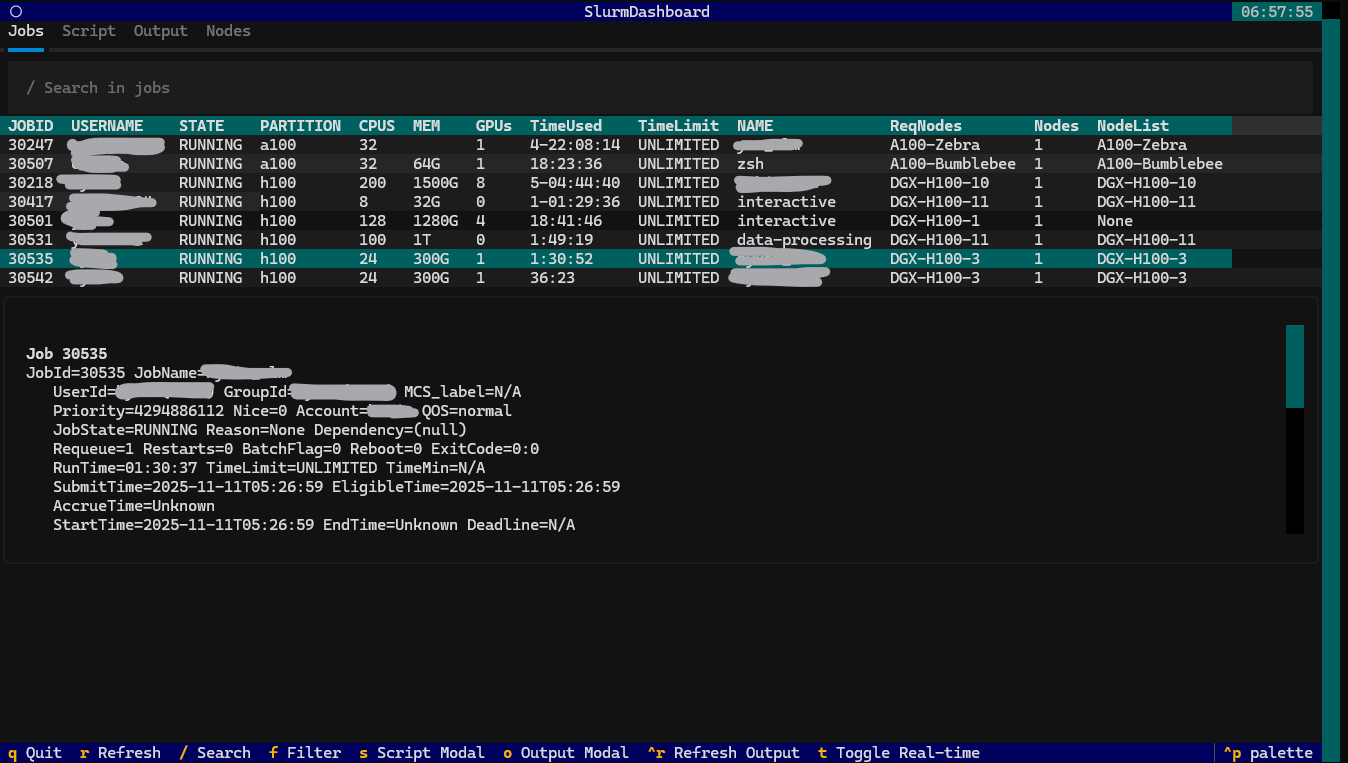
A terminal user interface (TUI) for monitoring Slurm clusters. Built with Textual for DGX H100 clusters.
uvx --from smon-tui smon
Features
- Job monitoring with live updates
- Node status display with GPU availability
- GPU count display with partition info
- Script viewer with syntax highlighting
- Output tracking (stdout/stderr)
- Search and filtering
- Tabbed TUI interface
- Keyboard shortcuts
- gpustat-web integration for real-time GPU monitoring
Installation
smon is on PyPI as smon-tui (the name smon was taken). The installed command is smon.
| Command | |
|---|---|
| Run once, no install | uvx --from smon-tui smon |
| Install with uv (recommended) | uv tool install smon-tui |
| Install with pipx | pipx install smon-tui |
| Install with pip | pip install smon-tui |
| Upgrade | uv tool upgrade smon-tui / pipx upgrade smon-tui / pip install -U smon-tui |
Latest main from git |
uv tool install git+https://github.com/MilkClouds/smon.git |
Requires Python 3.11+ on a machine where squeue, sinfo, scontrol and scancel are on PATH
(typically a Slurm login node). Try it without a cluster with smon --mock.
Usage
Basic Usage
smon
Command Line Options
smon --help                    # Show help
smon --version                 # Show version
smon --refresh 10              # Set refresh interval to 10 seconds
smon --user alice              # Filter jobs by user
smon --me                      # Filter jobs by the current user
smon --partition gpu           # Filter jobs and nodes by partition
smon --state RUNNING           # Default job state filter
smon --theme light             # Colour theme (dark/light)
smon --gpustat-web URL         # Enable gpustat-web integration
smon --mock                    # Demo mode without a Slurm cluster
Every option can also be set in ~/.config/smon/config.json
(refresh_sec, user_filter, partition_filter, state_filter, theme, gpustat_web_url);
command line flags take precedence.
Keyboard Shortcuts
| Key | Action |
|---|---|
q |
Quit application |
r |
Refresh data now |
1 / 2 |
Switch to Jobs / Nodes tab |
/ |
Focus the search box (filters as you type; Esc returns to the table) |
Enter |
Load details, script and output of the selected job / show jobs on the selected node |
| Click header | Sort the jobs table by that column (click again to reverse) |
o |
Open the selected job's stdout/stderr in bat/less |
t |
Toggle real-time output refresh |
c |
Cancel the selected job (asks for confirmation) |
y |
Copy the selected job ID to the clipboard |
+ / - |
Increase / decrease the refresh interval |
T |
Toggle dark/light theme |
TUI Interface
Jobs Tab
- Left: job table (JobID, user, state, partition, CPUs, memory, GPUs, time used vs. limit, nodes)
- Right:
scontrol show jobdetails, the batch script with syntax highlighting, and the tail of stdout/stderr - The table updates in place on each refresh, so scrolling, sorting and the selected row are preserved
Nodes Tab
- Node status, GPU allocation bar, CPU and memory usage per node
Enteron a node lists the jobs running on it- gpustat-web integration (side-by-side view)
gpustat-web Integration
smon can display real-time GPU status from gpustat-web alongside the Slurm node information.
Setup
-
Make sure gpustat-web is running on your cluster (e.g.,
http://10.50.0.111:48109/) -
Run smon with the
--gpustat-weboption:smon --gpustat-web http://10.50.0.111:48109/
-
Or add to config file (
~/.config/smon/config.json):{ "gpustat_web_url": "http://10.50.0.111:48109/" }
The Nodes tab will show the Slurm node table on the left and live GPU status from gpustat-web on the right.
Troubleshooting
Clicks land in the top-left corner / open the command palette. Some terminal multiplexers (herdr ≤ 0.9.0,
herdrdev/herdr#3295) advertise pixel-coordinate mouse reporting
but keep sending cell coordinates, which makes Textual apps map every click to the first cell. smon therefore
does not negotiate pixel mouse mode at all; set SMON_PIXEL_MOUSE=1 to restore Textual's default if you need
sub-cell precision. Upgrading the multiplexer (herdr ≥ 0.9.1) fixes it upstream as well.
Built with
Related projects
Contributing
Issues and pull requests are welcome.
git clone https://github.com/MilkClouds/smon.git && cd smon
uv sync --dev
uv run smon --mock      # run against mock data
uv run pytest           # tests
uv run ruff check .     # lint
Releasing
Versions come from git tags (hatch-vcs). Pushing a v* tag builds and publishes to PyPI via trusted publishing:
git tag -a v0.2.0 -m "v0.2.0" && git push origin v0.2.0
1 maintainer

Metadata
1 maintainer
Release files for smon-tui 0.1.2
For a detailed explanation of source distributions (sdists) and built distributions (wheels), please see the package formats documentation.
Source distribution (sdist)
| File | Size | Uploaded | |
|---|---|---|---|
| smon_tui-0.1.2.tar.gz | 34.0 kB | Details |
Built distribution (wheel)
| File | Interpreter | ABI | Platform | Reset |
|---|---|---|---|---|
| smon_tui-0.1.2-py3-none-any.whl | Python 3 | none | any | Details |
Total release size: 62.0 kB
Release files / smon_tui-0.1.2.tar.gz
| Download URL | smon_tui-0.1.2.tar.gz |
|---|---|
| Size | 34.0 kB |
| Tags | Source |
|
SHA-256 checksum How to use checksums |
879392109e4bf3b7cd952f179500a196b889154dc1c16a9dfad1194fed13d364
|
|
BLAKE2b-256 checksum How to use checksums |
218c4e3e62ba454086cc8f26afb4f325f2ef5c45307a30ea7586c1f42e0a087e
|
| Upload date | |
|
Uploaded using Trusted Publishing? What is trusted publishing? |
Yes |
| Uploaded via |
uv/0.12.15 {"installer":{"name":"uv","version":"0.12.15","subcommand":["publish"]},"python":null,"implementation":{"name":null,"version":null},"distro":{"name":"Ubuntu","version":"24.04","id":"noble","libc":null},"system":{"name":null,"release":null},"cpu":null,"openssl_version":null,"setuptools_version":null,"rustc_version":null,"ci":true}
|
Release files / smon_tui-0.1.2-py3-none-any.whl
| Download URL | smon_tui-0.1.2-py3-none-any.whl |
|---|---|
| Size | 28.0 kB |
| Tags | Python 3 |
|
SHA-256 checksum How to use checksums |
a513d7a32f3e35f2d4a9fc0927546b2e42271894b89d40a149c77c1124698659
|
|
BLAKE2b-256 checksum How to use checksums |
90922e1d0a4247871e737f3f80690e20b1216bada48faaeaf493d80536dab0ad
|
| Upload date | |
|
Uploaded using Trusted Publishing? What is trusted publishing? |
Yes |
| Uploaded via |
uv/0.12.15 {"installer":{"name":"uv","version":"0.12.15","subcommand":["publish"]},"python":null,"implementation":{"name":null,"version":null},"distro":{"name":"Ubuntu","version":"24.04","id":"noble","libc":null},"system":{"name":null,"release":null},"cpu":null,"openssl_version":null,"setuptools_version":null,"rustc_version":null,"ci":true}
|














