
A terminal UI for SQL Server, PostgreSQL, MySQL, SQLite, Oracle, and more
Verified details
These details have been verified by PyPIProject links
GitHub Statistics
Maintainers

Project description

The lazygit of SQL databases
Connect and query your database from your terminal in seconds.


pipx install sqlit-tui

Connect
Supports all major databases: SQL Server, PostgreSQL, MySQL, SQLite, MariaDB, FirebirdSQL, Oracle, DuckDB, CockroachDB, ClickHouse, Snowflake, Supabase, CloudFlare D1, and Turso.

Query
Syntax highlighting. History. Vim-style keybindings.

Results
Load millions of rows. Inspect data, filter by content, fuzzy search, no more squinting eyes looking for what you need!

Docker Discovery
Automatically finds running database containers. Press 'Enter' to connect, sqlit figures out the details for you.

Features
Connection manager: Save and switch connections without CLI args
Just run sqlit: No CLI config needed, pick a connection and go
Multi-database support: PostgreSQL, MySQL, SQLite, SQL Server, and 10+ more
Docker integration: Auto-detect running database containers
SSH tunnels: Connect to remote databases securely with password or key auth
Secure credentials: Passwords stored in your OS keyring
Vim-style editing: Modal editing for terminal purists
Query history: Searchable, per-connection history
Filter results: Fuzzy search through millions of rows
Context-aware help: Keybindings shown on screen
Browse databases: Tables, views, procedures, indexes, triggers, sequences
Autocomplete: Tables, columns, and procedures
CLI mode: Execute SQL from the command line
Themes: Rose Pine, Tokyo Night, Nord, Gruvbox
Dependency wizard: Auto-install missing drivers
Motivation
Throughout my career, the undesputed truth was that SSMS was the only respectable way to access a database. It didn't matter that I wasn't a DBA, or that I didn't need complex performance graphs. I was expected to install a gigabyte-heavy behemoth that took ages to launch all for the mere purpose of running a few queries to update and view a couple of rows.
When I switched to Linux, I was suddenly unable to return to the devil I know, and I asked myself: how do I access my data now?
The popular answer was VS Code's SQL extension. But why should we developers launch a heavy Electron app designed for coding just to execute SQL?
I had recently grown fond of Terminal UI's for their speed and keybinding focus. I looked for SQL TUIs, but the options were sparse. The ones I found lacked the user-friendliness and immediate "pick-up-and-go" nature of tools I loved, like lazygit, and I shortly returning to vscode sql extension.
Something wasn't right. I asked myself, why is it that running SQL queries can't be enjoyable? So I created sqlit.
sqlit is for the developer who just wants to query their database with a user friendly UI without their RAM being eaten alive. It is a lightweight, beautiful, and keyboard-driven TUI designed to make accessing your data enjoyable, fast and easy like it should be-- all from inside your favorite terminal.
Installation
| Method | Command |
|---|---|
| pipx (recommended) | pipx install sqlit-tui |
| uv | uv tool install sqlit-tui |
| pip | pip install sqlit-tui |
| aur | yay -S python-sqlit-tui |
Usage
sqlit
The keybindings are shown at the bottom of the screen.
Try it without a database
Want to explore the UI without connecting to a real database? Run with mock data:
sqlit --mock=sqlite-demo
CLI
# Run a query
sqlit query -c "MyConnection" -q "SELECT * FROM Users"

# Output as CSV or JSON
sqlit query -c "MyConnection" -q "SELECT * FROM Users" --format csv
sqlit query -c "MyConnection" -f "script.sql" --format json

# Create connections for different databases
sqlit connections add mssql --name "MySqlServer" --server "localhost" --auth-type sql
sqlit connections add postgresql --name "MyPostgres" --server "localhost" --username "user" --password "pass"
sqlit connections add mysql --name "MyMySQL" --server "localhost" --username "user" --password "pass"
sqlit connections add cockroachdb --name "MyCockroach" --server "localhost" --port "26257" --database "defaultdb" --username "root"
sqlit connections add sqlite --name "MyLocalDB" --file-path "/path/to/database.db"
sqlit connections add turso --name "MyTurso" --server "libsql://your-db.turso.io" --password "your-auth-token"
sqlit connections add firebird --name "MyFirebird" --server "localhost" --username "user" --password "pass" --database "employee"

# Connect via SSH tunnel
sqlit connections add postgresql --name "RemoteDB" --server "db-host" --username "dbuser" --password "dbpass" \
  --ssh-enabled --ssh-host "ssh.example.com" --ssh-username "sshuser" --ssh-auth-type password --ssh-password "sshpass"

# Temporary (not saved) connection
sqlit connect sqlite --file-path "/path/to/database.db"

# Connect via URL - scheme determines database type (postgresql://, mysql://, sqlite://, etc.)
sqlit postgresql://user:pass@localhost:5432/mydb
sqlit mysql://root@localhost/testdb
sqlit sqlite:///path/to/database.db

# Save a connection via URL
sqlit connections add --url dbtype://user:pass@host/db --name "MyDB"

# Provider-specific CLI help
sqlit connect -h
sqlit connect supabase -h
sqlit connections add -h
sqlit connections add supabase -h

# Manage connections
sqlit connections list
sqlit connections delete "MyConnection"
Keybindings
| Key | Action |
|---|---|
i |
Enter INSERT mode |
Esc |
Back to NORMAL mode |
e / q / r |
Focus Explorer / Query / Results |
s |
SELECT TOP 100 from table |
h |
Query history |
d |
Clear query |
n |
New query (clear all) |
y |
Copy query (when query editor is focused) |
v / y / Y / a |
View cell / Copy cell / Copy row / Copy all |
Ctrl+Q |
Quit |
? |
Help |
Commands Menu (<space>)
| Key | Action |
|---|---|
<space>c |
Connect to database |
<space>x |
Disconnect |
<space>z |
Cancel running query |
<space>e |
Toggle Explorer |
<space>f |
Toggle Maximize |
<space>t |
Change theme |
<space>h |
Help |
<space>q |
Quit |
Autocomplete triggers automatically in INSERT mode. Use Tab to accept.
💡 Tip: Type a table name followed by . to get column autocompletion.
Configuration
Connections and settings are stored in ~/.sqlit/.
FAQ
How are sensitive credentials stored?
Connection details are stored in ~/.sqlit/connections.json, but passwords are stored in your OS keyring when available (macOS Keychain, Windows Credential Locker, Linux Secret Service).
How does sqlit compare to Harlequin, Lazysql, etc.?
sqlit is inspired by lazygit - you can just jump in and there's no need for external documentation. The keybindings are shown at the bottom of the screen and the UI is designed to be intuitive without memorizing shortcuts.
Key differences:
- No need for external documentation - Sqlit embrace the "lazy" approach in that a user should be able to jump in and use it right away intuitively. There should be no setup instructions. If python packages are required for certain adapters, sqlit will help you install them as you need them.
- No CLI config required - Just run
sqlitand pick a connection from the UI - Lightweight - While Lazysql or Harlequin offer more features, I experienced that for the vast majority of cases, all I needed was a simple and fast way to connect and run queries. Sqlit is focused on doing a limited amount of things really well.
Inspiration
sqlit is built with Textual and inspired by:
Contributing
See CONTRIBUTING.md for development setup, testing, CI, and CockroachDB quickstart steps.
Driver Reference
Most of the time you can just run sqlit and connect. If a Python driver is missing, sqlit will show (and often run) the right install command for your environment.
| Database | Driver package | pipx |
pip / venv |
aur |
|---|---|---|---|---|
| SQLite | (built-in) | (built-in) | (built-in) | (built-in) |
| PostgreSQL / CockroachDB / Supabase | psycopg2-binary |
pipx inject sqlit-tui psycopg2-binary |
python -m pip install psycopg2-binary |
pacman -S python-psycopg2 |
| SQL Server | pyodbc |
pipx inject sqlit-tui pyodbc |
python -m pip install pyodbc |
yay -S python-pyodbc |
| MySQL | mysql-connector-python |
pipx inject sqlit-tui mysql-connector-python |
python -m pip install mysql-connector-python |
pacman -S python-mysql-connector |
| MariaDB | mariadb |
pipx inject sqlit-tui mariadb |
python -m pip install mariadb |
yay -S python-mariadb-connector |
| Oracle | oracledb |
pipx inject sqlit-tui oracledb |
python -m pip install oracledb |
yay -S python-oracledb |
| DuckDB | duckdb |
pipx inject sqlit-tui duckdb |
python -m pip install duckdb |
yay -S python-duckdb |
| ClickHouse | clickhouse-connect |
pipx inject sqlit-tui clickhouse-connect |
python -m pip install clickhouse-connect |
yay -S python-clickhouse-connect |
| Turso | libsql-client |
pipx inject sqlit-tui libsql-client |
python -m pip install libsql-client |
(not supported) |
| Cloudflare D1 | requests |
pipx inject sqlit-tui requests |
python -m pip install requests |
pacman -S python-requests |
| Snowflake | snowflake-connector-python |
pipx inject sqlit-tui snowflake-connector-python |
python -m pip install snowflake-connector-python |
yay -S python-snowflake-connector-python |
| Firebird | firebirdsql |
pip install firebirdsql |
python -m pip install firebirdsql |
(not supported) |
Note: SQL Server also requires the platform-specific ODBC driver. On your first connection attempt, sqlit can help you install it if it's missing.
SSH Tunnel Support
SSH tunnel functionality requires additional dependencies. Install with the ssh extra:
| Method | Command |
|---|---|
| pipx | pipx install 'sqlit-tui[ssh]' |
| uv | uv tool install 'sqlit-tui[ssh]' |
| pip | pip install 'sqlit-tui[ssh]' |
| aur | pacman -S python-paramiko python-sshtunnel |
If you try to create an SSH connection without these dependencies, sqlit will detect this and show you the exact command to install them for your environment.
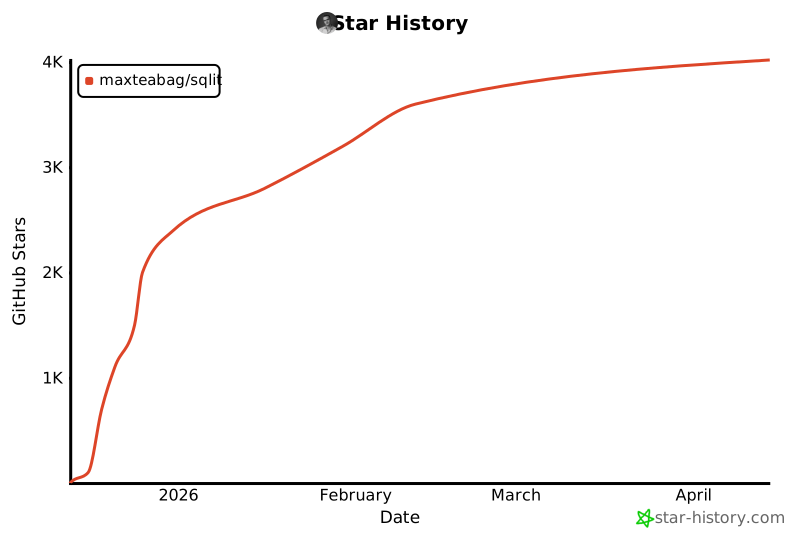
Star History
License
MIT
Project details
Verified details
These details have been verified by PyPIProject links
GitHub Statistics
Maintainers
Release history Release notifications | RSS feed


Download files
Download the file for your platform. If you're not sure which to choose, learn more about installing packages.
Source Distribution
Built Distribution
Filter files by name, interpreter, ABI, and platform.
If you're not sure about the file name format, learn more about wheel file names.
Copy a direct link to the current filters
File details
Details for the file sqlit_tui-1.1.5.tar.gz.
File metadata
- Download URL: sqlit_tui-1.1.5.tar.gz
- Upload date:
- Size: 8.9 MB
- Tags: Source
- Uploaded using Trusted Publishing? Yes
- Uploaded via: twine/6.1.0 CPython/3.13.7
File hashes
| Algorithm | Hash digest | |
|---|---|---|
| SHA256 |
3d851579f4bfa44101fb834fcea16bd46117aa4a89cd02a6d7aa5ff8c322fff0
|
|
| MD5 |
f85809654c81438b93a57e722d826901
|
|
| BLAKE2b-256 |
43a0c57fd20ea4ff93f0e8d80b46c72854af6ec190ab51f6c045c42c5a275e5d
|
Provenance
The following attestation bundles were made for sqlit_tui-1.1.5.tar.gz:
Publisher:
release.yml on Maxteabag/sqlit
-
Statement:
-
Statement type:
https://in-toto.io/Statement/v1 -
Predicate type:
https://docs.pypi.org/attestations/publish/v1 -
Subject name:
sqlit_tui-1.1.5.tar.gz -
Subject digest:
3d851579f4bfa44101fb834fcea16bd46117aa4a89cd02a6d7aa5ff8c322fff0 - Sigstore transparency entry: 776168882
- Sigstore integration time:
-
Permalink:
Maxteabag/sqlit@146be7344eb7aa024e315eeb57600ed9d6fed6b3 -
Branch / Tag:
refs/tags/v1.1.5 - Owner: https://github.com/Maxteabag
-
Access:
public
-
Token Issuer:
https://token.actions.githubusercontent.com -
Runner Environment:
github-hosted -
Publication workflow:
release.yml@146be7344eb7aa024e315eeb57600ed9d6fed6b3 -
Trigger Event:
push
-
Statement type:
File details
Details for the file sqlit_tui-1.1.5-py3-none-any.whl.
File metadata
- Download URL: sqlit_tui-1.1.5-py3-none-any.whl
- Upload date:
- Size: 213.3 kB
- Tags: Python 3
- Uploaded using Trusted Publishing? Yes
- Uploaded via: twine/6.1.0 CPython/3.13.7
File hashes
| Algorithm | Hash digest | |
|---|---|---|
| SHA256 |
8e3d6ab7883042e19d471482b6af9db1ae535620b2a190f09d0ff813c259082b
|
|
| MD5 |
9717c8cd6cfe0b6a6098f1afd4bb879d
|
|
| BLAKE2b-256 |
1ca0ccaafc388914849026a2cc86119eec06e4886864195f4486f903c5cafe68
|
Provenance
The following attestation bundles were made for sqlit_tui-1.1.5-py3-none-any.whl:
Publisher:
release.yml on Maxteabag/sqlit
-
Statement:
-
Statement type:
https://in-toto.io/Statement/v1 -
Predicate type:
https://docs.pypi.org/attestations/publish/v1 -
Subject name:
sqlit_tui-1.1.5-py3-none-any.whl -
Subject digest:
8e3d6ab7883042e19d471482b6af9db1ae535620b2a190f09d0ff813c259082b - Sigstore transparency entry: 776168884
- Sigstore integration time:
-
Permalink:
Maxteabag/sqlit@146be7344eb7aa024e315eeb57600ed9d6fed6b3 -
Branch / Tag:
refs/tags/v1.1.5 - Owner: https://github.com/Maxteabag
-
Access:
public
-
Token Issuer:
https://token.actions.githubusercontent.com -
Runner Environment:
github-hosted -
Publication workflow:
release.yml@146be7344eb7aa024e315eeb57600ed9d6fed6b3 -
Trigger Event:
push
-
Statement type:






