

StacKit
A modern, powerful framework for creating beautiful macOS menu bar applications with rich custom layouts
StackIt provides an elegant Python API for building native macOS status bar apps with SwiftUI-inspired layout patterns (hstack/vstack), extensive UI controls, and full SF Symbols support—all built directly on AppKit with zero external dependencies.


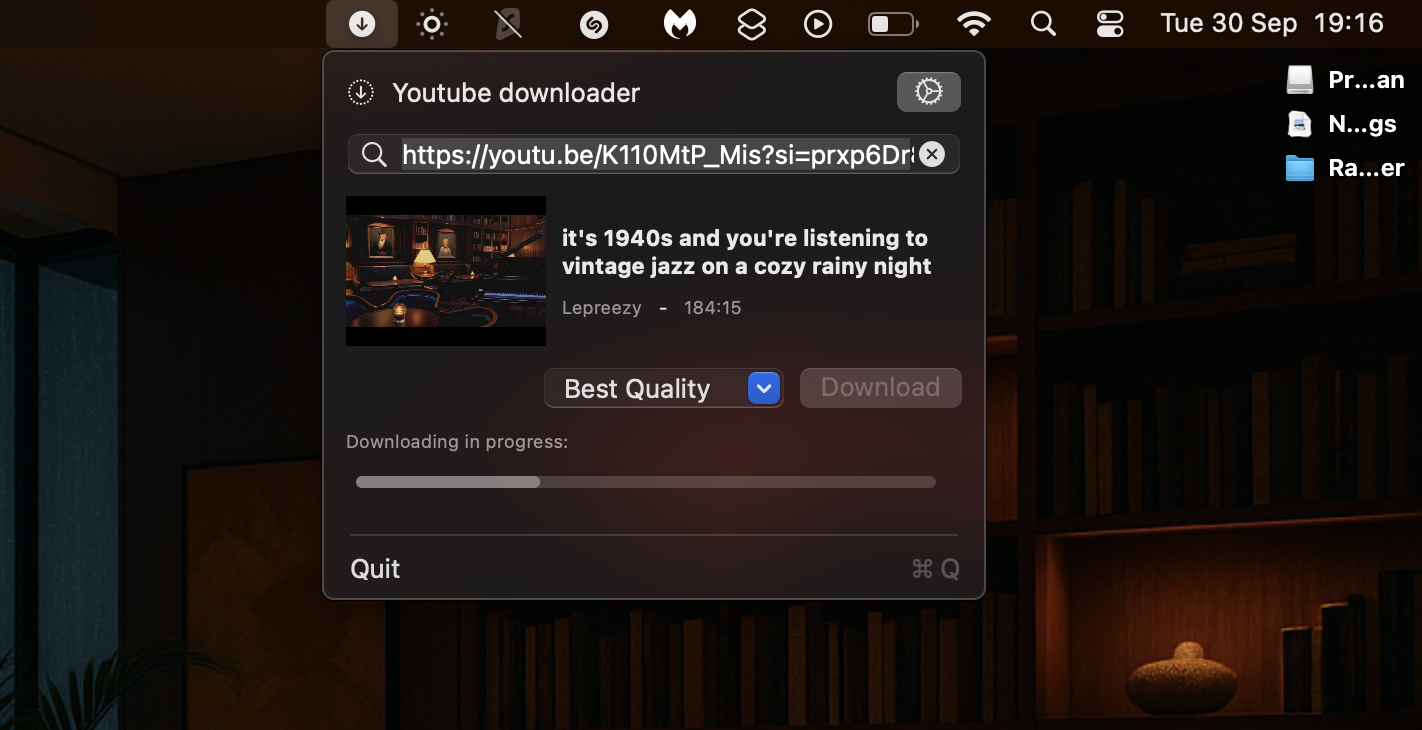
Key Features
- Rich Layouts - SwiftUI-inspired
hstack/vstackfor flexible, declarative layouts - Extensive Controls - Labels, buttons, sliders, progress bars, text fields, checkboxes, date pickers, charts, and more
- SF Symbols - Full support for Apple's SF Symbols with all rendering modes (hierarchical, palette, multicolor)
- Native Performance - Built directly on AppKit using PyObjC, zero external dependencies
- Lightweight - Minimal footprint, just PyObjC required (usually pre-installed)
- Dynamic Updates - Real-time UI updates with timers and
app.update() - Preferences - Built-in preference storage and retrieval
- Notifications - macOS notification support
- Modern API - Clean, Pythonic interface with direct layout passing
Quick Start
Installation
git clone https://github.com/bbalduzz/stackit.git
cd stackit
pip install -e .
Or use it from pypi
pip install stackitui
Requirements:
- macOS 11.0+ (for SF Symbols)
- Python 3.7+
- PyObjC (usually pre-installed on macOS)
Hello World
import stackit

# Create app
app = stackit.StackApp(title="Hello", icon="👋")

# Create a menu item with custom layout
layout = stackit.hstack([
    stackit.label("Hello, World!", bold=True)
])
item = stackit.MenuItem(layout=layout)

app.add(item)
app.run()
Rich Layout Example
import stackit

app = stackit.StackApp(title="Status", icon="📊")

# Create rich dashboard layout
layout = stackit.vstack([
    # Header with icon
    stackit.hstack([
        stackit.image(
            stackit.SFSymbol("chart.bar.fill", size=16, color="blue"),
            width=16, height=16
        ),
        stackit.label("System Status", bold=True)
    ]),
    # Progress indicator
    stackit.label("Loading...", font_size=11, color="gray"),
    stackit.progress_bar(width=200, value=0.75),
    # Action button
    stackit.hstack([
        stackit.spacer(),
        stackit.button("Refresh", callback=lambda s: print("Refreshed!"))
    ])
], spacing=8)

item = stackit.MenuItem(layout=layout)
app.add(item)
app.run()
Core Concepts
1. StackApp - Your Application
The main application class that manages your menu bar presence:
app = stackit.StackApp(title="My App", icon="🎯")

# Add menu items (key is optional)
app.add(menu_item)
app.add(menu_item, key="my_key")
app.add_separator()

# Manage appearance
app.set_title("New Title")
app.set_icon(stackit.SFSymbol("star.fill"))

# Run event loop
app.run()
2. MenuItem - Menu Items
Individual menu items with custom layouts:
# Option 1: Pass layout directly
layout = stackit.hstack([
    stackit.label("Status:"),
    stackit.spacer(),
    stackit.label("Online", color="green")
], spacing=8)
item = stackit.MenuItem(layout=layout)

# Option 2: Create empty, then set layout later
item = stackit.MenuItem()
item.set_layout(layout)

# Option 3: Simple text menu item
item = stackit.MenuItem(
    title="Preferences...",
    callback=open_prefs,
    key_equivalent=","  # ⌘,
)

# Option 4: Menu item with submenu
submenu_items = [
    stackit.MenuItem(title="Option 1", callback=func1),
    'separator',
    stackit.MenuItem(title="Option 2", callback=func2)
]
item = stackit.MenuItem(title="Settings ▶", submenu=submenu_items)

# Option 5: Menu item with badge (macOS 14.0+)
item = stackit.MenuItem(title="Updates", badge="updates")
item.set_badge("new-items", count=5)  # With count
item.set_badge(None)  # Remove badge
3. Layouts - hstack & vstack
Arrange UI elements horizontally or vertically (like SwiftUI). These are standalone functions that return StackView objects:
# Horizontal layout - pass controls as list
row = stackit.hstack([
    label1,
    button1,
    stackit.spacer()
], spacing=8)

# Vertical layout - pass controls as list
column = stackit.vstack([
    title_label,
    subtitle_label,
    progress_bar
], spacing=4)

# StackView supports list-like operations
row.append(new_control)
row.insert(0, first_control)
row.extend([control1, control2])

# Nested layouts
main = stackit.vstack([
    stackit.hstack([icon, title, stackit.spacer(), close_button]),
    content_vstack
])
4. Controls - Rich UI Components
StackIt provides a comprehensive set of controls:
Text Controls
stackit.label("Hello", font_size=14, bold=True, color="blue")
stackit.link("Visit Site", url="https://example.com")
Input Controls
stackit.text_field(width=200, placeholder="Enter text")
stackit.secure_text_input(width=200, placeholder="Password")
stackit.search_field(width=200, placeholder="Search...")
Buttons & Selection
stackit.button("Click Me", callback=lambda s: print("Clicked!"))
stackit.checkbox(title="Enable feature", checked=True, callback=on_toggle)
stackit.radio_button(title="Option 1", checked=False, callback=on_select)
stackit.combobox(items=["Option 1", "Option 2"], width=200, callback=on_change)
Progress Indicators
stackit.progress_bar(width=200, value=0.5, show_text=True)
stackit.circular_progress(dimensions=(32, 32), indeterminate=True)
stackit.slider(width=150, min_value=0, max_value=100, value=50, callback=on_change)
Date & Time
stackit.date_picker(callback=on_date_change)
stackit.time_picker(callback=on_time_change)
Layout Helpers
stackit.spacer()  # Flexible spacer
stackit.separator(width=200)  # Visual separator
Images & Icons
# From file
stackit.image("/path/to/image.png", width=24, height=24)

# From SF Symbol
icon = stackit.SFSymbol("star.fill", size=16, color="yellow")
stackit.image(icon, width=16, height=16)

# From URL
stackit.image("https://example.com/logo.png", width=32, height=32)
Custom Blocks & Charts
# Create custom colored blocks for visual indicators
stackit.block(width=100, height=30, color="#FF0000", corner_radius=8.0)

# Line chart for data visualization
stackit.line_chart(data=[10, 20, 15, 30, 25], width=200, height=100)
5. SF Symbols - Apple's Icon System
Full support for SF Symbols with extensive customization:
# Basic symbol
icon = stackit.SFSymbol("star.fill")

# With size and weight
icon = stackit.SFSymbol("gear", size=20, weight="bold")

# With color
icon = stackit.SFSymbol("heart.fill", size=16, color="red")

# Advanced rendering modes
icon = stackit.SFSymbol(
    "gauge.badge.plus",
    size=24,
    weight="semibold",
    rendering="hierarchical"
)

# Multicolor symbols
icon = stackit.SFSymbol(
    "brain.head.profile",
    size=32,
    rendering="multicolor"
)

# Palette mode with multiple colors
icon = stackit.SFSymbol(
    "circle.hexagongrid.circle",
    size=24,
    rendering="palette",
    color="blue",
    secondary_color="red",
    tertiary_color="yellow"
)
Weight options: ultraLight, thin, light, regular, medium, semibold, bold, heavy, black Rendering modes: automatic, monochrome, hierarchical, palette, multicolor Scale options: small, medium, large
Browse symbols at: https://developer.apple.com/sf-symbols/
6. Utilities - Helper Functions
# Alerts
result = stackit.alert("Title", "Message", ok="Yes", cancel="No")

# Notifications
stackit.notification("Title", "Subtitle", "Message body")

# Timers
timer = stackit.every(5.0, callback_function)  # Repeating
timer = stackit.after(2.0, callback_function)  # One-shot

# File selection
path = stackit.choose_directory(title="Select Folder")

# Preferences
stackit.save_preferences("MyApp", {"key": "value"})
prefs = stackit.load_preferences("MyApp", defaults={"key": "default"})

# Application control
stackit.quit_application()
Real-World Examples
System Monitor
import stackit
import psutil

class SystemMonitor:
    def __init__(self):
        self.app = stackit.StackApp(title="System", icon="💻")
        self.item = stackit.MenuItem()
        self.app.add(self.item, key="stats")
        self.timer = stackit.every(3.0, self.update)

    def update(self, timer):
        cpu = psutil.cpu_percent() / 100.0
        mem = psutil.virtual_memory().percent / 100.0

        layout = stackit.vstack([
            # CPU
            stackit.label("CPU", font_size=11, bold=True),
            stackit.progress_bar(width=180, value=cpu),
            # Memory
            stackit.label("Memory", font_size=11, bold=True),
            stackit.progress_bar(width=180, value=mem)
        ], spacing=6)

        self.item.set_layout(layout)
        self.app.update()

    def run(self):
        self.update(None)
        self.app.run()

if __name__ == "__main__":
    SystemMonitor().run()
Network Status Indicator
import stackit
import subprocess

class NetworkMonitor:
    def __init__(self):
        self.app = stackit.StackApp(title="Net")
        self.connected = True
        self.item = stackit.MenuItem()
        self.app.add(self.item, key="status")
        stackit.every(30.0, self.check_network)
        self.check_network(None)

    def check_network(self, timer):
        try:
            subprocess.check_call(
                ["ping", "-c", "1", "8.8.8.8"],
                stdout=subprocess.DEVNULL,
                stderr=subprocess.DEVNULL,
                timeout=5
            )
            self.connected = True
        except:
            self.connected = False

        # Update UI
        icon_name = "wifi" if self.connected else "wifi.slash"
        color = "green" if self.connected else "red"

        layout = stackit.hstack([
            stackit.image(
                stackit.SFSymbol(icon_name, size=16, color=color),
                width=16, height=16
            ),
            stackit.label(
                "Connected" if self.connected else "Disconnected",
                color=color
            )
        ], spacing=8)

        self.item.set_layout(layout)

        # Update app icon
        self.app.set_icon(stackit.SFSymbol(icon_name, size=16))

    def run(self):
        self.app.run()

if __name__ == "__main__":
    NetworkMonitor().run()
Timer App
import stackit
import time

class TimerApp:
    def __init__(self):
        self.app = stackit.StackApp(title="Timer", icon="⏱")
        self.start_time = time.time()
        self.item = stackit.MenuItem()
        self.app.add(self.item, key="time")

        # Reset button
        reset = stackit.MenuItem(
            title="Reset",
            callback=self.reset
        )
        self.app.add(reset)

        stackit.every(1.0, self.update)

    def update(self, timer):
        elapsed = int(time.time() - self.start_time)
        minutes, seconds = divmod(elapsed, 60)

        layout = stackit.hstack([
            stackit.label("Time:", bold=True),
            stackit.spacer(),
            stackit.label(f"{minutes:02d}:{seconds:02d}", font_size=14)
        ], spacing=8)

        self.item.set_layout(layout)

    def reset(self, sender):
        self.start_time = time.time()

    def run(self):
        self.update(None)
        self.app.run()

if __name__ == "__main__":
    TimerApp().run()
📖 Documentation
Full documentation is available in the docs/ directory:
- Installation Guide - Setup and requirements
- Quick Start - Get started quickly
- API Reference - Complete API documentation
- Core - StackApp, MenuItem, StackView, hstack, vstack
- Controls - All UI controls
- SF Symbols - SF Symbol support
- Utils - Utility functions
- Delegate - Application lifecycle
- Examples - Complete working examples
Building Documentation
cd docs
pip install sphinx sphinx-rtd-theme
make html
open _build/html/index.html
🏗️ Project Structure
stackit/
├── __init__.py          # Main exports and API
├── core.py              # StackApp, MenuItem, StackView, hstack, vstack
├── controls.py          # UI control creation functions
├── sfsymbol.py          # SF Symbol support
├── utils.py             # Utility functions (alerts, timers, etc.)
├── delegate.py          # Application delegate (lifecycle, callbacks)
├── docs/                # Sphinx documentation
│   ├── index.rst
│   ├── installation.rst
│   ├── quickstart.rst
│   ├── examples.rst
│   └── api/
│       ├── core.rst
│       ├── controls.rst
│       ├── sfsymbol.rst
│       ├── utils.rst
│       └── delegate.rst
├── examples/            # Example applications
│   ├── controls_demo.py
│   ├── blocks_demo.py
│   ├── timer.py
│   └── sfsymbol_rendering_modes.py
└── README.md
Design Philosophy
- Native First - Built directly on AppKit for true native macOS integration
- Modern API - SwiftUI-inspired layouts (hstack/vstack) with Pythonic syntax
- Zero Bloat - No unnecessary dependencies, minimal footprint
- Flexibility - From simple status indicators to complex dashboards
- Developer Experience - Intuitive, well-documented, easy to learn
Contributing
Contributions are welcome! Please feel free to submit issues, fork the repository, and create pull requests.
--
License
MIT License - see LICENSE file for details
Use Cases
StackIt is perfect for:
- System Monitors - CPU, memory, disk, network status
- Development Tools - Build status, test results, CI/CD indicators
- Productivity Apps - Timers, todo lists, quick notes
- Media Controllers - Music players, volume controls, podcast managers
- Quick Actions - Shortcuts, utilities, toggles, launchers
- Status Indicators - Service health, API status, background tasks
- Information Dashboards - Weather, stocks, crypto prices, news feeds
🔗 Comparison with rumps
This package has been created to fill the void that other packages (like rumps) left: no customisation and very limiting layout options. Although rumps has been an inspiration, StackIt is NOT based on rumps. It's a completely standalone framework with:
- No rumps dependency - built directly on PyObjC/AppKit
- Rich custom layouts - hstack/vstack for complex UIs
- More controls - extensive UI component library
- Better SF Symbols support - full customization
- Modern API design - declarative, composable layouts
If you're looking for a simple, rumps-like API, rumps is great. If you need rich, custom layouts with advanced UI controls, StacKit is for you.
Tips & Tricks
Dynamic Updates
Update menu items in real-time by recreating their layout:
def update_status(self):
    item = self.app.get("status")
    new_layout = stackit.hstack([
        stackit.label(f"Status: {self.current_status}")
    ])
    item.set_layout(new_layout)
    self.app.update()  # Force redraw
Callback Functions
Use Python callbacks for control actions:
# Lambda callback
btn = stackit.button("Click", callback=lambda s: print("Clicked!"))

# Method callback
def on_click(self, sender):
    print("Button clicked!")

btn = stackit.button("Click", callback=self.on_click)
Spacers for Alignment
Use spacers to push elements to opposite ends:
layout = stackit.hstack([
    stackit.label("Left"),
    stackit.spacer(),  # Pushes everything after to the right
    stackit.label("Right")
])
Complex Nested Layouts
Build sophisticated UIs with nested stacks:
# Build nested layout
main = stackit.vstack([
    # Header row
    stackit.hstack([
        icon,
        title,
        stackit.spacer(),
        close_btn
    ]),
    # Content section
    stackit.vstack([
        subtitle,
        progress,
        status_text
    ], spacing=4),
    # Footer with buttons
    stackit.hstack([
        stackit.spacer(),
        cancel_btn,
        ok_btn
    ])
], spacing=8)

item = stackit.MenuItem(layout=main)
Built with ❤️ for the macOS developer community
Give StackIt a ⭐ if you find it useful!
1 maintainer

Metadata
1 maintainer
Release files for stackitui 0.2.6
For a detailed explanation of source distributions (sdists) and built distributions (wheels), please see the package formats documentation.
Source distribution (sdist)
| File | Size | Uploaded | |
|---|---|---|---|
| stackitui-0.2.6.tar.gz | 51.4 kB | Details |
Built distribution (wheel)
| File | Interpreter | ABI | Platform | Reset |
|---|---|---|---|---|
| stackitui-0.2.6-py3-none-any.whl | Python 3 | none | any | Details |
Total release size: 99.0 kB
Release files / stackitui-0.2.6.tar.gz
| Download URL | stackitui-0.2.6.tar.gz |
|---|---|
| Size | 51.4 kB |
| Tags | Source |
|
SHA-256 checksum How to use checksums |
a9c95817a9195030d4027583922acbd6c46f595017fde9a521b3a0ec0c10cfa6
|
|
BLAKE2b-256 checksum How to use checksums |
5a17f07dd5fb4ece386824d8d254271915b532ab3da94b21882f442b40464c85
|
| Upload date | |
|
Uploaded using Trusted Publishing? What is trusted publishing? |
No |
| Uploaded via |
twine/6.2.0 CPython/3.12.11
|
Release files / stackitui-0.2.6-py3-none-any.whl
| Download URL | stackitui-0.2.6-py3-none-any.whl |
|---|---|
| Size | 47.6 kB |
| Tags | Python 3 |
|
SHA-256 checksum How to use checksums |
cb4234ef5c0455741ce4065bea8b9b0f9b7207d66f24b80eba1b4c5c933c6401
|
|
BLAKE2b-256 checksum How to use checksums |
8a61a2bf46f8ae7d2b070e4dc2d81b34af459fb784d0168f1e055f38fff46228
|
| Upload date | |
|
Uploaded using Trusted Publishing? What is trusted publishing? |
No |
| Uploaded via |
twine/6.2.0 CPython/3.12.11
|














