
A modern, powerful framework for creating beautiful macOS menu bar applications with rich custom layouts

Project description

StackIt
A modern, powerful framework for creating beautiful macOS menu bar applications with rich custom layouts
StackIt provides an elegant Python API for building native macOS status bar apps with SwiftUI-inspired layout patterns (hstack/vstack), extensive UI controls, and full SF Symbols support—all built directly on AppKit with zero external dependencies.


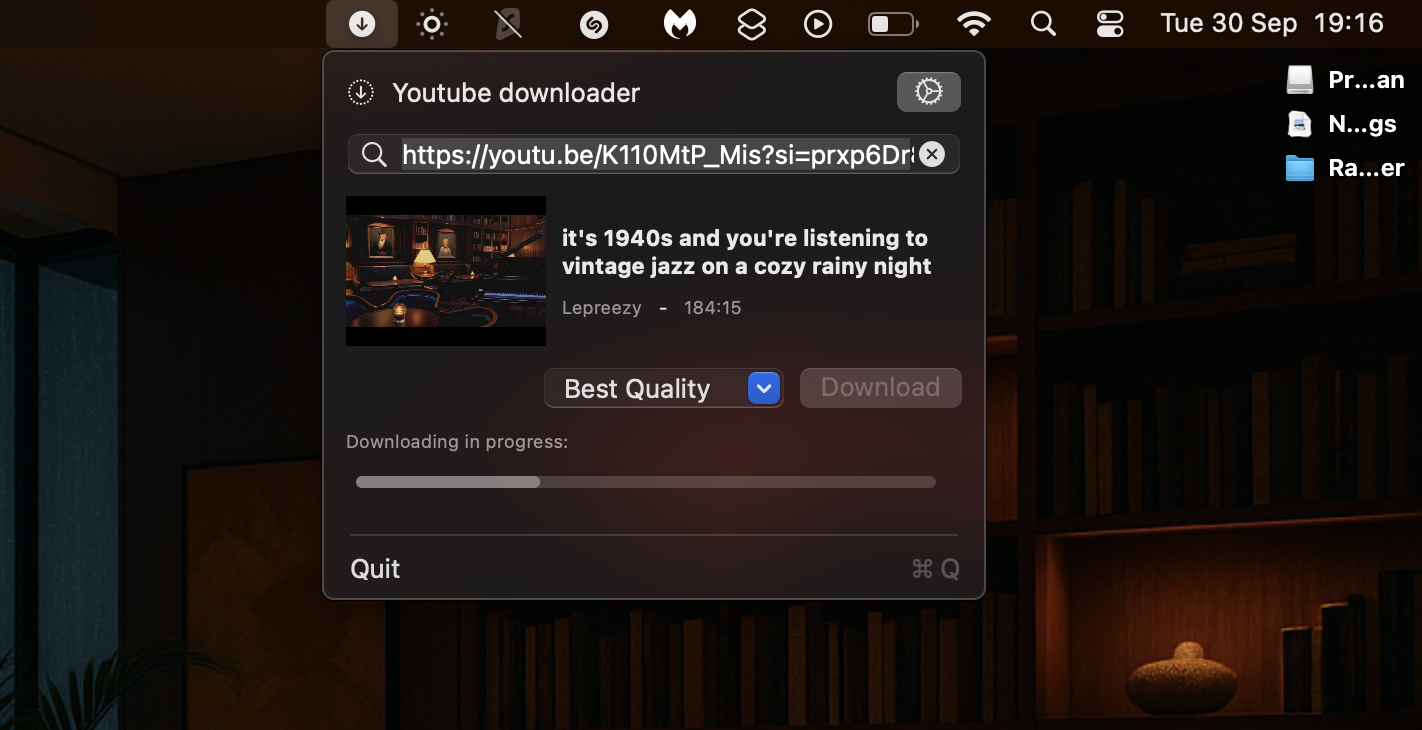
Key Features
- Rich Layouts - SwiftUI-inspired
hstack/vstackfor flexible, declarative layouts - Extensive Controls - Labels, buttons, sliders, progress bars, text fields, checkboxes, date pickers, charts, and more
- SF Symbols - Full support for Apple's SF Symbols with all rendering modes (hierarchical, palette, multicolor)
- Native Performance - Built directly on AppKit using PyObjC, zero external dependencies
- Lightweight - Minimal footprint, just PyObjC required (usually pre-installed)
- Dynamic Updates - Real-time UI updates with timers and
app.update() - Preferences - Built-in preference storage and retrieval
- Notifications - macOS notification support
- Modern API - Clean, Pythonic interface with direct layout passing
Quick Start
Installation
git clone https://github.com/bbalduzz/stackit.git
cd stackit
pip install -e .
Or use it from pypi
pip install stackitui
Requirements:
- macOS 11.0+ (for SF Symbols)
- Python 3.7+
- PyObjC (usually pre-installed on macOS)
Hello World
import stackit

# Create app
app = stackit.StackApp(title="Hello", icon="👋")

# Create a menu item with custom layout
layout = stackit.hstack([
    stackit.label("Hello, World!", bold=True)
])
item = stackit.MenuItem(layout=layout)

app.add(item)
app.run()
Rich Layout Example
import stackit

app = stackit.StackApp(title="Status", icon="📊")

# Create rich dashboard layout
layout = stackit.vstack([
    # Header with icon
    stackit.hstack([
        stackit.image(
            stackit.SFSymbol("chart.bar.fill", size=16, color="blue"),
            width=16, height=16
        ),
        stackit.label("System Status", bold=True)
    ]),
    # Progress indicator
    stackit.label("Loading...", font_size=11, color="gray"),
    stackit.progress_bar(width=200, value=0.75),
    # Action button
    stackit.hstack([
        stackit.spacer(),
        stackit.button("Refresh", callback=lambda s: print("Refreshed!"))
    ])
], spacing=8)

item = stackit.MenuItem(layout=layout)
app.add(item)
app.run()
Core Concepts
1. StackApp - Your Application
The main application class that manages your menu bar presence:
app = stackit.StackApp(title="My App", icon="🎯")

# Add menu items (key is optional)
app.add(menu_item)
app.add(menu_item, key="my_key")
app.add_separator()

# Manage appearance
app.set_title("New Title")
app.set_icon(stackit.SFSymbol("star.fill"))

# Run event loop
app.run()
2. MenuItem - Menu Items
Individual menu items with custom layouts:
# Option 1: Pass layout directly
layout = stackit.hstack([
    stackit.label("Status:"),
    stackit.spacer(),
    stackit.label("Online", color="green")
], spacing=8)
item = stackit.MenuItem(layout=layout)

# Option 2: Create empty, then set layout later
item = stackit.MenuItem()
item.set_layout(layout)

# Option 3: Simple text menu item
item = stackit.MenuItem(
    title="Preferences...",
    callback=open_prefs,
    key_equivalent=","  # ⌘,
)

# Option 4: Menu item with submenu
submenu_items = [
    stackit.MenuItem(title="Option 1", callback=func1),
    'separator',
    stackit.MenuItem(title="Option 2", callback=func2)
]
item = stackit.MenuItem(title="Settings ▶", submenu=submenu_items)
3. Layouts - hstack & vstack
Arrange UI elements horizontally or vertically (like SwiftUI). These are standalone functions that return StackView objects:
# Horizontal layout - pass controls as list
row = stackit.hstack([
    label1,
    button1,
    stackit.spacer()
], spacing=8)

# Vertical layout - pass controls as list
column = stackit.vstack([
    title_label,
    subtitle_label,
    progress_bar
], spacing=4)

# StackView supports list-like operations
row.append(new_control)
row.insert(0, first_control)
row.extend([control1, control2])

# Nested layouts
main = stackit.vstack([
    stackit.hstack([icon, title, stackit.spacer(), close_button]),
    content_vstack
])
4. Controls - Rich UI Components
StackIt provides a comprehensive set of controls:
Text Controls
stackit.label("Hello", font_size=14, bold=True, color="blue")
stackit.link("Visit Site", url="https://example.com")
Input Controls
stackit.text_field(width=200, placeholder="Enter text")
stackit.secure_text_input(width=200, placeholder="Password")
stackit.search_field(width=200, placeholder="Search...")
Buttons & Selection
stackit.button("Click Me", callback=lambda s: print("Clicked!"))
stackit.checkbox(title="Enable feature", checked=True, callback=on_toggle)
stackit.radio_button(title="Option 1", checked=False, callback=on_select)
stackit.combobox(items=["Option 1", "Option 2"], width=200, callback=on_change)
Progress Indicators
stackit.progress_bar(width=200, value=0.5, show_text=True)
stackit.circular_progress(dimensions=(32, 32), indeterminate=True)
stackit.slider(width=150, min_value=0, max_value=100, value=50, callback=on_change)
Date & Time
stackit.date_picker(callback=on_date_change)
stackit.time_picker(callback=on_time_change)
Layout Helpers
stackit.spacer()  # Flexible spacer
stackit.separator(width=200)  # Visual separator
Images & Icons
# From file
stackit.image("/path/to/image.png", width=24, height=24)

# From SF Symbol
icon = stackit.SFSymbol("star.fill", size=16, color="yellow")
stackit.image(icon, width=16, height=16)

# From URL
stackit.image("https://example.com/logo.png", width=32, height=32)
Custom Blocks & Charts
# Create custom colored blocks for visual indicators
stackit.block(width=100, height=30, color="#FF0000", corner_radius=8.0)

# Line chart for data visualization
stackit.line_chart(data=[10, 20, 15, 30, 25], width=200, height=100)
5. SF Symbols - Apple's Icon System
Full support for SF Symbols with extensive customization:
# Basic symbol
icon = stackit.SFSymbol("star.fill")

# With size and weight
icon = stackit.SFSymbol("gear", size=20, weight="bold")

# With color
icon = stackit.SFSymbol("heart.fill", size=16, color="red")

# Advanced rendering modes
icon = stackit.SFSymbol(
    "gauge.badge.plus",
    size=24,
    weight="semibold",
    rendering="hierarchical"
)

# Multicolor symbols
icon = stackit.SFSymbol(
    "brain.head.profile",
    size=32,
    rendering="multicolor"
)

# Palette mode with multiple colors
icon = stackit.SFSymbol(
    "circle.hexagongrid.circle",
    size=24,
    rendering="palette",
    color="blue",
    secondary_color="red",
    tertiary_color="yellow"
)
Weight options: ultraLight, thin, light, regular, medium, semibold, bold, heavy, black Rendering modes: automatic, monochrome, hierarchical, palette, multicolor Scale options: small, medium, large
Browse symbols at: https://developer.apple.com/sf-symbols/
6. Utilities - Helper Functions
# Alerts
result = stackit.alert("Title", "Message", ok="Yes", cancel="No")

# Notifications
stackit.notification("Title", "Subtitle", "Message body")

# Timers
timer = stackit.every(5.0, callback_function)  # Repeating
timer = stackit.after(2.0, callback_function)  # One-shot

# File selection
path = stackit.choose_directory(title="Select Folder")

# Preferences
stackit.save_preferences("MyApp", {"key": "value"})
prefs = stackit.load_preferences("MyApp", defaults={"key": "default"})

# Application control
stackit.quit_application()
Real-World Examples
System Monitor
import stackit
import psutil

class SystemMonitor:
    def __init__(self):
        self.app = stackit.StackApp(title="System", icon="💻")
        self.item = stackit.MenuItem()
        self.app.add(self.item, key="stats")
        self.timer = stackit.every(3.0, self.update)

    def update(self, timer):
        cpu = psutil.cpu_percent() / 100.0
        mem = psutil.virtual_memory().percent / 100.0

        layout = stackit.vstack([
            # CPU
            stackit.label("CPU", font_size=11, bold=True),
            stackit.progress_bar(width=180, value=cpu),
            # Memory
            stackit.label("Memory", font_size=11, bold=True),
            stackit.progress_bar(width=180, value=mem)
        ], spacing=6)

        self.item.set_layout(layout)
        self.app.update()

    def run(self):
        self.update(None)
        self.app.run()

if __name__ == "__main__":
    SystemMonitor().run()
Network Status Indicator
import stackit
import subprocess

class NetworkMonitor:
    def __init__(self):
        self.app = stackit.StackApp(title="Net")
        self.connected = True
        self.item = stackit.MenuItem()
        self.app.add(self.item, key="status")
        stackit.every(30.0, self.check_network)
        self.check_network(None)

    def check_network(self, timer):
        try:
            subprocess.check_call(
                ["ping", "-c", "1", "8.8.8.8"],
                stdout=subprocess.DEVNULL,
                stderr=subprocess.DEVNULL,
                timeout=5
            )
            self.connected = True
        except:
            self.connected = False

        # Update UI
        icon_name = "wifi" if self.connected else "wifi.slash"
        color = "green" if self.connected else "red"

        layout = stackit.hstack([
            stackit.image(
                stackit.SFSymbol(icon_name, size=16, color=color),
                width=16, height=16
            ),
            stackit.label(
                "Connected" if self.connected else "Disconnected",
                color=color
            )
        ], spacing=8)

        self.item.set_layout(layout)

        # Update app icon
        self.app.set_icon(stackit.SFSymbol(icon_name, size=16))

    def run(self):
        self.app.run()

if __name__ == "__main__":
    NetworkMonitor().run()
Timer App
import stackit
import time

class TimerApp:
    def __init__(self):
        self.app = stackit.StackApp(title="Timer", icon="⏱")
        self.start_time = time.time()
        self.item = stackit.MenuItem()
        self.app.add(self.item, key="time")

        # Reset button
        reset = stackit.MenuItem(
            title="Reset",
            callback=self.reset
        )
        self.app.add(reset)

        stackit.every(1.0, self.update)

    def update(self, timer):
        elapsed = int(time.time() - self.start_time)
        minutes, seconds = divmod(elapsed, 60)

        layout = stackit.hstack([
            stackit.label("Time:", bold=True),
            stackit.spacer(),
            stackit.label(f"{minutes:02d}:{seconds:02d}", font_size=14)
        ], spacing=8)

        self.item.set_layout(layout)

    def reset(self, sender):
        self.start_time = time.time()

    def run(self):
        self.update(None)
        self.app.run()

if __name__ == "__main__":
    TimerApp().run()
📖 Documentation
Full documentation is available in the docs/ directory:
- Installation Guide - Setup and requirements
- Quick Start - Get started quickly
- API Reference - Complete API documentation
- Core - StackApp, MenuItem, StackView, hstack, vstack
- Controls - All UI controls
- SF Symbols - SF Symbol support
- Utils - Utility functions
- Delegate - Application lifecycle
- Examples - Complete working examples
Building Documentation
cd docs
pip install sphinx sphinx-rtd-theme
make html
open _build/html/index.html
🏗️ Project Structure
stackit/
├── __init__.py          # Main exports and API
├── core.py              # StackApp, MenuItem, StackView, hstack, vstack
├── controls.py          # UI control creation functions
├── sfsymbol.py          # SF Symbol support
├── utils.py             # Utility functions (alerts, timers, etc.)
├── delegate.py          # Application delegate (lifecycle, callbacks)
├── docs/                # Sphinx documentation
│   ├── index.rst
│   ├── installation.rst
│   ├── quickstart.rst
│   ├── examples.rst
│   └── api/
│       ├── core.rst
│       ├── controls.rst
│       ├── sfsymbol.rst
│       ├── utils.rst
│       └── delegate.rst
├── examples/            # Example applications
│   ├── controls_demo.py
│   ├── blocks_demo.py
│   ├── timer.py
│   └── sfsymbol_rendering_modes.py
└── README.md
Design Philosophy
- Native First - Built directly on AppKit for true native macOS integration
- Modern API - SwiftUI-inspired layouts (hstack/vstack) with Pythonic syntax
- Zero Bloat - No unnecessary dependencies, minimal footprint
- Flexibility - From simple status indicators to complex dashboards
- Developer Experience - Intuitive, well-documented, easy to learn
Contributing
Contributions are welcome! Please feel free to submit issues, fork the repository, and create pull requests.
--
License
MIT License - see LICENSE file for details
Use Cases
StackIt is perfect for:
- System Monitors - CPU, memory, disk, network status
- Development Tools - Build status, test results, CI/CD indicators
- Productivity Apps - Timers, todo lists, quick notes
- Media Controllers - Music players, volume controls, podcast managers
- Quick Actions - Shortcuts, utilities, toggles, launchers
- Status Indicators - Service health, API status, background tasks
- Information Dashboards - Weather, stocks, crypto prices, news feeds
🔗 Comparison with rumps
This package has been created to fill the void that other packages (like rumps) left: no customisation and very limiting layout options. Although rumps has been an inspiration, StackIt is NOT based on rumps. It's a completely standalone framework with:
- No rumps dependency - built directly on PyObjC/AppKit
- Rich custom layouts - hstack/vstack for complex UIs
- More controls - extensive UI component library
- Better SF Symbols support - full customization
- Modern API design - declarative, composable layouts
If you're looking for a simple, rumps-like API, rumps is great. If you need rich, custom layouts with advanced UI controls, StacKit is for you.
Tips & Tricks
Dynamic Updates
Update menu items in real-time by recreating their layout:
def update_status(self):
    item = self.app.get("status")
    new_layout = stackit.hstack([
        stackit.label(f"Status: {self.current_status}")
    ])
    item.set_layout(new_layout)
    self.app.update()  # Force redraw
Callback Functions
Use Python callbacks for control actions:
# Lambda callback
btn = stackit.button("Click", callback=lambda s: print("Clicked!"))

# Method callback
def on_click(self, sender):
    print("Button clicked!")

btn = stackit.button("Click", callback=self.on_click)
Spacers for Alignment
Use spacers to push elements to opposite ends:
layout = stackit.hstack([
    stackit.label("Left"),
    stackit.spacer(),  # Pushes everything after to the right
    stackit.label("Right")
])
Complex Nested Layouts
Build sophisticated UIs with nested stacks:
# Build nested layout
main = stackit.vstack([
    # Header row
    stackit.hstack([
        icon,
        title,
        stackit.spacer(),
        close_btn
    ]),
    # Content section
    stackit.vstack([
        subtitle,
        progress,
        status_text
    ], spacing=4),
    # Footer with buttons
    stackit.hstack([
        stackit.spacer(),
        cancel_btn,
        ok_btn
    ])
], spacing=8)

item = stackit.MenuItem(layout=main)
Built with ❤️ for the macOS developer community
Give StackIt a ⭐ if you find it useful!


Download files
Download the file for your platform. If you're not sure which to choose, learn more about installing packages.
Source Distribution
Built Distribution
Filter files by name, interpreter, ABI, and platform.
If you're not sure about the file name format, learn more about wheel file names.
Copy a direct link to the current filters
File details
Details for the file stackitui-0.2.1.tar.gz.
File metadata
- Download URL: stackitui-0.2.1.tar.gz
- Upload date:
- Size: 66.6 kB
- Tags: Source
- Uploaded using Trusted Publishing? No
- Uploaded via: twine/6.2.0 CPython/3.12.11
File hashes
| Algorithm | Hash digest | |
|---|---|---|
| SHA256 |
a25ba891f8763f0205114d7a5a95dbd30f126ac8e1d64e23d4ad9d6077e16c19
|
|
| MD5 |
0ae09b4156ac969b68737a0b5995ea27
|
|
| BLAKE2b-256 |
5976b60226e84471d4431ace91b3505e5bb36de2e5cdb430e9e23e226f79a36f
|
File details
Details for the file stackitui-0.2.1-py3-none-any.whl.
File metadata
- Download URL: stackitui-0.2.1-py3-none-any.whl
- Upload date:
- Size: 37.0 kB
- Tags: Python 3
- Uploaded using Trusted Publishing? No
- Uploaded via: twine/6.2.0 CPython/3.12.11
File hashes
| Algorithm | Hash digest | |
|---|---|---|
| SHA256 |
aa62e6a41a99829b7c5ddccdb15b7294c56e60873e7888b68785a8248ea148db
|
|
| MD5 |
170f28caa1b3232e07000983535f0d44
|
|
| BLAKE2b-256 |
c5fd286d87e33e741042701e4cefe96b528dd8786f8ff0696e683da5c5f74dec
|






