
tmr: terminal markdown reader
A two-column file explorer for the terminal. The files in the current folder are listed on the left. Click a markdown file, or move onto it with the arrow keys, to read it, formatted, on the right. Made for reading (and lightly editing) the documents agents write: it follows changes on disk, finds files and words quickly, copies as markdown, ticks checkboxes, and commits one file to git.
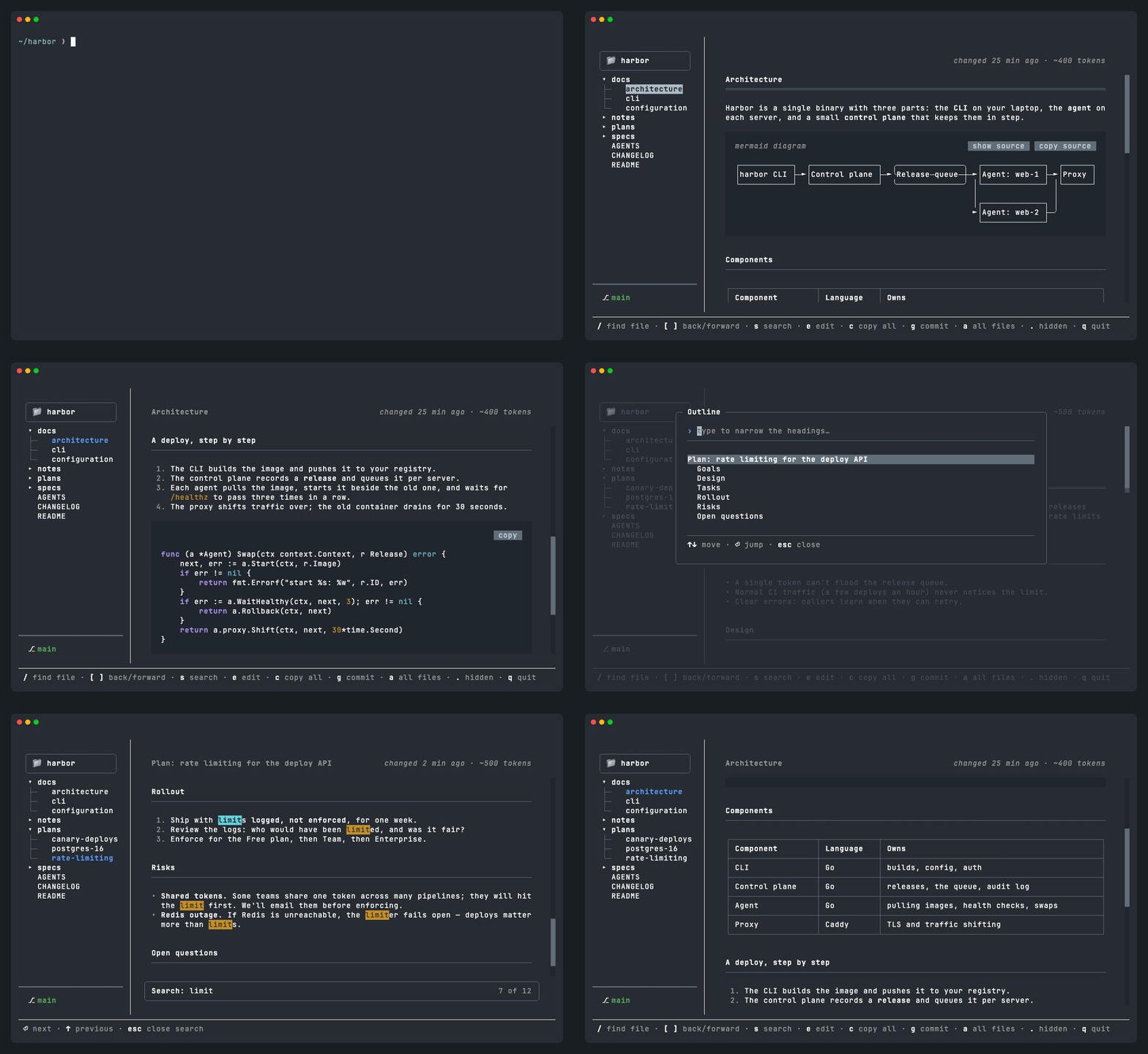
Works on macOS and Linux (Python 3.13 or later). This is version 1 (1.0.1;
tmr --version says which you have).
Install
uv tool install terminal-markdown-reader # or: pipx install terminal-markdown-reader
Start it
cd some/folder
tmr                       # browse this folder
tmr docs/plan.md          # open a specific file straight away
tmr docs/plan.md#setup    # ...at its "Setup" heading
cat notes.md | tmr        # read markdown piped in
tmr --all --hidden        # list every file, hidden and ignored ones too
tmr --help                # every option (--no-watch, --colors, --font-size)
Keys
| Key | What it does |
|---|---|
↑ ↓ |
Move through the files, showing each one the cursor rests on |
Enter |
Read the file (over to the document), or open/close a folder |
Tab |
Switch between the file list and the document |
/ |
Find a markdown file: lists the most recently changed first, or type part of a name (Tab narrows it to a recently changed folder) |
[ ] |
Back to the file you had open before, and forward again (like a browser) |
s |
Search for words in the open document (Enter/↓/n next, ↑/N previous, Esc close) |
h |
Outline: every heading in the document; type to narrow it, Enter jumps there |
e |
Edit the file right here, as written (Ctrl+S saves, Ctrl+G saves and commits, Esc goes back to reading) |
o |
Open the file in your editor (VISUAL or EDITOR; TMR_EDITOR overrides), or failing those the app your system opens it with |
c |
Copy the whole file, exactly as written (including the markdown symbols) |
p |
Copy the full path of the open file (handy for pasting to an agent) |
g |
Commit the open file to git, on the branch you're on, shown at the foot of the sidebar (only that file; asks for the message, suggesting one; doesn't push) |
w |
Switch to another worktree (a folder with another branch checked out, such as an agent's): the same file opens there, and g commits to that branch |
b |
Widen the sidebar just enough to show the longest name in full (at most half the window), then hide it to give the document the full width, then back to how it was |
a |
Show all files, not just markdown (press again to go back) |
. |
Show or hide hidden files and folders |
q |
Quit |
You can also use the mouse for everything: click files, folders, links, and the
hints at the bottom, and scroll with the wheel. Web links open in your browser.
Any markdown file a document names, such as plan.md or docs/agent/lanes.md,
is a link too, even when the file doesn't link it: tmr finds it next to the
document, higher up in the project, or anywhere else in the folder (the closest
one wins, so a plan moved to an archive folder is still found). Wiki links
([[plan]], [[docs/plan|the plan]]) name files the same way.
Tasks show their box in colour: [ ] still to do, [✓] done (the line fades),
[~] partly done. Click a box to tick it: tmr changes - [ ] (or - [~]) to
- [x] in the file itself, and clicking again unticks it. Highlighting text in a document
copies it to the clipboard as markdown, just as it's written in the file (#,
-, ** and all). Drag the bar between the columns to resize the file
list, or double-click it to go back to the normal width. tmr remembers the
width you choose. Every code block has a small copy button in its top right
corner that copies everything inside it, such as a prompt to paste into an
agent. A block with no language (a prompt, say)
wraps to fit; code keeps its lines whole, with a › beside any that run past
the edge (scroll sideways to see the rest).
Good to know
- On startup it opens the file you last had open in that folder. If there isn't
one, it opens
README.md, or failing that a welcome page with the keys. - The file list shows only markdown files until you press
a. If you start tmr on a file that isn't markdown (tmr notes.txt), it lists all files instead, so that file is in the list. - The file list and find a file (
/) leave out the same things: hidden files and folders (.git,.claude,node_modulesand the like), and whatever git ignores, such as build output. Markdown is the exception: notes in a folder git ignores (temp/,drafts/) are still listed. Press.to show hidden and ignored files too. - If a file changes on disk (for example, an agent edits it), the view updates and keeps your place. New or changed files get a green dot in the list, which fades after about two minutes. If tmr can't keep watching the folder, it says so in the corner and tries again.
- Once a document's
#title scrolls out of sight, it stays at the top left so you know which document you're in; click it to go back to the top. Documents without a#title show nothing there. - At the top right, next to when the file last changed, tmr shows about how
many tokens it is (
changed 2 min ago · ~12k tokens), to see whether a document is getting big for an agent to read. It's a rough estimate (four characters to a token): good for telling 2k from 50k, not for exact budgets, and code or text in other languages usually takes more tokens than it says. While you edit, it counts what you've typed. For a file too big to show in full, it goes by the size on disk rather than reading the whole file. - Mermaid diagrams (
```mermaidblocks) are drawn with box-drawing characters.show sourceabove the diagram switches to the mermaid as written, andcopy sourcecopies it. If a diagram can't be drawn, its source is shown instead. - Front matter (the
---block of YAML at the top of a file) is shown as faded rows of its keys and values instead of raw YAML. Footnotes ([^1]) are numbered and gathered at the end. An HTML block shows what it says, faded (a<details>block's summary, say); an HTML comment shows nothing. - When the window is narrow, the hints at the bottom leave out the most obvious
keys first (sidebar, open in another editor).
h(outline) has no hint, to leave room for the others. - Colours follow your terminal's theme. Whether it's light or dark is checked
once, at startup. Many terminals' 16 colours are harsh (macOS Terminal's navy
blue, say), so tmr uses its own gentler set, made for light or dark
backgrounds, and keeps your terminal's text and background colours.
TMR_COLORS=terminal(or--colors terminal) uses the terminal's own colours instead. - tmr reads best at 15 points, the size most terminals start at. macOS
Terminal starts out much smaller, so there tmr sets its tab to 15 points
while it runs (the window grows to keep its rows and columns) and puts your
size back when you quit.
TMR_FONT_SIZE=18picks another size;TMR_FONT_SIZE=offleaves the terminal as it is. - Going back (
[) remembers the last 100 files you opened, skipping any that have since been deleted, and each opens where you were reading it when you left (following the text if the file has changed since). Opening a new file after going back forgets the ones you could have gone forward to, as in a browser. - Find a file (
/) lists only markdown files, with the most recently changed at the top and how long ago each changed, so what you just worked on is oneEnteraway. Like the file list, it skips what git ignores apart from markdown; press.to include hidden and ignored files. Type several words to narrow it down, for exampledocs plan. Under the search box are the folders with the most recent changes and how long ago (plans/ 2m); pressTab(or click one) to only look inside that folder. - Messages (like "Copied") pop up in the bottom right corner. A new message
replaces the old one instead of stacking up; the same one again counts up
(
Copied ×3). - Editing with
eshows the file exactly as written,**bold**,#and all, with colours for the markdown. Letters type rather than work as keys until you pressEsc, and the reading keys (s,h,/and the rest) stay off even if you click the file list;Ctrl+SandEscwork wherever you click. If there are unsaved changes, tmr asks whether to save them first (it asks before opening another file, too).Ctrl+Qwhile editing also just goes back to reading; it never closes tmr. The usual editing keys work:Ctrl+Zundo,Ctrl+Yredo, andCtrl+C/Ctrl+X/Ctrl+Vcopy, cut and paste with the system clipboard. Other text files, such as code, can be edited the same way. - While you edit, changes made to the file by something else (an agent, say)
don't touch what you're typing. The top right shows
changed on disk, and saving waits until the file has gone about 5 seconds without changing. Then saving keeps both: your edits and the ones made on disk. If both changed the same lines, nothing is saved; the two versions are shown one above the other between<<<<<<< your editsand>>>>>>> changes on disk, so you can keep the one you want (or a mix) and save again. - The foot of the sidebar shows the git branch the open file is on (
⎇ main). That's the branchgcommits to. Below it,worktreemeans the folder is one of the extra folders a repository can have for working on another branch at the same time, as agents often do. When the repository's folder isn't the one named at the top of the file list (tmr was started in a subfolder, or the file is in another repository), its name is shown there too. If the branch changes while tmr is open (an agent checked out another one in the same folder), the foot updates and a message says so. Pressw, or click the foot, to list the repository's worktrees and switch to another: tmr shows the same folder and file there, and commits from then on go to that branch. Nothing in either folder is changed by switching. Going back ([) starts afresh in the new worktree. oopens the file in the editor yourVISUALorEDITORvariable names (TMR_EDITORoverrides both, for exampleTMR_EDITOR=vim). A terminal editor takes over the screen until you quit it; tmr then shows the file again. With none set, the file opens in whatever your system opens it with.
Development
uv run pytest                 # run the tests
uv run ruff check src tests   # lint
uv tool install --editable .  # install the `tmr` command from this checkout
Built with Textual (layout, markdown), textual-image (pictures) and termaid (mermaid diagrams).
Textual is pinned to one minor version (textual>=8.2.8,<8.3): tmr reaches
into a few of its internals (the directory tree's rows, the text area's
highlighting, the terminal driver's mouse modes, the notifications list) to
draw things its own way. A newer Textual may well work, but each bump is
checked against the tests before the pin moves.
Contributions are welcome: see CONTRIBUTING.md. What changed in each version
is in CHANGELOG.md.
MIT licence: see LICENSE.
1 maintainer

Metadata
1 maintainer
Release files for terminal_markdown_reader 1.0.1
For a detailed explanation of source distributions (sdists) and built distributions (wheels), please see the package formats documentation.
Source distribution (sdist)
| File | Size | Uploaded | |
|---|---|---|---|
| terminal_markdown_reader-1.0.1.tar.gz | 97.8 kB | Details |
Built distribution (wheel)
| File | Interpreter | ABI | Platform | Reset |
|---|---|---|---|---|
| terminal_markdown_reader-1.0.1-py3-none-any.whl | Python 3 | none | any | Details |
Total release size: 207.0 kB
Release files / terminal_markdown_reader-1.0.1.tar.gz
| Download URL | terminal_markdown_reader-1.0.1.tar.gz |
|---|---|
| Size | 97.8 kB |
| Tags | Source |
|
SHA-256 checksum How to use checksums |
521bc96c2bea0fdf32278319f171197c64e04c4e5fdc5aa427cdb34cf72ec6e7
|
|
BLAKE2b-256 checksum How to use checksums |
a9f5212d48396fb0ec8f0d8bda622dfc69a3784e714029a4205ba691aed81c3e
|
| Upload date | |
|
Uploaded using Trusted Publishing? What is trusted publishing? |
No |
| Uploaded via |
uv/0.10.7 {"installer":{"name":"uv","version":"0.10.7","subcommand":["publish"]},"python":null,"implementation":{"name":null,"version":null},"distro":{"name":"macOS","version":null,"id":null,"libc":null},"system":{"name":null,"release":null},"cpu":null,"openssl_version":null,"setuptools_version":null,"rustc_version":null,"ci":null}
|
Release files / terminal_markdown_reader-1.0.1-py3-none-any.whl
| Download URL | terminal_markdown_reader-1.0.1-py3-none-any.whl |
|---|---|
| Size | 109.2 kB |
| Tags | Python 3 |
|
SHA-256 checksum How to use checksums |
9cb8adf78ffa781e08f29b1c9f8f207cef938a0776200335d69531e5236f5b24
|
|
BLAKE2b-256 checksum How to use checksums |
561be0ea3b7a45e033d10ae9d909bf1576b4f55fdaebc005e3079e7eb18ad373
|
| Upload date | |
|
Uploaded using Trusted Publishing? What is trusted publishing? |
No |
| Uploaded via |
uv/0.10.7 {"installer":{"name":"uv","version":"0.10.7","subcommand":["publish"]},"python":null,"implementation":{"name":null,"version":null},"distro":{"name":"macOS","version":null,"id":null,"libc":null},"system":{"name":null,"release":null},"cpu":null,"openssl_version":null,"setuptools_version":null,"rustc_version":null,"ci":null}
|














