
Easily add autocomplete dropdowns to your Textual apps.

Project description
textual-autocomplete
A simple autocomplete dropdown library for Textual Input widgets.
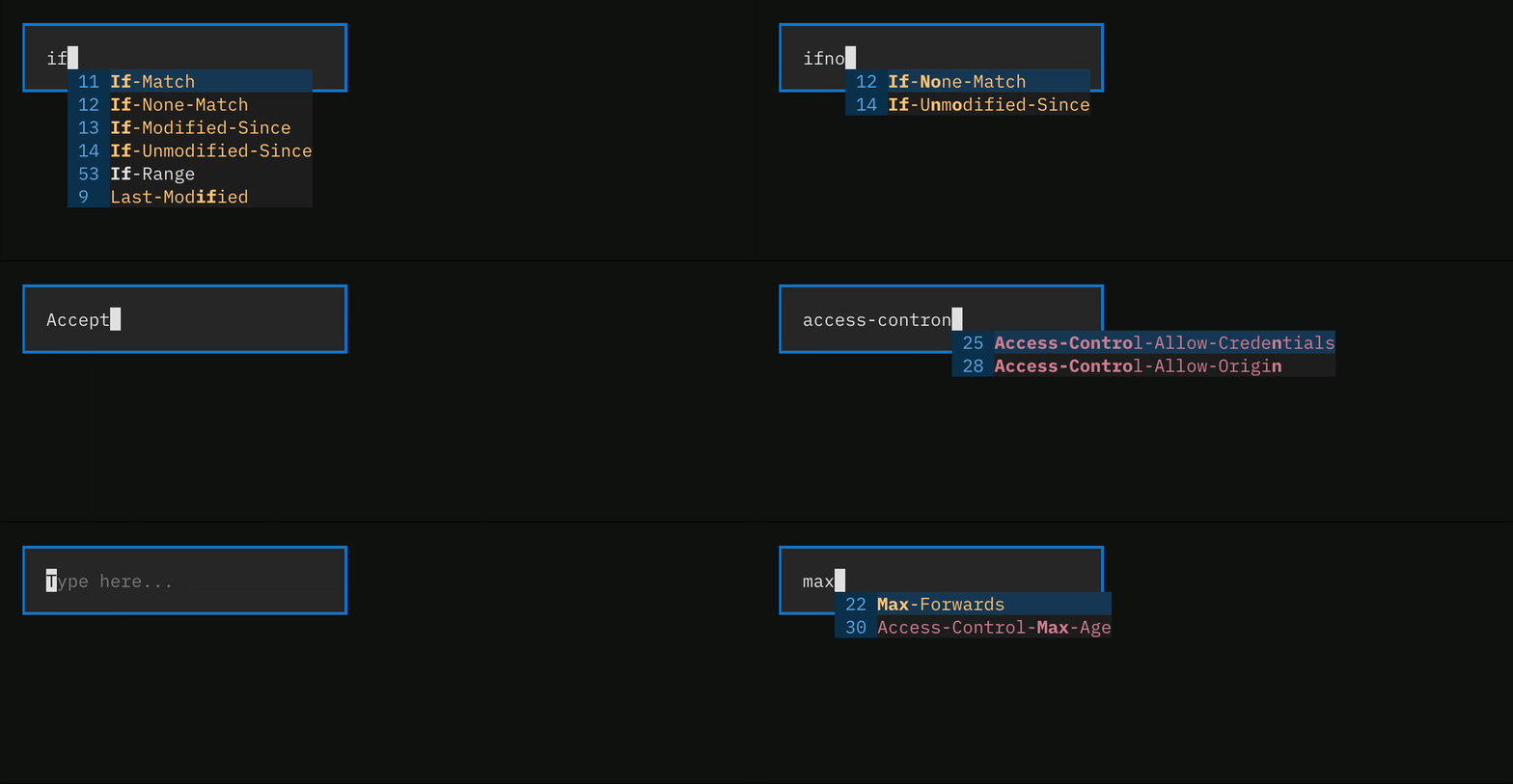
Compatible with Textual 2.0 and above.
Installation
I recommend using uv to manage your dependencies and install textual-autocomplete:
uv add textual-autocomplete
If you prefer pip, poetry, or something else, those will work too.
Quick Start
Here's the simplest possible way to add autocomplete to your Textual app:
from textual.app import App, ComposeResult
from textual.widgets import Input
from textual_autocomplete import AutoComplete, DropdownItem

class ColorFinder(App):
    def compose(self) -> ComposeResult:
        # Create a standard Textual input
        text_input = Input(placeholder="Type a color...")
        yield text_input

        # Add an autocomplete to the same screen, and pass in the input widget.
        yield AutoComplete(
            text_input,  # Target input widget
            candidates=["Red", "Green", "Blue", "Yellow", "Purple", "Orange"]
        )

if __name__ == "__main__":
    app = ColorFinder()
    app.run()
That's it! As you type in the input field, matching options will appear in a dropdown below.
Core Features
- 🔍 Fuzzy matching - Find matches even with typos
- ⌨️ Keyboard navigation - Arrow keys, Tab, Enter, and Escape
- 🎨 Rich styling options - Customizable highlighting and appearance
- 📝 Dynamic content - Supply items as a list or from a callback function
- 🔍 Path completions - Built-in support for filesystem path completions
Examples
With Left Metadata Column
Add a metadata column (like icons) to provide additional context. These columns are display-only, and do not influence the search process.
from textual.app import App, ComposeResult
from textual.widgets import Input
from textual_autocomplete import AutoComplete, DropdownItem

# Create dropdown items with a left metadata column.
ITEMS = [
    DropdownItem(main="Python", prefix="🐍"),
    DropdownItem(main="JavaScript", prefix="📜"),
    DropdownItem(main="TypeScript", prefix="🔷"),
    DropdownItem(main="Java", prefix="☕"),
]

class LanguageSearcher(App):
    def compose(self) -> ComposeResult:
        text_input = Input(placeholder="Programming language...")
        yield text_input
        yield AutoComplete(text_input, candidates=ITEMS)

if __name__ == "__main__":
    app = LanguageSearcher()
    app.run()
Styled Two-Column Layout
Add rich styling to your metadata columns using Textual markup.
from textual.app import App, ComposeResult
from textual.content import Content
from textual.widgets import Input, Label
from textual_autocomplete import AutoComplete, DropdownItem

# Languages with their popularity rank
LANGUAGES_WITH_RANK = [
    (1, "Python"),
    (2, "JavaScript"),
    (3, "Java"),
    (4, "C++"),
    (5, "TypeScript"),
    (6, "Go"),
    (7, "Ruby"),
    (8, "Rust"),
]

# Create dropdown items with styled rank in prefix
CANDIDATES = [
    DropdownItem(
        language,  # Main text to be completed
        prefix=Content.from_markup(
            f"[$text-primary on $primary-muted] {rank:>2} "
        ),  # Prefix with styled rank
    )
    for rank, language in LANGUAGES_WITH_RANK
]

class LanguageSearcher(App):
    def compose(self) -> ComposeResult:
        yield Label("Start typing a programming language:")
        text_input = Input(placeholder="Type here...")
        yield text_input
        yield AutoComplete(target=text_input, candidates=CANDIDATES)

if __name__ == "__main__":
    app = LanguageSearcher()
    app.run()
Keyboard Controls
- ↑/↓ - Navigate through options
- ↓ - Summon the dropdown
- Enter/Tab - Complete the selected option
- Escape - Hide dropdown
Styling
The dropdown can be styled using Textual CSS:
    AutoComplete {
        /* Customize the dropdown */
        & AutoCompleteList {
            max-height: 6;  /* The number of lines before scrollbars appear */
            color: $text-primary;  /* The color of the text */
            background: $primary-muted;  /* The background color of the dropdown */
            border-left: wide $success;  /* The color of the left border */
        }

        /* Customize the matching substring highlighting */
        & .autocomplete--highlight-match {
            color: $text-accent;
            text-style: bold;
        }

        /* Customize the text the cursor is over */
        & .option-list--option-highlighted {
            color: $text-success;
            background: $error 50%;  /* 50% opacity, blending into background */
            text-style: italic;
        }
    }
Here's what that looks like when applied:
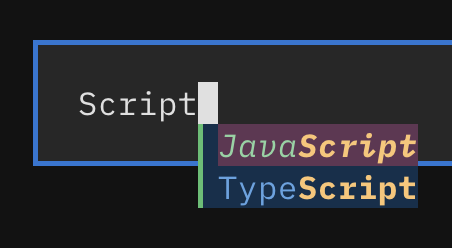
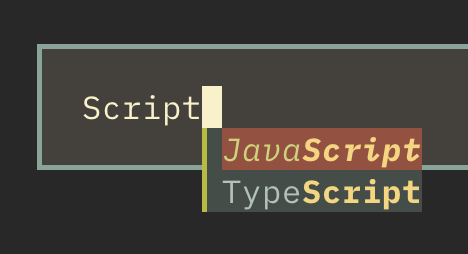
By using Textual CSS like in the example above, you can ensure the shades of colors remain
consistent across different themes. Here's the same dropdown with the Textual app theme switched to gruvbox:
Styling the prefix
You can style the prefix using Textual Content markup.
DropdownItem(
    main="Python",
    prefix=Content.from_markup(
        "[$text-success on $success-muted] 🐍"
    ),
)
Completing Paths
textual-autocomplete includes a PathAutoComplete widget that can be used to autocomplete filesystem paths.
from textual.app import App, ComposeResult
from textual.containers import Container
from textual.widgets import Button, Input, Label

from textual_autocomplete import PathAutoComplete

class FileSystemPathCompletions(App[None]):
    def compose(self) -> ComposeResult:
        yield Label("Choose a file!", id="label")
        input_widget = Input(placeholder="Enter a path...")
        yield input_widget
        yield PathAutoComplete(target=input_widget, path="../textual")


if __name__ == "__main__":
    app = FileSystemPathCompletions()
    app.run()
Here's what that looks like in action:
https://github.com/user-attachments/assets/25b80e34-0a35-4962-9024-f2dab7666689
PathAutoComplete has a bunch of parameters that can be used to customize the behavior - check the docstring for more details. It'll also cache directory contents after reading them once - but you can clear the cache if you need to using the clear_directory_cache method.
Dynamic Data with Callbacks
Instead of supplying a static list of candidates, you can supply a callback function which returns a list of DropdownItem (candidates) that will be searched against.
This callback function will be called anytime the text in the target input widget changes or the cursor position changes (and since the cursor position changes when the user inserts text, you can expect 2 calls to this function for most keystrokes - cache accordingly if this is a problem).
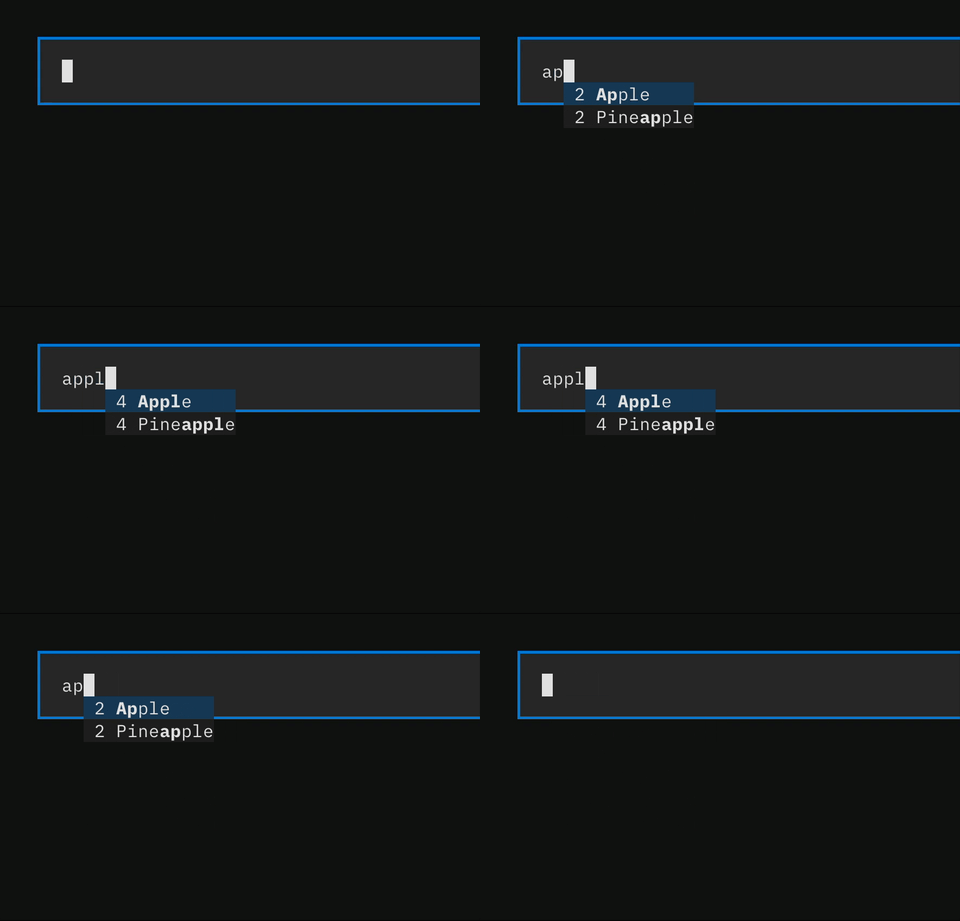
The app below displays the length of the text in the input widget in the prefix of the dropdown items.
from textual.app import App, ComposeResult
from textual.widgets import Input

from textual_autocomplete import AutoComplete
from textual_autocomplete._autocomplete import DropdownItem, TargetState


class DynamicDataApp(App[None]):
    def compose(self) -> ComposeResult:
        input_widget = Input()
        yield input_widget
        yield AutoComplete(input_widget, candidates=self.candidates_callback)

    def candidates_callback(self, state: TargetState) -> list[DropdownItem]:
        left = len(state.text)
        return [
            DropdownItem(item, prefix=f"{left:>2} ")
            for item in [
                "Apple",
                "Banana",
                "Cherry",
                "Orange",
                "Pineapple",
                "Strawberry",
                "Watermelon",
            ]
        ]


if __name__ == "__main__":
    app = DynamicDataApp()
    app.run()
Notice the count displayed in the prefix increment and decrement based on the character count in the input.
Customizing Behavior
If you need custom behavior, AutoComplete can be subclassed.
A good example of how to subclass and customize behavior is the PathAutoComplete widget, which is a subclass of AutoComplete.
Some methods you may want to be aware of which you can override:
get_candidates: Return a list ofDropdownItemobjects - called each time the input changes or the cursor position changes. Note that if you're overriding this in a subclass, you'll need to make sure that theget_candidatesparameter passed into theAutoCompleteconstructor is set toNone- this tellstextual-autocompleteto use the subclassed method instead of the default.get_search_string: The string that will be used to filter the candidates. You may wish to only use a portion of the input text to filter the candidates rather than the entire text.apply_completion: Apply the completion to the target input widget. Receives the value the user selected from the dropdown and updates theInputdirectly using it's API.post_completion: Called when a completion is selected. Called immediately afterapply_completion. The default behaviour is just to hide the completion dropdown (after performing a completion, we want to immediately hide the dropdown in the default case).
More Examples
Check out the examples directory for more runnable examples.
Contributing
Contributions are welcome! Feel free to open issues or submit pull requests on GitHub.
Release history Release notifications | RSS feed


Download files
Download the file for your platform. If you're not sure which to choose, learn more about installing packages.
Source Distribution
Built Distribution
Filter files by name, interpreter, ABI, and platform.
If you're not sure about the file name format, learn more about wheel file names.
Copy a direct link to the current filters
File details
Details for the file textual_autocomplete-4.0.4.tar.gz.
File metadata
- Download URL: textual_autocomplete-4.0.4.tar.gz
- Upload date:
- Size: 94.1 kB
- Tags: Source
- Uploaded using Trusted Publishing? No
- Uploaded via: uv/0.6.3
File hashes
| Algorithm | Hash digest | |
|---|---|---|
| SHA256 |
0969987b90a53c1f75753dfe3ad2c7ea0d974b5839dc2a00a2d332c000057871
|
|
| MD5 |
8a580152c04238610bd320e5056c3c1b
|
|
| BLAKE2b-256 |
7acf9cf23ac193c70e7b0a6999dc9409650e9ab9960b1be167e7dda54f1028a8
|
File details
Details for the file textual_autocomplete-4.0.4-py3-none-any.whl.
File metadata
- Download URL: textual_autocomplete-4.0.4-py3-none-any.whl
- Upload date:
- Size: 15.8 kB
- Tags: Python 3
- Uploaded using Trusted Publishing? No
- Uploaded via: uv/0.6.3
File hashes
| Algorithm | Hash digest | |
|---|---|---|
| SHA256 |
c37b389cd7f682442aeae15667bf315d382a8968b0e022dd032a8eb8ae2777e5
|
|
| MD5 |
010557903863e22129ca62f1f662c0a1
|
|
| BLAKE2b-256 |
83deac2027c20f6f047abaf89da06bedbe6ee54616ffa8d92b6ea43f23f2266d
|






