A native plotting widget for Textual apps

Project description

A native plotting widget for Textual apps

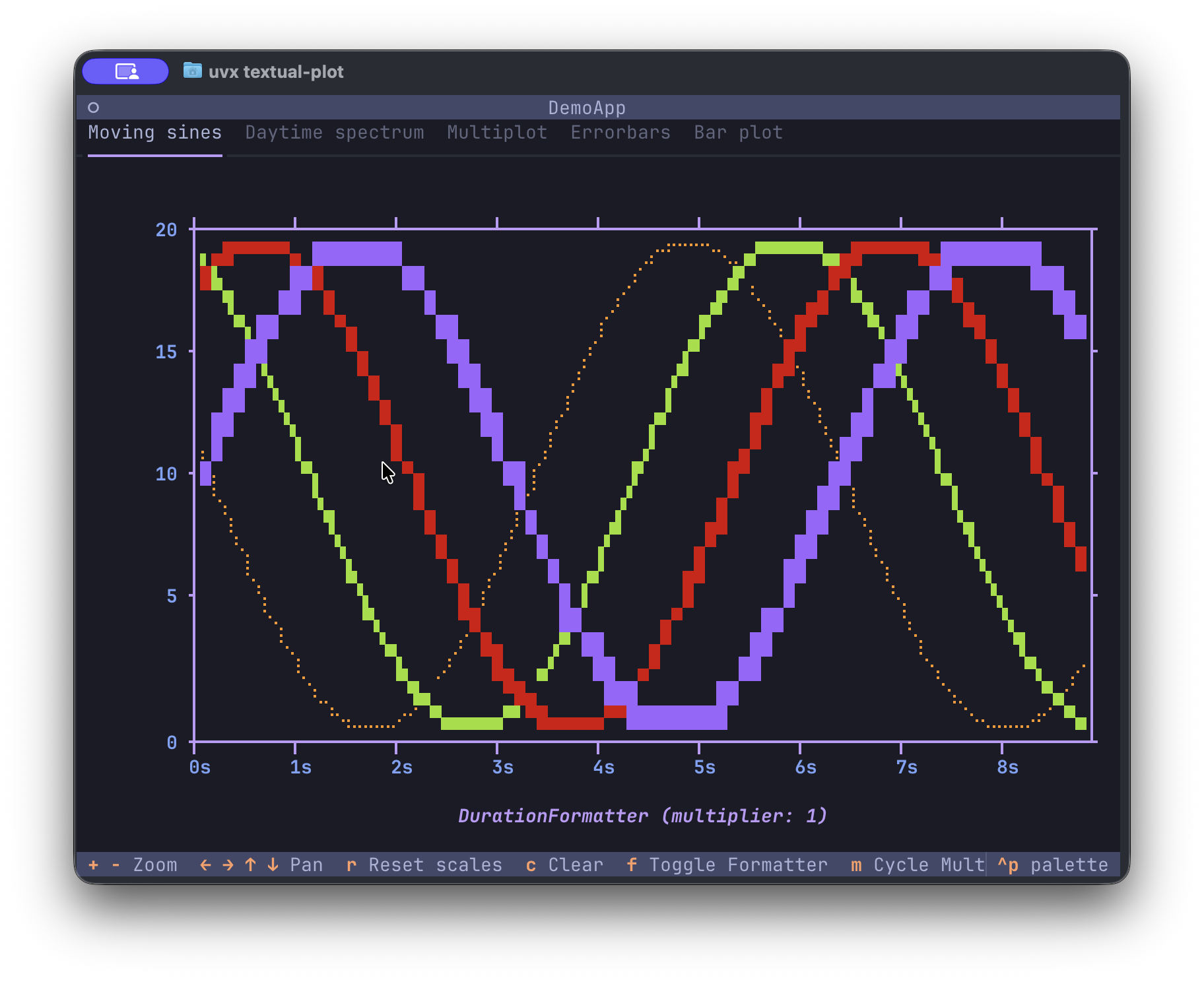
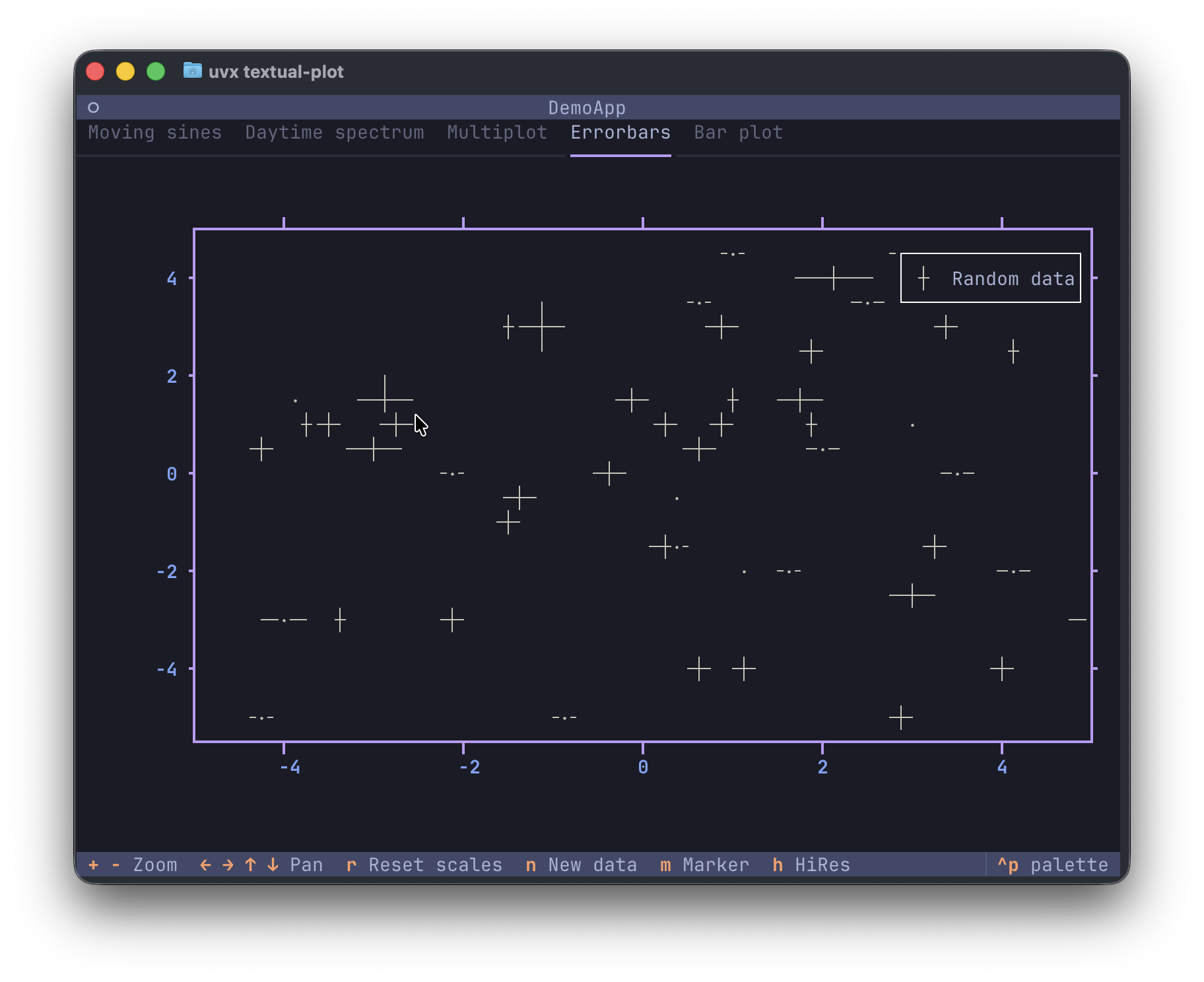
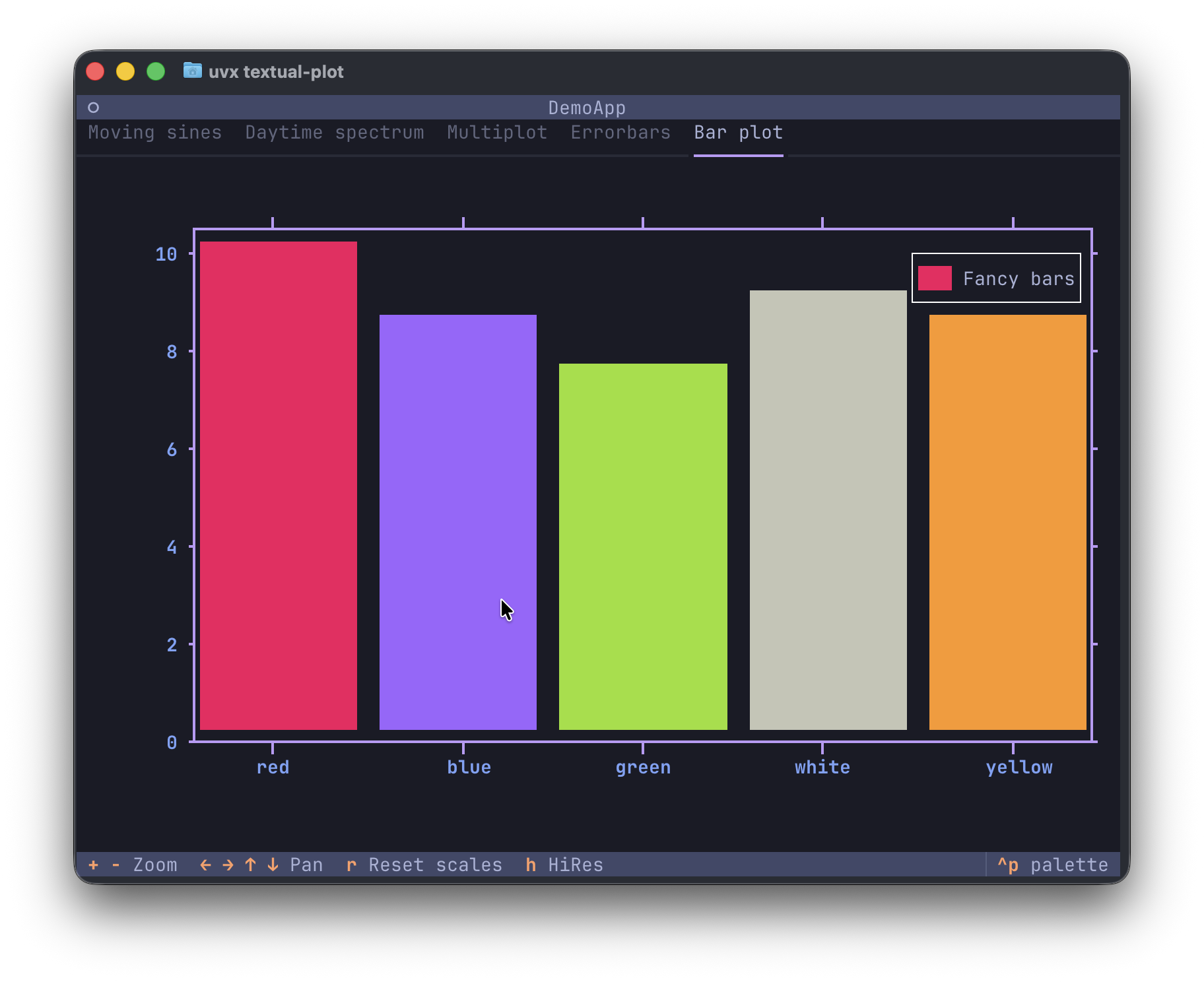
Textual is an excellent Python framework for building applications in the terminal, or on the web. This library provides a plot widget which your app can use to plot all kinds of quantitative data. So, no pie charts, sorry. The widget support scatter plots and line plots, and can also draw using high-resolution characters like unicode half blocks, quadrants and 8-dot Braille characters. It may still be apparent that these are drawn using characters that take up a full block in the terminal, especially when plot series overlap. However, the use of these characters can reduce the line thickness and improve the resolution tremendously.

Screenshots
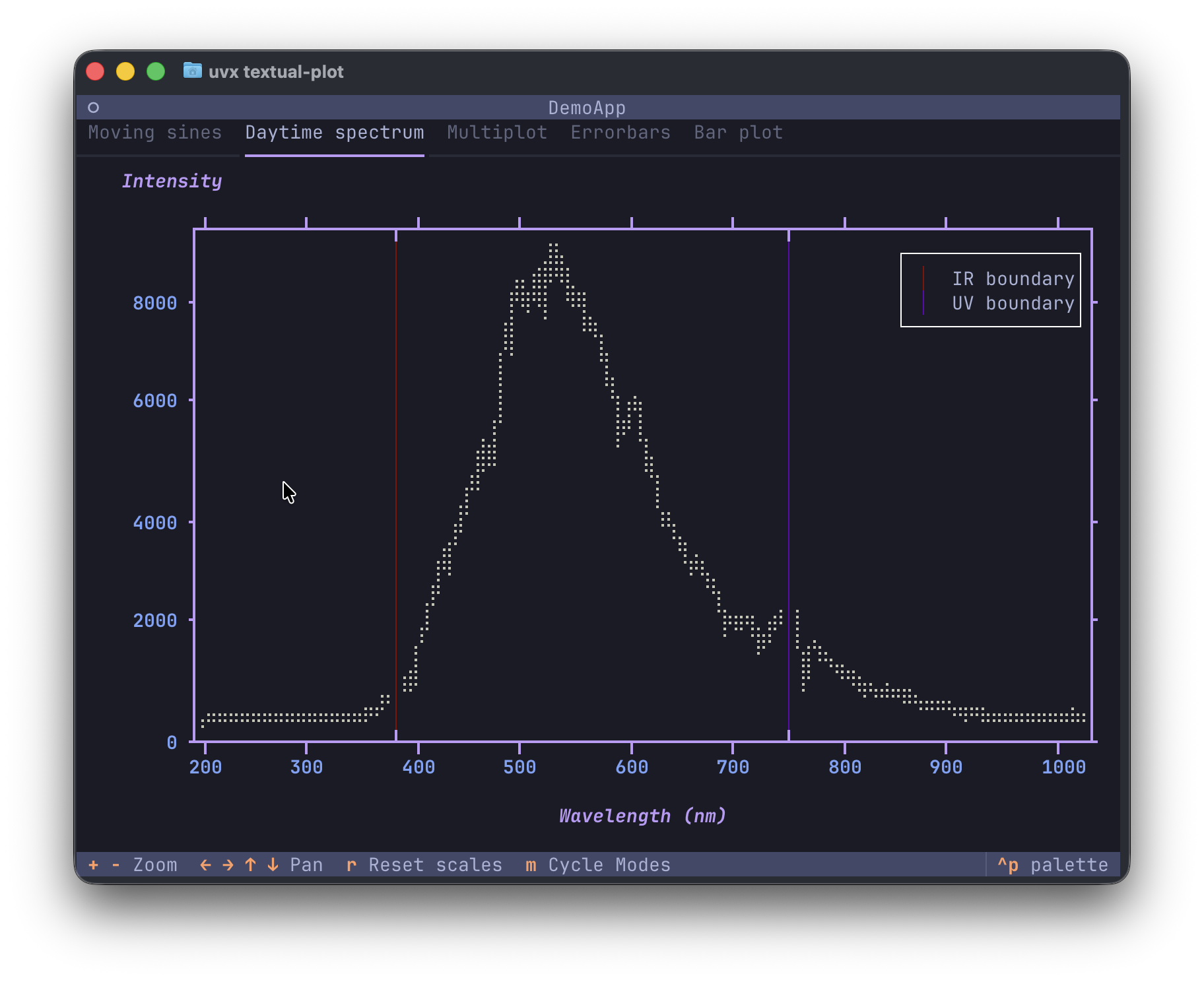
screenshot of day-time spectrum

screenshot of moving sines

video of plot demo

The daytime spectrum dataset shows the visible-light spectrum recorded by an Ocean Optics USB2000+ spectrometer using the DeadSea Optics software. It was taken in the morning while the detector was facing my office window.

Features

  • Line plots
  • Scatter plots
  • Automatic scaling and tick placement at nice intervals (1, 2, 5, etc.)
  • Axes labels
  • High-resolution modes using unicode half blocks (1x2), quadrants (2x2) and braille (2x8) characters
  • Mouse support for zooming (mouse scrolling) and panning (mouse dragging)
  • Horizontal- or vertical-only zooming and panning when the mouse cursor is in the plot margins

Running the demo / installation

Using uv:

uvx textual-plot

Using pipx:

pipx run textual-plot

Install the package with either

uv tool install textual-plot

or

pipx install textual-plot

Alternatively, install the package with pip (please, use virtual environments) and run the demo:

pip install textual-plot

In all cases, you can run the demo with

textual-plot

Tutorial

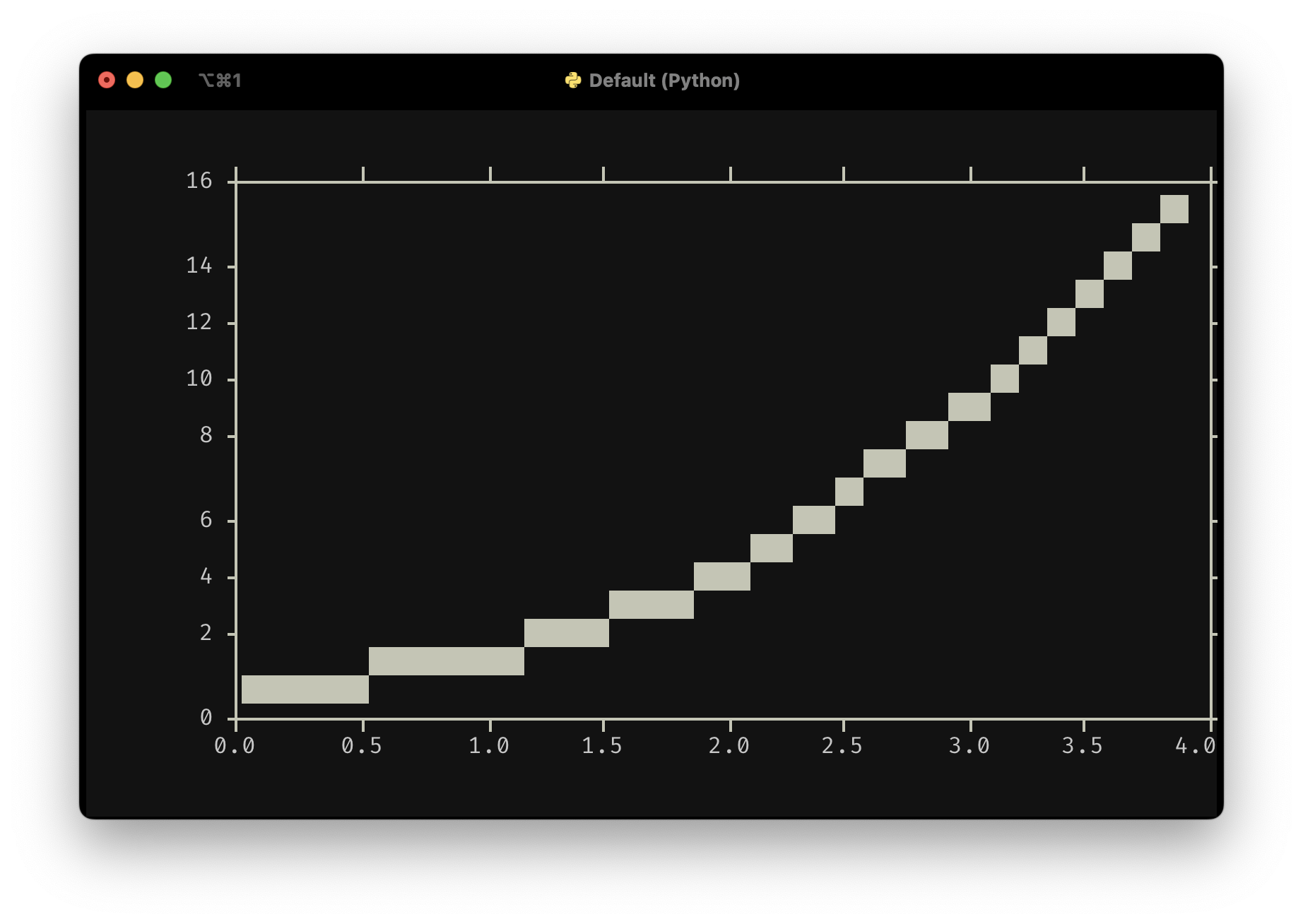
A minimal example is shown below: screenshot of minimal example
from textual.app import App, ComposeResult

from textual_plot import PlotWidget


class MinimalApp(App[None]):
    def compose(self) -> ComposeResult:
        yield PlotWidget()

    def on_mount(self) -> None:
        plot = self.query_one(PlotWidget)
        plot.plot(x=[0, 1, 2, 3, 4], y=[0, 1, 4, 9, 16])


MinimalApp().run()

You include a PlotWidget in your compose method and after your UI has finished composing, you can start plotting data. The plot() method takes x and y data which should be array-like. It can be lists, or NumPy arrays, or really anything that can be turned into a NumPy array which is what's used internally. The plot() method further accepts a line_style argument which accepts Textual styles like "white", "red on blue3", etc. For standard low-resolution plots, it does not make much sense to specify a background color since the text character used for plotting is a full block filling an entire cell.

High-resolution plotting

The plot widget supports high-resolution plotting where the character does not take up the full cell:

screenshot of minimal hires example

from textual.app import App, ComposeResult

from textual_plot import HiResMode, PlotWidget


class MinimalApp(App[None]):
    def compose(self) -> ComposeResult:
        yield PlotWidget()

    def on_mount(self) -> None:
        plot = self.query_one(PlotWidget)
        plot.plot(
            x=[0, 1, 2, 3, 4],
            y=[0, 1, 4, 9, 16],
            hires_mode=HiResMode.BRAILLE,
            line_style="bright_yellow on blue3",
        )


MinimalApp().run()

Admittedly, you'll be mostly plotting with foreground colors only. The plot widget supports four high-resolution modes: Hires.BRAILLE (2x8), HiRes.HALFBLOCK (1x2) and HiRes.QUADRANT (2x2) where the size between brackets is the number of 'pixels' inside a single cell.

Scatter plots

To create scatter plots, use the scatter() method, which accepts a marker argument which can be any unicode character (as long as it is one cell wide, which excludes many emoji characters and non-Western scripts): screenshot of scatter plot

import numpy as np
from textual.app import App, ComposeResult

from textual_plot import PlotWidget


class MinimalApp(App[None]):
    def compose(self) -> ComposeResult:
        yield PlotWidget()

    def on_mount(self) -> None:
        rng = np.random.default_rng(seed=4)
        plot = self.query_one(PlotWidget)

        x = np.linspace(0, 10, 21)
        y = 0.2 * x - 1 + rng.normal(loc=0.0, scale=0.2, size=len(x))
        plot.scatter(x, y, marker="⦿")


MinimalApp().run()

The full demo code

Finally, the code of the demo is given below, showing how you can handle multiple plots and updating 'live' data:

import importlib.resources
import itertools

import numpy as np
from textual.app import App, ComposeResult
from textual.containers import Container
from textual.widgets import Footer, Header, TabbedContent, TabPane
from textual_hires_canvas import HiResMode

from textual_plot import PlotWidget


class SpectrumPlot(Container):
    BINDINGS = [("m", "cycle_modes", "Cycle Modes")]

    _modes = itertools.cycle(
        [HiResMode.QUADRANT, HiResMode.BRAILLE, None, HiResMode.HALFBLOCK]
    )
    mode = next(_modes)

    def compose(self) -> ComposeResult:
        yield PlotWidget()

    def on_mount(self) -> None:
        # Read CSV data included with this package
        self.spectrum_csv = importlib.resources.read_text(
            "textual_plot.resources", "morning-spectrum.csv"
        ).splitlines()

        # plot the spectrum and set ymin limit once
        self.plot_spectrum()
        self.query_one(PlotWidget).set_ylimits(ymin=0)

    def plot_spectrum(self) -> None:
        x, y = np.genfromtxt(
            self.spectrum_csv,
            delimiter=",",
            names=True,
            unpack=True,
        )

        plot = self.query_one(PlotWidget)
        plot.clear()
        plot.plot(x, y, hires_mode=self.mode)
        plot.set_xlabel("Wavelength (nm)")
        plot.set_ylabel("Intensity")

    def action_cycle_modes(self) -> None:
        self.mode = next(self._modes)
        self.plot_spectrum()


class SinePlot(Container):
    _phi: float = 0.0

    def compose(self) -> ComposeResult:
        yield PlotWidget()

    def on_mount(self) -> None:
        self._timer = self.set_interval(1 / 24, self.plot_moving_sines, pause=True)

    def on_show(self) -> None:
        self._timer.resume()

    def on_hide(self) -> None:
        self._timer.pause()

    def plot_moving_sines(self) -> None:
        plot = self.query_one(PlotWidget)
        plot.clear()
        x = np.linspace(0, 10, 41)
        y = x**2 / 3.5
        plot.scatter(
            x,
            y,
            marker_style="blue",
            # marker="*",
            hires_mode=HiResMode.QUADRANT,
        )
        x = np.linspace(0, 10, 200)
        plot.plot(
            x=x,
            y=10 + 10 * np.sin(x + self._phi),
            line_style="blue",
            hires_mode=None,
        )

        plot.plot(
            x=x,
            y=10 + 10 * np.sin(x + self._phi + 1),
            line_style="red3",
            hires_mode=HiResMode.HALFBLOCK,
        )
        plot.plot(
            x=x,
            y=10 + 10 * np.sin(x + self._phi + 2),
            line_style="green",
            hires_mode=HiResMode.QUADRANT,
        )
        plot.plot(
            x=x,
            y=10 + 10 * np.sin(x + self._phi + 3),
            line_style="yellow",
            hires_mode=HiResMode.BRAILLE,
        )

        self._phi += 0.1


class DemoApp(App[None]):
    AUTO_FOCUS = "PlotWidget"

    def compose(self) -> ComposeResult:
        yield Header()
        yield Footer()
        with TabbedContent():
            with TabPane("Daytime spectrum"):
                yield SpectrumPlot()
            with TabPane("Moving sines"):
                yield SinePlot()


def main():
    app = DemoApp()
    app.run()


if __name__ == "__main__":
    main()

List of important plot widget methods

  • clear(): clear the plot.
  • plot(x, y, line_style, hires_mode, label): plot a dataset with a line using the specified linestyle and high-resolution mode.
  • scatter(x, y, marker, marker_style, hires_mode, label): plot a dataset with markers using the specified marker, marker style and high-resolution mode.
  • set_xlimits(xmin, xmax): set the x-axis limits. None means autoscale.
  • set_ylimits(xmin, xmax): set the y-axis limits. None means autoscale.
  • set_xticks(ticks): manually specify x-axis tick locations.
  • set_yticks(ticks): manually specify y-axis tick locations.
  • set_xlabel(label): set the x-axis label.
  • set_ylabel(label): set the y-axis label.
  • show_legend(location, is_visible): show or hide the plot legend.

Various other methods exist, mostly for coordinate transformations and handling UI events to zoom and pan the plot.

Alternatives

Textual-plotext uses the plotext library which has more features than this library. However, it does not support interactive zooming or panning and the tick placement isn't as nice since it simply divides up the axes range into a fixed number of intervals giving values like 0, 123.4, 246.8, etc.

Roadmap

The performance can be much improved, but we're working on that. Next, we'll work on adding some features like date axes. This will (probably) not turn into a general do-it-all plotting library. We focus first on handling quantitative data in the context of physics experiments. If you'd like to see features added, do let us know. And if a PR is of good quality and is a good fit for the API, we'd love to handle more use cases beyond physics. And who knows, maybe this will turn into a general plotting library!

Project details


Download files

Download the file for your platform. If you're not sure which to choose, learn more about installing packages.

Source Distribution

textual_plot-0.8.1.post1.tar.gz (1.7 MB view details)

Uploaded Source

Built Distribution

If you're not sure about the file name format, learn more about wheel file names.

textual_plot-0.8.1.post1-py3-none-any.whl (43.4 kB view details)

Uploaded Python 3

File details

Details for the file textual_plot-0.8.1.post1.tar.gz.

File metadata

  • Download URL: textual_plot-0.8.1.post1.tar.gz
  • Upload date:
  • Size: 1.7 MB
  • Tags: Source
  • Uploaded using Trusted Publishing? No
  • Uploaded via: uv/0.9.10 {"installer":{"name":"uv","version":"0.9.10"},"python":null,"implementation":{"name":null,"version":null},"distro":{"name":"macOS","version":null,"id":null,"libc":null},"system":{"name":null,"release":null},"cpu":null,"openssl_version":null,"setuptools_version":null,"rustc_version":null,"ci":null}

File hashes

Hashes for textual_plot-0.8.1.post1.tar.gz
Algorithm Hash digest
SHA256 80265d3e20d96119c3d83af24f4108d0881b128ffc48c4450549aae0e7c6783f
MD5 e3119079efad1db223ef90fe0844553f
BLAKE2b-256 91eb7beddfdd3a4b9620a82d9f346a4b01147fdcb6ba6ebfaf9edd051e34990b

See more details on using hashes here.

File details

Details for the file textual_plot-0.8.1.post1-py3-none-any.whl.

File metadata

  • Download URL: textual_plot-0.8.1.post1-py3-none-any.whl
  • Upload date:
  • Size: 43.4 kB
  • Tags: Python 3
  • Uploaded using Trusted Publishing? No
  • Uploaded via: uv/0.9.10 {"installer":{"name":"uv","version":"0.9.10"},"python":null,"implementation":{"name":null,"version":null},"distro":{"name":"macOS","version":null,"id":null,"libc":null},"system":{"name":null,"release":null},"cpu":null,"openssl_version":null,"setuptools_version":null,"rustc_version":null,"ci":null}

File hashes

Hashes for textual_plot-0.8.1.post1-py3-none-any.whl
Algorithm Hash digest
SHA256 df79d600ea3b488becb8c99031b308c08bb8c9a3c259a3a93135916c9021f2e3
MD5 9c3de2f26a88e9bd4217d20cd5ac8ab2
BLAKE2b-256 bf1ecac9553f16764d1b9cde9d17c9dde8dae2fb7be82a35c453523fce37a56b

See more details on using hashes here.

Supported by

AWS Cloud computing and Security Sponsor Datadog Monitoring Depot Continuous Integration Fastly CDN Google Download Analytics Pingdom Monitoring Sentry Error logging StatusPage Status page