
Model Context Protocol (MCP) implementation for Jupyter notebooks to overcome limitation with Cursor

Project description









The Notebook MCP
This directory contains a Model Context Protocol (MCP) server designed to allow AI agents within Cursor to interact with Jupyter Notebook (.ipynb) files. It was created to overcome a limitation with Cursor. As of version 0.48.9, in Agent mode, the model could not edit notebooks or notebook cells in response to dialog in the AI chat pane. This provides the agent with a suite of MCP tools that allow direct notebook cell manipulation.
I'm sure at some point this will be handled natively by Cursor, but I have a data science background, and I live in Jupyter notebooks. I got tired of copy/paste-ing output of the chat manually into the notebook cells.
Although designed to overcome a limitation with Cursor, this MCP server does not have anything specific to Cursor other than the configuration instructions. You could easily configure this for use with Claude Code or any model/agent that can take advantage of MCP.
This MCP server uses the nbformat library to safely manipulate notebook structures and enforces security by restricting operations to user-defined directories. It also uses nbconvert to enable exporting notebooks to various formats like Python scripts, HTML, and more. The server handles all notebook operations through a clean API that maintains notebook integrity and prevents malformed changes.
Acknowledgment
This is based on the great work of Jim Beno in cursor-notebook-mcp. It was initially a fork, but I changed it so much that being a fork stopped making sense as it is now impossible to send direct PRs.
Video Walkthrough
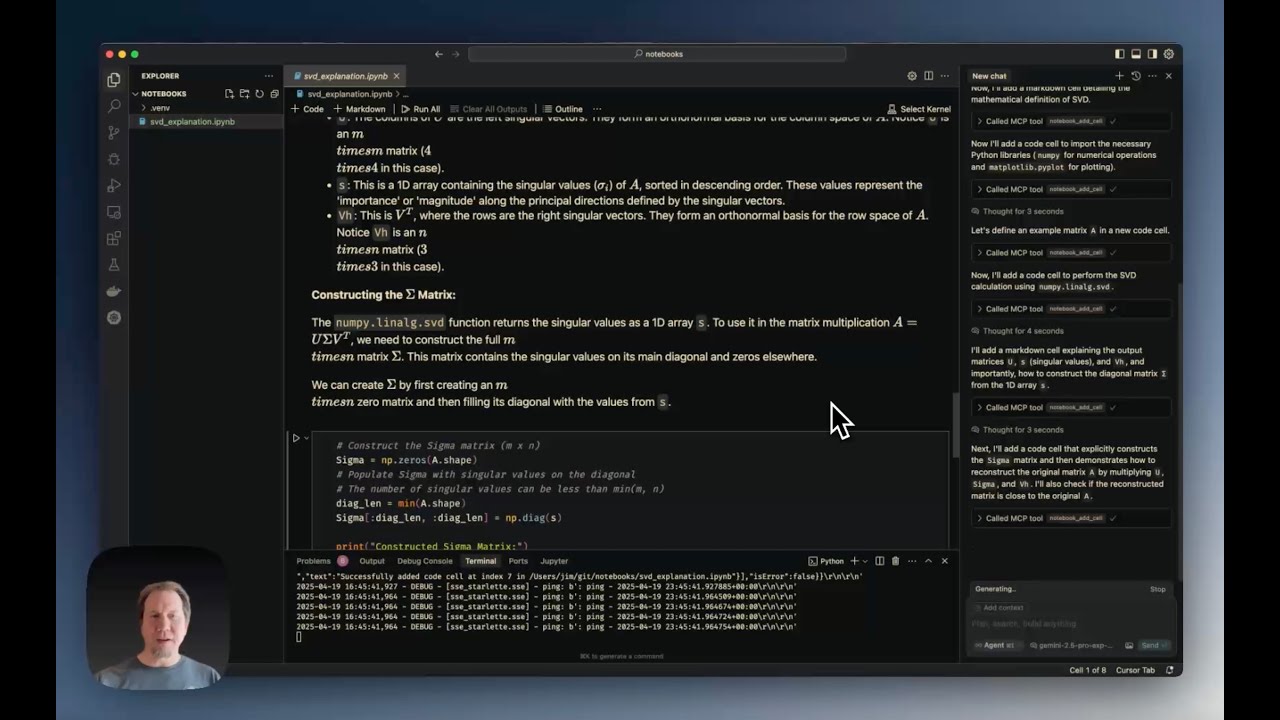
Cursor Jupyter Notebook MCP Server (YouTube) walks through:
- The current limitations of editing notebooks directly in Cursor.
- Installing and configuring the Notebook MCP Server.
- Creating a notebook from scratch (example shown: Singular Value Decomposition tutorial in less than 2 minutes).
- Demonstrating various editing tools (edit, split, duplicate cells).
- Reading notebook metadata.
- Exporting notebooks to python
Latest Version
Current Version: 0.2.3 - See the CHANGELOG.md for details on recent changes.
Features
Exposes the following MCP tools (registered under the notebook_mcp server):
notebook_create: Creates a new, empty notebook file.notebook_delete: Deletes an existing notebook file.notebook_rename: Renames/moves a notebook file from one path to another.notebook_read: Reads an entire notebook and returns its structure as a dictionary.notebook_read_cell: Reads the source content of a specific cell.notebook_add_cell: Adds a new code or markdown cell after a specified index.notebook_edit_cell: Replaces the source content of a specific cell.notebook_delete_cell: Deletes a specific cell.notebook_change_cell_type: Changes a cell's type (code, markdown, or raw).notebook_duplicate_cell: Duplicates a cell multiple times (default: once).notebook_get_cell_count: Returns the total number of cells.notebook_read_metadata: Reads the top-level notebook metadata.notebook_edit_metadata: Updates the top-level notebook metadata.notebook_read_cell_metadata: Reads the metadata of a specific cell.notebook_read_cell_output: Reads the output list of a specific code cell.notebook_edit_cell_metadata: Updates the metadata of a specific cell.notebook_clear_cell_outputs: Clears the outputs and execution count of a specific cell.notebook_clear_all_outputs: Clears outputs and execution counts for all code cells.notebook_move_cell: Moves a cell to a different position.notebook_split_cell: Splits a cell into two at a specified line number.notebook_merge_cells: Merges a cell with the cell immediately following it.notebook_validate: Validates the notebook structure against thenbformatschema.notebook_get_info: Retrieves general information (cell count, metadata, kernel, language info).notebook_export: Exports the notebook to another format (e.g., python, html) using nbconvert. Note: See External Dependencies below for requirements needed for certain export formats like PDF.
Requirements
This project has both Python package dependencies and potentially external system dependencies for full functionality.
Python Dependencies
- Python Version: 3.9+
- Core:
mcp>=0.1.0,nbformat>=5.0,nbconvert>=6.0,ipython,jupyter_core. These are installed automatically when you installthe-notebook-mcp. starlette: Required for SSE transport mode. Installed automatically when you installthe-notebook-mcp.uvicorn: Required for SSE transport mode. Install viapip install the-notebook-mcp[sse].- Optional - Development/Testing:
pytest>=7.0,pytest-asyncio>=0.18,pytest-cov,coveralls. Install viapip install -e ".[dev]"from source checkout.
External System Dependencies
These are not Python packages and must be installed separately on your system for certain features to work:
- Pandoc: Required by
nbconvertfor many non-HTML export formats (including the intermediate steps for PDF). See Pandoc installation instructions. - LaTeX (XeLaTeX recommended): Required by
nbconvertfor exporting notebooks directly to PDF (--to pdfoption used bynotebook_exportwithexport_format="pdf"). See Installing TeX.
If these external dependencies are missing, the notebook_export tool may fail when attempting to export to formats that rely on them (like PDF).
Installation
From PyPI
# Basic installation (stdio transport only)
# pip install the-notebook-mcp
uv pip install the-notebook-mcp

# With SSE transport support
# pip install "the-notebook-mcp[sse]"
uv pip install "the-notebook-mcp[sse]"
Development Installation (From Source)
-
Clone this repository:
git clone https://github.com/svallory/the-notebook-mcp.git # Or your fork
cd the-notebook-mcp
-
Create and activate a virtual environment (recommended):
# Using uv (recommended)
uv venv
source .venv/bin/activate # On Windows use `.venv\Scripts\activate`
-
Install in editable mode with all optional dependencies:
# Includes SSE and Test dependencies
# pip install -e ".[dev]"
uv pip install -e ".[dev]"

# Or install just the base + SSE
# pip install -e ".[sse]"
# uv pip install -e ".[sse]"

# Or install just the base
# pip install -e .
# uv pip install -e .
Running the Server
There are two main ways to run the server:
1. Using the Installed Script (Recommended after pip install)
If you have installed the package (even with -e), the the-notebook-mcp command should be available in your activated virtual environment:
# stdio transport (default)
the-notebook-mcp --allow-root /path/to/notebooks

# sse transport
the-notebook-mcp --transport sse --allow-root /path/to/notebooks --host 0.0.0.0 --port 8889
2. Direct Execution (Alternative / Development)
You can run the server's main script directly using the Python interpreter from your activated virtual environment. This is useful for development or if you haven't installed the package via pip install -e ..
Choose one of the following methods:
-
Using
python -m(Module Execution): This is generally preferred as Python handles the path resolution. Run from anywhere:# stdio transport python -m the_notebook_mcp.server --allow-root /path/to/notebooks # sse transport python -m the_notebook_mcp.server --transport sse --allow-root /path/to/notebooks --host 0.0.0.0 --port 8889
-
Using
python <script_path>: Run from the project's root directory:# stdio transport python the_notebook_mcp/server.py --allow-root /path/to/notebooks # sse transport python the_notebook_mcp/server.py --transport sse --allow-root /path/to/notebooks --host 0.0.0.0 --port 8889
Note: When using direct execution, ensure your current directory or Python environment is set up so that the the_notebook_mcp package and its dependencies can be found (activating the virtual environment usually handles this). The python -m method is less sensitive to the current directory.
Cursor Integration (mcp.json)
To make Cursor aware of this server, configure it in ~/.cursor/mcp.json (global) or .cursor/mcp.json (project-specific).
Recommendation: Use SSE Transport
While both stdio and sse transport modes are supported, using SSE is generally recommended for integration with Cursor.
- Simpler Configuration: The
mcp.jsonsetup only requires the server's URL. - Avoids Environment Issues: Since you run the server process manually in its own terminal with its virtual environment activated, you avoid potential conflicts or complications related to Cursor launching the server process directly using
stdioand ensuring the correct Python environment and packages are used.
See the sections below for configuring each transport type.
For stdio Transport
If you choose to use stdio (where Cursor launches and manages the server process), you need to tell Cursor how to start the server using the command and args fields. Care must be taken to ensure Cursor uses the correct Python environment containing this package and its dependencies. There are two primary ways to configure the command:
- Use the installed script (Simplest
stdiomethod): Pointcommandto thethe-notebook-mcpscript located in your virtual environment'sbindirectory (e.g.,.venv/bin/the-notebook-mcp). This requires installing the package first. - Run via Python Module (Flexible): Point
commandto your Python executable and use the-m the_notebook_mcp.server.mainargument. This is useful if you haven't installed the package site-wide or are running from source.
Troubleshooting stdio Environment Issues:
If the server fails to start or cannot find dependencies when using stdio, it likely means Cursor is not launching the process with the correct virtual environment activated. A common workaround is to:
- Activate your virtual environment manually in your terminal (
source .venv/bin/activate). - Launch Cursor from that same terminal by navigating to your project directory and running
cursor ..
This ensures Cursor inherits the activated environment, which should then be passed down to the stdio server process it launches.
Example (using installed script method):
Make sure to replace /absolute/path/to/venv/bin/the-notebook-mcp and /absolute/path/to/your/notebooks with the correct paths for your system.
{
  "mcpServers": {
    "notebook_mcp": {
      "command": "/absolute/path/to/venv/bin/the-notebook-mcp",
      "args": [
        "--allow-root", "/absolute/path/to/your/notebooks"
      ]
    }
  }
}
(Note: If using direct Python execution, modify the command and args like this):
{
  "mcpServers": {
    "notebook_mcp": {
      "command": "/absolute/path/to/venv/bin/python",
      "args": [
        "/absolute/path/to/project/the_notebook_mcp/server.py",
        "--allow-root", "/absolute/path/to/your/notebooks"
      ]
    }
  }
}
For SSE Transport
When using sse, you must run the server process manually first (see "Running the Server" section). Then, configure Cursor to connect to the running server's URL.
{
  "mcpServers": {
    "notebook_mcp": {
      "url": "http://127.0.0.1:8889/sse"
    }
  }
}
Note: When using SSE transport, make sure the server is started before attempting to use it in Cursor.
Suggested Cursor Rules
For smooth collaboration with the AI agent on Jupyter Notebooks, you might want to add rules like these to your Cursor configuration. Go to Cursor Settings > Rules and add them in either User Roles or Project Rules. This ensures that Cursor's AI features will consistently follow these best practices when working with Jupyter notebooks.
### Jupyter Notebook Rules for Cursor (Using notebook_mcp):

1.  **Tool Usage:**
    *   Always use the tools provided by the `notebook_mcp` server for operations on Jupyter Notebook (`.ipynb`) files.
    *   Avoid using the standard `edit_file` tool on `.ipynb` files, as this can corrupt the notebook structure.

2.  **Investigation Strategy:**
    *   A comprehensive suite of tools is available to inspect notebooks. If the user mentions an issue, a specific cell, or asks for a modification, first attempt to gather context independently.
    *   Use the available tools (`notebook_read`, `notebook_read_cell`, `notebook_get_info`, `notebook_read_metadata`, `notebook_read_cell_output`, `notebook_validate`) to examine the notebook structure, content, metadata, and outputs to locate the relevant context or identify the problem.
    *   Ask the user for clarification only if the necessary information cannot be determined after using the investigation tools.

3.  **Available Tools:**
    *   Be aware of the different categories of tools: File operations (`create`, `delete`, `rename`), Notebook/Cell Reading (`read`, `read_cell`, `get_cell_count`, `get_info`), Cell Manipulation (`add_cell`, `edit_cell`, `delete_cell`, `move_cell`, `change_cell_type`, `duplicate_cell`, `split_cell`, `merge_cells`), Metadata (`read/edit_metadata`, `read/edit_cell_metadata`), Outputs (`read_cell_output`, `clear_cell_outputs`, `clear_all_outputs`), and Utility (`validate`, `export`, `diagnose_imports`).

4.  **Math Notation:** For LaTeX in Markdown cells, use `$ ... $` for inline math and `$$ ... $$` for display math. Avoid `\( ... \)` and `\[ ... \]`.

5.  **Cell Magics:**
    *   Avoid unsupported cell magics like `%%bash`, `%%timeit`, and `%%writefile`.
    *   Use `!command` for shell commands instead of `%%bash`.
    *   Use `%timeit` (line magic) for timing single statements.
    *   `%%html` works for rendering HTML output.
    *   `%%javascript` can execute (e.g., `alert`), but avoid relying on it for manipulating cell output display.

6.  **Rich Outputs:** Matplotlib, Pandas DataFrames, Plotly, ipywidgets (`tqdm.notebook`), and embedded HTML in Markdown generally render correctly.

7.  **Mermaid:** Diagrams in ` ```mermaid ``` ` blocks are not rendered by default.

8.  **Character Escaping in `source` Parameter:**
    *   When providing the `source` string for `add_cell` or `edit_cell`, ensure that backslashes (`\`) are handled correctly. Newline characters **must** be represented as `\n` (not `\\n`), and LaTeX commands **must** use single backslashes (e.g., `\Sigma`, not `\\Sigma`).
    *   Incorrect escaping by the tool or its interpretation can break Markdown formatting (like paragraphs intended to be separated by `\n\n`) and LaTeX rendering.
    *   After adding or editing cells with complex strings (especially those involving newlines or LaTeX), consider using `read_cell` to verify the content was saved exactly as intended and correct if necessary.
Command-Line Arguments
The server accepts the following command-line arguments:
--allow-root: Required. Absolute path to a directory where notebooks are allowed. Can be used multiple times. Notebook operations outside these roots will be denied.
Limits:
--max-cell-source-size: Max bytes for cell source (default: 10MB).--max-cell-output-size: Max bytes for cell output (default: 10MB).
Transport:
--transport:stdio(default) orsse.--host: Host for SSE transport (default:0.0.0.0).--port: Port for SSE transport (default:8889).
Logging:
--log-dir: Directory to store log files. Defaults to~/.the_notebook_mcp.--log-level:DEBUG,INFO(default),WARNING,ERROR,CRITICAL.
Security
- Workspace Root Enforcement: The server requires the
--allow-rootcommand-line argument during startup. It will refuse to operate on any notebook file located outside the directories specified by these arguments. This is a critical security boundary. - Path Handling: The server uses
os.path.realpathto resolve paths and checks against the allowed roots before any read or write operation. - Input Validation: Basic checks for
.ipynbextension are performed. - Cell Source Size Limit: The server enforces a maximum size limit (configurable via
--max-cell-source-size, default 10 MiB) on the source content provided tonotebook_edit_cellandnotebook_add_cellto prevent excessive memory usage. - Cell Output Size Limit: The server enforces a maximum size limit (configurable via
--max-cell-output-size, default 10 MiB) on the total serialized size of outputs returned bynotebook_read_cell_output.
Limitations
- No Cell Execution: This server cannot execute notebook cells. It operates solely on the
.ipynbfile structure using thenbformatlibrary and does not interact with Jupyter kernels. Cell execution must be performed manually by the user within the Cursor UI (selecting the desired kernel and running the cell). Implementing execution capabilities in this server would require kernel management and introduce significant complexity and security considerations.
Known Issues
- UI Refresh Issues: Occasionally, some notebook operations (like cell splitting or merging) may succeed at the file level, but the Cursor UI might not show the updated content correctly. In such situations, you can:
- Close and re-open the notebook file
- Save the file, which might prompt to "Revert" or "Overwrite" - select "Revert" to reload the actual file content
Development & Testing
- Setup virtual environment and install dev dependencies:
# python -m venv .venv
uv venv
source .venv/bin/activate
# pip install -e ".[dev]"
uv pip install -e ".[dev]"
- Run tests:
# Use the wrapper script to ensure environment variables are set
./run_tests.sh
# Or run specific tests
# ./run_tests.sh tests/test_notebook_tools.py
Issues
If you encounter any bugs or issues, please submit them to our GitHub issue tracker:
- Visit svallory/the-notebook-mcp
- Click on "New Issue"
- Provide a clear title and description of the bug or feature request.
Contributing
Contributions are welcome! Please follow these steps:
- Fork the repository
- Create a new branch for your feature (
git checkout -b feature/amazing-feature) - Make your changes
- Run tests to ensure nothing is broken (
pytest tests/) - Commit your changes (
git commit -m 'Add amazing feature') - Push to your branch (
git push origin feature/amazing-feature) - Open a Pull Request
Please make sure your PR:
- Includes tests for new functionality
- Updates documentation as needed
- Follows the existing code style
- Includes a clear description of the changes
For major changes, please open an issue first to discuss what you would like to change.
License
This project is licensed under the MIT License. See the LICENSE file for details.
Author
This project is maintained by svallory. The original author is Jim Beno (see Acknowledgment section).
Release history Release notifications | RSS feed


Download files
Download the file for your platform. If you're not sure which to choose, learn more about installing packages.
Source Distribution
Built Distribution
Filter files by name, interpreter, ABI, and platform.
If you're not sure about the file name format, learn more about wheel file names.
Copy a direct link to the current filters
File details
Details for the file the_notebook_mcp-0.8.0.tar.gz.
File metadata
- Download URL: the_notebook_mcp-0.8.0.tar.gz
- Upload date:
- Size: 141.8 kB
- Tags: Source
- Uploaded using Trusted Publishing? No
- Uploaded via: uv/0.7.3
File hashes
| Algorithm | Hash digest | |
|---|---|---|
| SHA256 |
22eb2e6a5e28b5b0aa537f3d6345163b023a4fe8e56f0b793711967819eb2332
|
|
| MD5 |
4eaef1dfe86a6925564e4d73f177ed99
|
|
| BLAKE2b-256 |
bf3f8cca2a9ff0b915a874bbfd0d977c0fa0f0ed9ef075b6c90e0e4716bca6d5
|
File details
Details for the file the_notebook_mcp-0.8.0-py3-none-any.whl.
File metadata
- Download URL: the_notebook_mcp-0.8.0-py3-none-any.whl
- Upload date:
- Size: 41.7 kB
- Tags: Python 3
- Uploaded using Trusted Publishing? No
- Uploaded via: uv/0.7.3
File hashes
| Algorithm | Hash digest | |
|---|---|---|
| SHA256 |
7943d1d6087029a3029fee61879a4c1f945d80959836e7be67da97a34c3a9d7a
|
|
| MD5 |
b5ed475f581b033e641cebdec53b23e3
|
|
| BLAKE2b-256 |
1ec9d238d82ca538c9692ace3b2ac8d257d46073d67a029f05708a8d884a6855
|






