

Tidekeeper
Tidekeeper is an unofficial TIDAL downloader with a terminal interface and an optional desktop app. It is a maintained fork of Tidal-Media-Downloader.






Get started
1. Install Tidekeeper
Choose the option that best fits how you want to use it.
Python install
This is the recommended option if you already have Python 3.10 or newer. For the terminal version:
python -m pip install -U tidekeeper
tidekeeper
For the desktop app:
python -m pip install -U "tidekeeper[gui]"
tidekeeper-gui
Standalone app
If you do not want to install Python, download the terminal or desktop app for your operating system from the latest GitHub Release. Builds are available for Windows, macOS, Linux x86-64, and Linux ARM64.
Standalone apps cannot replace themselves during an update. Download a newer file from the Releases page when a new version is available.
Linux and Termux installer
curl -fsSL https://raw.githubusercontent.com/OpenNerdz/tidekeeper/main/install.sh | bash
On Android, first allow Termux to use shared storage:
termux-setup-storage
Docker
The Docker image includes ffmpeg and stores configuration and downloads in folders on the host:
docker build -t tidekeeper .
docker run --rm -it \
  -v "$PWD/config:/config" \
  -v "$PWD/downloads:/downloads" \
  tidekeeper
The container runs as user ID 1000, so both folders must be writable by that
user. The desktop app is not included in the Docker image.
2. Sign in
You only need to complete device login the first time and whenever Tidekeeper needs a fresh session.
In the terminal:
- Run
tidekeeper. - Open the displayed
link.tidal.comaddress. - Enter the displayed code and approve the login.
- Return to Tidekeeper after the login succeeds.
In the desktop app:
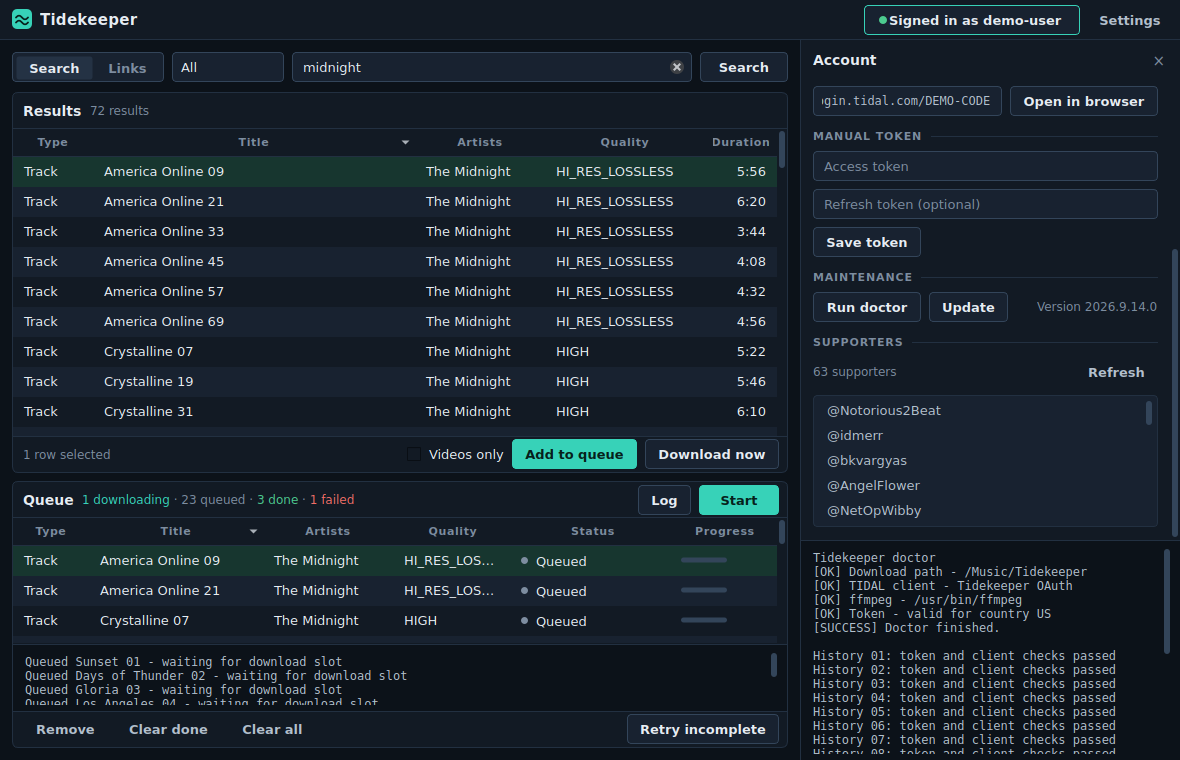
- Click Signed out to open the Account panel.
- Click Start device login.
- Click Open in browser and approve the login.
Tidekeeper may ask you to sign in once after an update changes the TIDAL client. This is expected and prevents an old session from breaking downloads.
3. Download something
In the terminal, paste a TIDAL link at the prompt. You can also start a download directly:
tidekeeper -l "https://tidal.com/browse/track/70973230"
In the desktop app, paste a link at the top and click Download now. You can also search, select a result, and add it to the queue.
Use tidekeeper --open-output to open the download folder. Use only content
that your account can play and that you are permitted to download.
Keep Tidekeeper updated
For a Python terminal install:
tidekeeper --update
For a Python desktop install, use the Update button in the Account panel or:
tidekeeper --update-gui
Restart Tidekeeper after updating. If you use a standalone app, download the
new executable from the Releases page
instead. Check the installed version with tidekeeper --version.
Common tasks
Choose quality
Max is the default and requests the best available standard audio quality,
including 24-bit/192 kHz FLAC when the track and account offer it. New profiles
use the Tidal HiRes client for Max playback. Existing profiles that still use
Tidal TV can select Tidal HiRes in the desktop Advanced settings or
terminal API-client menu, save, and sign in once with the new client.
A single legacy Master selection requests lossless FLAC: Max first, then HiFi.
TIDAL retired MQA in July 2024.
To choose your own fallback order, use --quality-priority Max,HiFi,High,Normal.
Other single-quality selections remain strict, and lists of fallback qualities
keep their order (Master is treated as Max).
DRM-protected DASH streams are rejected; fallback can use unencrypted streams
offered by TIDAL for your account.
Dolby Atmos is optional because it is often a separate version of an album or track. Select Atmos in the desktop app or use:
tidekeeper -q Atmos -l "TIDAL_LINK"
Tidekeeper will use a matching Atmos release when one is available. To download only videos from a link, use:
tidekeeper --video-only -l "TIDAL_LINK"
Change the download folder
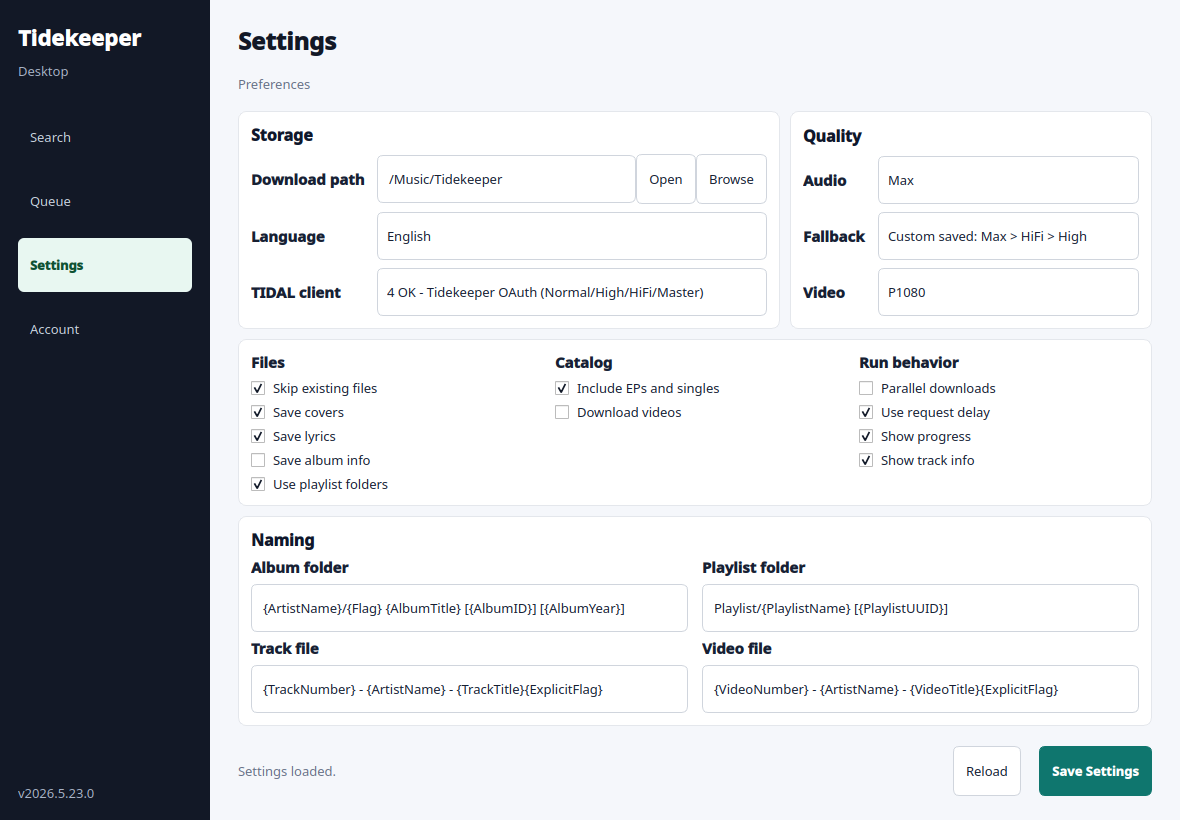
Choose a folder in the desktop Settings panel, or pass one for a terminal download:
tidekeeper --output "/path/to/music" -l "TIDAL_LINK"
To set the default folder before Tidekeeper creates its profile:
export TIDEKEEPER_DOWNLOAD_PATH="/path/to/music"
An existing profile keeps the folder already saved in its settings.
Download a list
Pass a text file instead of a link:
tidekeeper -l "/path/to/links.txt"
The file can contain TIDAL links or IDs separated by lines, spaces, or commas.
Lines beginning with # are comments. A list can also point to another text
file. Repeated items are skipped.
If some items fail, Tidekeeper saves them to failed-tracks.txt in the download
folder. Retry that file with the same command.
Customize names and folders
Filename templates use labels such as {ArtistName}, {AlbumTitle}, and
{TrackTitle}. The defaults work for most users. See the
filename template guide for examples and the full
list of available labels.
Desktop app
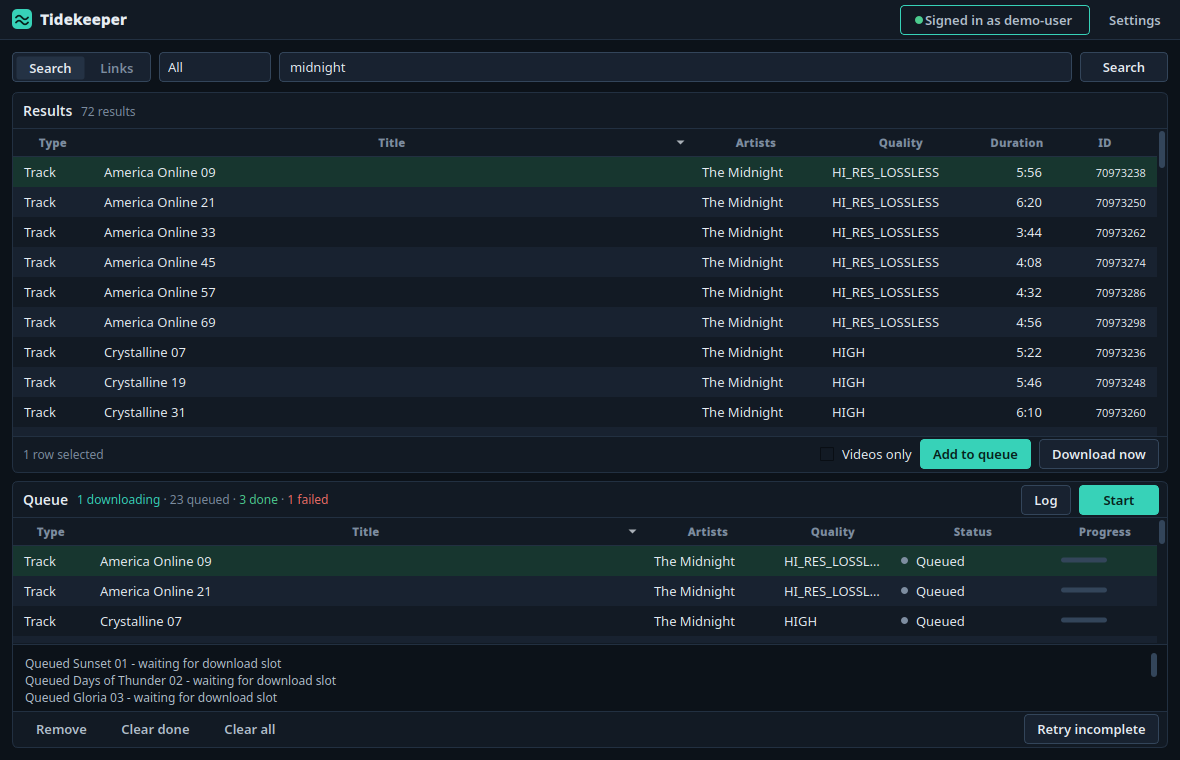
The desktop app keeps search, links, results, and the download queue in one window. Download now starts immediately, while Add to queue lets you prepare several downloads before clicking Start.
Completed items can be cleared without removing unfinished work. Failed, partial, interrupted, and cancelled items can be retried. Select an item to see its error details.
Settings affect the next download. Click Save if you want to keep them after restarting. Changing the TIDAL client signs you out automatically, so sign in again after saving that change.
Useful shortcuts:
Ctrl+Ffocuses search.Enteradds a selected result to the queue.Deleteremoves selected queue items.Ctrl+Zrestores the last removed queue item.Ctrl+,opens Settings.Esccloses the side panel.
| Settings | Account |
|---|---|
 |
 |
Troubleshooting
Start by checking your installation, login, download folder, and local tools:
tidekeeper --doctor
tidekeeper --paths
Session removed after updating or changing clients
Sign in again after the client changes. Current versions automatically remove sessions created by an old TIDAL client. If you use a standalone app, make sure you downloaded the latest executable rather than only pressing its Update button.
Login succeeds, but playback returns HTTP 404 / subStatus 4022
A playback rejection alone does not mean your login is invalid. Tidekeeper
keeps the session and tries its alternate manifest endpoint and any configured
quality fallbacks. Try HiFi or --quality-priority Max,HiFi,High,Normal.
Legacy Master settings now use FLAC automatically.
If all attempts fail, include the endpoint, client label, country, and quality from the error in your issue report. Repeatedly logging in with the same client may not change its playback availability. A client rejection on a catalog request still clears the unusable session after a failed refresh.
Max downloads are only 16-bit/44.1 kHz
Max is a ceiling, not an upsampling target: tracks whose best source is HiFi correctly remain 16-bit. For tracks marked Max, select the Tidal HiRes client in Advanced settings (or terminal menu option 7), save, sign in again, and keep audio quality set to Max. The older Tidal TV client remains available for accounts where its more conservative playback support is preferable.
Repeated HTTP 429 errors
TIDAL is temporarily limiting requests. Keep Use request delay enabled and
raise Request delay seconds to 30 or 60 before retrying.
ffmpeg is missing
Install ffmpeg with your operating system's package manager. It is recommended for video downloads and optional FLAC remuxing. The Docker image already includes it.
Termux reports cannot locate symbol "x265_api_get_216"
Refresh the media packages:
pkg upgrade -y
pkg reinstall -y ffmpeg x265
If that does not work, run termux-change-repo, choose another mirror, and try
again.
Still need help?
Open a GitHub issue and include:
- The version shown by
tidekeeper --version. - How you installed Tidekeeper.
- Your operating system.
- The complete error message with private tokens removed.
Install the latest source
Use this only if you specifically want the newest code from GitHub:
python -m pip install -U "git+https://github.com/OpenNerdz/tidekeeper.git#subdirectory=TIDALDL-PY"
Development
See CONTRIBUTING.md for setup and checks, CHANGELOG.md for release history, and SECURITY.md for private vulnerability reporting.
git clone https://github.com/OpenNerdz/tidekeeper.git
cd tidekeeper/TIDALDL-PY
python -m pip install -e .
python -m unittest discover -s tests
Build release artifacts with ./build.sh from the repository root.
Project policy
Tidekeeper does not aim to bypass access controls, subscription checks, or DRM. Use it only where permitted by law and applicable service terms. This project is not affiliated with or endorsed by TIDAL or Block, Inc.
The original project was created by YaronH and contributors. See NOTICE and LICENSE for attribution and licensing.
1 maintainer

Release files for tidekeeper 2026.9.20.0
For a detailed explanation of source distributions (sdists) and built distributions (wheels), please see the package formats documentation.
Source distribution (sdist)
| File | Size | Uploaded | |
|---|---|---|---|
| tidekeeper-2026.9.20.0.tar.gz | 181.6 kB | Details |
Built distribution (wheel)
| File | Interpreter | ABI | Platform | Reset |
|---|---|---|---|---|
| tidekeeper-2026.9.20.0-py3-none-any.whl | Python 3 | none | any | Details |
Total release size: 331.5 kB
Release files / tidekeeper-2026.9.20.0.tar.gz
| Download URL | tidekeeper-2026.9.20.0.tar.gz |
|---|---|
| Size | 181.6 kB |
| Tags | Source |
|
SHA-256 checksum How to use checksums |
84c1c081efffd7aebe5aff1d136fb5c7100acafbd5965f7a2db852324ee1a9b7
|
|
BLAKE2b-256 checksum How to use checksums |
58b8644dedf551b82ed86a72687d5812a669c358e84174a5daae46c0833f4153
|
| Upload date | |
|
Uploaded using Trusted Publishing? What is trusted publishing? |
No |
| Uploaded via |
twine/7.0.0 CPython/3.13.14
|
Release files / tidekeeper-2026.9.20.0-py3-none-any.whl
| Download URL | tidekeeper-2026.9.20.0-py3-none-any.whl |
|---|---|
| Size | 149.9 kB |
| Tags | Python 3 |
|
SHA-256 checksum How to use checksums |
2270cf8b26df2e996111ae4af6fc5efea58eaeb4ed74301648e583c427e2a0fd
|
|
BLAKE2b-256 checksum How to use checksums |
ead1089dac3c828a0195e05b57ec7c5306f9e0978400da1d0c10642e1f993cdf
|
| Upload date | |
|
Uploaded using Trusted Publishing? What is trusted publishing? |
No |
| Uploaded via |
twine/7.0.0 CPython/3.13.14
|














