
timeglance












Config-driven time planning at a glance - one web UI controls two planners:
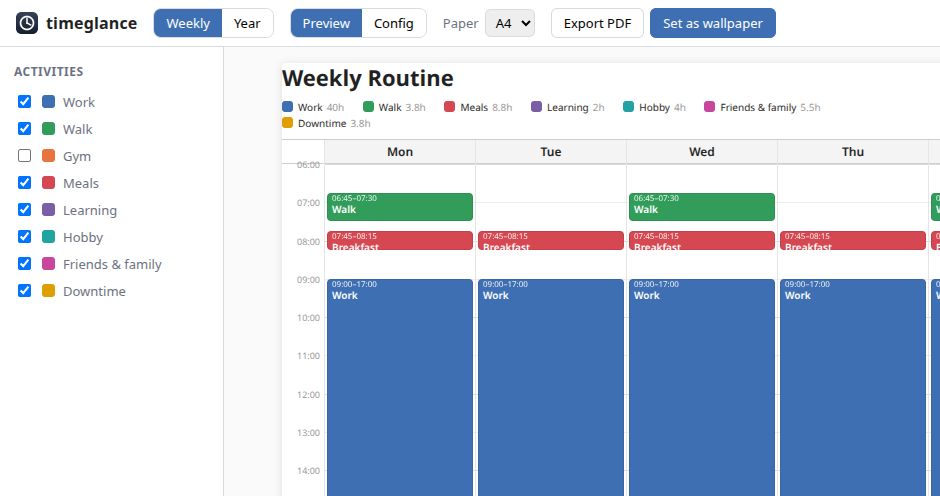
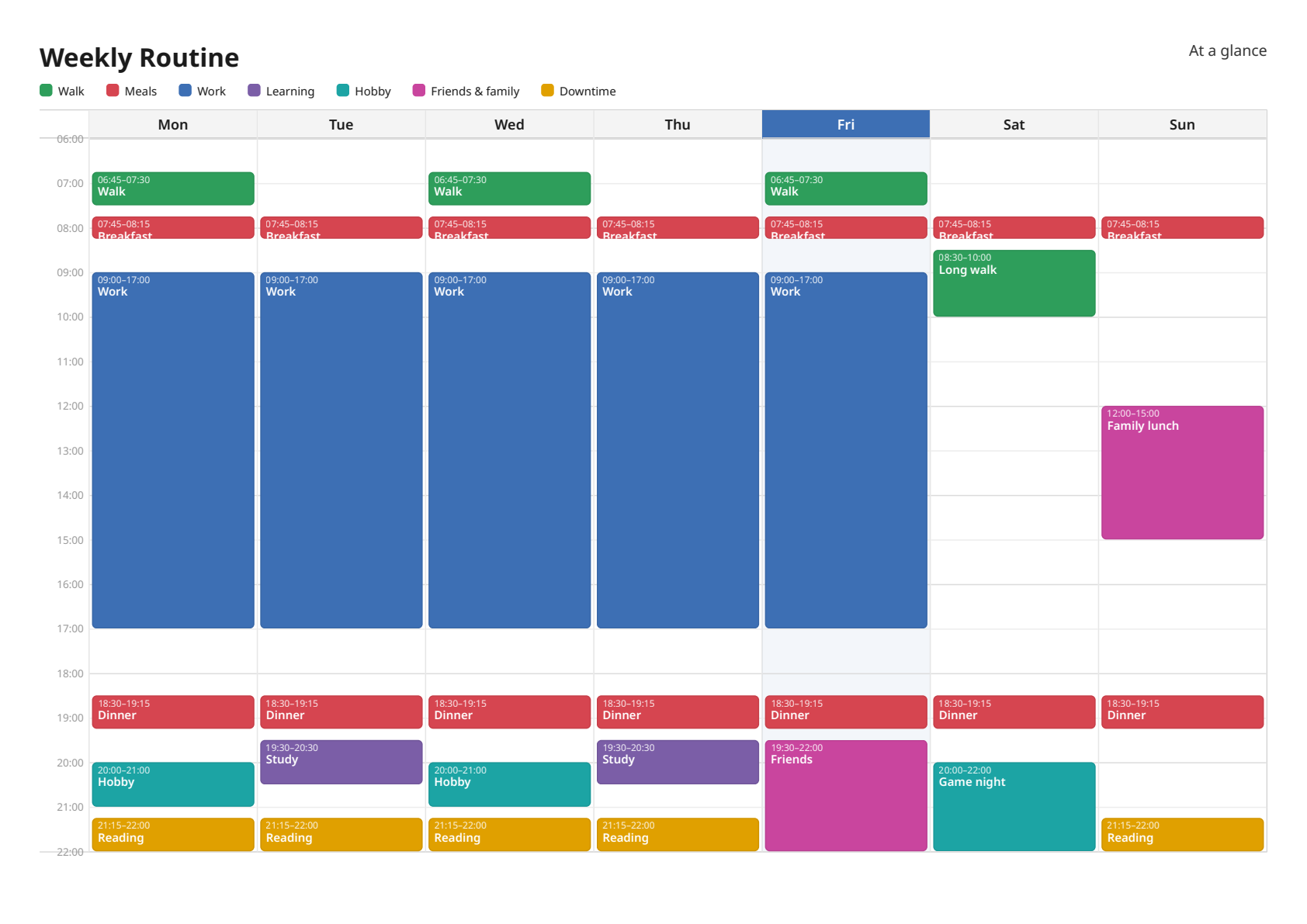
- Weekly - your routine sheet with topic layers. Print it or set it as a desktop wallpaper.
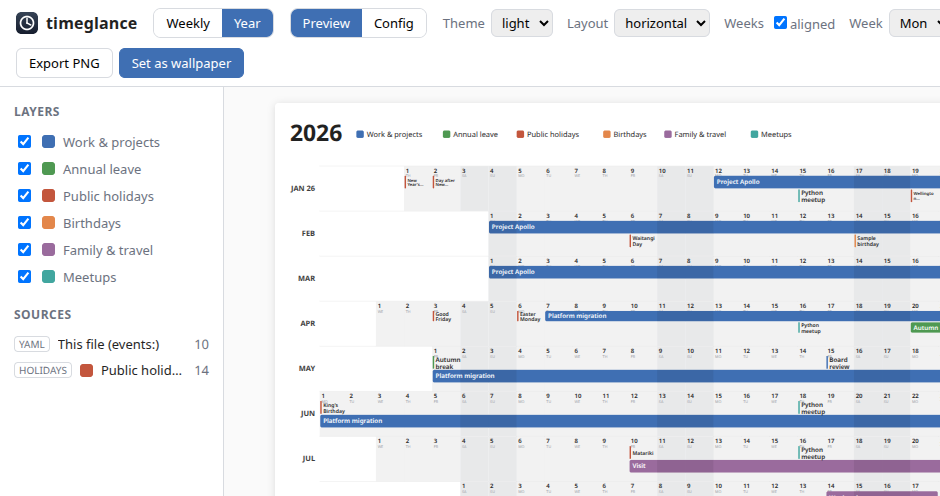
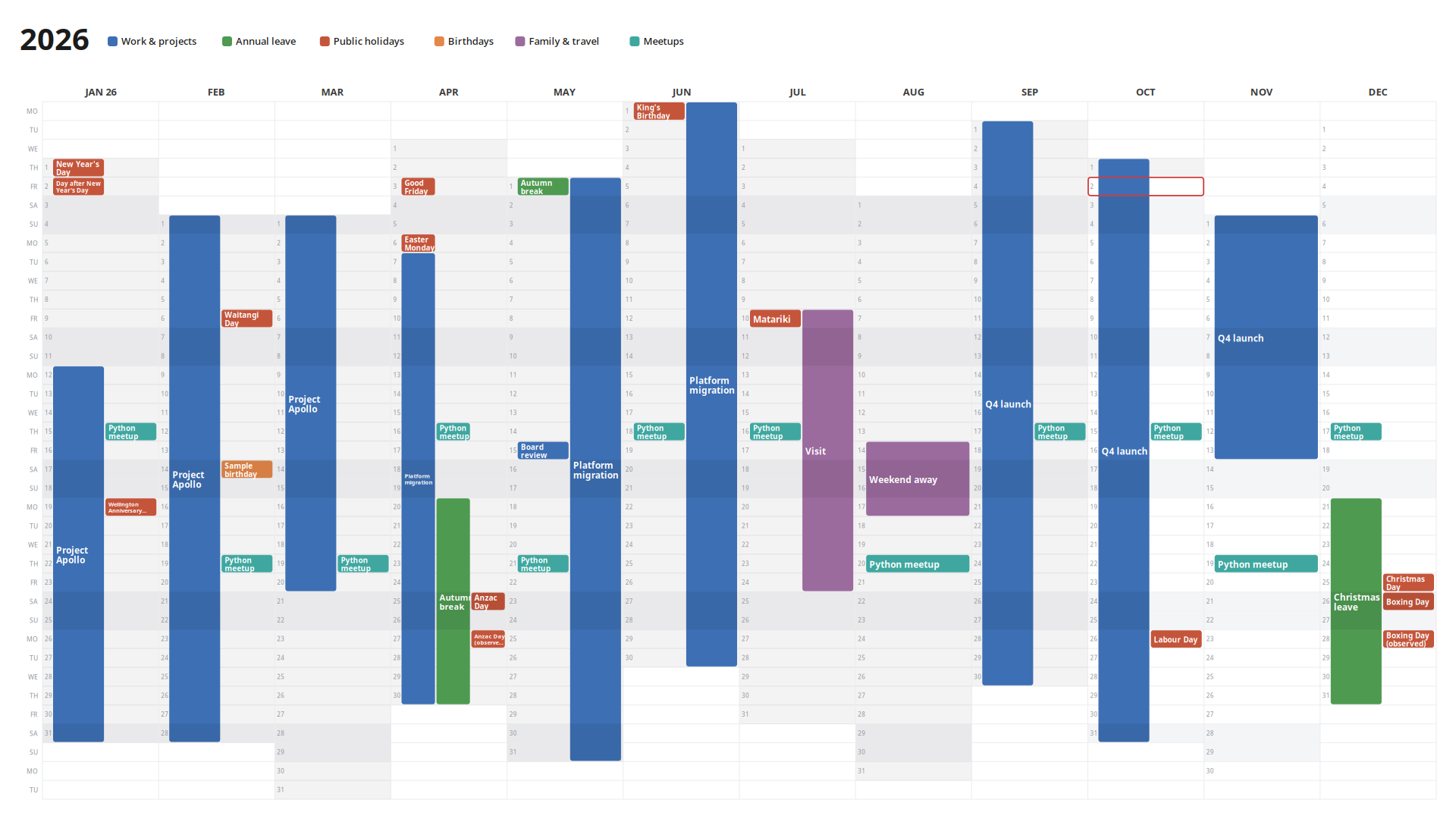
- Year - a wide year-at-a-glance planner, with layers fed by your own calendars, public holidays, and manually added events. Print it or set it as a desktop wallpaper.
One web control panel drives both - preview live, toggle layers, edit the YAML, export, or set the wallpaper:
...and the rendered output you print or set as a wallpaper:
Try it instantly (Docker)
The zero-install way to see the control panel and renders - a test drive, not a deployment target. A container can't reach your desktop session, so Docker can never set the wallpaper (the UI auto-hides it, and a scheduled "set wallpaper" renders the file but skips the set). Bridging the host display/DBus into a container isn't something we intend to solve - to actually use timeglance on your desktop, install it locally (next section).
docker compose run --rm timeglance timeglance init   # first run: scaffold year/ + weekly/ config.yaml
docker compose up                                    # then open http://localhost:8753
Config, outputs and scheduler state are bind-mounted under ./year, ./weekly and ./state, so the UI edits
files on your host. Outputs are written as your host user — the compose file defaults to 1000:1000 (the usual
first Linux user), so it just works for most; if your uid differs, run UID=$(id -u) GID=$(id -g) docker compose up.
Install (Ubuntu/Debian)
The simplest way on a Debian-based desktop. Grab the .deb from the
latest release and install it - apt pulls the native
libraries (Cairo, Pango, GDK-PixBuf, fonts) for you:
sudo apt install ./timeglance_<version>_amd64.deb
Then launch timeglance from your applications menu - the tray icon appears and opens the control panel, no
terminal needed. Or drive it from the CLI (timeglance is now on your PATH):
timeglance init     # scaffold year/ + weekly/ config.yaml from the templates
timeglance serve    # the control panel at http://localhost:8753
A self-contained install under /opt/timeglance using the system Python. Built for Ubuntu 24.04 / Debian 13
(Python 3.12); remove with sudo apt remove timeglance.
Install (Python/uv)
Needs Python 3.12+ and uv. WeasyPrint and CairoSVG load native libraries (Cairo, Pango, GDK-PixBuf) at runtime; most Linux desktops already have these, but on a minimal or server install add them first (Debian/Ubuntu):
sudo apt-get install libcairo2 libpango-1.0-0 libpangocairo-1.0-0 libgdk-pixbuf-2.0-0
uv sync
uv run timeglance init      # scaffold year/ + weekly/ config.yaml from the templates
uv run timeglance serve     # the control panel at http://localhost:8753
Config, state and rendered output live under the XDG base directories by default
(~/.config/timeglance, ~/.local/state/timeglance, ~/.local/share/timeglance); set
TIMEGLANCE_HOME=$PWD to keep it all in the current folder instead.
Headless renders (each flag has a YAML equivalent):
uv run timeglance render year --theme light --layout vertical   # render the year planner
uv run timeglance render weekly --format both                   # render the weekly sheet
Set and forget (systemd timer)
To re-render (and optionally re-wallpaper) on a schedule with nothing running and nothing to start after a reboot:
timeglance install              # write a user service + timer and enable it now
timeglance install --time 06:30 # or pick the time (default: schedule.yaml's)
timeglance uninstall            # remove it
(From a source checkout, prefix these with uv run.) This drops timeglance-render.service (a oneshot that runs
timeglance run, honouring your schedule.yaml) and timeglance-render.timer into ~/.config/systemd/user/, then
enables the timer. Persistent=true means a run missed while the machine was off happens on the next boot. Change
the time by re-running timeglance install --time HH:MM.
Setting the Plasma wallpaper needs an active graphical session, so a render while you're fully logged out writes the
files but can't paint - it repaints on your next session. For renders while logged out (no wallpaper), enable
lingering: loginctl enable-linger $USER.
Tray controller
A system-tray menu to open the panel and flip the schedule - a launcher and quick toggles, not the scheduler (the timer above keeps running whether or not the tray is open).
The .deb already includes it: after apt install, launch timeglance from your applications menu and the tray
icon appears (it pulls the system AppIndicator/GObject libraries as dependencies). From a source checkout, add the
extra and the system libraries, then run it:
sudo apt install python3-gi gir1.2-ayatanaappindicator3-0.1
uv sync --extra tray
uv run timeglance tray
The menu opens the control panel (starting the server first if needed), starts/stops it, picks the port, and toggles the schedule: enabled, time, which planners render, and which set the wallpaper. Autostart adds an XDG autostart entry so the tray is there every session (the same thing KDE's System Settings → Autostart manages). Quitting the tray only closes the panel it started - the systemd timer keeps running regardless.
Docs
- Motivation - why this exists, and how it fits a GTD/calendar setup
- The control panel - preview, config editor, scheduler & activity log
- Configuration - year & weekly YAML, calendar (
.ics) sources - Reference - every CLI flag and YAML key
- Wallpaper - KDE Plasma, per-screen native-resolution rendering
- Use as a library - import and render PNG/PDF/SVG from Python
- Contributing - setup, CI, releasing
Limitations
- Weekly activities can't overlap in time. Two activities over the same slot on the same day render on top of each other, so only one reads clearly.
1 maintainer

Metadata
1 maintainer
Release files for timeglance 3.2.0
For a detailed explanation of source distributions (sdists) and built distributions (wheels), please see the package formats documentation.
Source distribution (sdist)
| File | Size | Uploaded | |
|---|---|---|---|
| timeglance-3.2.0.tar.gz | 623.3 kB | Details |
Built distribution (wheel)
| File | Interpreter | ABI | Platform | Reset |
|---|---|---|---|---|
| timeglance-3.2.0-py3-none-any.whl | Python 3 | none | any | Details |
Total release size: 711.5 kB
Release files / timeglance-3.2.0.tar.gz
| Download URL | timeglance-3.2.0.tar.gz |
|---|---|
| Size | 623.3 kB |
| Tags | Source |
|
SHA-256 checksum How to use checksums |
22924adfdc8103620de7e532cb261a6256154bb37a7fbe4a39a99fc54d15fdfa
|
|
BLAKE2b-256 checksum How to use checksums |
56adbb0ac0d19f932d3415d33dcc5fa5266521213497ee23b8da3dee283cdae0
|
| Upload date | |
|
Uploaded using Trusted Publishing? What is trusted publishing? |
Yes |
| Uploaded via |
twine/7.0.0 CPython/3.13.14
|
Provenance
Provenance describes where a file came from. On PyPI, provenance is shared via attestations, which provide a verifiable record of the build or publishing details. View details, limitations and caveats.


PyPI Publish Attestation
PyPI verified that this artifact, at this checksum, originated from the publisher listed below.
Signed by GitHub Actions, verified by PyPI on Oct 11, 2026.
Transparency logRelease files / timeglance-3.2.0-py3-none-any.whl
| Download URL | timeglance-3.2.0-py3-none-any.whl |
|---|---|
| Size | 88.2 kB |
| Tags | Python 3 |
|
SHA-256 checksum How to use checksums |
b6982c37184bbd0503134c71c25de40982cc5e23bbd4f0126e7ed68afd4b7678
|
|
BLAKE2b-256 checksum How to use checksums |
e5abf191917059022f09064f5a7a4d8e475cdf7cd914d53be6cf874cb8ca1322
|
| Upload date | |
|
Uploaded using Trusted Publishing? What is trusted publishing? |
Yes |
| Uploaded via |
twine/7.0.0 CPython/3.13.14
|
Provenance
Provenance describes where a file came from. On PyPI, provenance is shared via attestations, which provide a verifiable record of the build or publishing details. View details, limitations and caveats.
PyPI Publish Attestation
PyPI verified that this artifact, at this checksum, originated from the publisher listed below.
Signed by GitHub Actions, verified by PyPI on Oct 11, 2026.
Transparency log













