
TV Cast
Browse your movie library, open files in your default Mac player, or cast to DLNA TVs. TV casting includes web and CLI controls, resume, and queues. Samsung TVs also support remote buttons, text input, and app launching. No app on the TV. Optional TMDB metadata adds posters, synopses, cast, and ratings.
Light theme
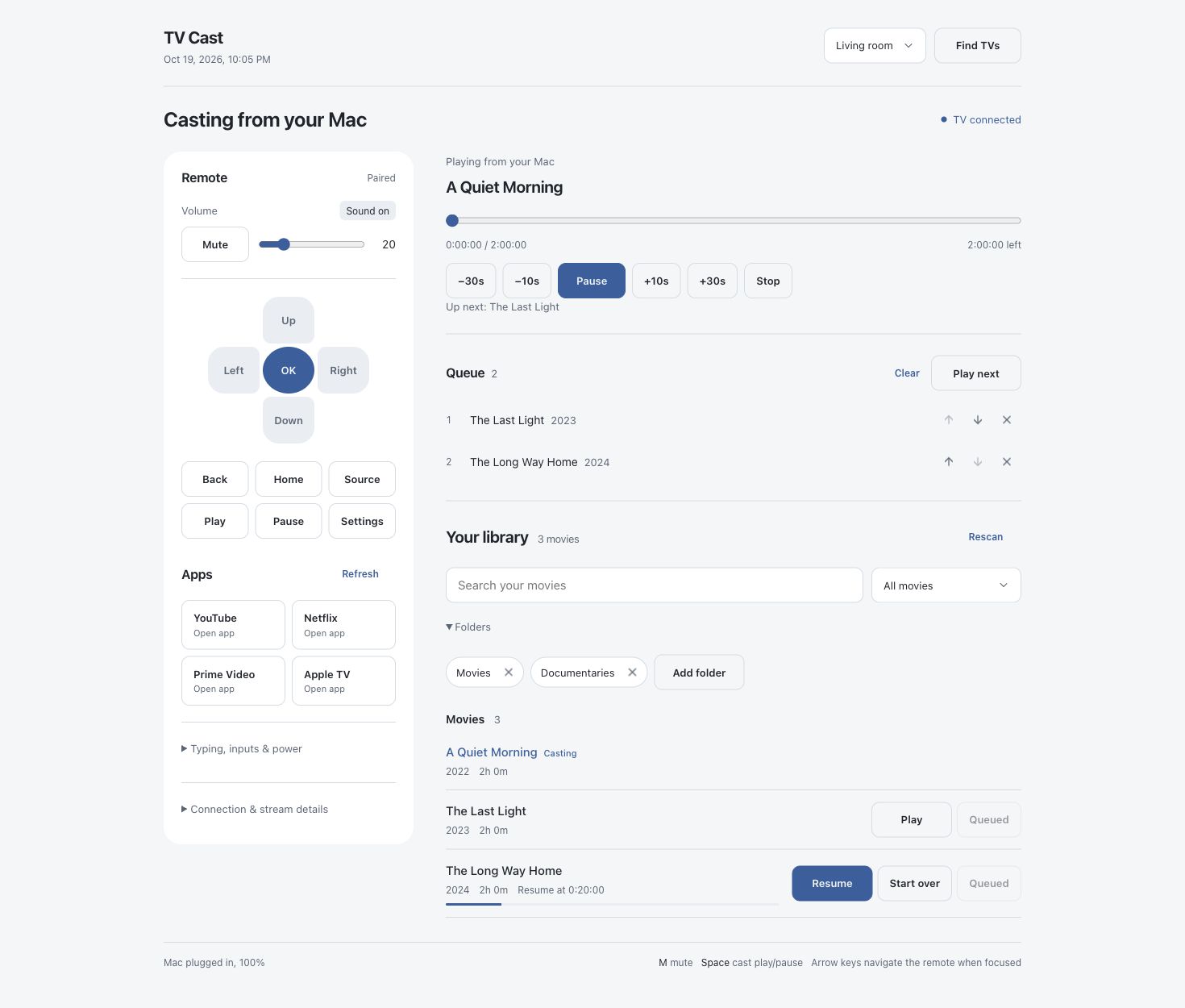
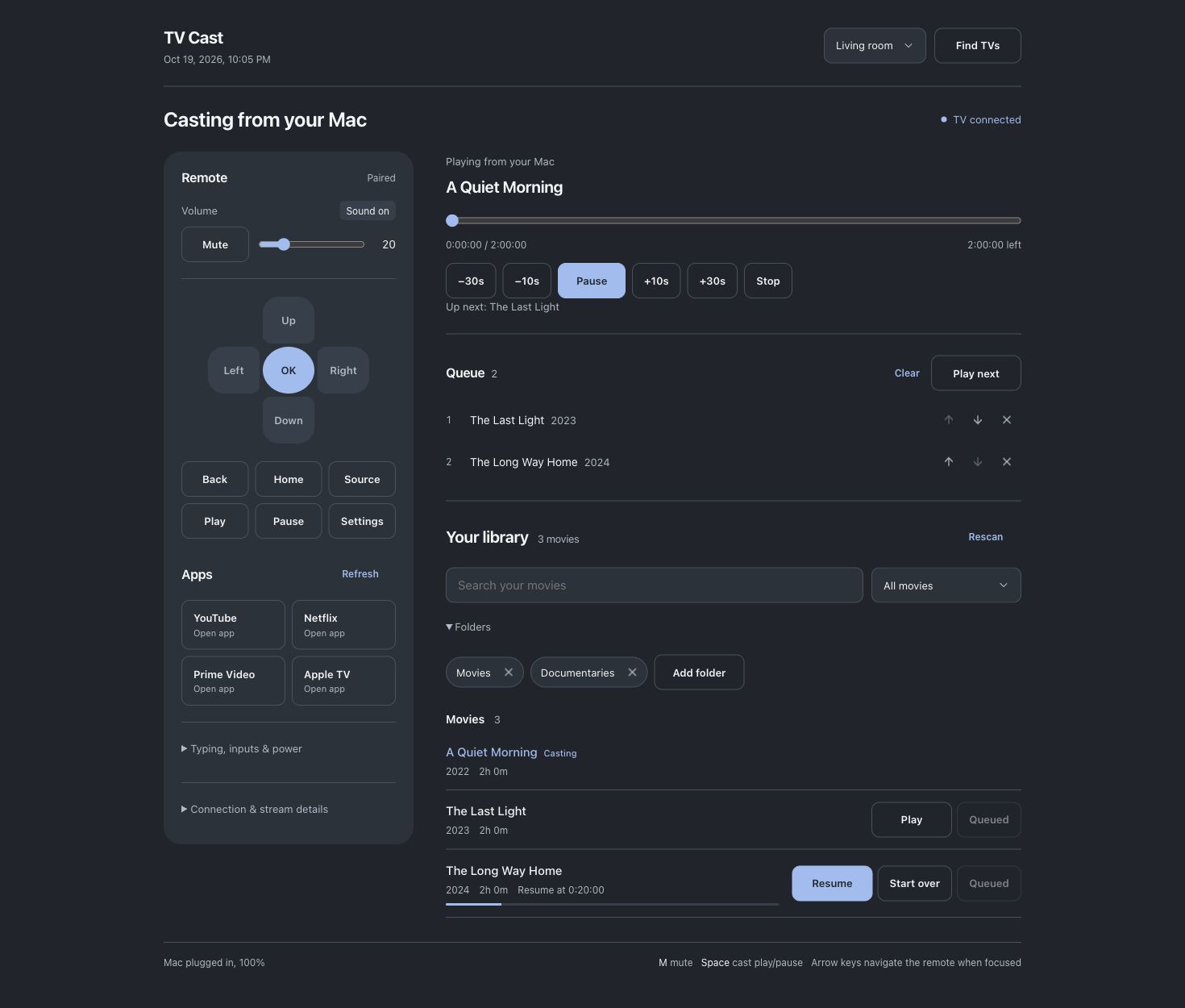
Screenshots show the TV controls with a demo library and simulated TV.
Quick start
Needs macOS with the Command Line Tools (xcode-select --install).
Install with uv:
uv tool install tvcast
tv install                 # starts now and at every login
tv ui                      # open the control panel
pipx install tvcast also works. The package has no runtime dependencies.
Optional: brew install ffmpeg for measured file runtimes and TV compatibility checks.
Run from source
git clone https://github.com/thepushkarp/tvcast.git ~/Projects/tvcast
cd ~/Projects/tvcast
./tv install
./tv ui
Keep the checkout outside Documents, Desktop and Downloads; macOS restricts login services
there. To use tv from any folder, symlink it into a directory on your PATH.
The panel opens to Library in grid view. Browse collection folders or turn off Show subfolders as collections to see their movies together. Search, switch to list view, and sort by title, runtime, year or TMDB score. Genre and actor/director filters are available above the movies; select a person or genre on a movie's detail page to browse related films in your library. New files and due metadata retries are checked automatically every minute.
Sort defaults are title A–Z, shortest runtime, newest year and highest score. The arrow reverses the direction. The theme button cycles through Auto, Light and Dark; Auto follows the Mac's appearance setting.
- Play icon: open the file in its default Mac application (IINA if configured in Finder).
- Cast icon: switch to TV and play on the selected TV. If none is selected, choose one there or use Find TVs. Allow local-network access if macOS asks.
- Settings: manage folders and add a TMDB API Read Access Token for movie information. Browsing and local playback work without TMDB or a connected TV.
- Refresh metadata, beside Rescan in the Library heading: update library information and posters while preserving manual matches and movies explicitly left unmatched. A movie's detail page also has its own refresh action.
The TV tab holds volume, playback, subtitles, queue and remote controls. On Samsung TVs, use Remote → Pair with TV, then press Allow on the TV. Apps switches supported TV apps; Open on TV appears only after the TV confirms it. Add movies using Add to TV queue on the movie detail page; adding does not start playback.
Everyday commands
| Command | What it does |
|---|---|
tv ui |
open the control panel |
tv open dune |
play a movie, resuming where you left off |
tv open "dune (2021)" --from-start |
pick by year, start from the beginning |
tv pause · tv play · tv stop |
|
tv seek 1:05:00 |
jump to a time |
tv volume 20 · tv mute on |
|
tv subs · tv subs french · tv subs off |
list subtitles, switch language or turn them off |
tv subs --add ~/Downloads/film.srt |
show your own subtitle file with the playing movie |
tv key home · tv key down down enter |
press remote buttons (Samsung) |
tv status |
what's playing, and where |
tv tvs --find · tv use 2 |
find TVs, switch to another TV |
tv --help lists everything. To remove TV Cast: tv uninstall.
Updates
Stop any active cast, then run uv tool upgrade tvcast (or pipx upgrade tvcast) followed by
tv install to restart the login service with the installed version. tv --version shows the
CLI version. Settings, pairing and playback history stay in Application Support.
Before removing the package, run tv uninstall, then uv tool uninstall tvcast or
pipx uninstall tvcast.
What works on which TV
| Any DLNA TV | Samsung (2016 or newer) | |
|---|---|---|
| Play, pause, seek, volume, resume | ✓ | ✓ |
Subtitle files (.srt, .ass, .ssa, .vtt) |
if the TV supports them; switching reloads the video | ✓, any language, switch while playing |
| Subtitles inside the video | if the TV supports them | ✓, from the TV's own menu |
| Remote buttons, apps, typing | – | ✓ |
More
- Your library: folders, subtitles, resume and queue
- Troubleshooting
- How it works: for developers
- Releasing
MIT licensed. Bundled icons retain their Lucide and Feather notices.
TMDB data and artwork are attributed in Library Settings. The bundled TMDB logo comes from TMDB’s documentation and remains subject to its branding requirements.
1 maintainer

Metadata
1 maintainer
Release files for tvcast 0.2.2
For a detailed explanation of source distributions (sdists) and built distributions (wheels), please see the package formats documentation.
Source distribution (sdist)
| File | Size | Uploaded | Provenance | Actions |
|---|---|---|---|---|
| tvcast-0.2.2.tar.gz | 144.2 kB | With provenance | Details for tvcast-0.2.2.tar.gz |
Built distribution (wheel)
| File | Interpreter | ABI | Platform | Actions Reset |
|---|---|---|---|---|
| tvcast-0.2.2-py3-none-any.whl | Python 3 | none | any | Details for tvcast-0.2.2-py3-none-any.whl |
Total release size: 257.4 kB
Release files / tvcast-0.2.2.tar.gz
| Download URL | tvcast-0.2.2.tar.gz |
|---|---|
| Size | 144.2 kB |
| Tags | Source |
|
SHA-256 checksum How to use checksums |
726eba3c0c955d4f067be0237c38e962c46931342284b26c3d281f975a69cce3
|
|
BLAKE2b-256 checksum How to use checksums |
b7bea89a0df44a7adfce17628d0b5576036b27eee5eec1a3ea99871ac422b3bb
|
| Upload date | |
|
Uploaded using Trusted Publishing? What is trusted publishing? |
Yes |
| Uploaded via |
twine/7.0.0 CPython/3.13.14
|
Provenance
Provenance describes where a file came from. On PyPI, provenance is shared via attestations, which provide a verifiable record of the build or publishing details. View details, limitations and caveats.


PyPI Publish Attestation
PyPI verified that this artifact, at this checksum, originated from the publisher listed below.
Signed by GitHub Actions, verified by PyPI on Nov 3, 2026.
Transparency logRelease files / tvcast-0.2.2-py3-none-any.whl
| Download URL | tvcast-0.2.2-py3-none-any.whl |
|---|---|
| Size | 113.2 kB |
| Tags | Python 3 |
|
SHA-256 checksum How to use checksums |
65c2b4bb81175268f0a7f8e2b486891c079f780a0faba8ac168c47d1a56ef211
|
|
BLAKE2b-256 checksum How to use checksums |
c5ba66847c3a24ca17ea2ea57ae57f97f53e1d800467a369efe72608d8fff7ad
|
| Upload date | |
|
Uploaded using Trusted Publishing? What is trusted publishing? |
Yes |
| Uploaded via |
twine/7.0.0 CPython/3.13.14
|
Provenance
Provenance describes where a file came from. On PyPI, provenance is shared via attestations, which provide a verifiable record of the build or publishing details. View details, limitations and caveats.
PyPI Publish Attestation
PyPI verified that this artifact, at this checksum, originated from the publisher listed below.
Signed by GitHub Actions, verified by PyPI on Nov 3, 2026.
Transparency logSecurity for tvcast 0.2.2
Provenance
Provenance describes where a file came from. On PyPI, provenance is shared via attestations, which provide a verifiable record of the build or publishing details. View details, limitations and caveats.
Full provenance
Both files in this release have been uploaded with provenance metadata.
Attestation for tvcast-0.2.2.tar.gz
PyPI Publish Attestation
PyPI verified that this artifact, at this checksum, originated from the publisher listed below.
Signed by GitHub Actions, verified by PyPI on Nov 3, 2026.
Transparency logA note on package security
PyPI is a repository for distributing packages, not a service for auditing them. While third-party security researchers and our staff do their best to detect and remove malicious packages, PyPI cannot guarantee the quality, security or suitability of any given package.
To learn more about protecting yourself from malicious actors, visit our package security documentation.














