
Web Alert 🔔
A beautiful, easy-to-use desktop application that watches websites for you and plays a sound when something changes. Perfect for tracking price drops, news updates, stock availability, or any website content you care about!
✨ Key Features
🎯 Easy to Use
- Beautiful Dashboard - Clean, modern interface that anyone can use
- Multiple Monitors - Watch as many websites as you want at the same time
- One-Click Control - Start, stop, or remove monitors with a single click
- Remembers Everything - Your monitors stay saved even after you close the app
🔍 Smart Monitoring
- Whole Page or Specific Parts - Watch entire pages or just the parts you care about
- Three Detection Modes - Choose how to detect changes (simple text, full page, or fast)
- Custom Schedules - Set how often each website should be checked (every minute, hour, etc.)
- Real-Time Status - See exactly what's happening with each monitor
🎨 Personalization
- Light & Dark Themes - Choose the look that suits you best
- Custom Alert Sounds - Use the built-in sound or upload your own
- Text-to-Speech Alerts - Add custom spoken messages when changes are detected
- Edit Job Configurations - Modify monitoring settings anytime without recreating
- Your Settings Saved - Theme and preferences saved automatically
- Configuration History - Quickly reuse previous monitoring setups
📊 Activity Tracking
- Individual Logs - Each monitor has its own activity history
- Export Logs - Save logs to review later
- Add Notes - Keep track of why you're monitoring each site
- Statistics - See how many changes detected and alerts played
📥 Installation
Super Easy Installation (Recommended)
Just one command! Open a terminal/command prompt and type:
pip install web-alert
That's it! The app and all its requirements install automatically. ✨
First Time Using Python?
If you don't have Python yet:
-
Install Python:
- Visit python.org
- Download Python 3.10 or newer
- ⚠️ Important: During installation, check "Add Python to PATH"
-
Install Web Alert:
pip install web-alert
For Developers
Want to modify the code? Clone the repository:
git clone https://github.com/Almas-Ali/web-alert.git
cd web-alert

# Using uv (recommended)
uv sync
uv run main.py

# Or with pip
pip install -e .
python main.py
🚀 Getting Started
Starting the Application
After installation, simply run:
web-alert
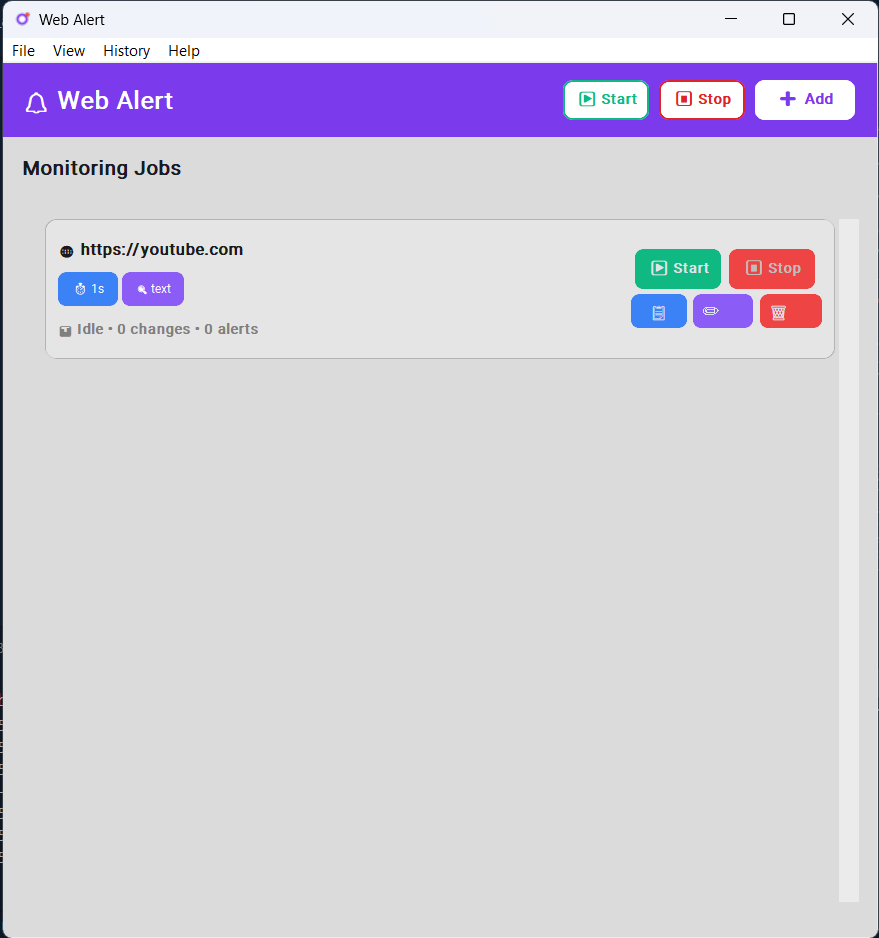
The dashboard will open with a beautiful purple header and a clean interface.
That's it! No need to navigate to any folder or run Python directly. The web-alert command works from anywhere! 🎉
Your First Monitor in 3 Steps
Step 1: Add a Website to Monitor
- Click the "+ Add" button in the top right
- A window opens - enter the website URL (e.g.,
https://example.com/product) - Leave other settings as default for now
- Click "Add Job"
Step 2: Start Monitoring
- Click the green "▶ Start" button next to your website
- The status will change to "Running" (in green)
- You'll see when it was last checked
Step 3: Get Alerted
- When the website changes, you'll hear an alert sound
- Check the "Logs" to see what changed and when
That's it! 🎉
Understanding the Dashboard
Top Buttons:
- ▶ Start - Start monitoring all websites at once
- ⏸ Stop - Stop all monitoring
- + Add - Add a new website to monitor
For Each Website:
- Green "Start" button - Begin checking this website
- Red "Stop" button - Pause checking (appears when running)
- 📋 Logs button - View activity history and add notes (hover for tooltip)
- ✏️ Edit button - Modify job settings without recreating (hover for tooltip)
- 🗑️ Remove button - Delete this monitor (hover for tooltip)
Menu Bar:
- File → Quick access to add/start/stop operations
- View → Change between Light, Dark, or System theme
- History → See and reuse previous monitoring setups
Using History (Save Time!)
Previously monitored something? Load it again instantly:
- While Adding: Click "📜 Load from History" button
- From Menu: Go to History → View All History
- Click "Add as Job" - All settings restored automatically!
Every website you monitor is saved automatically. No need to remember settings!
⚙️ Configuration Options (Optional)
These are optional - the defaults work great! But if you want more control:
Detection Modes
Choose how to detect changes (default is "text" - recommended for most users):
-
Text Mode ⭐ (Recommended)
- Watches the actual words on the page
- Ignores design changes, ads, and timestamps
- Perfect for: prices, availability, news articles
-
HTML Mode
- Watches everything including page structure
- Detects even tiny changes
- Perfect for: complete page monitoring
-
Hash Mode
- Super fast checking
- Detects any change at all
- Perfect for: frequent checks, simple pages
Check Interval
How often to check the website:
- Quick checks: 5-10 seconds (careful - don't overload websites!)
- Normal: 60 seconds (1 minute) - good default
- Relaxed: 300 seconds (5 minutes) or more
Tip: Start with 60 seconds and adjust based on how often the site changes.
CSS Selectors (Advanced)
Want to watch just part of a page? Use CSS selectors:
- Leave empty - Watch the whole page (easiest!)
#price- Watch the price element.stock-status- Watch stock availabilityh1.title- Watch the page title
Don't know CSS? No problem! Just leave it empty to watch everything.
Custom Alert Sounds
Don't like the default beep?
- Click "Browse" next to Alert Sound
- Pick your own WAV sound file
- Or leave default for the built-in alert
🔊 Text-to-Speech Alerts
Want to hear a custom message when changes are detected?
- In the "Text-to-Speech Message" field, enter your custom message
- Examples:
- "Alert! The website has changed!"
- "Price drop detected on your item!"
- "New content available!"
- Leave it empty if you only want the sound alert
How it works:
- If TTS message is configured: Only your spoken message plays (no sound)
- If TTS is empty: Regular sound alert plays instead
- They work exclusively to prevent audio overlap
- No additional setup required!
Pro Tips:
- Keep messages short and clear for best results
- The voice uses your system's default text-to-speech engine
- Choose either TTS or sound - they don't play together
✏️ Editing Jobs
Need to change a job's settings? No need to delete and recreate!
- Stop the job if it's running (click the red "Stop" button)
- Click the "✏️" edit button (hover to see tooltip)
- Modify any settings:
- Change the URL
- Adjust check interval
- Update CSS selector
- Switch detection mode
- Change alert sound
- Update TTS message
- Click "Save Changes"
What you can edit:
- ✅ Website URL
- ✅ CSS Selector
- ✅ Check Interval
- ✅ Comparison Mode
- ✅ Alert Sound
- ✅ TTS Message
- ✅ Job Notes
Note: Jobs must be stopped before editing to prevent conflicts.
🎨 Themes
Change the app's appearance to match your preference:
- Click View in the menu bar
- Choose Theme:
- ☀️ Light - Bright, clean look
- 🌙 Dark - Easy on the eyes
- 💻 System - Matches your computer's theme
Your choice is saved automatically!
📂 Where Things Are Saved
All your data is stored locally on your computer:
- Monitoring settings: Saved in
web_alert_store.db - Activity logs: Saved with each monitor
- Theme preference: Remembered automatically
- Alert sound: Stored in
sounds/folder
Nothing is sent to the internet - everything stays on your computer!
💡 What Can I Use This For?
Here are some real-world examples:
Shopping & Deals
- 🛒 Track product availability: Know the moment that sold-out item is back in stock
- 💰 Watch prices: Get notified when your favorite product goes on sale
- 🎁 Monitor deals: Catch limited-time offers before they expire
Career & Education
- 💼 Job postings: Be the first to apply when a new position opens
- 📚 University admissions: Know when results or announcements are posted
- 🏫 Course registration: Get alerts when spots open up
News & Information
- 📰 Breaking news: Track updates on topics you care about
- 🏛️ Government updates: Monitor official documents or announcements
- 🏆 Sports scores: Track game results or league standings
Personal Projects
- 🎮 Game servers: Check if your favorite server is online
- 📱 App updates: Know when a new version is released
- 🌐 Website changes: Track updates to any webpage you're interested in
The possibilities are endless! If it's on the web, you can monitor it.
- Total changes detected
- Total alerts played
- Active URL being monitored
Use Cases
- Price Monitoring: Track price changes on e-commerce sites
- News Updates: Get alerted when news sites publish new articles
- Product Availability: Monitor "Out of Stock" to "In Stock" changes
- Content Updates: Track blog posts or website content changes
- API Status Pages: Monitor service status dashboards
- Competition Tracking: Watch competitor website updates
💭 Helpful Tips
For Best Results:
- ⏱️ Start with 60 seconds - Don't check too often or websites might block you
- 🎯 Watch specific parts - Use CSS selectors to avoid false alarms from ads
- 🔊 Test your alert - Click "Test Sound" before you start monitoring
- 💾 Use History - Save configs for websites you check often
- 📝 Use Text mode - Ignores changing ads and timestamps
Being a Good Internet Citizen:
- Don't set intervals too short (under 30 seconds)
- Respect websites by not overloading them
- Some websites might block frequent checks
📋 System Requirements
To run this app, you need:
- Operating System: Windows (7, 10, or 11)
- Python: Version 3.10 or newer
- Internet: Active connection to check websites
- Sound: Speakers or headphones for alerts (or use TTS instead)
🆘 Common Issues & Solutions
"I'm not hearing any alerts!"
Solutions:
- ✅ Make sure your computer sound is turned on
- ✅ Check if you configured TTS message (it replaces sound)
- ✅ Try using TTS message instead of sound alert
- ✅ Try using the default alert (leave sound path empty)
- ✅ Check if your speakers/headphones are connected
"It keeps alerting but nothing changed!"
Solutions:
- ✅ Switch to Text Mode (ignores ads and animations)
- ✅ Use a CSS selector to watch just the part you care about
- ✅ Some websites have timestamps that change constantly
"It's not detecting any changes!"
Solutions:
- ✅ Check if the website opens in your web browser
- ✅ Try increasing the check interval (60 seconds)
- ✅ Make sure your CSS selector is correct (or leave it empty)
- ✅ Try switching to HTML Mode for more sensitive detection
"The app won't start!"
Solutions:
- ✅ Make sure Python is installed correctly
- ✅ Run
uv syncagain to install dependencies - ✅ Check if your antivirus is blocking it
"I get an error about Python not found"
Solutions:
- ✅ Reinstall Python from python.org
- ✅ During installation, check "Add Python to PATH"
- ✅ Restart your computer after installing
Still Having Problems?
Open an issue on GitHub with:
- What you were trying to do
- The exact error message
- Screenshots if possible
🤝 Want to Help Improve This App?
Found a bug? Have an idea for a new feature? Contributions are welcome!
- Report bugs: Open an issue on GitHub
- Suggest features: Tell us what you'd like to see
- Improve code: Submit a pull request
- Share feedback: Let us know how you're using it!
📄 License
MIT License - Free to use, modify, and share!
⚠️ Important Reminder
Be Respectful:
- Don't check websites too frequently (use 30+ second intervals)
- Respect website terms of service
- Excessive requests may get you blocked
- Use this tool responsibly!
👨💻 About
Created with ❤️ for anyone who needs to track website changes without constantly refreshing their browser.
Made possible by: Python, CustomTkinter, and coffee ☕
Ready to Start?
- Install:
pip install web-alert - Run:
web-alert - Add your first monitor
- Sit back and let it watch for you! 🎉
Installation troubleshooting? Check the Common Issues section above.
1 maintainer

Metadata
1 maintainer
Release files for web-alert 1.1.1
For a detailed explanation of source distributions (sdists) and built distributions (wheels), please see the package formats documentation.
Source distribution (sdist)
| File | Size | Uploaded | |
|---|---|---|---|
| web_alert-1.1.1.tar.gz | 51.5 kB | Details |
Built distribution (wheel)
| File | Interpreter | ABI | Platform | Reset |
|---|---|---|---|---|
| web_alert-1.1.1-py3-none-any.whl | Python 3 | none | any | Details |
Total release size: 119.5 kB
Release files / web_alert-1.1.1.tar.gz
| Download URL | web_alert-1.1.1.tar.gz |
|---|---|
| Size | 51.5 kB |
| Tags | Source |
|
SHA-256 checksum How to use checksums |
6bfeed282c0cc47953818ba44911c7fed48800e5f1a063018065efb28df9241c
|
|
BLAKE2b-256 checksum How to use checksums |
9320f70d8b688befa0d1148d0c36e3810807575ed6fccb1bac44fc0fbf5c755a
|
| Upload date | |
|
Uploaded using Trusted Publishing? What is trusted publishing? |
No |
| Uploaded via |
twine/6.2.0 CPython/3.9.25
|
Release files / web_alert-1.1.1-py3-none-any.whl
| Download URL | web_alert-1.1.1-py3-none-any.whl |
|---|---|
| Size | 68.0 kB |
| Tags | Python 3 |
|
SHA-256 checksum How to use checksums |
3789c080d8e41c1f24980358d054113734a54a126810c0c630d6513754f382b9
|
|
BLAKE2b-256 checksum How to use checksums |
bcdda2ead3e72a13a2b9d553b5008b360509305be2a0fb5970d2f1e599f85e88
|
| Upload date | |
|
Uploaded using Trusted Publishing? What is trusted publishing? |
No |
| Uploaded via |
twine/6.2.0 CPython/3.9.25
|














